How to Delete Your ClickUp Account

Deleting your ClickUp account is a straightforward process that permanently removes your workspace and all associated data. Whether you're switching to another project management tool or simply no longer need the service, this guide walks you through each step required to complete the account deletion.
Quick summary
In this tutorial, you'll learn how to navigate to your ClickUp account settings and permanently delete your account. You'll access the settings menu, locate the delete account option, and confirm the deletion to complete the process.
Why this matters
Account deletion is important when you want to ensure your data is completely removed from ClickUp's servers and you're no longer charged for the service. This is particularly relevant for users who've decided to discontinue their subscription or migrate their workflows to a different platform.
Step-by-step guide
- 1
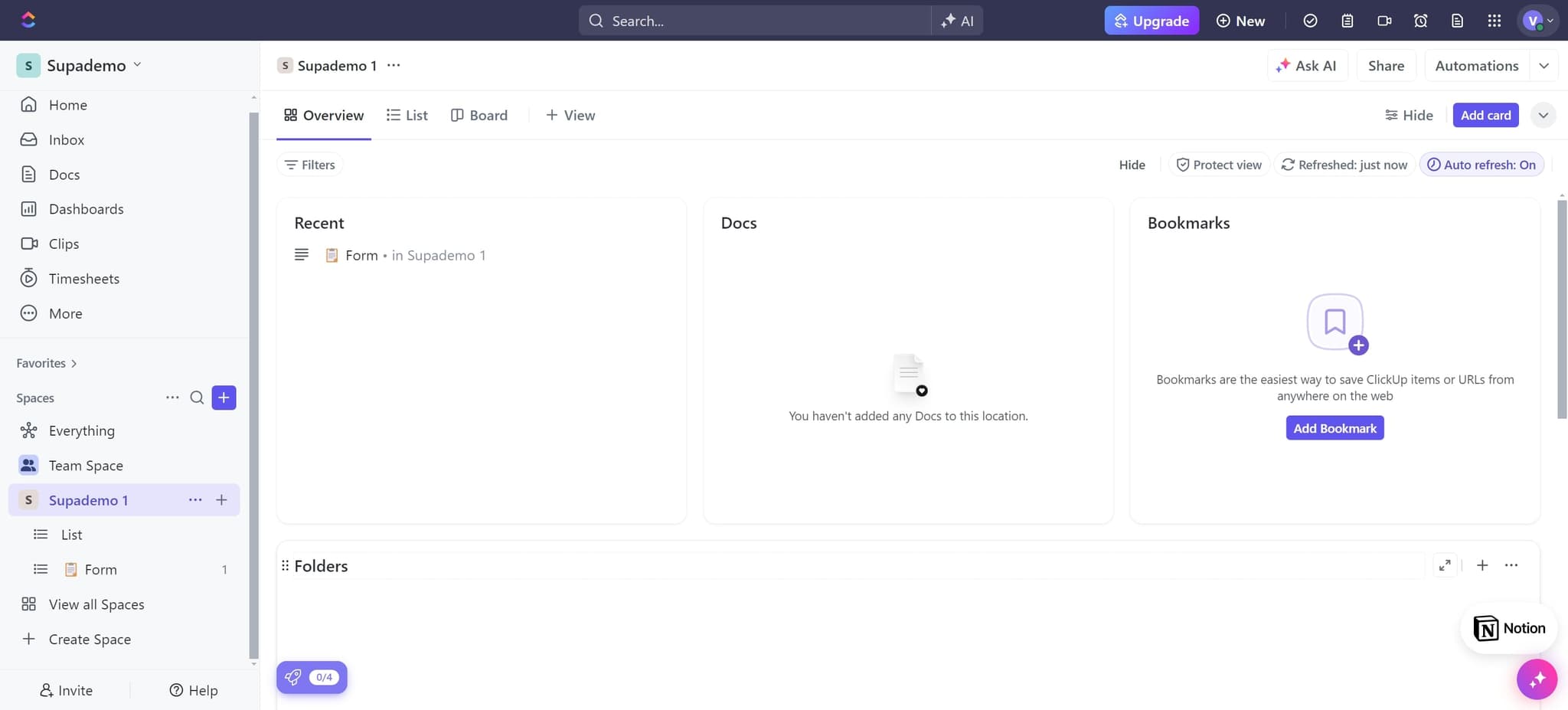
Click on Folders
Start by locating and clicking on the Folders section in your ClickUp interface. This is typically found in the main navigation menu on the left side of your screen.
- 2
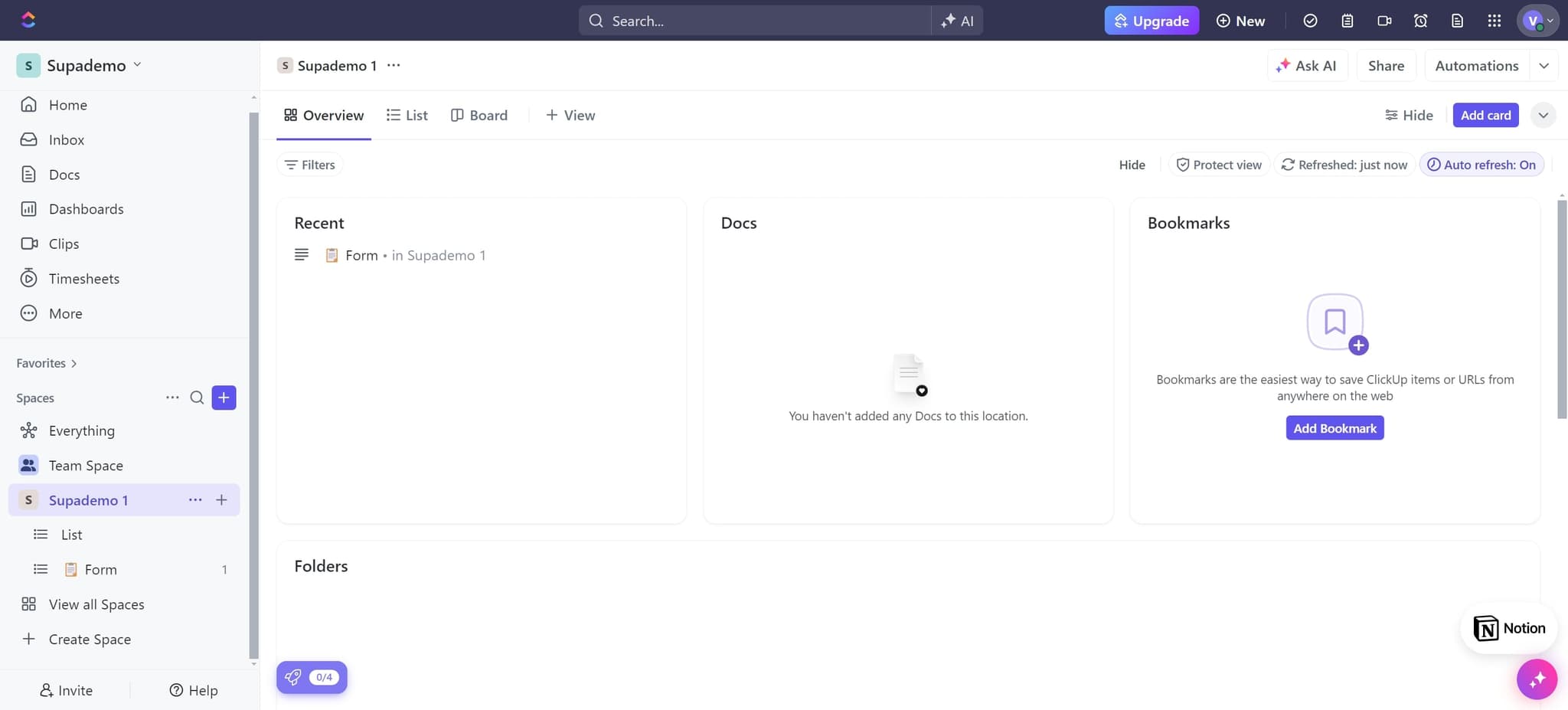
Access the menu
Click on the designated area to open the main menu options. This will display additional navigation choices for managing your account.
- 3
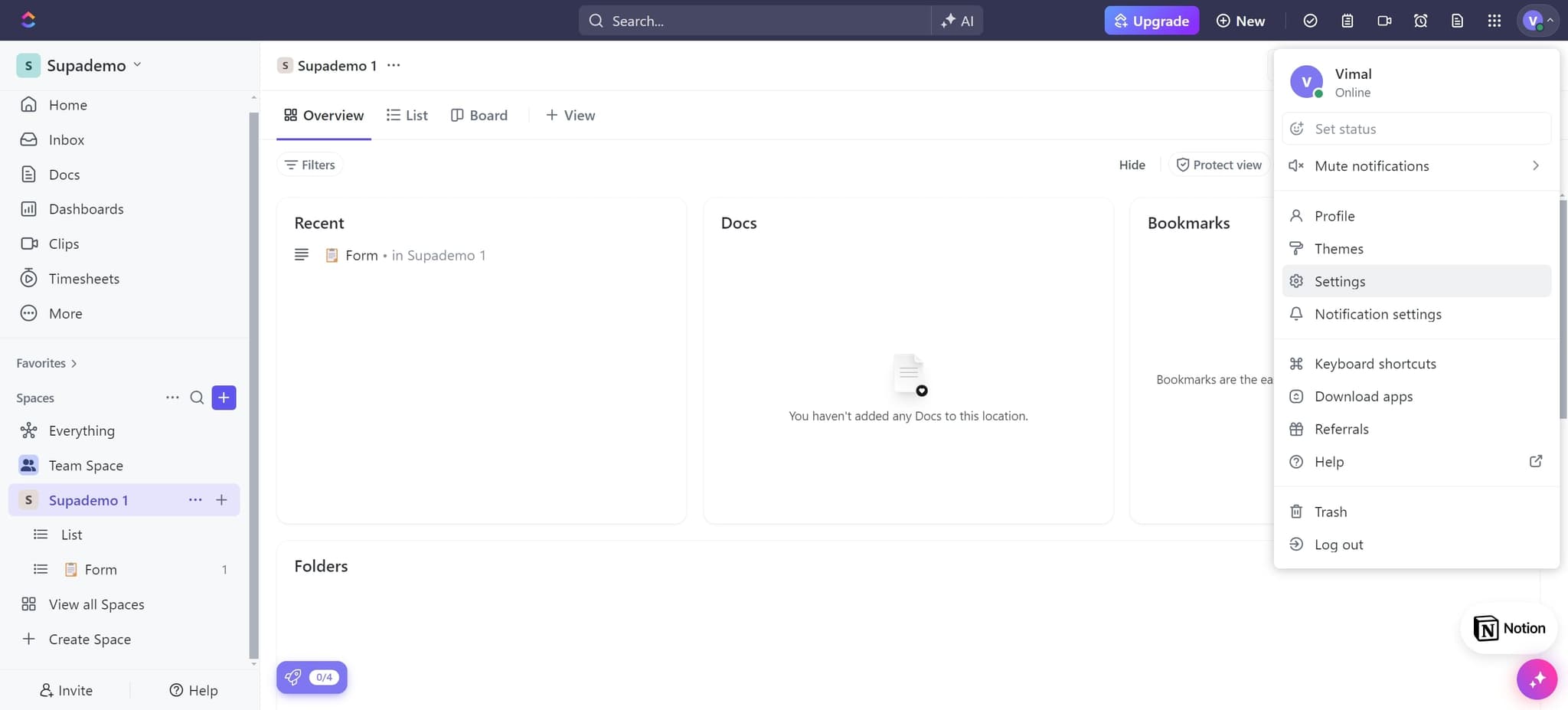
Open Settings
Click on Settings from the available options. This takes you to your account configuration and management area where you can modify your preferences and account details.
- 4
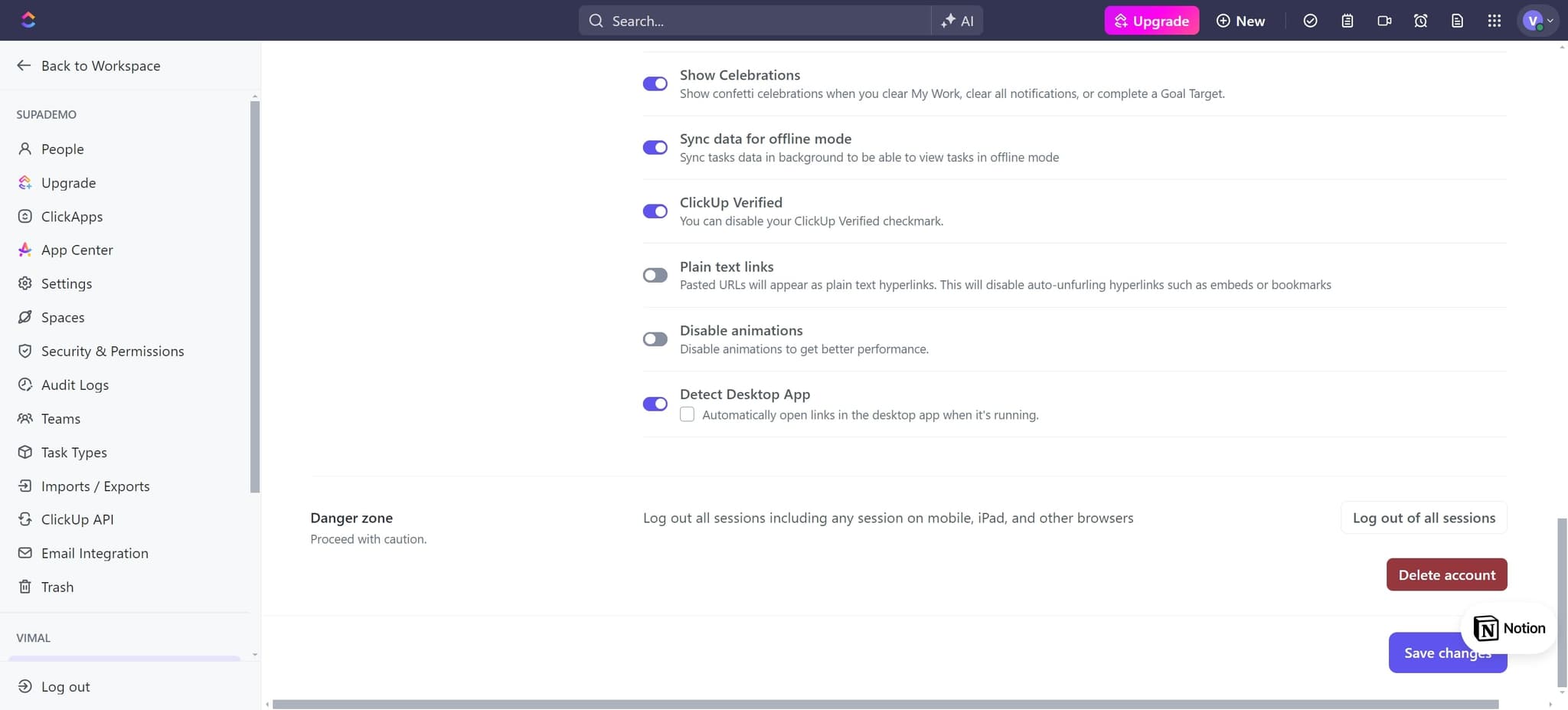
Select Delete Account
Locate and click on the Delete Account option within the Settings menu. This option triggers the account deletion process and displays relevant warnings about permanent data removal.
- 5
Proceed with deletion
Click on the prompt or button to continue with the deletion process. This step confirms your intention to move forward with removing your account.
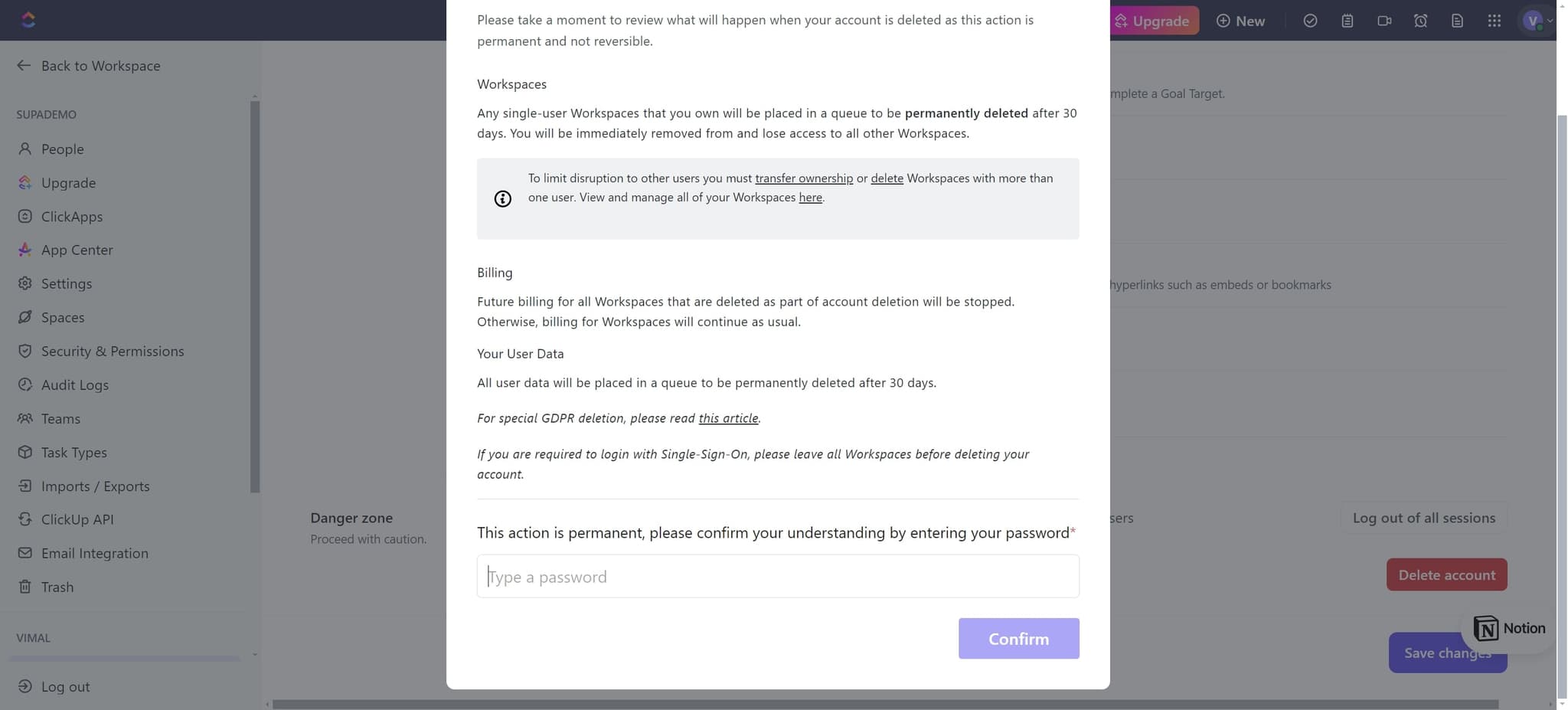
- 6
Confirm the deletion
Click on Confirm to verify that you want to permanently delete your ClickUp account. This action cannot be undone, so ensure you've backed up any necessary data before confirming.
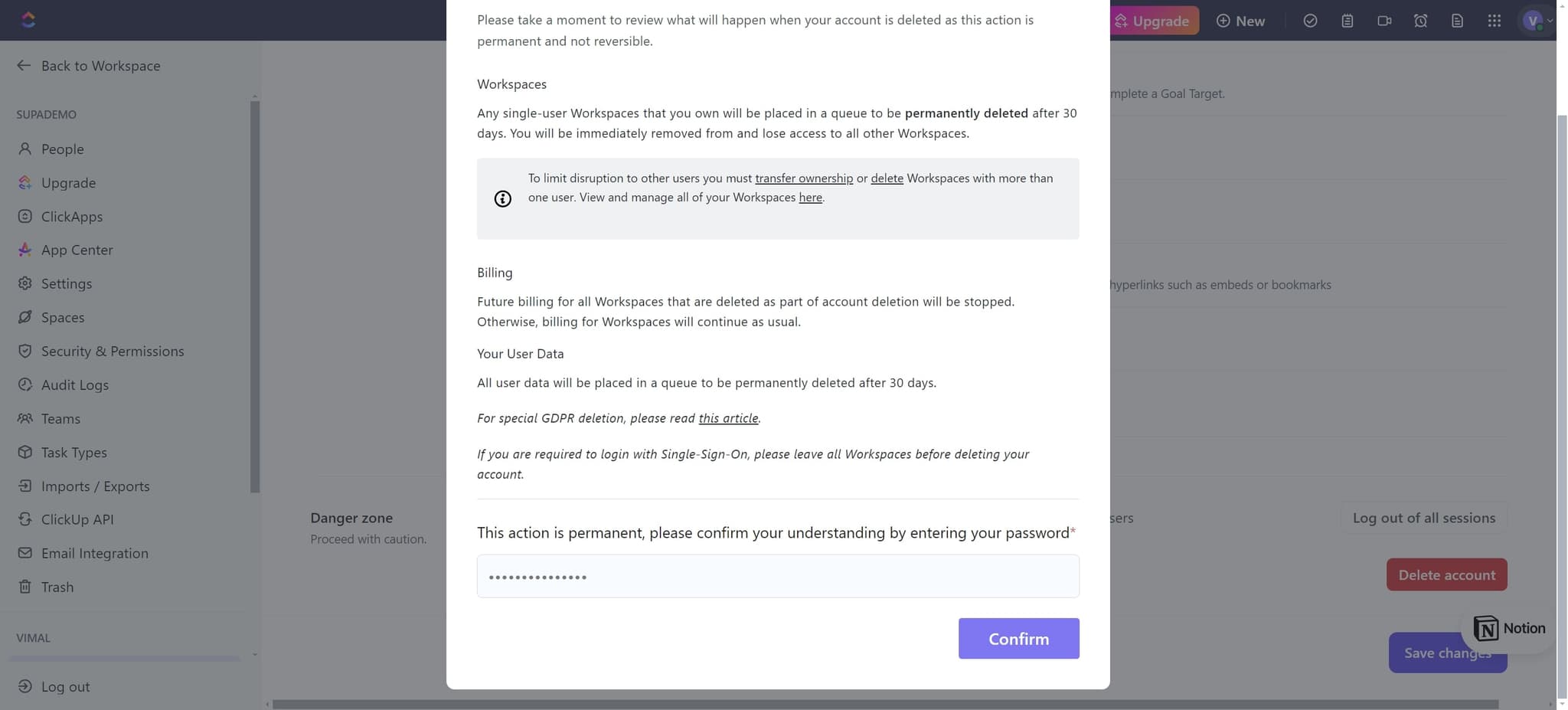
- 7
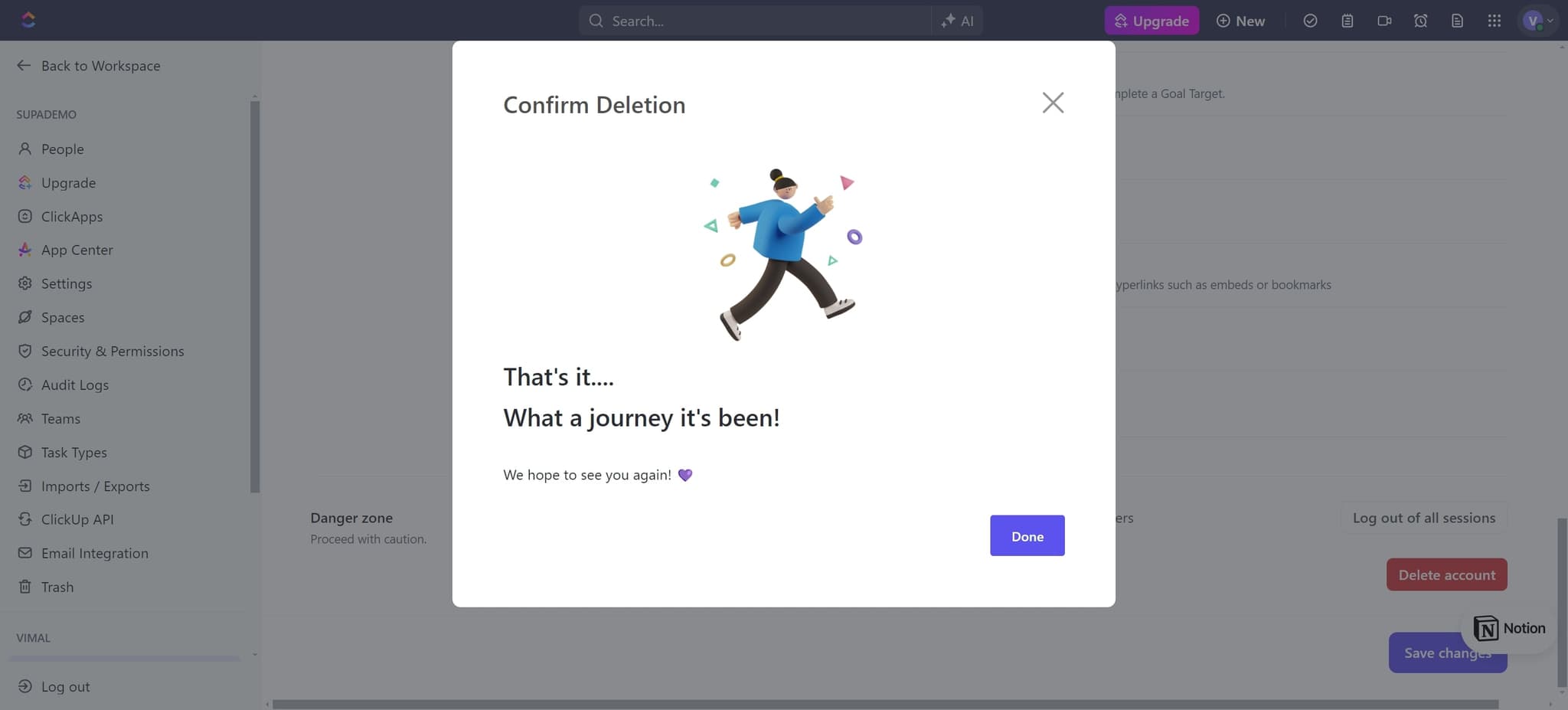
Complete the process
Click on Done to finalize the account deletion. Your ClickUp account and all associated data will now be permanently removed from the system.
Frequently asked questions
Common questions about how to delete your clickup account.
No, account deletion is permanent and cannot be reversed. All your workspace data, tasks, and project information will be completely removed from ClickUp's servers. Make sure to export or backup any important information before confirming the deletion.
Once your account is deleted, you will no longer be charged for ClickUp services. Any existing subscription or billing cycle will be terminated immediately upon account deletion. Check your billing statements to ensure no further charges appear.
Account deletion is typically processed immediately, though it may take up to 24 hours for all data to be completely removed from ClickUp's systems. You should lose access to your account and workspace right away.
If you're the account owner, deleting your account will remove the entire workspace and all shared projects. If you're a team member in a shared workspace, only your access will be removed, and the workspace will continue for other members.
ClickUp's delete account function removes all data as part of the process. If you want to preserve your data, export your projects and tasks before initiating the deletion. Alternatively, consider just deactivating your account or removing yourself from the workspace instead.