How to invite people to your ClickUp workspace

Adding team members to your ClickUp workspace is essential for collaboration and project management. This guide walks you through the invitation process, from accessing the workspace settings to sending invites to new members.
Quick summary
In this tutorial, you'll learn how to invite people to your ClickUp workspace by navigating to the invitation interface, selecting member roles, and sending invitations to team members. You'll also discover how to manage pending invitations and monitor who has access to your workspace.
Why this matters
Inviting team members to your ClickUp workspace enables seamless collaboration on projects and tasks. Proper workspace management ensures that only authorized users have access to sensitive project information while maintaining an organized team structure. Managing invitations efficiently keeps your workspace secure and your team coordinated.
Step-by-step guide
- 1
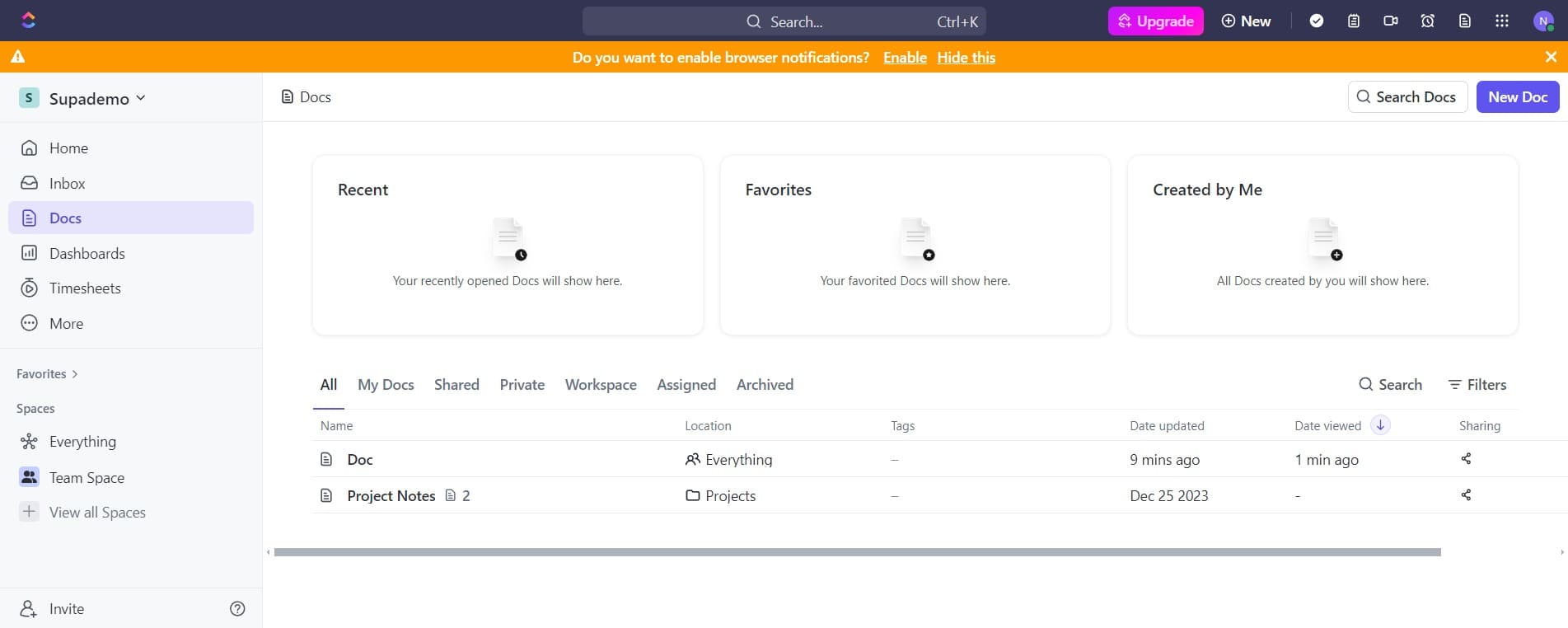
Access your recent workspaces
Click on the "Recent" section to view your available ClickUp workspaces. This displays all workspaces you've recently accessed or created.
- 2
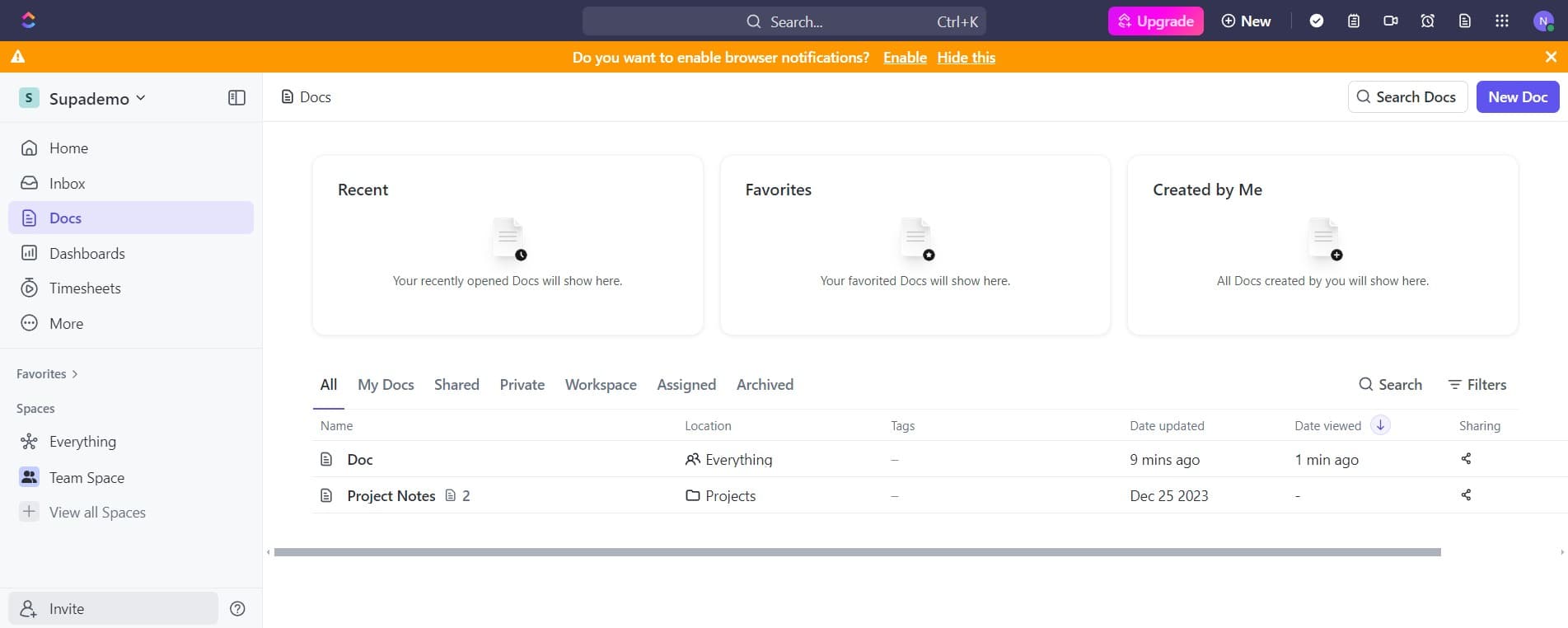
Click on the Invite option
Select the "Invite" button to open the invitation interface. This will allow you to begin the process of adding new members to your workspace.
- 3
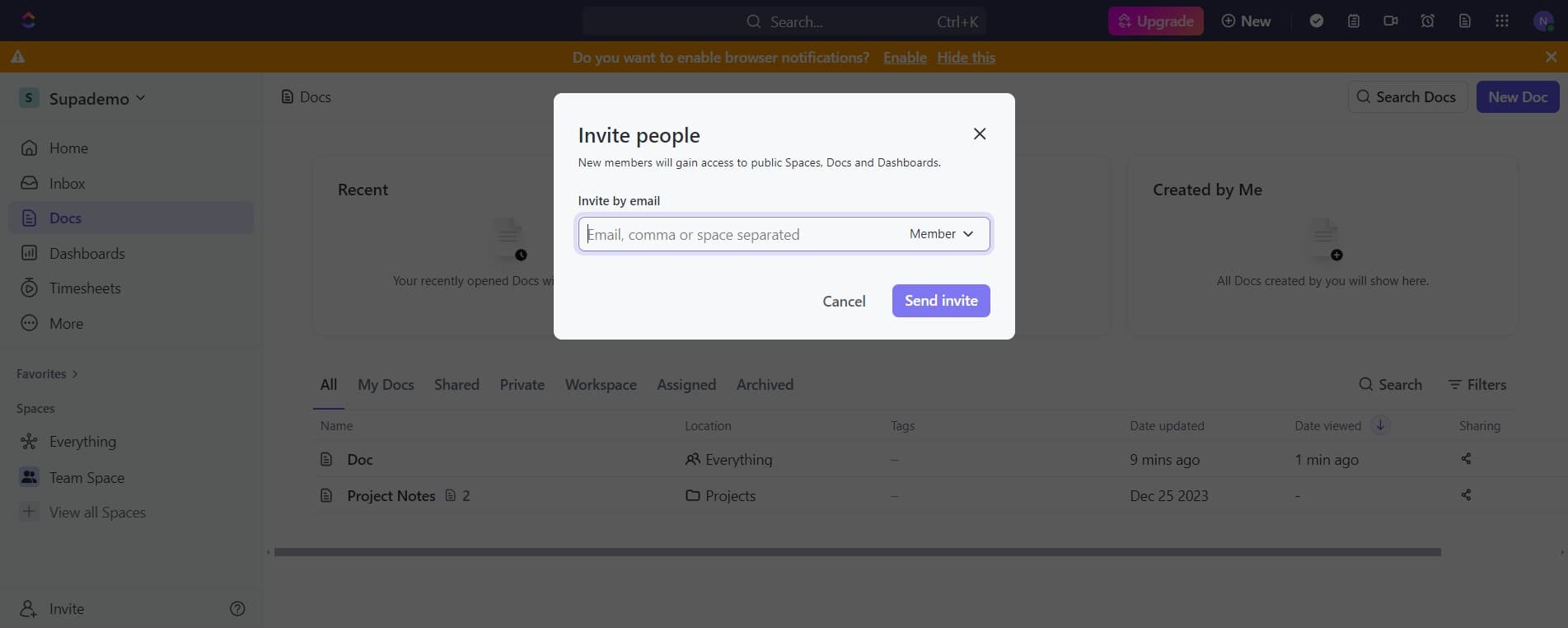
Enter member details
Click in the designated field to input the email address or name of the person you want to invite. This ensures ClickUp can identify and send an invitation to the correct individual.
- 4
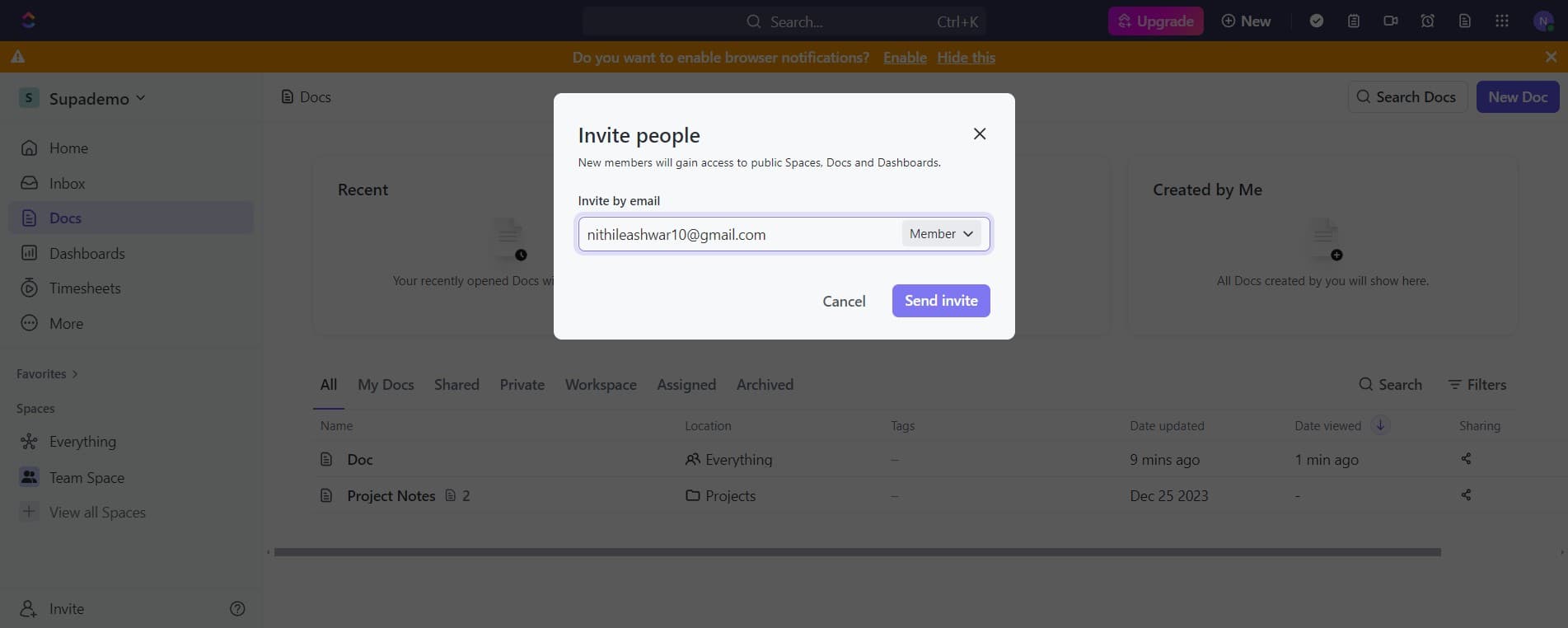
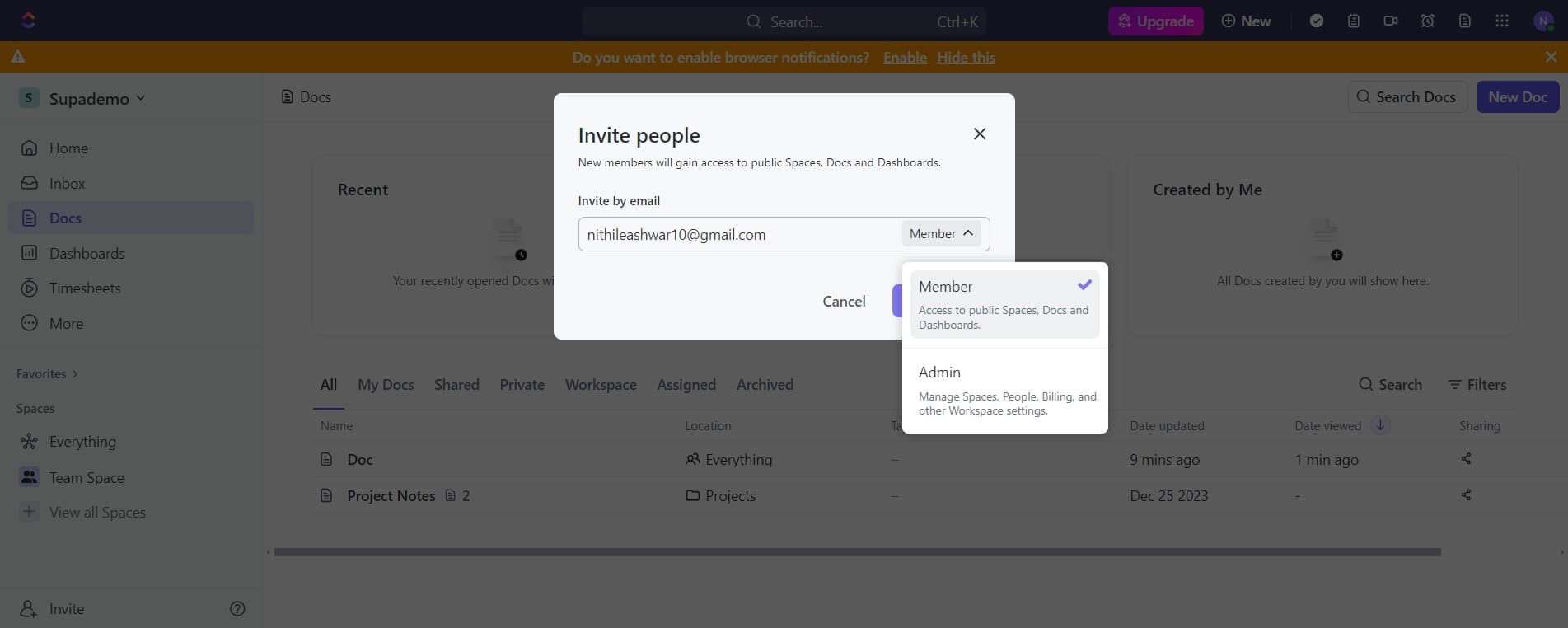
Select Member role
Click on "Member" to assign the appropriate role to the invitee. Member is a standard role that grants typical workspace access and collaboration capabilities.
- 5
Confirm the Member role
Click on "Member" again to finalize the role selection. This confirms that the invitee will have member-level permissions in your workspace.
- 6
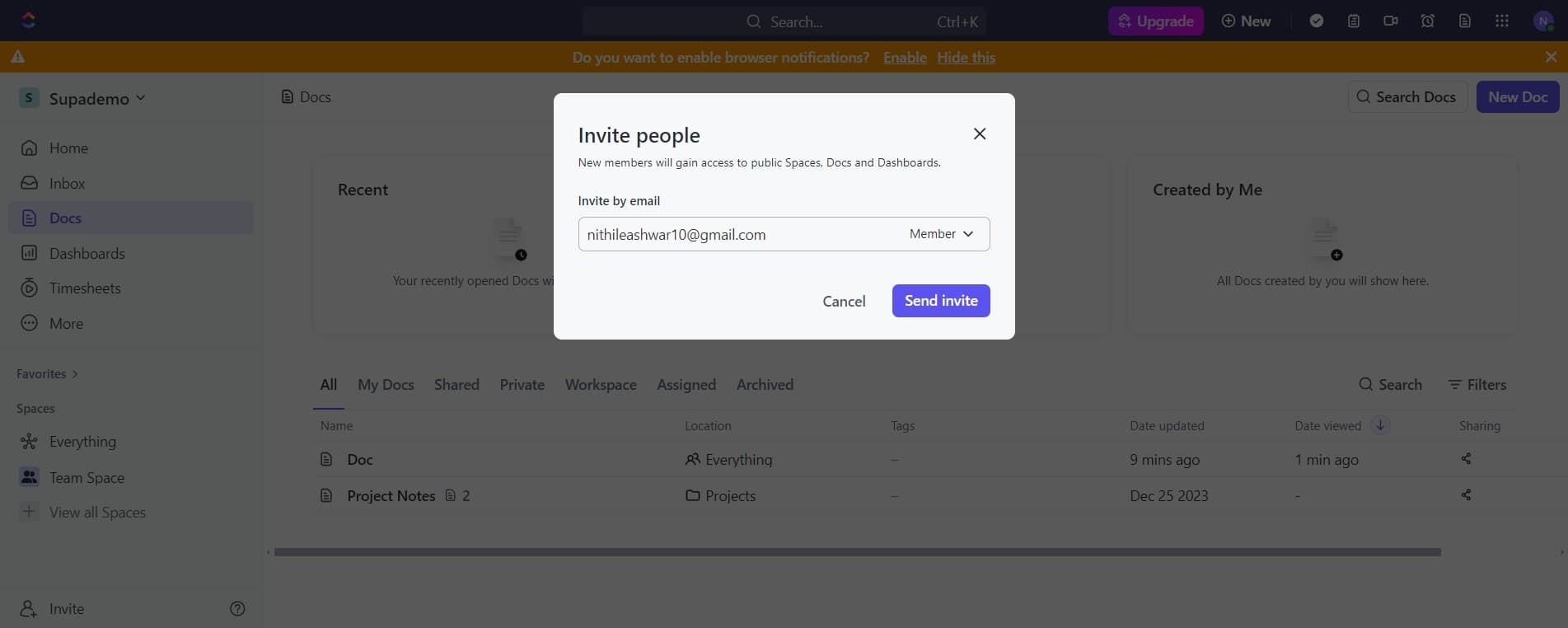
Send the invitation
Click on "Send invite" to dispatch the invitation to the specified email address. The invitee will receive a notification and can accept the invitation to join your workspace.
- 7
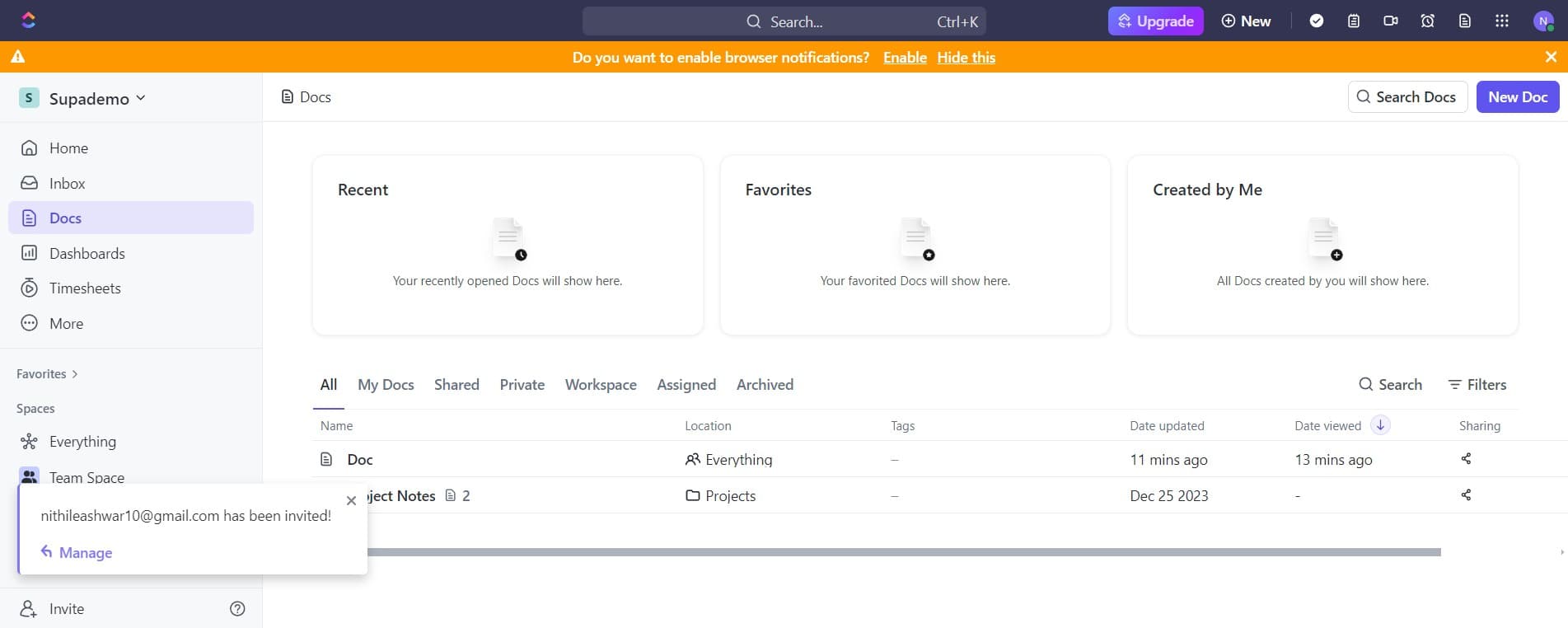
Access workspace management
Click on "Manage" to view and control workspace settings and member administration. This section allows you to oversee all active members and pending invitations.
- 8
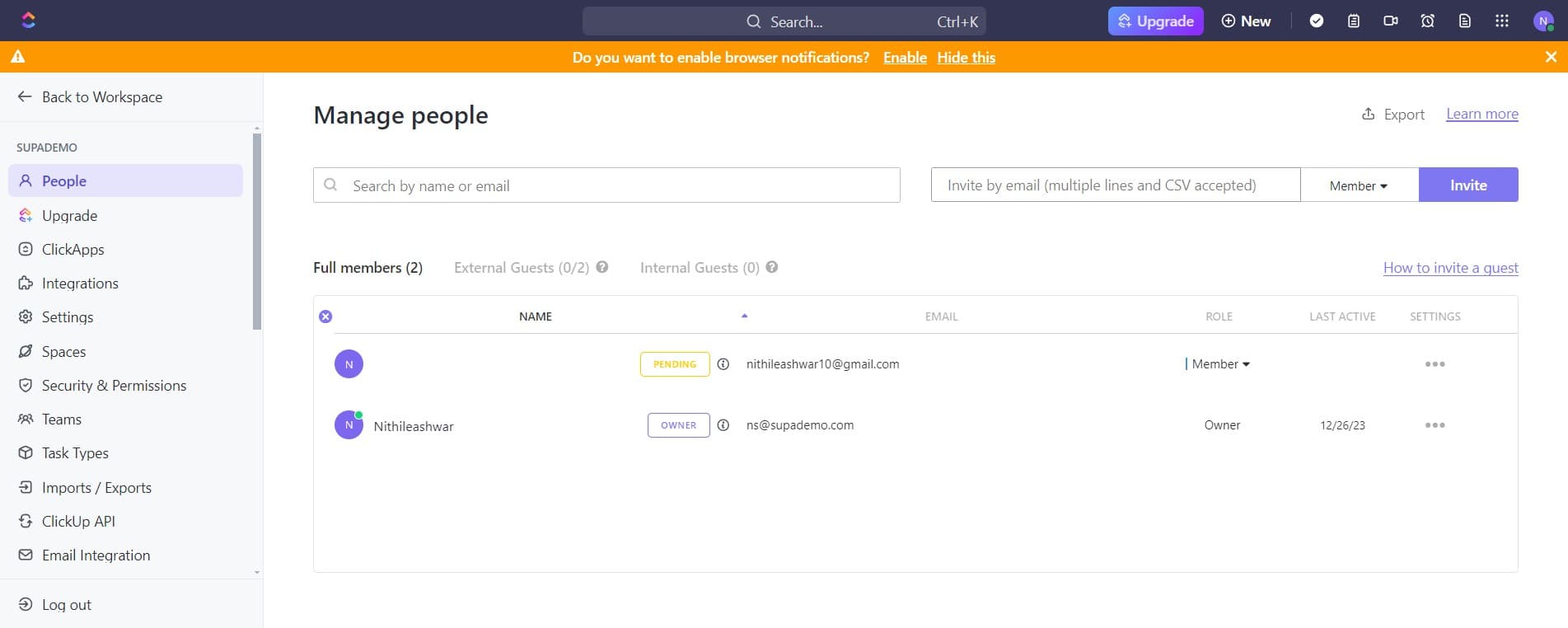
Review pending invitations
Click on the pending invitation entry to view details about sent invitations awaiting acceptance. This shows you the status of all outstanding invitations and lets you resend or cancel them if needed.
Frequently asked questions
Common questions about how to invite people to your clickup workspace.
ClickUp offers several role options including Guest, Member, Admin, and Workspace Owner. Each role has different permission levels that determine what users can see and edit in your workspace. Choose the role based on the level of access and responsibility the invitee needs.
Once an invited user accepts the invitation, they will appear in your workspace immediately. If they haven't accepted yet, they'll remain in the pending invitations list. You can resend invitations if the user hasn't responded within a reasonable timeframe.
Yes, you can modify a user's role at any time through the workspace management settings. Simply access the member list, select the user, and update their role permissions. Changes take effect immediately.
If the invitee already has a ClickUp account, they'll receive an invitation to join your workspace. They can accept it and immediately gain access to your workspace using their existing credentials without needing to create a new account.
Yes, workspace admins and owners can remove members through the management settings. You can also cancel pending invitations before they're accepted. Removed members will lose access to the workspace and its projects.