How to archive and delete cards in Trello

Managing your Trello board means keeping it organized by archiving completed cards and permanently removing ones you no longer need. This guide walks you through both archiving cards for later reference and deleting them entirely when they're no longer useful.
Quick summary
In this tutorial, you'll learn how to archive cards to clean up your active board while preserving them for future reference, and how to permanently delete cards when necessary. You'll also discover how to restore archived items back to your board if needed.
Why this matters
Archiving and deleting cards is essential for maintaining a clean, focused board that reflects your current work priorities. By removing completed or obsolete cards, your team can quickly identify active tasks and avoid confusion, while archiving preserves historical data for audits or future reference.
Step-by-step guide
- 1
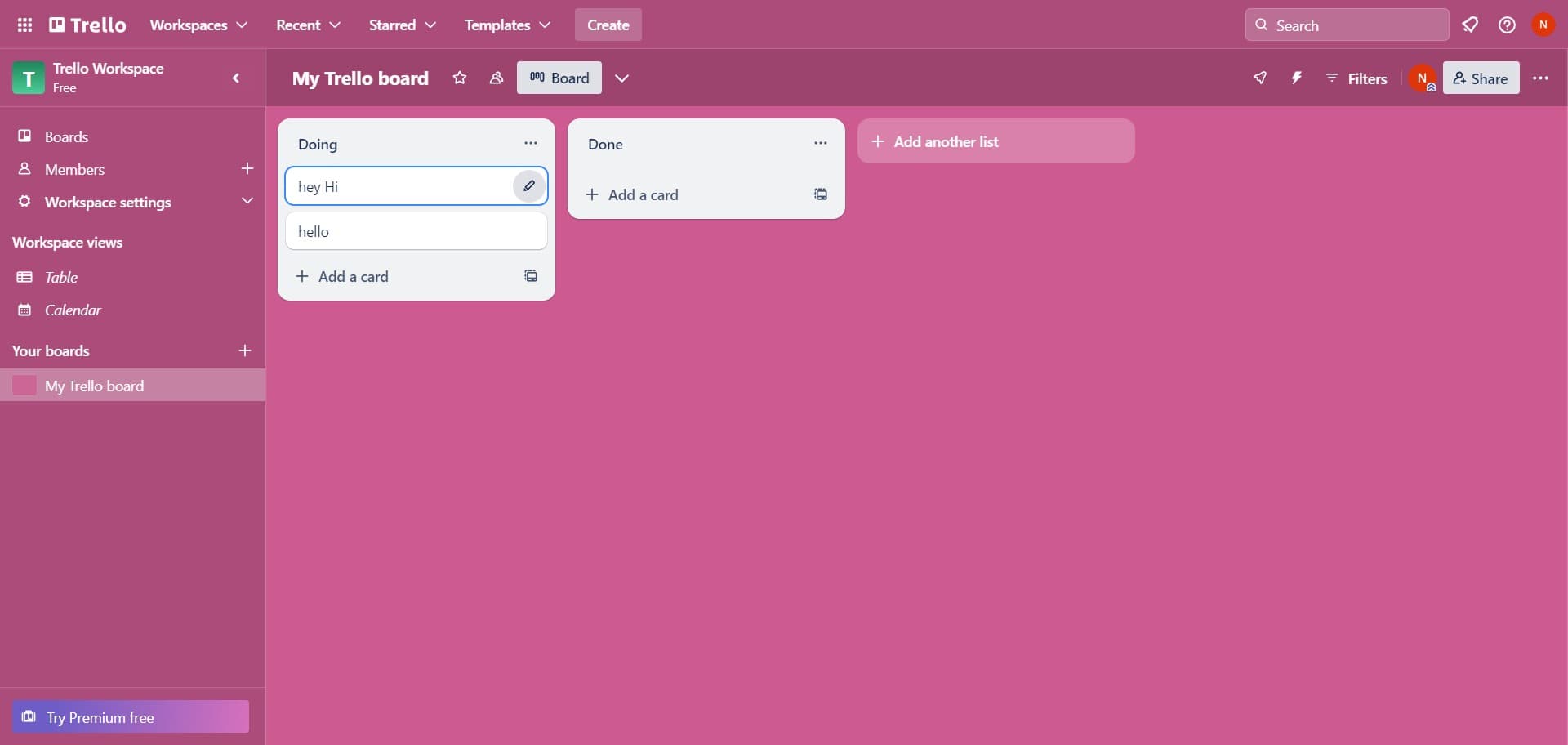
Open the card menu
Click on the card you want to archive or delete to open its details menu. This will display all available actions for that specific card.
- 2
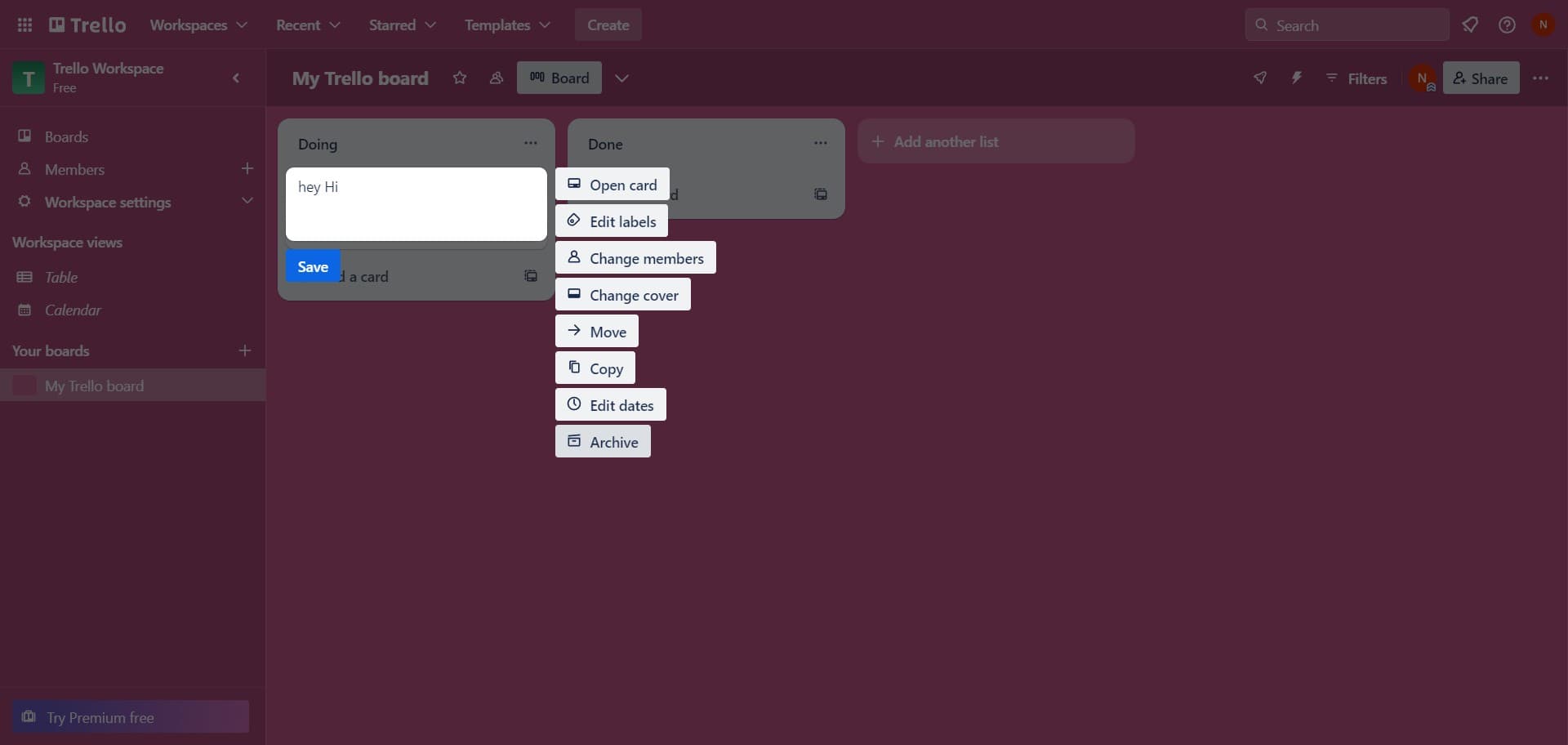
Click on Archive
Select the Archive option from the card menu. The card will be moved out of your active board view and stored in your archived items section.
- 3
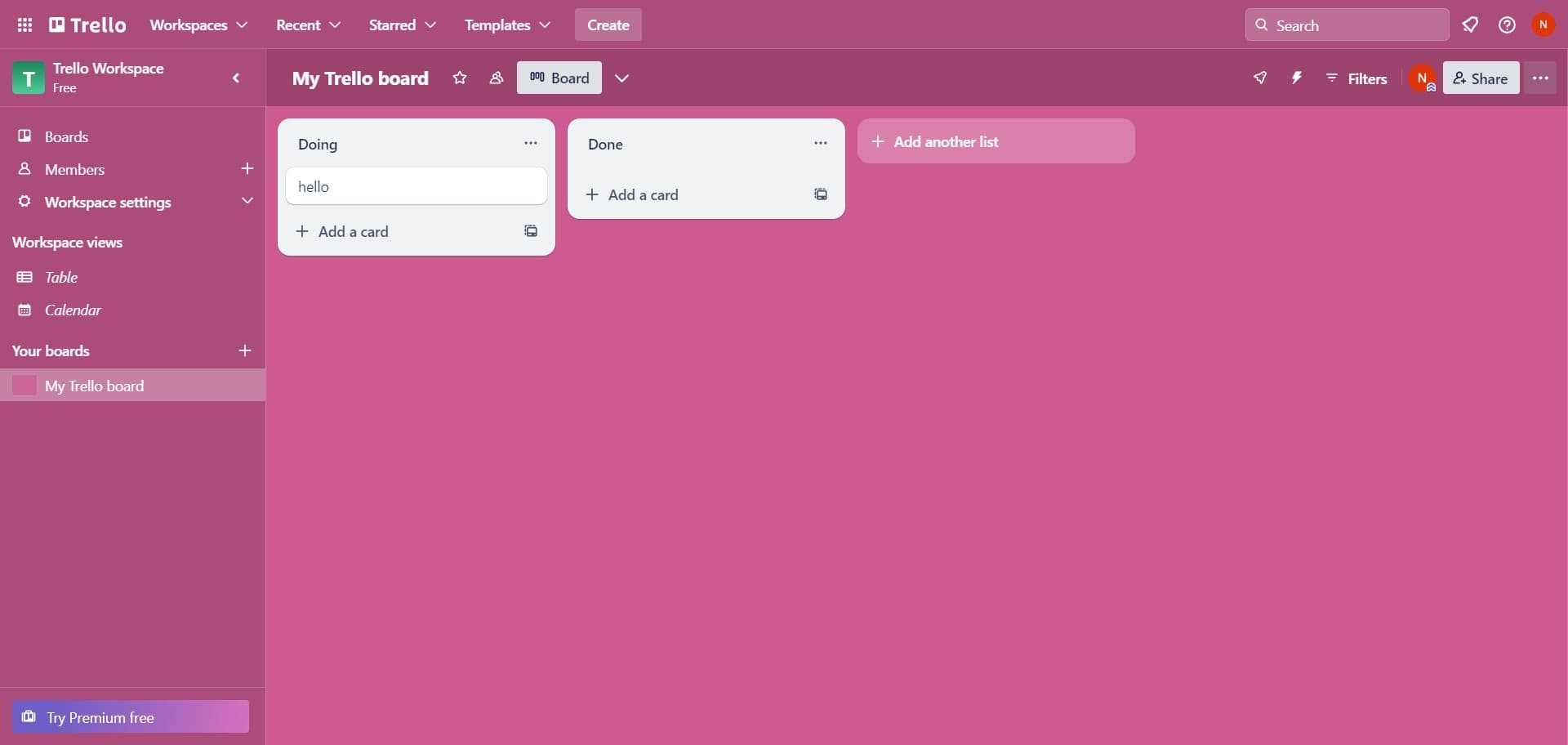
Access the board menu
Click on the board settings or options menu to access additional board-level features. This allows you to manage archived content across your entire board.
- 4
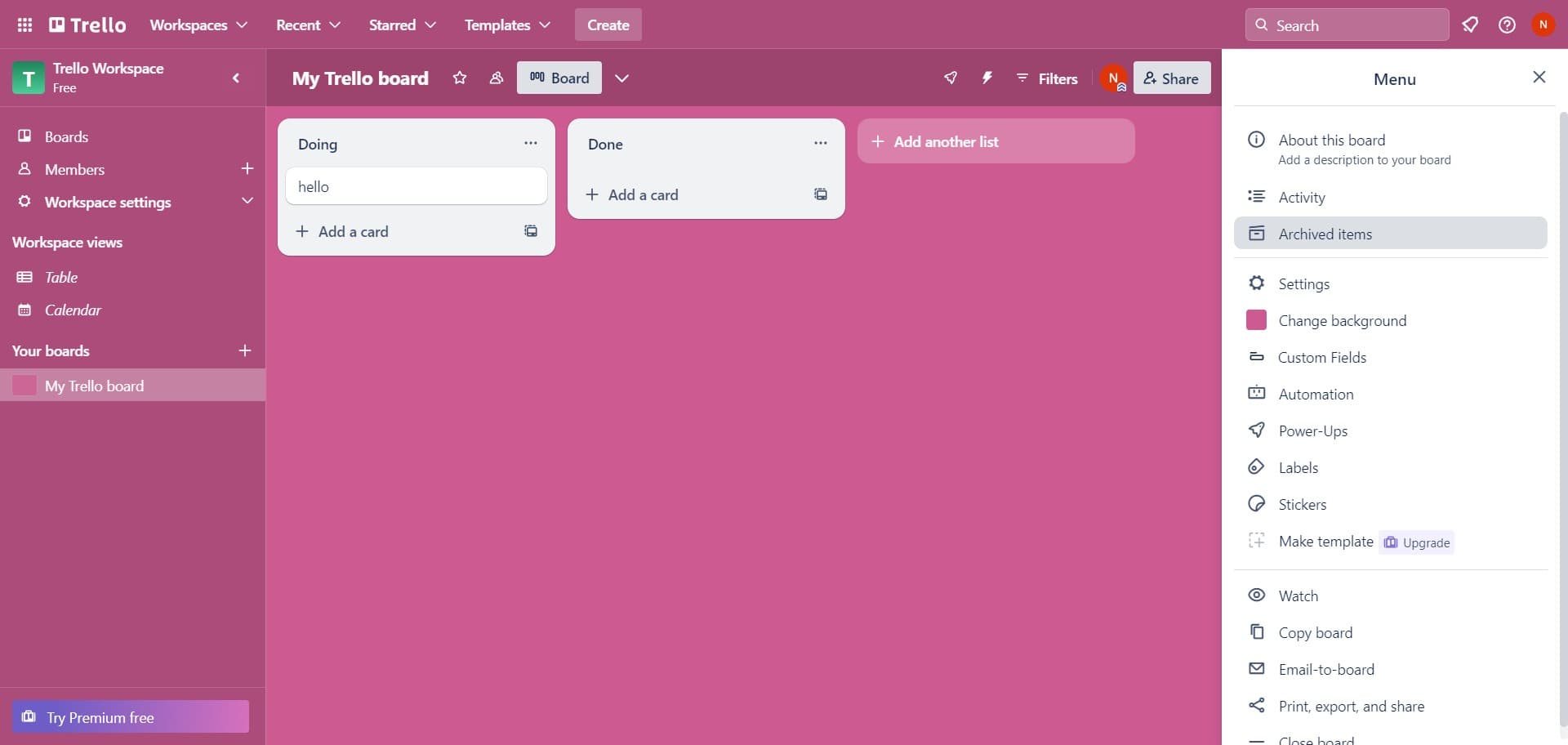
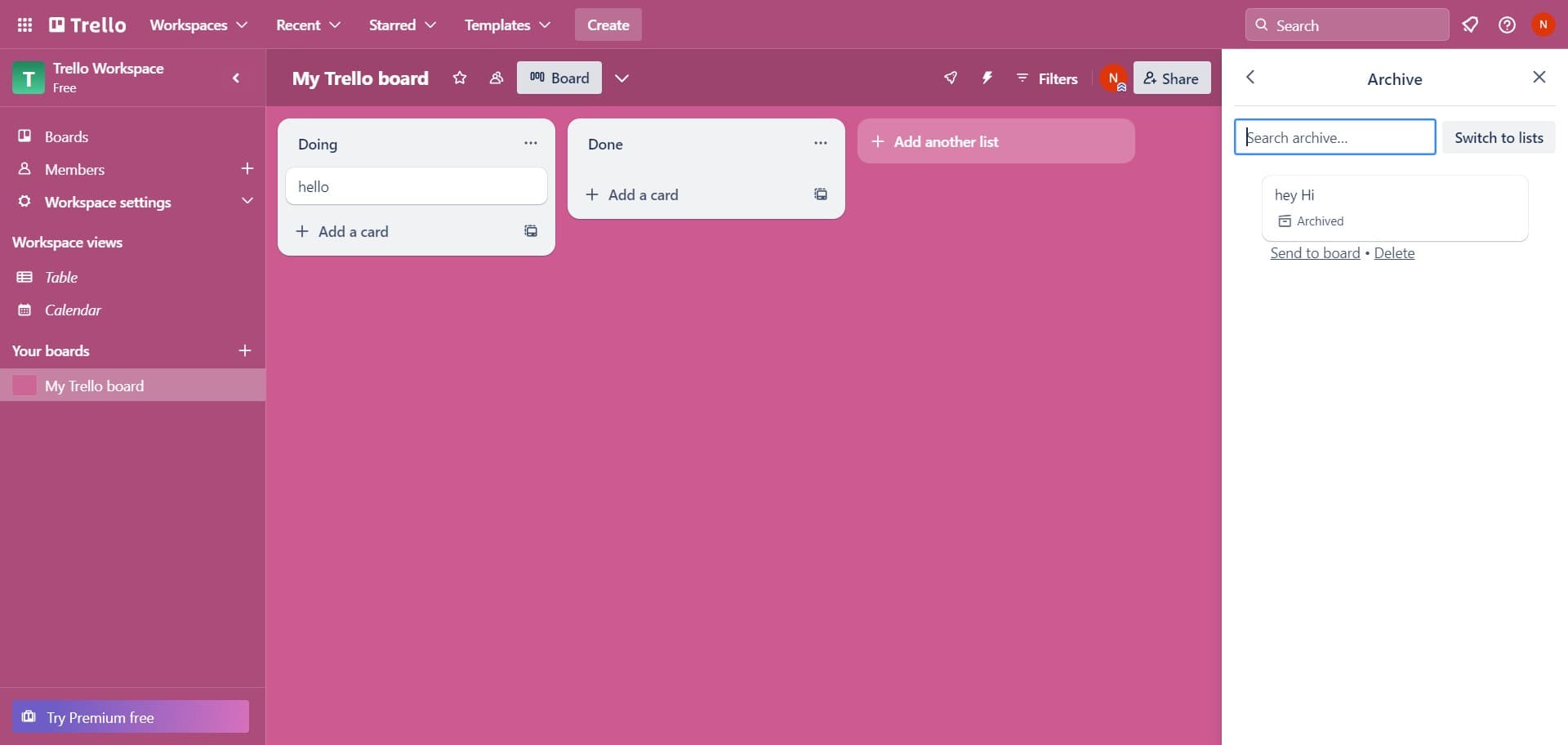
Click on Archived items
Navigate to the Archived items section to view all cards you've previously archived. From here, you can review, restore, or permanently delete archived cards.
- 5
Send to board
Select the Send to board option if you want to restore an archived card back to your active board. The card will reappear in its original list or a designated location.
- 6
Select the card to delete
Click on the archived card you want to permanently remove from Trello. This opens the card details where you can access the delete option.
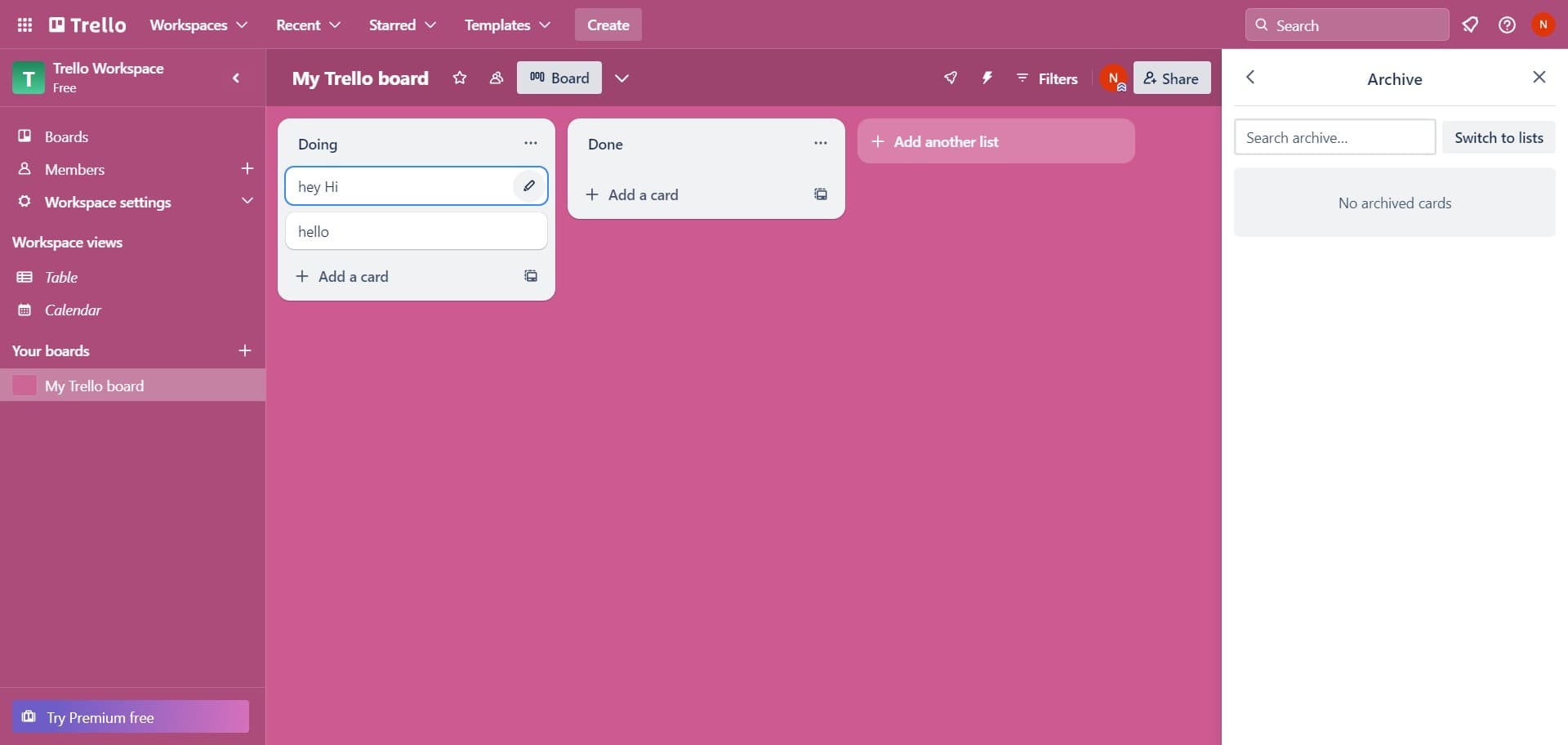
- 7
Click on Archive
If the card is still in active view, select Archive again to confirm the archival action. This step may appear if you're working with recently archived cards.
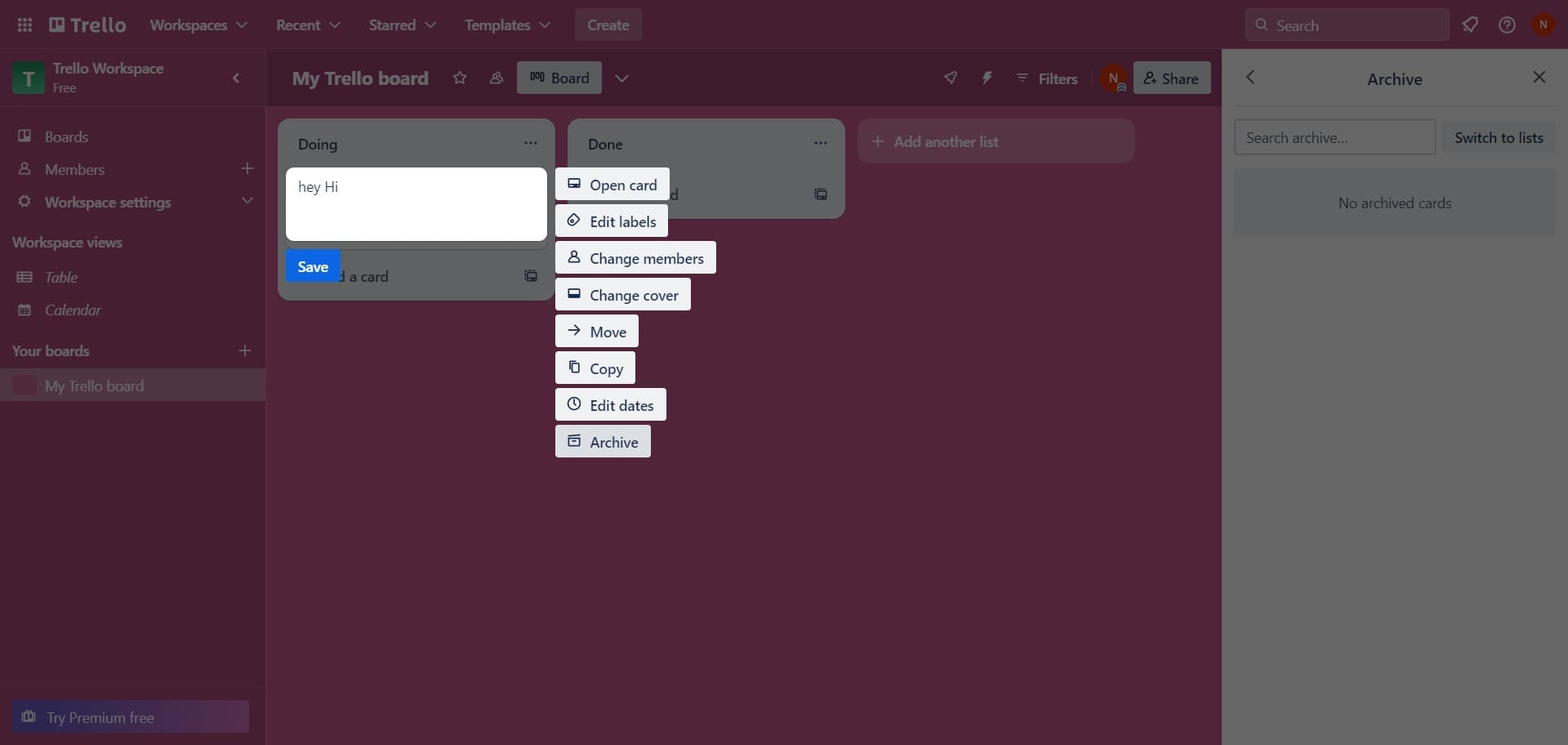
- 8
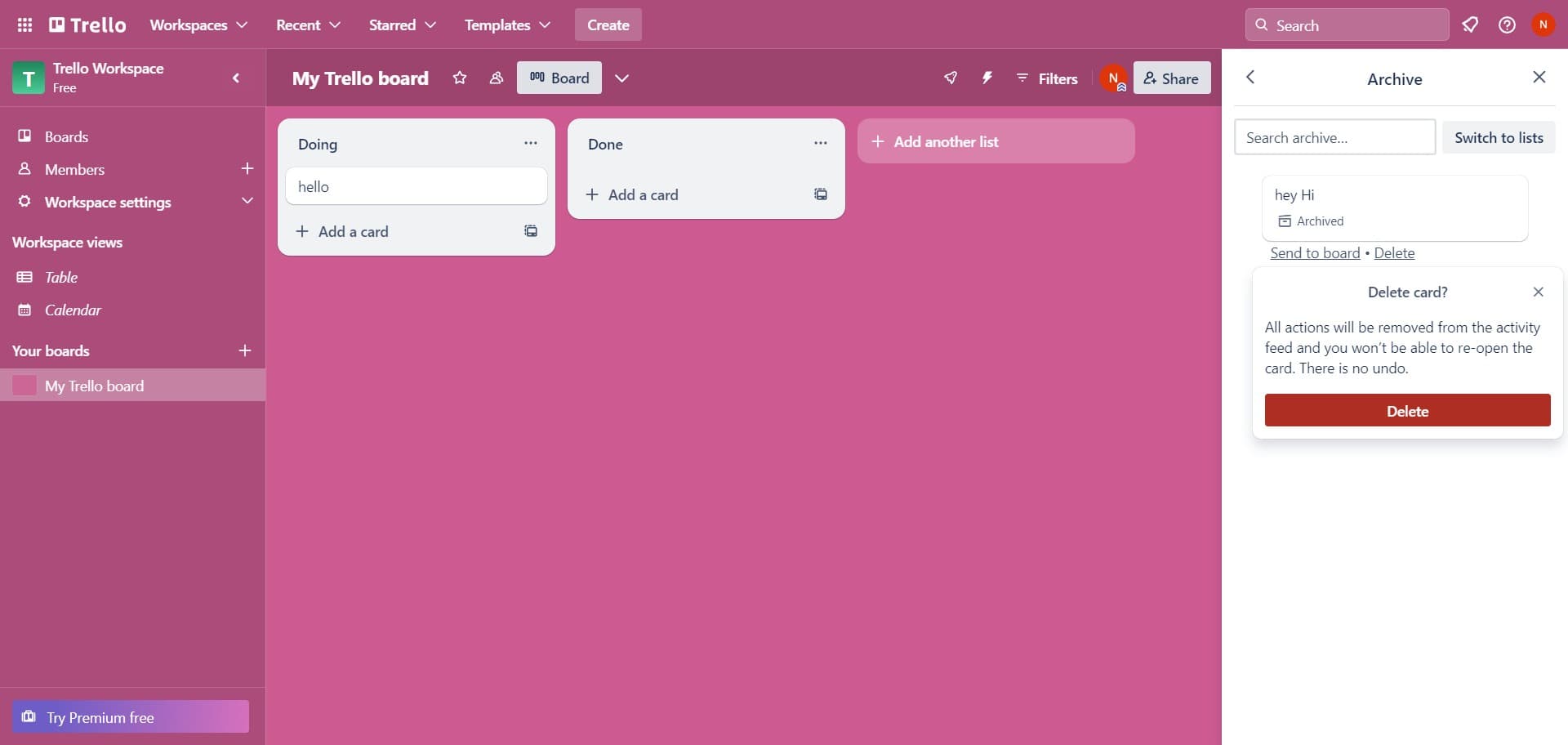
Click on Delete
Select the Delete option to permanently remove the card from Trello. This action is irreversible, so ensure you no longer need the card before proceeding.
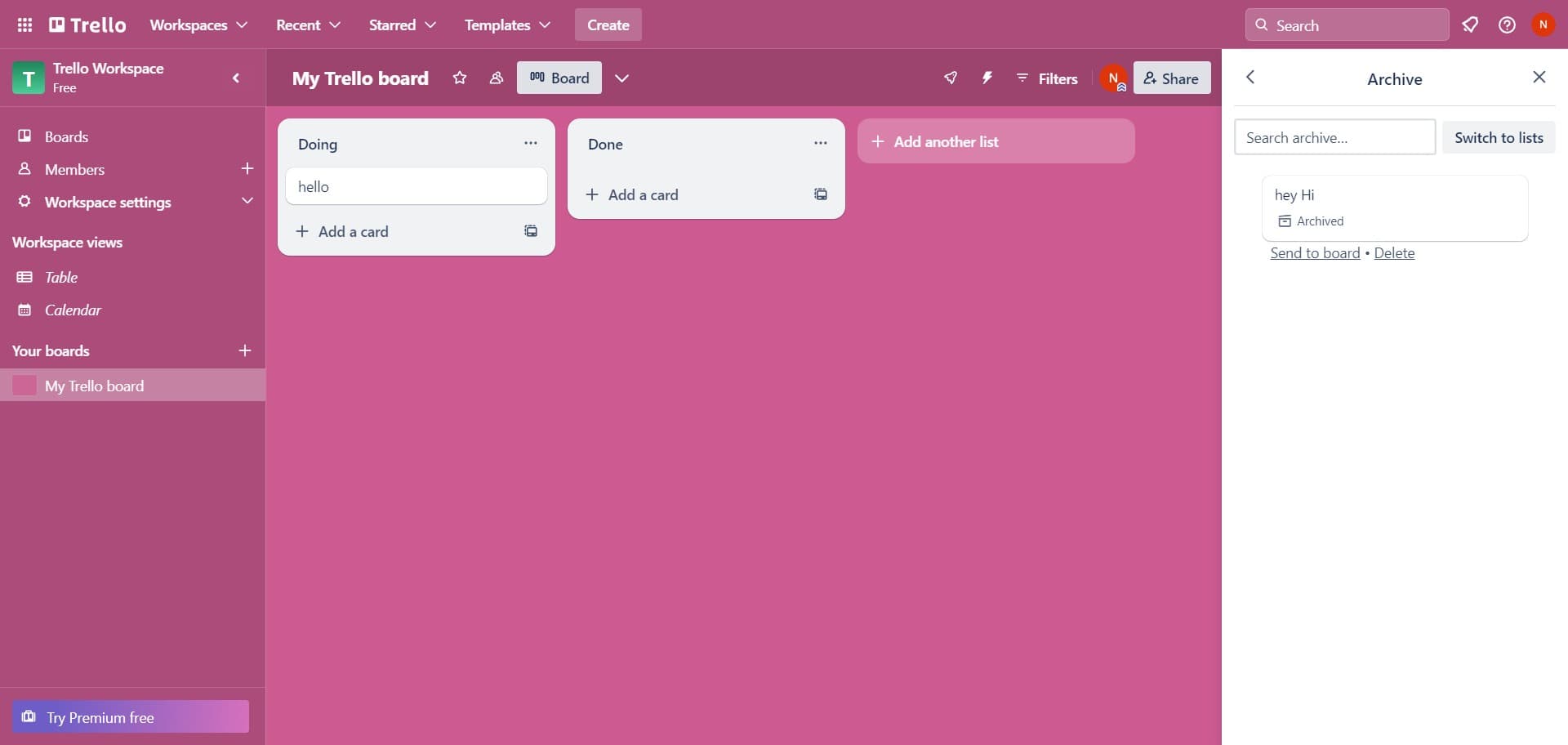
- 9
Confirm the deletion
Complete the deletion process by confirming your action in the dialog that appears. The card will be permanently removed from your Trello workspace.
Frequently asked questions
Common questions about how to archive and delete cards in trello.
No, deleted cards cannot be restored. However, archived cards can be recovered by going to Archived items and selecting Send to board. Always archive first if you think you might need the card later.
Archiving removes a card from your active board but keeps it in the Archived items section for future reference. Deleting permanently removes the card from Trello entirely. Use archiving for completed work you might need to reference later.
Open your board settings and click on Archived items. This section displays all cards you've archived from that board. You can search, browse, or restore any archived card from this view.
Trello's standard interface requires archiving cards individually through each card's menu. However, some power-ups or third-party tools may offer bulk archiving functionality depending on your board setup.
Yes, all team members will see archived cards disappear from the active board view. They can still access archived cards through the Archived items section, so no information is lost, just removed from the working board.