How to Change the Date Format in Excel

Changing date formats in Excel is essential for organizing data consistently and ensuring dates display correctly for your audience. Whether you're working with international dates, specific business standards, or personal preference, Excel offers flexible formatting options. This guide walks you through the process step-by-step.
Quick summary
In this tutorial, you'll learn how to select cells containing dates and apply custom or predefined date formats in Microsoft Excel. By the end, you'll be able to change any date format to match your needs, from MM/DD/YYYY to DD/MM/YYYY and beyond.
Why this matters
Proper date formatting ensures clarity in reports, prevents misinterpretation across different regions, and makes your spreadsheets more professional and readable. Inconsistent or unclear date formats can lead to errors in data analysis and communication. Mastering this skill helps you maintain data integrity and improve collaboration.
Step-by-step guide
- 1
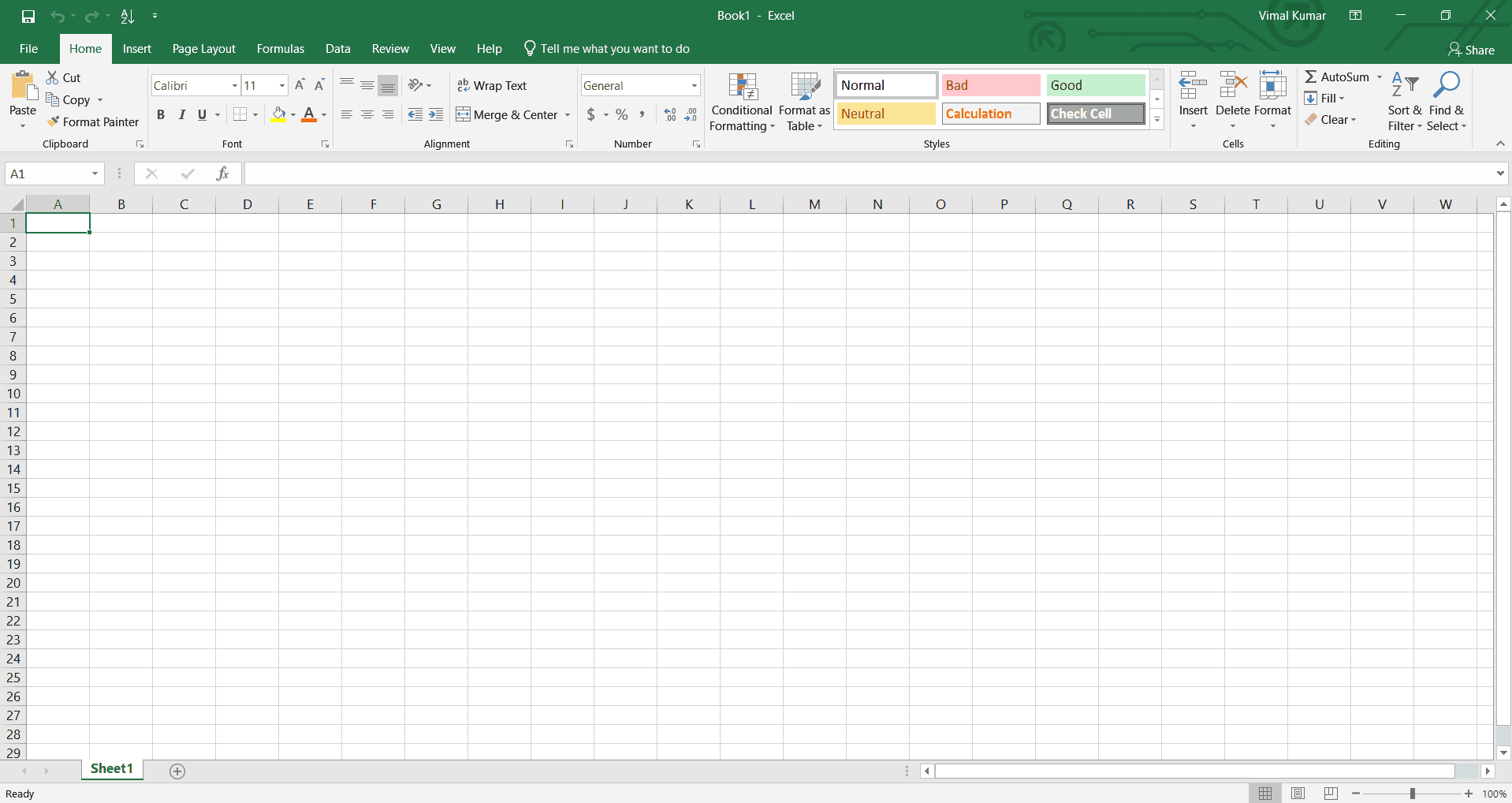
Open your Excel spreadsheet
Launch Microsoft Excel and open the file containing the dates you want to reformat. If you're starting fresh, you can create a new spreadsheet and enter sample dates to practice with.
- 2
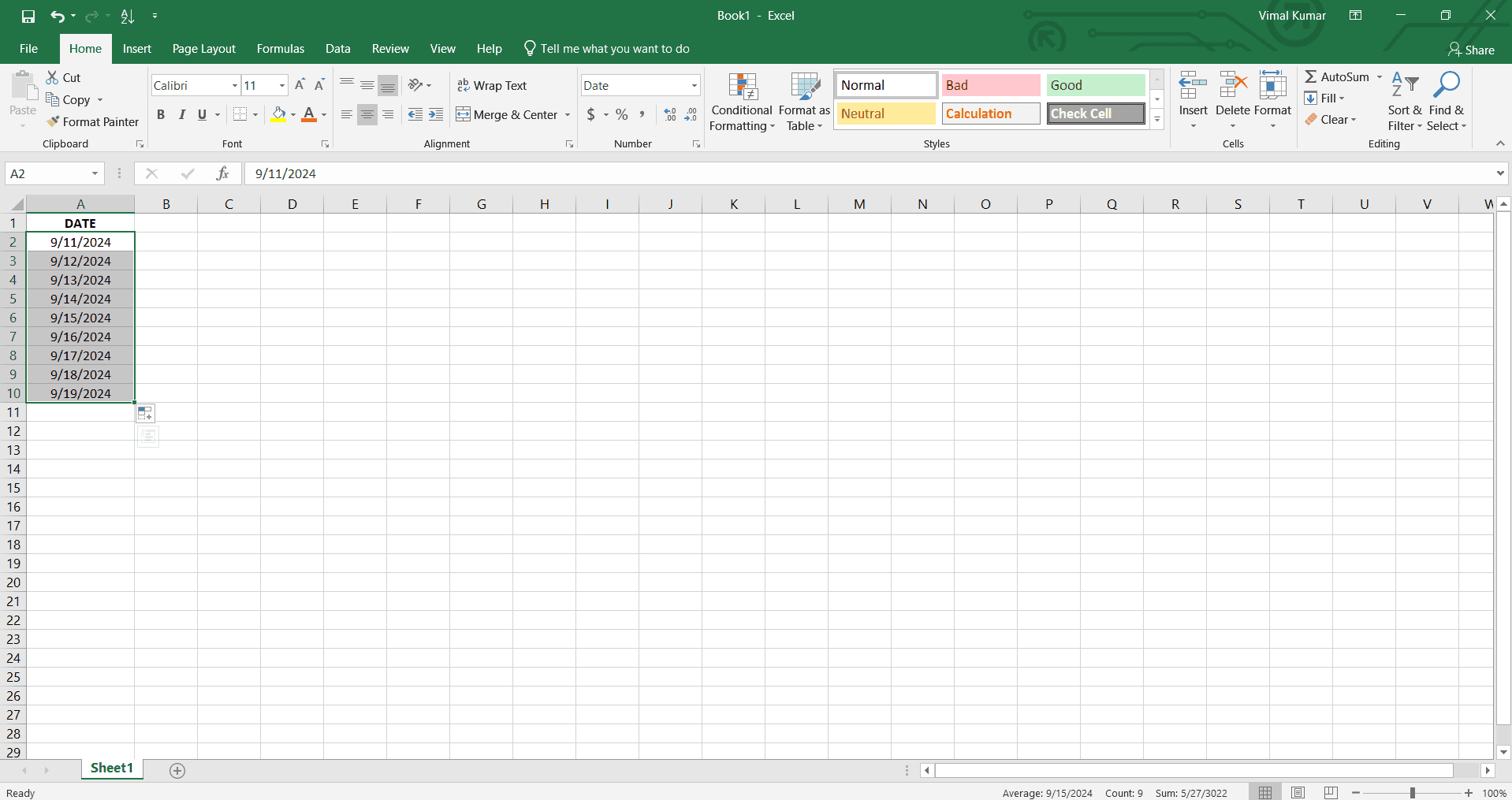
Select cells with dates
Click on the cell containing a date you want to reformat, then drag to select all cells with dates you wish to change. You can also click the column header to select an entire column of dates.
- 3
Right-click selected cells
With your cells selected, right-click to open the context menu. You'll see several options appear for cell formatting and manipulation.
- 4
Choose Format Cells option
From the context menu, click on Format Cells to open the Format Cells dialog box. This window provides access to all formatting options for your selected cells.
- 5
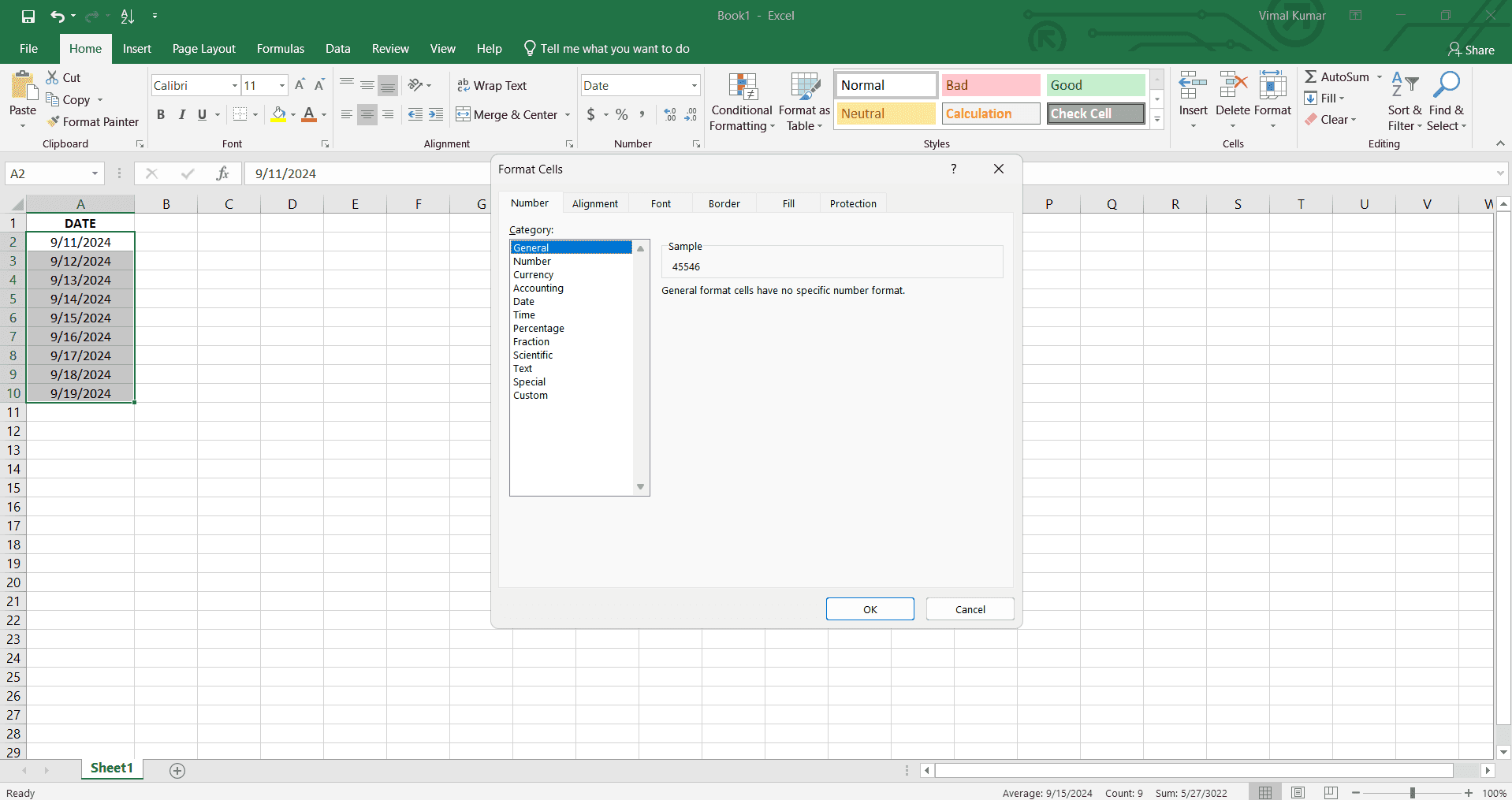
Navigate to Number tab
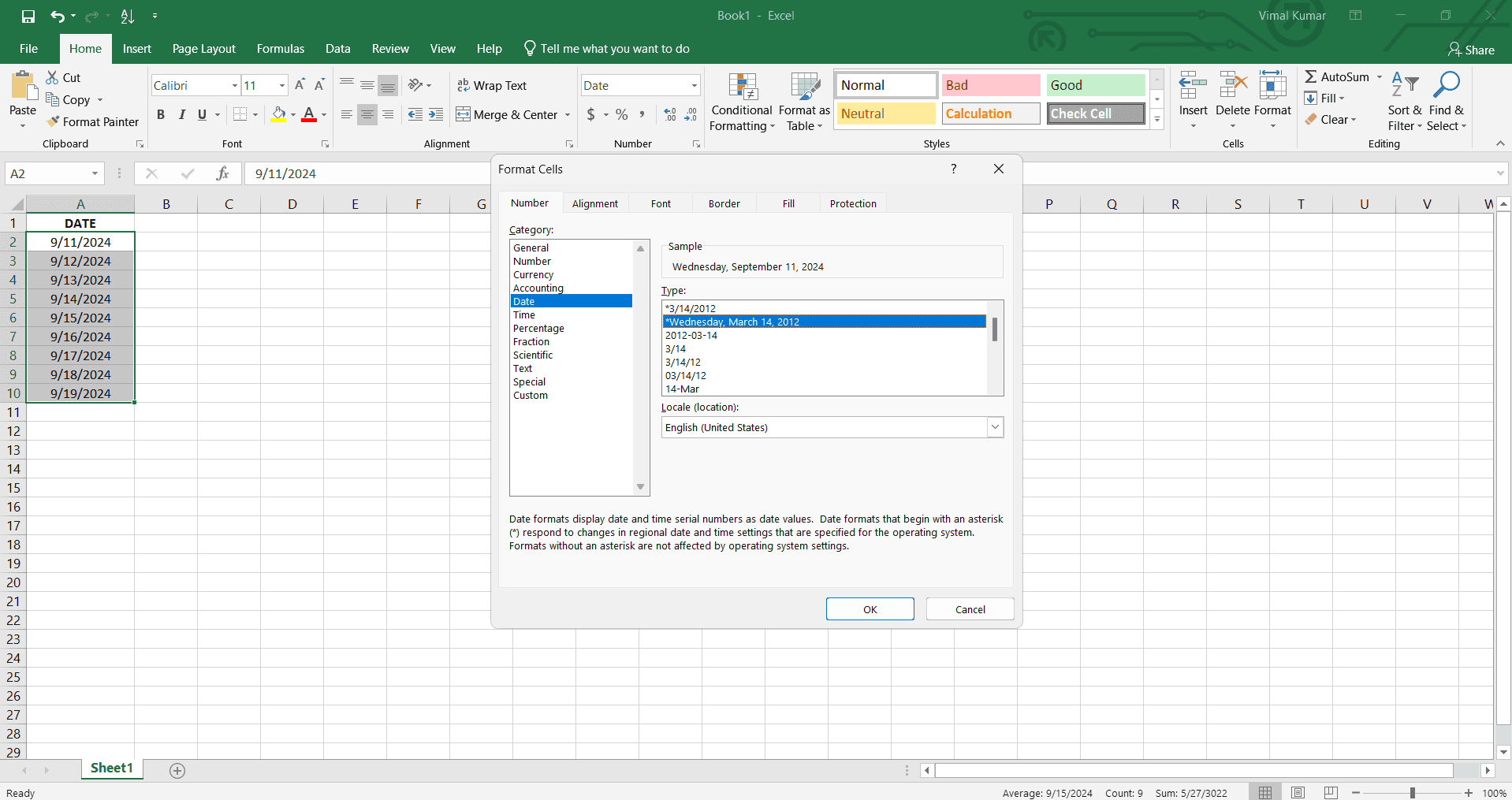
In the Format Cells dialog, click the Number tab if it's not already selected. This tab contains all date and number formatting categories.
- 6
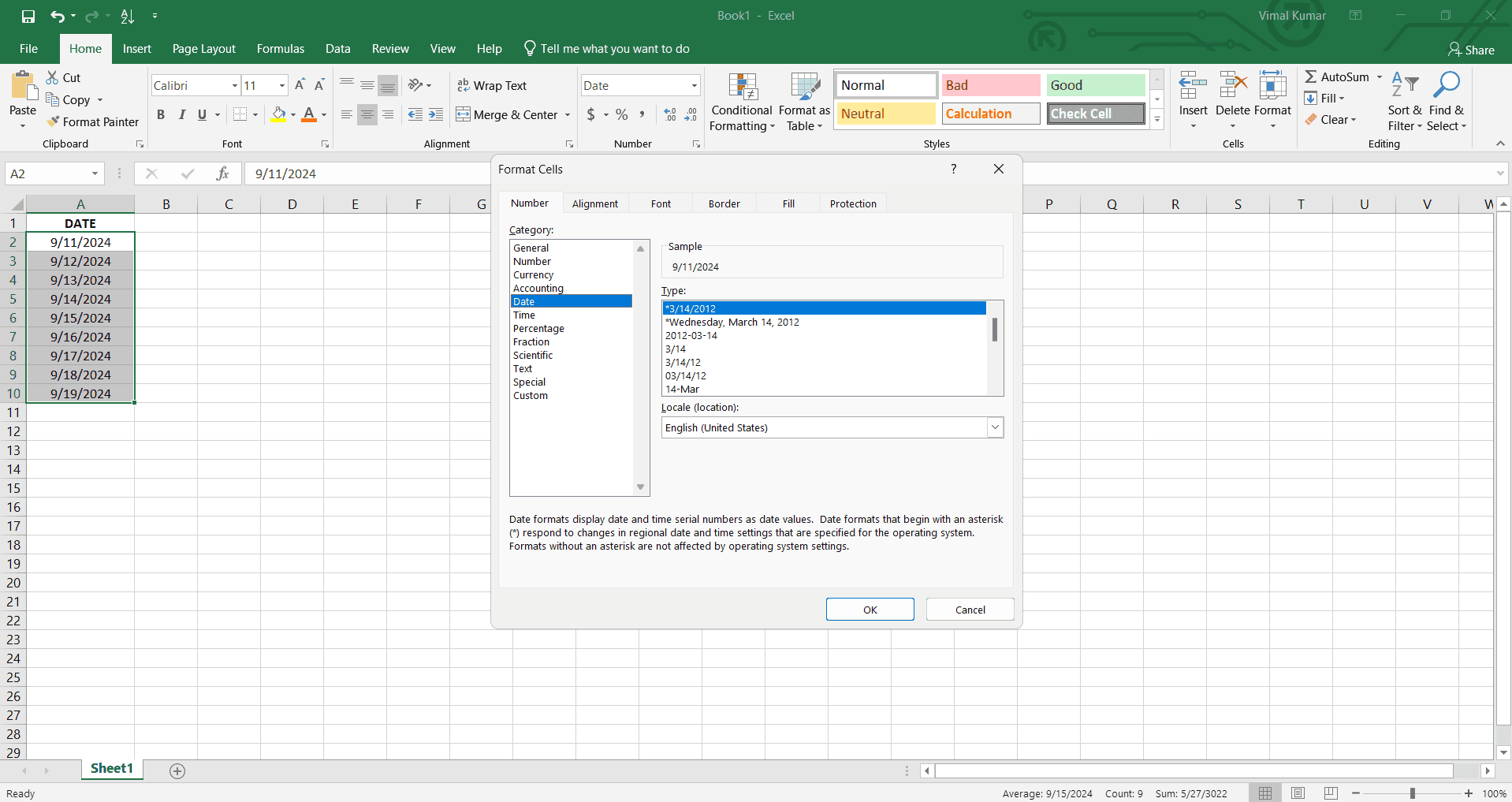
Select Date category
In the Category list on the left, click Date to view all available date format options. Excel will display a variety of predefined date formats you can choose from.
- 7
Apply desired format and confirm
Select your preferred date format from the list, preview it in the Sample section, then click OK to apply the format to all selected cells. Your dates will now display in the new format.
Frequently asked questions
Common questions about how to change the date format in excel.
Can I create a custom date format in Excel?
Yes, Excel allows you to create custom date formats. In the Format Cells dialog, select the Date category, then look for a Custom option where you can enter a custom format code. Common codes include YYYY for four-digit year, MM for month, and DD for day.
Will changing the date format affect my data?
No, changing the format only changes how the date appears on screen, not the actual data stored in the cell. The underlying date value remains unchanged, so calculations and formulas will continue to work correctly.
How do I change the date format for the entire column at once?
Click on the column header letter to select the entire column, then right-click and choose Format Cells. Select your desired date format from the Number tab and click OK to apply it to every cell in that column.
What should I do if my dates appear as numbers after formatting?
This typically means the cells are formatted as numbers rather than dates. Select the cells, open Format Cells, and ensure the category is set to Date rather than Number. If dates still appear as numbers, the data may have been imported as text and need to be converted first.
Can I apply different date formats to different cells in the same column?
Yes, you can select specific cells rather than the entire column and apply different formats to different groups. Simply select the cells you want to format, apply your chosen format, then repeat the process for other cells with different formats as needed.