How to Split Cells in Excel

Splitting cells in Excel is a powerful way to separate combined data into distinct columns, making your spreadsheet more organized and easier to analyze. Whether you're working with names, addresses, or other delimited data, Excel's Text to Columns feature streamlines this process in just a few clicks.
Quick summary
In this tutorial, you'll learn how to use Excel's Data menu to access the Split Text to Columns feature and apply it to your data. This skill is essential for cleaning up imported data and preparing it for further analysis or reporting.
Why this matters
Splitting cells is critical when you receive data from external sources where multiple values are combined in a single cell. By separating this data into individual columns, you improve data integrity, enable better sorting and filtering, and make your spreadsheets easier to work with for calculations and reports.
Step-by-step guide
- 1
Select your data range
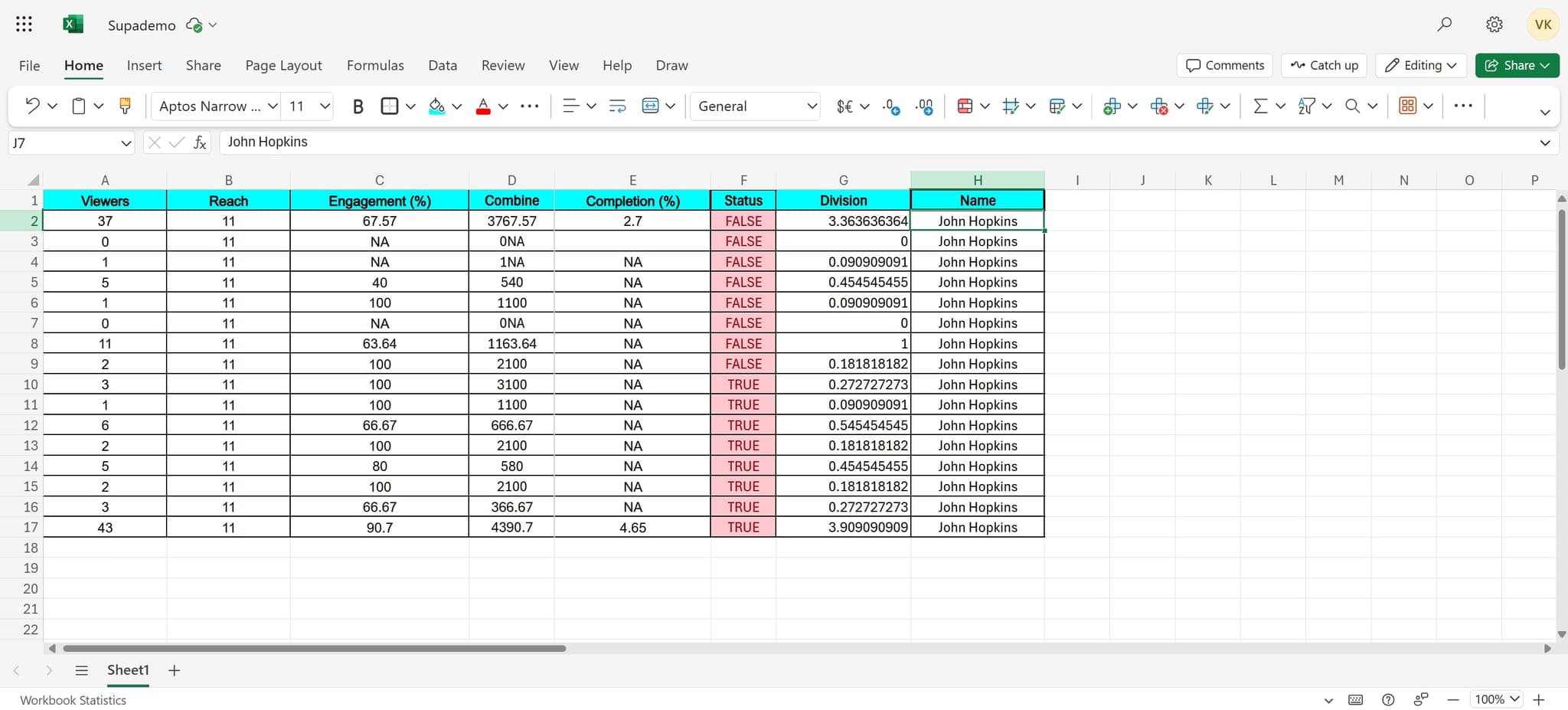
Click on the cell or range containing the data you want to split. Make sure you've selected all the cells that need to be separated before proceeding to the next step.
- 2
Open the Data menu
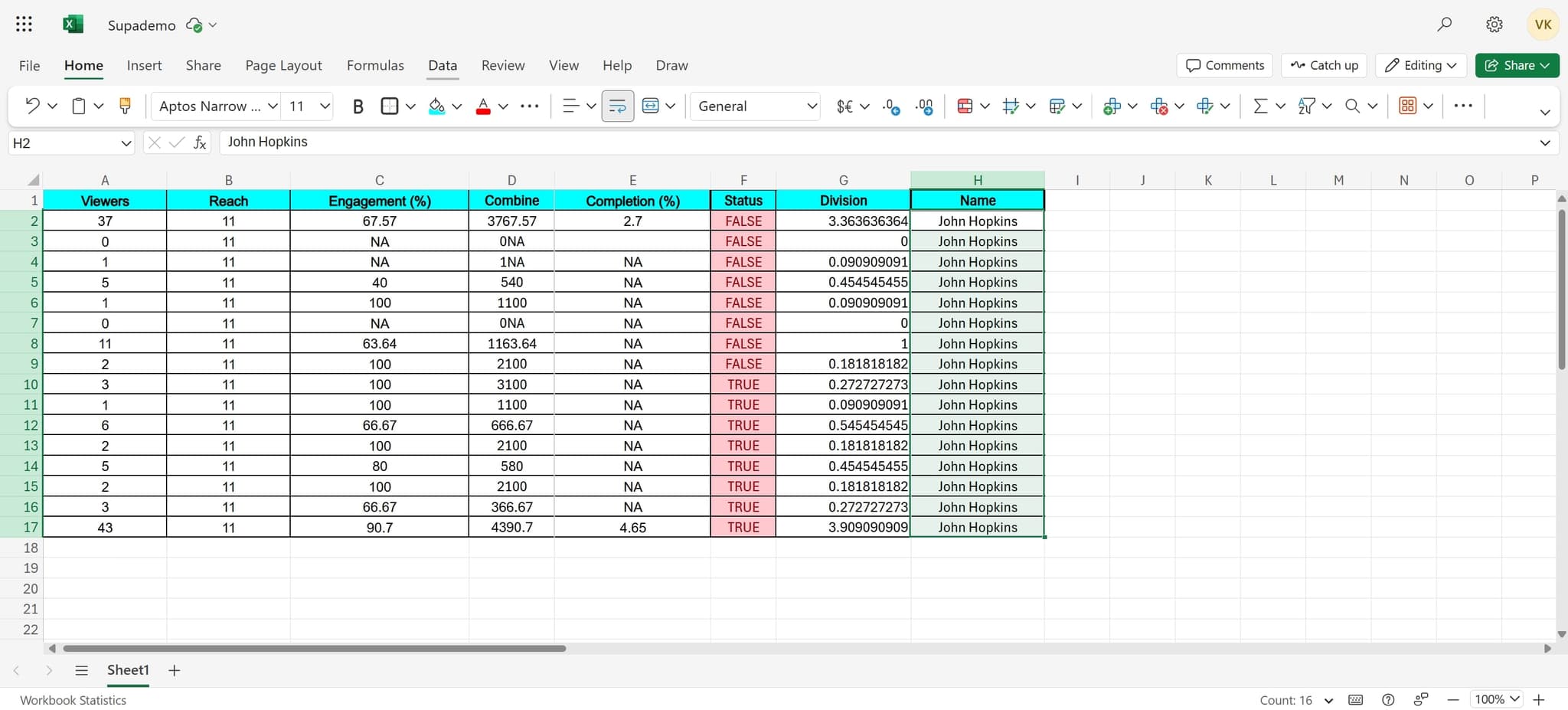
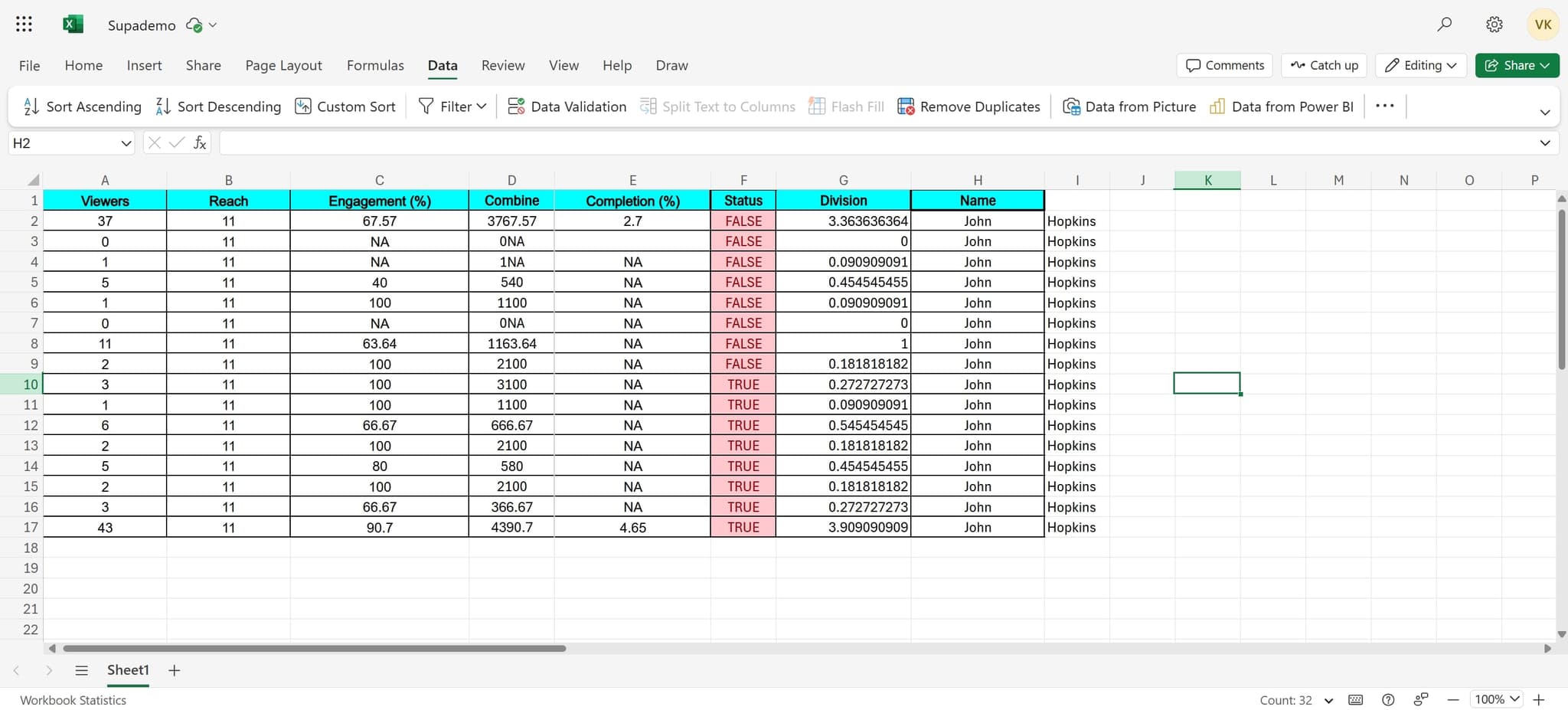
Click on the 'Data' tab in the Excel ribbon at the top of the window. This will reveal all data manipulation tools available in Excel.
- 3
Choose Split Text to Columns
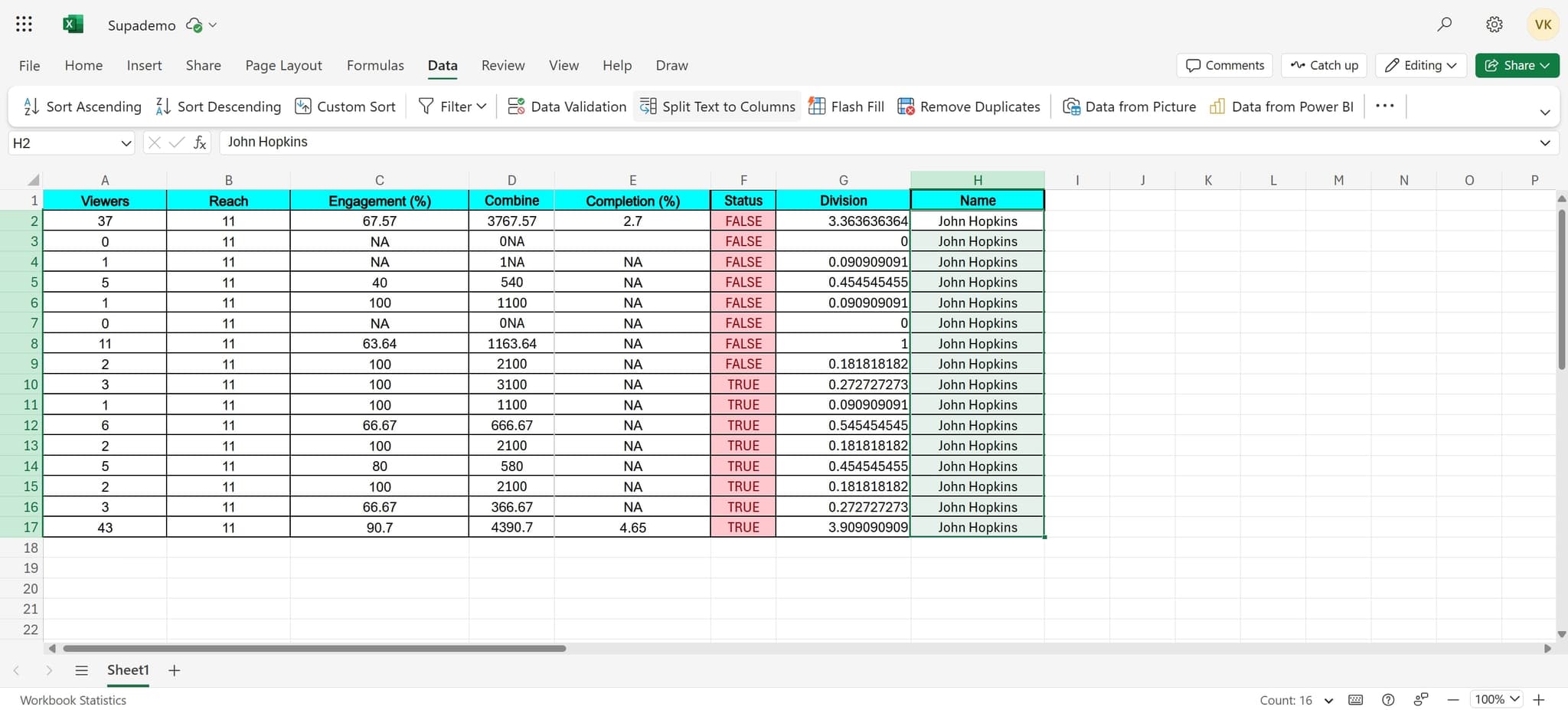
Click on 'Split Text to Columns' from the Data menu options. A dialog box will appear allowing you to specify how your data should be separated.
- 4
Apply your split settings
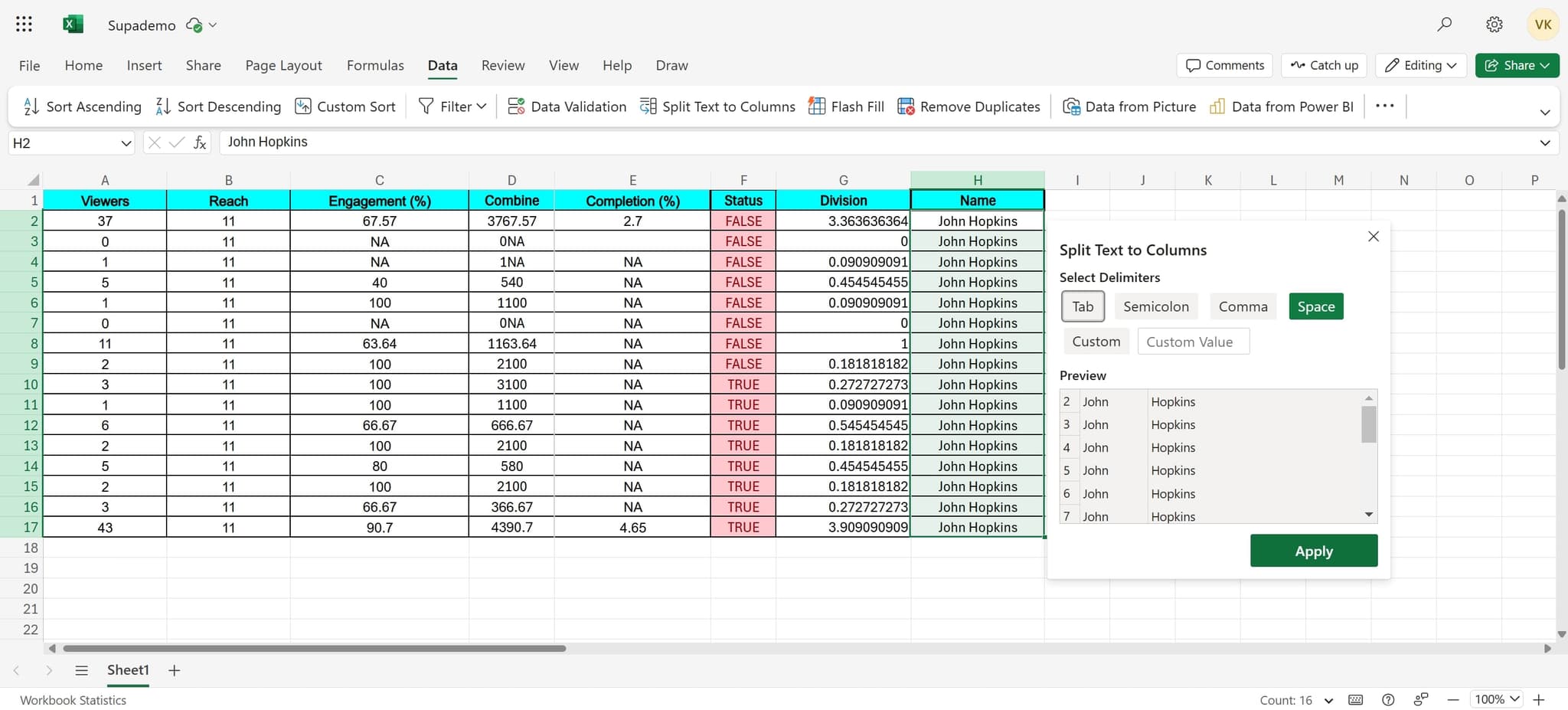
Click the 'Apply' button to execute the split based on your selected delimiter and settings. Your data will now be separated into multiple columns according to your configuration.
- 5
Review your results
Check the newly split columns to ensure the data has been separated correctly. If needed, you can undo the action and adjust your delimiter settings before trying again.
Frequently asked questions
Common questions about how to split cells in excel.
Excel supports several common delimiters including commas, spaces, tabs, semicolons, and custom characters. The Text to Columns wizard allows you to specify which delimiter matches your data format. You can also preview how your data will look before applying the split.
Yes, splitting cells will overwrite the original combined data in the first column and populate adjacent columns with the separated values. If you want to preserve your original data, create a copy of the column or worksheet before splitting.
Yes, the Text to Columns feature allows you to select multiple delimiters simultaneously. In the wizard dialog, you can check multiple delimiter options, and Excel will treat any of those characters as separation points between values.
First, undo the action using Ctrl+Z to restore your original data. Then, reopen the Text to Columns wizard and verify that you've selected the correct delimiter and preview the results before applying. Make sure your data is actually formatted with the delimiter you selected.
Excel has a maximum of 16,384 columns per worksheet, so you're unlikely to exceed this limit when splitting cells. However, ensure you have enough empty columns to the right of your data to accommodate all the split values.