How to Change the Theme in Zendesk Chat

Zendesk Chat's theme settings allow you to customize the appearance of your chat widget to match your brand identity and improve user experience. This guide walks you through the process of changing your chat theme, from accessing the settings to applying your preferred styling.
Quick summary
In this tutorial, you'll learn how to navigate Zendesk Chat's theme options, select a pre-built theme, customize colors and styles, and apply your changes to your live chat widget. By the end, you'll have a personalized chat experience that aligns with your brand guidelines.
Why this matters
Customizing your chat theme is essential for maintaining brand consistency across customer touchpoints and creating a professional appearance. A well-themed chat widget improves user trust, encourages engagement, and provides a seamless experience that matches the rest of your website or application.
Step-by-step guide
- 1
Log in to Zendesk Chat
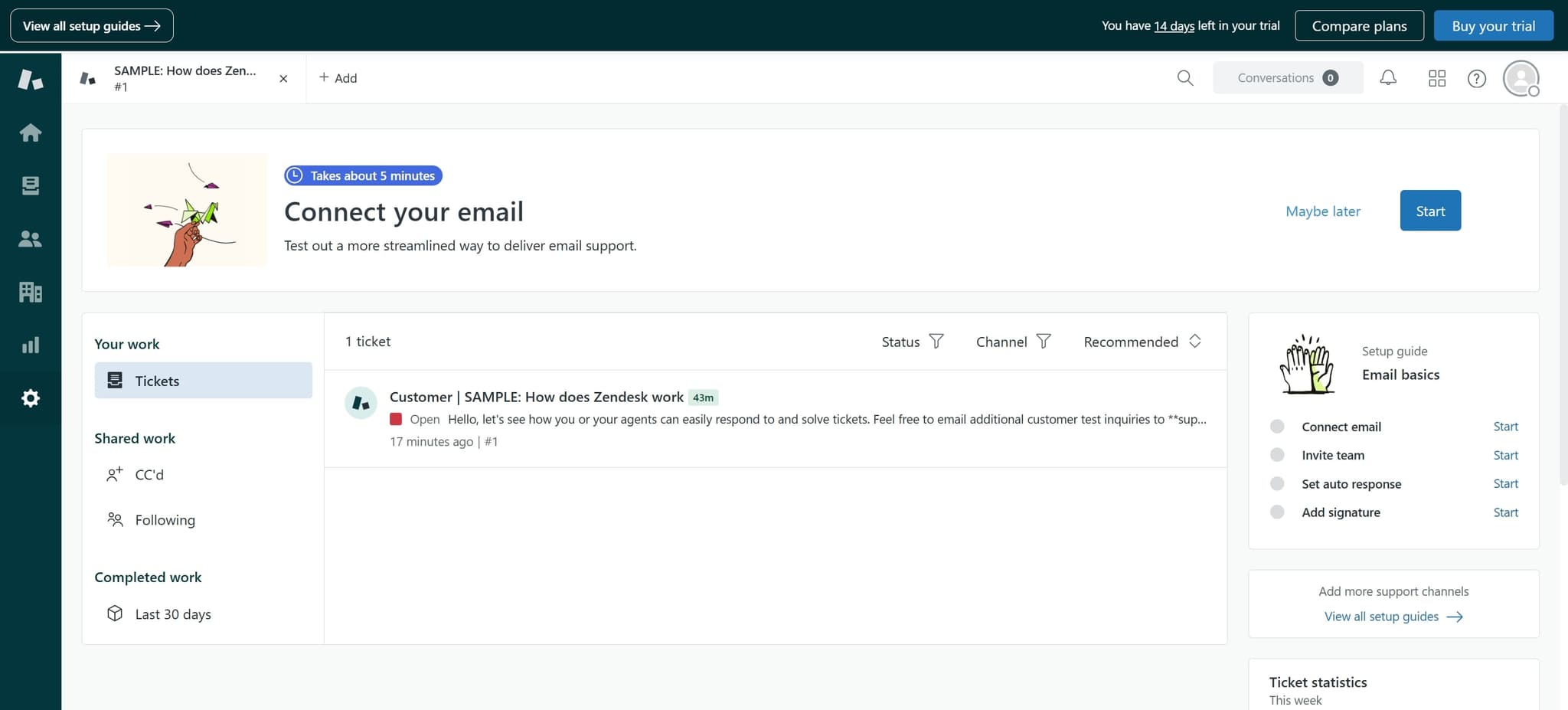
Access your Zendesk Chat account by navigating to the login page and entering your credentials. Once authenticated, you'll be directed to your main Zendesk dashboard.
- 2
Navigate to Settings
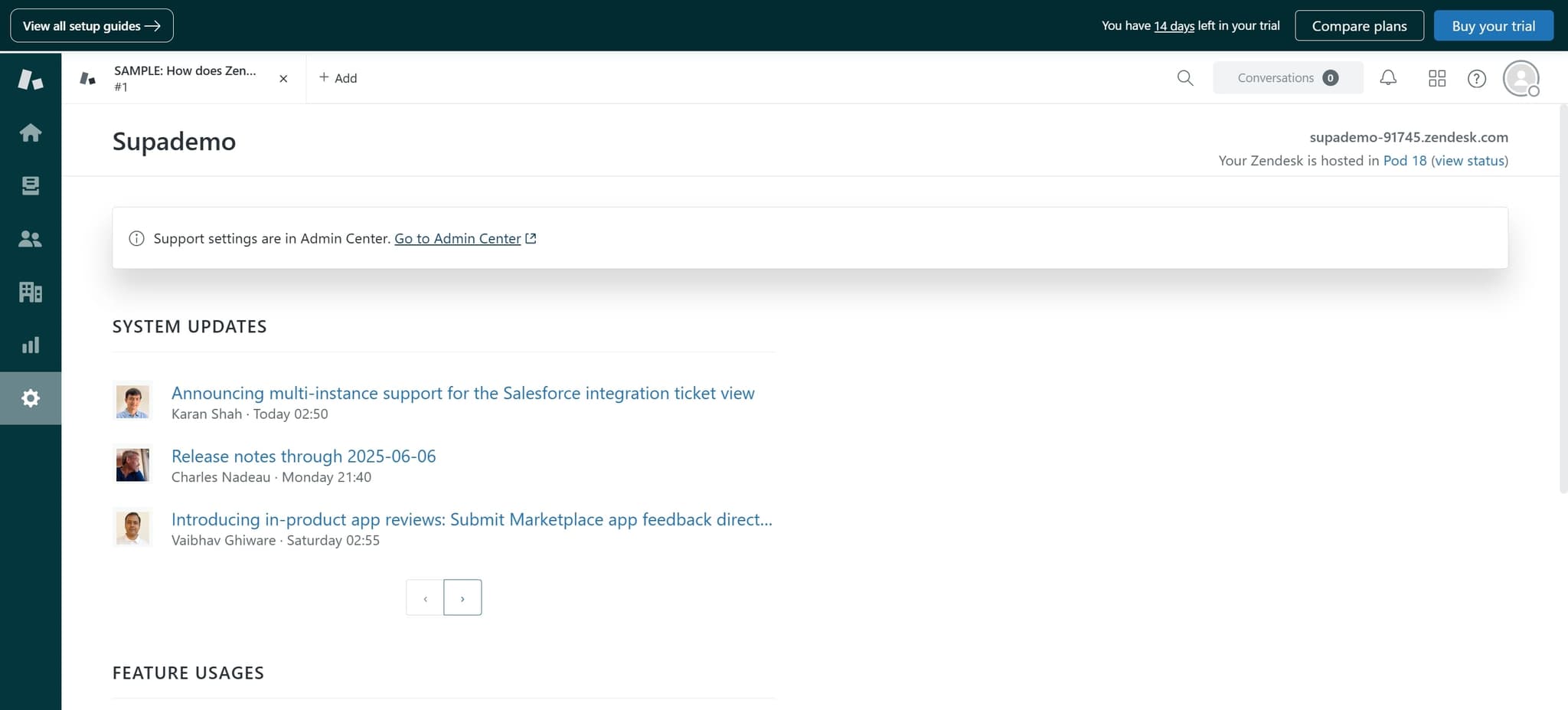
Click the Settings icon (gear icon) typically located in the bottom left corner of the interface. This opens the settings menu where you can access various configuration options.
- 3
Select Chat Settings
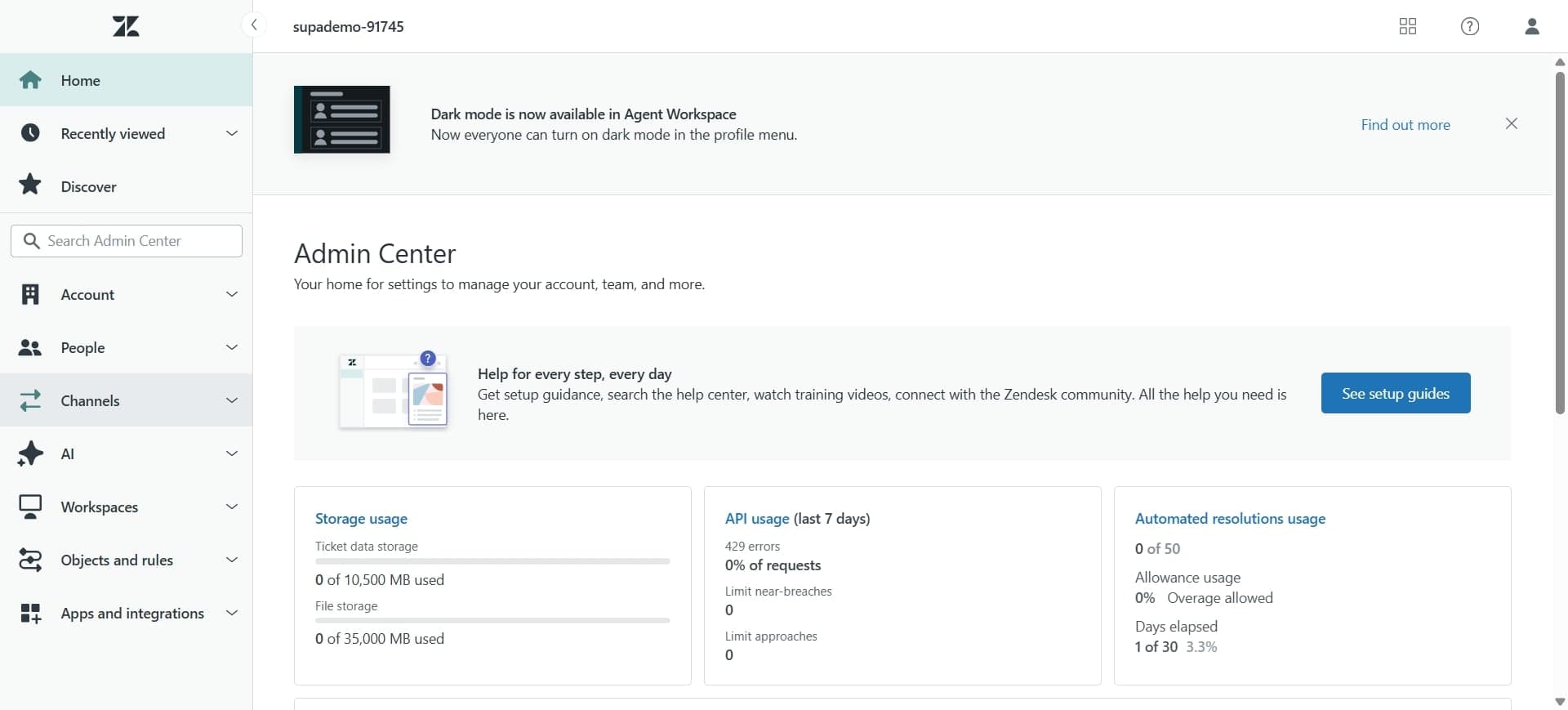
From the settings menu, locate and click on Chat Settings or Widget Settings. This section contains all the customization options for your chat widget.
- 4
Access Theme Options
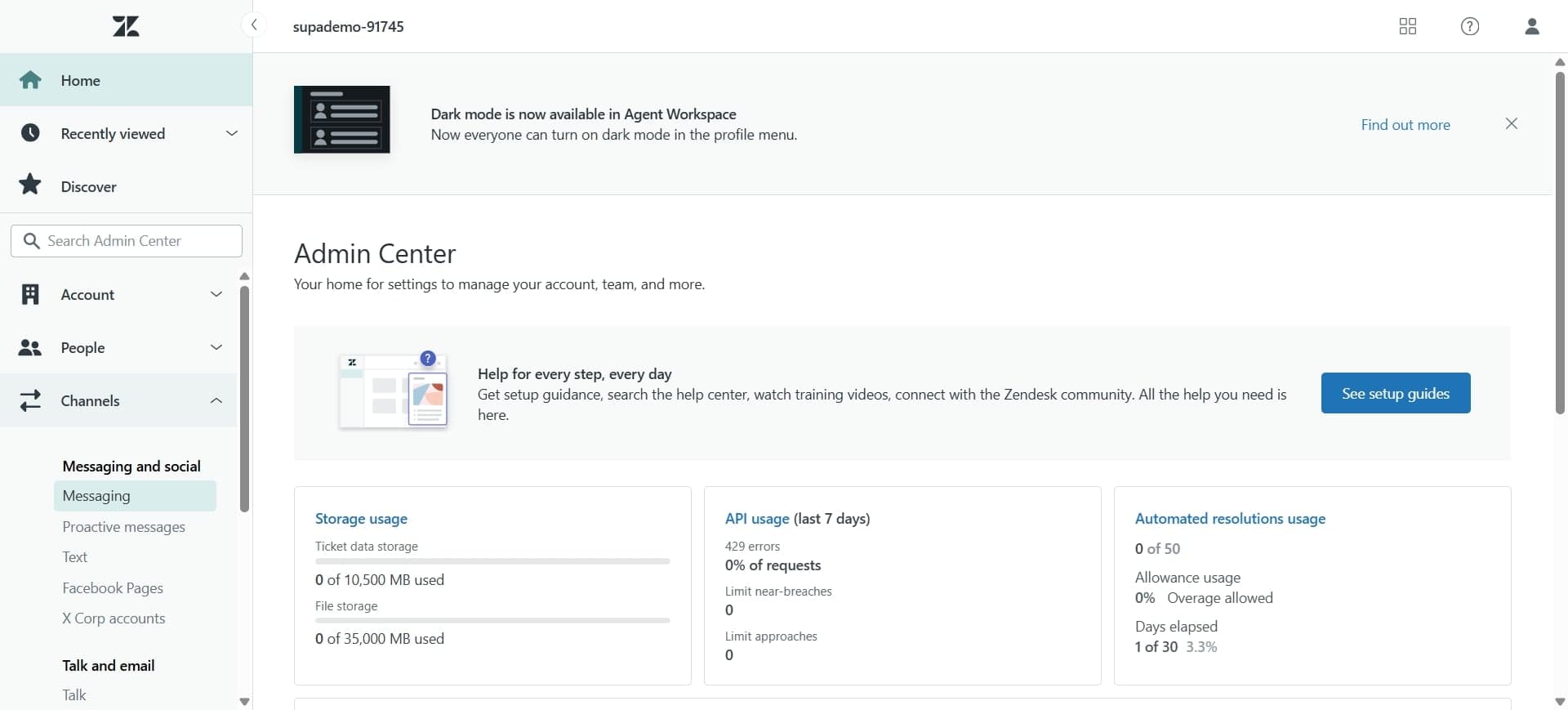
Look for the Theme or Appearance tab within Chat Settings. Click on it to view the available theme presets and customization options.
- 5
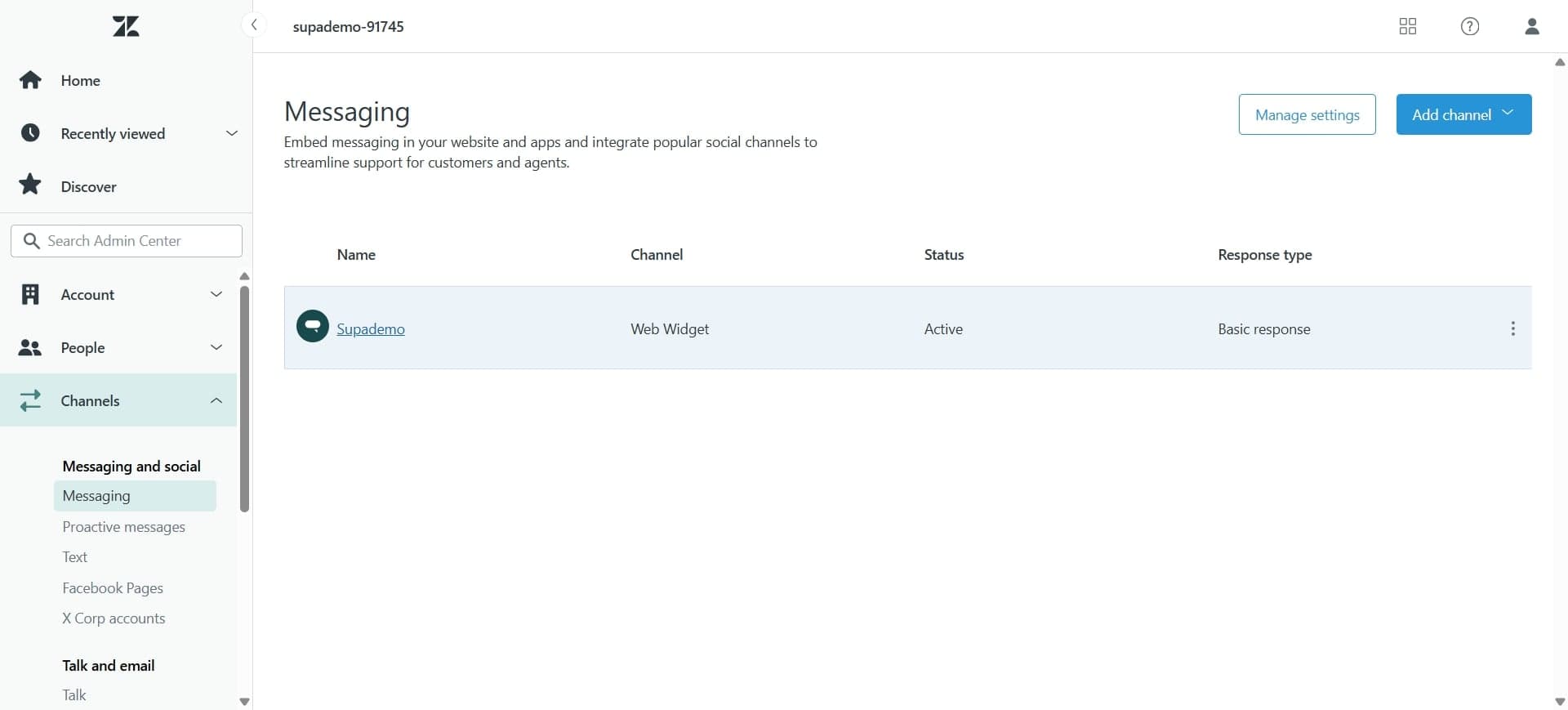
Choose a Theme Preset
Review the pre-built theme options available and click on the one that best fits your brand aesthetic. You'll see a preview of how the theme will appear on your widget.
- 6
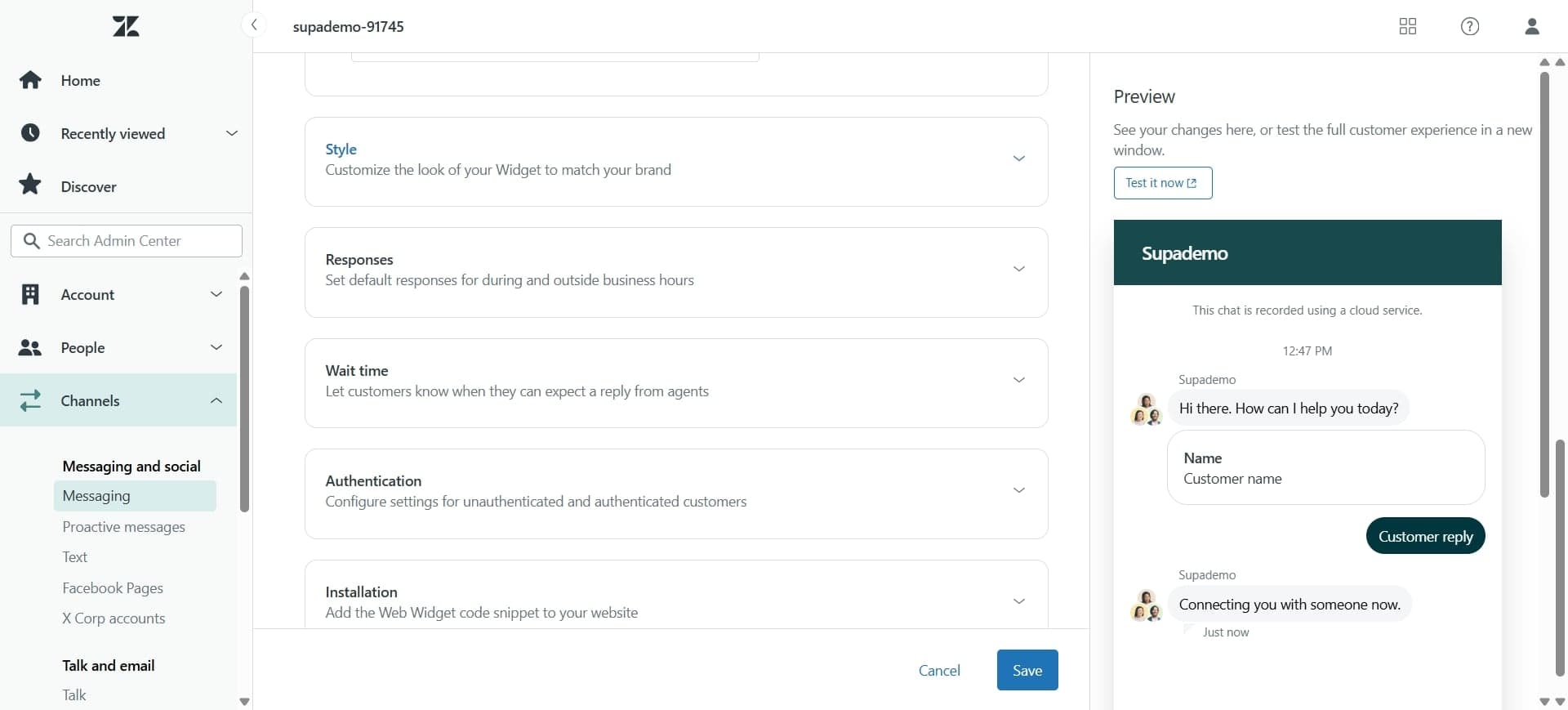
Customize Colors and Styles
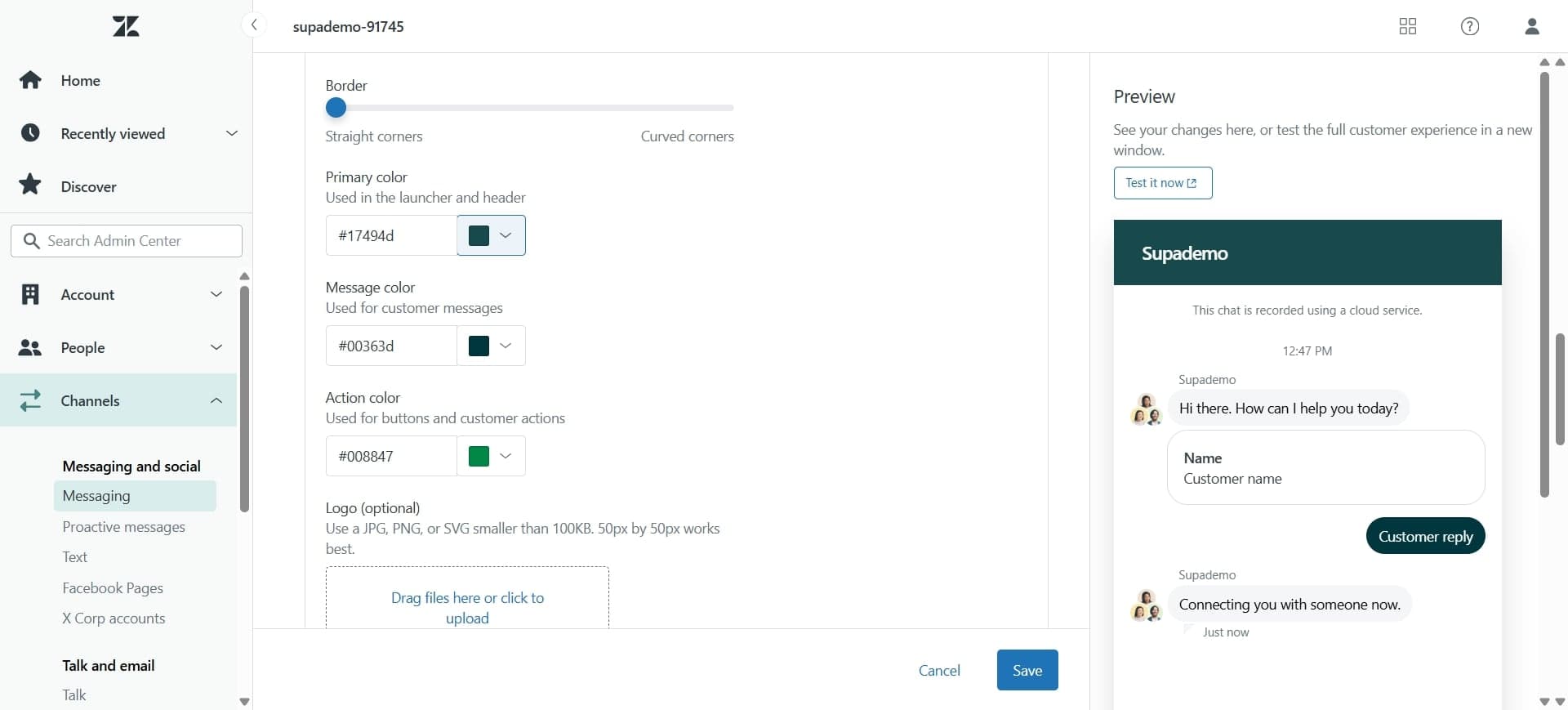
After selecting a base theme, use the customization controls to adjust colors, fonts, and other visual elements. Most themes allow you to modify the primary color, accent colors, and text styling.
- 7
Preview Your Changes
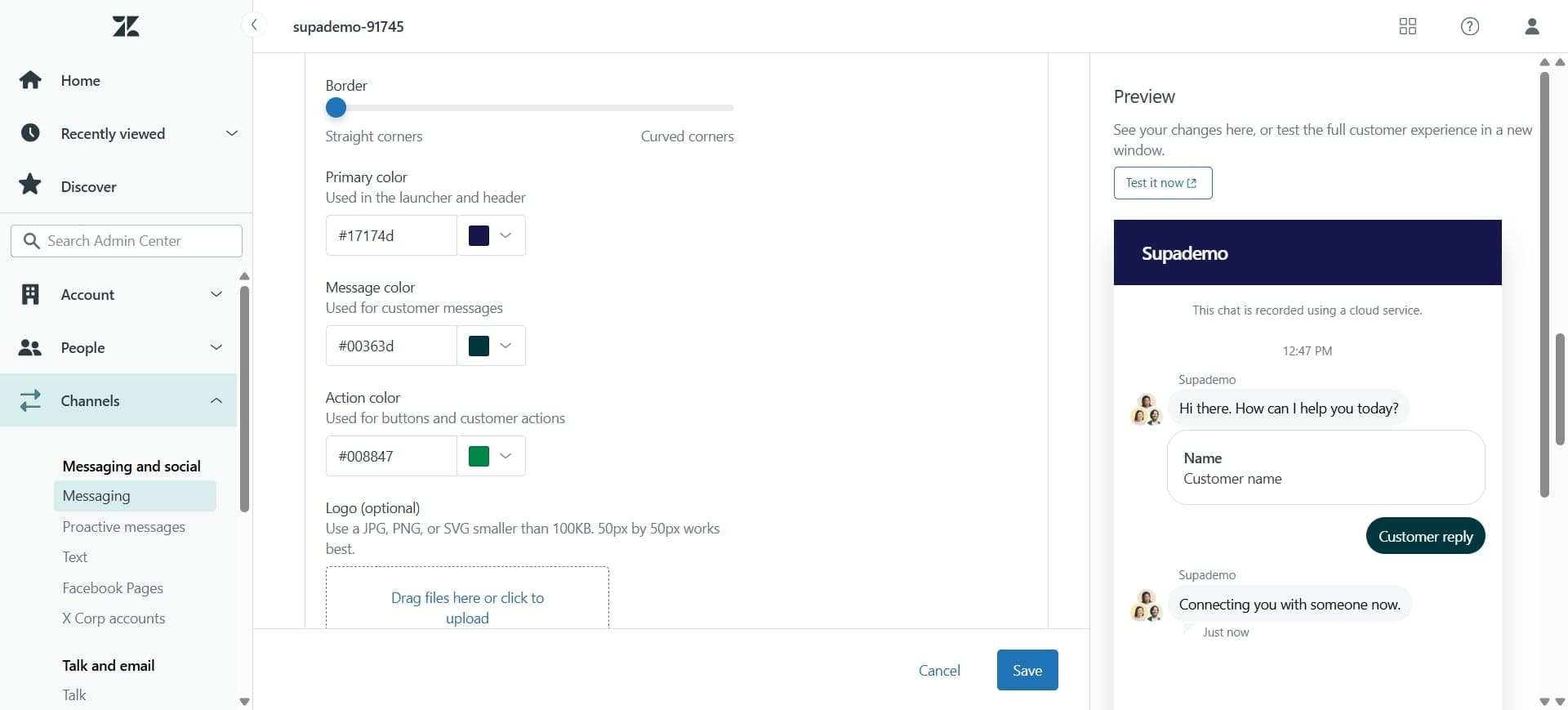
Use the preview pane to see how your customized theme looks in real-time. This helps you ensure the theme aligns with your brand before applying it to your live widget.
- 8
Save and Apply Theme
Click the Save or Apply button to confirm your theme changes. Your new theme will be immediately applied to your Zendesk Chat widget across all channels.
Frequently asked questions
Common questions about how to change the theme in zendesk chat.
Can I revert to the default theme after customizing?
Yes, you can reset to the default theme at any time by accessing the Theme settings and selecting the reset or default option. This will undo all custom changes and restore the original Zendesk Chat appearance.
Do theme changes apply immediately to my live chat widget?
Theme changes typically apply instantly once you save them, but there may be a brief delay depending on your browser cache. Refreshing your page or clearing cache ensures you see the updates immediately.
Can I use custom colors that match my brand?
Yes, most Zendesk Chat themes include a color picker or hex code input field that allows you to enter custom colors. You can specify your brand colors for buttons, backgrounds, text, and other elements.
Are there mobile-specific theme settings?
Zendesk Chat themes are responsive and automatically adapt to mobile devices. Your customizations apply across all screen sizes, though you should preview your theme on mobile to ensure optimal appearance.
Can I create multiple themes for different campaigns?
Zendesk Chat typically allows one active theme at a time. If you need different themes for different campaigns, you would need to switch between them manually in the settings or use rules-based customization if available in your plan.