How to Create a Gantt Chart on Monday.com

Gantt charts are a powerful way to visualize project timelines and track task dependencies in Monday.com. This guide walks you through the process of creating a Gantt chart view to better manage your project schedule and team workflows.
Quick summary
In this tutorial, you'll learn how to set up a Gantt chart view in Monday.com by accessing the view options and selecting the Gantt chart layout. By the end, you'll be able to visualize your project timeline and manage task schedules more effectively.
Why this matters
Gantt charts provide a clear visual representation of project schedules, making it easier to identify critical paths, manage dependencies, and communicate timelines to stakeholders. Using Gantt charts in Monday.com helps teams stay aligned on deadlines and resource allocation.
Step-by-step guide
- 1
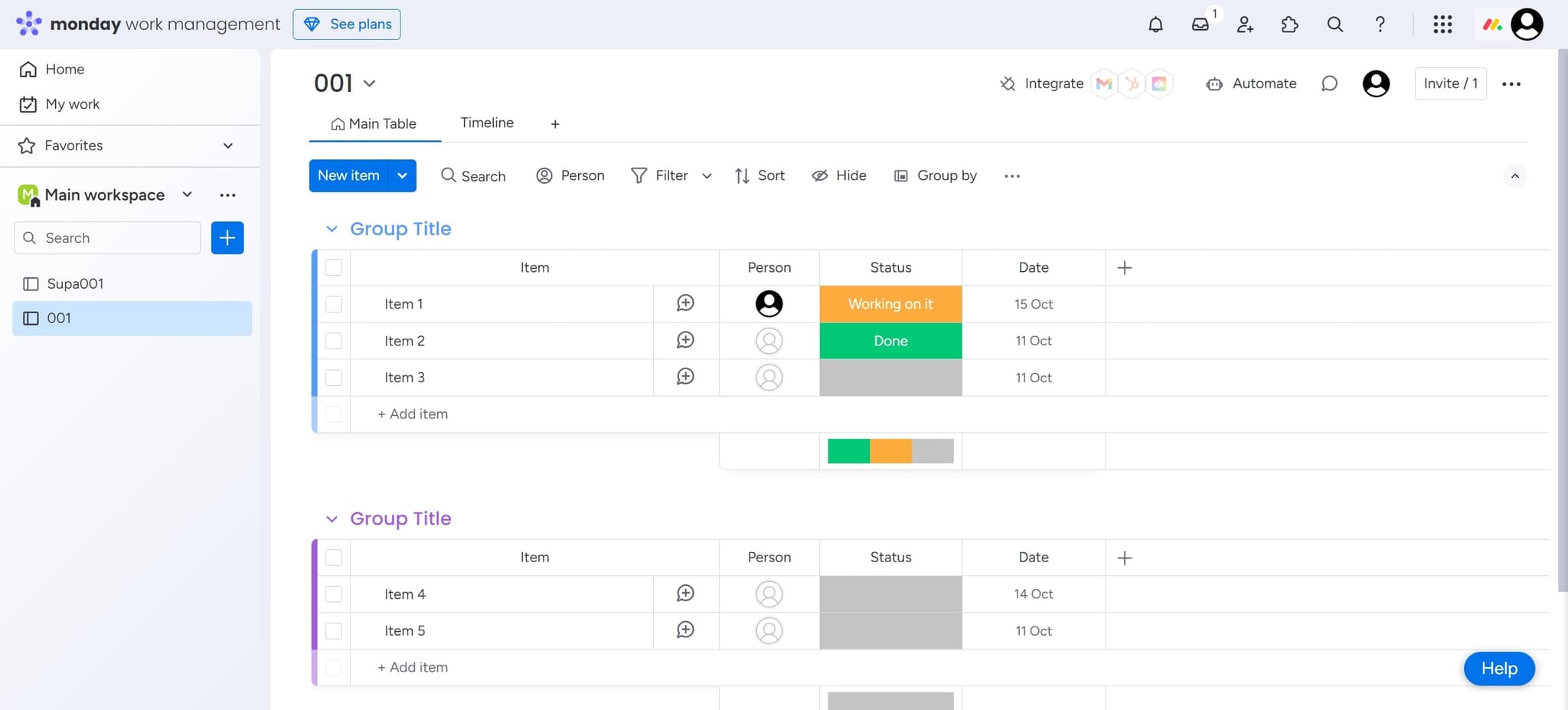
Access the board view menu
Click the designated button to open the view options for your Monday.com board. This will display the available visualization options for your project data.
- 2
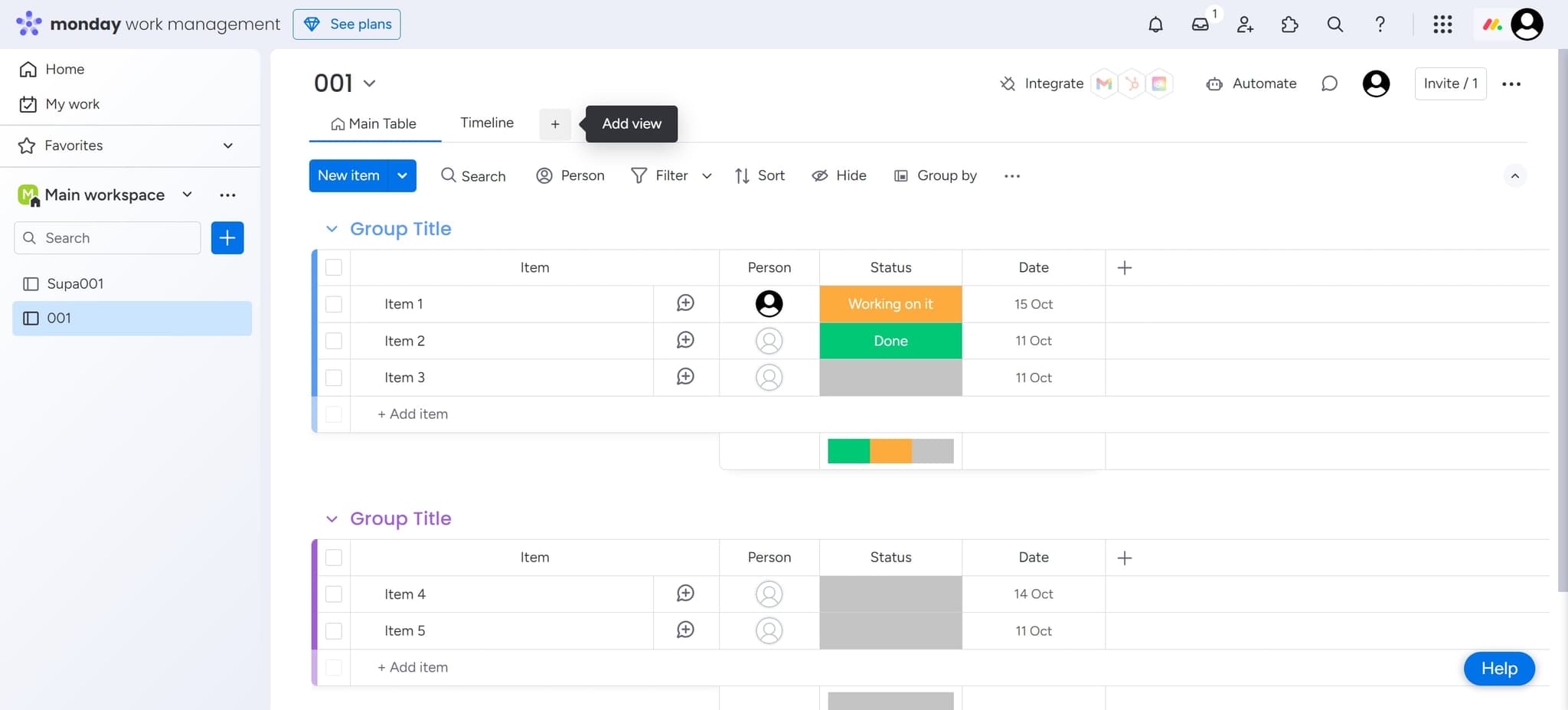
Select the view element
Click on the element to activate the view selection interface. This prepares the board to change to a different view type.
- 3
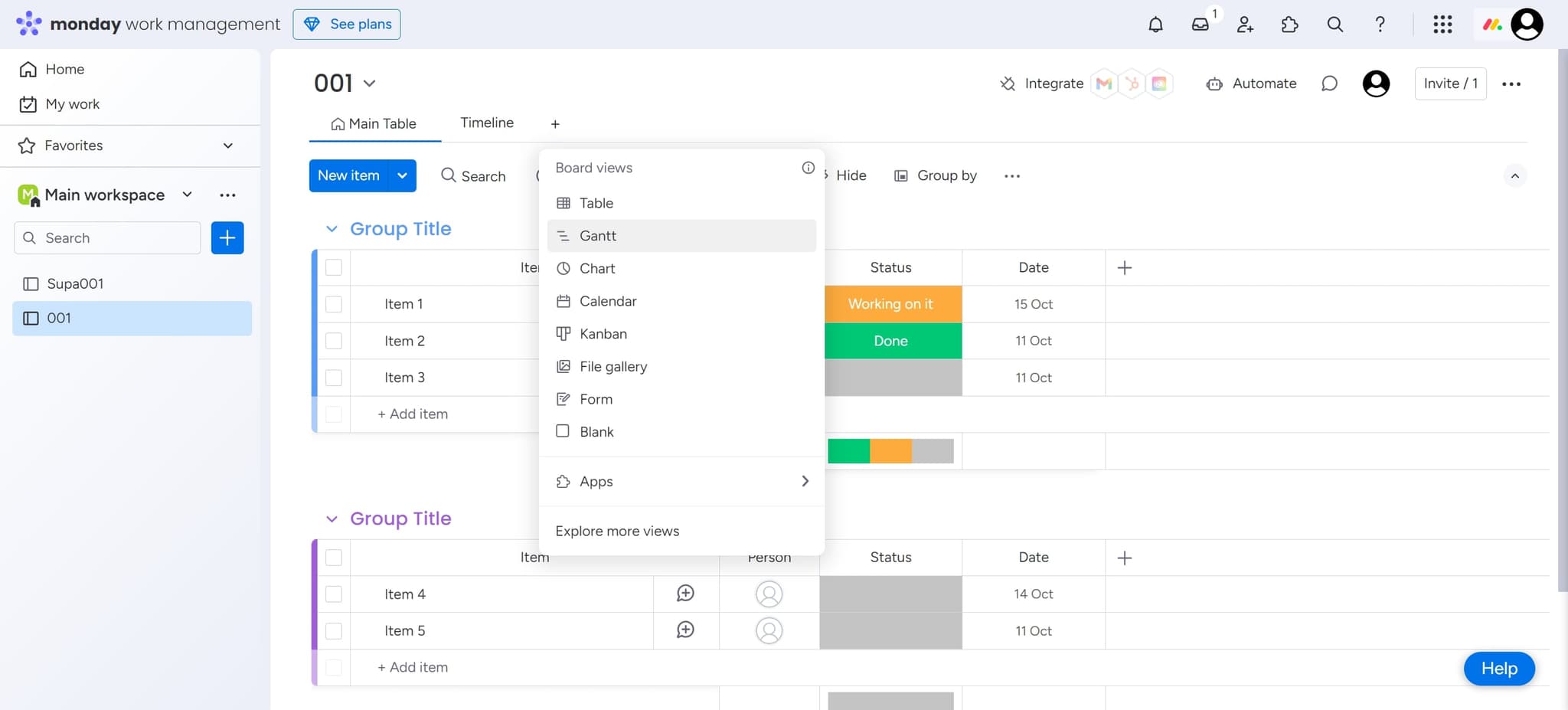
Choose Gantt chart view
Click on the 'Gantt' option to switch your board to Gantt chart view. Your project data will now display as an interactive timeline with tasks and dependencies visualized horizontally.
- 4
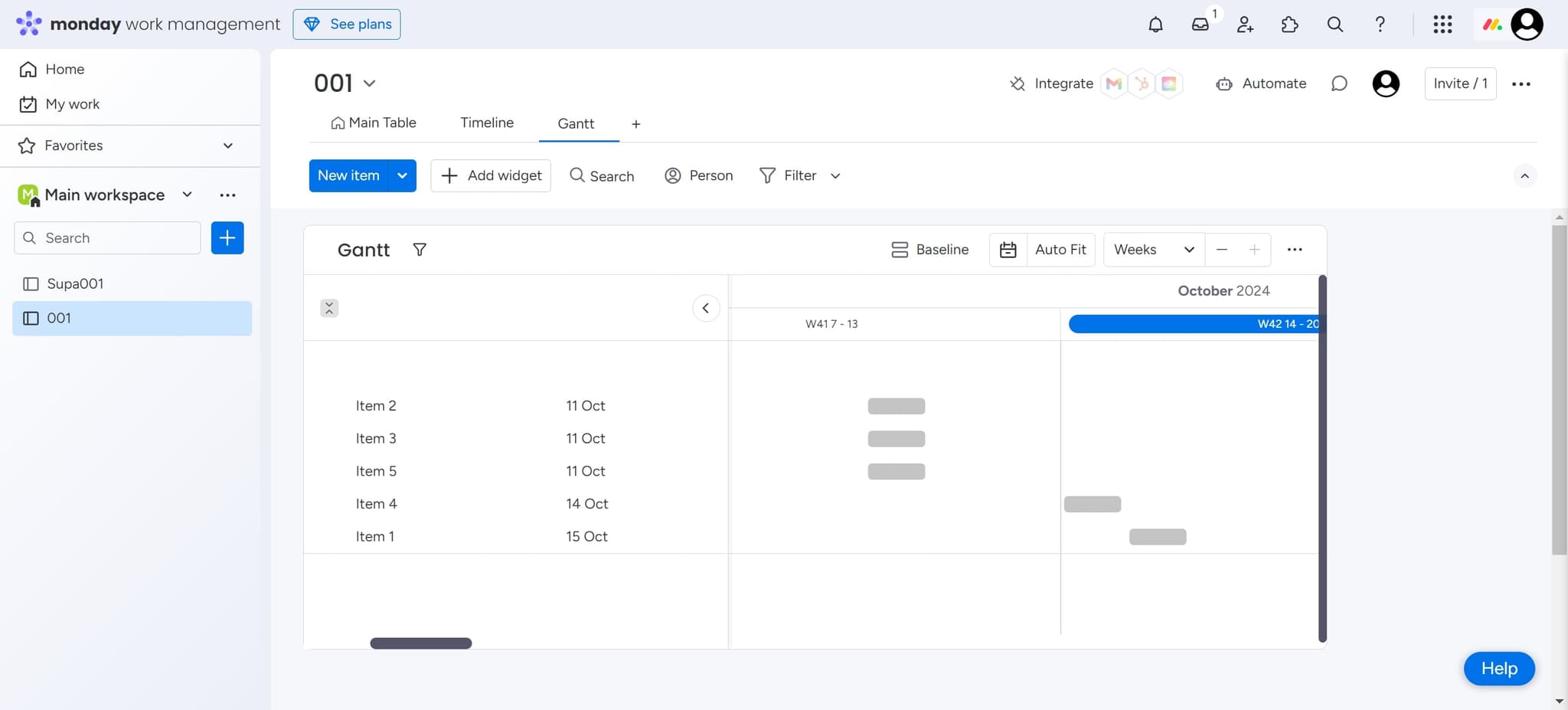
Confirm and apply changes
Click to finalize the Gantt chart creation. The view will now be active on your board, allowing you to see all your tasks plotted against a calendar timeline.
Frequently asked questions
Common questions about how to create a gantt chart on monday.com.
What information do I need before creating a Gantt chart in Monday.com?
You should have tasks or items already created in your Monday.com board with start and end dates assigned. The Gantt chart will pull this date information to display your timeline. If your items don't have dates, you'll need to add them first.
Can I edit tasks directly from the Gantt chart view?
Yes, Monday.com allows you to edit task dates, durations, and dependencies directly within the Gantt chart view. You can drag tasks to reschedule them and modify details without switching back to table view.
How do I show task dependencies in the Gantt chart?
Monday.com can display dependencies as connector lines between tasks in the Gantt view, provided you've set up dependency relationships in your board. Check your column settings to ensure dependencies are configured and visible.
What if I want to switch back to a different view?
You can switch views at any time by accessing the view menu again and selecting a different layout such as table view, calendar, or kanban. All your data remains the same regardless of which view you're using.
Can multiple team members view the Gantt chart simultaneously?
Yes, all team members with access to the board can view the Gantt chart in real-time. Changes made by one user will be reflected immediately for everyone viewing the board, ensuring everyone stays synchronized.