How to Create a Slack Channel

Slack channels are the foundation of team communication, allowing you to organize conversations by topic, project, or department. This guide walks you through creating a new Slack channel from start to finish, whether you need a public space for broad collaboration or a private channel for sensitive discussions.
Quick summary
In this tutorial, you'll learn how to create a Slack channel by navigating the channel creation flow, selecting privacy settings, and adding members. By the end, you'll have a fully configured channel ready for your team to use.
Why this matters
Creating well-organized channels keeps your Slack workspace structured and ensures conversations stay focused and easy to find. Whether you're launching a new project, forming a department-specific group, or creating a space for client collaboration, proper channel setup is essential for effective team communication.
Step-by-step guide
- 1
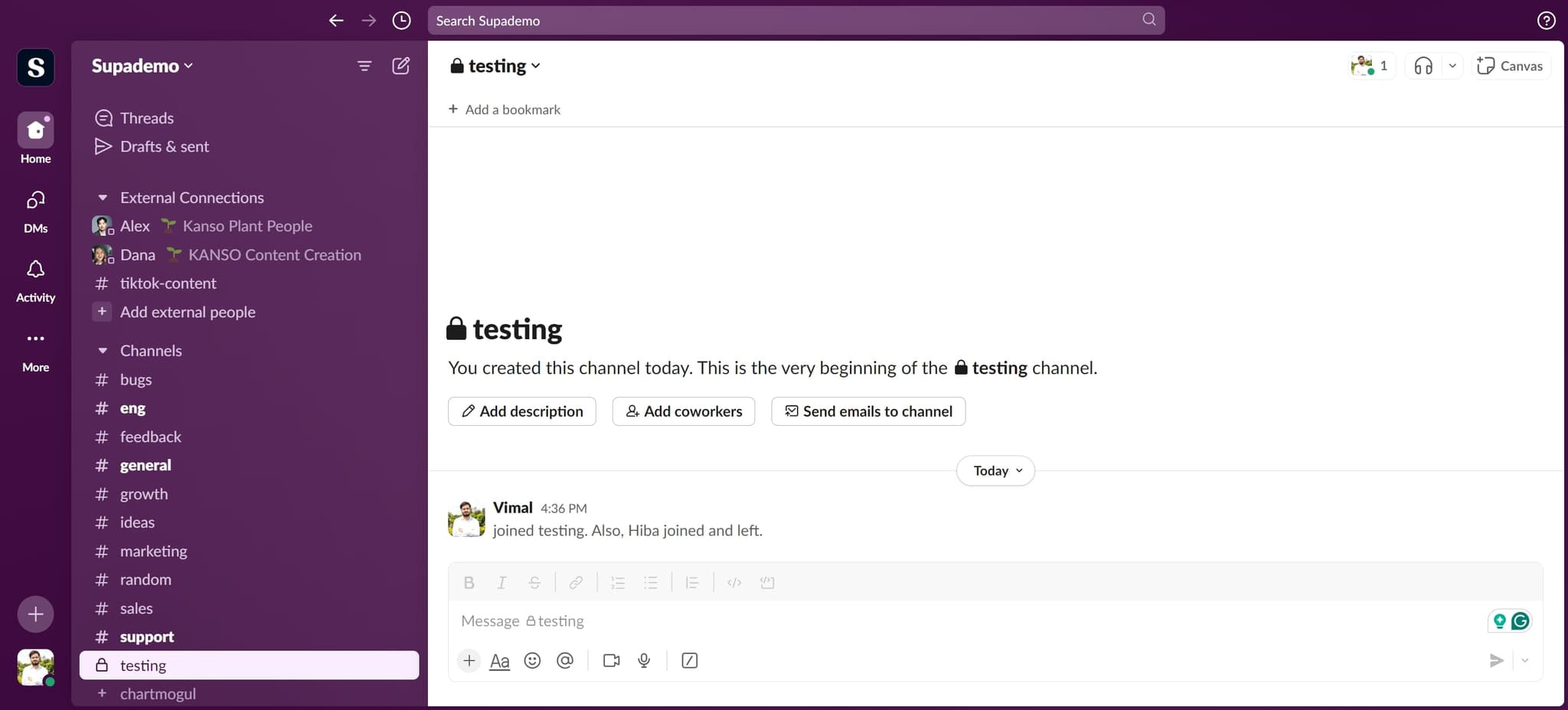
Open Slack and start setup
Launch Slack and locate the button to begin creating a new channel. This is typically found in the main navigation area of your workspace.
- 2
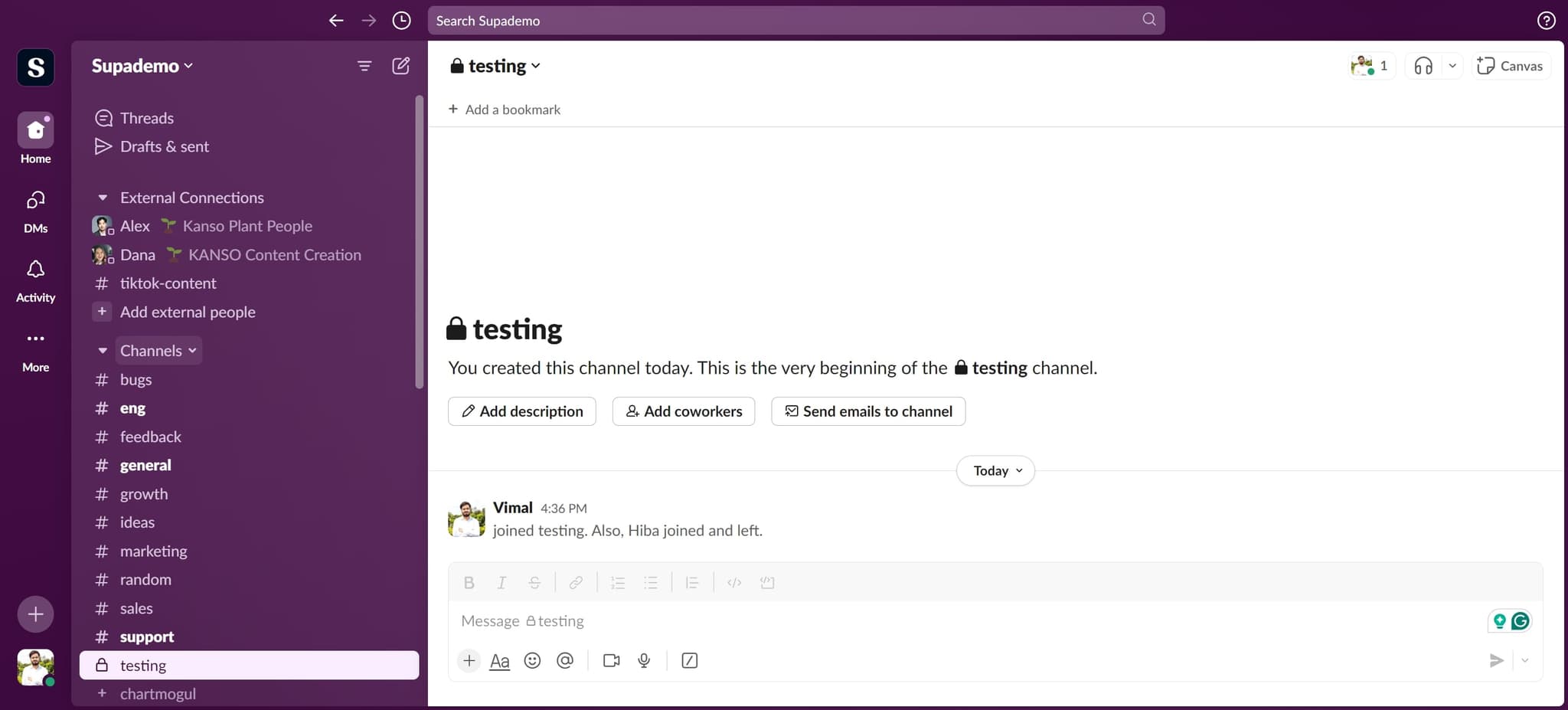
Access the channel creation menu
Click on the relevant element to open the channel creation interface. This will display options for setting up your new channel.
- 3
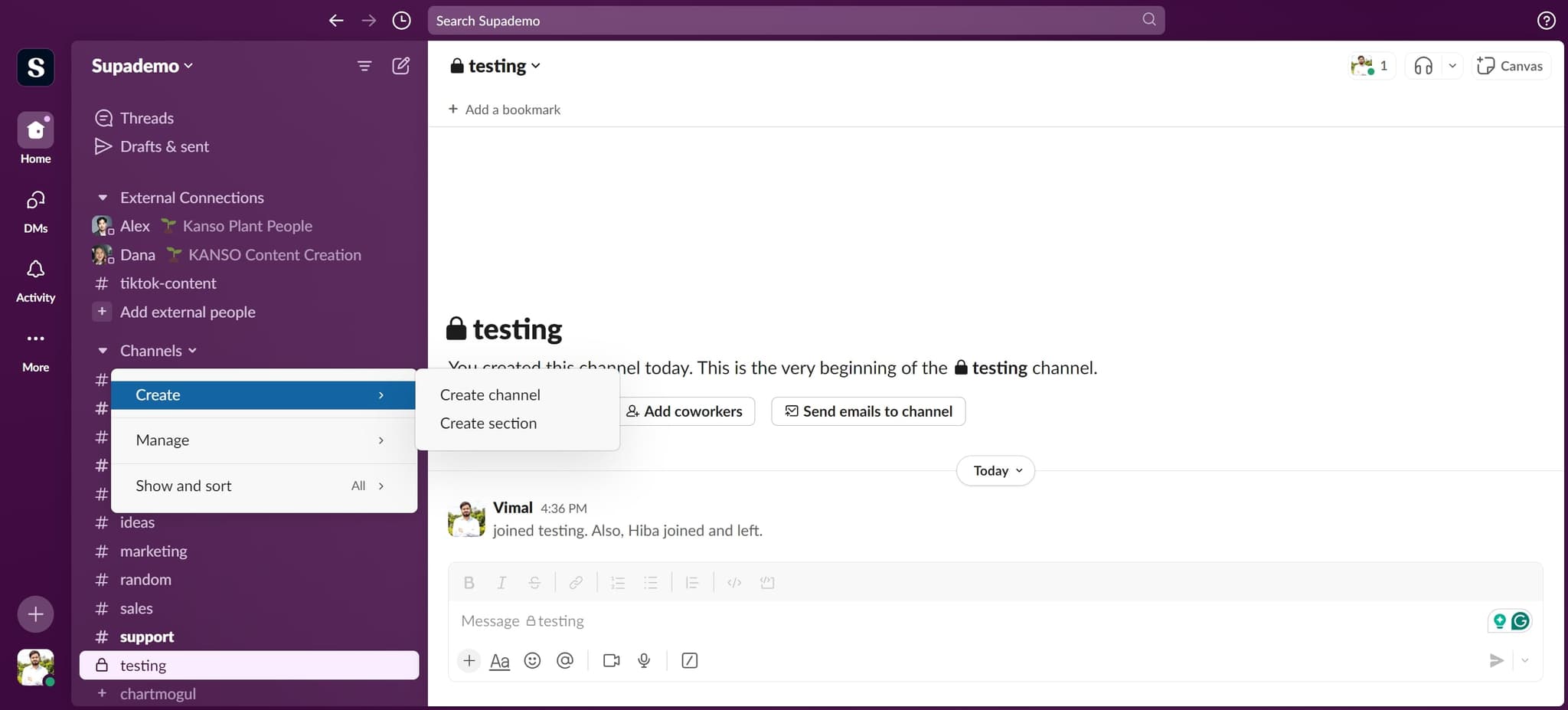
Initiate the creation process
Click the 'Create' button to proceed with channel setup. You'll move forward in the creation workflow.
- 4
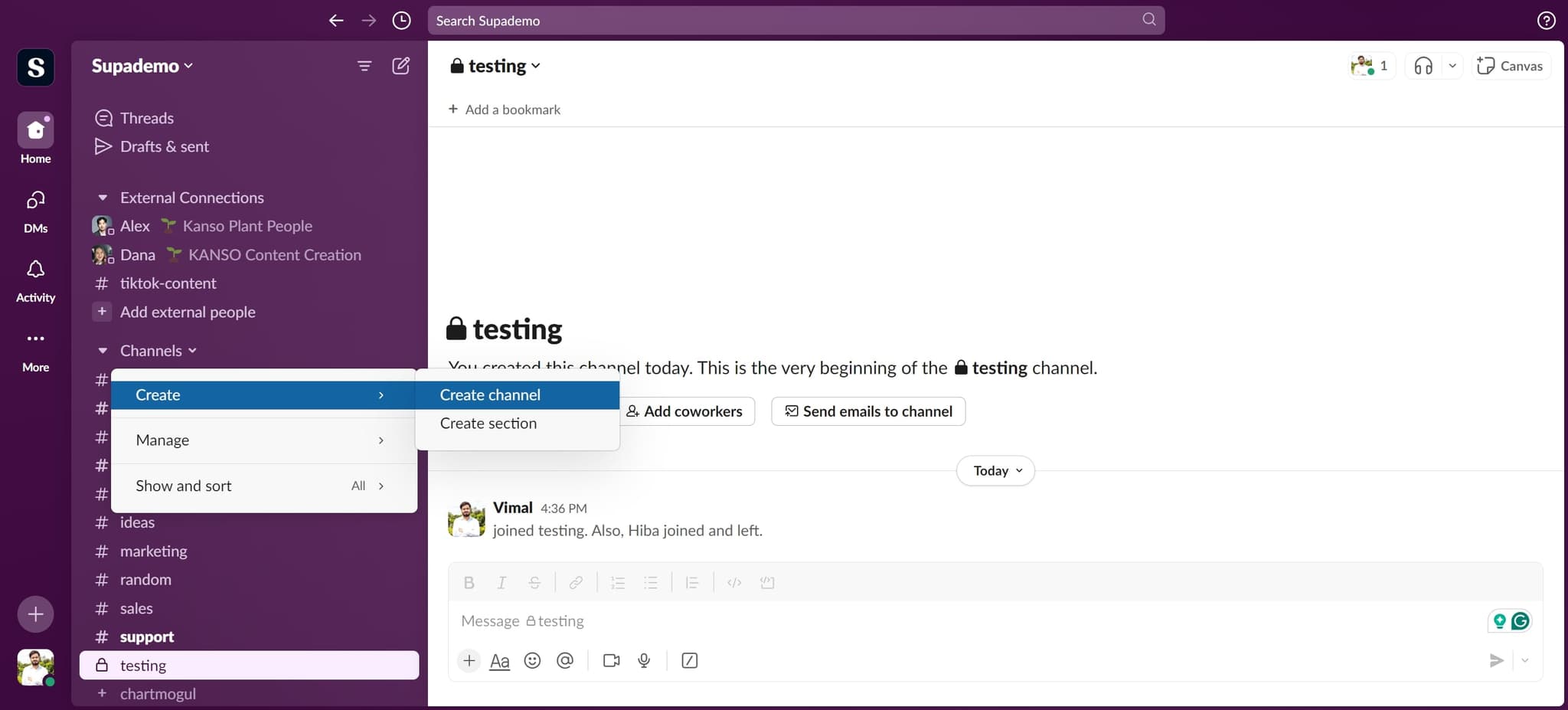
Select 'Create channel' option
Click on 'Create channel' to confirm you want to create a new channel rather than explore other options. This advances you to the channel configuration screen.
- 5
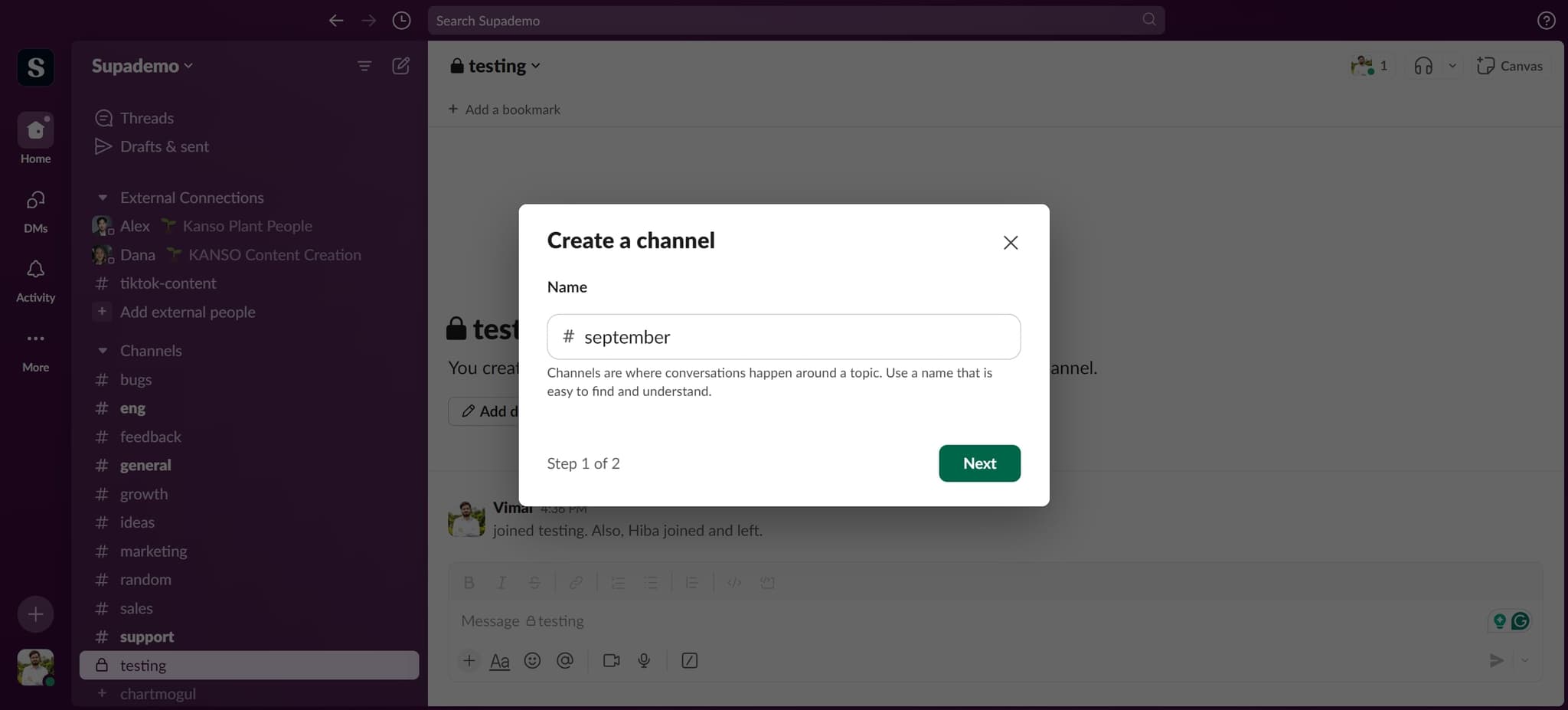
Continue to the next step
Click 'Next' to move to the privacy and configuration settings. This step prepares you to define who can access your channel.
- 6
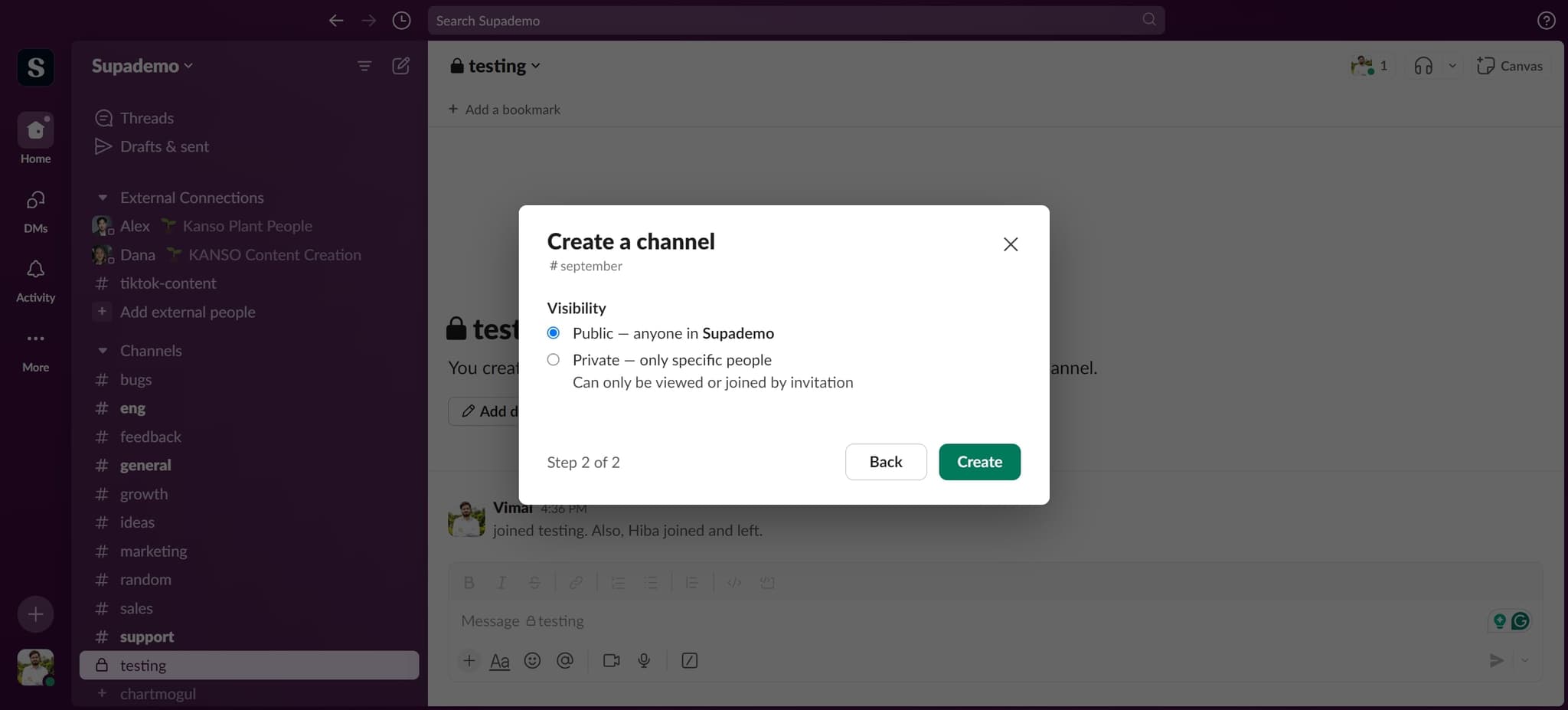
Choose private channel setting
Click on 'Private — only specific people' to restrict channel access to invited members only. This ensures sensitive conversations remain visible only to authorized participants.
- 7
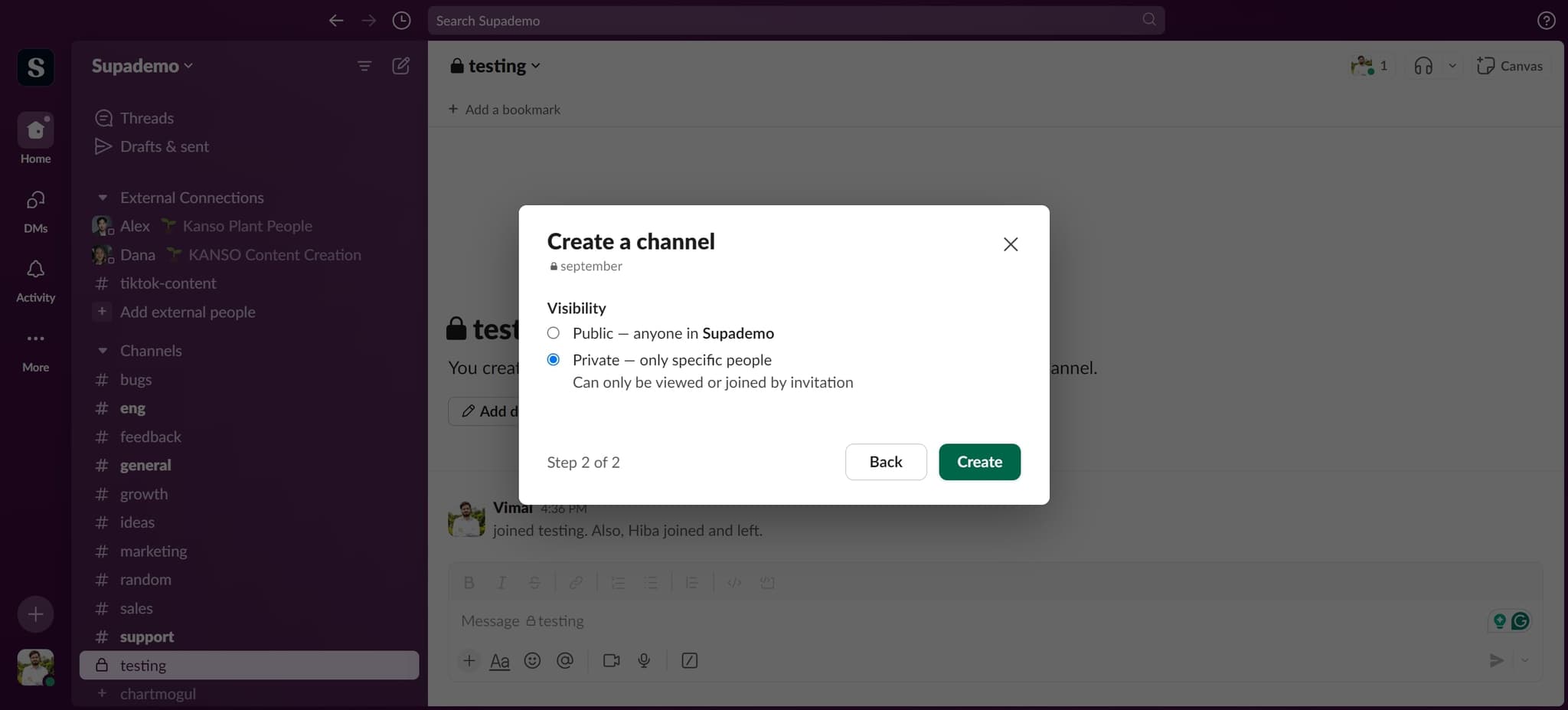
Confirm channel creation
Click 'Create' to finalize your channel with the private setting. Your channel is now established and ready for member addition.
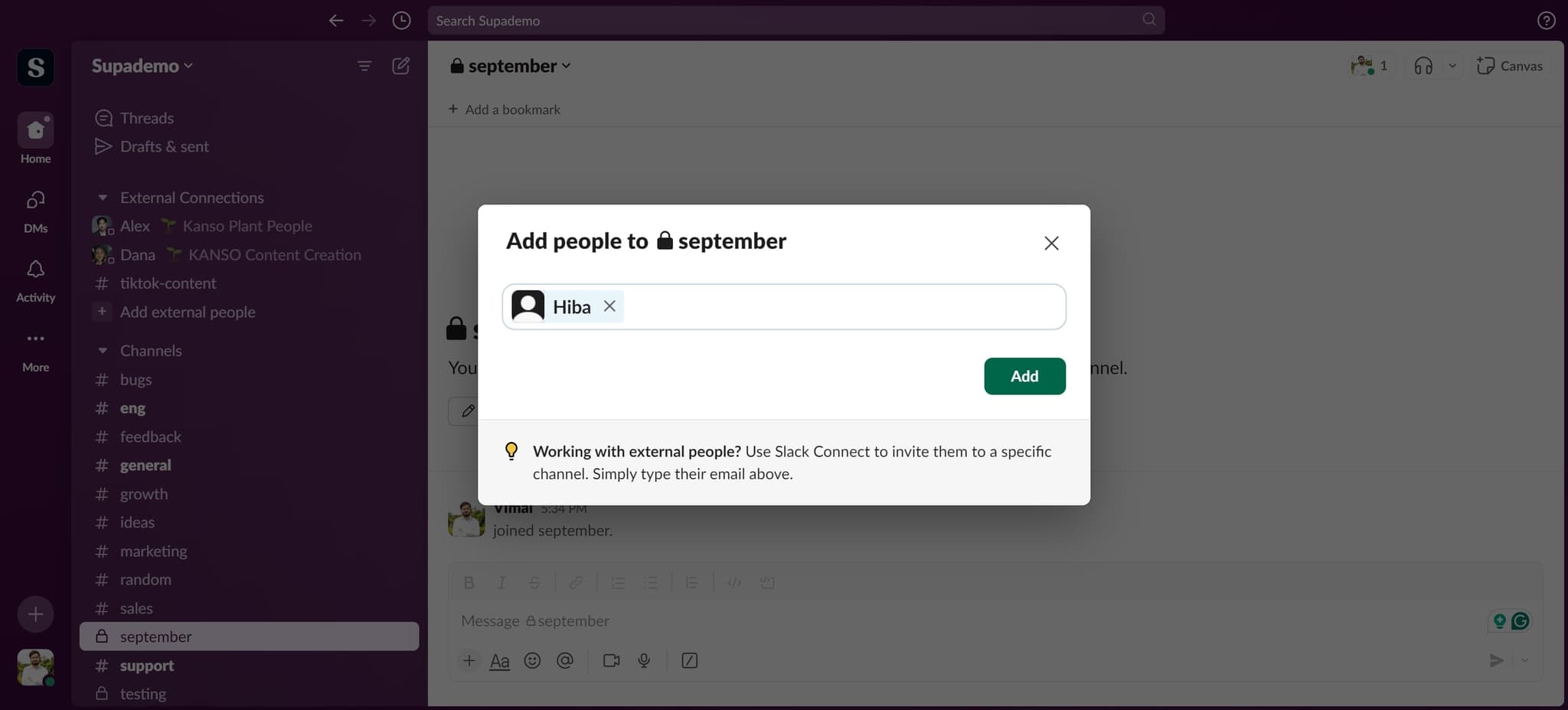
- 8
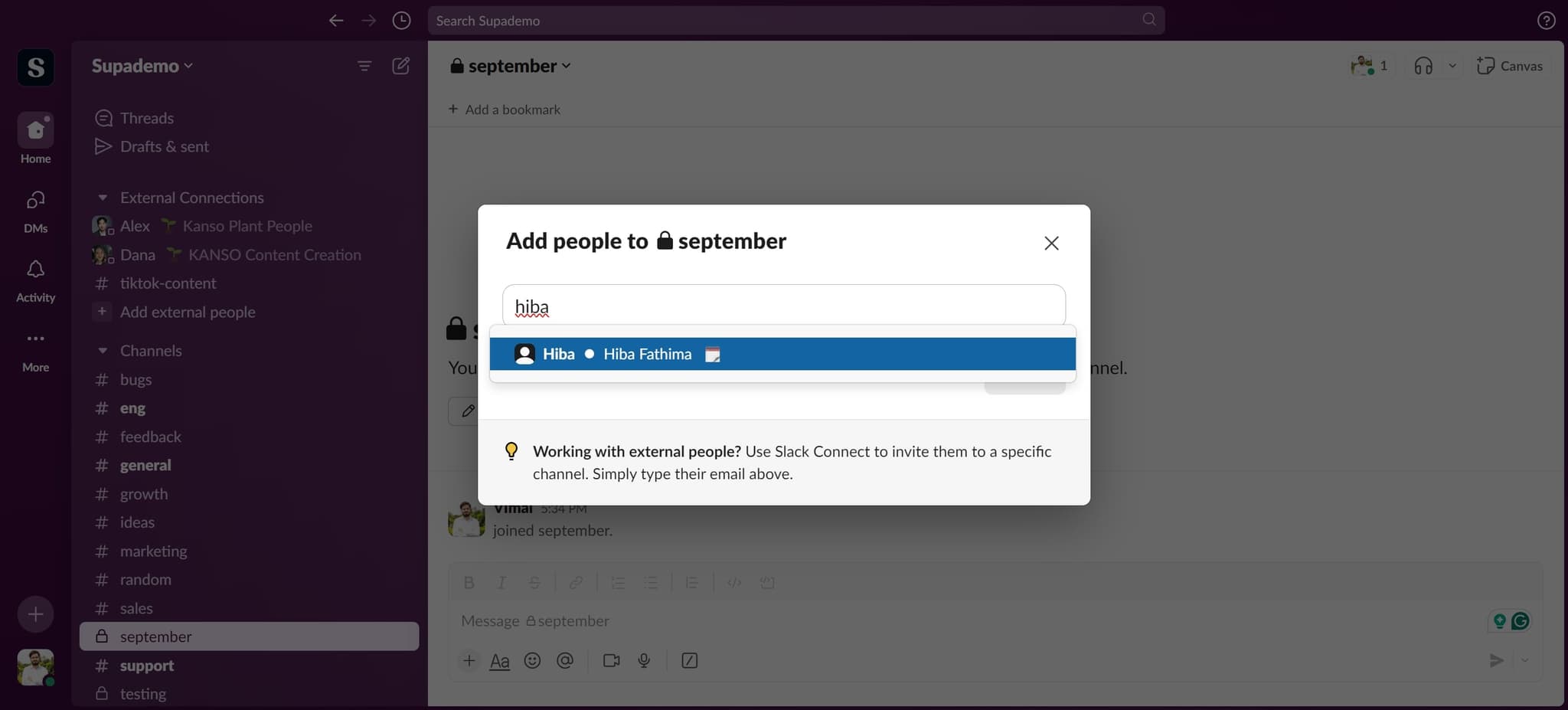
Select the first member
Click on 'Hiba' (or the relevant member name) to add them to your channel. This begins the process of populating your channel with team members.
- 9
Add the selected member
Click 'Add' to confirm adding this member to the channel. They will now have access to view and participate in channel conversations.
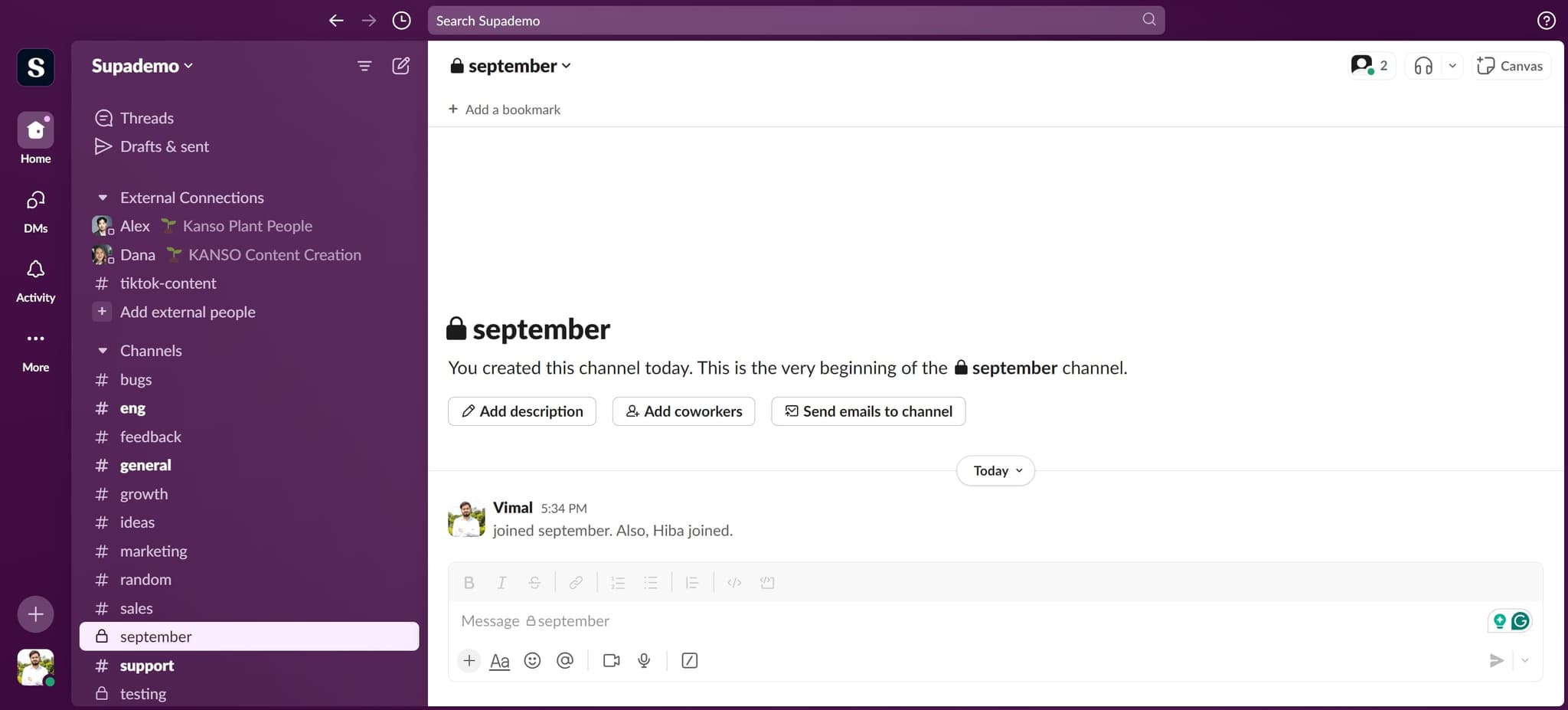
- 10
Complete the setup
Click on the final element to finish the channel creation process. Your new private channel is now live and ready for use.
Frequently asked questions
Common questions about how to create a slack channel.
Can I change a channel from private to public later?
Yes, you can modify channel privacy settings after creation. Go to the channel settings, find the privacy option, and switch between private and public as needed. Note that changing from private to public makes all previous messages visible to the entire workspace.
How do I add more members to my channel after creation?
Open the channel, click on the channel name at the top to view details, and select the option to add members. You can then search for and invite specific people to join the channel.
What's the difference between a private and public channel?
Public channels are visible to everyone in your workspace and anyone can join without invitation. Private channels are only accessible to members you specifically invite, making them ideal for confidential projects or sensitive discussions.
Can I delete a channel I've created?
Yes, channel owners and workspace administrators can delete channels. Open the channel, access channel settings, and look for the delete or archive option. Deleting a channel removes all messages, so consider archiving if you might need to reference content later.
Do new members see the entire message history when added to a channel?
Yes, when members are added to a channel, they can view all previous messages and files shared in that channel. This gives them full context of past conversations and project discussions.