How to Delete a channel in Slack

Deleting a Slack channel removes it permanently from your workspace along with all its messages and history. This action is useful when channels become obsolete, redundant, or no longer serve your team's needs. Learn how to safely delete a channel in just a few clicks.
Quick summary
In this tutorial, you'll learn how to permanently delete a Slack channel by navigating to its settings and confirming the deletion. You'll follow a straightforward process that ensures you can remove any channel you no longer need from your workspace.
Why this matters
Deleting unused channels keeps your Slack workspace organized and reduces clutter, making it easier for team members to find active, relevant conversations. Removing channels that are no longer in use also helps maintain a clean workspace structure and can improve overall workspace management. This is especially important as teams grow and project channels become archived or obsolete.
Step-by-step guide
- 1
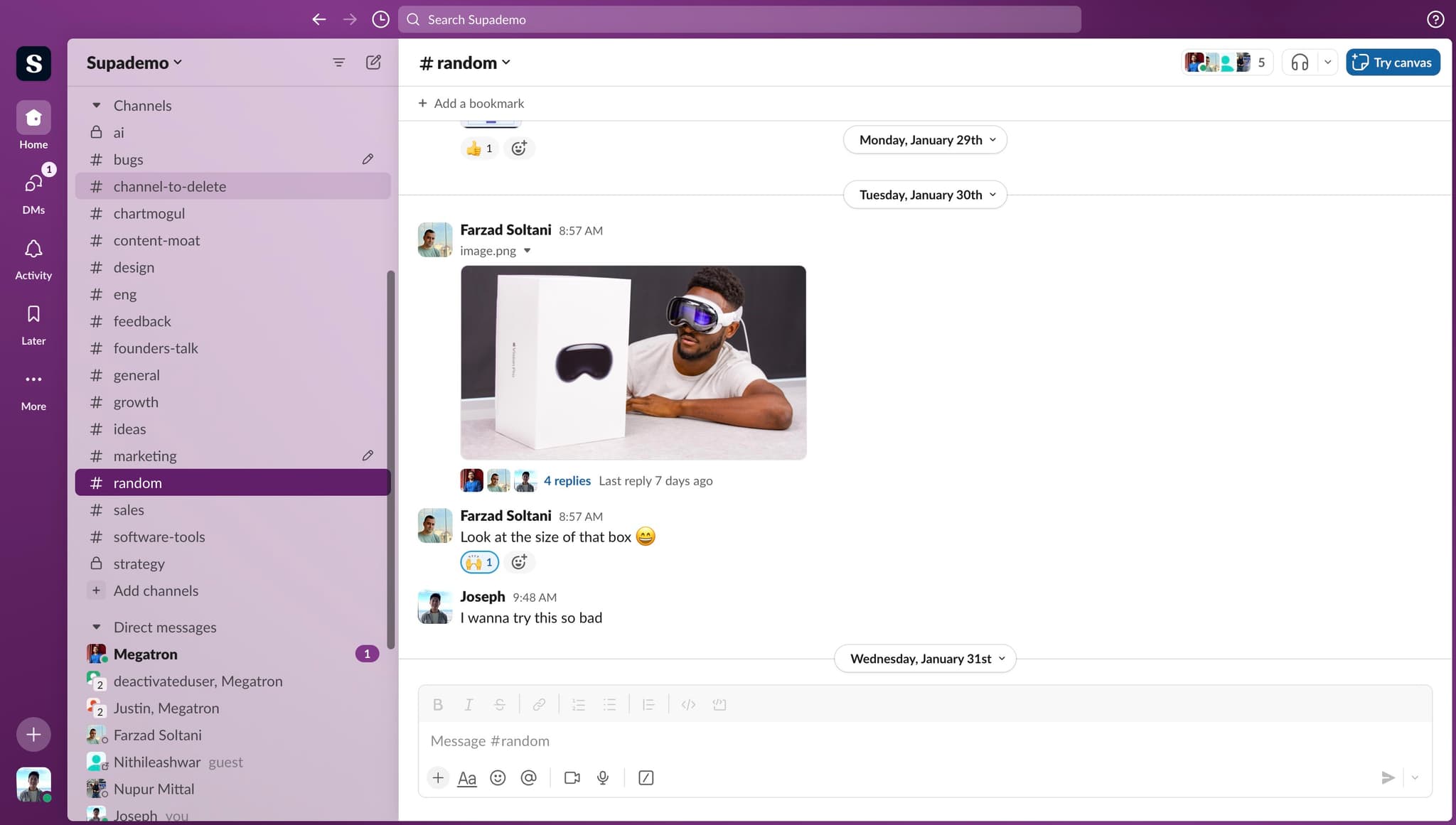
Select the channel to delete
Locate and click on the channel name you want to delete from your channel list. The channel will now be selected and ready for the next step.
- 2
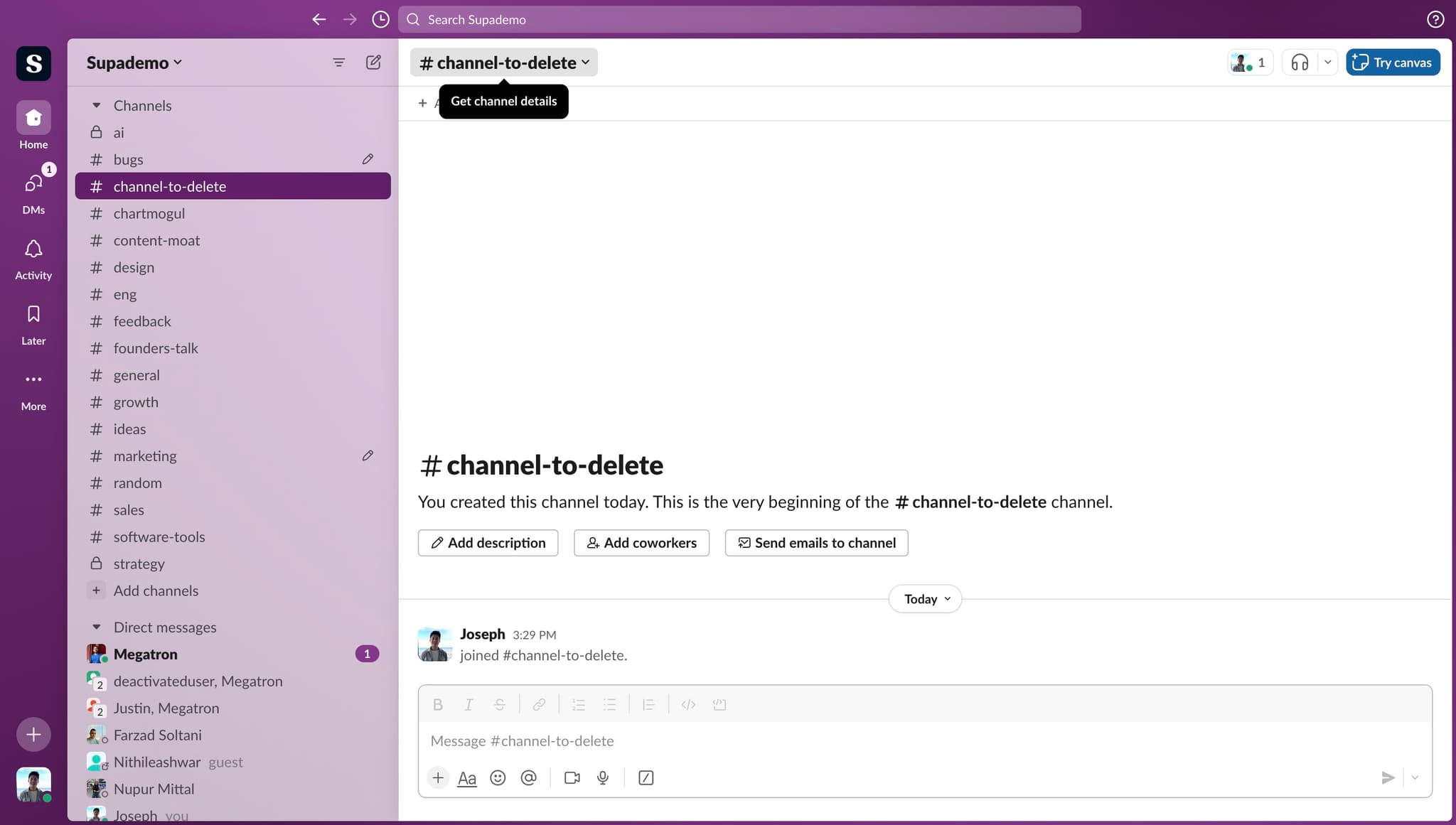
Open the channel menu
Click on the menu option to reveal additional actions available for this channel. This will display options for managing the channel settings.
- 3
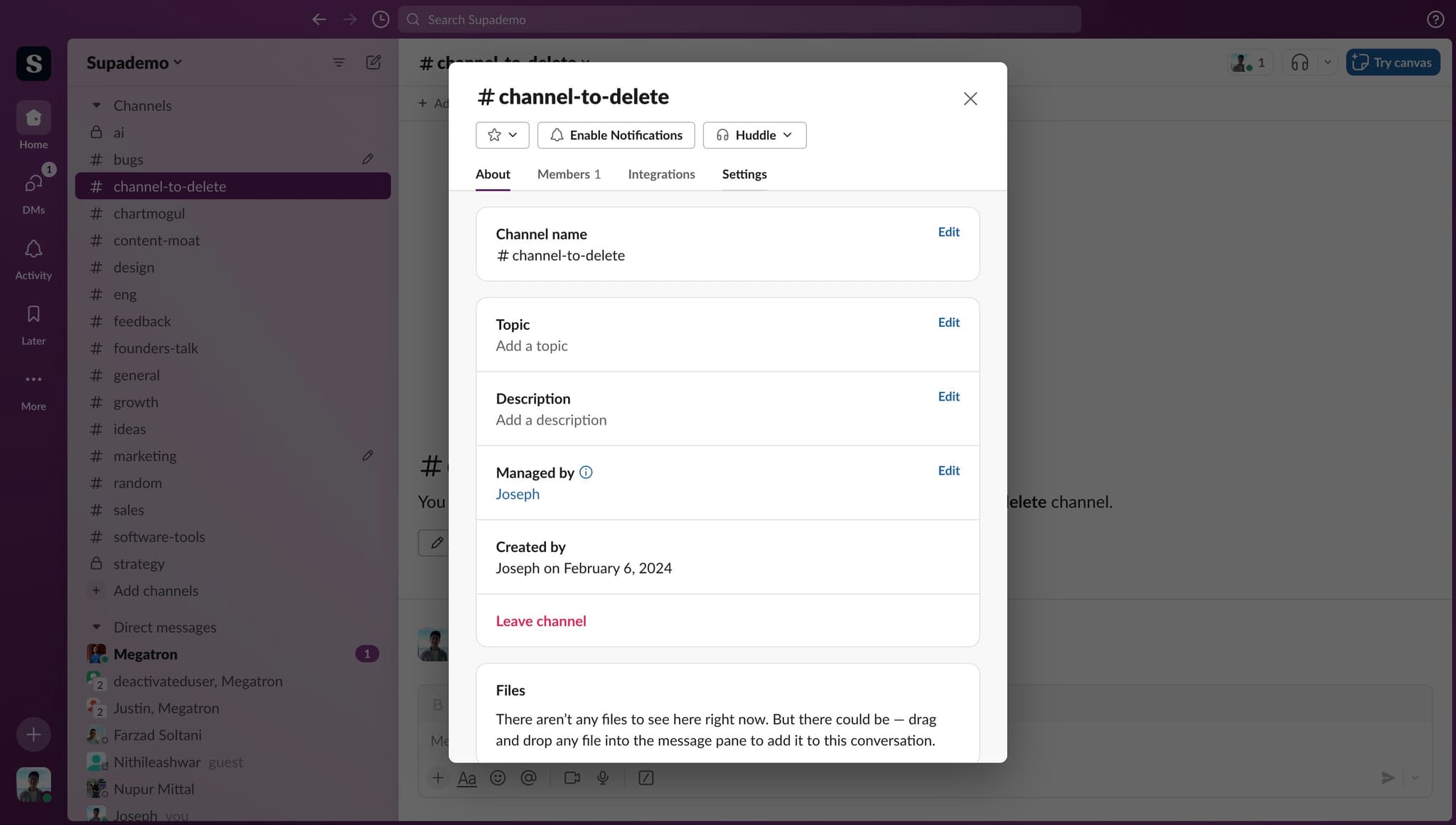
Access channel settings
Click on 'Settings' to open the channel configuration panel. This is where you'll find the option to delete the channel.
- 4
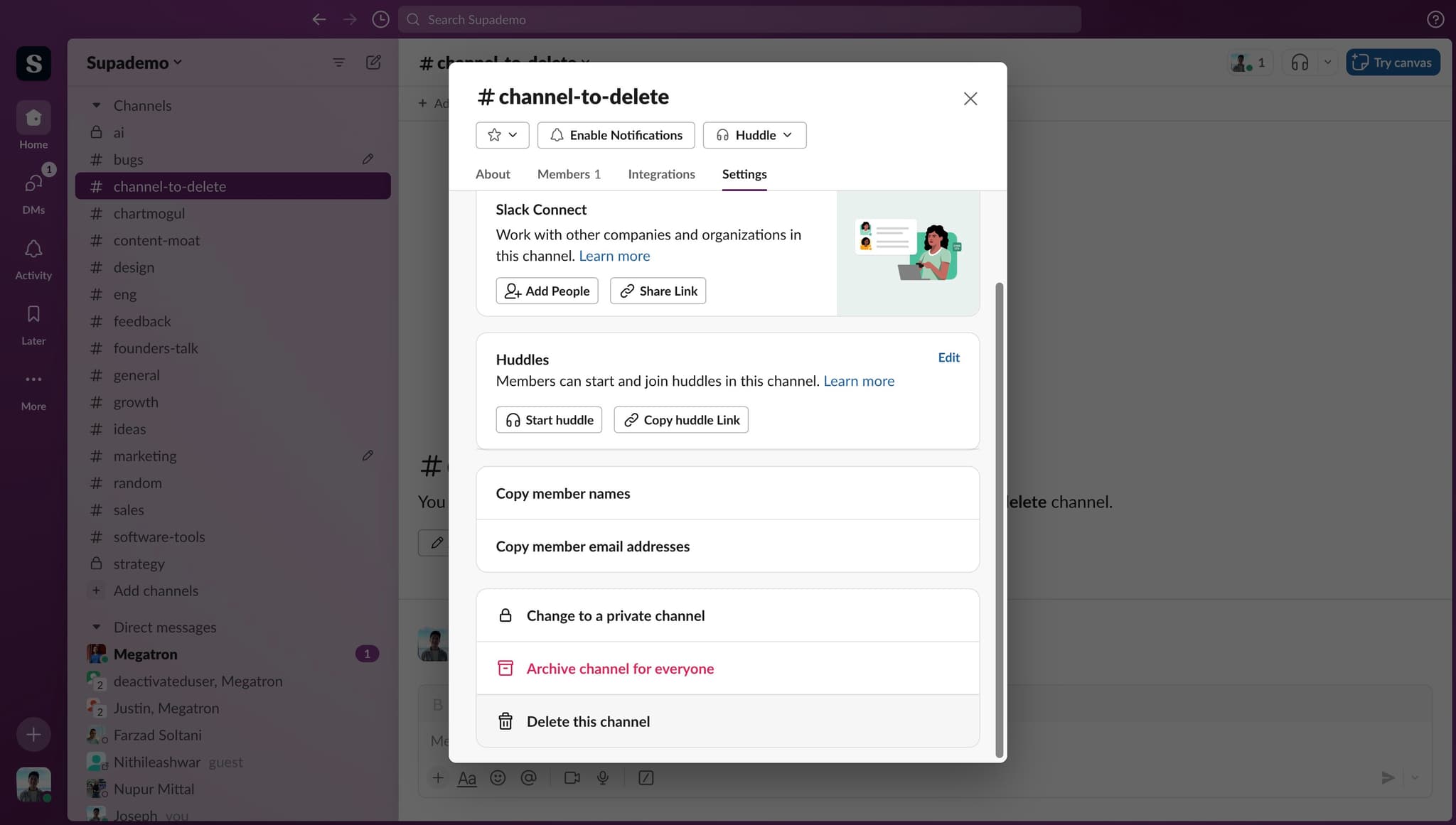
Initiate channel deletion
Click on 'Delete this channel' to begin the deletion process. Slack will prompt you to confirm this action since it cannot be undone.
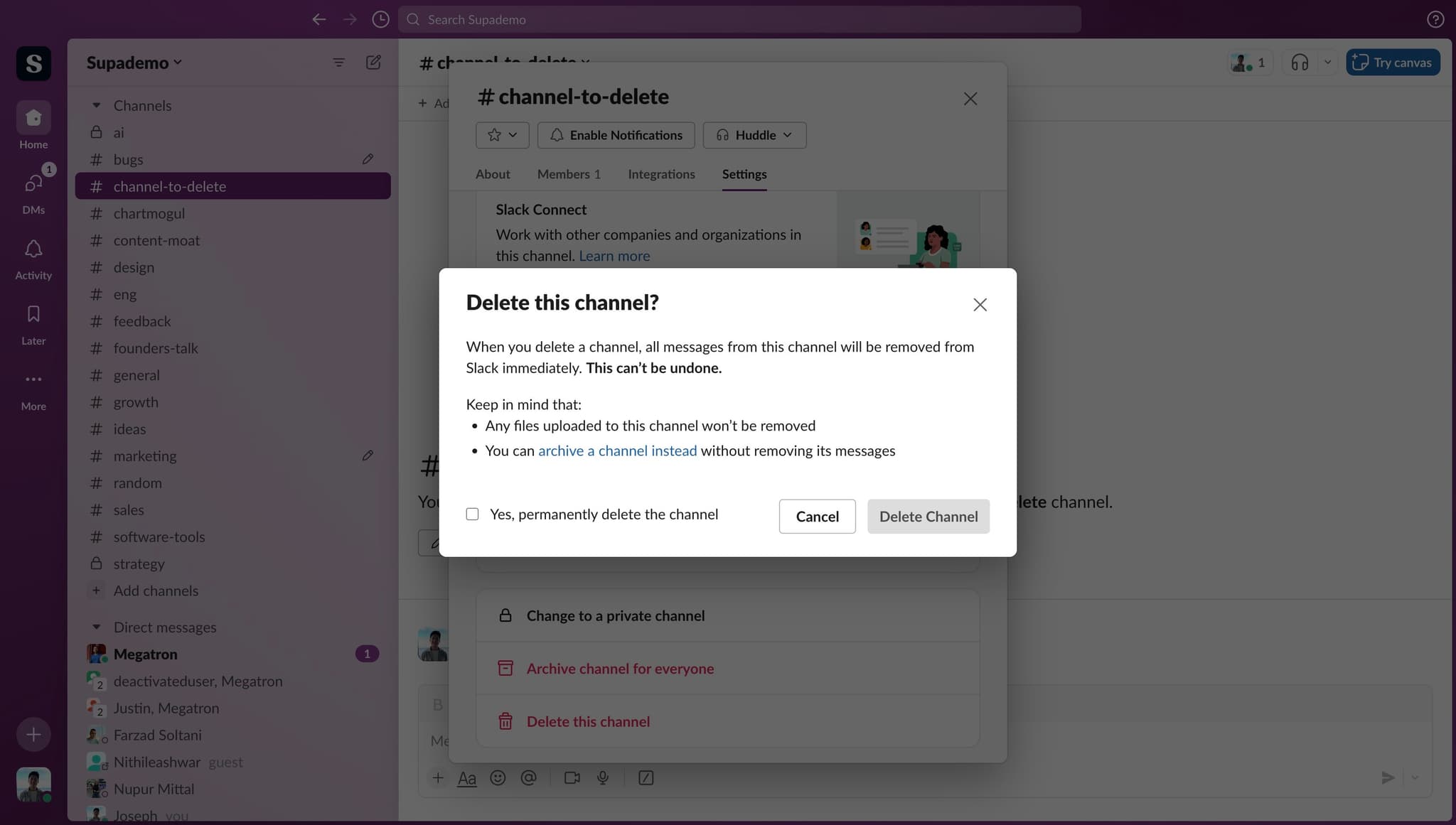
- 5
Confirm permanent deletion
Click on 'Yes, permanently delete the channel' when prompted to verify your intention. This confirms that you understand the channel and all its content will be removed.
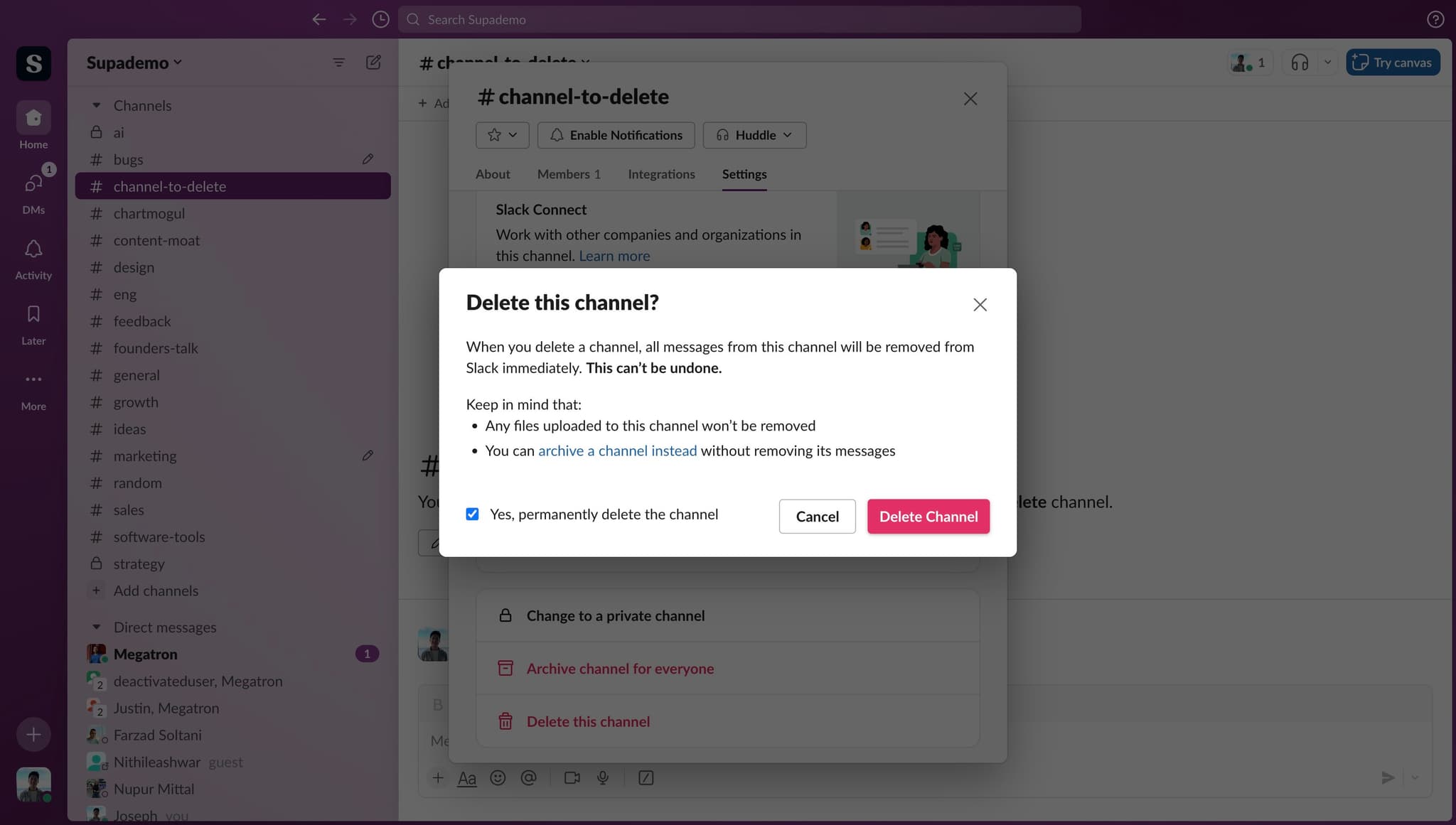
- 6
Complete the deletion
Click on 'Delete Channel' to finalize the removal. The channel will now be permanently deleted from your Slack workspace.
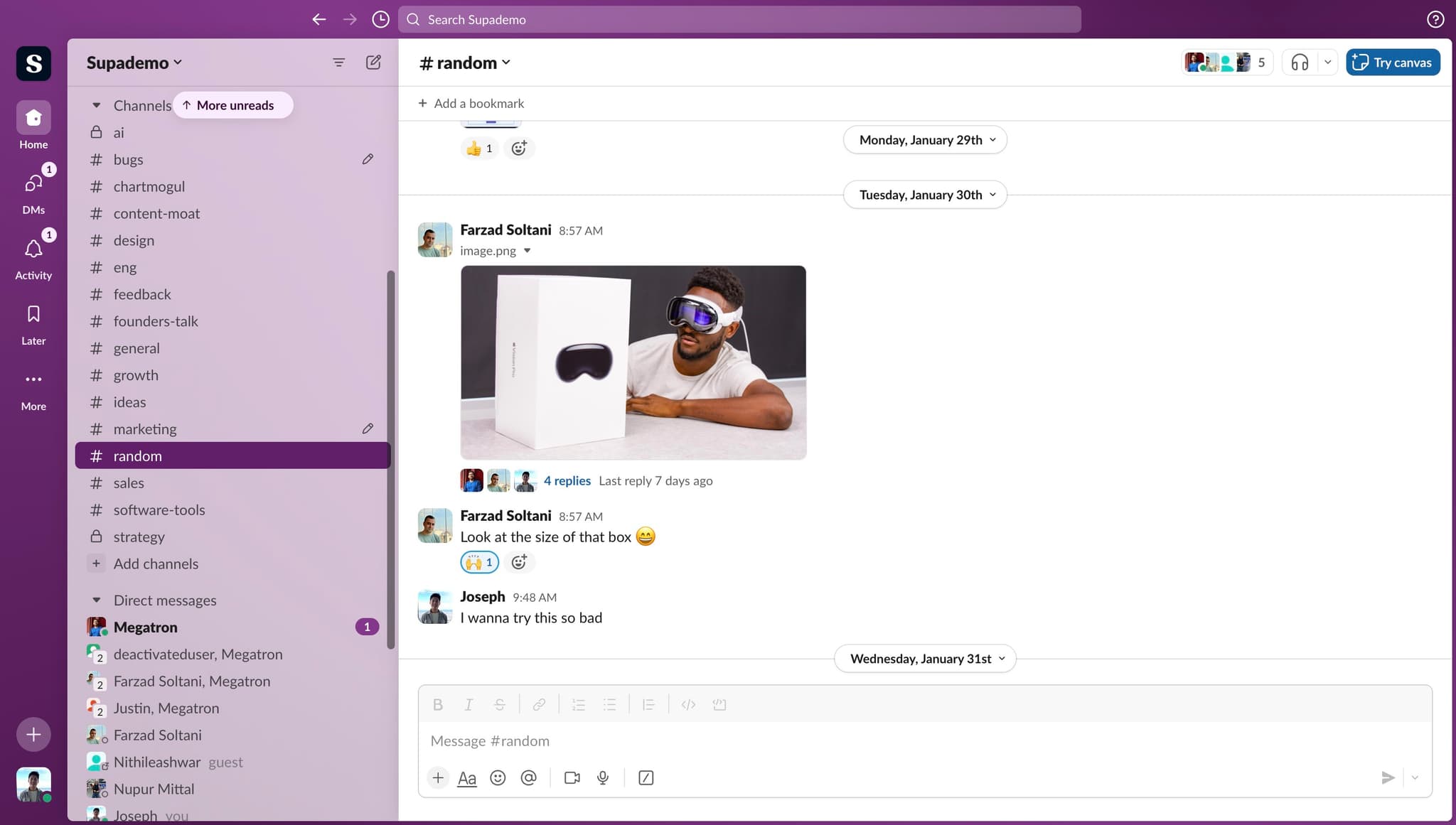
- 7
Return to workspace
After deletion is complete, you'll be redirected to another channel. Click on a different channel like 'random' to verify the deleted channel is no longer in your channel list.
Frequently asked questions
Common questions about how to delete a channel in slack.
No, deleted channels cannot be recovered. Once you permanently delete a channel, all messages and history are gone forever. If you think you might need the channel again, consider archiving it instead, which preserves the content while removing it from active use.
In most Slack workspaces, only channel owners and workspace admins can delete channels. If you don't see the delete option, you may lack the necessary permissions. Contact your workspace administrator if you need a channel deleted.
All messages and files in the deleted channel are permanently removed and cannot be accessed afterward. If you need to preserve important information, consider exporting the channel data before deletion or archiving the channel instead.
Yes. Archiving hides the channel from your active list but preserves all messages and allows you to search the content later. Deleting permanently removes the channel and all its data. Archiving is recommended if you might need the information again in the future.
Channel members will see the channel disappear from their list, but there's no explicit notification sent. If the deletion is unexpected, you may want to communicate the change to your team beforehand to avoid confusion.