How to Implement Google Analytics 4 in Gorgias Help Center

Integrating Google Analytics 4 with your Gorgias Help Center enables you to track customer interactions, measure support performance, and optimize your knowledge base content. This guide walks you through the implementation process step by step, ensuring accurate data collection and reporting for your support operations.
Quick summary
In this tutorial, you'll learn how to set up Google Analytics 4 in your Gorgias Help Center, from creating a GA4 property to installing the tracking code and verifying data collection. By the end, you'll have complete visibility into how customers engage with your help resources.
Why this matters
Understanding visitor behavior in your Help Center directly impacts support efficiency and customer satisfaction. With GA4 integrated, you can identify which articles drive the most traffic, where users drop off, and which topics need improvement—enabling data-driven decisions that reduce support tickets and improve self-service adoption.
Step-by-step guide
- 1
Access Google Analytics account
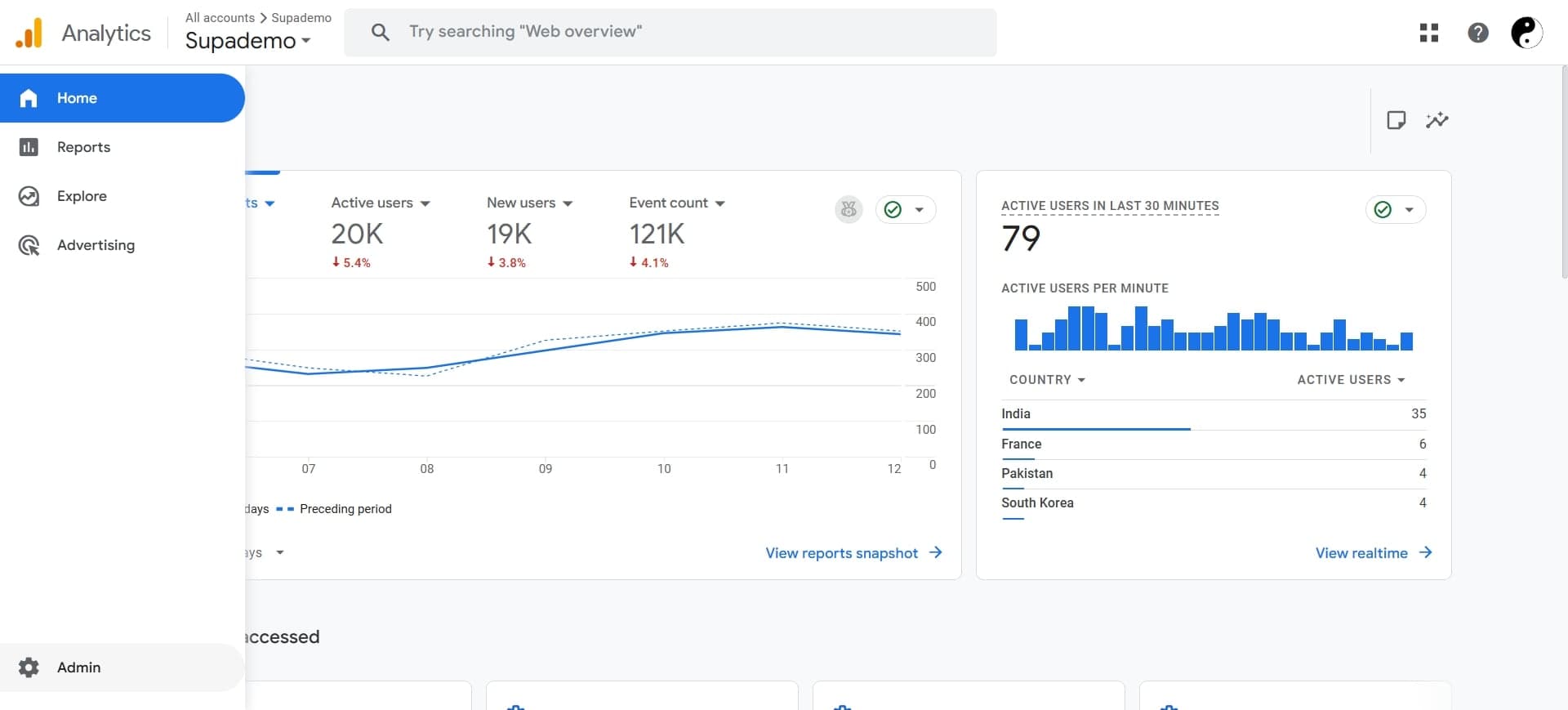
Log in to your Google Analytics account and navigate to the Admin section. If you don't have a GA4 property yet, you'll set one up in the next steps.
- 2
Create a new GA4 property
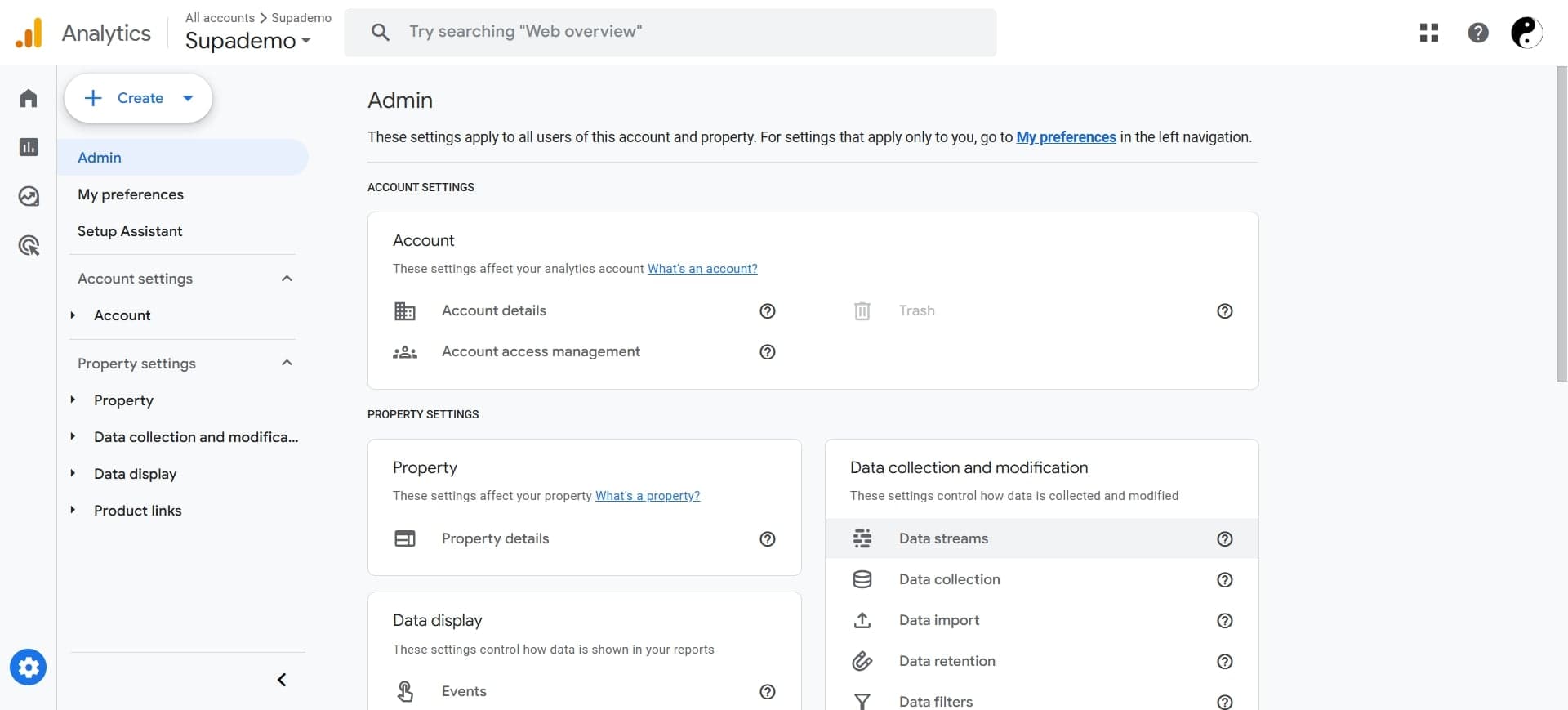
In the Admin section, select your account and click 'Create Property.' Choose Google Analytics 4 as your property type and configure the basic settings for your Help Center domain.
- 3
Set up data stream
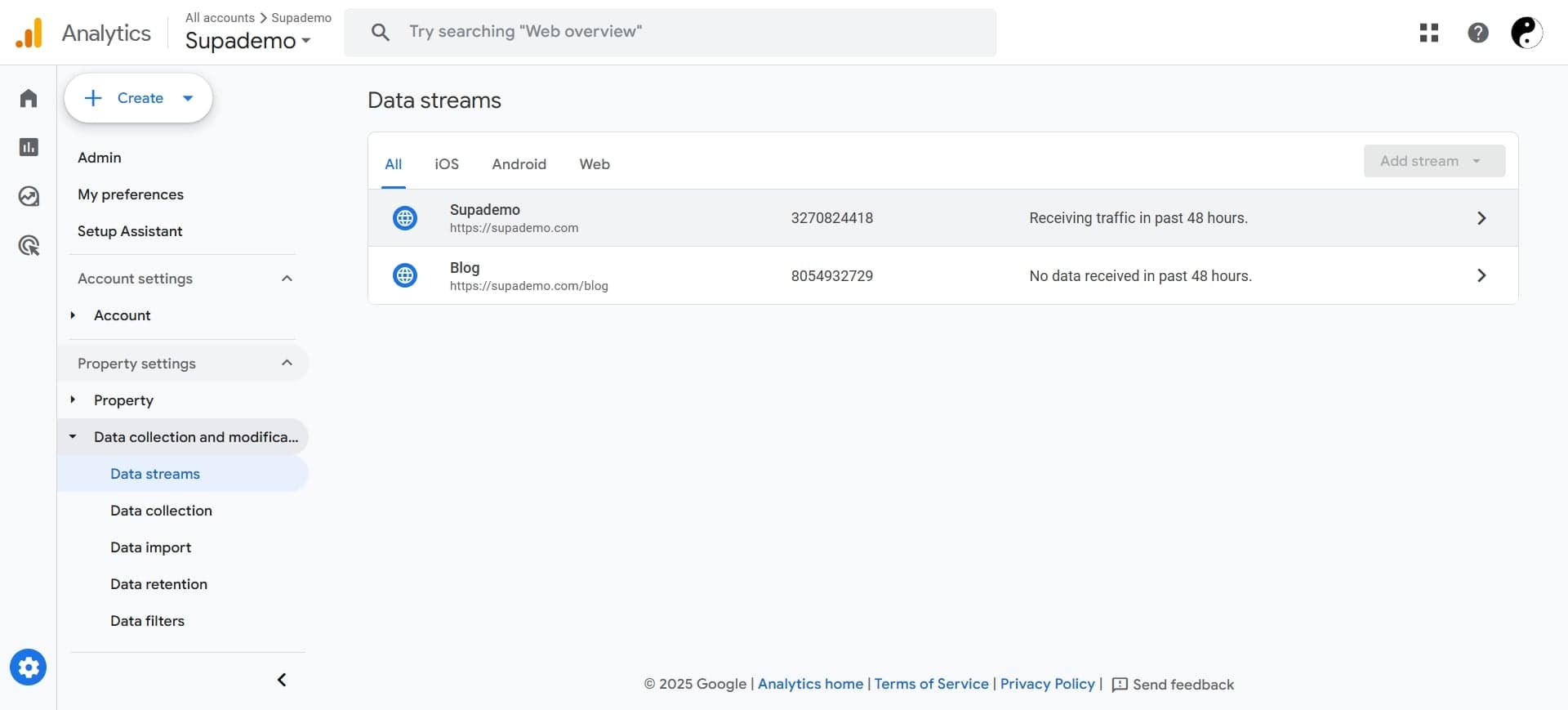
Under your new GA4 property, create a web data stream for your Help Center URL. This establishes the connection between your website and Google Analytics.
- 4
Copy the measurement ID
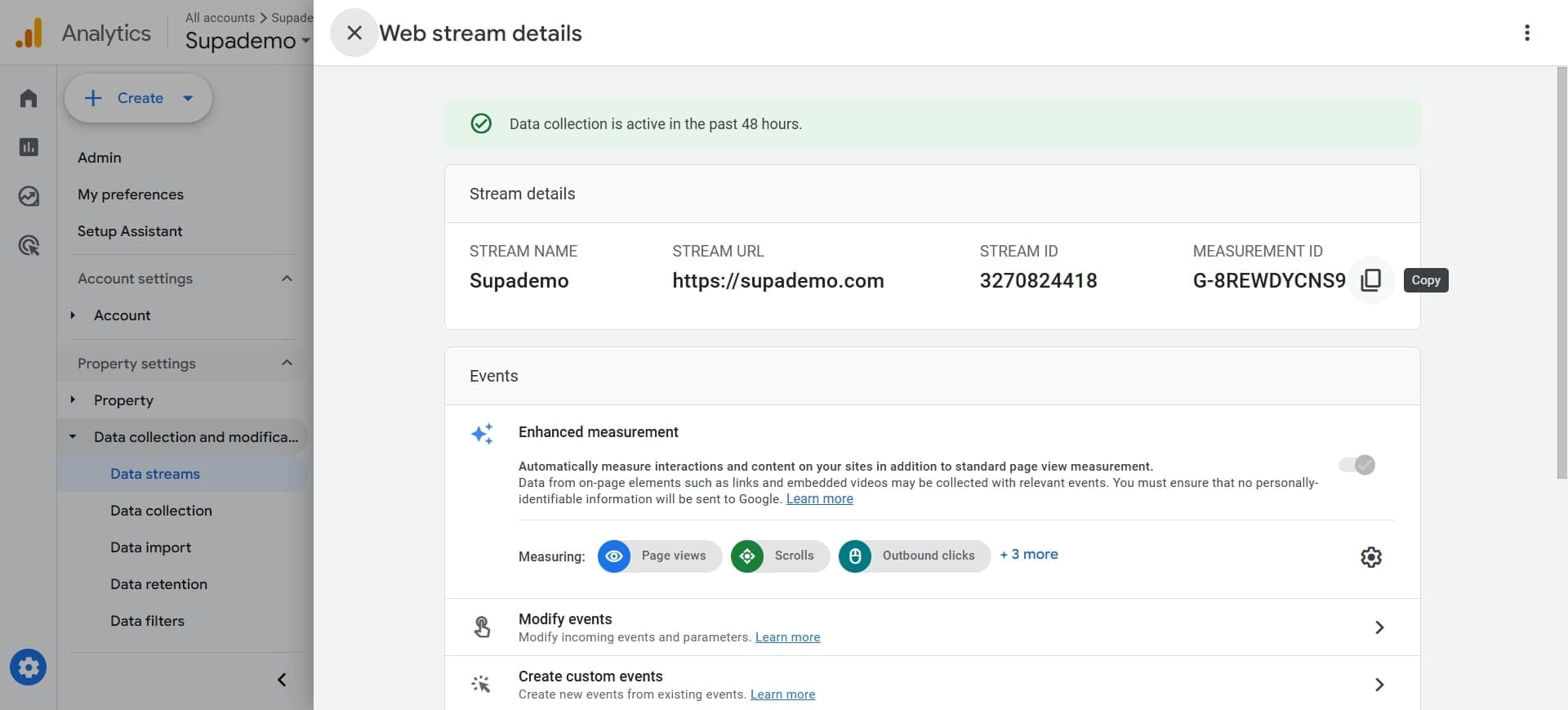
In the data stream settings, locate and copy your Measurement ID (format: G-XXXXXXXXXX). You'll need this ID to install the tracking code in Gorgias.
- 5
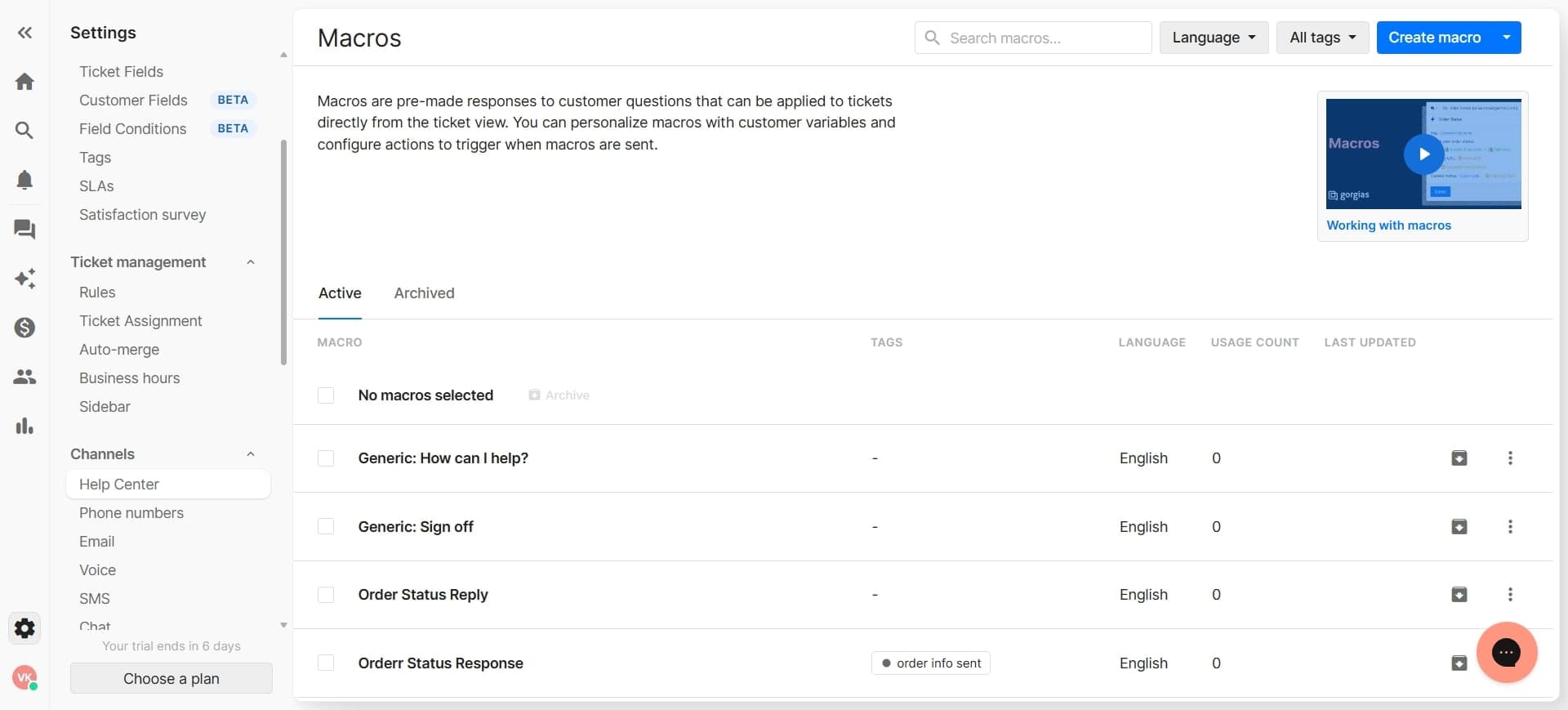
Log in to Gorgias dashboard
Navigate to your Gorgias Help Center settings and access the customization or integrations section where you can add tracking codes.
- 6
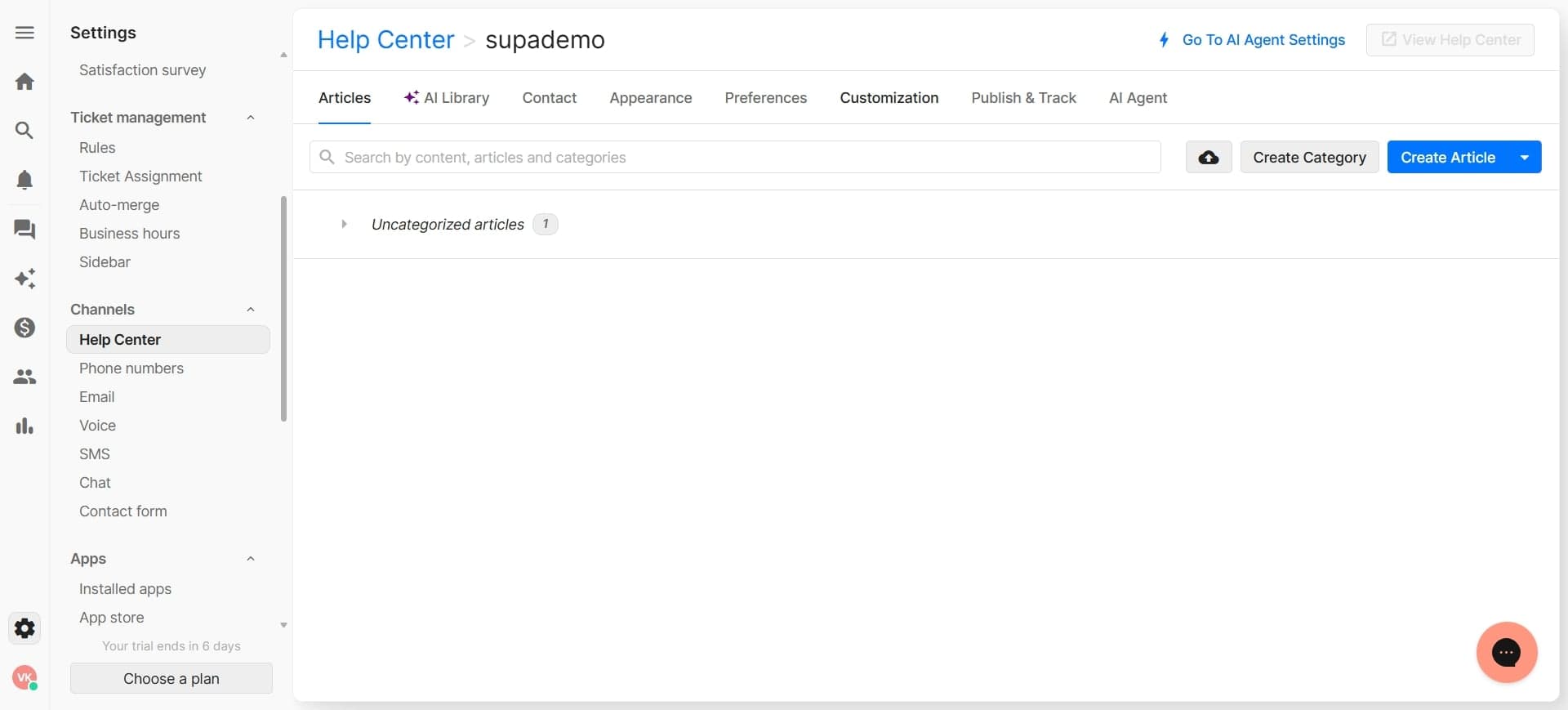
Access Help Center settings
In Gorgias, find the Help Center configuration area and locate the option to add custom code or tracking scripts to your site header.
- 7
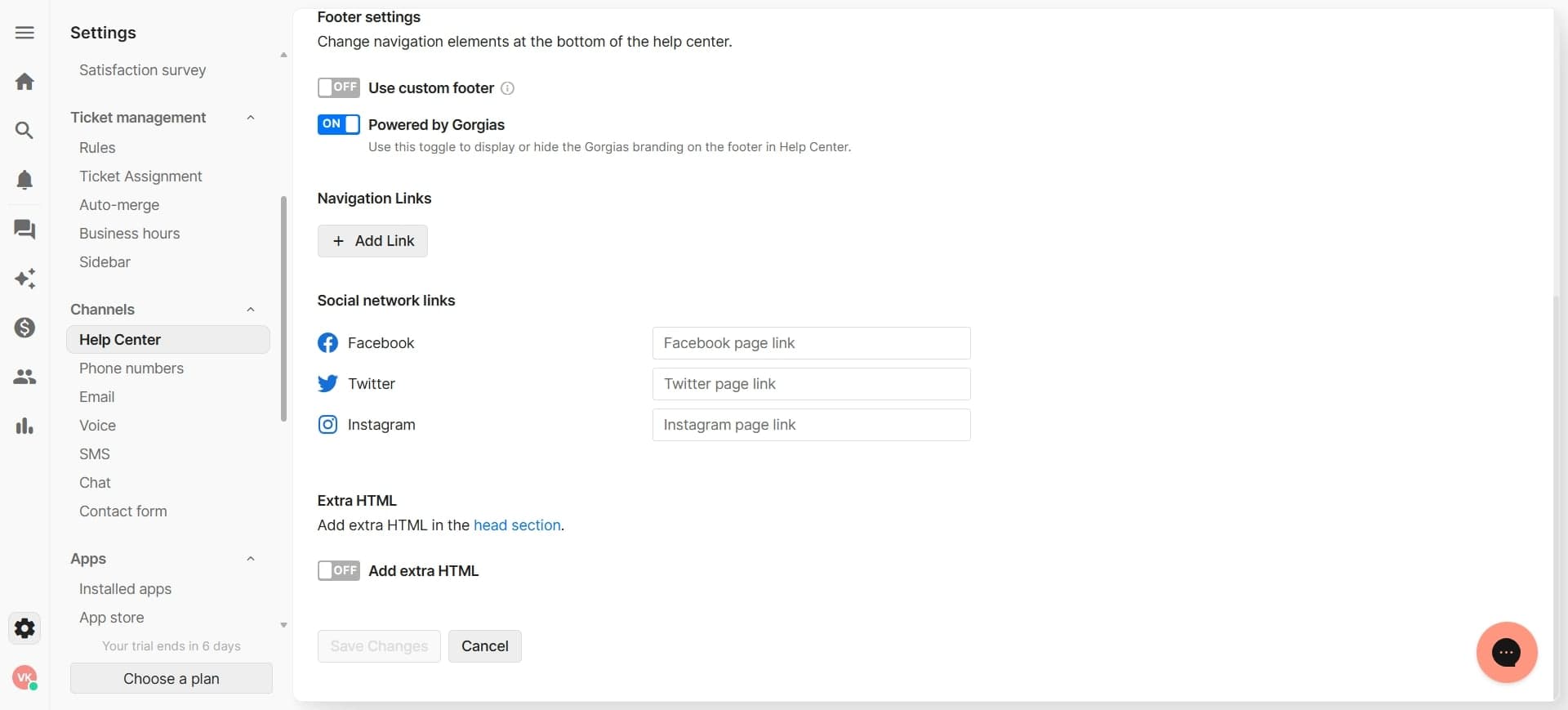
Install Google Analytics tag
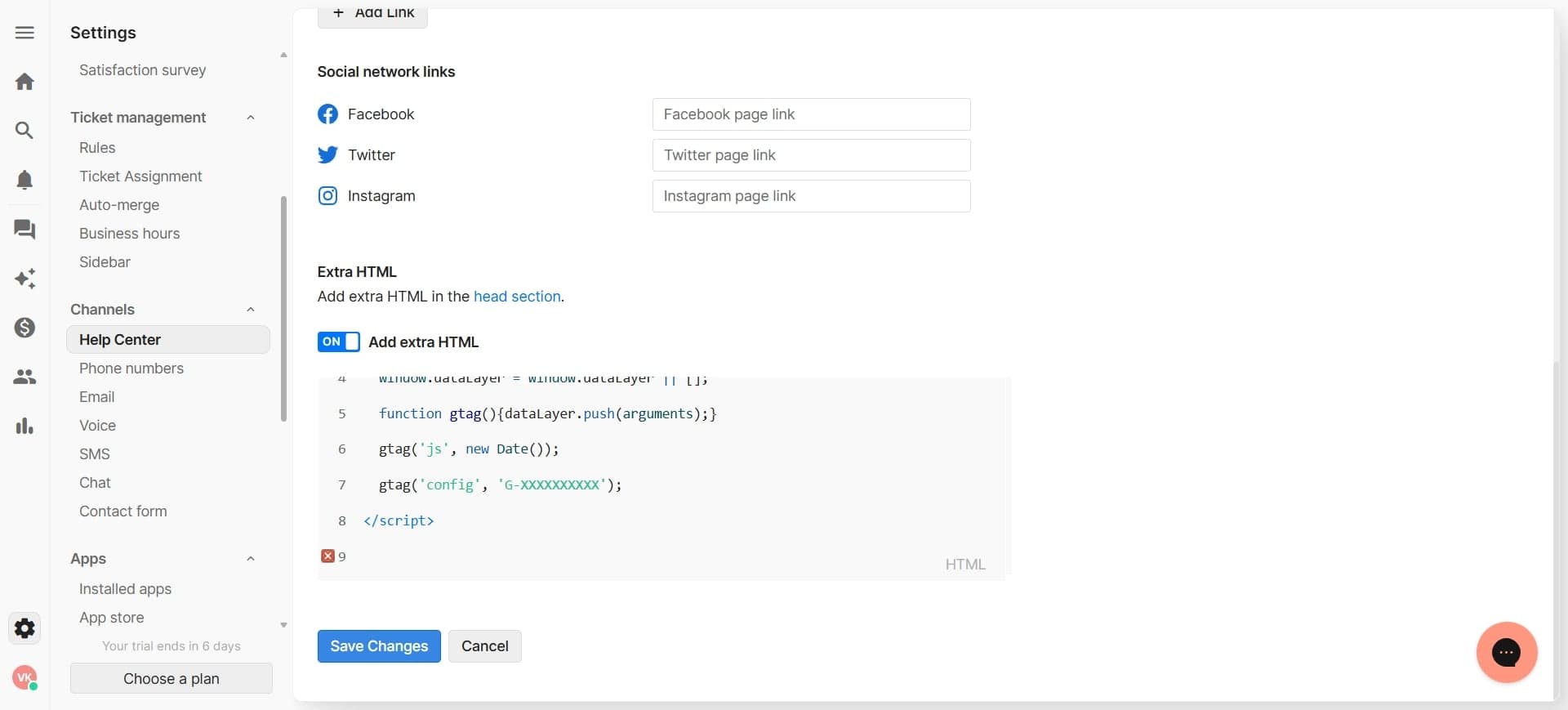
Paste the GA4 Google Tag Manager snippet or Global Site Tag code into the designated code field. Gorgias will inject this code into your Help Center's header on all pages.
- 8
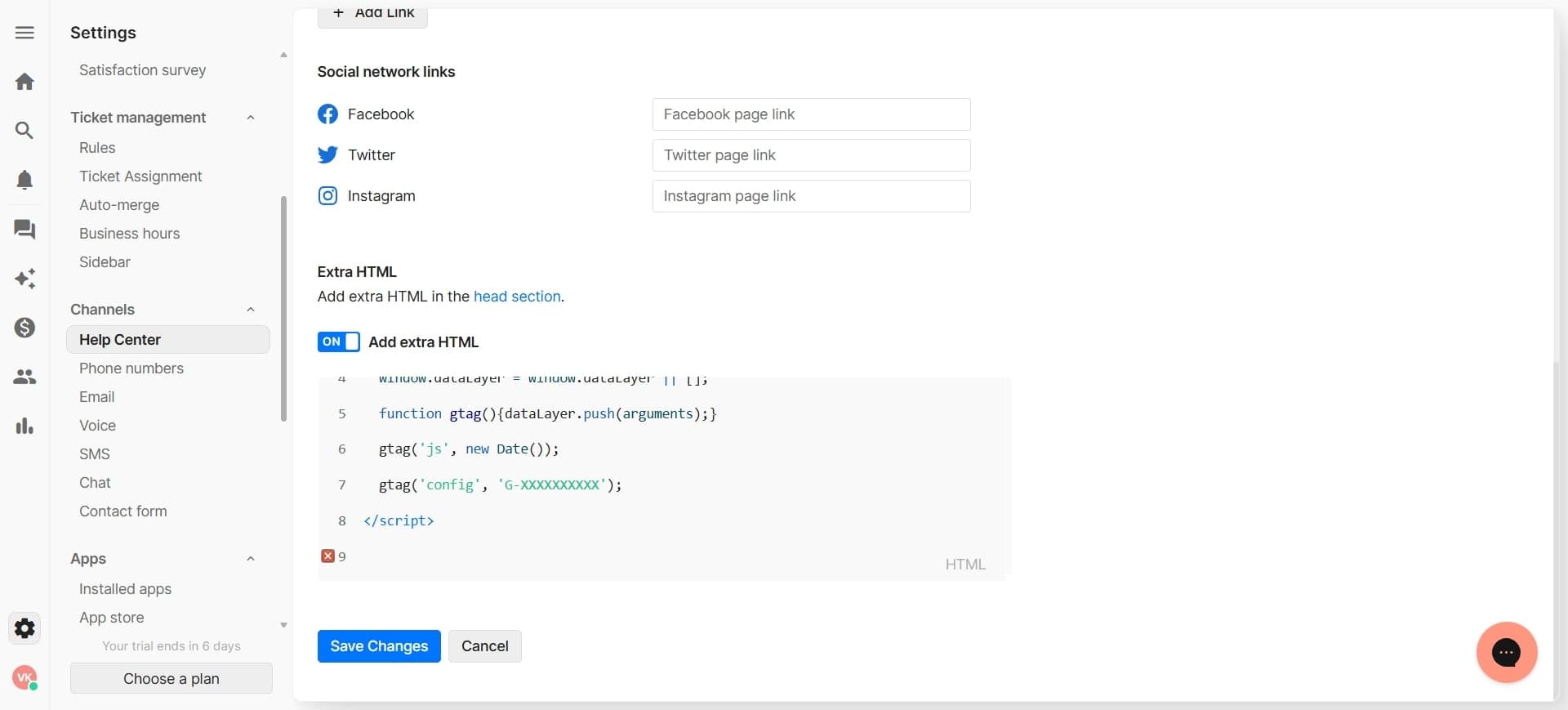
Input your measurement ID
Replace the placeholder measurement ID in the tracking code with the GA4 Measurement ID you copied earlier. Ensure the ID is correctly formatted without extra spaces.
- 9
Save and publish changes
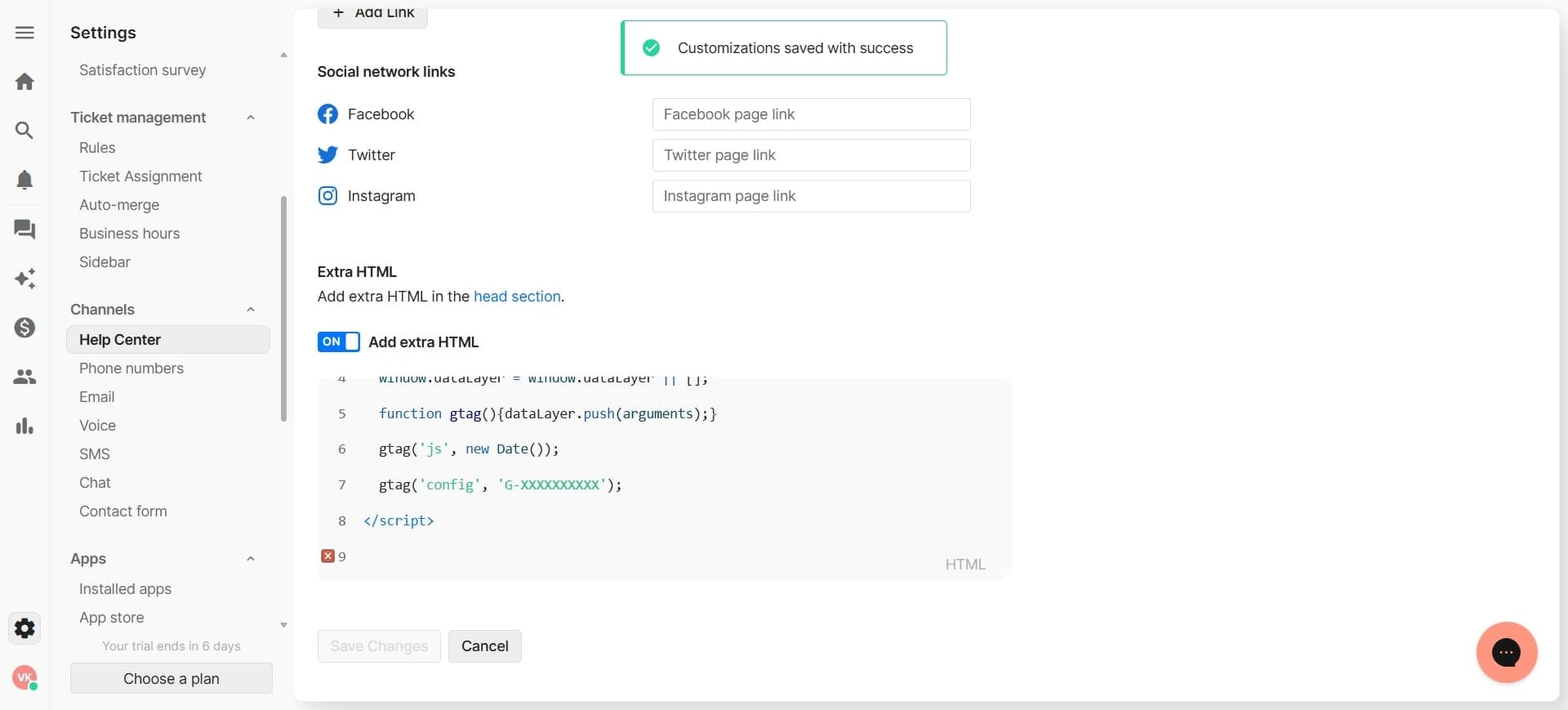
Click the save button to apply the tracking code to your Help Center. Your changes may take a few minutes to propagate across all pages.
- 10
Verify data collection
Return to Google Analytics and check the Real-time report to confirm that traffic from your Help Center is being tracked. You should see active users within 1-2 minutes of visiting your Help Center.
Frequently asked questions
Common questions about how to implement google analytics 4 in gorgias help center.
How long does it take for GA4 to show data after setup?
Google Analytics 4 typically displays real-time data within 1-2 minutes of implementation. However, processed historical data and detailed reports may take 24-48 hours to populate fully. You can verify initial tracking using the Real-time report immediately after installation.
Do I need Google Tag Manager to set up GA4 in Gorgias?
No, you can implement GA4 directly using the Global Site Tag (gtag.js) method without Google Tag Manager. However, GTM provides more advanced tracking capabilities if you need to track custom events beyond standard page views.
What data can I track in my Help Center with GA4?
GA4 automatically tracks page views, user engagement, traffic sources, and device information. You can also set up custom events to track article searches, article clicks, feedback submissions, and other Help Center-specific interactions to measure support effectiveness.
Can I track multiple Help Center domains in one GA4 property?
Yes, you can add multiple data streams within a single GA4 property for different domains or subdomains. However, it's often better practice to create separate GA4 properties if your Help Centers serve different purposes or audiences, allowing for cleaner data segmentation.
What should I do if GA4 isn't showing data from my Help Center?
First, verify that the measurement ID is correctly copied and matches your GA4 property. Check that the tracking code is properly saved in Gorgias settings and that you're visiting your Help Center from a non-blocked IP address. Clear your browser cache and check the Real-time report again after a few minutes of activity.