How to invite users in Monday.com

Inviting users to your Monday.com workspace is essential for collaborative project management. This guide walks you through the process of adding team members to your account so they can access boards, tasks, and updates in real time.
Quick summary
In this tutorial, you'll learn how to invite users to Monday.com by navigating to the invite section and sending invitations to team members. You'll complete the process in just a few clicks, enabling quick onboarding of new collaborators.
Why this matters
Adding team members to Monday.com allows you to scale your project management efforts and ensure everyone has visibility into work assignments and deadlines. Streamlining this process reduces setup time and gets your team productive faster.
Step-by-step guide
- 1
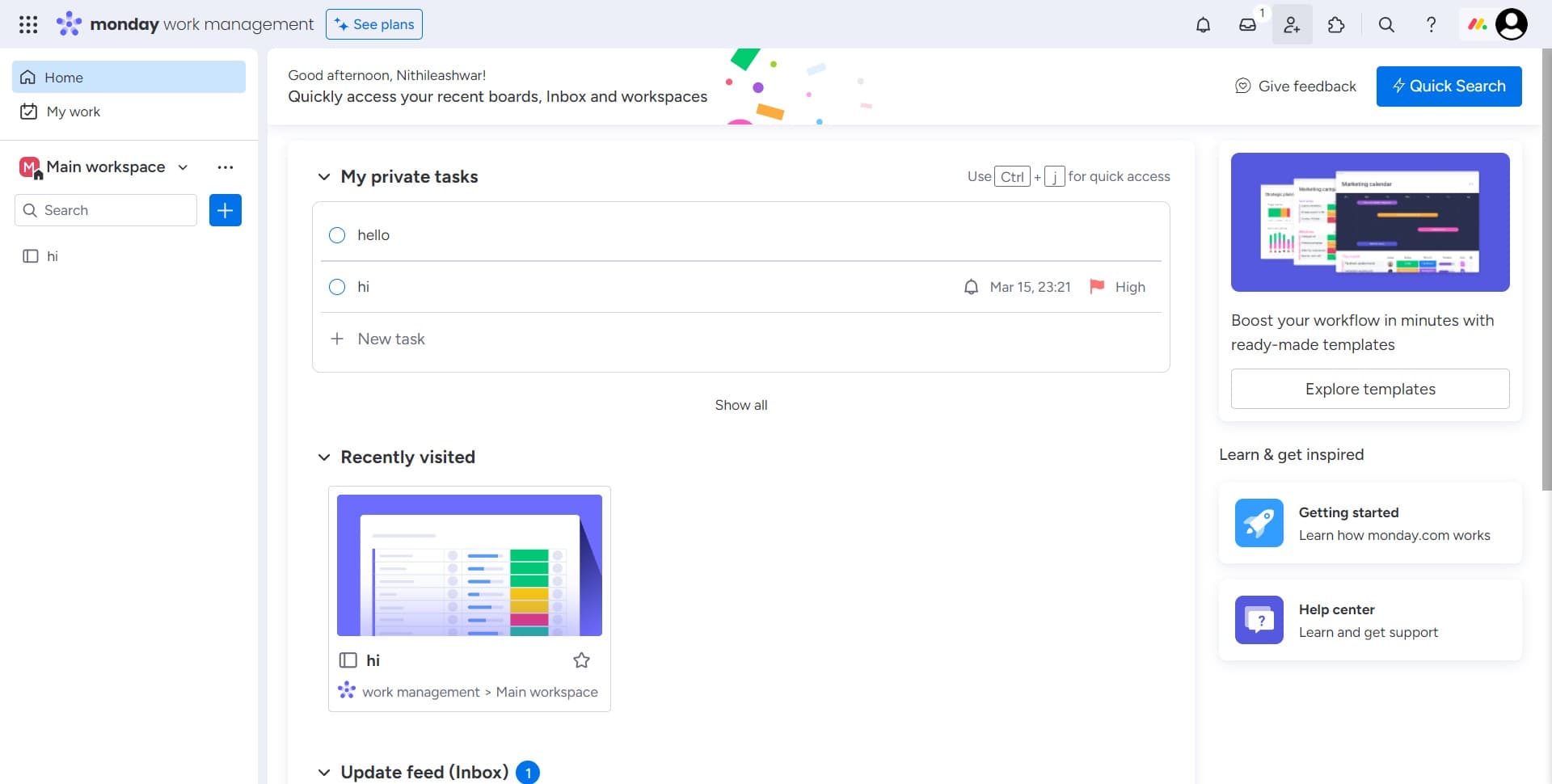
Access the invitation interface
Begin by clicking the designated area to open the user management section. This is your entry point for adding new members to your workspace.
- 2
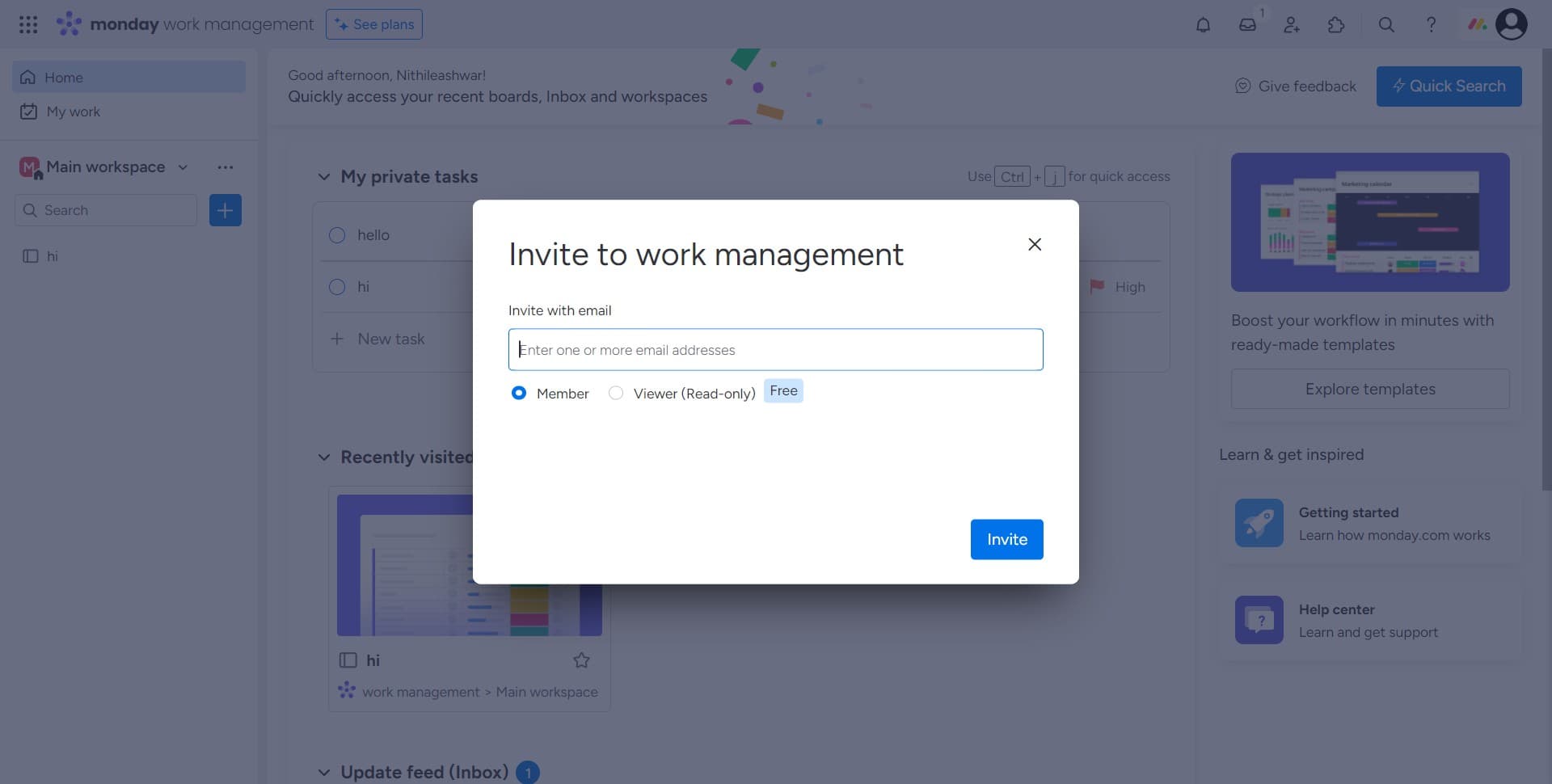
Navigate to the next screen
Click through to proceed to the invitation options. You're now one step closer to sending invites to your team.
- 3
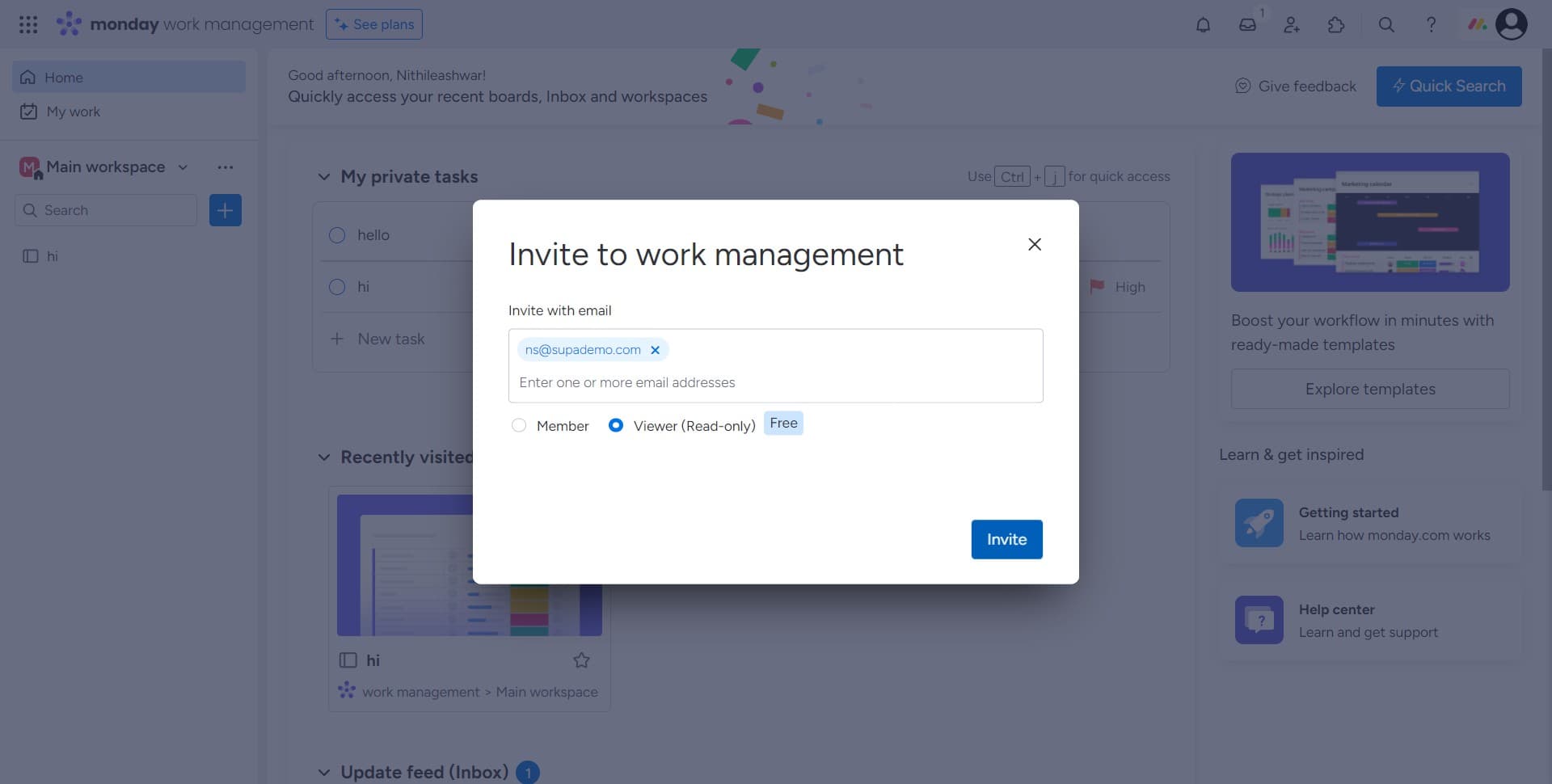
Click on Invite button
Select the Invite button to initiate the user invitation process. This will open the interface where you can specify who you want to add to your workspace.
- 4
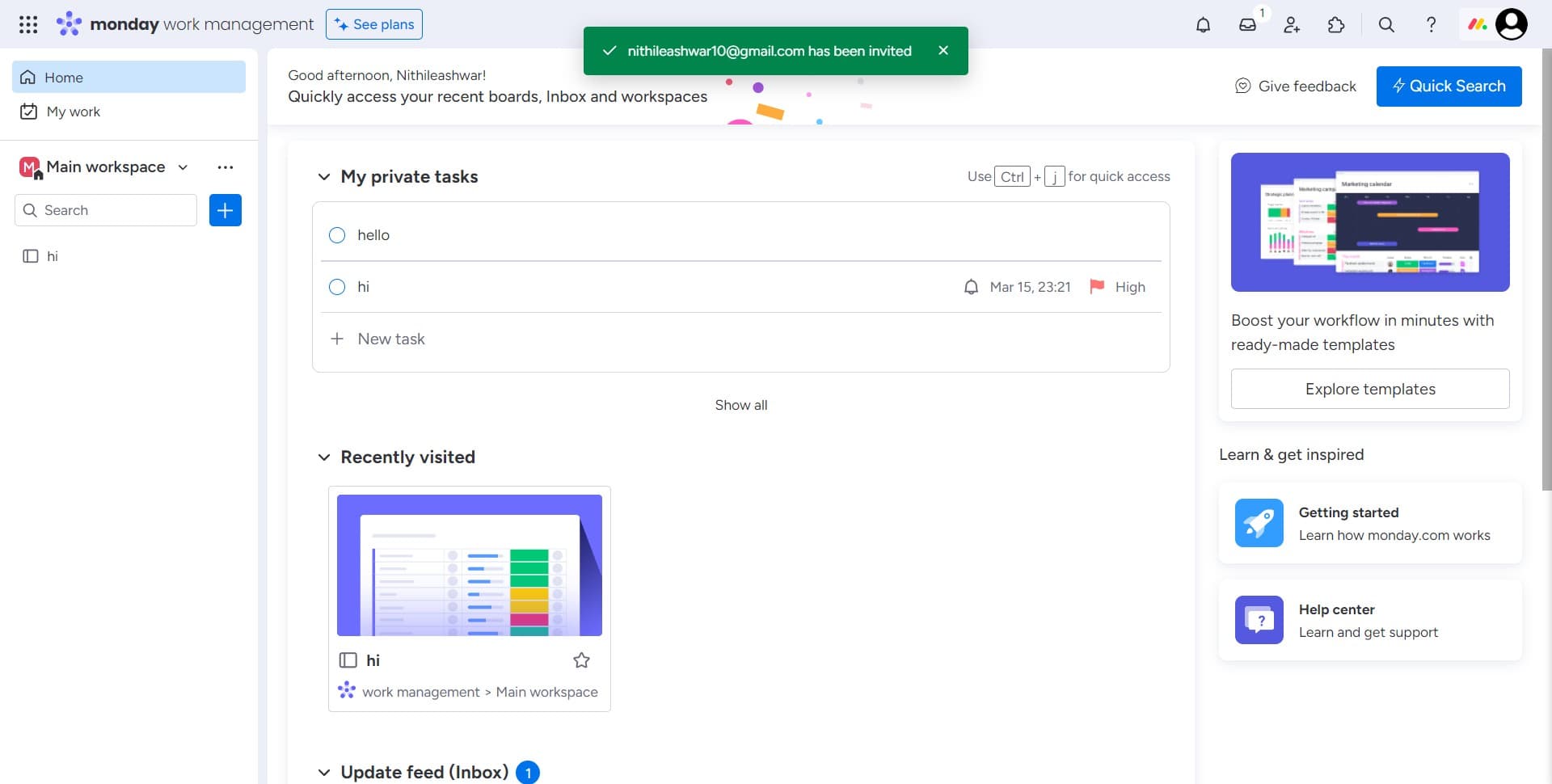
Select the user profile
Click on the user option displayed (shown as 'Good afternoon,...' in this example) to choose the team member you want to invite. This confirms the recipient for your invitation.
Frequently asked questions
Common questions about how to invite users in monday.com.
Can I invite multiple users at once in Monday.com?
Yes, Monday.com allows you to invite multiple team members in a single session. You can repeat the invitation process for each user, or depending on your plan, you may be able to paste a list of email addresses to invite several people simultaneously.
What happens after I send an invite?
Once you send an invite, the recipient will receive an email with a link to join your Monday.com workspace. They'll need to click the link and set up their account to gain access to your boards and projects.
Can I remove or revoke an invitation?
Yes, you can manage pending invitations from your workspace settings. If an invite hasn't been accepted yet, you can revoke it before the user joins. Once they've accepted and created their account, you'll need to remove them as a user instead.
Are there different permission levels for invited users?
Monday.com offers various permission and role settings that control what invited users can see and do. You can assign roles such as Admin, Standard, Guest, or Viewer depending on your workspace plan and the user's responsibilities.
Do invited users need a Monday.com account before I invite them?
No, you don't need to set up an account for them beforehand. Simply send them an invitation using their email address, and they'll receive instructions to create their Monday.com account as part of the onboarding process.