How to Lock a Row in Excel

Locking rows in Excel is a essential skill for protecting important headers and reference data while scrolling through large datasets. This feature allows you to keep certain rows visible at the top of your spreadsheet, making it easier to navigate and compare data without losing context.
Quick summary
In this tutorial, you'll learn how to lock rows in Excel to keep headers and key information visible while scrolling. You'll discover the freeze panes feature and understand when and how to apply it to improve your spreadsheet usability.
Why this matters
Locking rows is critical when working with large datasets where you need constant reference to column headers or important summary information. Without this feature, scrolling down a long spreadsheet can cause you to lose track of what each column represents, leading to errors and reduced productivity.
Step-by-step guide
- 1
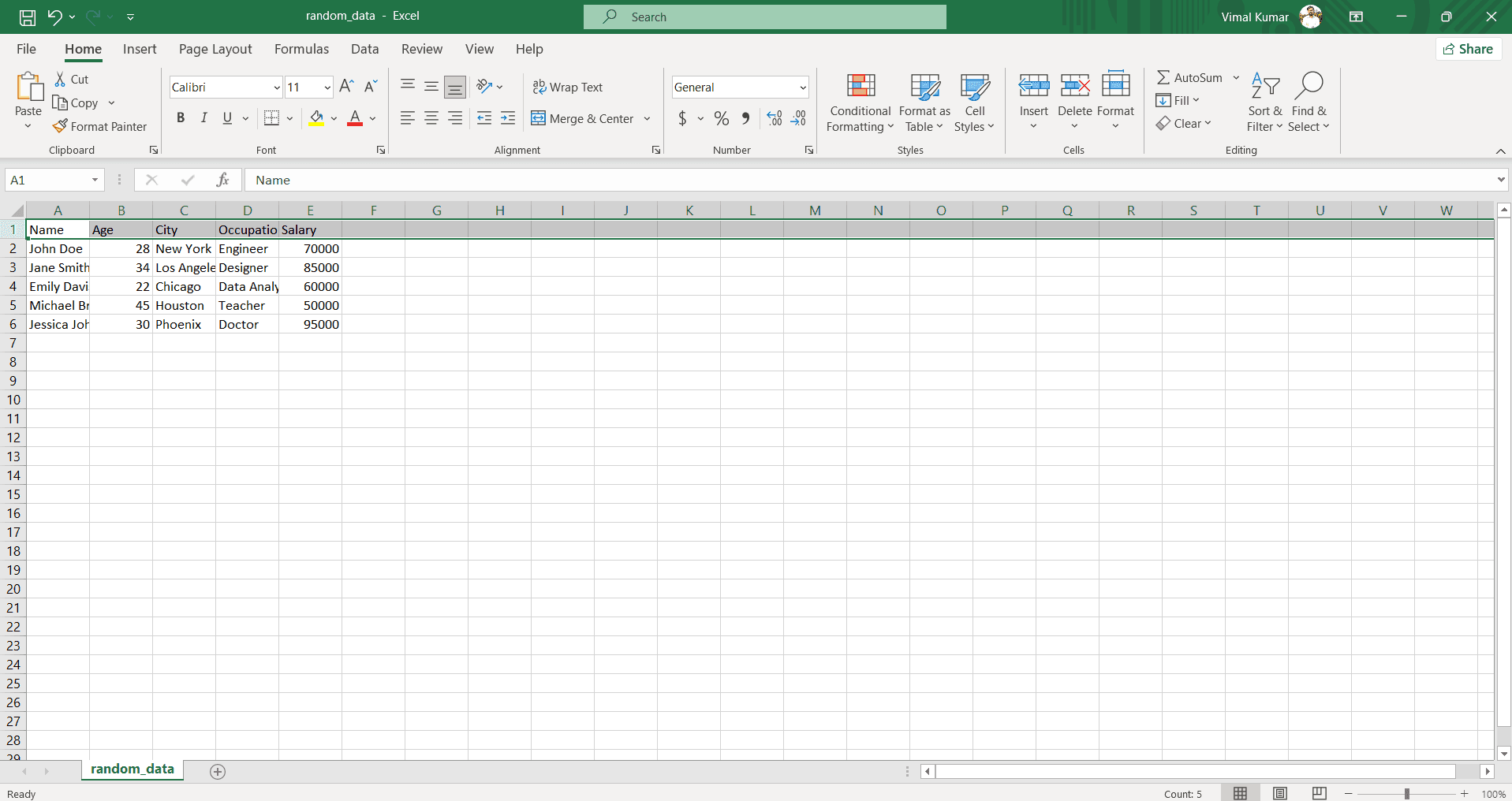
Open your Excel spreadsheet
Launch Microsoft Excel and open the file containing the data you want to work with. Ensure your spreadsheet is displayed and ready for editing.
- 2
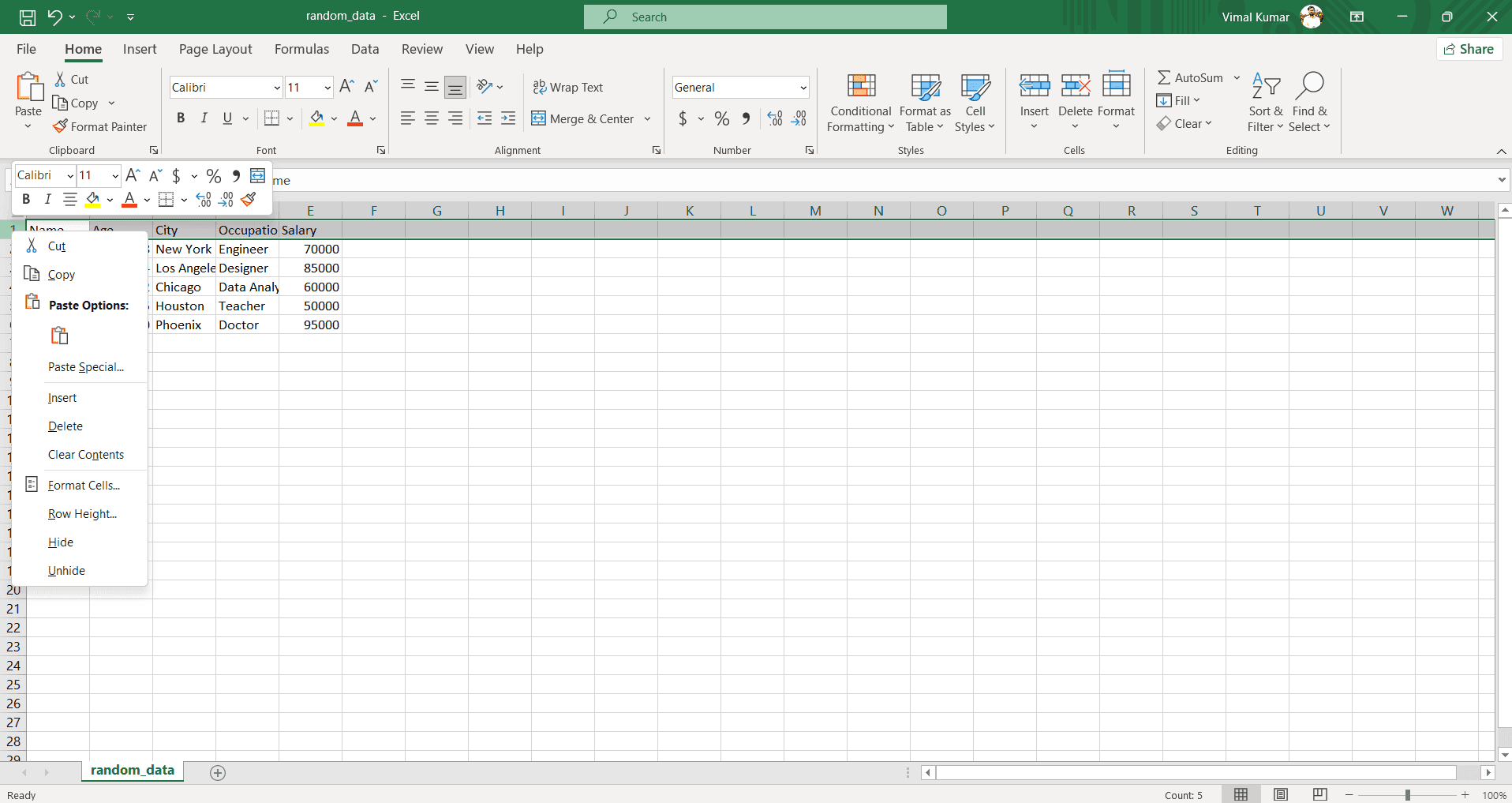
Select the row below the rows to lock
Click on the row number of the first row you want to remain unfrozen. For example, if you want to lock the header row, click on row 2. This selection determines where the freeze will occur.
- 3
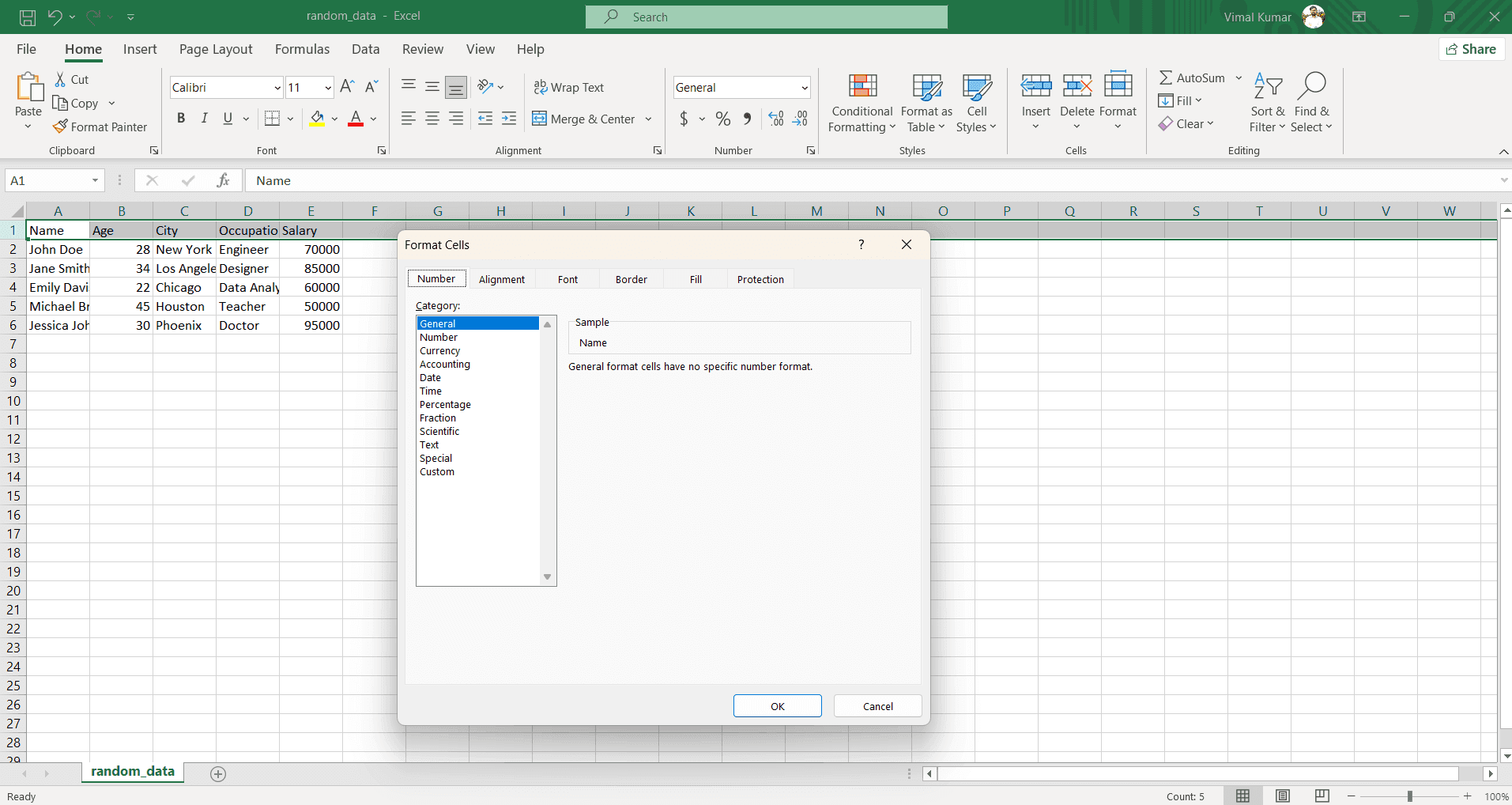
Access the View menu
Navigate to the View tab in the Excel ribbon at the top of the window. This menu contains all the display and layout options for your spreadsheet.
- 4
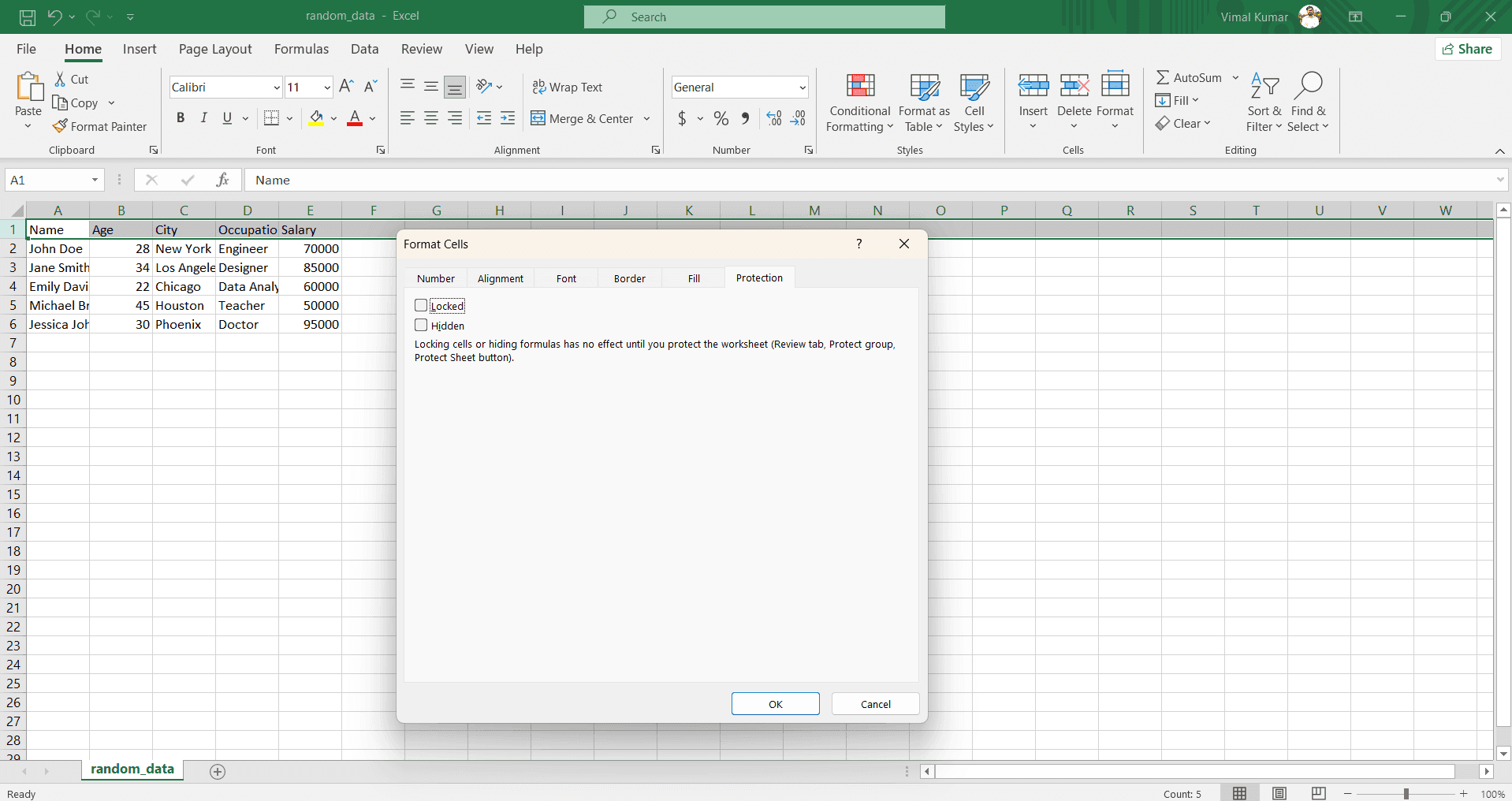
Click Freeze Panes
In the View menu, locate and click on the Freeze Panes option. A dropdown menu will appear with several freezing options to choose from.
- 5
Confirm the freeze is applied
Select Freeze Panes from the dropdown to lock the rows above your selection. You'll see a thin line appear below the locked rows, indicating that the freeze has been successfully applied.
Frequently asked questions
Common questions about how to lock a row in excel.
Can I lock both rows and columns at the same time?
Yes, Excel allows you to freeze both rows and columns simultaneously. Select the cell at the intersection where you want the freeze to occur, then apply Freeze Panes. For example, selecting cell B2 will lock row 1 and column A.
How do I unfreeze rows in Excel?
Return to the View menu and click on Freeze Panes again. Select Unfreeze Panes from the dropdown to remove the freeze and restore normal scrolling throughout your entire spreadsheet.
Is there a difference between freezing and filtering rows?
Yes, freezing keeps rows visible while scrolling through data, whereas filtering hides rows that don't meet specific criteria. Freezing is ideal for headers and reference information, while filtering is better for finding specific records.
Will locked rows print on every page?
Frozen rows won't automatically print on every page. To ensure headers print on every page, use the Print Titles option in the Page Layout menu instead. This is separate from the freeze panes feature.
Can I freeze rows in Excel on Mac?
Yes, the process is identical on Excel for Mac. Use the View menu, locate Freeze Panes, and select your preferred freezing option. The functionality and results are the same as on Windows.