How to Lock Cells in Excel

Locking cells in Excel is essential when you want to protect specific data from accidental changes while allowing users to edit other parts of a worksheet. This feature is particularly useful in shared workbooks, templates, and data entry forms where certain columns or formulas should remain unchanged.
Quick summary
In this tutorial, you'll learn how to lock cells in Excel to prevent unwanted edits. You'll discover how to select cells, apply protection settings, and enable sheet protection to safeguard your spreadsheet structure and critical data.
Why this matters
Cell locking prevents costly mistakes in shared spreadsheets by restricting edits to designated areas. In business environments, this protects formulas, headers, and reference data from accidental or unauthorized modification, ensuring data integrity and workflow consistency.
Step-by-step guide
- 1
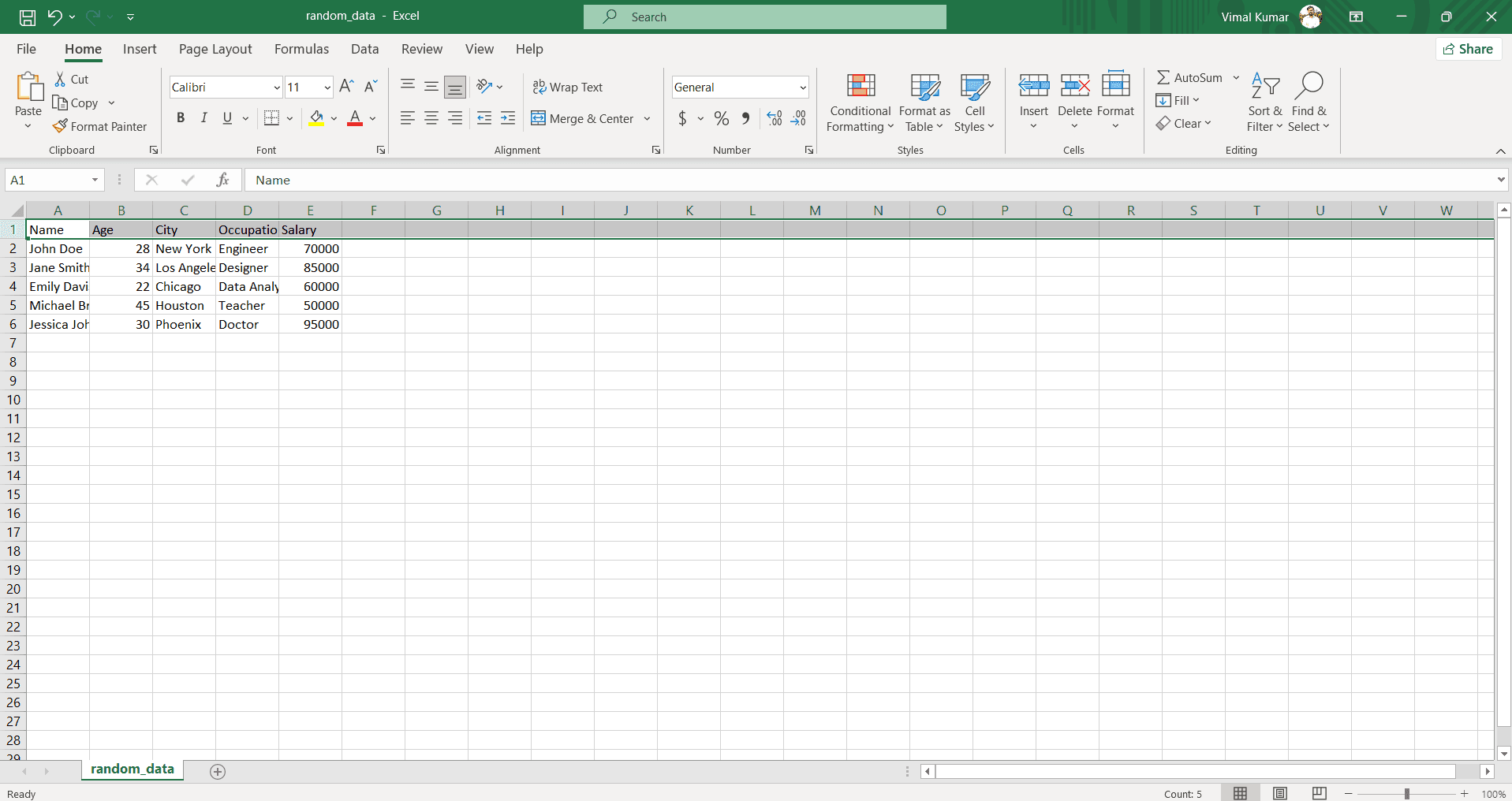
Select the cells to lock
Click and drag to highlight the cells you want to protect from editing. These selected cells will become locked once you enable sheet protection.
- 2
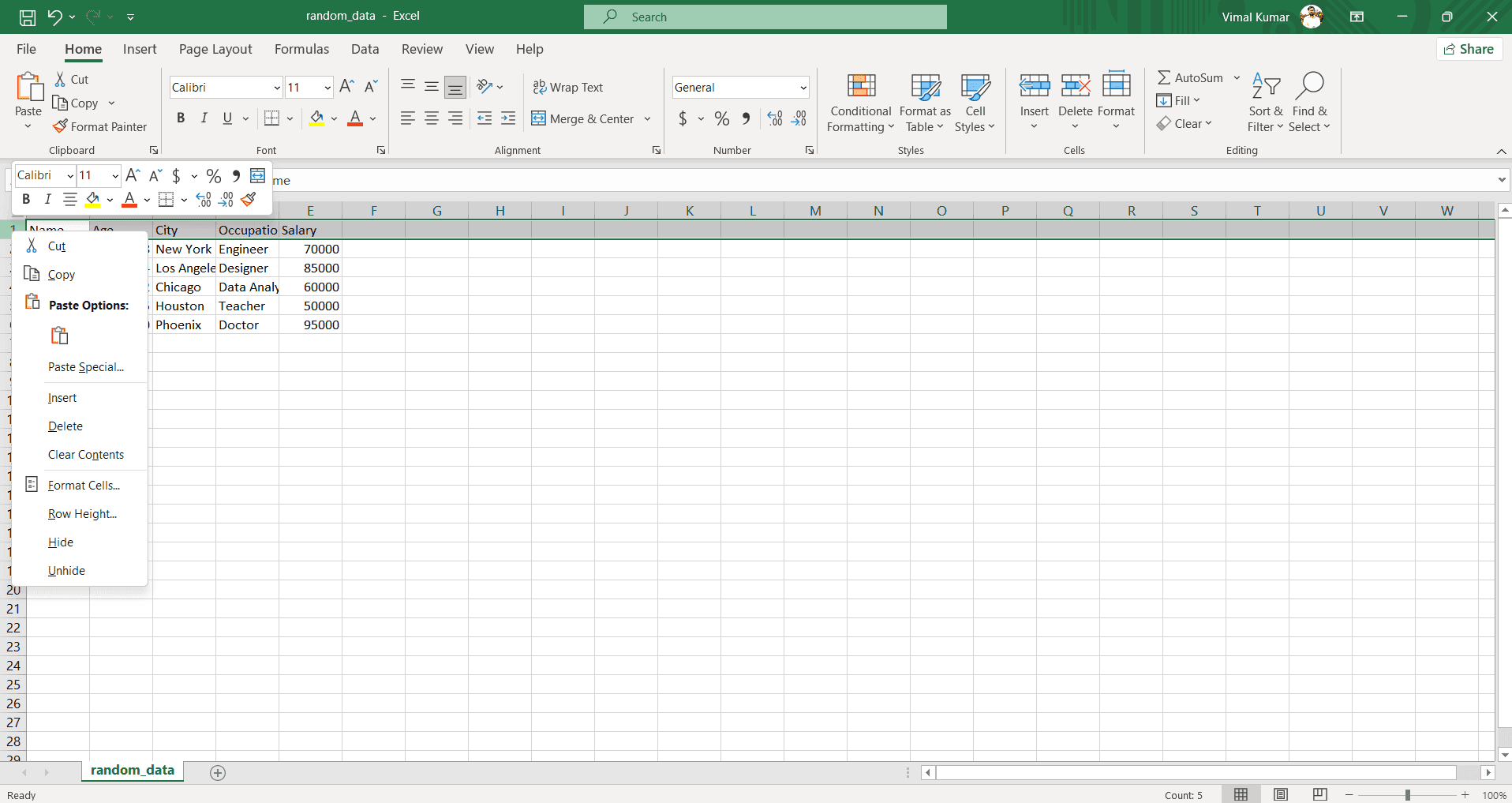
Access the Format Cells dialog
Right-click on your selection and choose 'Format Cells' from the context menu, or use Ctrl+1 to open the formatting panel quickly.
- 3
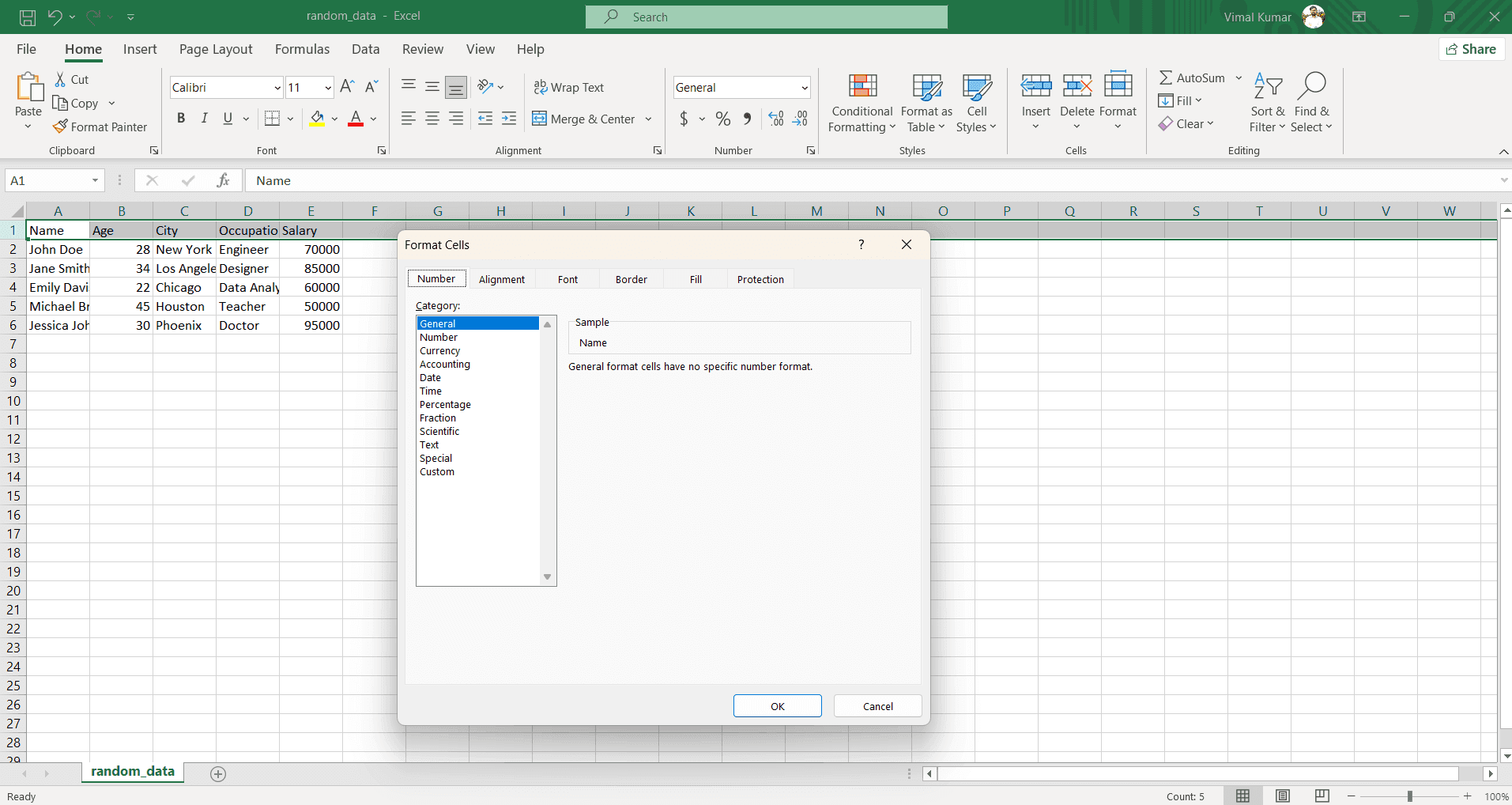
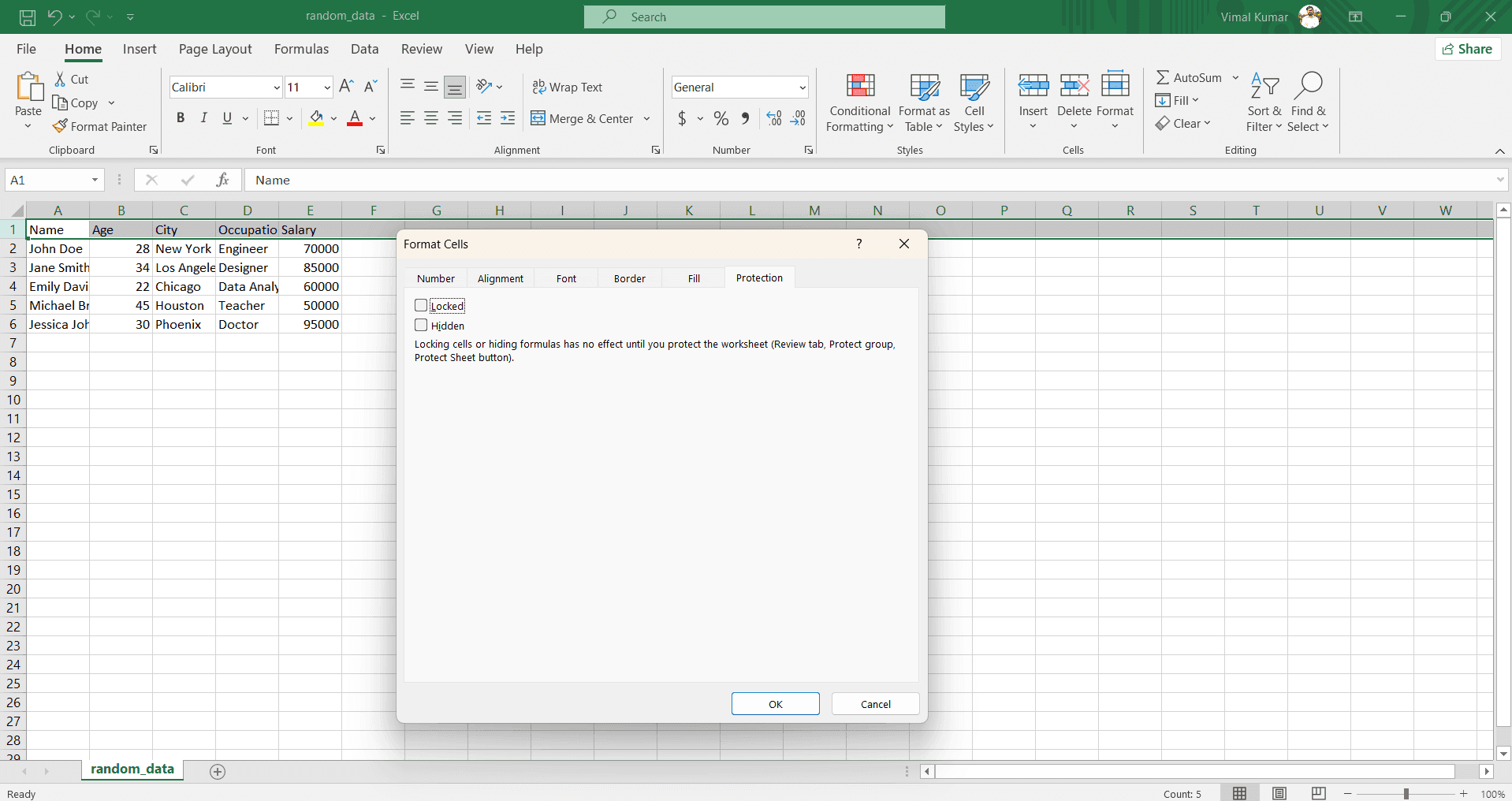
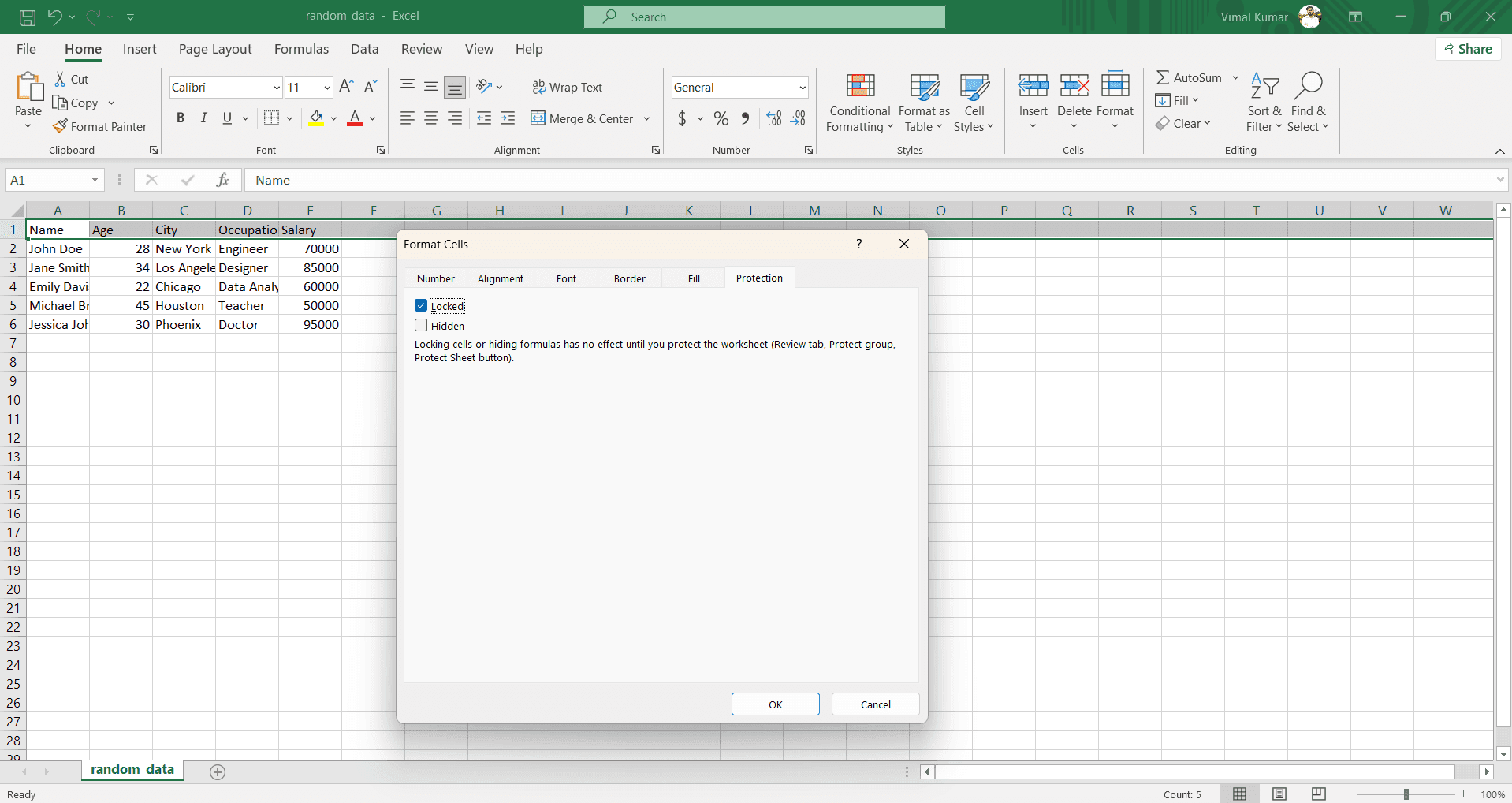
Navigate to the Protection tab
In the Format Cells dialog, click the 'Protection' tab to access cell locking options. You'll see a checkbox labeled 'Locked' which should be checked by default.
- 4
Enable sheet protection
Go to the 'Review' tab in the ribbon and click 'Protect Sheet'. A dialog will appear where you can set a password and configure which actions users are allowed to perform.
- 5
Confirm protection settings
Review the list of allowed actions and optionally enter a password to prevent unauthorized unprotection. Click 'OK' to apply sheet protection and activate all cell locks.
Frequently asked questions
Common questions about how to lock cells in excel.
Can I lock some cells but not others?
Yes. First select the cells you want to remain editable and uncheck the 'Locked' option in Format Cells. Then enable sheet protection, which will lock all other cells by default. This creates a worksheet where only your designated cells can be edited.
What happens if I forget my protection password?
Excel does not provide a built-in password recovery tool. If you forget your password, you cannot unprotect the sheet without it. Always store your password in a secure location or use a password manager to avoid losing access to your protection settings.
Can users still view locked cells?
Yes, locked cells are fully visible and readable. Protection only prevents editing, not viewing. Users can select locked cells and see their content in the formula bar, but cannot make changes without unprotecting the sheet.
Does cell locking work without sheet protection?
No, cell locking has no effect until you enable sheet protection. The 'Locked' property is just a setting that tells Excel which cells to restrict once protection is activated. Always remember to protect the sheet for locking to take effect.
Can I protect multiple sheets at once?
You must protect each sheet individually. Go to each worksheet tab, select the cells you want to lock, and repeat the protection process for that sheet. Excel does not offer a single command to protect all sheets simultaneously.