How to remove duplicates in Microsoft Excel

Duplicate data can skew analysis, inflate records, and compromise data integrity in your spreadsheets. This guide walks you through removing duplicates in Microsoft Excel, a critical skill for anyone working with large datasets or consolidated data from multiple sources.
Quick summary
In this tutorial, you'll learn how to identify and remove duplicate rows from your Excel spreadsheet efficiently. You'll understand the built-in tools Excel provides and how to apply them to clean your data in just a few clicks.
Why this matters
Duplicate records can lead to incorrect calculations, misleading reports, and wasted time during data analysis. Removing duplicates ensures your datasets are accurate and your insights are based on clean, reliable information.
Step-by-step guide
- 1
Prepare and select your data
Open your Excel file and select the range of data that contains potential duplicates. Ensure your selection includes all columns and rows you want to analyze for duplicate entries.
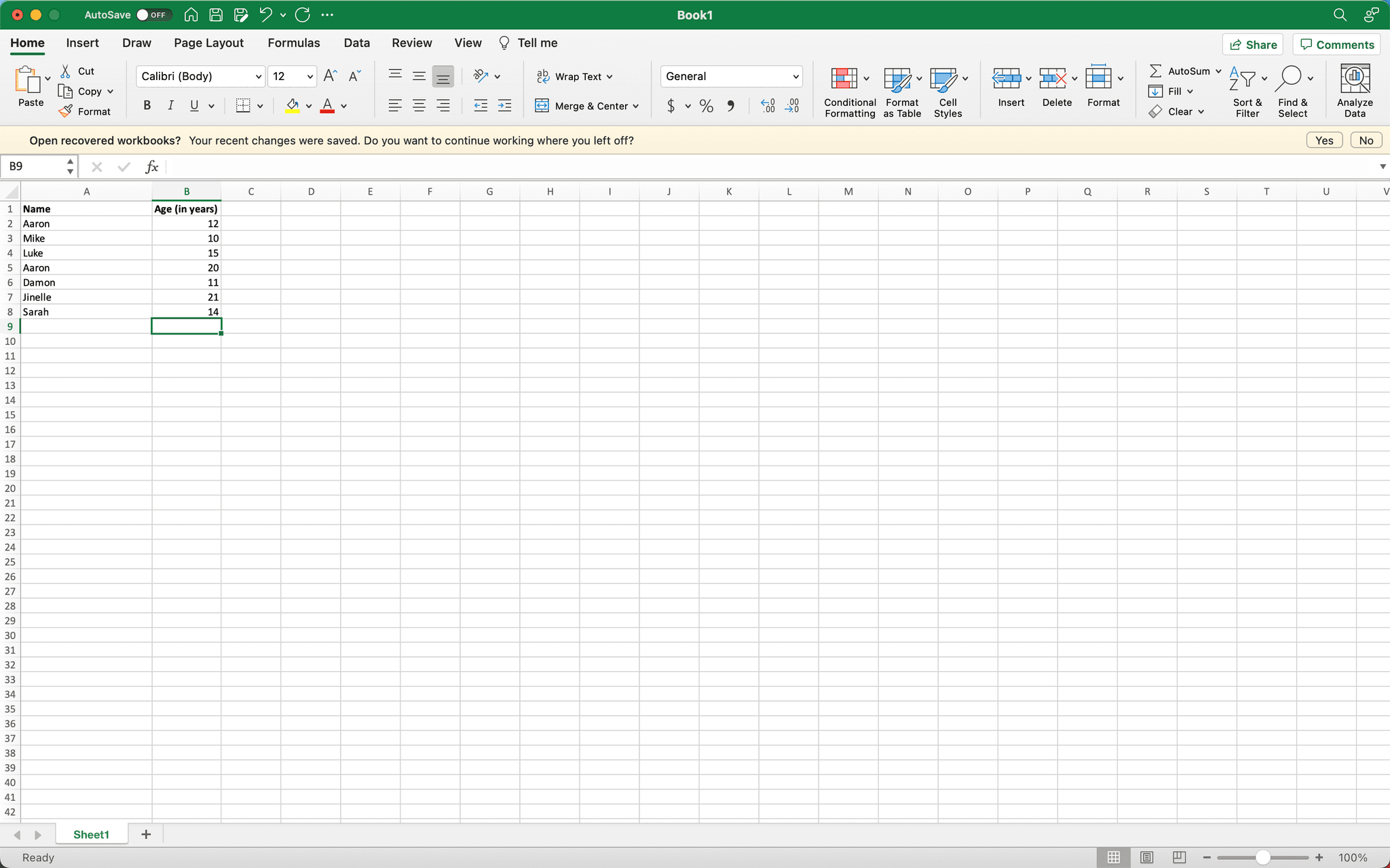
- 2
Access the Data Tools menu
Navigate to the Data tab in the Excel ribbon. This is where you'll find the remove duplicates feature and other data management tools.
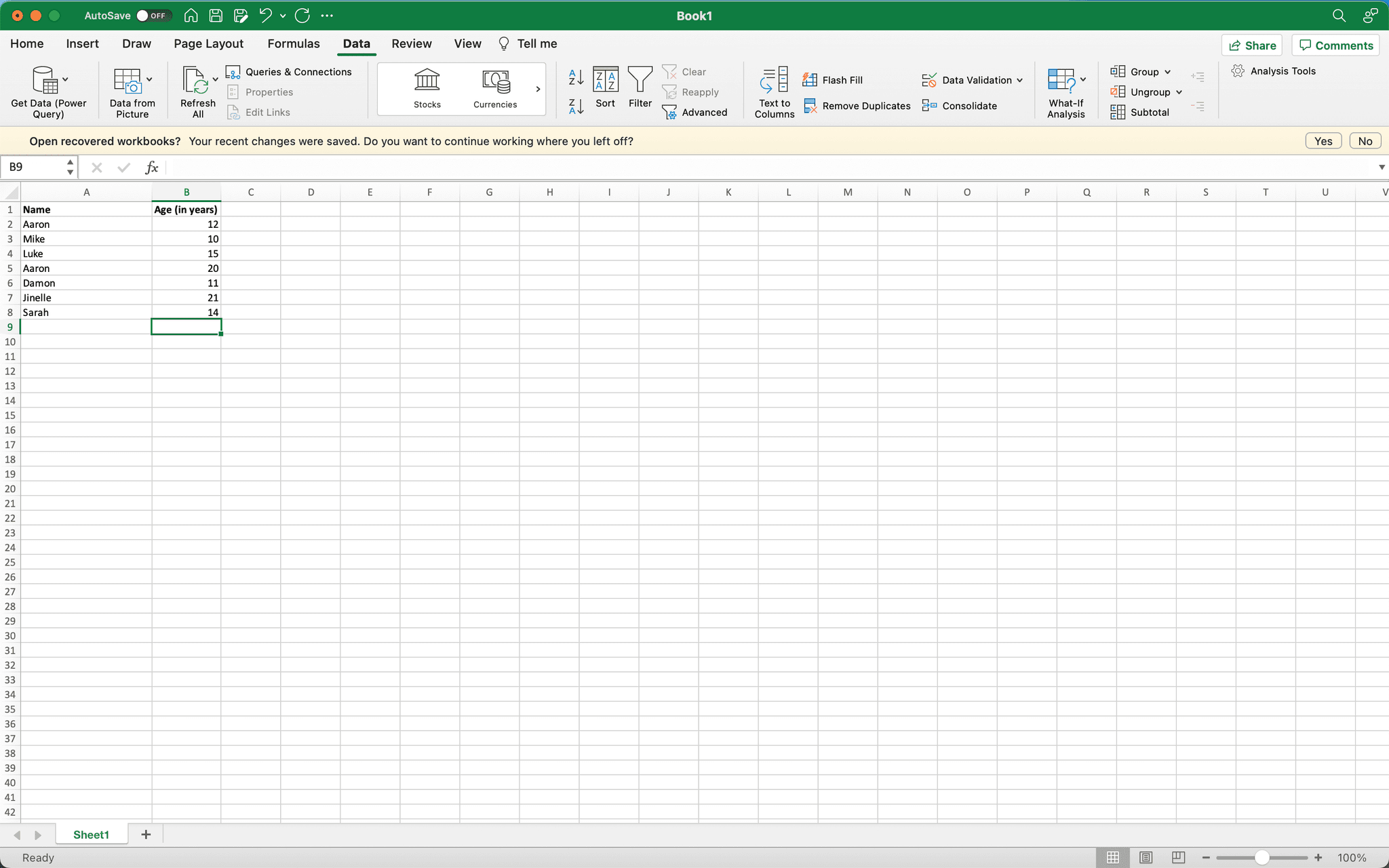
- 3
Locate the Remove Duplicates option
Within the Data tab, look for the Remove Duplicates button in the Data Tools group. Click on it to open the duplicate removal dialog.
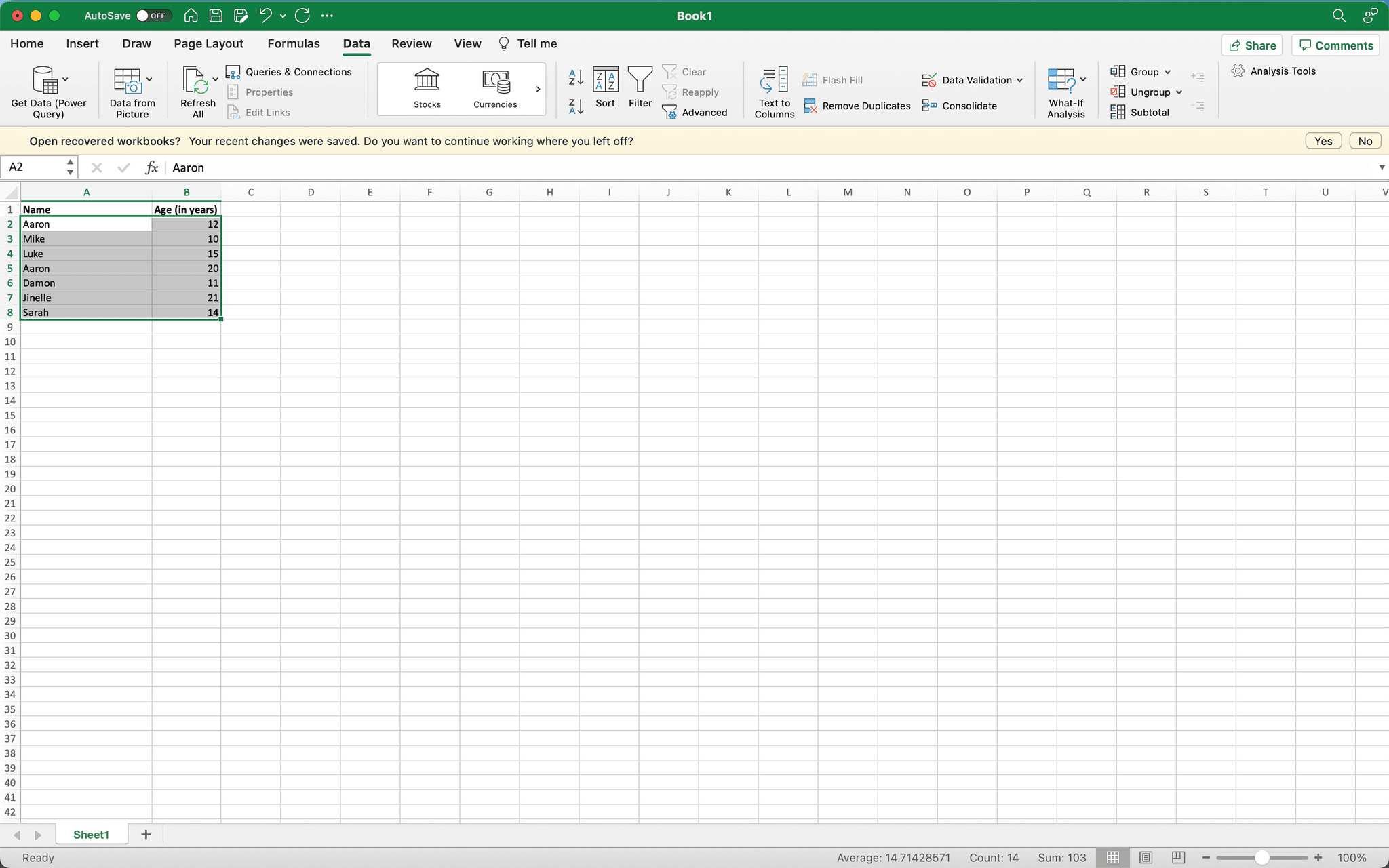
- 4
Confirm columns to check
A dialog box will appear showing all columns in your selection. Review and select which columns Excel should use to identify duplicates. Uncheck any columns you want to exclude from the duplicate detection.
- 5
Review your selection settings
Ensure the My data has headers checkbox is correctly marked if your data includes header rows. This prevents Excel from treating headers as duplicate data.
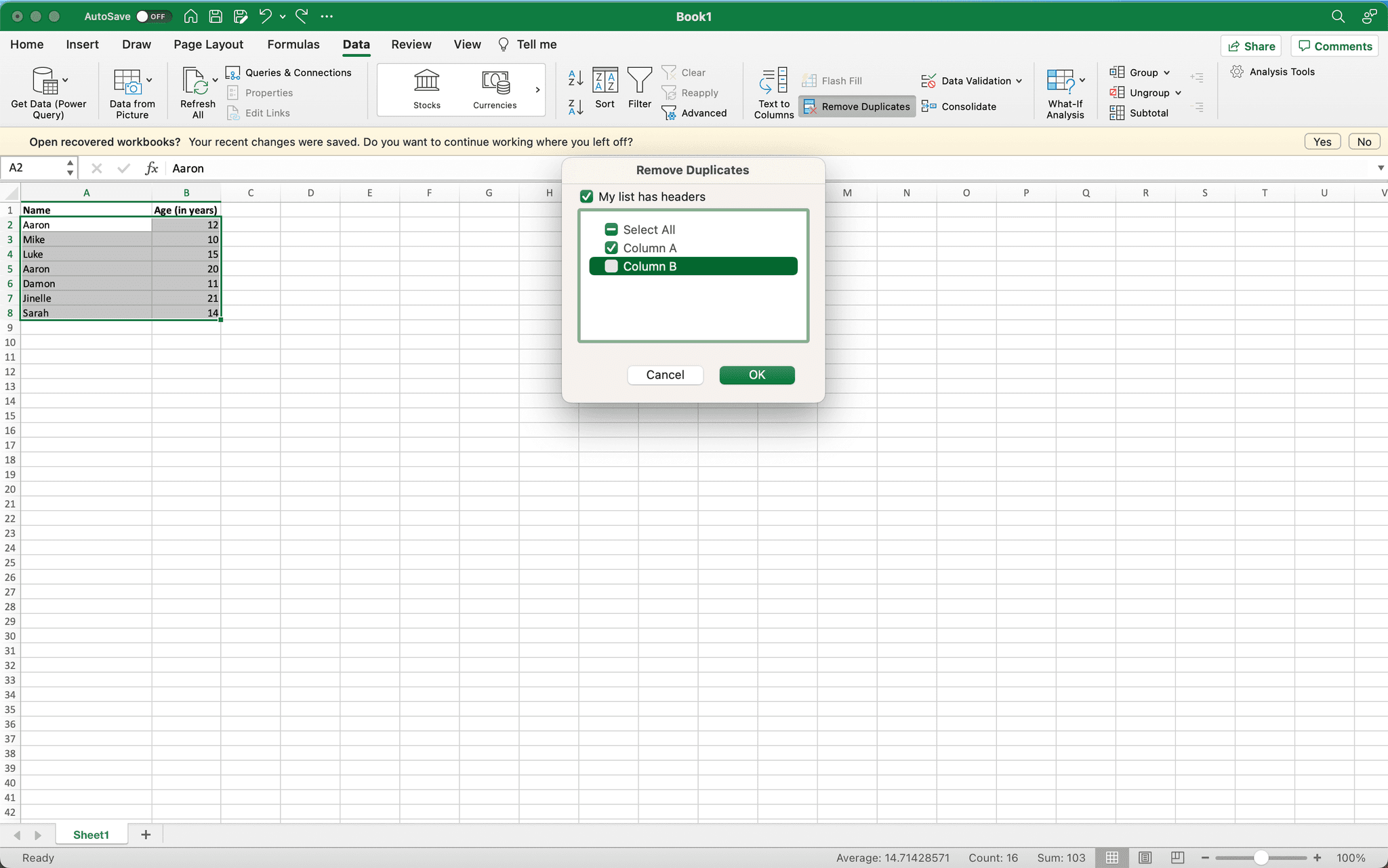
- 6
Execute the duplicate removal
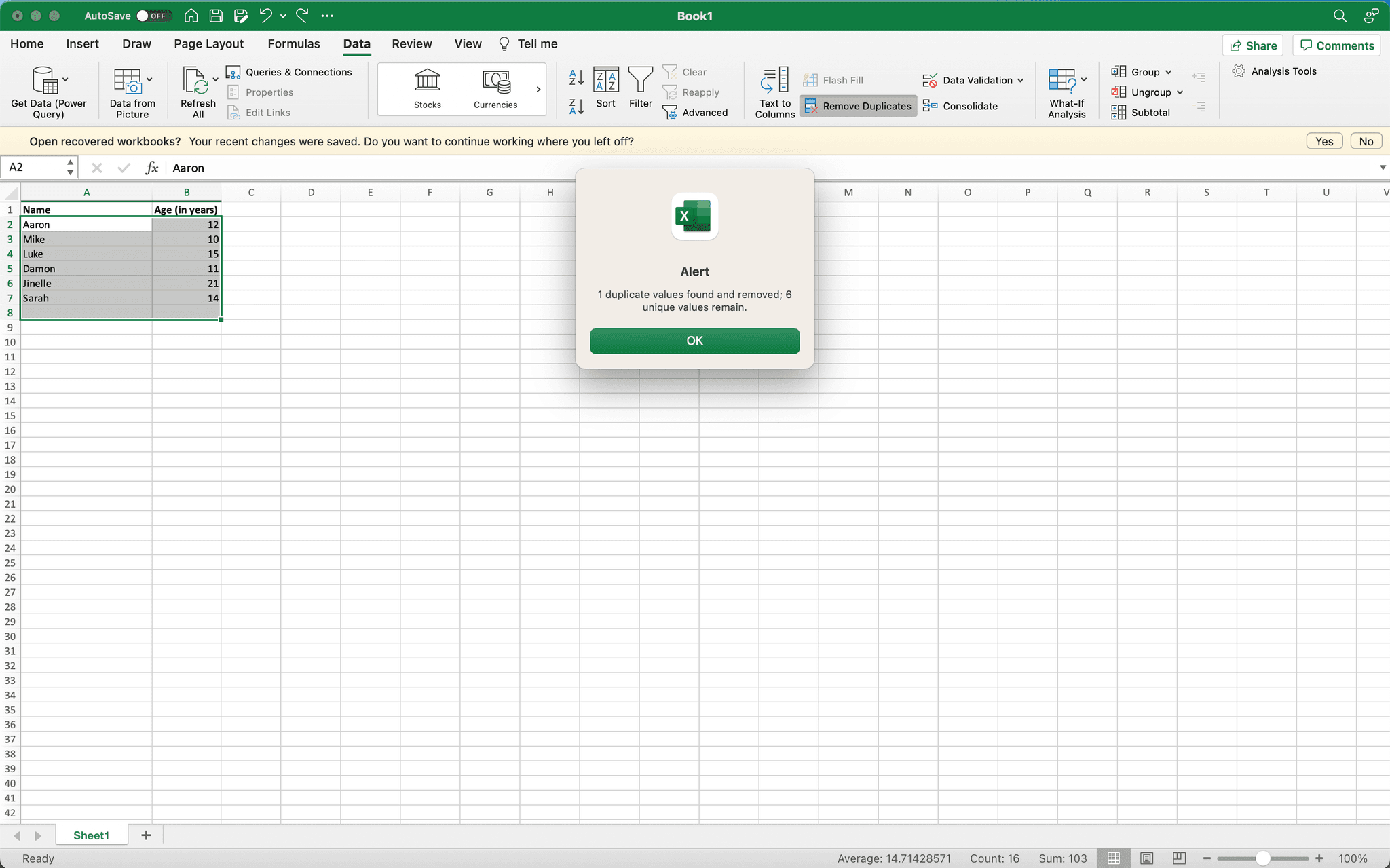
Click the OK button to remove all duplicate rows from your dataset. Excel will delete duplicate entries and display a confirmation message showing how many duplicates were removed.
- 7
Verify your cleaned data
Review your spreadsheet to confirm the duplicates have been removed and your data is now clean. Save your file to preserve the changes.
Frequently asked questions
Common questions about how to remove duplicates in microsoft excel.
Will removing duplicates delete my original file?
No, the remove duplicates feature modifies your current spreadsheet in place, but your original file remains unchanged if you save under a new name. Always save a backup copy of your original data before removing duplicates as a precaution.
What if I only want to remove duplicates from specific columns?
In the Remove Duplicates dialog, you can uncheck the columns you want to exclude from the duplicate detection. Excel will then only consider the checked columns when identifying duplicate rows.
Can I undo the duplicate removal if I make a mistake?
Yes, you can press Ctrl+Z immediately after removing duplicates to undo the action. However, this only works if you haven't saved the file yet, so work carefully.
Does Excel consider blank cells as duplicates?
Excel treats multiple blank cells as duplicates of each other. If you have several rows with blank values in the selected columns, removing duplicates may delete more rows than expected. Review your data carefully first.
What's the difference between removing duplicates and filtering for unique values?
Removing duplicates permanently deletes duplicate rows from your dataset, while filtering hides them temporarily. Use remove duplicates to clean data permanently, or use filtering if you want to preserve all data and just view unique records.