How to Set Up a Zoom Meeting

Setting up a Zoom meeting is a straightforward process that enables you to connect with colleagues, clients, or friends instantly. Whether you're hosting a one-on-one call or a large conference, understanding how to create and configure a meeting ensures a professional and smooth experience.
Quick summary
In this tutorial, you'll learn how to set up a Zoom meeting from start to finish. You'll discover how to access the meeting creation tools, configure essential settings, and prepare your meeting for participants.
Why this matters
Properly setting up a Zoom meeting ensures your audio, video, and sharing features work correctly before participants join. Taking time to configure your meeting upfront prevents technical issues and creates a more professional experience for everyone involved.
Step-by-step guide
- 1
Launch Zoom and sign in
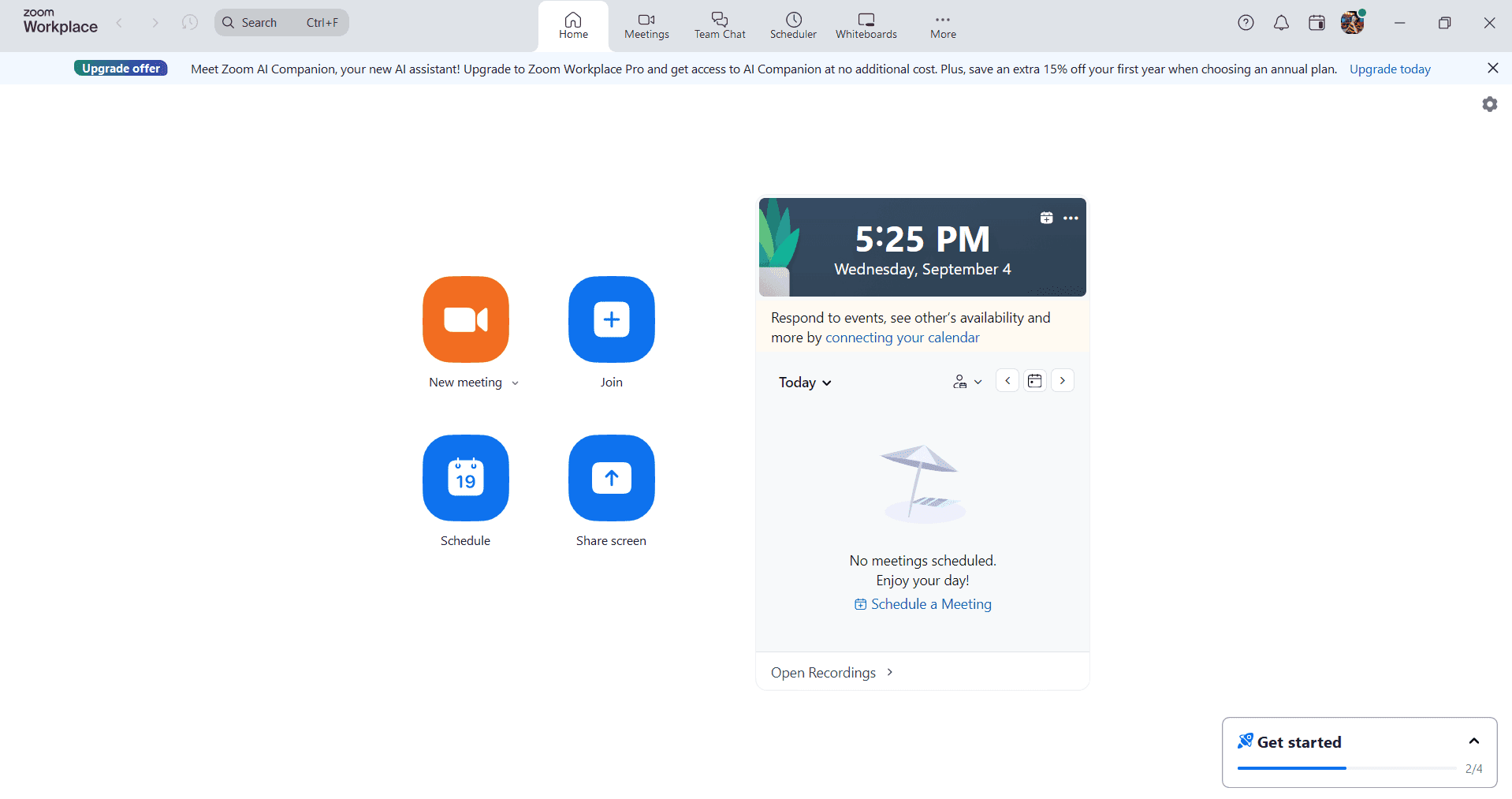
Open the Zoom application on your device and sign in with your Zoom account credentials. Once logged in, you'll be taken to the home screen where you can access all meeting options.
- 2
Click the New Meeting button
On the home screen, locate and click the 'New Meeting' button. This will immediately generate a new meeting with a unique meeting ID and default settings.
- 3
Configure meeting settings
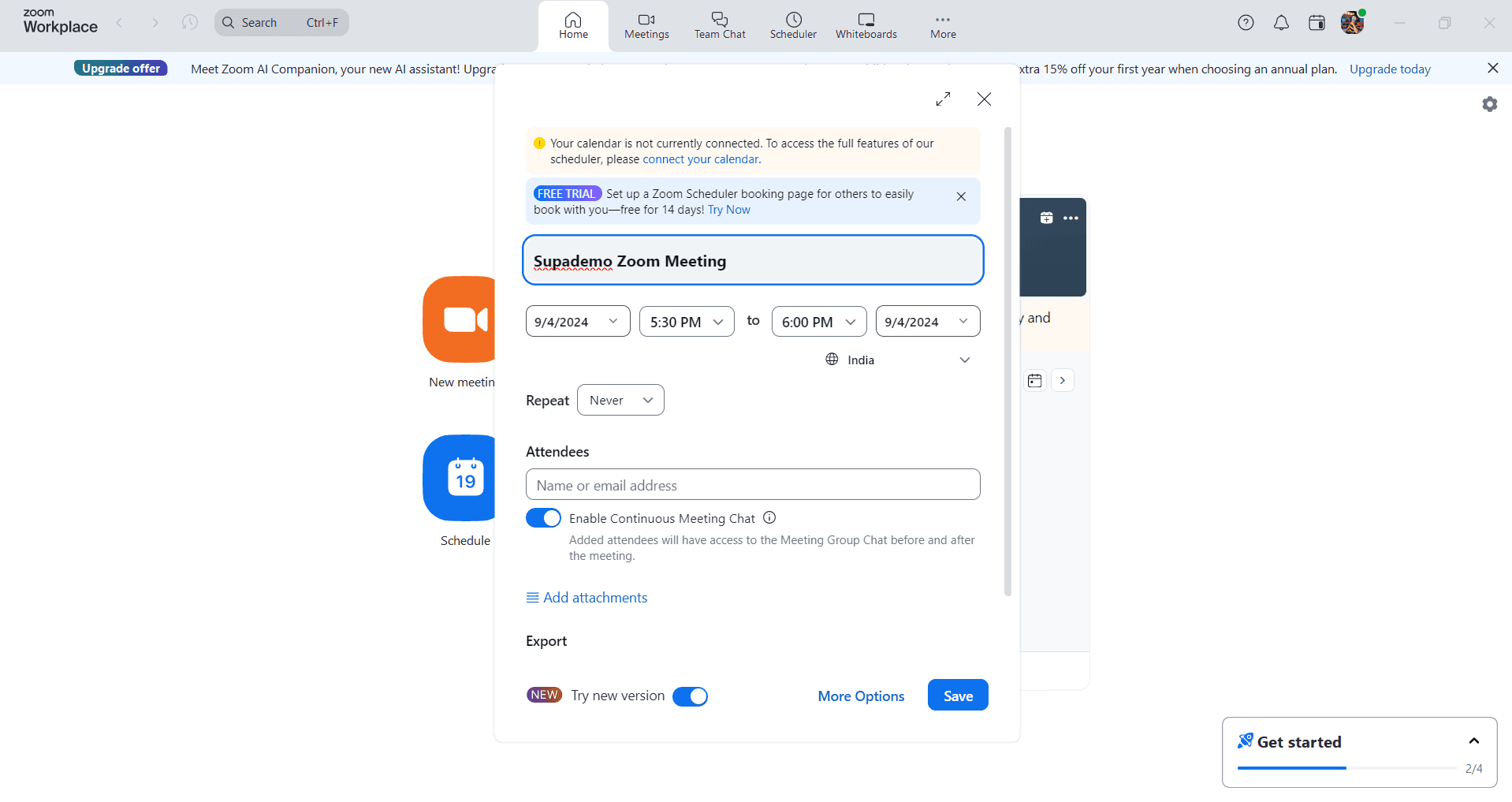
Before starting, review and adjust key settings such as video and audio preferences. Toggle video on or off for host and participants, and choose whether participants can join before the host starts the meeting.
- 4
Add meeting title and description
Enter a clear, descriptive title for your meeting and optionally add details about the agenda or purpose. This information will appear in meeting invitations and help participants understand the meeting's focus.
- 5
Invite participants and start meeting
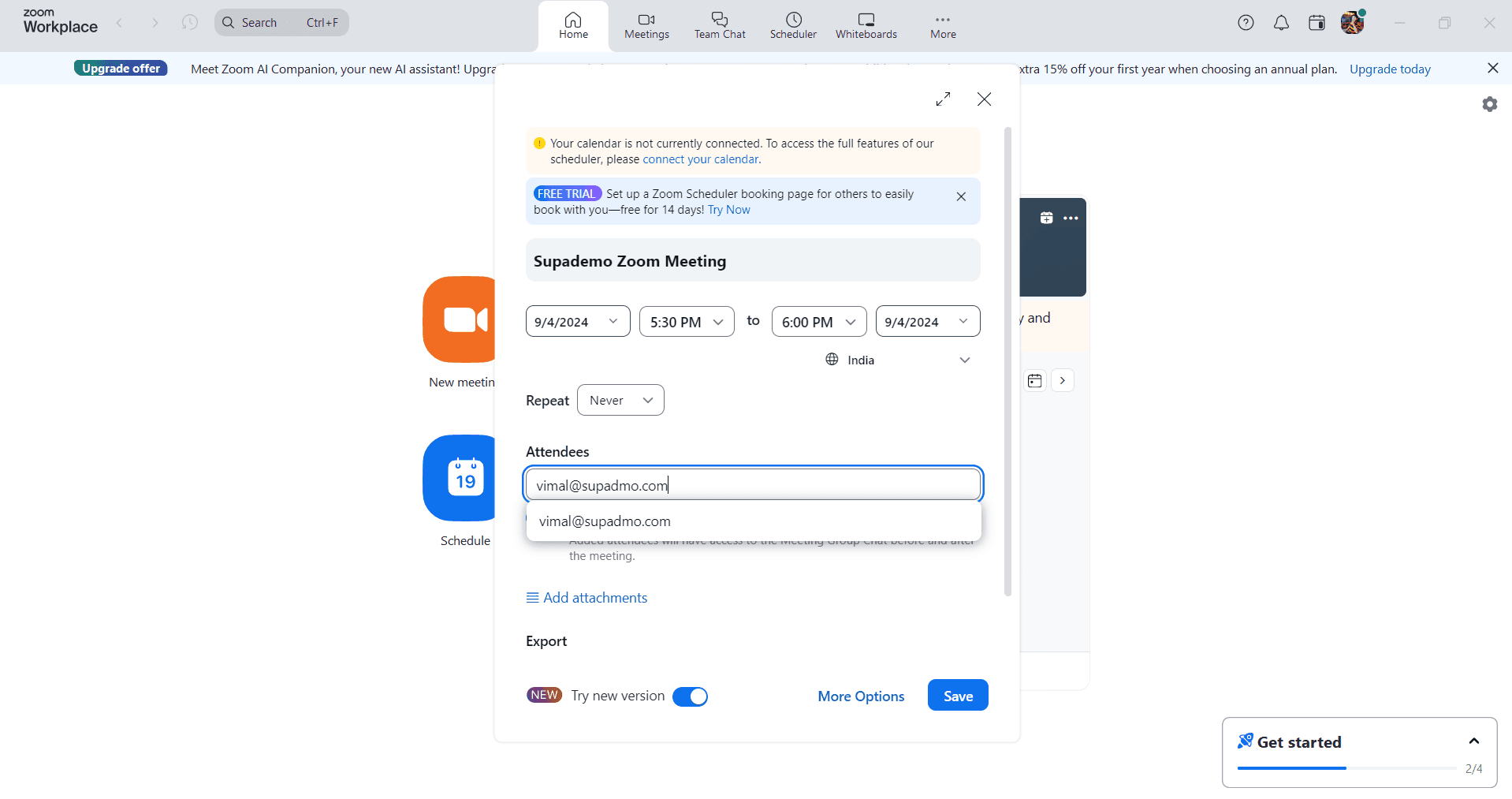
Share the meeting link or ID with participants using email, chat, or other communication methods. Click 'Start Meeting' to begin, and participants can join using the provided link or meeting ID.
Frequently asked questions
Common questions about how to set up a zoom meeting.
Can I schedule a meeting instead of starting one immediately?
Yes. In Zoom, click 'Schedule a Meeting' instead of 'New Meeting' to set a specific date and time. You can add it to your calendar and send invitations to participants in advance, ensuring everyone has the meeting details.
How do I change the meeting ID or make it recurring?
When scheduling a meeting, you can toggle 'Recurring' to make it repeat daily, weekly, or monthly. To change the meeting ID, access the meeting settings before starting and select 'Edit' to customize your meeting ID if you have that option enabled on your account.
What's the difference between a personal meeting ID and a unique meeting ID?
A personal meeting ID is a permanent ID assigned to your Zoom account that remains the same for every meeting you host. A unique meeting ID is generated for each individual meeting and provides better security for sensitive meetings or one-time interactions.
Can I record the meeting during setup?
Recording options can be enabled in your meeting settings before starting. You can choose to record to the cloud or to your local device, and this setting will be active when your meeting begins.
What should I check before inviting participants?
Before inviting participants, test your audio and video to ensure they work properly. Verify your internet connection is stable, check your background, and confirm your meeting settings align with your needs, such as waiting room options and participant permissions.