How to Share Screen on Zoom

Screen sharing on Zoom allows you to display your desktop, application, or specific window to meeting participants in real time. Whether you're presenting slides, collaborating on documents, or providing technical support, mastering this feature is essential for effective remote communication.
Quick summary
In this tutorial, you'll learn how to initiate screen sharing on Zoom, select what content to share, and manage your sharing session. We'll walk you through each step to ensure your presentation reaches your audience seamlessly.
Why this matters
Screen sharing is fundamental to productive Zoom meetings. It enables clear communication of ideas, facilitates team collaboration, and ensures that all participants see exactly what you're referring to without confusion or misinterpretation.
Step-by-step guide
- 1
Open Zoom and join a meeting
Launch the Zoom application on your device and join an active meeting or start a new one. Ensure your camera and microphone are configured to your preference before proceeding.
- 2
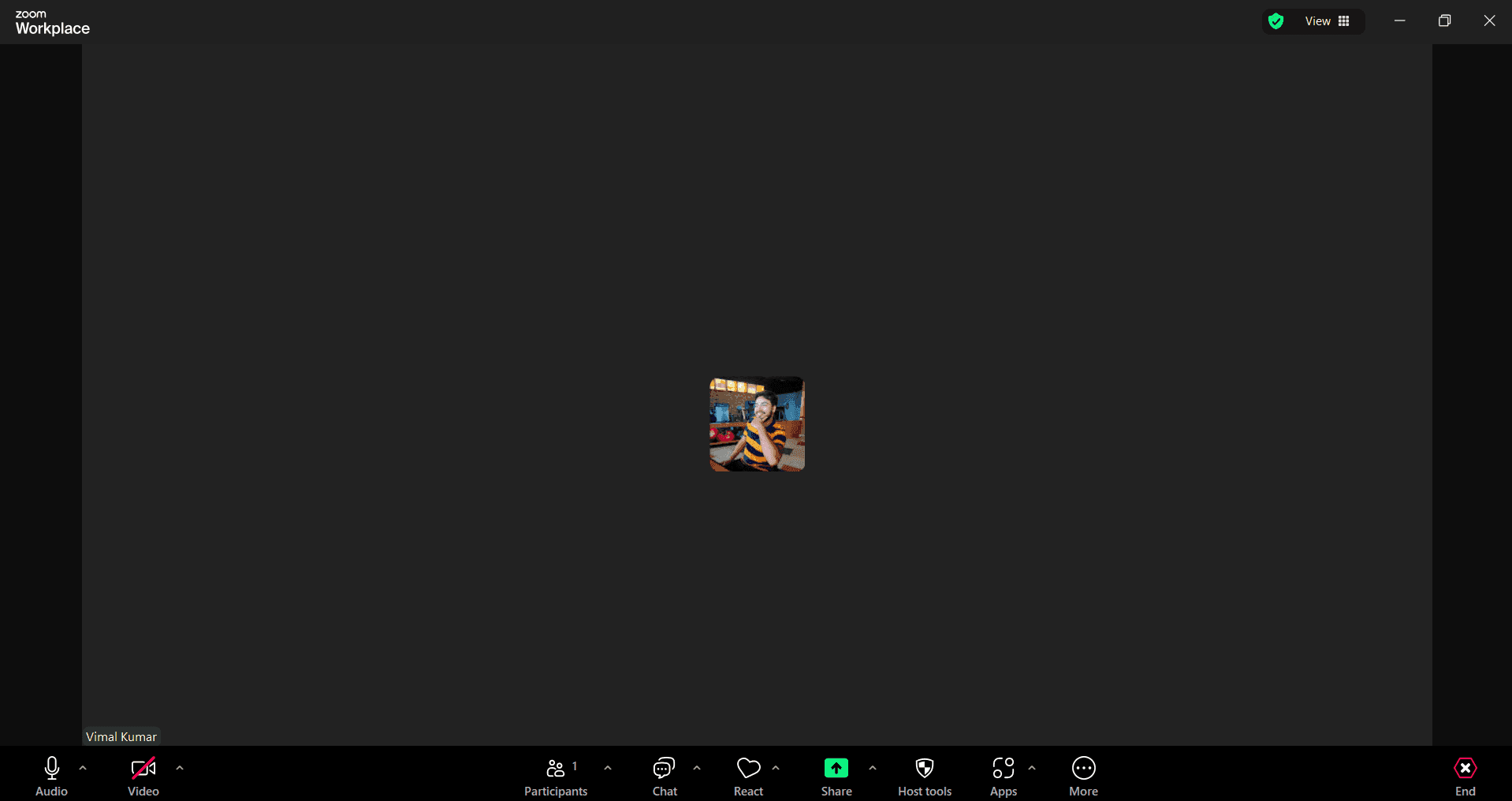
Locate the share screen button
In the meeting controls at the bottom of your screen, find and identify the 'Share Screen' button. This button typically appears in the center of the control bar alongside other meeting options.
- 3
Click share screen option
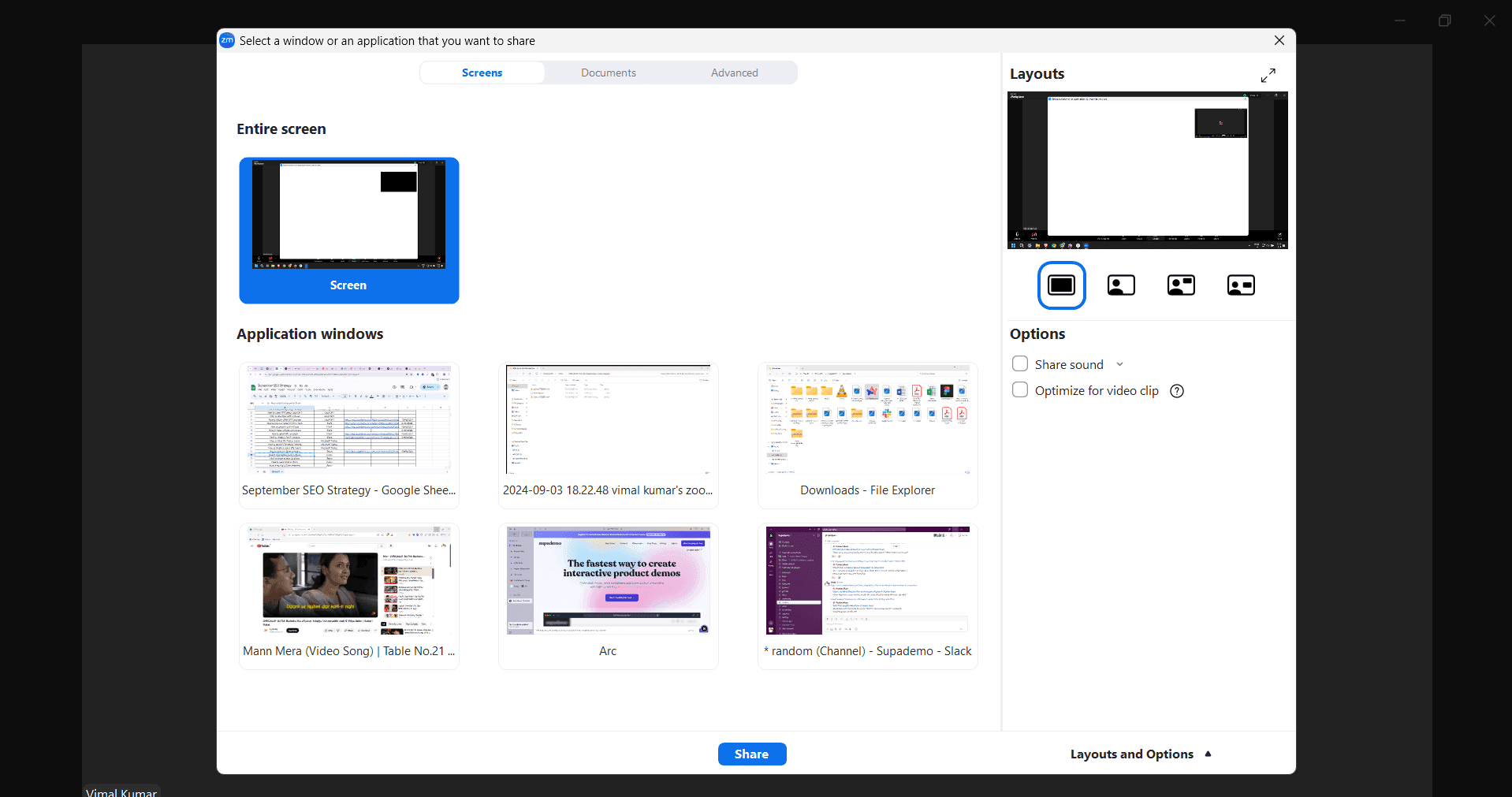
Click the 'Share Screen' button to open the sharing selection window. A dialog box will appear showing available content to share.
- 4
Select content to share
Choose what you want to display: your entire screen, a specific application window, or a particular monitor if using multiple displays. Click your selection to confirm.
- 5
Begin sharing with participants
After selecting your content, click the 'Share' button to start broadcasting to all meeting participants. You'll see a confirmation indicator showing that screen sharing is active.
- 6
Stop sharing when finished
When you're done presenting, locate the 'Stop Share' button in the meeting controls or toolbar and click it to end the screen sharing session. All participants will be notified that sharing has stopped.

Frequently asked questions
Common questions about how to share screen on zoom.
Can I share just one application window instead of my entire screen?
Yes. When you click 'Share Screen,' select the specific application or window you want to share rather than 'Entire Screen.' This keeps other windows and sensitive information private while presenting.
What should I do if participants can't see my shared screen?
First, ensure screen sharing is actually active by checking the red 'Stop Share' indicator. Ask participants to refresh their view or check their connection. If the issue persists, stop sharing, restart the share, and select a different screen or window.
Can other participants take control of my screen while I'm sharing?
Only if you explicitly grant remote control permission. During a screen share, participants can request control, but you must approve it. This is a safety feature to prevent unauthorized access to your device.
Is there a way to share audio along with my screen?
Yes. When sharing your screen on Zoom, there's an option to 'Share computer sound.' Enable this if you want meeting participants to hear audio from applications, videos, or presentations you're displaying.
What are the best practices for effective screen sharing?
Close unnecessary applications and browser tabs before sharing, increase your font size for readability, move your mouse slowly to help viewers follow along, and minimize distractions. Always inform participants what you're about to share before starting.