How to use the SEMRush PPC keyword tool

The Semrush PPC Keyword Tool is a powerful resource for researching and analyzing paid search keywords to inform your advertising strategy. This guide walks you through setting up and launching the tool so you can start uncovering high-intent keywords for your campaigns.
Quick summary
In this tutorial, you'll learn how to navigate to the PPC Keyword Tool in Semrush, create a new project, configure your settings including location preferences, and upload your initial keyword data. By the end, you'll be ready to analyze keyword performance metrics and competitive insights for your PPC campaigns.
Why this matters
Understanding which keywords drive qualified traffic at the right cost is essential for PPC success. The PPC Keyword Tool helps you identify search terms with high commercial intent while revealing competitor bidding strategies, allowing you to optimize your ad spend and improve ROI.
Step-by-step guide
- 1
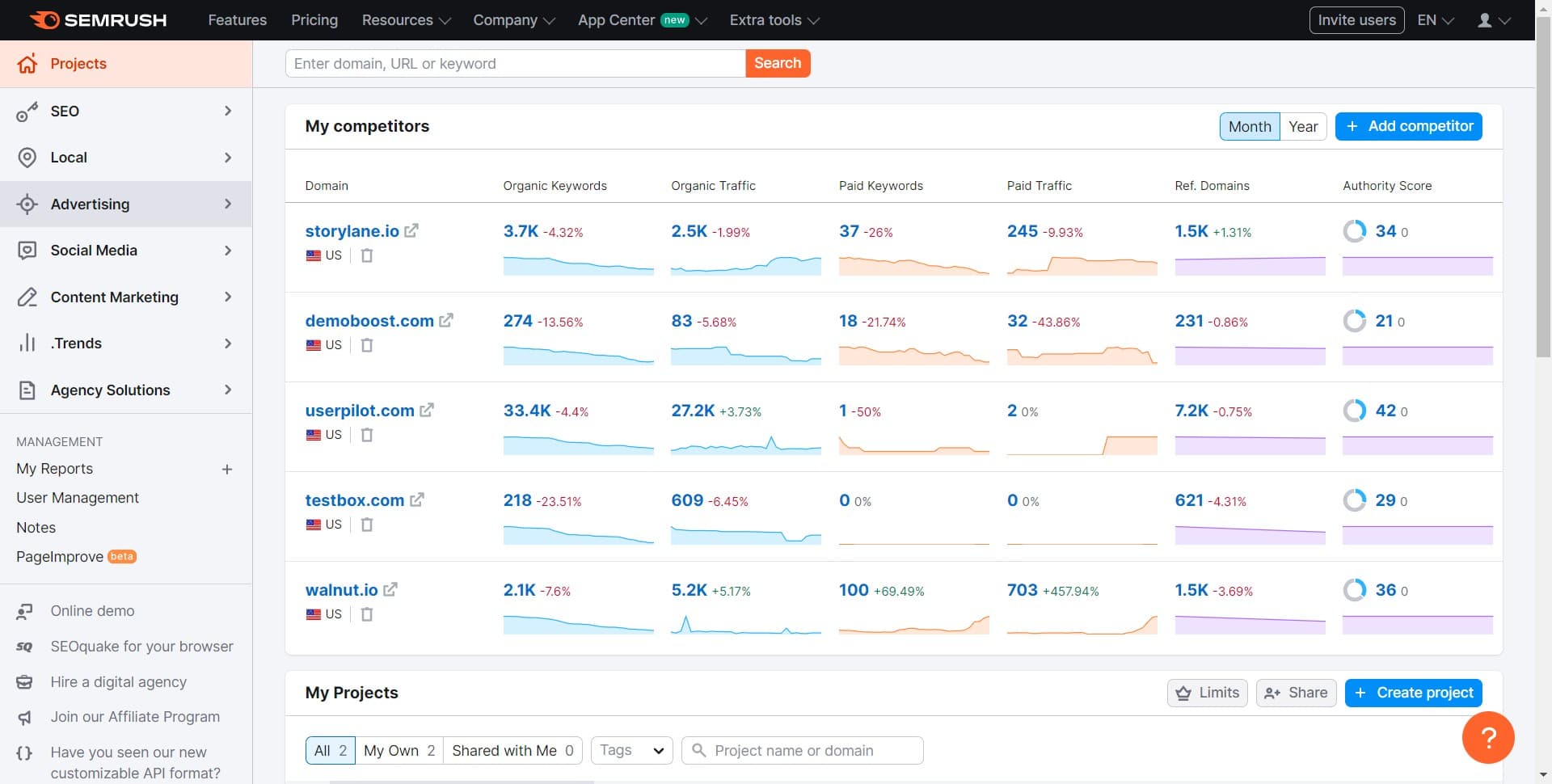
Click on Advertising
From the main Semrush dashboard, locate and click the Advertising menu option. This will expand the advertising-related tools available in your account.
- 2
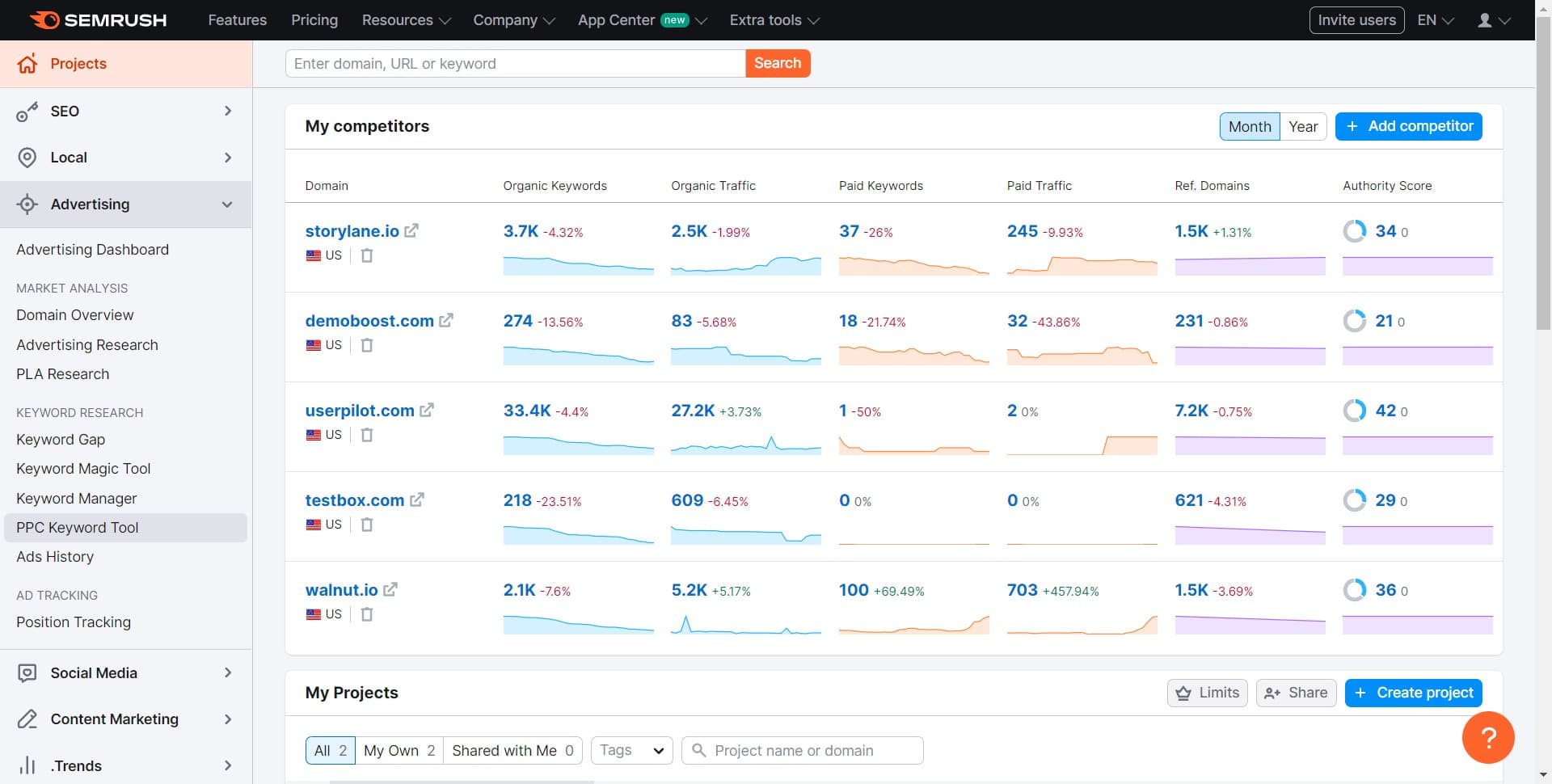
Click on PPC Keyword Tool
Within the Advertising section, select PPC Keyword Tool. This opens the interface where you can manage all your keyword research for paid search campaigns.
- 3
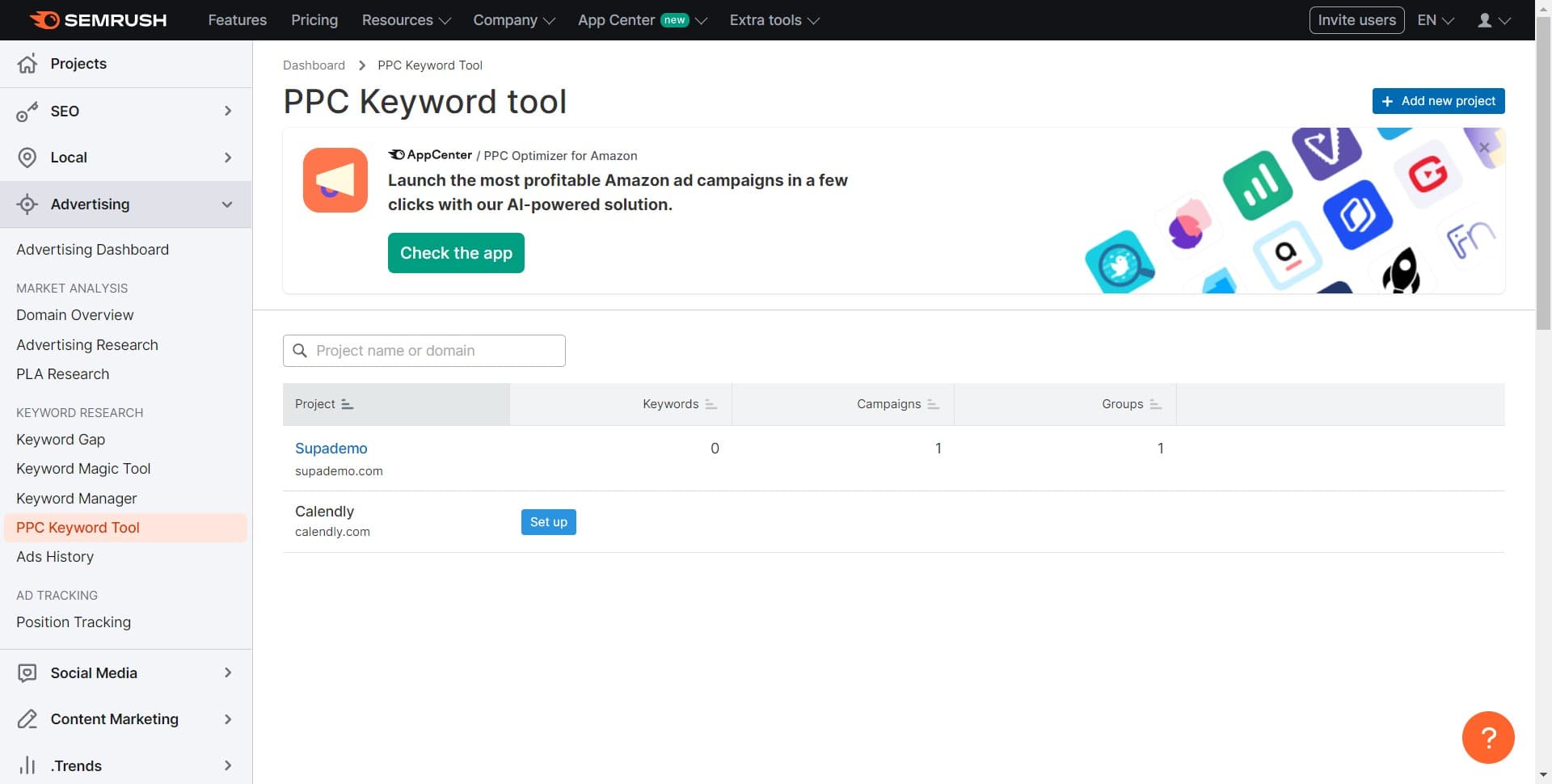
Click on Add new project
Select the Add new project button to begin setting up a new PPC keyword research project. This action initiates the project creation workflow.
- 4
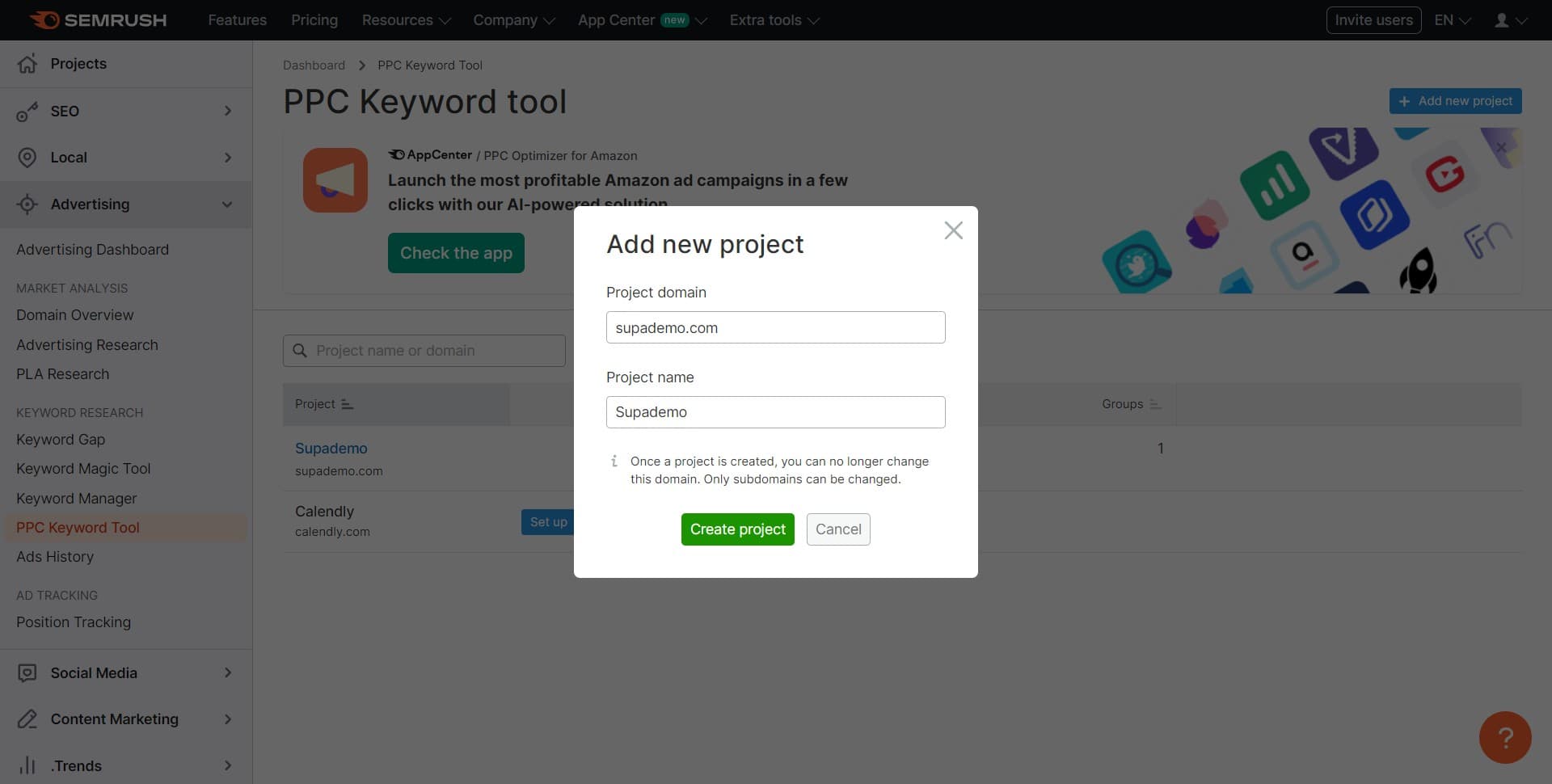
Click on Create project
Confirm your project creation by clicking the Create project button. Semrush will now prepare your new project workspace.
- 5
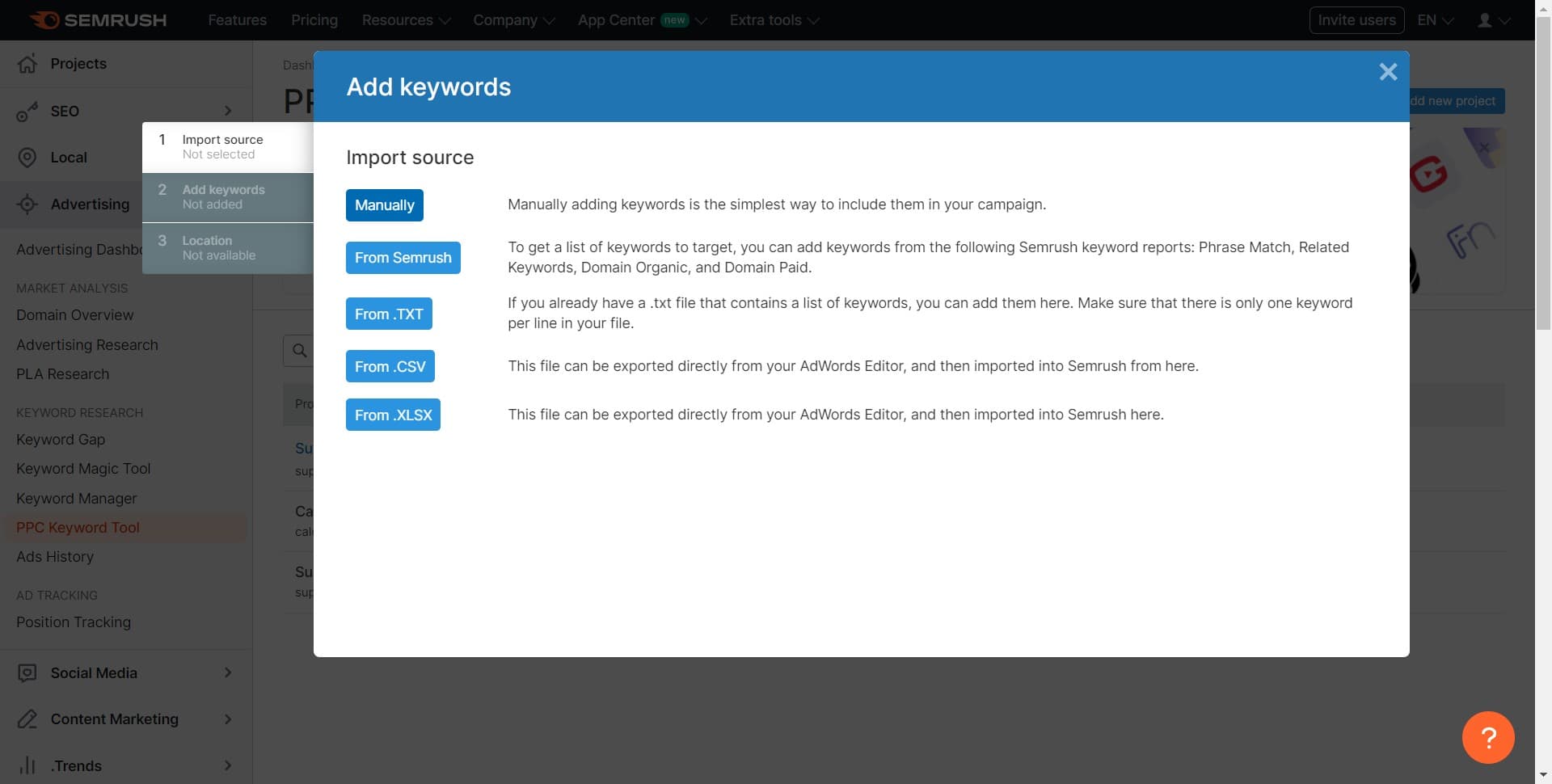
Select Manually
Choose the Manual option to set up your project parameters without importing from an existing campaign. This gives you full control over your project configuration.
- 6
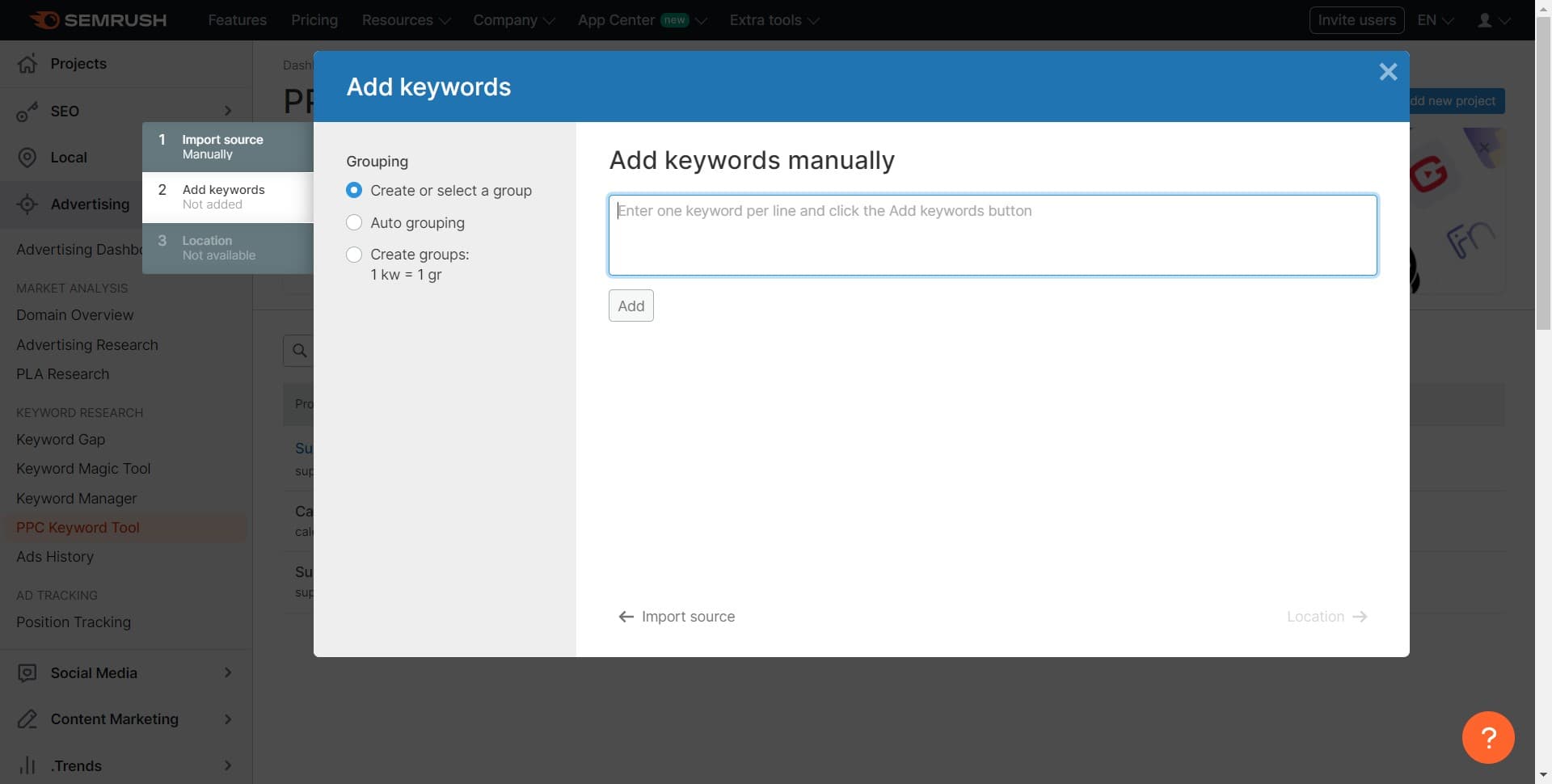
Enter project details
Provide the necessary information for your project, such as project name and initial parameters. Complete this section to proceed to the next configuration step.
- 7
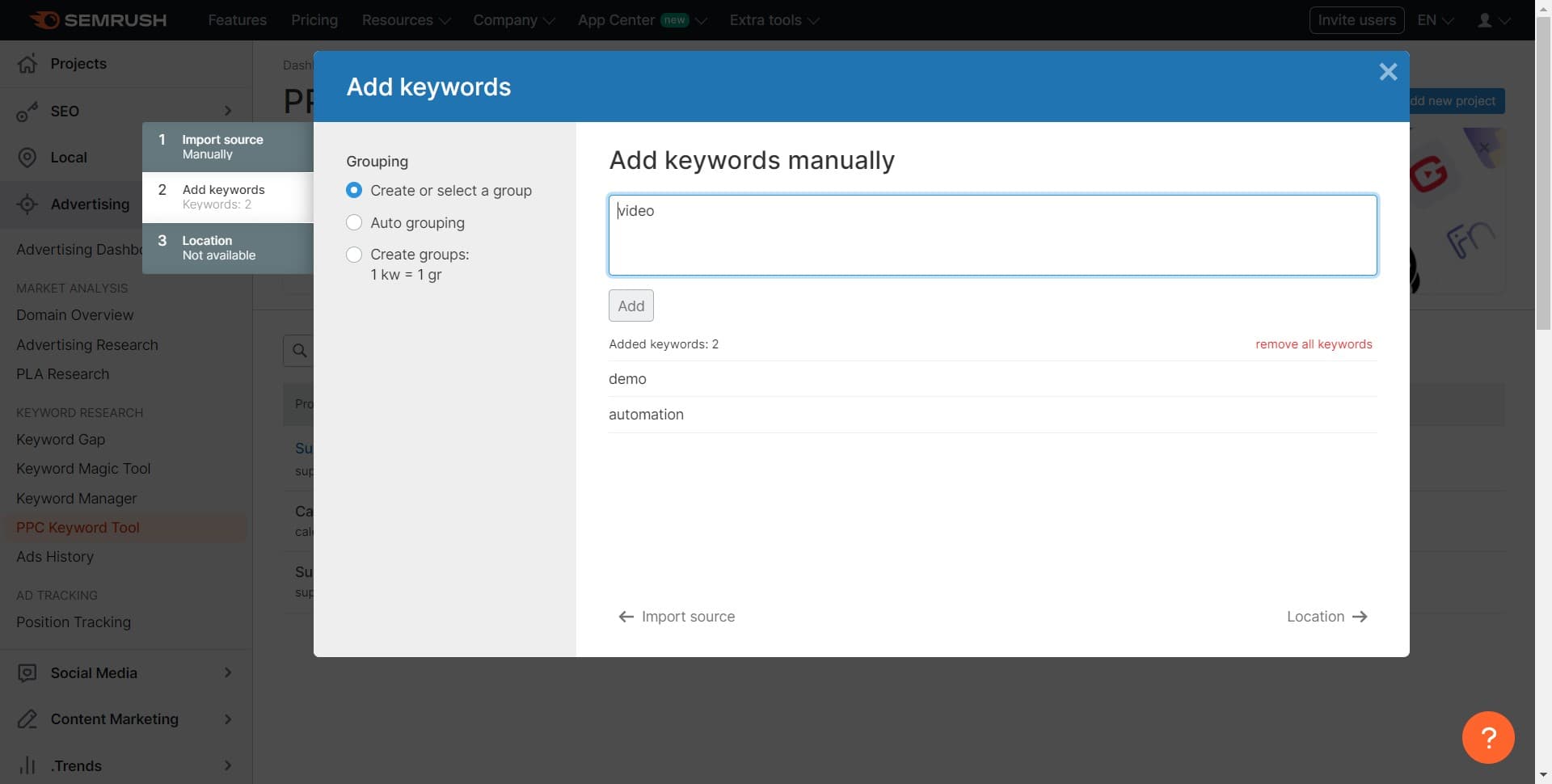
Click on Add
Click the Add button to include keywords or additional project elements. This allows you to begin populating your project with data.
- 8
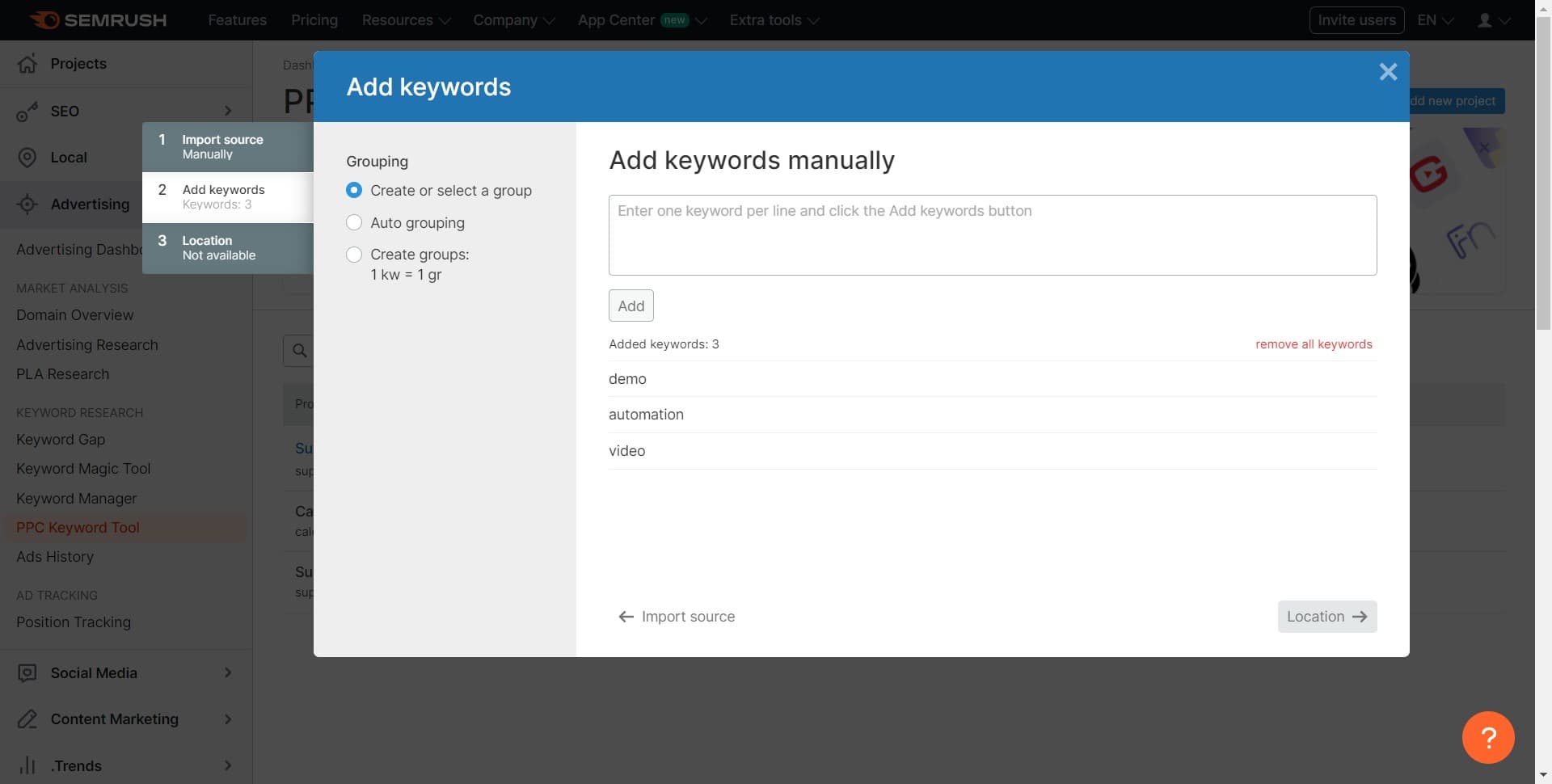
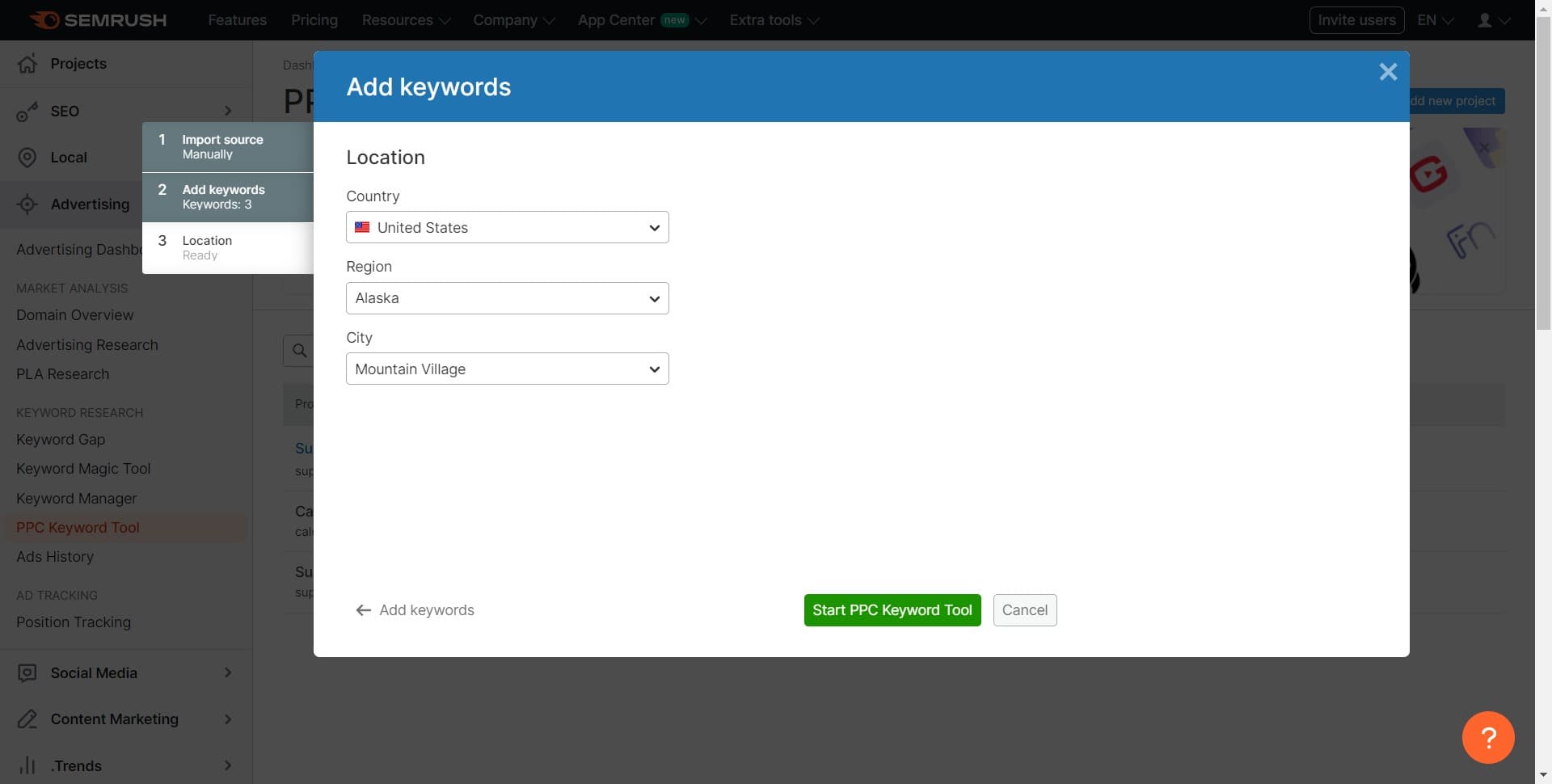
Click on Location
Select the Location option to specify the geographic region for your keyword research. Choose the country or region where your ads will target to get relevant local search data.
- 9
Click on Start PPC Keyword Tool
Once all settings are configured, click Start PPC Keyword Tool to initialize the analysis. Semrush will begin processing your keyword data.
- 10
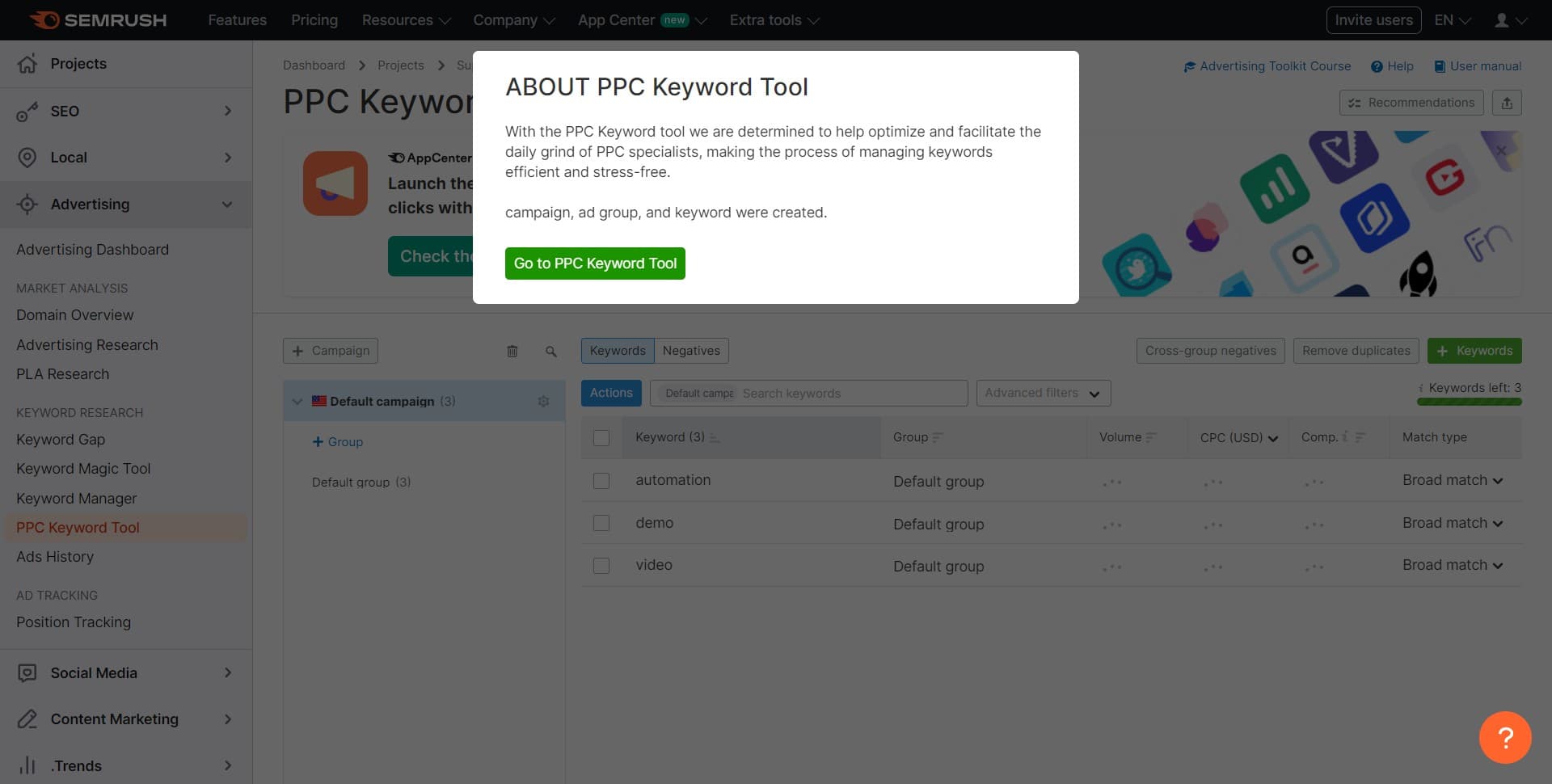
Click on Go to PPC Keyword Tool
Navigate to the full PPC Keyword Tool interface by clicking this button. You'll now access the complete dashboard with all keyword metrics and insights.
- 11
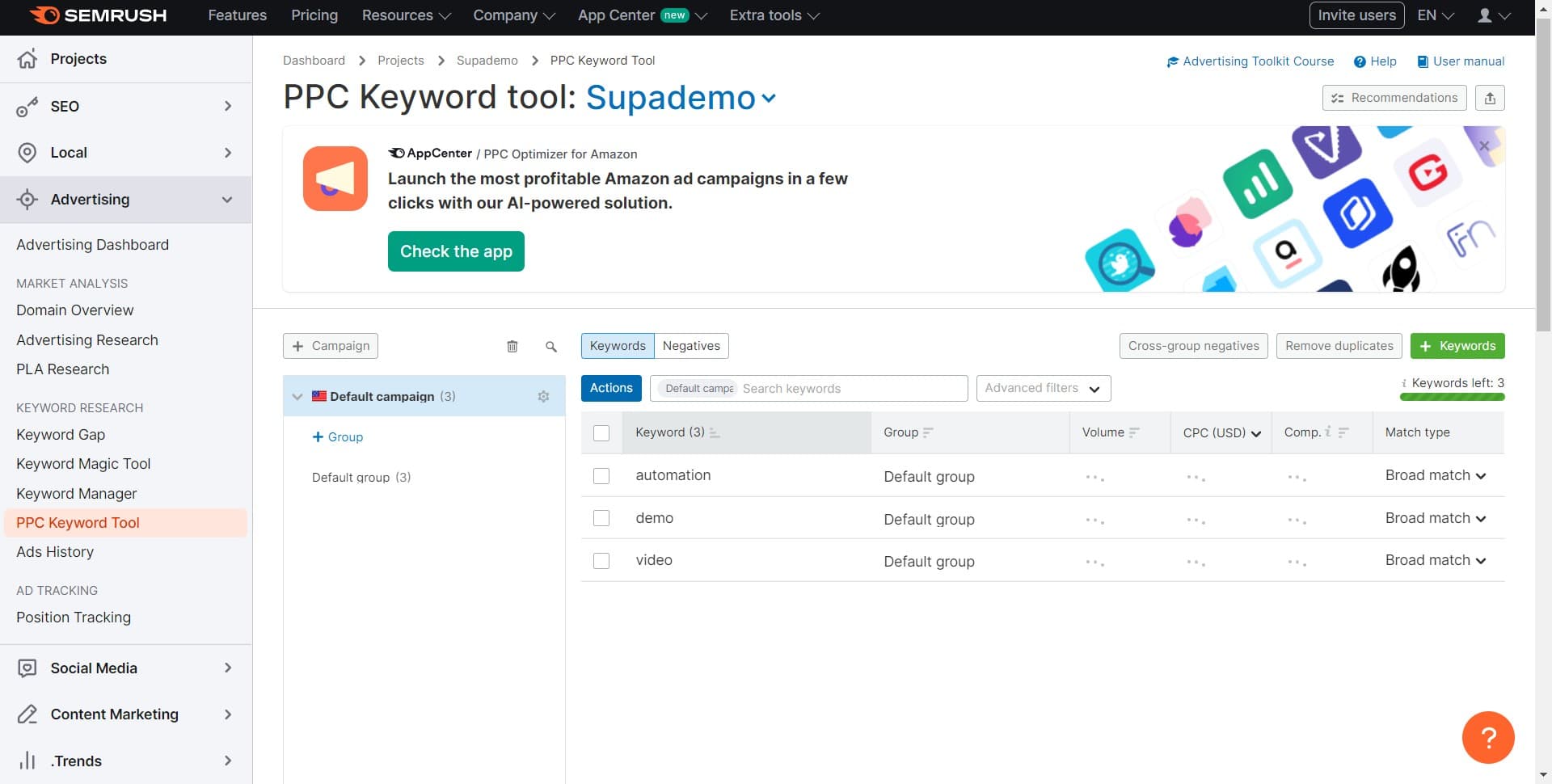
Upload keyword data
Upload your keyword list or import data from your existing campaigns. This populates the tool with the terms you want to analyze.
Frequently asked questions
Common questions about how to use the semrush ppc keyword tool.
You'll need a list of keywords you want to research, your target geographic location, and optionally your campaign data if you're importing existing keywords. You can also start with a blank project and add keywords manually as you discover them through research.
The PPC Keyword Tool allows you to set location parameters during project setup. You can create separate projects for different geographic regions to compare keyword performance across markets, or focus on a single location for more targeted analysis.
The tool provides search volume, cost-per-click (CPC), competition level, keyword difficulty, and competitor bidding data. These metrics help you identify profitable keywords and understand the competitive landscape for your target terms.
It's recommended to review your keyword analysis monthly or quarterly, or whenever you plan significant changes to your PPC strategy. Regular updates help you stay informed of seasonal trends and shifting search behaviors in your market.
Yes, Semrush allows you to export keyword data and analysis reports in various formats for use in presentations, further analysis, or team sharing. Check the export options available within your project dashboard.