How to create a custom task in Asana

Creating custom tasks in Asana allows you to organize work, assign responsibilities, and track progress across your projects. This guide walks you through the process of setting up a new task from scratch, ensuring you can quickly capture and manage your team's work.
Quick summary
In this tutorial, you'll learn how to create a custom task in Asana by navigating the creation interface, selecting a project, and finalizing your task setup. By the end, you'll be able to generate tasks that fit your specific workflow and project needs.
Why this matters
Custom tasks are the foundation of project management in Asana. Creating tasks with proper project assignment and details ensures your team stays aligned, deadlines are clear, and progress is visible across the organization.
Step-by-step guide
- 1
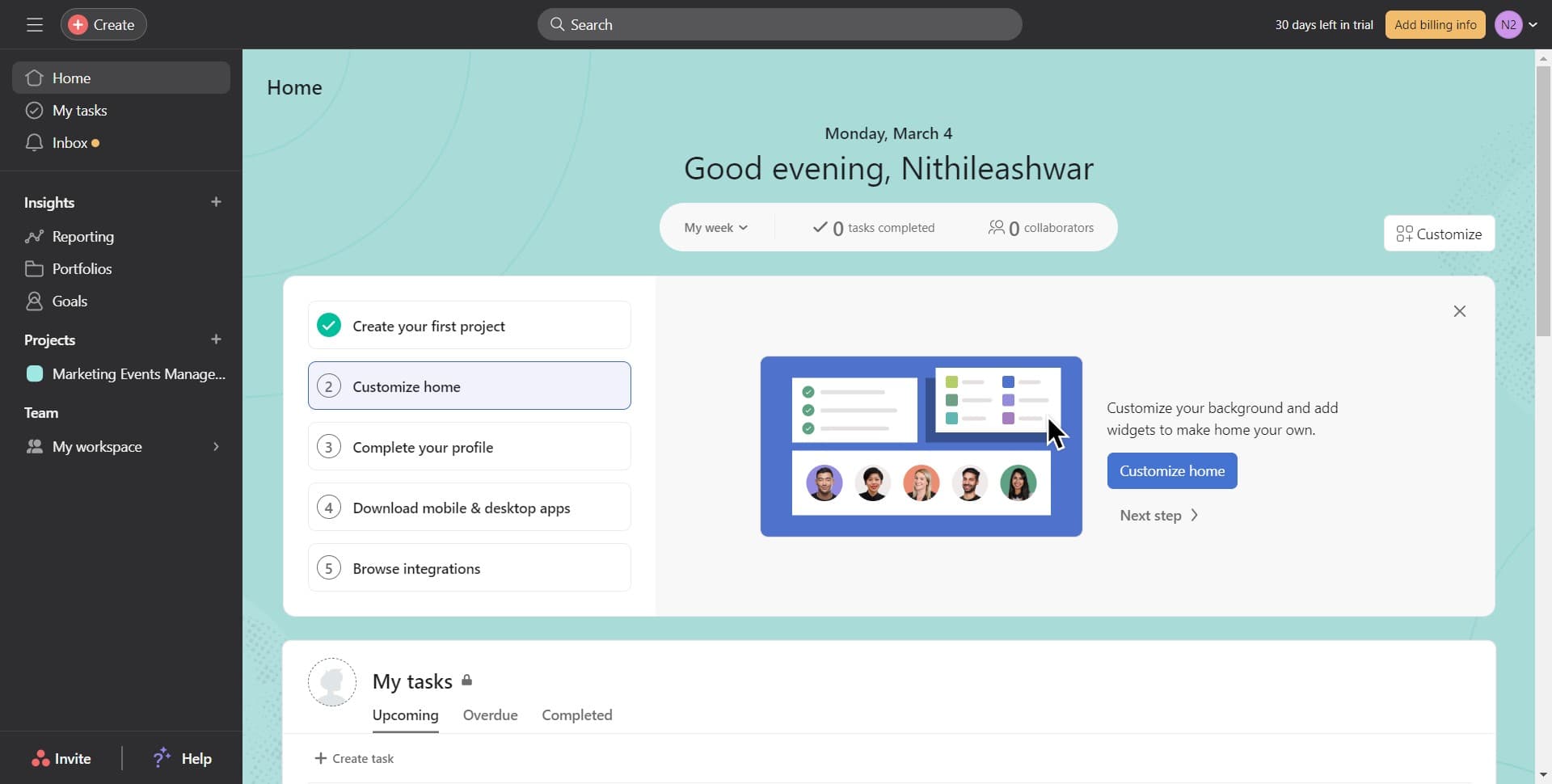
Click on Create
Start by locating and clicking the Create button in your Asana workspace. This button is typically found in the top navigation area and opens the creation menu for new work items.
- 2
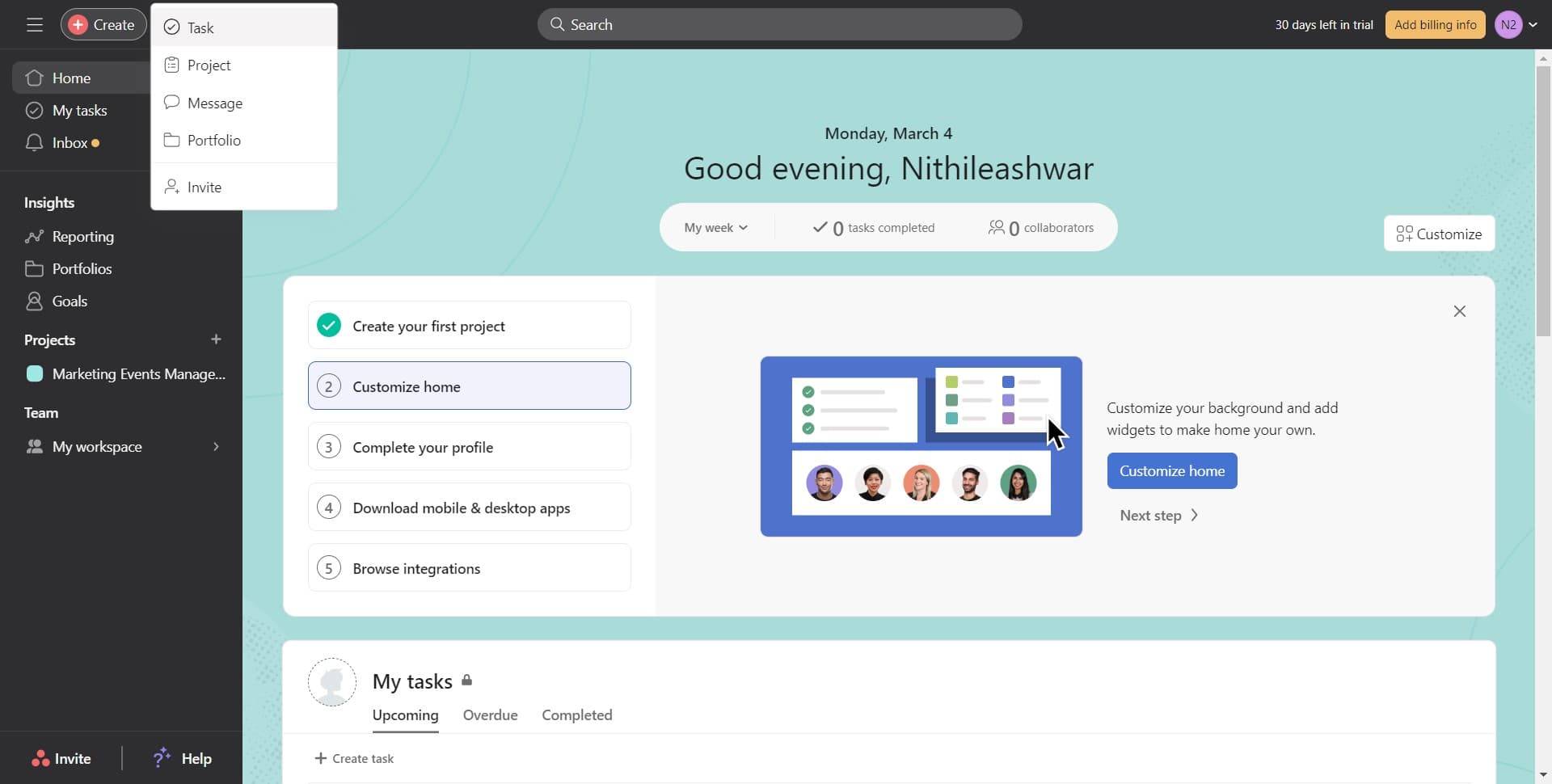
Click on Task
From the dropdown menu that appears, select Task to indicate you want to create a new task. This option distinguishes task creation from other Asana items like projects or portfolios.
- 3
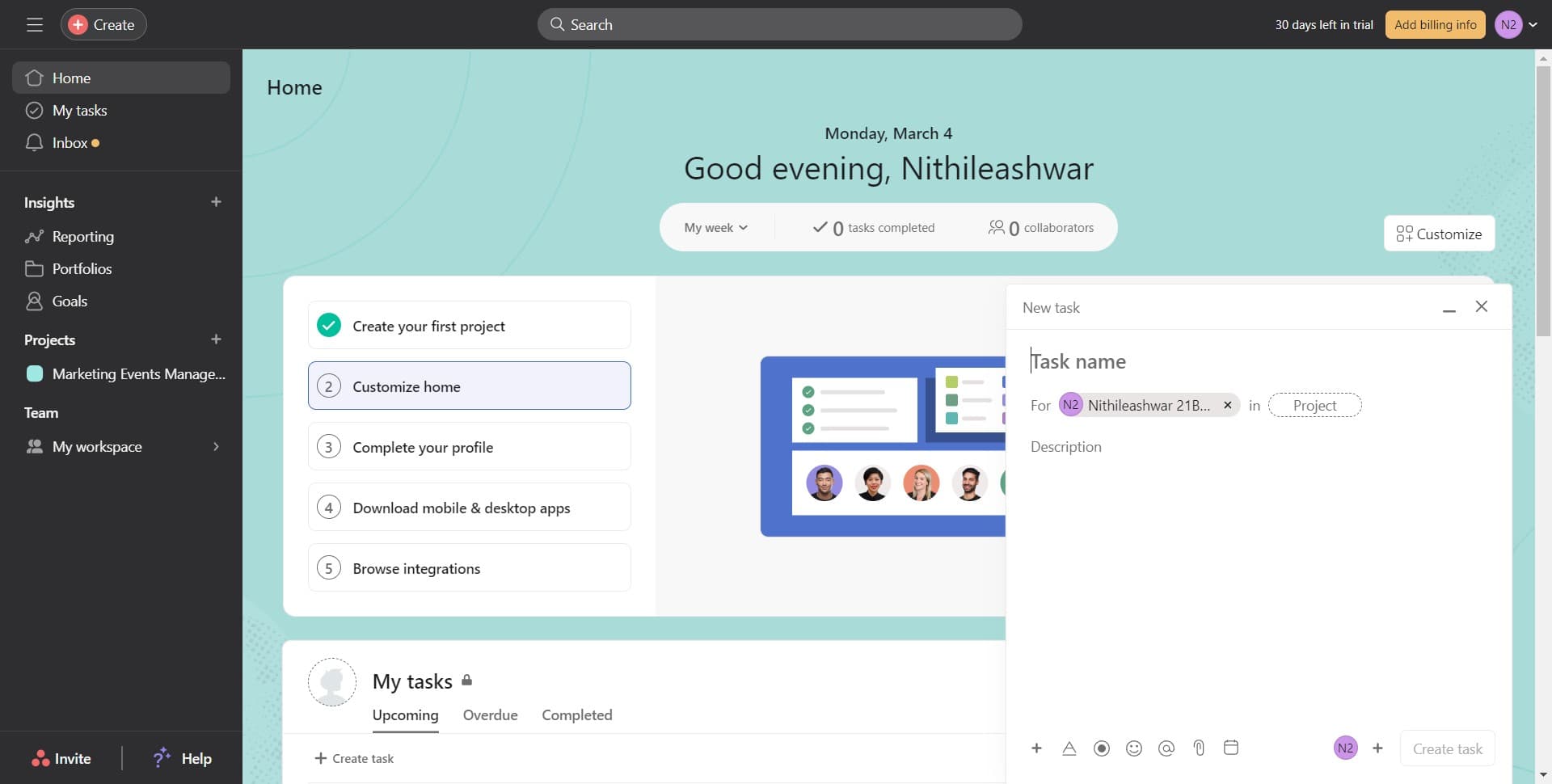
Complete the task details
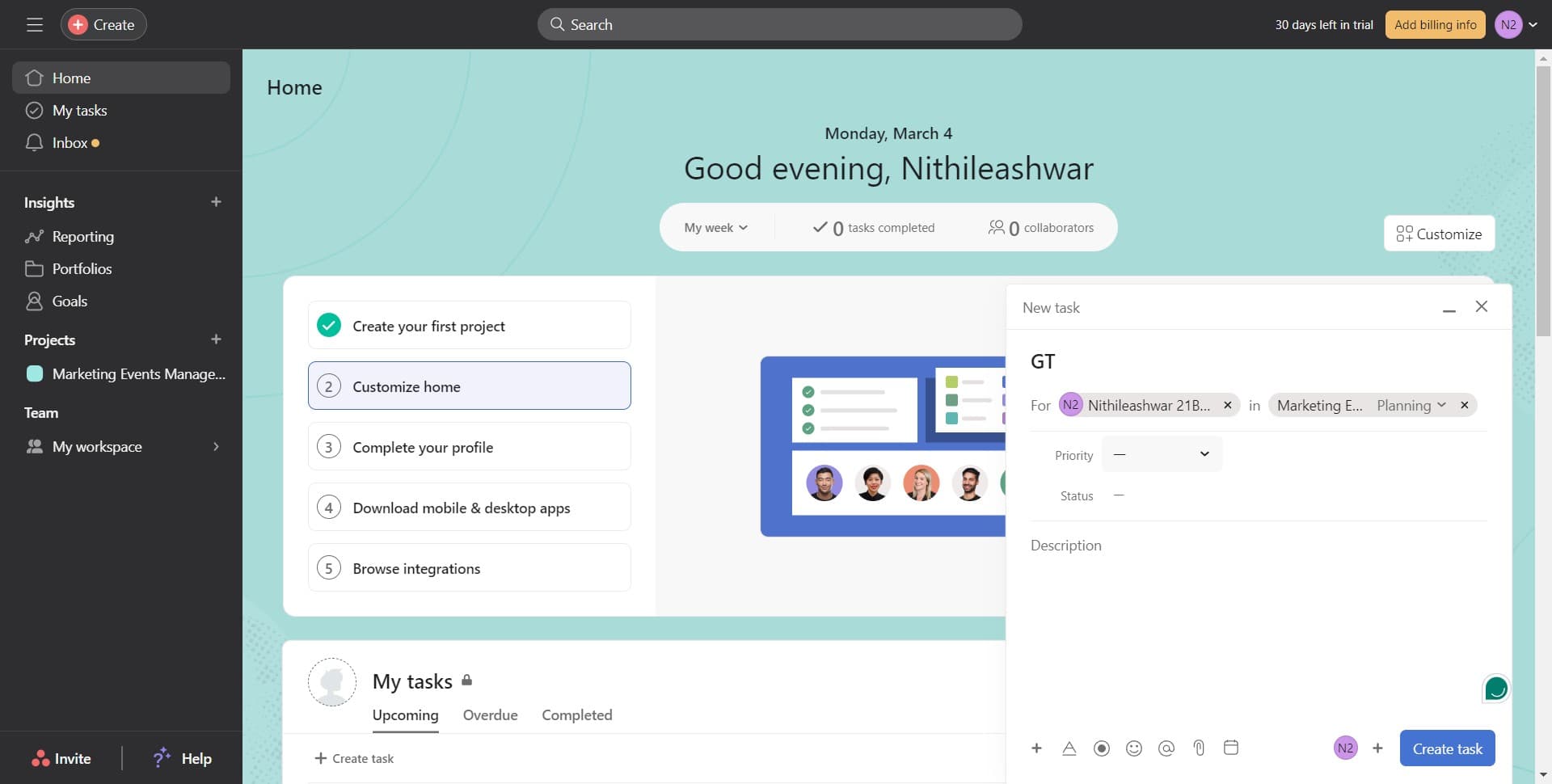
Fill in the task information in the form that opens. Enter a task name, description, and any other relevant details that define the work to be done.
- 4
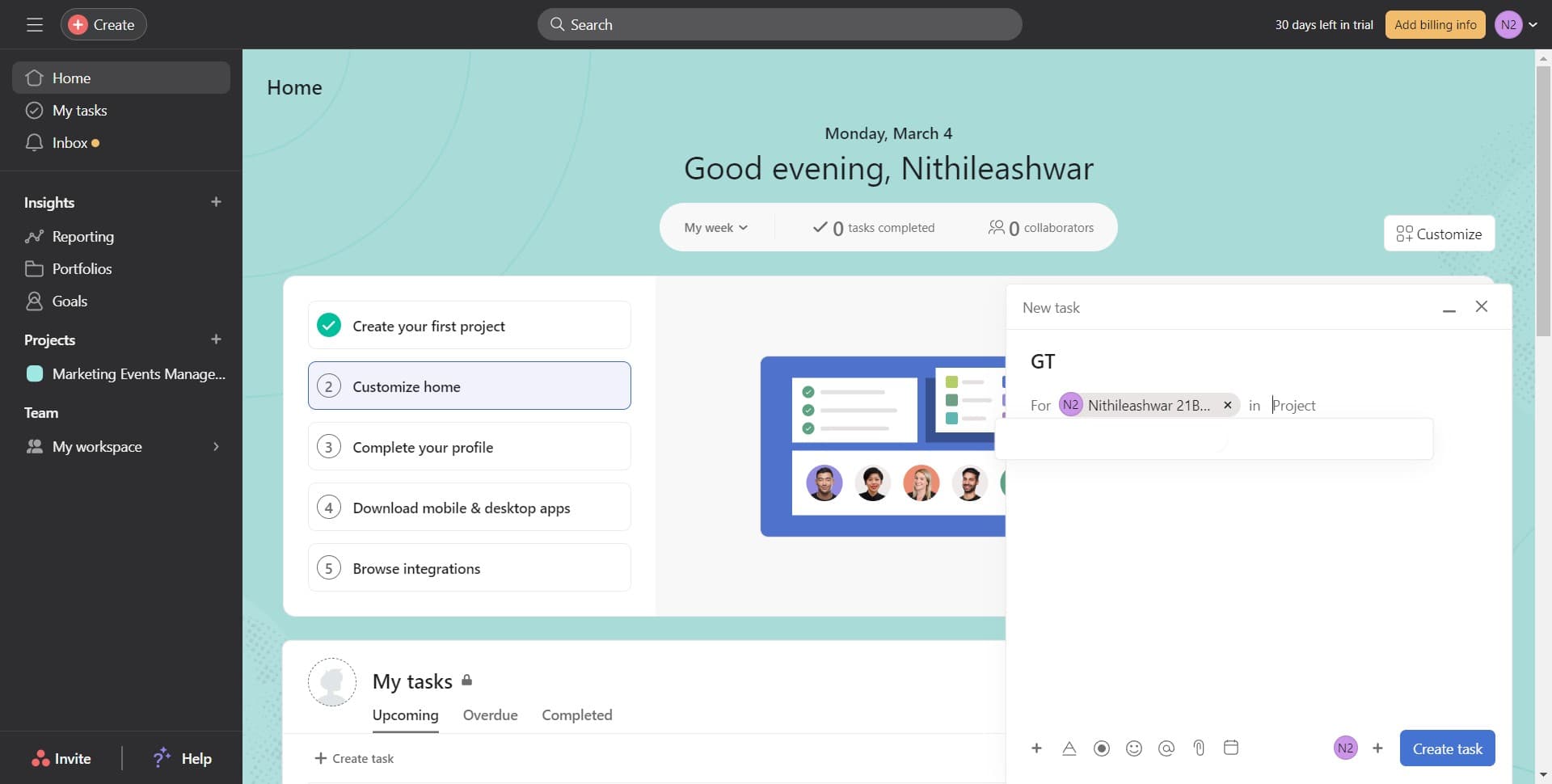
Click on Project
Select the Project field to assign your task to a specific project. This ensures your task appears in the right project workspace and maintains organizational structure.
- 5
Select your target project
Choose the project you want to associate with this task from the list that appears. This assignment helps categorize the task and makes it visible to project team members.
- 6
Click on Create task
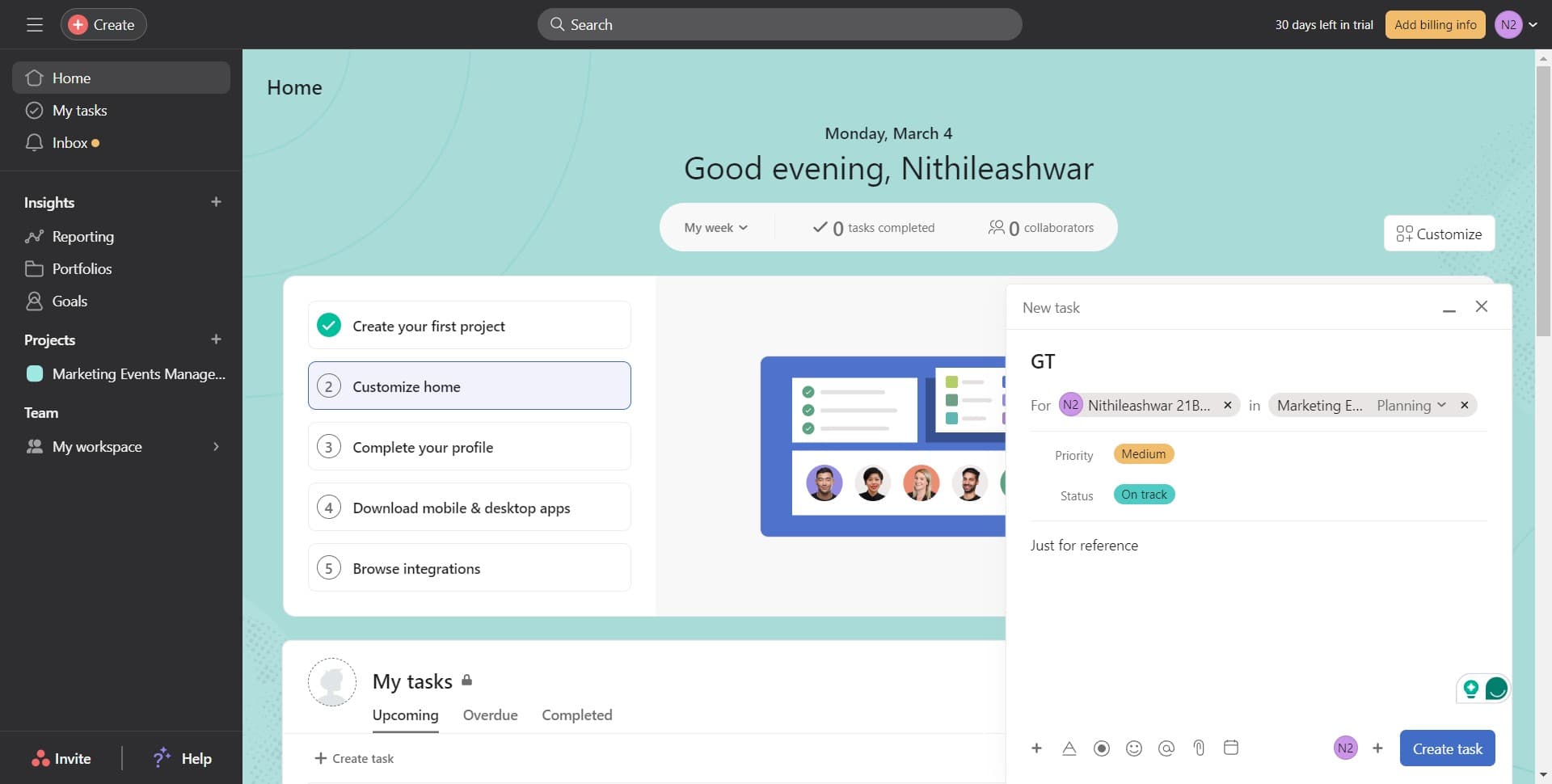
Once you've filled in all required fields and selected a project, click the Create task button to finalize the task creation. Your task will now appear in the selected project and in My tasks.
- 7
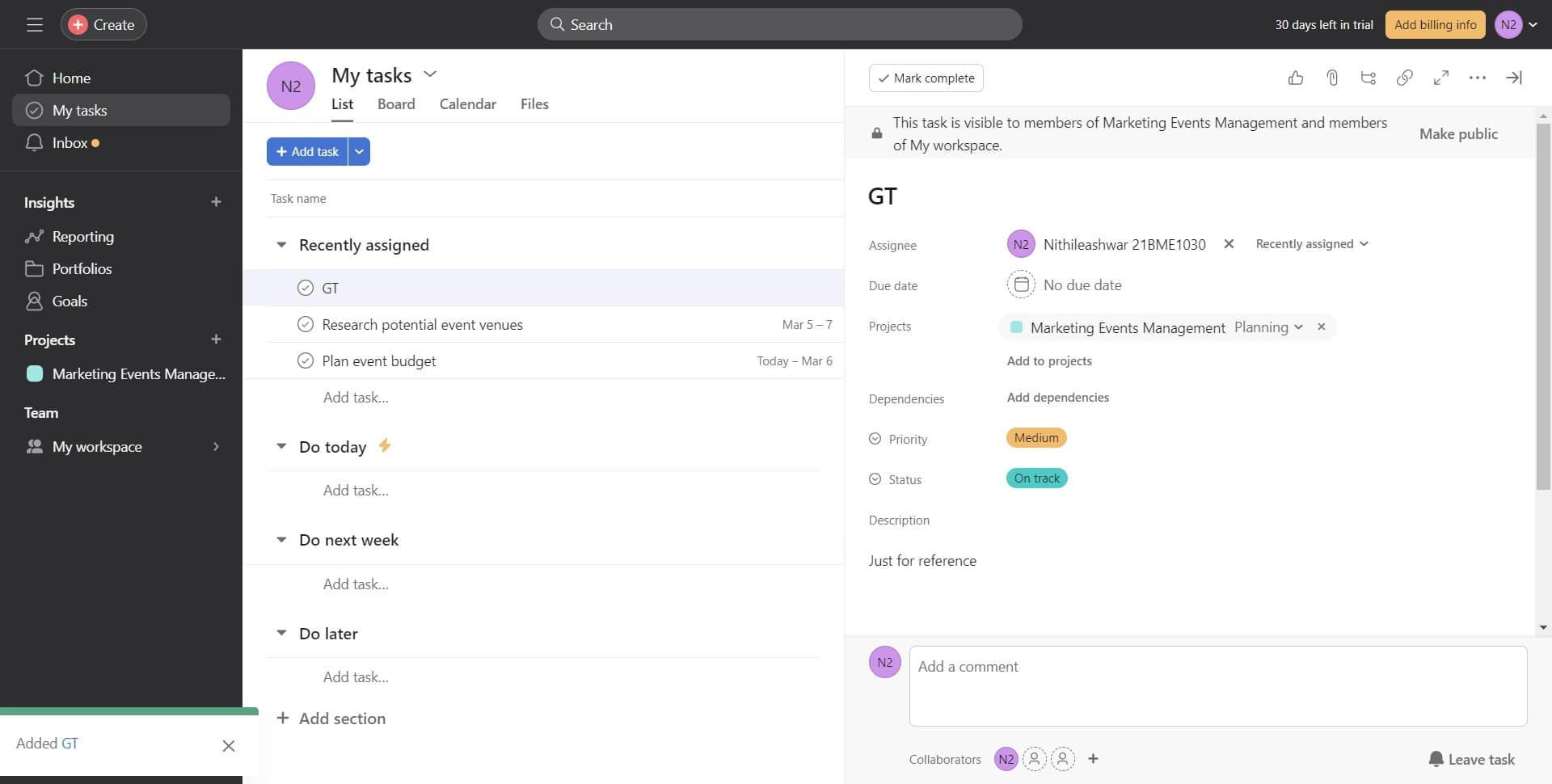
Navigate to My tasks
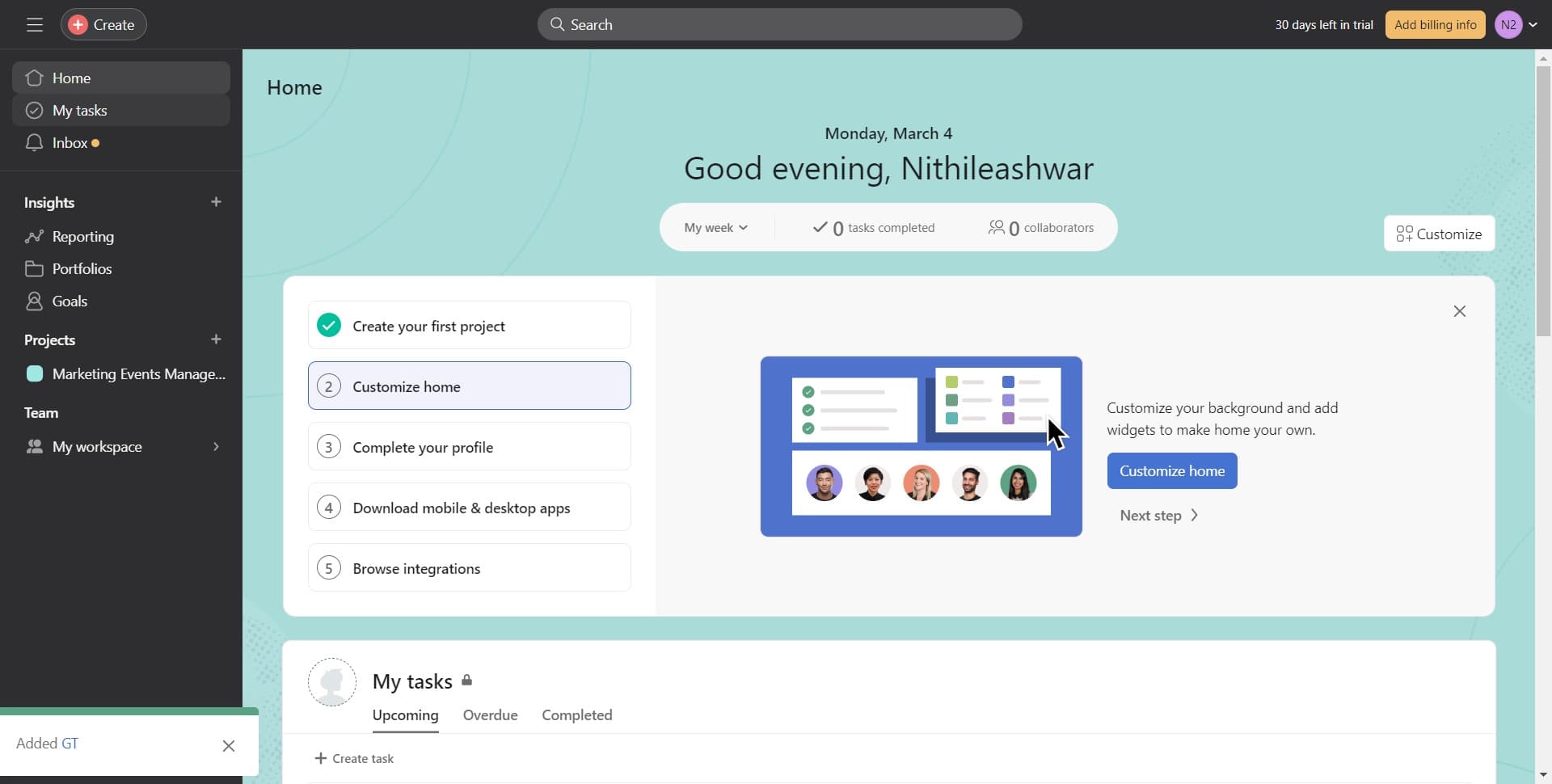
Click on My tasks to view all tasks assigned to you or created by you. This view provides a centralized location for managing your personal workload across all projects.
- 8
Verify task creation
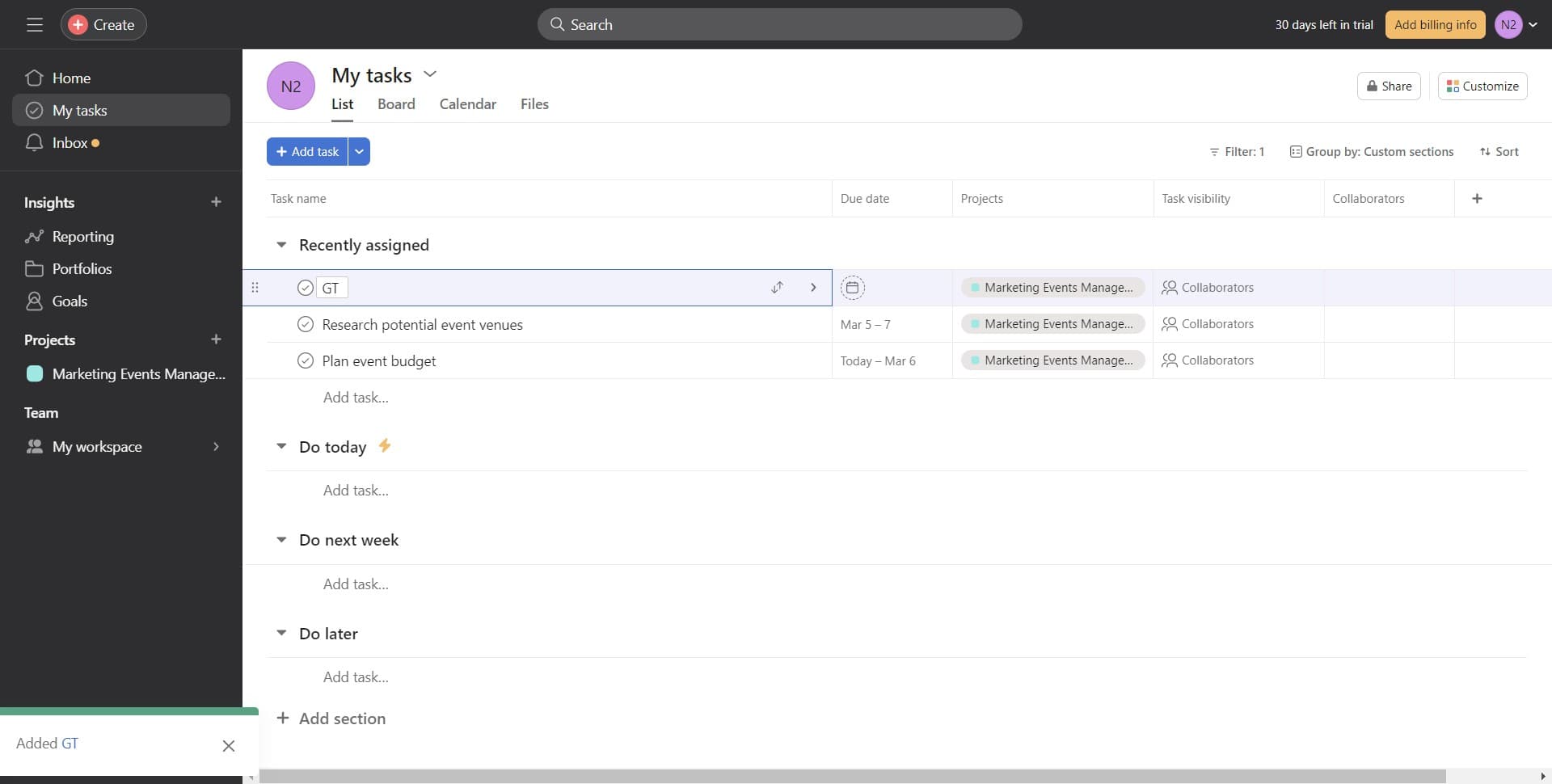
Confirm that your newly created task appears in the My tasks list. You should see it with all the details and project assignment you specified.
- 9
Add comments to your task
Click on the comment section of your task to add notes, updates, or discussion points. Comments help team members stay informed about task progress and requirements.
Frequently asked questions
Common questions about how to create a custom task in asana.
While Asana allows task creation, assigning tasks to projects is a best practice that keeps your work organized and visible to team members. Tasks without project assignments may be harder to track and coordinate across your team.
After creating a task, you can click on the task to open its details, then look for an Assignee field where you can select team members to delegate the work. You can assign multiple people to a single task if needed.
A task is an individual unit of work that needs to be completed, while a project is a collection of related tasks organized around a larger goal. Tasks belong to projects and help break down bigger initiatives into manageable pieces.
Yes, most task creation forms in Asana include a due date field. You can set a deadline during creation or edit the task afterward to add or modify the due date.
Use the My tasks view, which aggregates all tasks assigned to you regardless of which project they belong to. You can also use Asana's search functionality to find specific tasks by name or other criteria.