How to Undo in Asana

Mistakes happen when managing tasks in Asana, but fortunately the undo function makes it easy to reverse recent actions. Whether you've accidentally deleted a task, modified a deadline, or made an unwanted change, knowing how to undo in Asana can save you time and prevent workflow disruptions.
Quick summary
In this tutorial, you'll learn how to quickly undo actions in Asana and restore your workspace to a previous state. We'll walk through the essential steps to access the undo feature and successfully revert changes within your projects.
Why this matters
In fast-paced work environments, accidental changes to tasks or project details can create confusion and delays. The ability to undo actions in Asana ensures you can confidently make edits knowing you can quickly correct mistakes without losing important information or disrupting your team's workflow.
Step-by-step guide
- 1
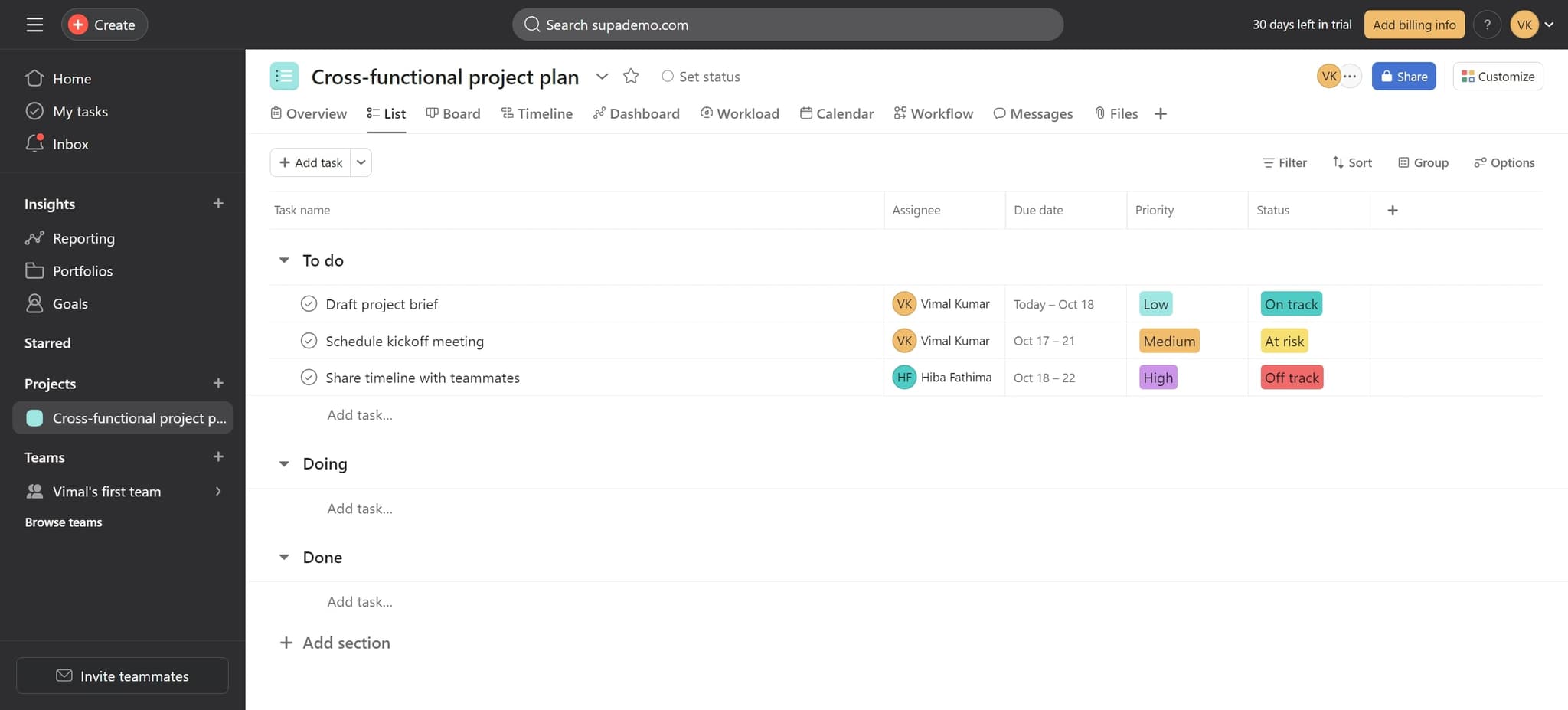
Click on Add task
Begin by clicking the 'Add task' button in your Asana project or workspace. This action initiates the task creation process and is often the first step before realizing you need to undo a previous action.
- 2
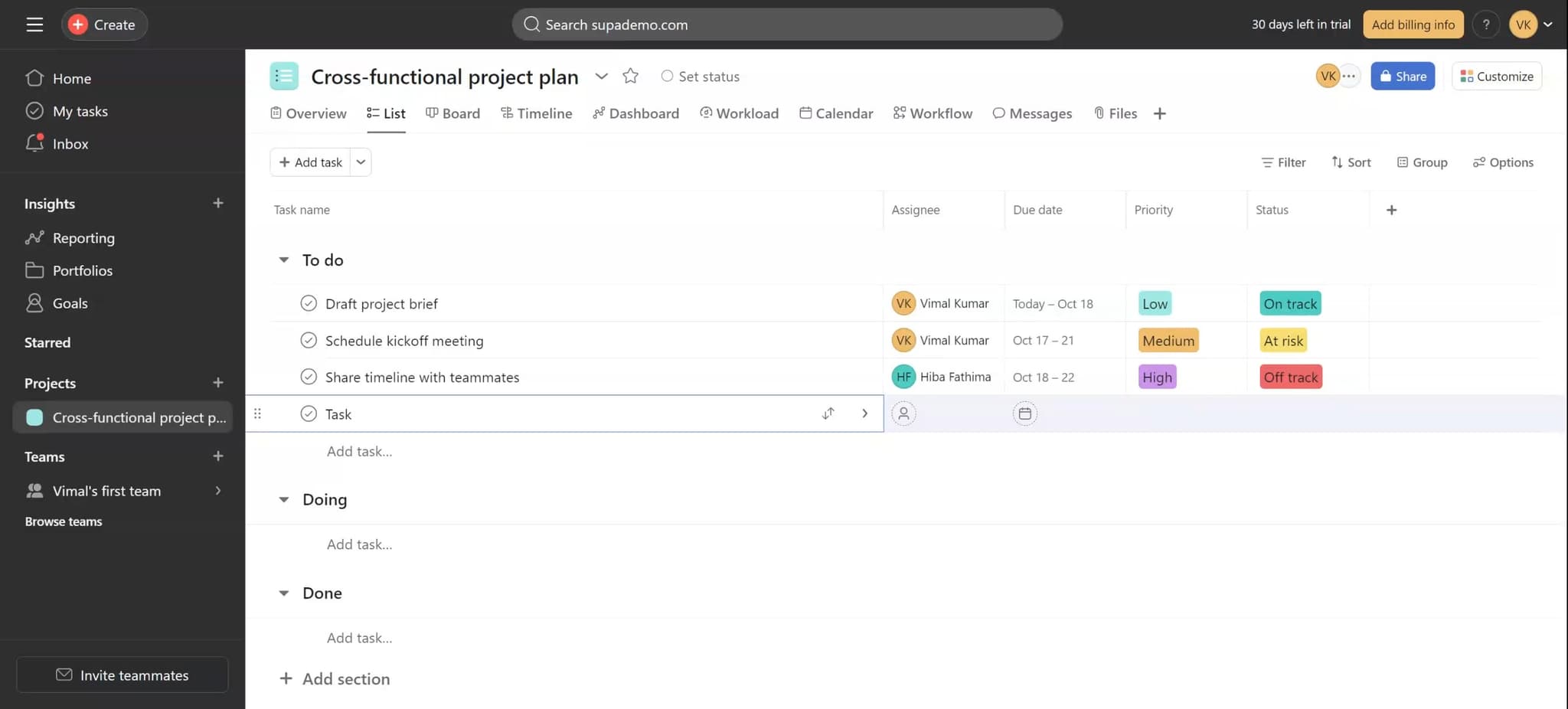
Upload required files
If your task requires attachments or supporting documents, use the upload feature to add files. Make sure all necessary files are attached before finalizing the task to avoid having to undo and re-upload later.
- 3
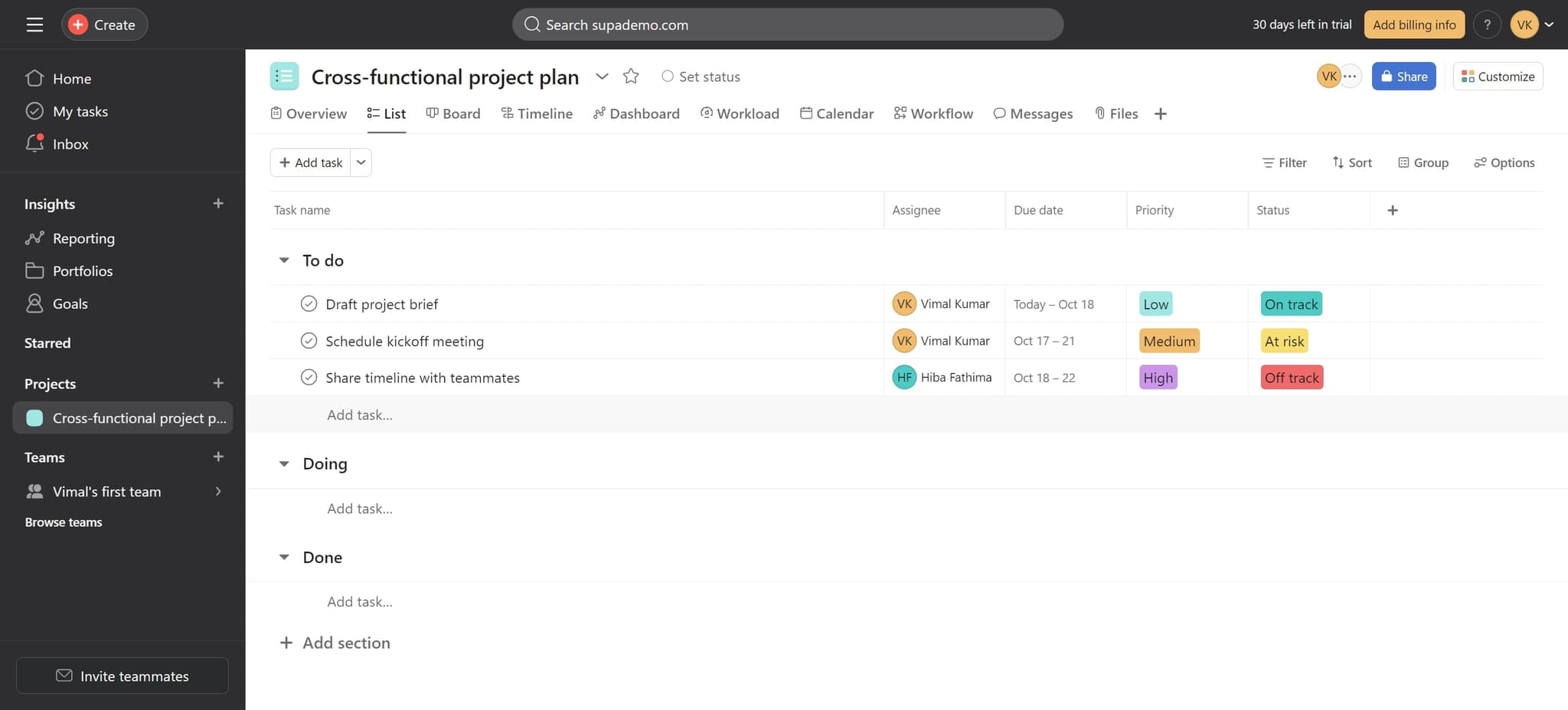
Execute the undo action
Once you've made an unwanted change, use the keyboard shortcut Ctrl+Z (Windows) or Cmd+Z (Mac) to undo your last action. Asana will immediately revert the change and restore your previous state.
Frequently asked questions
Common questions about how to undo in asana.
Asana typically allows you to undo multiple recent actions by repeatedly pressing Ctrl+Z or Cmd+Z. However, the number of actions you can undo may be limited based on your session and browser memory. For safety-critical changes, it's best to verify important modifications immediately after making them.
Undo functionality generally works within your current session. Once you close your browser, refresh the page, or log out of Asana, you may lose the ability to undo recent changes. Always save important work and avoid closing projects immediately after making critical modifications.
If you accidentally delete a task and use undo immediately, the task will be restored to its previous state with all attachments and details intact. The task will return to the project view exactly as it was before deletion.
Yes, Asana supports the redo function. After undoing an action, you can press Ctrl+Y or Cmd+Y to redo it and restore the change you just reversed. This is helpful if you undo an action and then change your mind.
No, the undo function only reverses your own recent actions. Changes made by other team members cannot be undone individually through the undo feature. If you need to revert someone else's changes, you'll need to manually edit the task or contact your workspace administrator.