How to Create and Manage Notes in Attio

Notes are a powerful way to document important information, client interactions, and team communications in Attio. This guide walks you through creating, organizing, and managing notes to keep your team aligned and maintain a complete record of all client relationships.
Quick summary
In this tutorial, you'll learn how to create new notes in Attio, add them to relevant records, organize them with tags and formatting, and manage them effectively across your workspace. By the end, you'll be able to use notes as a central hub for collaboration and documentation.
Why this matters
Notes are essential for maintaining context in client relationships and team workflows. Without a structured note system, important details get lost, communication becomes fragmented, and onboarding new team members becomes difficult. Mastering notes in Attio ensures your team has access to the full history of every interaction and decision.
Step-by-step guide
- 1
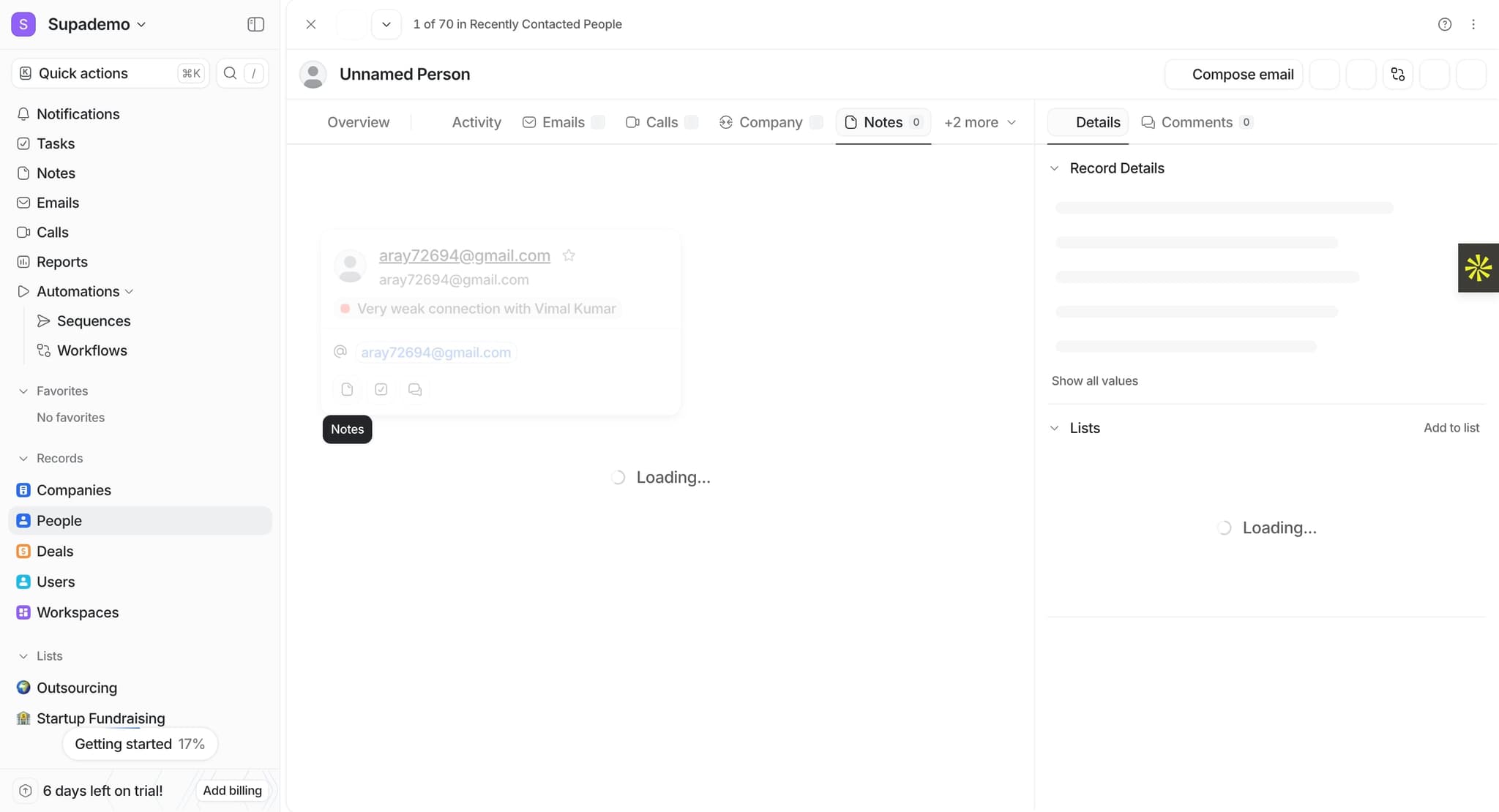
Navigate to a record or workspace
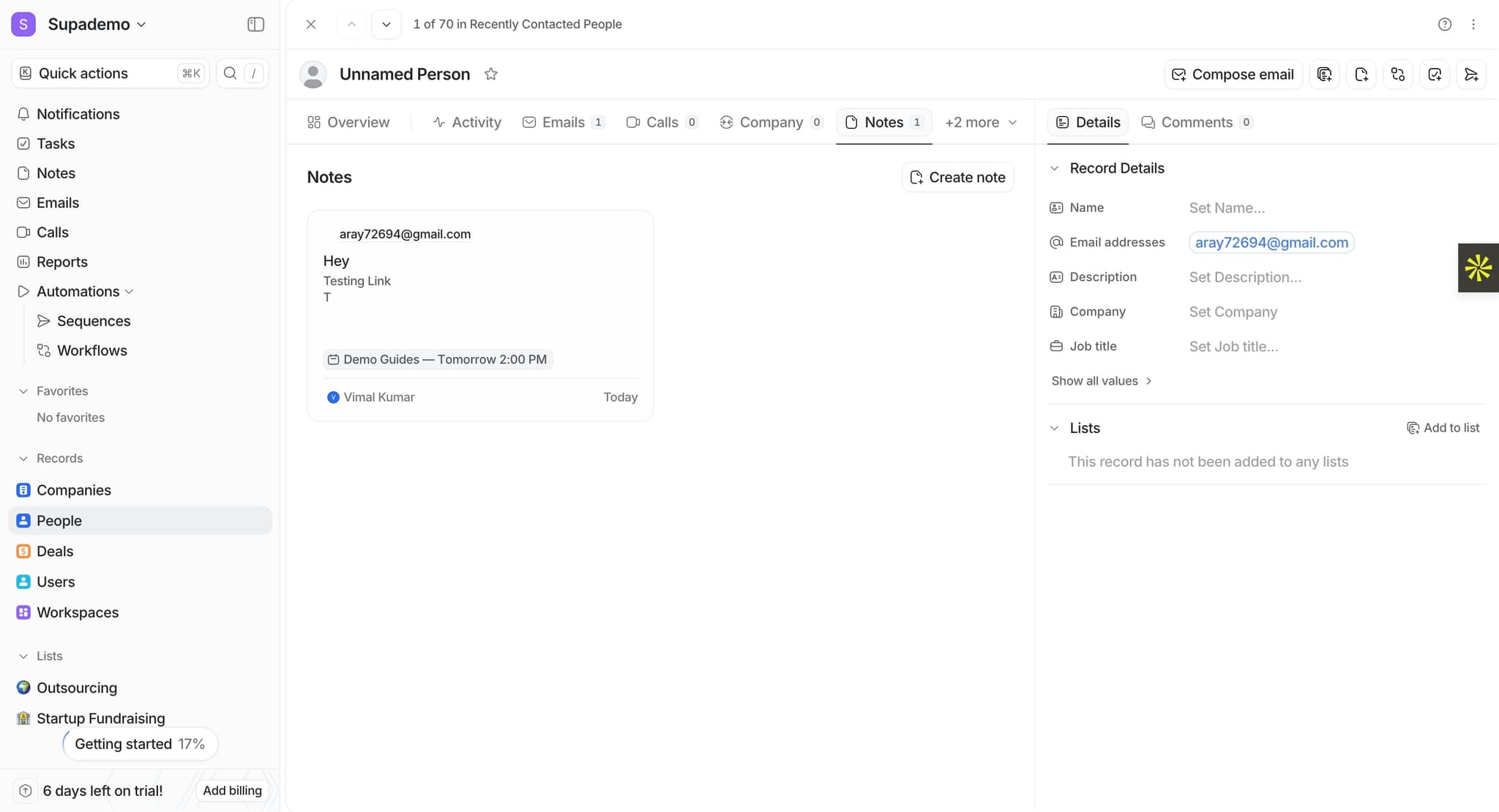
Open the record or workspace where you want to add a note. This could be a contact, company, or deal record in Attio. Once opened, look for the notes section or activity feed where you can begin creating new notes.
- 2
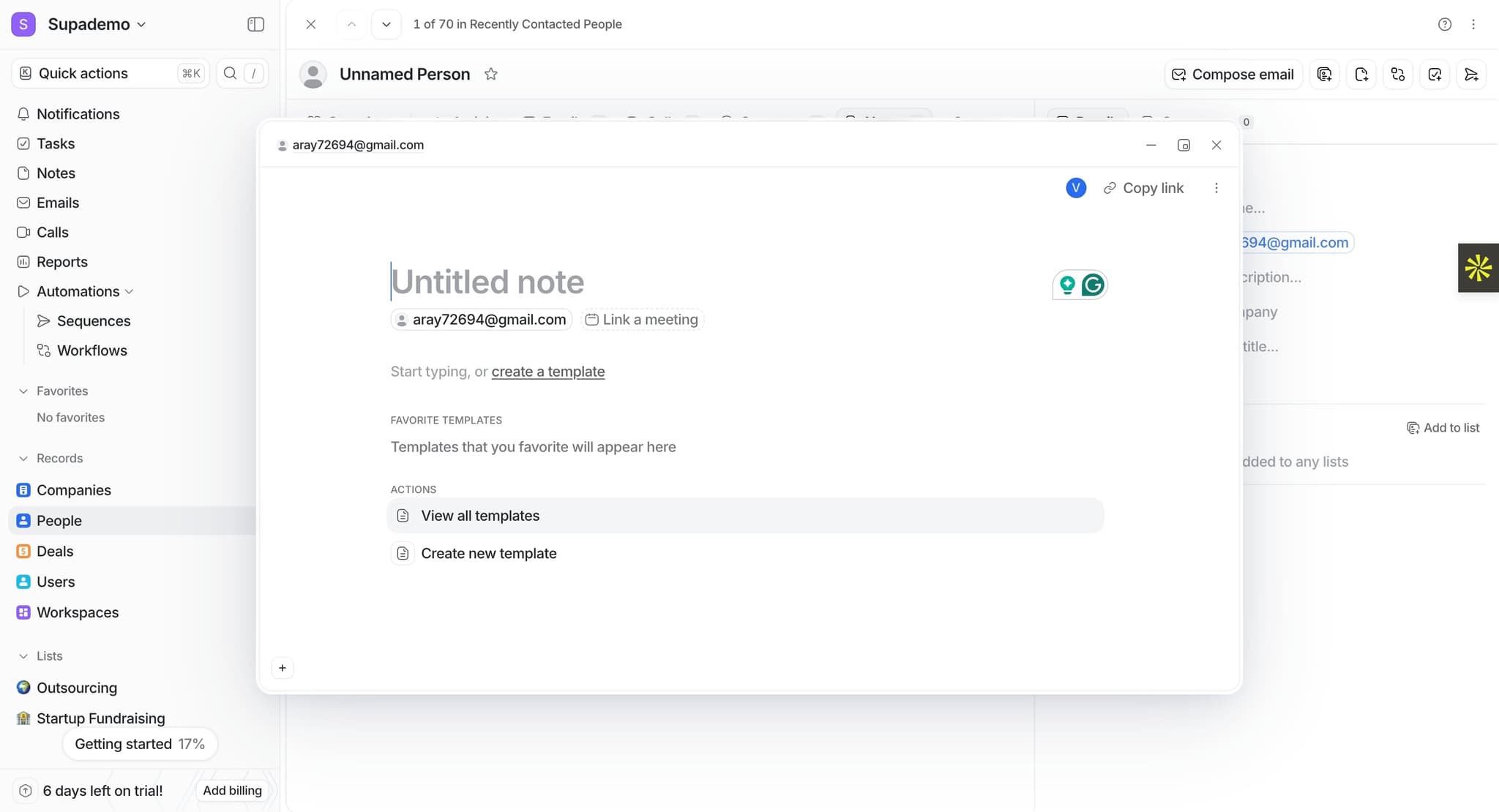
Click the create note button
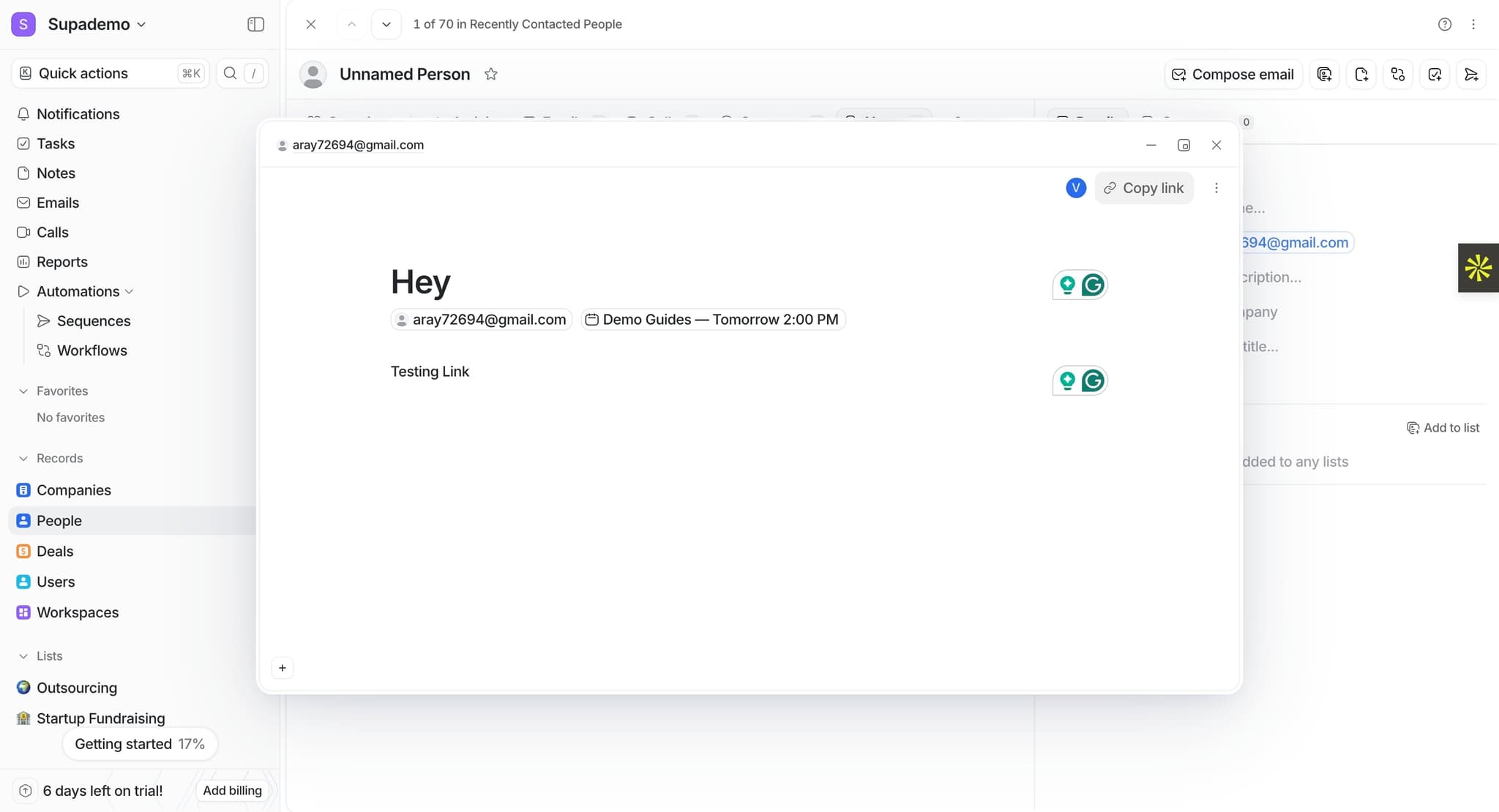
Locate and click the button to create a new note. This action opens a text editor where you can compose your note content. The editor typically appears in a dedicated panel or modal within your record.
- 3
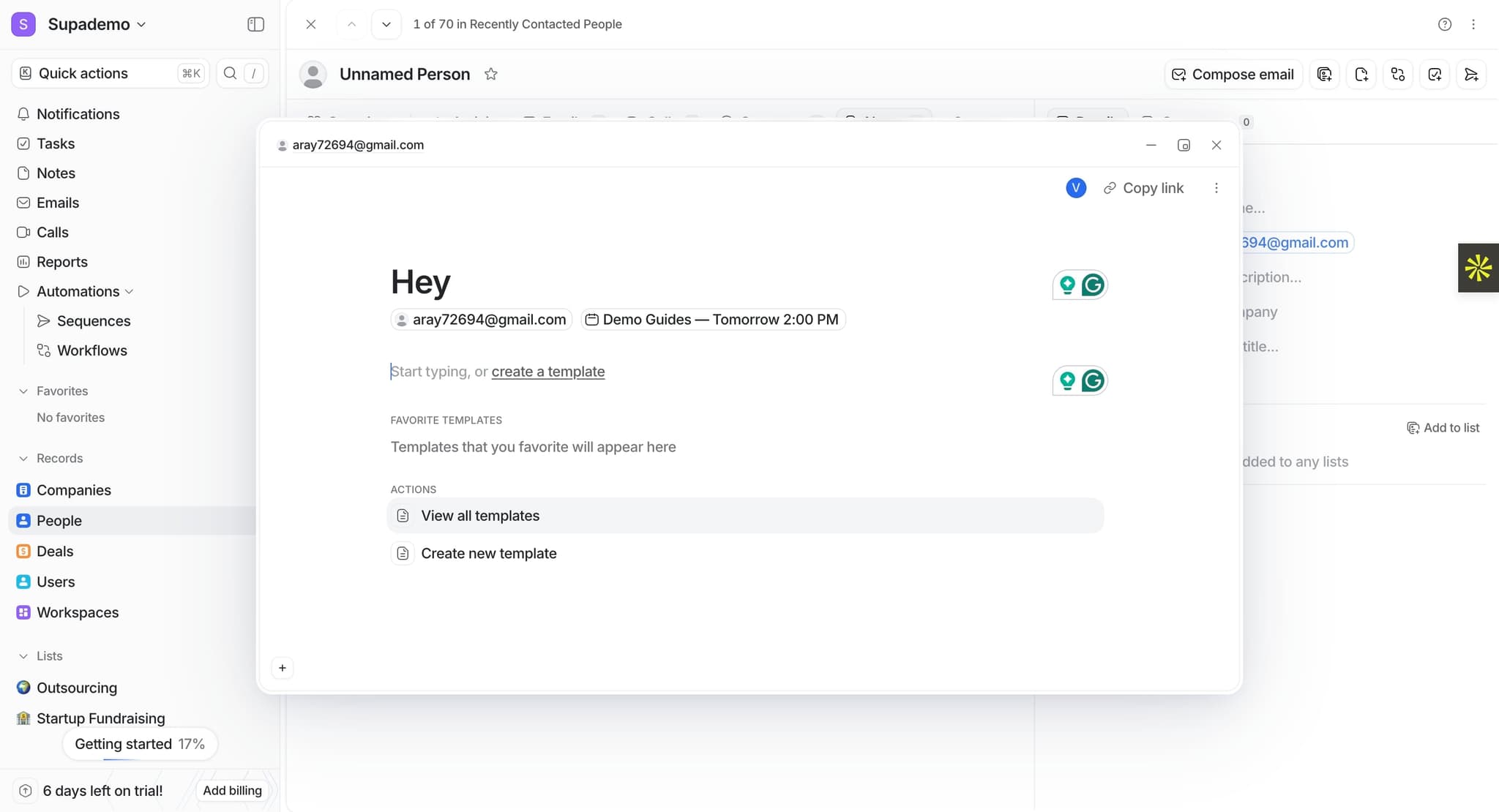
Enter your note content
Type your note text into the editor. Include relevant details about client interactions, action items, decisions, or any other important information you need to document. Use clear language so any team member can quickly understand the context.
- 4
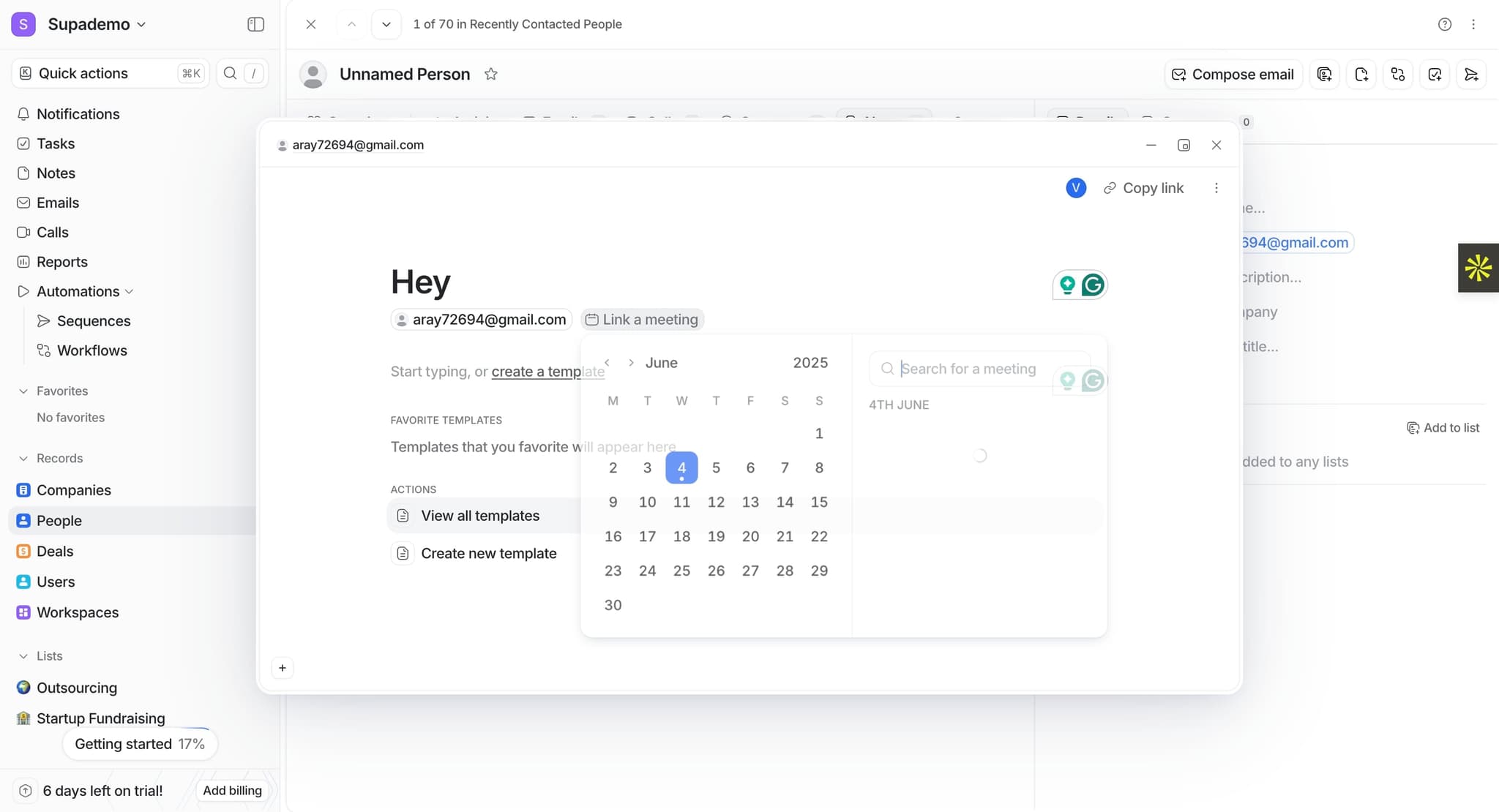
Format your note with text styling
Use formatting options like bold, italics, bullet points, or headers to make your note more readable and organized. Proper formatting helps team members quickly scan and find critical information within longer notes.
- 5
Add tags or categories to organize
Apply tags, labels, or categories to your note to make it easily searchable and filterable. Tags help you quickly locate related notes and keep your documentation system organized across multiple records.
- 6
Set visibility or access permissions
Choose who can view and edit this note, if your workspace has permission controls. You may restrict visibility to specific team members or make notes visible to everyone in your workspace.
- 7
Save or publish your note
Click the save or publish button to finalize your note. Once saved, the note is added to the record and becomes part of your team's permanent documentation. You can edit it later if needed.
Frequently asked questions
Common questions about how to create and manage notes in attio.
Yes, you can edit notes after they've been created. Simply locate the note in the record or activity feed and click the edit option. Make your changes and save the updated version. Most notes also display a timestamp or edit history so team members know when changes were made.
Use Attio's search functionality to find notes by keyword, tag, or associated record. You can search across all notes in your workspace or filter notes within a specific record. Tags and categories make searching even more efficient if you've organized your notes consistently.
Yes, team members can view and comment on notes within Attio. While one person typically creates and edits the main note content, others can add context or feedback through comments or replies. This creates a collaborative documentation system for your entire team.
Establish a consistent tagging system and naming convention for notes to keep them organized. Create tags for note types like 'follow-up,' 'decision,' 'feedback,' or 'action-item' so team members can quickly filter relevant information. Consider a brief template for frequently-used note types to maintain consistency.
Yes, you can enhance notes with attachments, links, and mentions of team members or records. This makes notes a hub for all information related to a client or deal, including supporting documents, relevant URLs, and team member references. Check your workspace settings to confirm which attachment types are supported.