How to Import Data via CSV in Attio

Importing data via CSV is one of the fastest ways to populate Attio with contacts, companies, and other records in bulk. This guide walks you through the entire import process, from preparing your CSV file to mapping fields and confirming your data upload.
Quick summary
In this tutorial, you'll learn how to prepare a CSV file, access Attio's import tool, map your data fields correctly, and successfully import records into your workspace. By the end, you'll be able to handle bulk data imports with confidence and avoid common formatting mistakes.
Why this matters
Manually entering records one by one is inefficient when you're onboarding a new CRM or migrating from another platform. CSV imports save hours of work and ensure data consistency across your Attio workspace, making it essential for teams managing large contact or company databases.
Step-by-step guide
- 1
Open Attio workspace settings
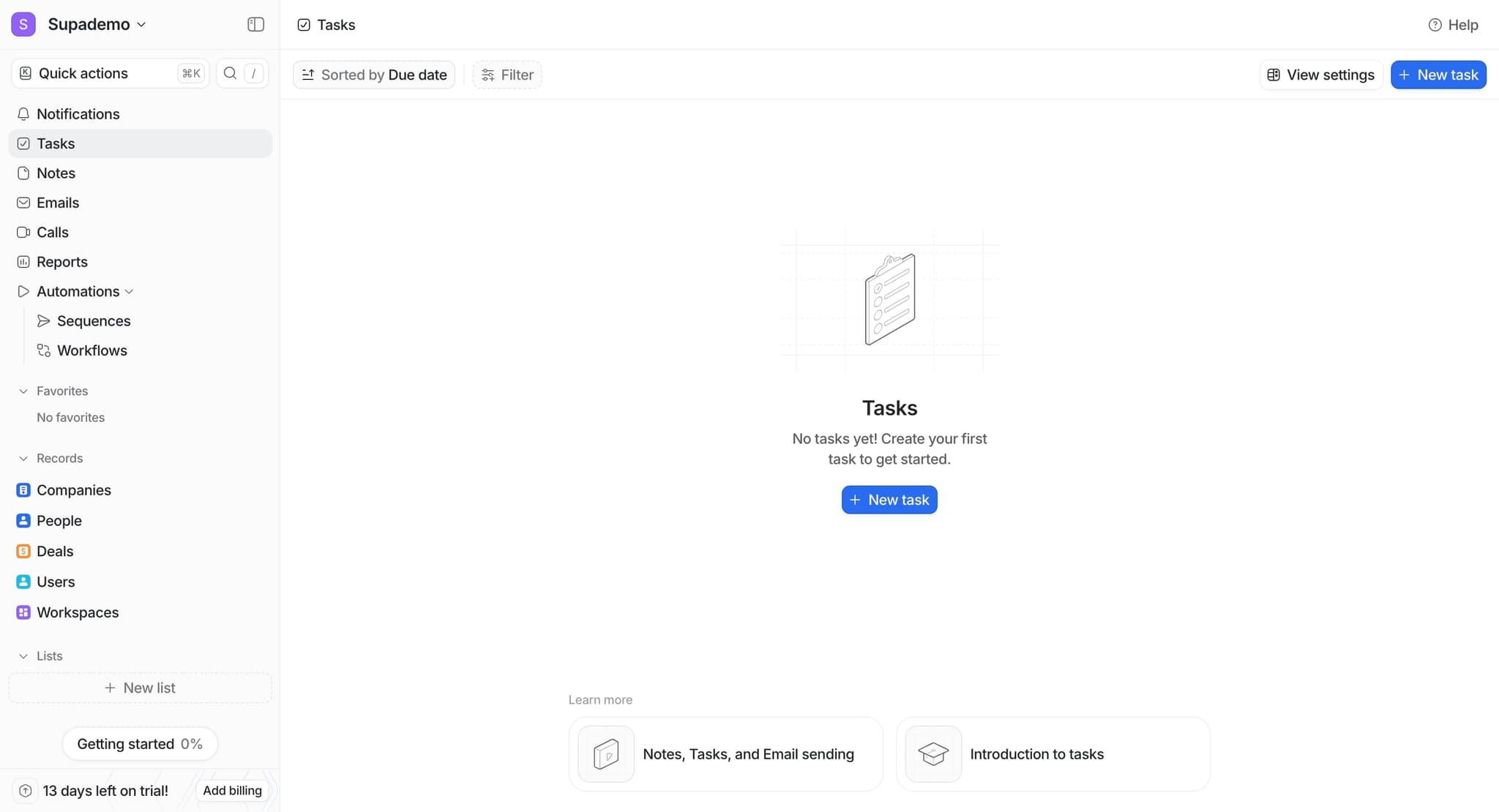
Log in to your Attio account and navigate to your workspace. Look for the settings icon or menu option, typically located in the top navigation or sidebar, and click to access workspace settings.
- 2
Find the data import section
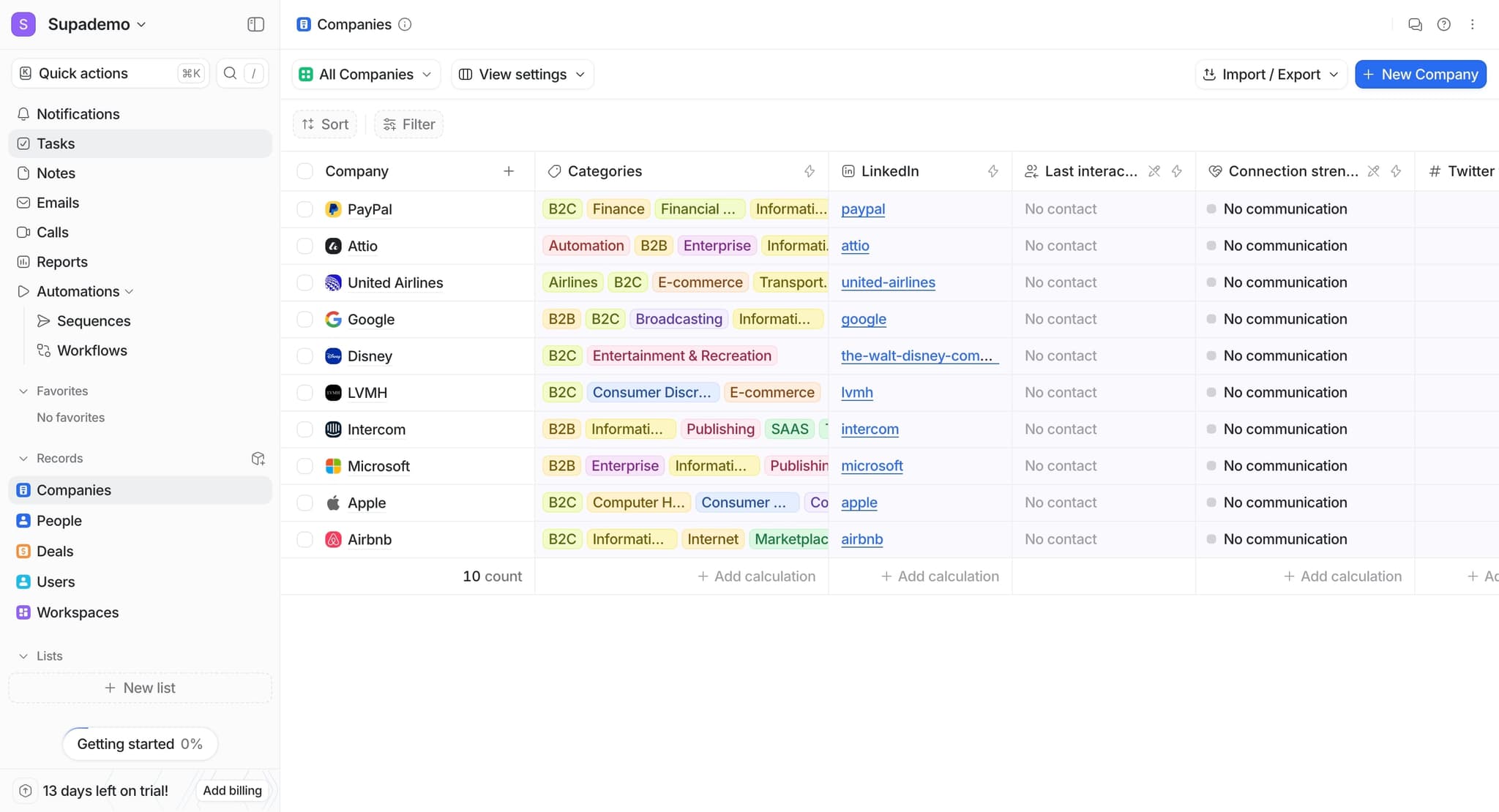
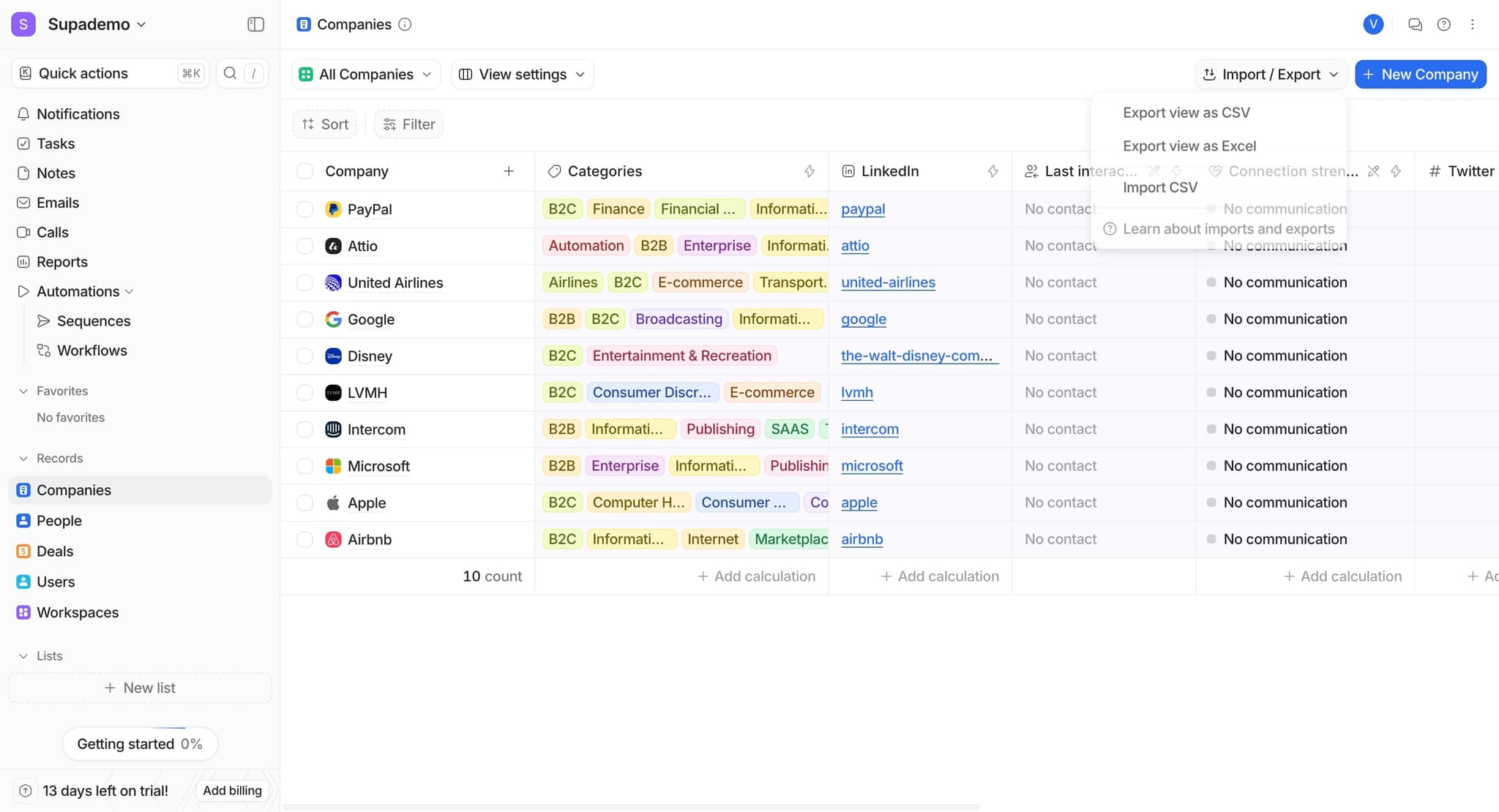
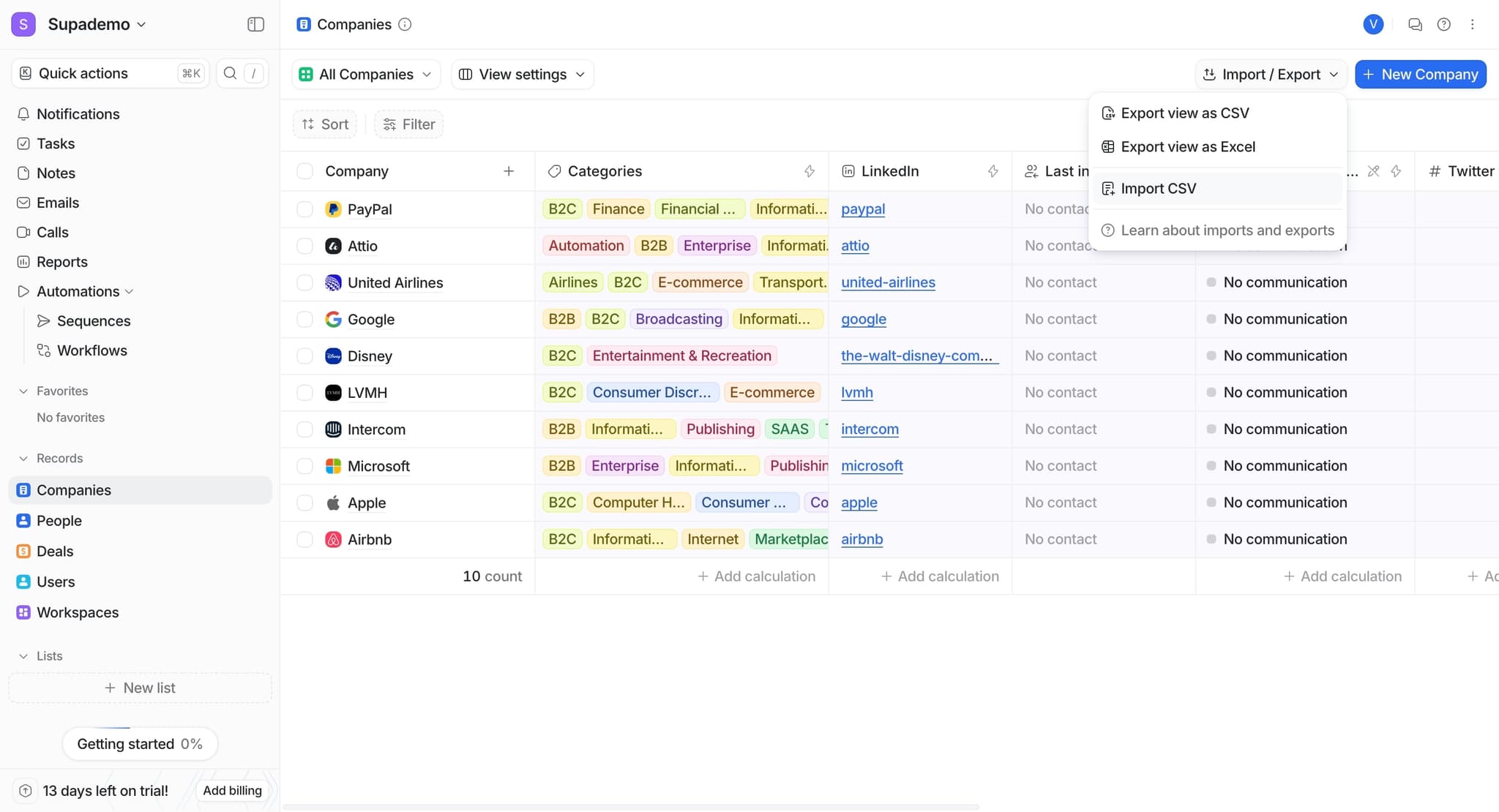
Within settings, locate the data import or bulk import option. This section handles all CSV uploads and is usually grouped with other data management tools.
- 3
Select import type
Choose what type of records you want to import: contacts, companies, or custom objects. Attio will tailor the field mapping options to match your selection.
- 4
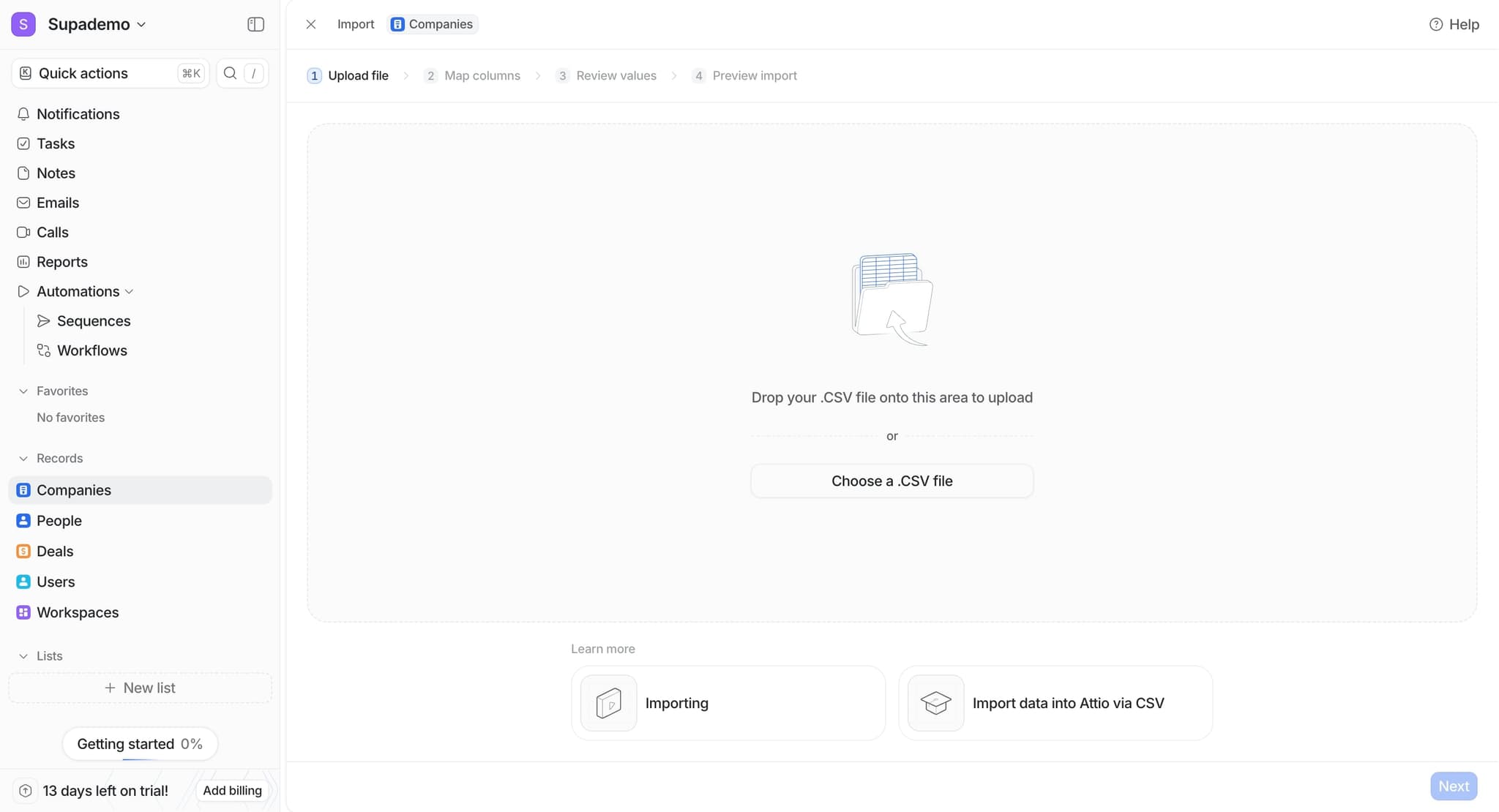
Upload your CSV file
Click the upload button and select your prepared CSV file from your computer. Ensure your file is properly formatted with headers in the first row and data in subsequent rows.
- 5
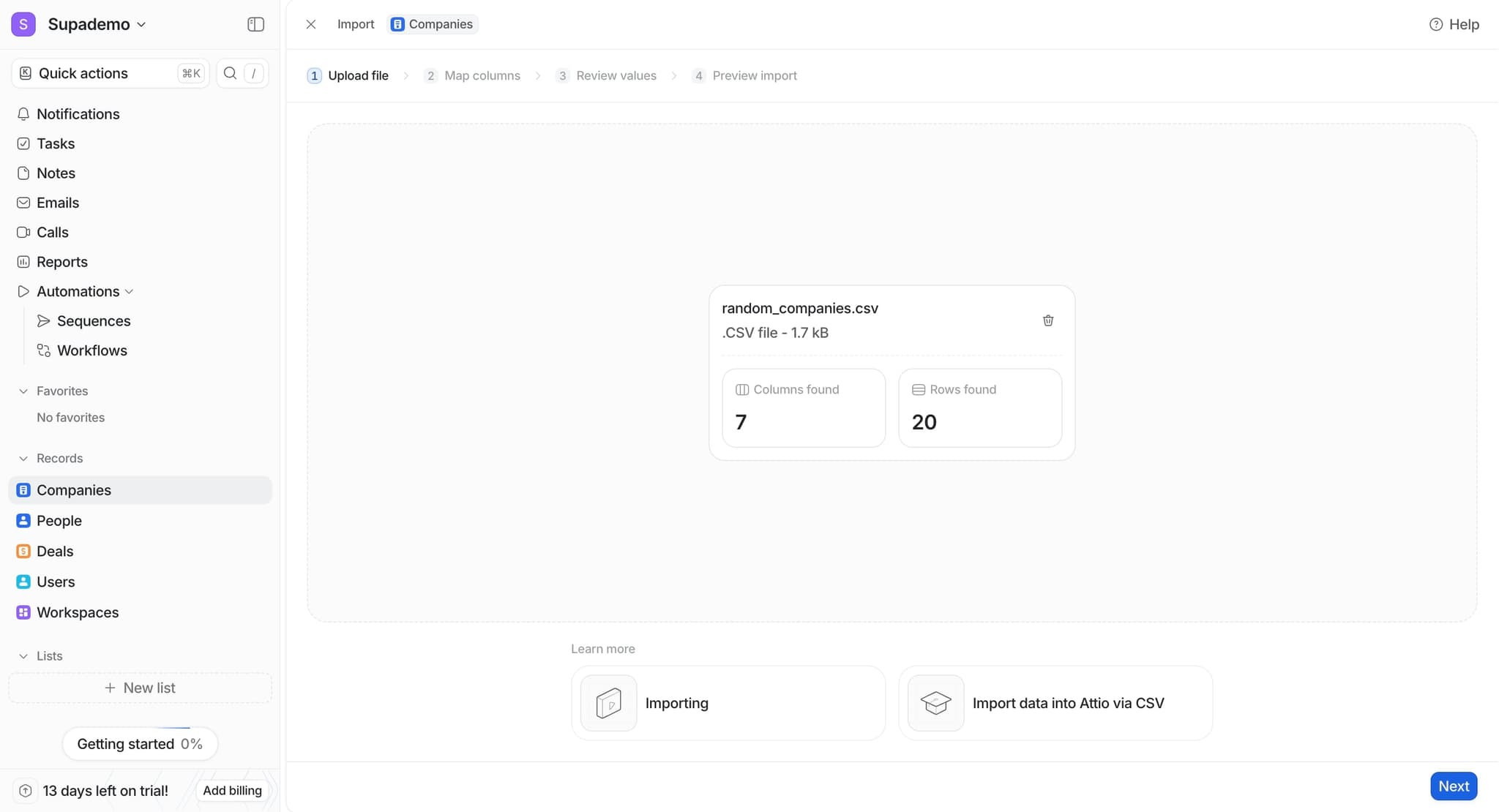
Review file preview
Attio displays a preview of your CSV data, showing the first few rows and columns. Check that the data appears correct and that all columns are visible before proceeding.
- 6
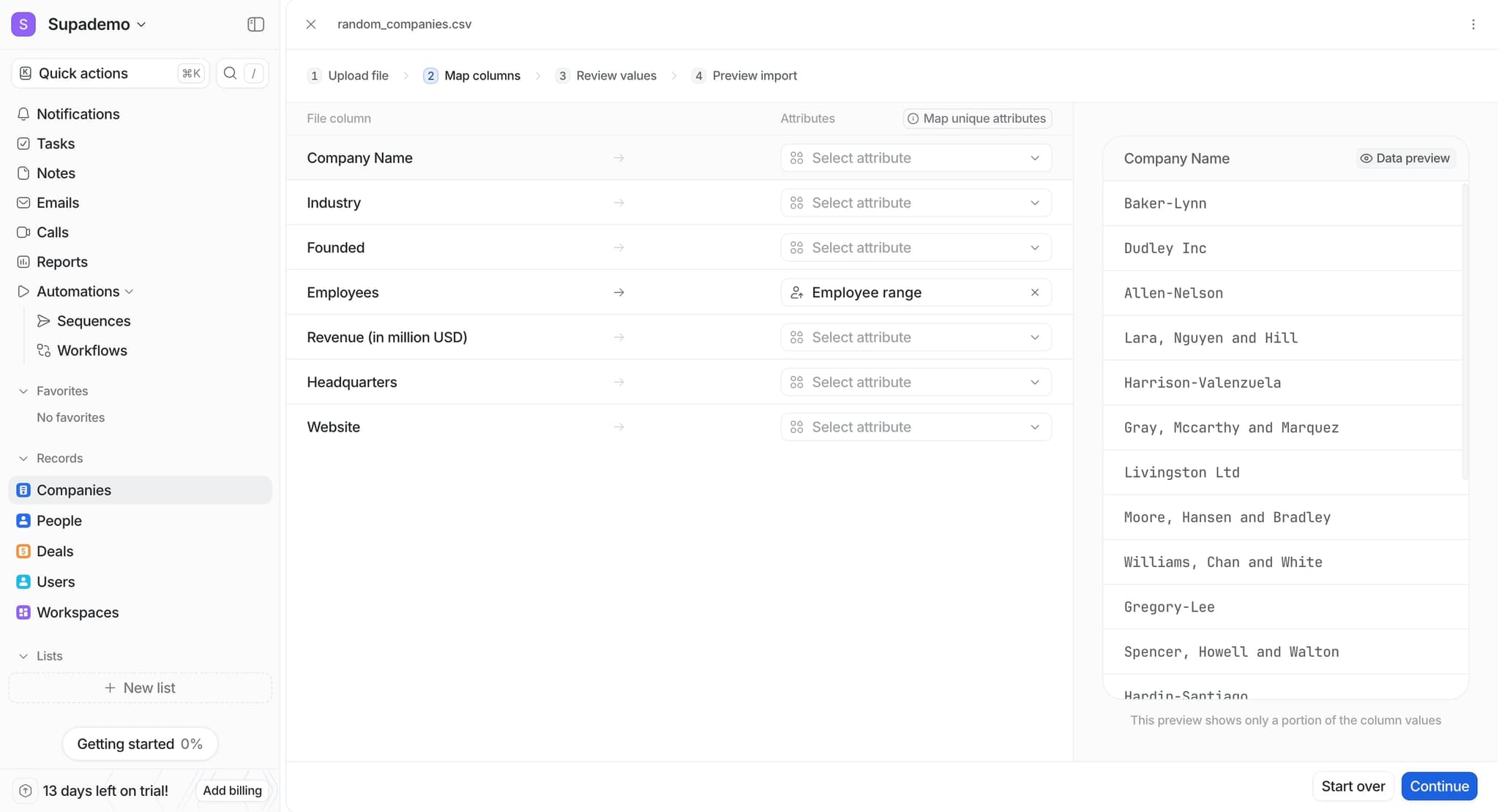
Map CSV columns to Attio fields
Match each column in your CSV to the corresponding Attio field. Attio may auto-detect some fields, but review each mapping carefully to ensure accuracy.
- 7
Set import preferences
Configure options such as whether to update existing records or create only new ones, and select how to handle duplicate entries. These settings control how Attio processes your data.
- 8
Validate data before import
Review any warnings or errors flagged by Attio. The system highlights missing required fields or formatting issues that could prevent successful import.
- 9
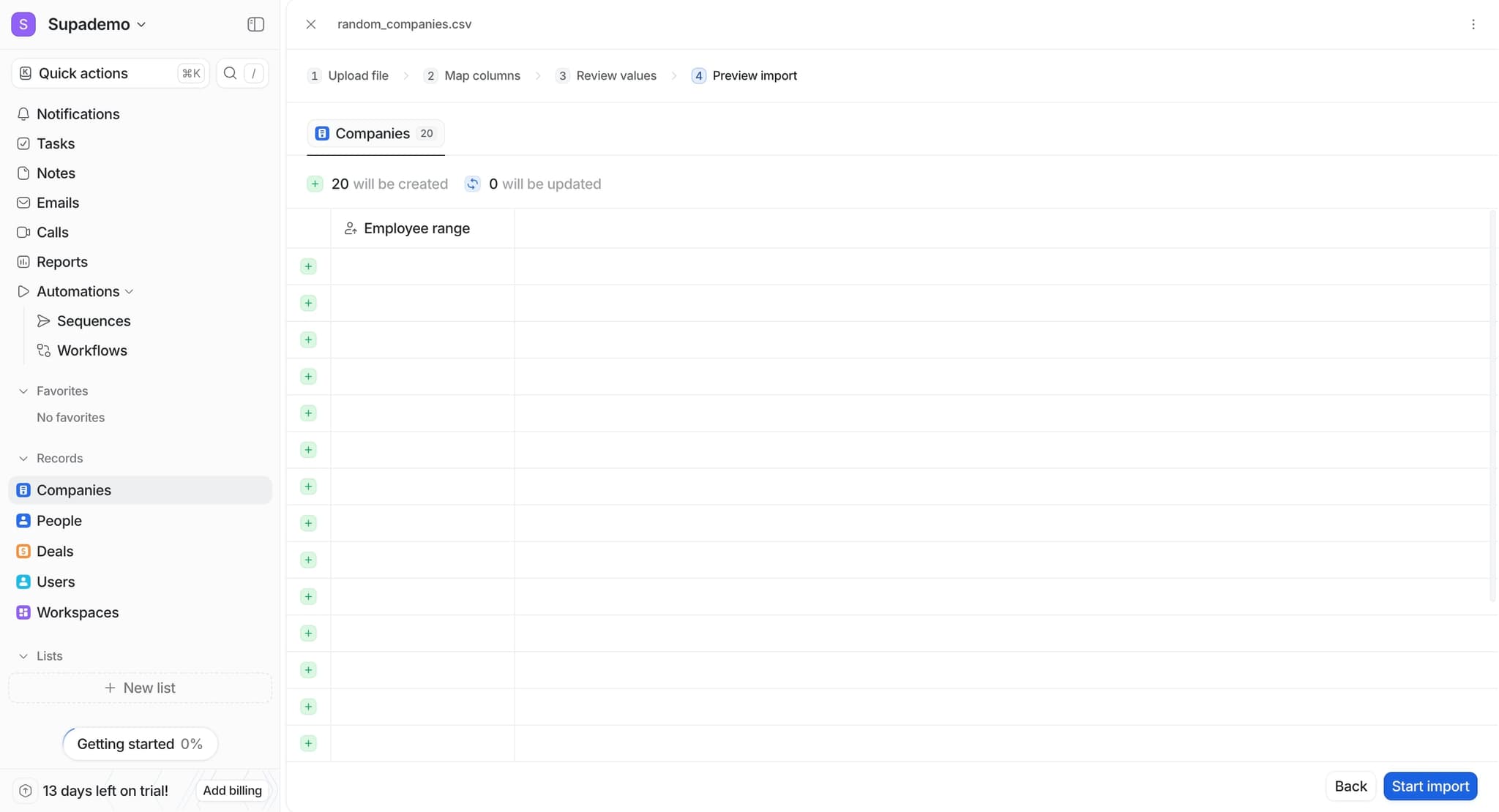
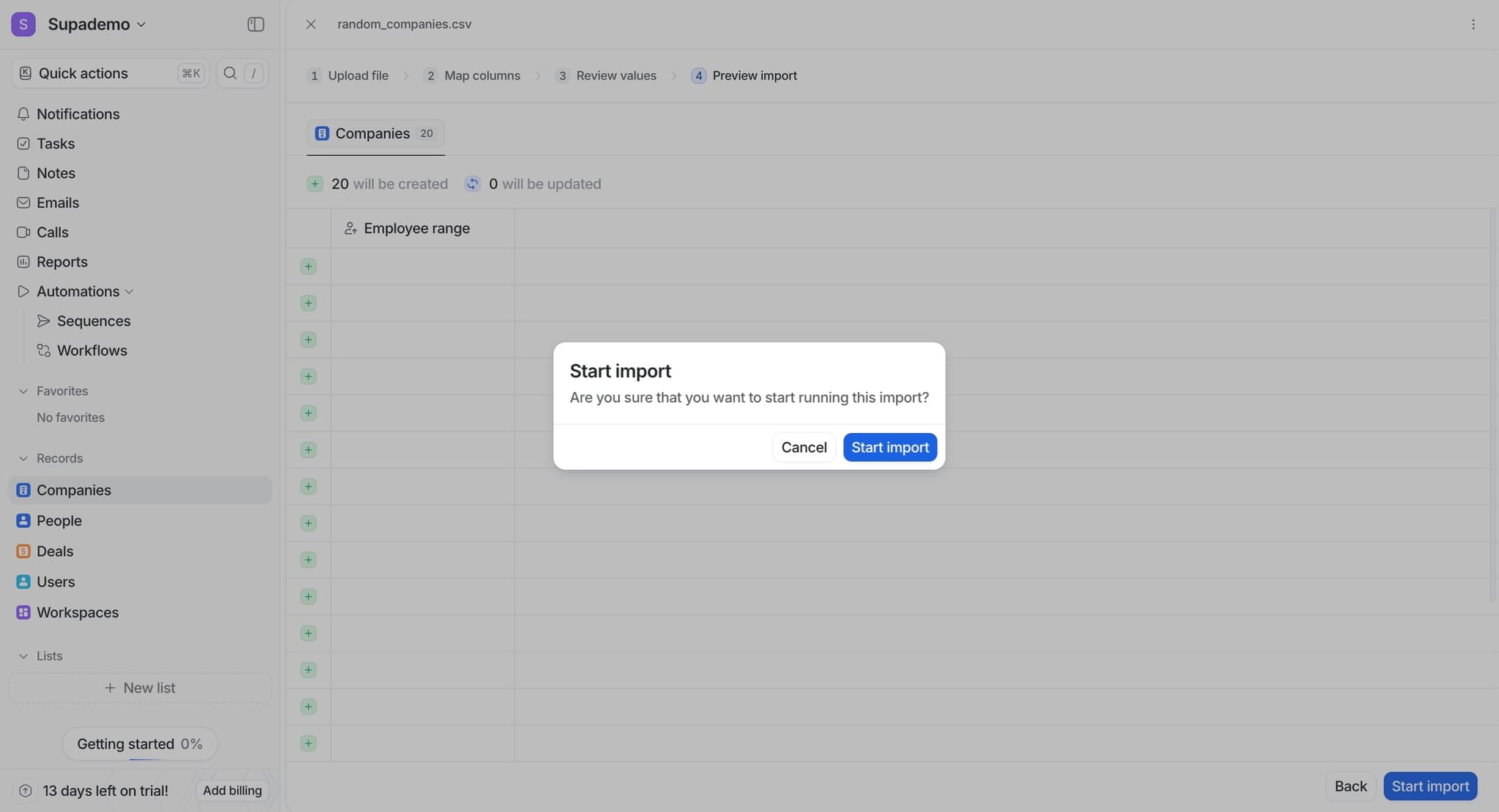
Confirm and start import
Click the confirm or import button to begin the upload process. Attio will process your file and display a progress indicator or completion message.
- 10
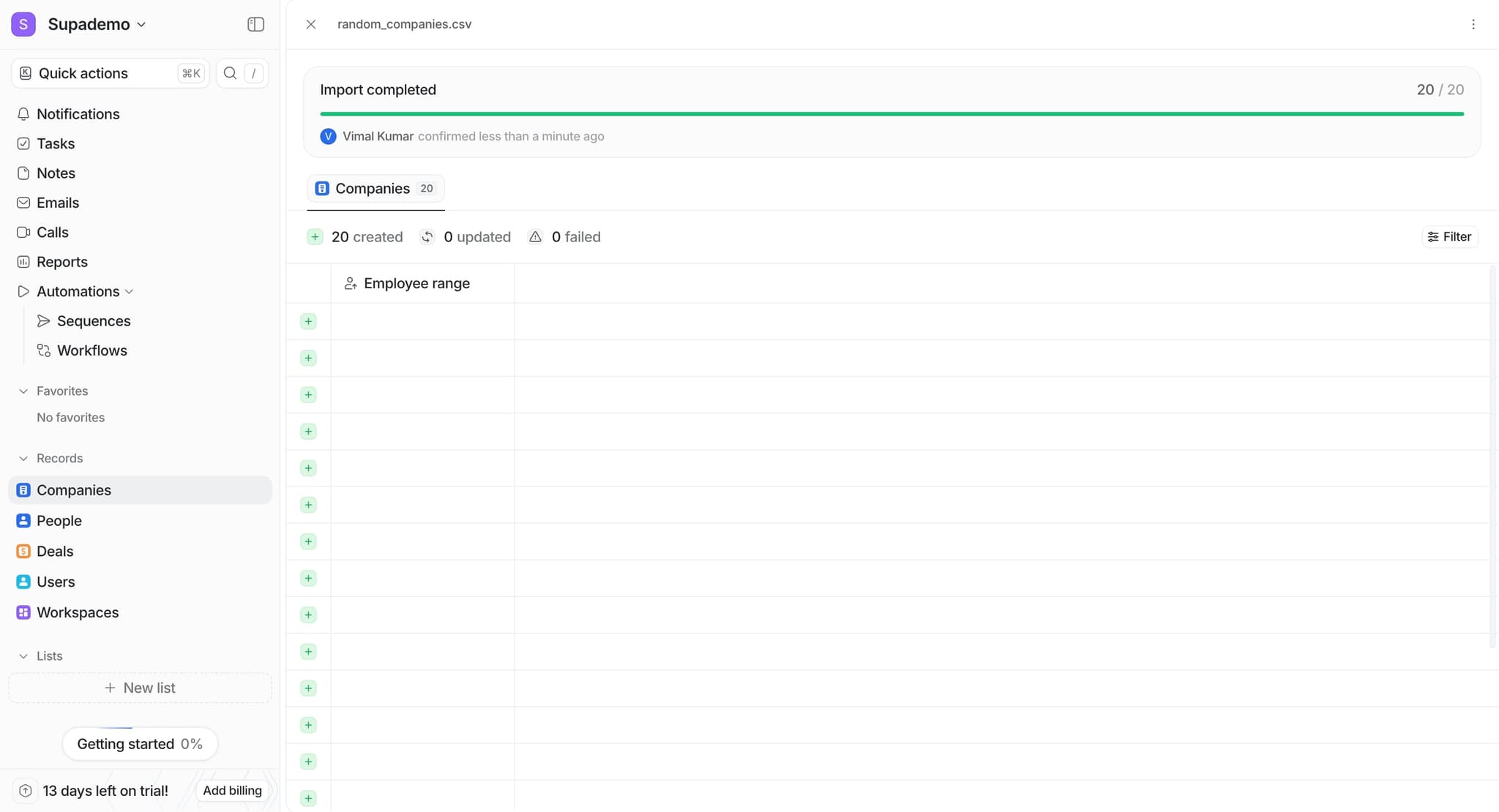
Monitor import completion
Wait for the import to finish and check the summary report. This report shows how many records were successfully imported, updated, or skipped, and flags any errors that occurred.
Frequently asked questions
Common questions about how to import data via csv in attio.
Attio accepts standard CSV files with comma-separated values and headers in the first row. Ensure your file is saved as .csv, uses UTF-8 encoding, and follows a consistent structure. Avoid special characters in column headers that might confuse the field mapping process.
Yes, Attio can update existing records during import if you configure that option in the import preferences. You'll need to specify a unique identifier field like email or company name to match records correctly. Review your import settings carefully to avoid accidentally creating duplicates.
If a field doesn't have an obvious match in Attio, you can either skip it, map it to a different field, or create a new custom field during import. Check Attio's documentation for field naming conventions to ensure compatibility.
Attio typically handles CSV files up to a certain size limit, though this may vary by plan. For very large imports, consider splitting your CSV into multiple files and importing them sequentially. Contact Attio support if you're unsure about file size limits for your account.
Most import operations can be rolled back if you catch an error immediately. However, it's best to test with a small subset of data first. If a large import fails, contact Attio support for assistance with reverting or cleaning up incorrect records.