How to Sync Email and Calendar in Attio

Syncing your email and calendar with Attio streamlines your workflow by keeping all your communication and scheduling data in one central hub. This integration eliminates manual data entry and ensures your contact information stays current across platforms.
Quick summary
In this tutorial, you'll learn how to connect your email and calendar accounts to Attio, configure sync settings, and manage your integrated data effectively. By the end, you'll have a fully synchronized system that automatically updates your communications and availability.
Why this matters
Syncing email and calendar data in Attio creates a unified view of your customer interactions and availability, reducing context switching and improving team collaboration. This integration helps you stay organized, prevents scheduling conflicts, and ensures no customer communication goes untracked.
Step-by-step guide
- 1
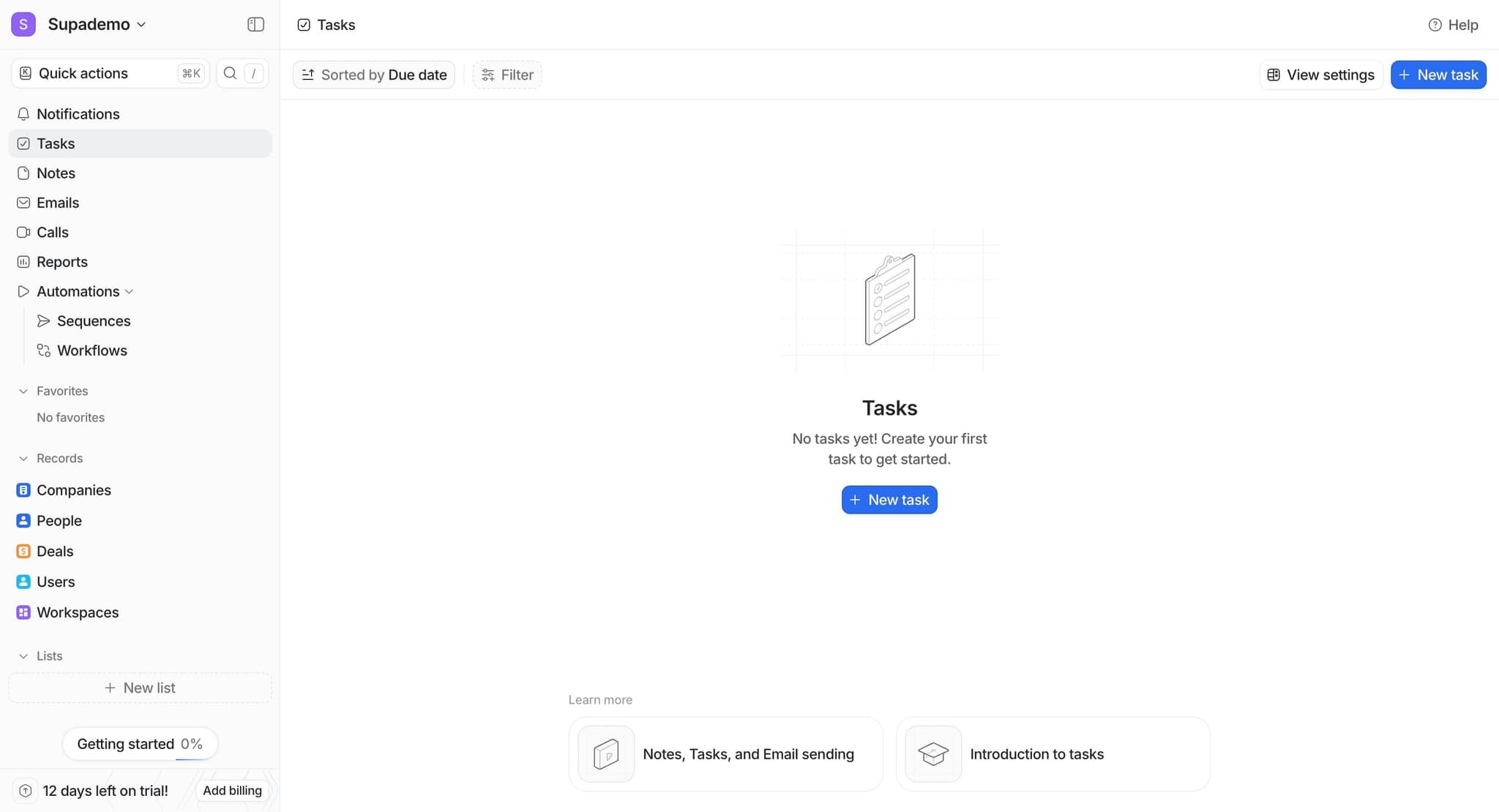
Access the integrations settings
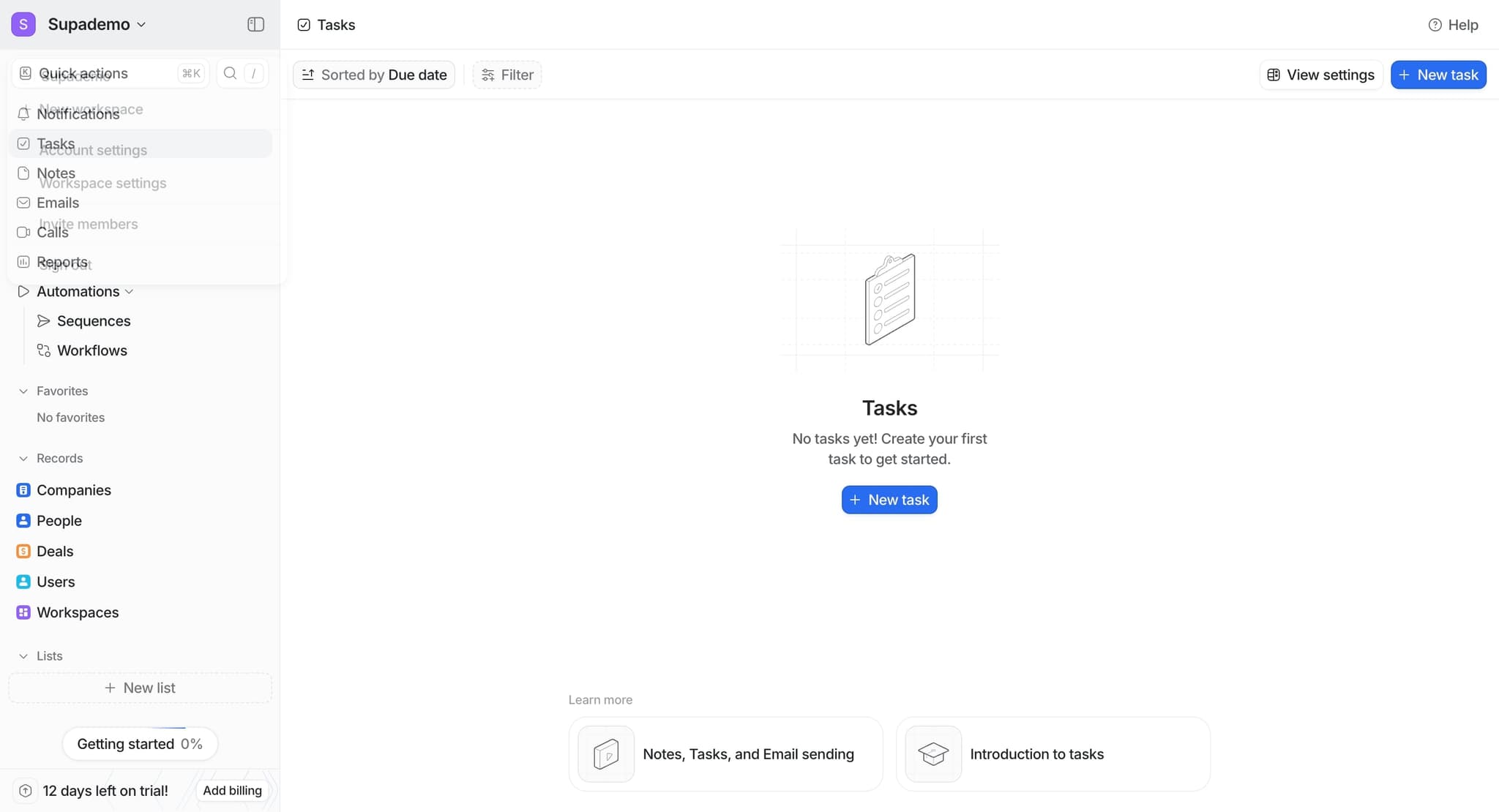
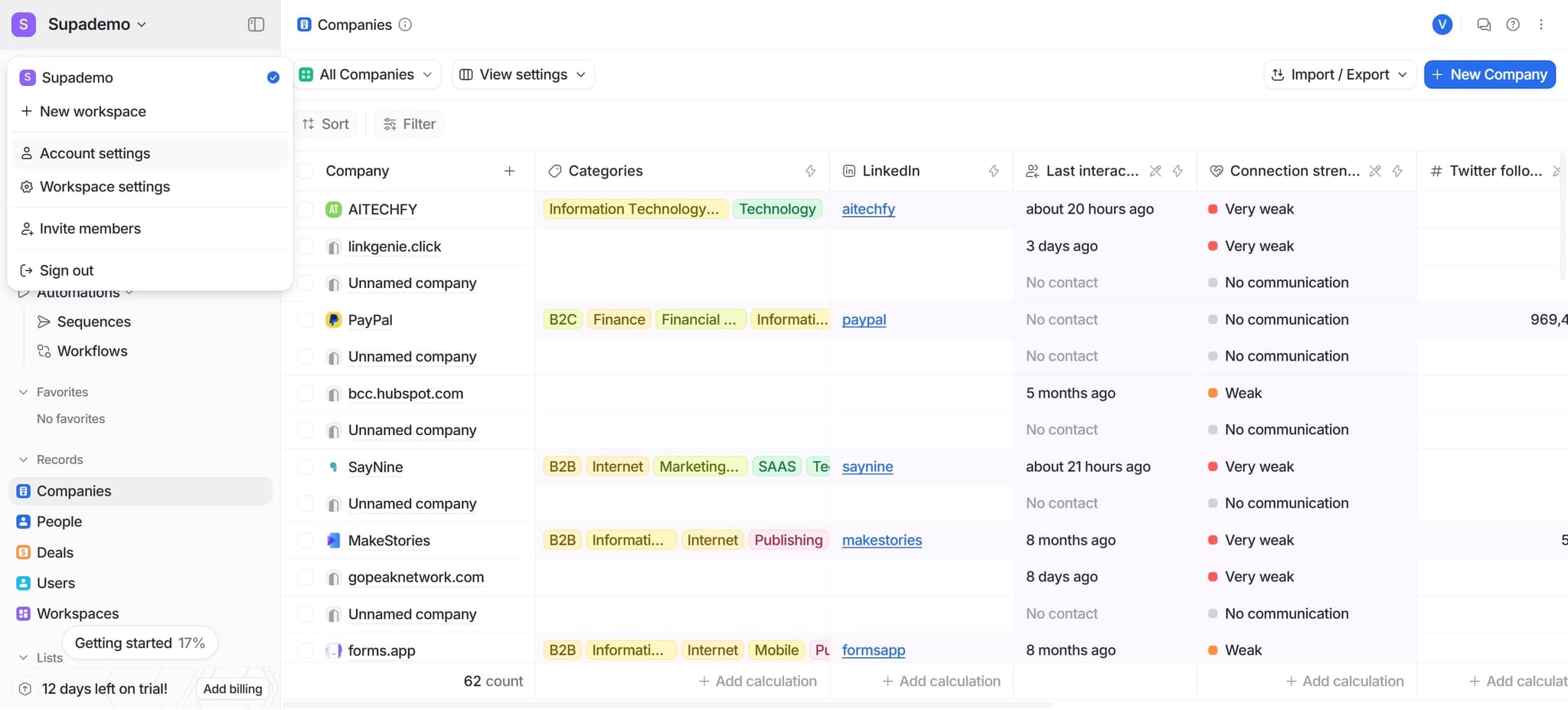
Navigate to your Attio account settings and locate the integrations or connected accounts section. This is typically found in the main menu under Settings or Account Configuration.
- 2
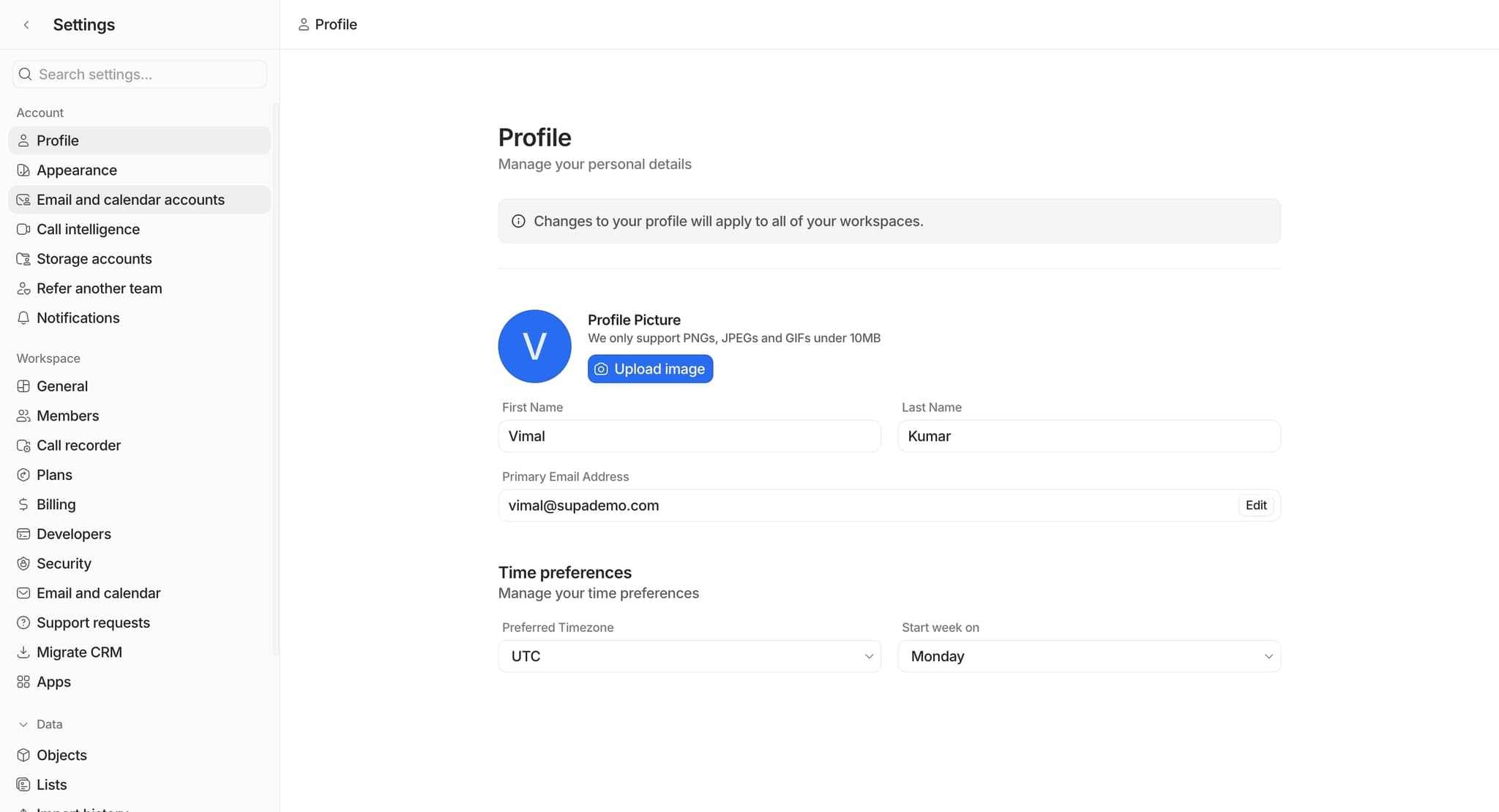
Select email integration option
Choose your email provider from the available options, such as Gmail or Outlook. Click the connect button next to your preferred email service.
- 3
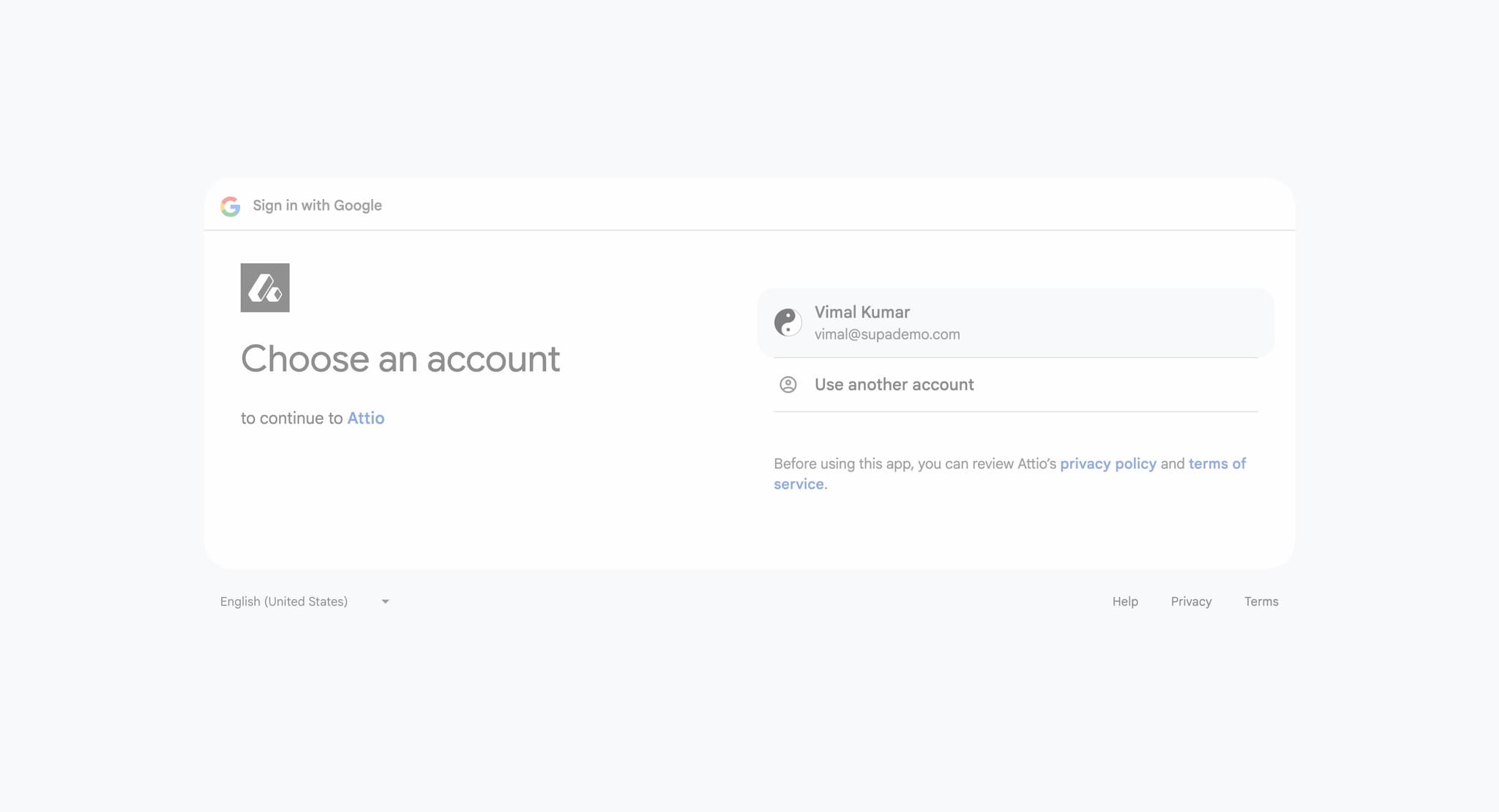
Authorize Attio access
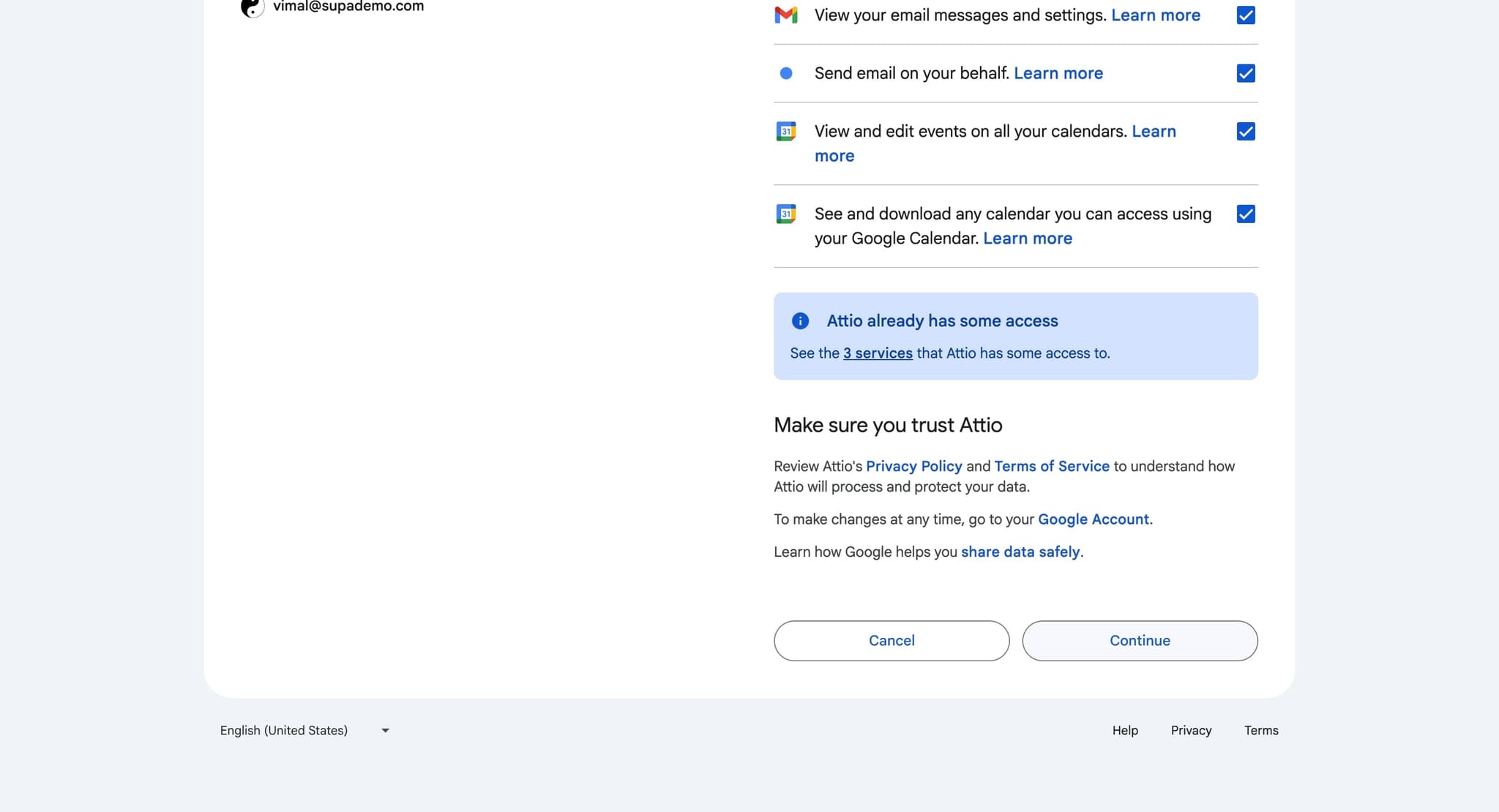
Follow the authorization prompt to grant Attio permission to access your email account. You'll be redirected to your email provider's login page where you'll verify your credentials.
- 4
Configure email sync settings
Specify which email folders or labels you want to sync and set the sync frequency. Choose whether you want to sync all emails or only those from specific contacts.
- 5
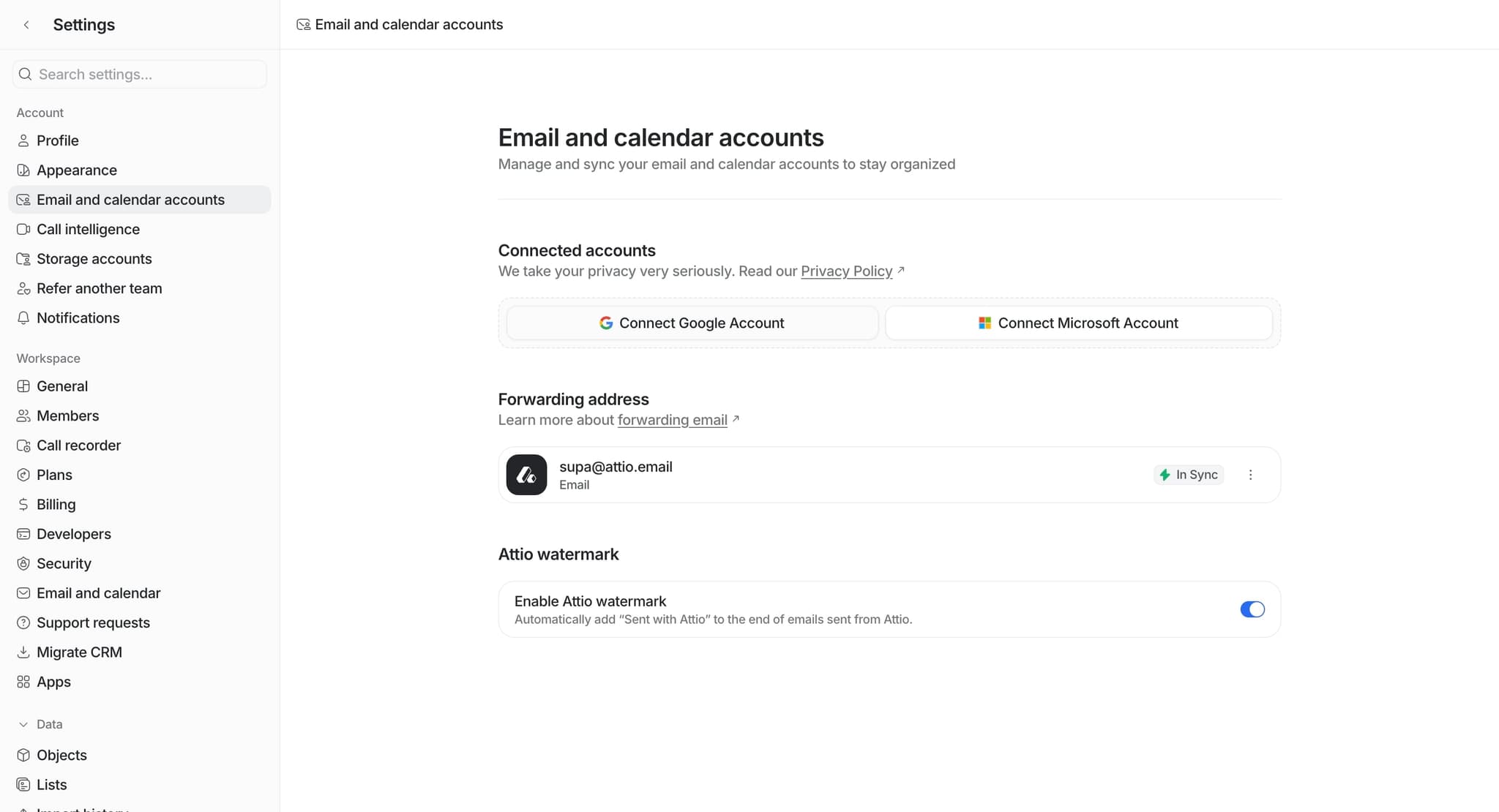
Select calendar integration
Return to integrations and choose your calendar provider, such as Google Calendar or Microsoft Outlook Calendar. Click the connect button to begin the calendar sync process.
- 6
Authorize calendar access
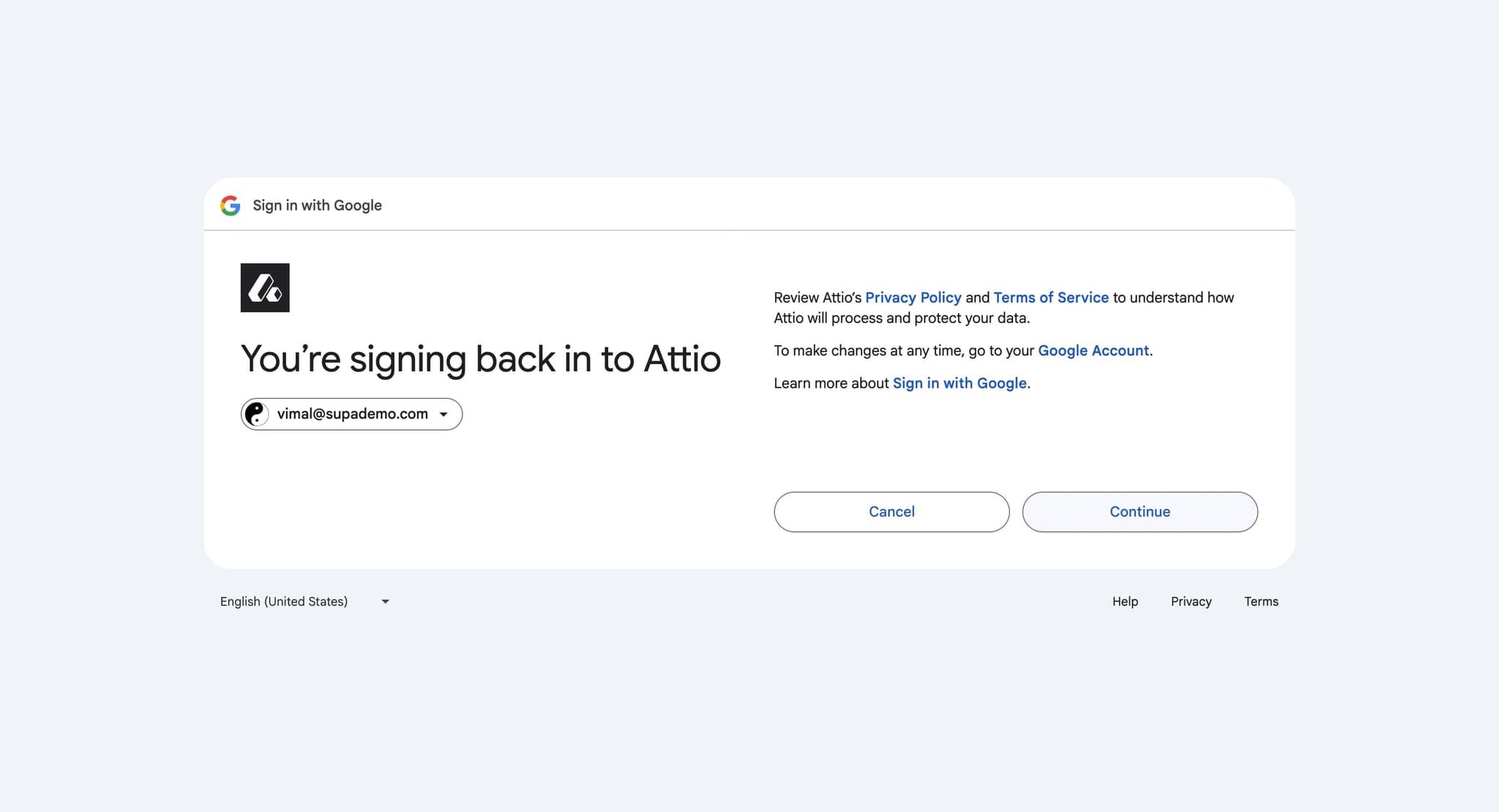
Complete the authorization flow for your calendar provider by logging in and granting Attio the necessary permissions. This allows Attio to read and sync your calendar events.
- 7
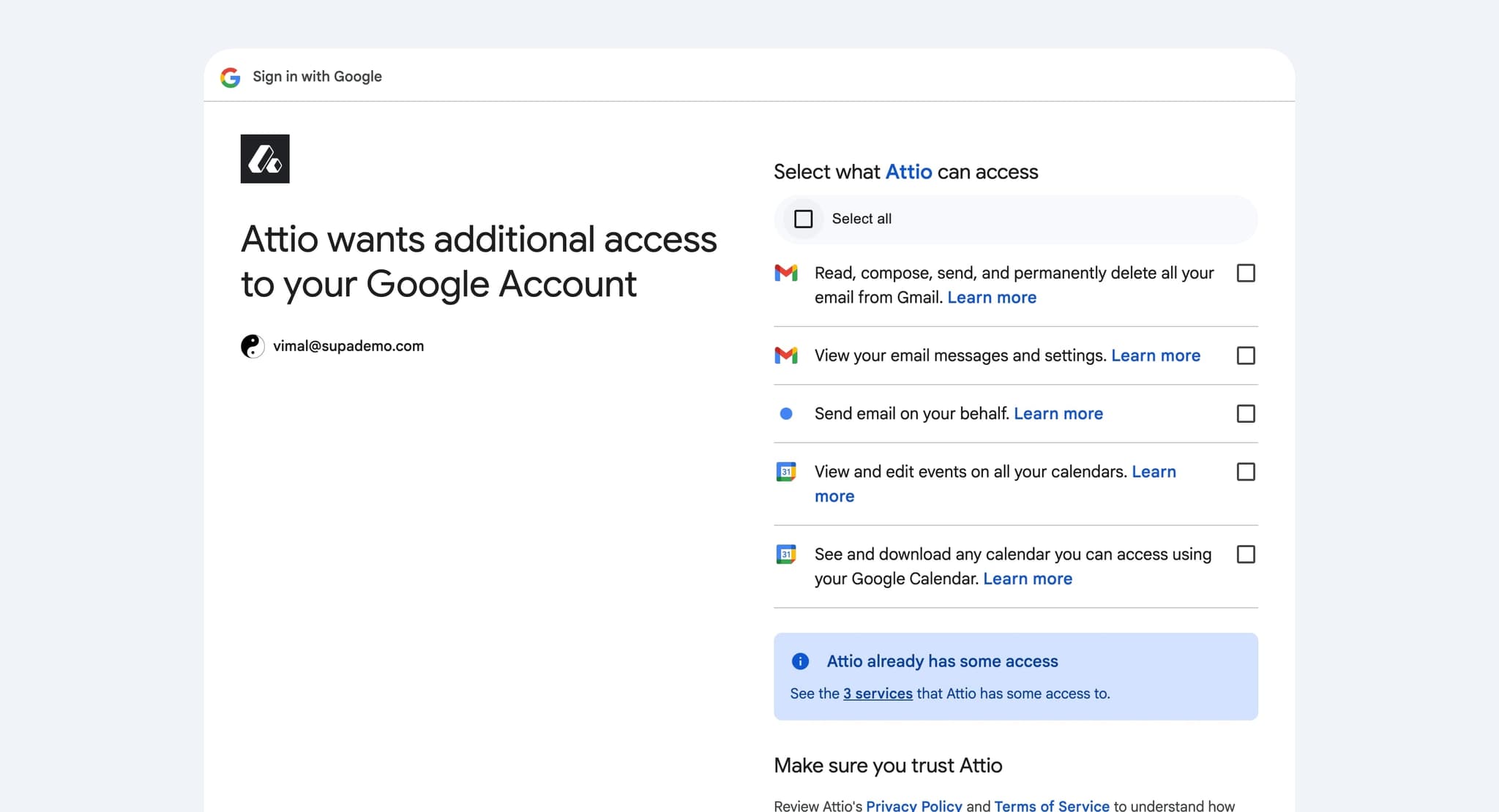
Customize calendar sync preferences
Configure which calendars to sync and set your sync preferences, such as showing availability or specific event types. You can also choose to sync only calendar events from certain time periods.
- 8
Verify sync status
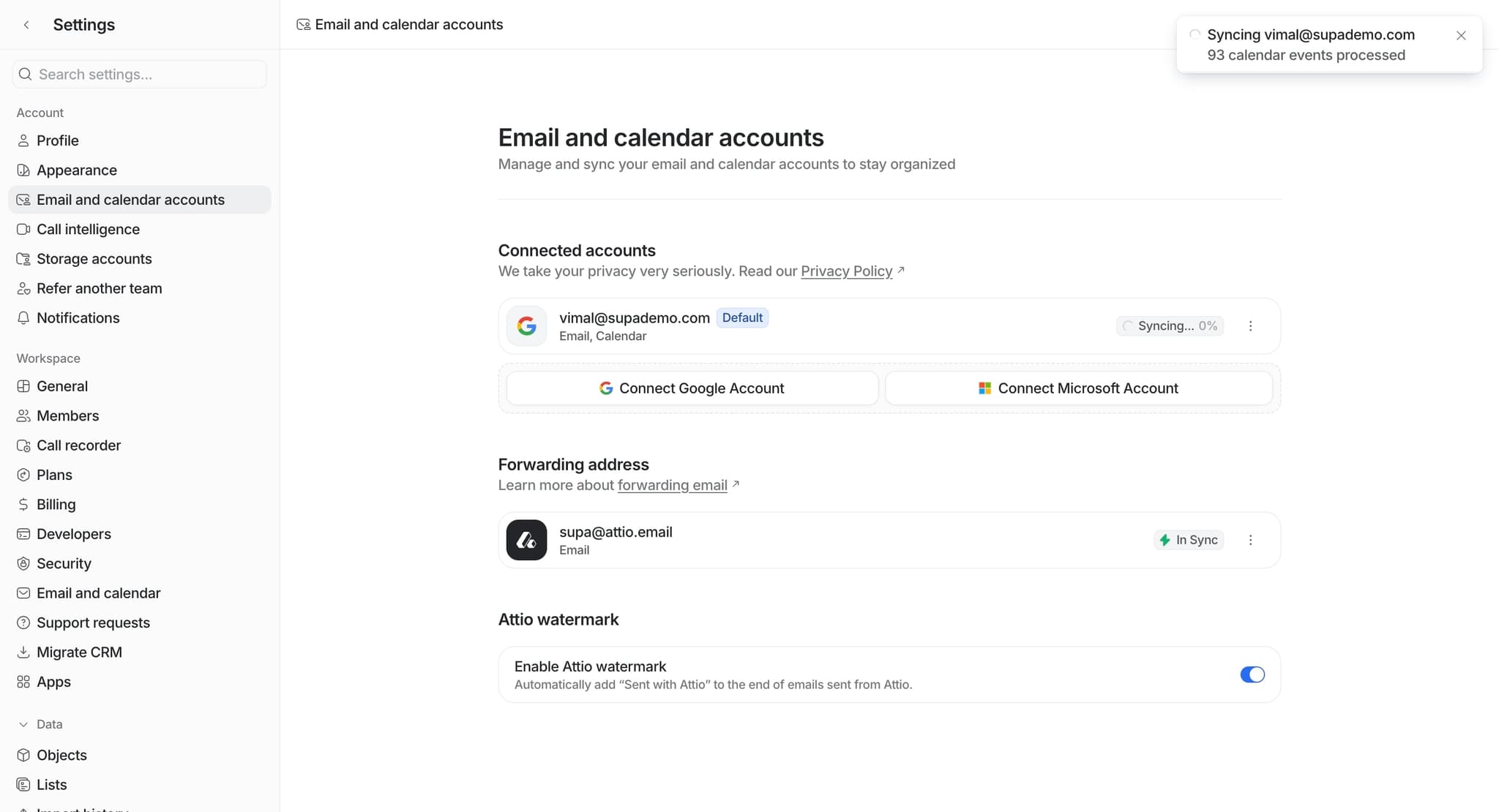
Check the integrations dashboard to confirm both email and calendar are connected and actively syncing. You'll see the last sync time and connection status for each integration.
- 9
Test the integration
Send yourself a test email and create a test calendar event to verify they appear in Attio. Allow a few moments for the sync to complete, then refresh your Attio view.
- 10
Monitor and adjust settings
Regularly check your sync settings and adjust them as needed based on your workflow. Use the integrations dashboard to troubleshoot any sync issues or update permissions.
Frequently asked questions
Common questions about how to sync email and calendar in attio.
Sync times vary depending on your provider and the amount of data, but typically emails and calendar events appear in Attio within a few minutes of being created or modified. You can manually trigger a sync refresh in the integrations settings if you need immediate updates.
Yes, Attio allows you to customize which folders, labels, and calendars sync with your account. During setup, you can select specific folders or calendars to include or exclude from the sync process.
If you disconnect an integration, Attio will no longer receive new data from that source. However, previously synced data typically remains in your Attio account unless you explicitly delete it.
No, syncing is a one-way or two-way read operation depending on your settings. Your original email and calendar accounts remain unchanged, and Attio simply mirrors the data you choose to sync.
Yes, each team member can connect their own email and calendar accounts to Attio through their individual user settings. This keeps data organized by user while allowing the team to access shared contact and scheduling information.