How to create a form on Brevo

Creating a form in Brevo allows you to capture customer information and build your contact list efficiently. Forms are essential for subscription management, lead generation, and customer engagement. This guide walks you through the complete process of setting up a subscription form in Brevo.
Quick summary
In this tutorial, you'll learn how to create and configure a subscription form in Brevo from start to finish. You'll navigate through the Forms section, customize your form fields, preview the final result, and publish it for use. By the end, you'll have a fully functional form ready to capture subscriber information.
Why this matters
Forms are a critical component of email marketing and customer relationship management. By creating a subscription form in Brevo, you can systematically grow your contact list with qualified leads and ensure consistent data collection. A well-designed form improves user experience and increases conversion rates for your marketing campaigns.
Step-by-step guide
- 1
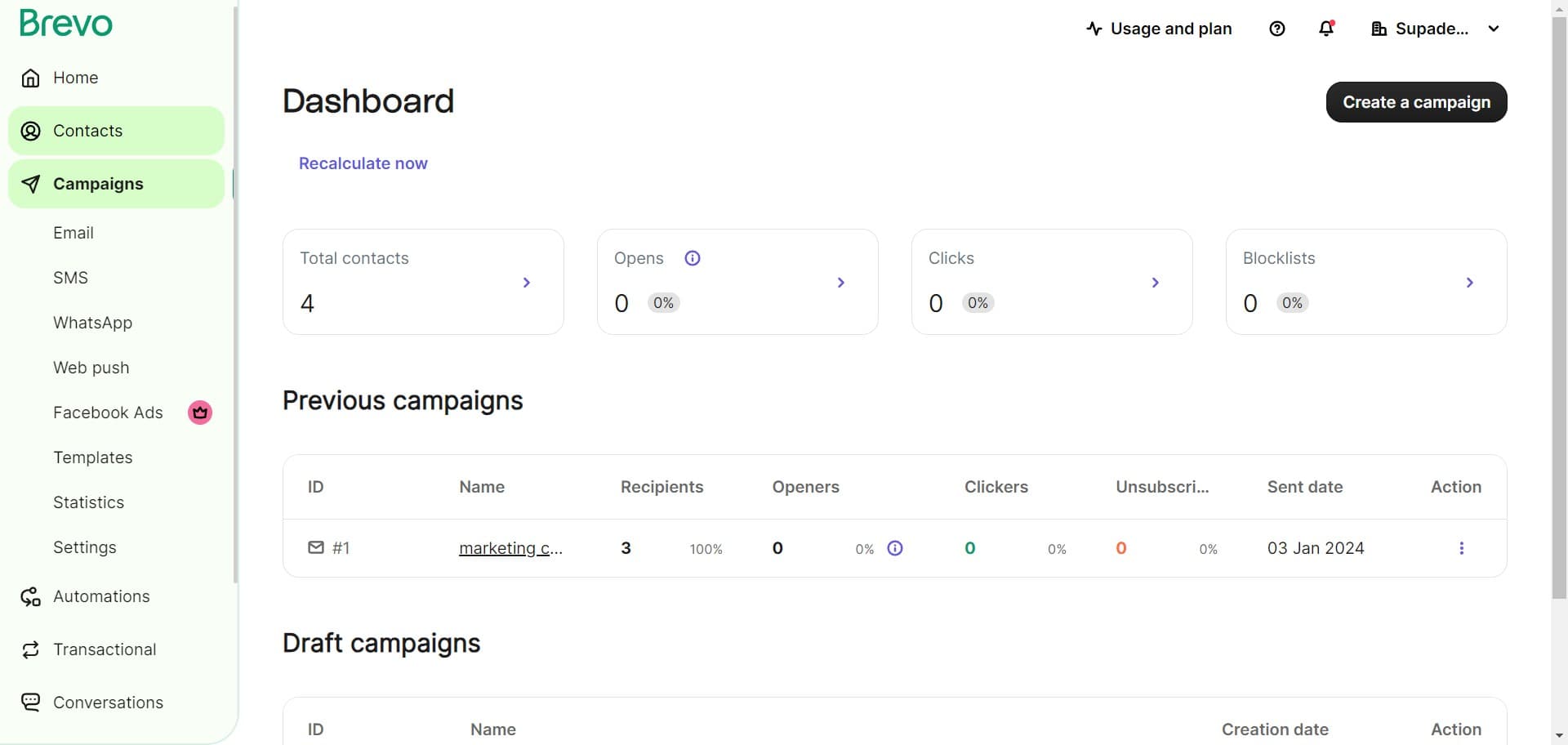
Navigate to Contacts section
Start by clicking on the 'Contacts' menu option in the main navigation. This will take you to the contacts management area where you can access forms and other contact-related tools.
- 2
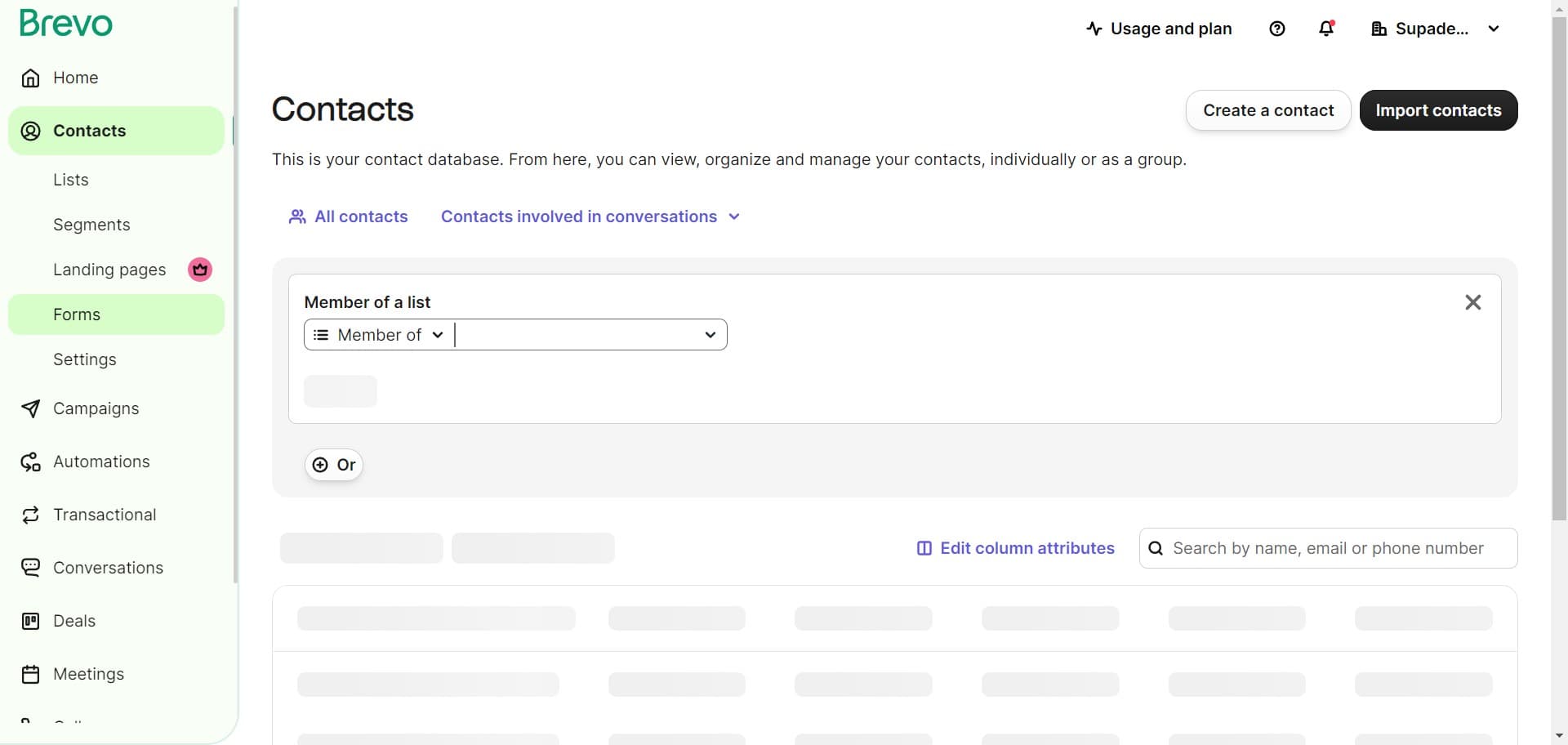
Open the Forms menu
Click on 'Forms' to access your form management dashboard. Here you'll see all existing forms and options to create new ones.
- 3
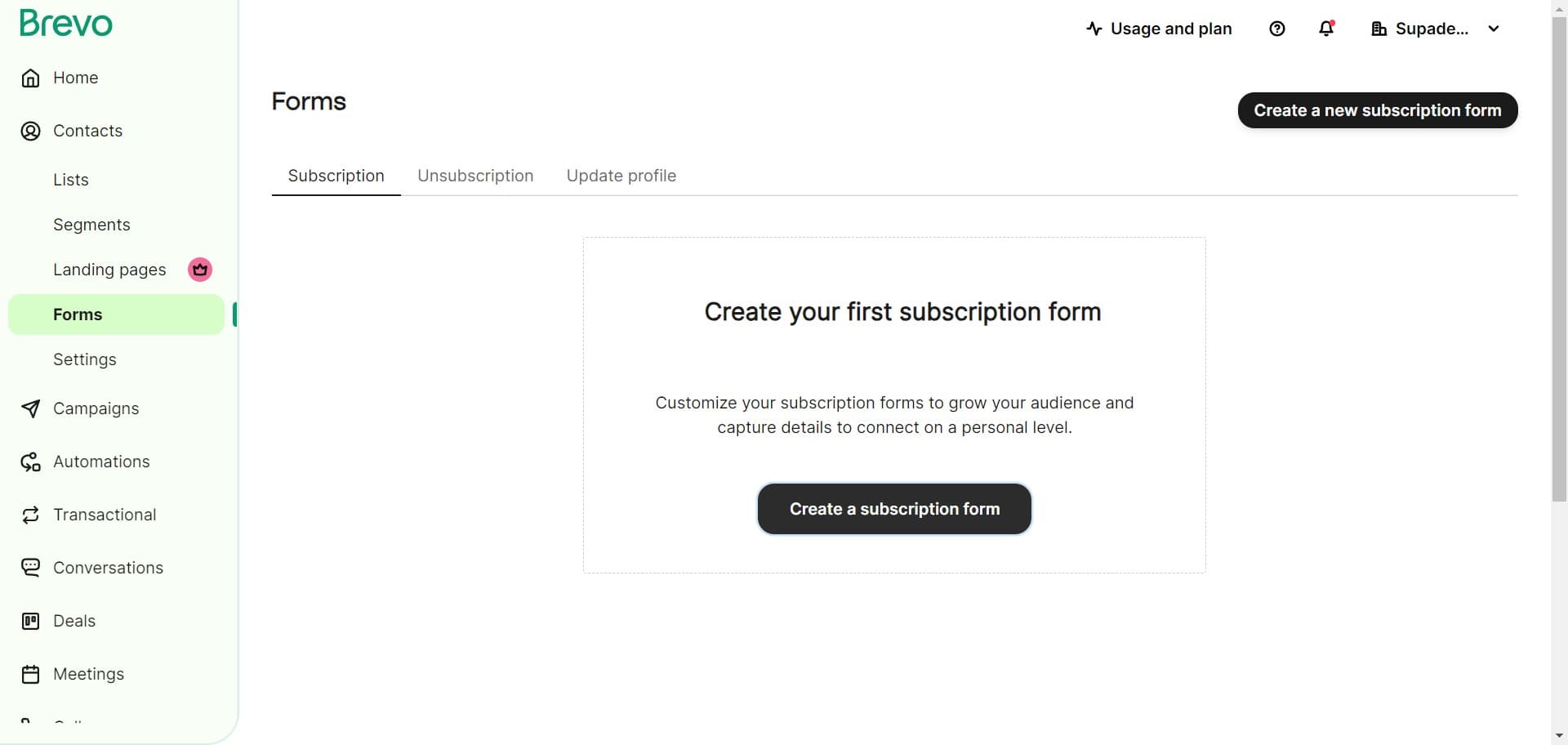
Create a new subscription form
Click on 'Create a subscription form' to initiate the form creation process. This option will open the form builder where you'll configure your form settings.
- 4
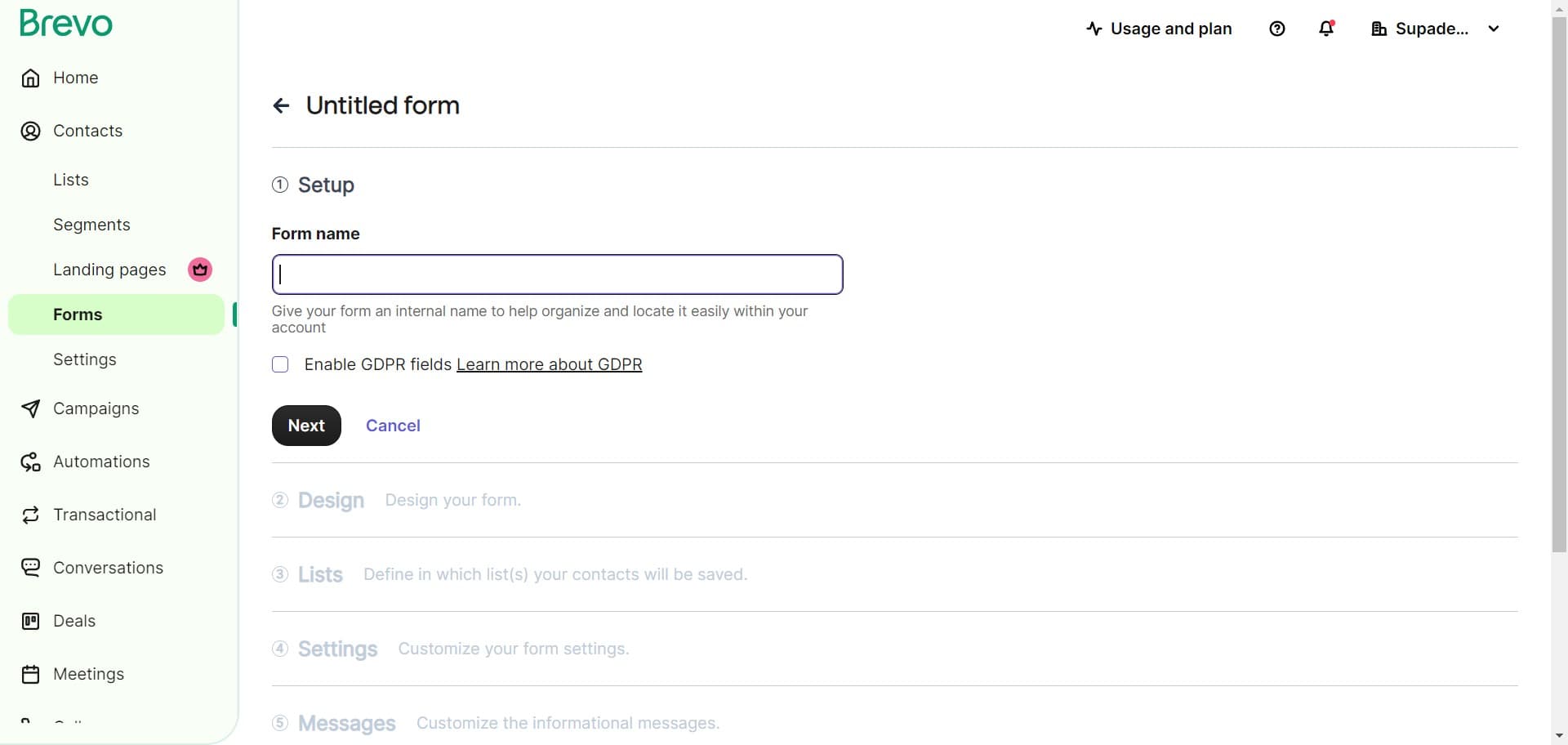
Select initial form configuration
Click on the indicated area to proceed with your form setup. This step allows you to choose your form type and basic configuration options.
- 5
Advance to the next step
Click 'Next' to move forward in the form creation process. This confirms your selection and takes you to the next configuration screen.
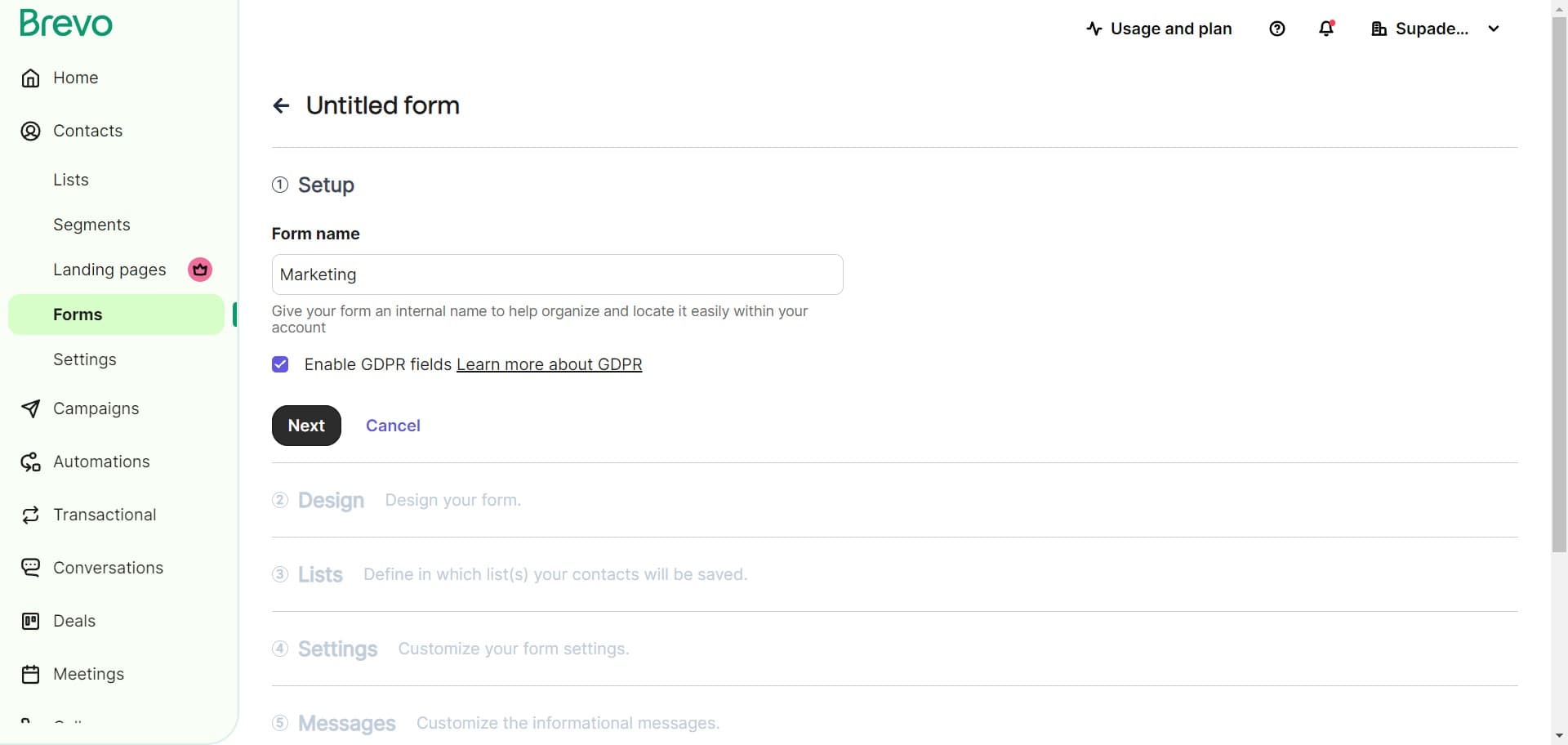
- 6
Continue form setup
Click 'Next' again to proceed further. Each step builds upon the previous one to complete your form configuration.
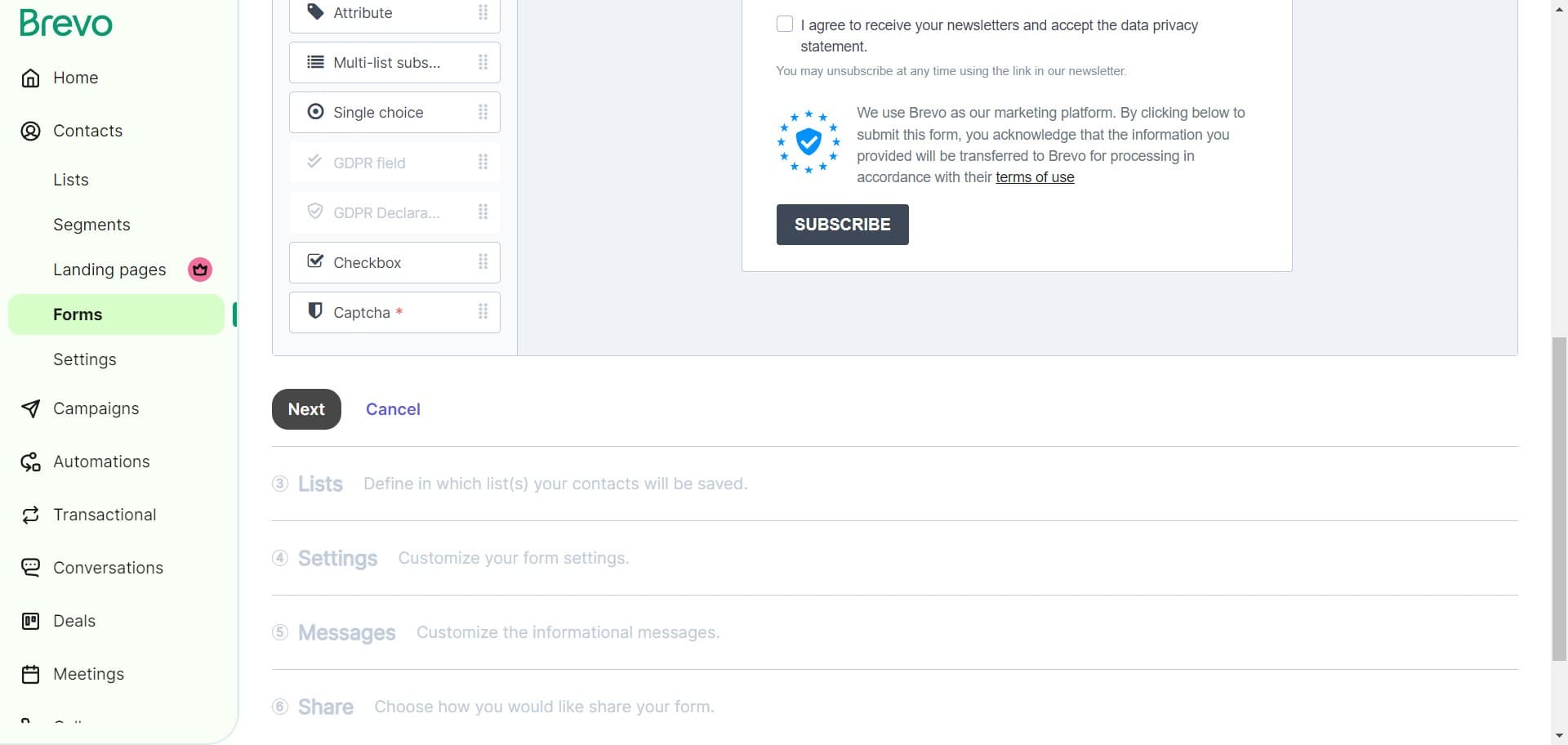
- 7
Configure form fields
Click on the indicated area to customize the fields your form will collect. You can add, remove, or modify fields to match your data collection needs.
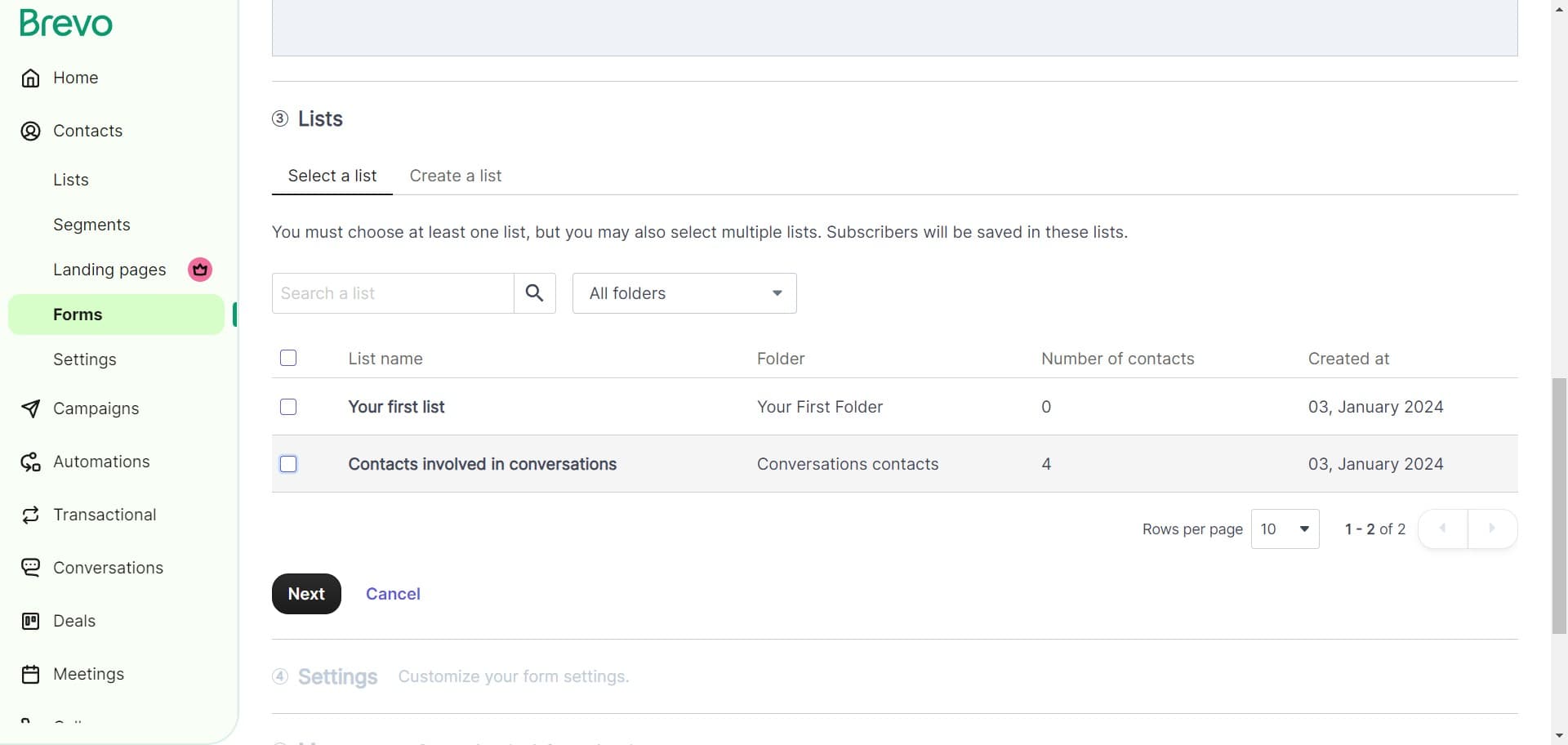
- 8
Move to field validation settings
Click 'Next' to proceed to field validation and additional configuration options. This ensures your form collects data in the correct format.
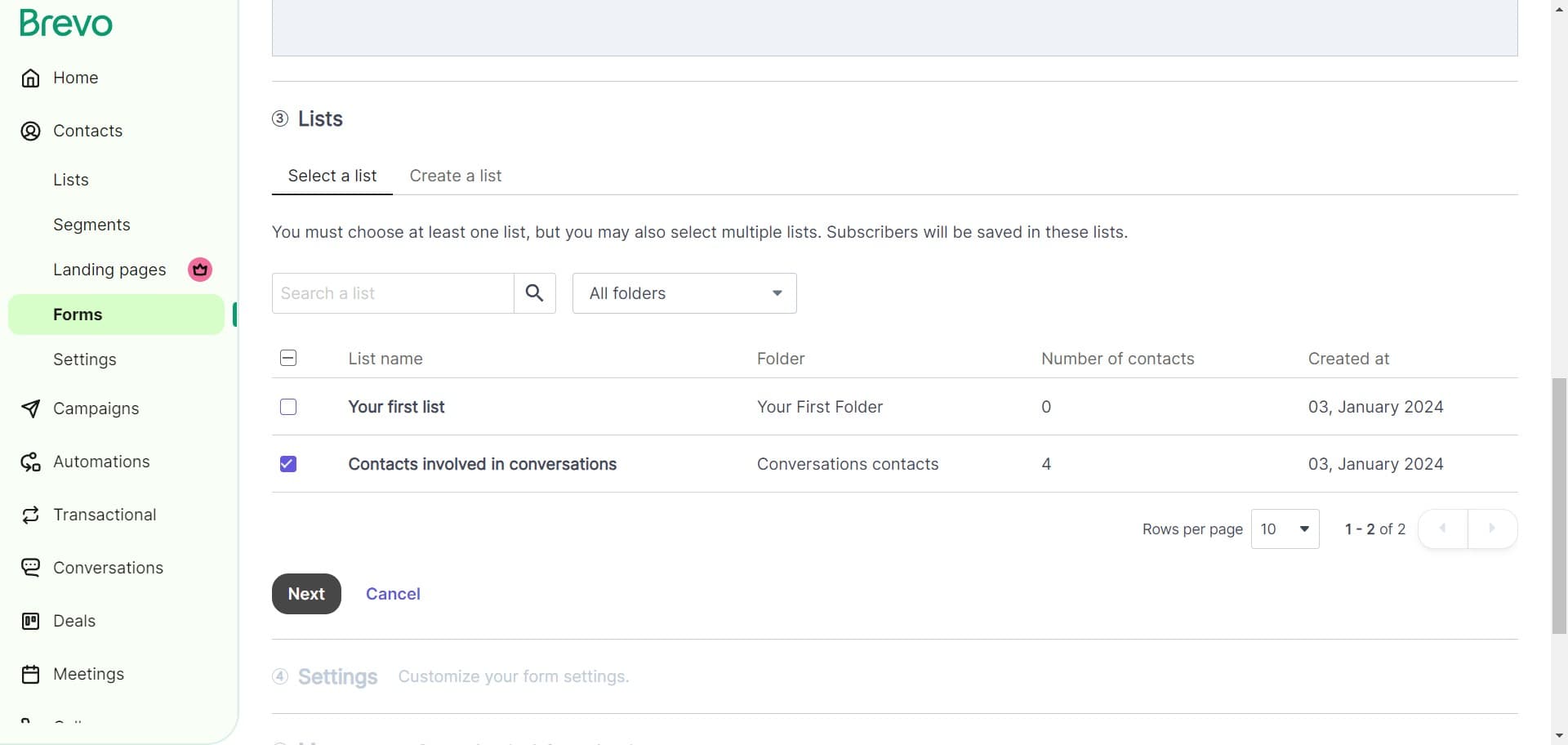
- 9
Set form submission behavior
Click on the indicated area to configure what happens when users submit the form. You can set up confirmation messages, redirects, or automation triggers.
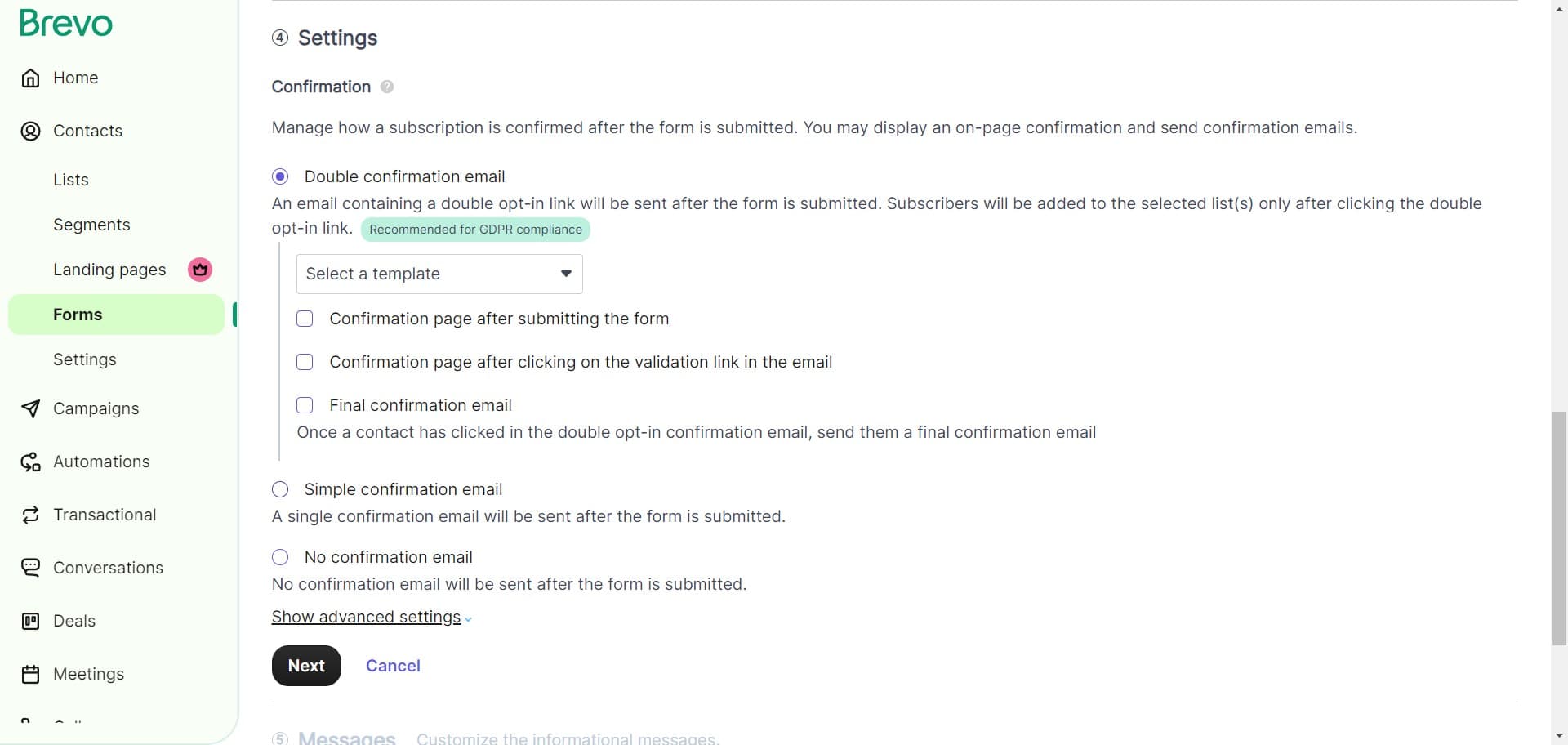
- 10
Configure form appearance
Click on the indicated area to customize the visual design and branding of your form. This includes styling, colors, and layout options to match your brand.
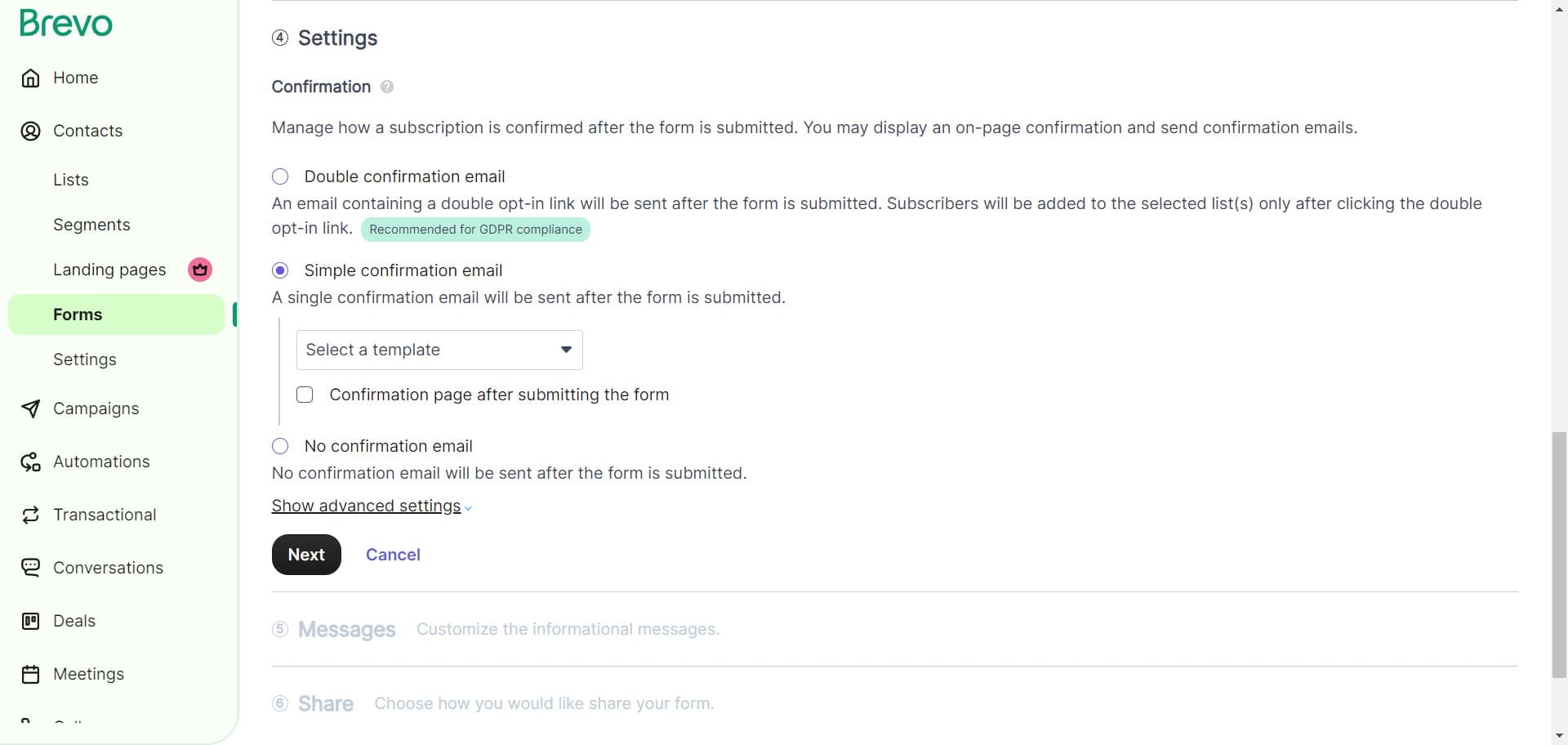
- 11
Complete form configuration
Click 'Next' to finalize your form settings. This step ensures all configurations are saved and ready for preview.
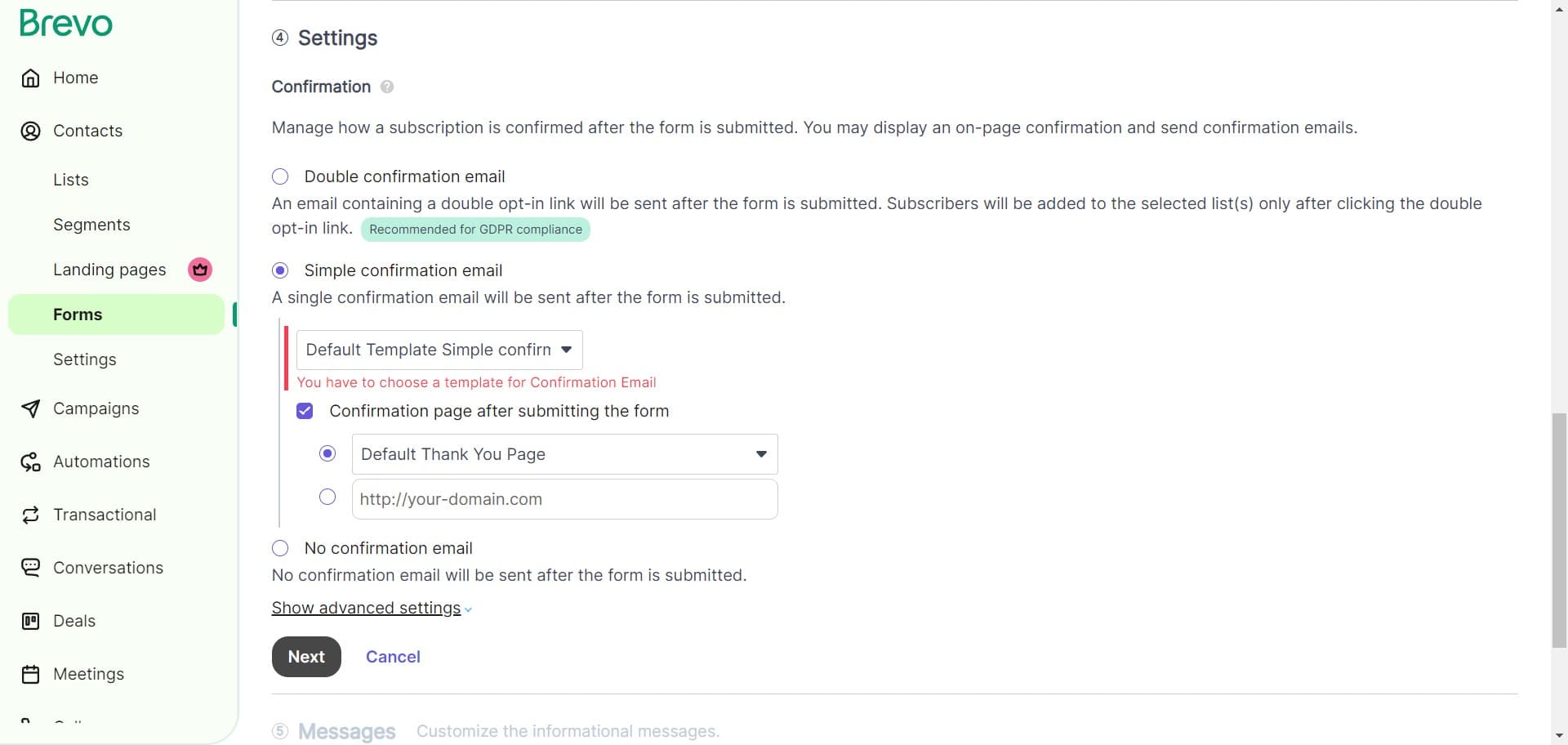
- 12
Review final settings
Click 'Next' one more time to confirm all your form settings are correct. You're now ready to see how your form will appear to users.
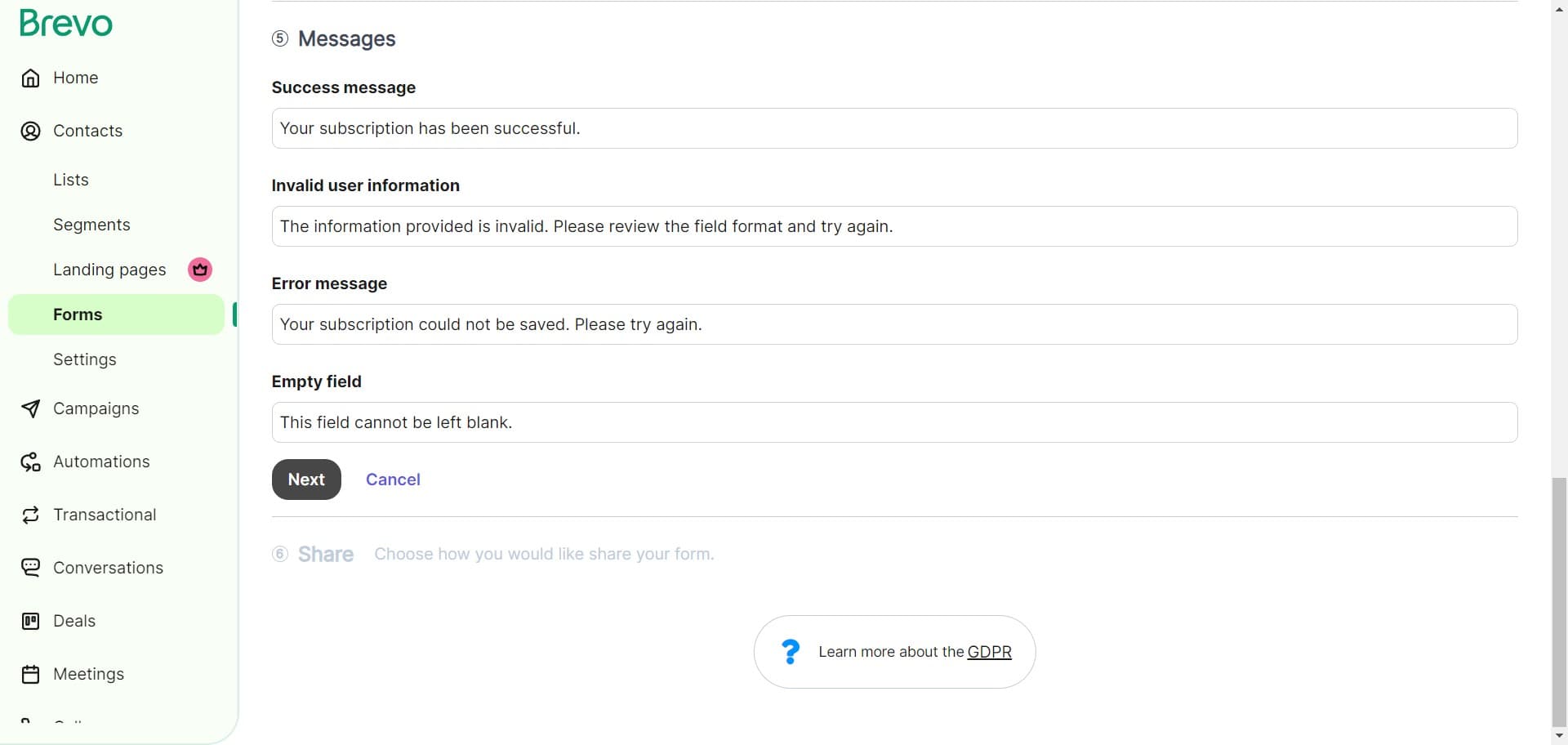
- 13
Preview the completed form
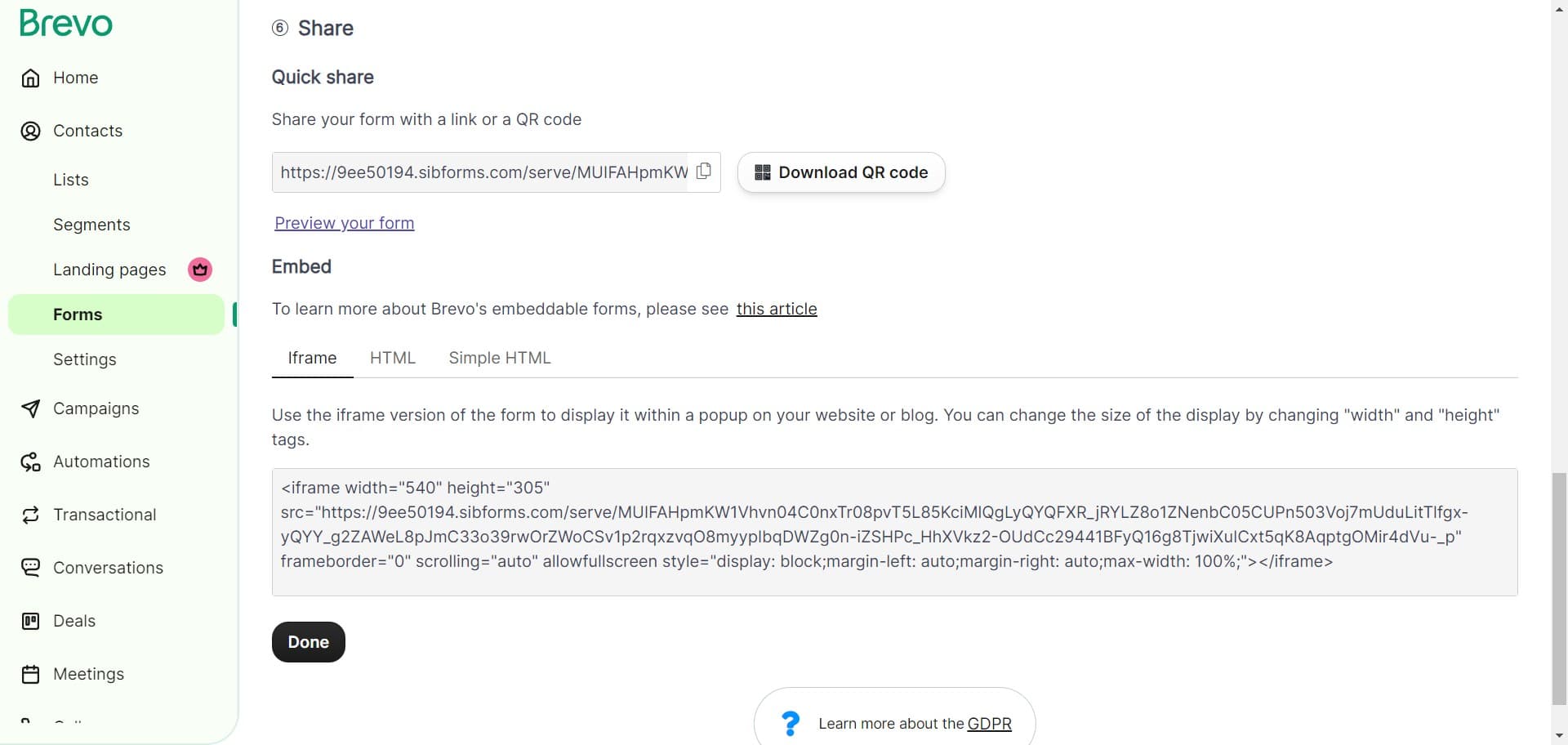
Click on 'Preview your form' to see exactly how your form will look and function for users. This allows you to verify all fields, styling, and user experience before publication.
- 14
Publish the form
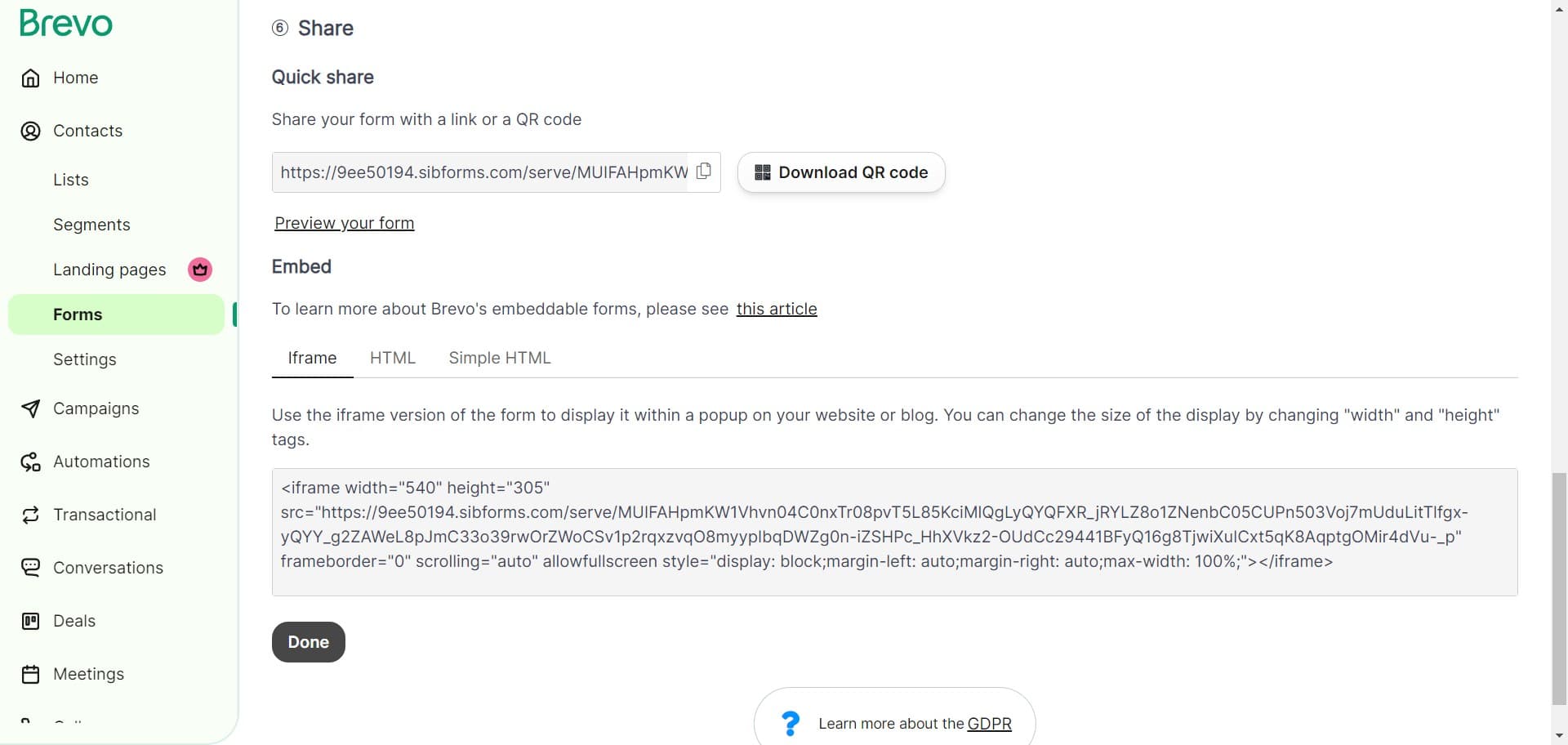
Click 'Done' to complete the form creation and activate it. Your form is now ready to use and can be embedded on your website or shared with contacts.
Frequently asked questions
Common questions about how to create a form on brevo.
Yes, you can edit your form at any time after publishing. Navigate back to the Forms section, select your form, and make the necessary changes. Your existing form will be updated while active forms in the field may continue to use the previous version depending on your settings.
Brevo allows you to add various field types including text inputs, email addresses, dropdown menus, checkboxes, radio buttons, and date fields. You can also create custom fields based on your specific data collection requirements. The available fields depend on your Brevo plan.
After publishing your form, Brevo provides embed code and a direct link. You can copy the provided code and paste it into your website's HTML, or use the direct link to redirect users to the form. Most website builders and content management systems support form embedding through these methods.
Yes, you can set a custom confirmation message that appears after users submit the form. During the form configuration steps, you'll have the option to customize this message or set up automatic redirects to a thank-you page. This helps improve user experience and clarify next steps.
All data collected through your form is automatically added to your Brevo contacts list. The contacts are organized based on the form type and any segmentation rules you've configured. You can access this data in your Contacts section and use it for email campaigns, automation, and analysis.