How to import contacts on Brevo

Importing contacts into Brevo is a straightforward process that allows you to quickly build your email list and manage your audience at scale. Whether you're migrating from another platform or adding new contacts, this workflow streamlines the entire import process. Learn how to upload your contact file and map it correctly to your Brevo account.
Quick summary
In this tutorial, you'll learn how to import contacts into Brevo step by step. You'll discover how to select your contact file, confirm the mapping of your data fields, and complete the import process to add contacts to your lists.
Why this matters
Efficiently importing contacts is critical for email marketing success, as it saves time and ensures your data is accurately organized in Brevo. A properly executed import prevents data mismatches and allows you to launch campaigns faster. Mastering this workflow enables you to scale your contact management without manual data entry.
Step-by-step guide
- 1
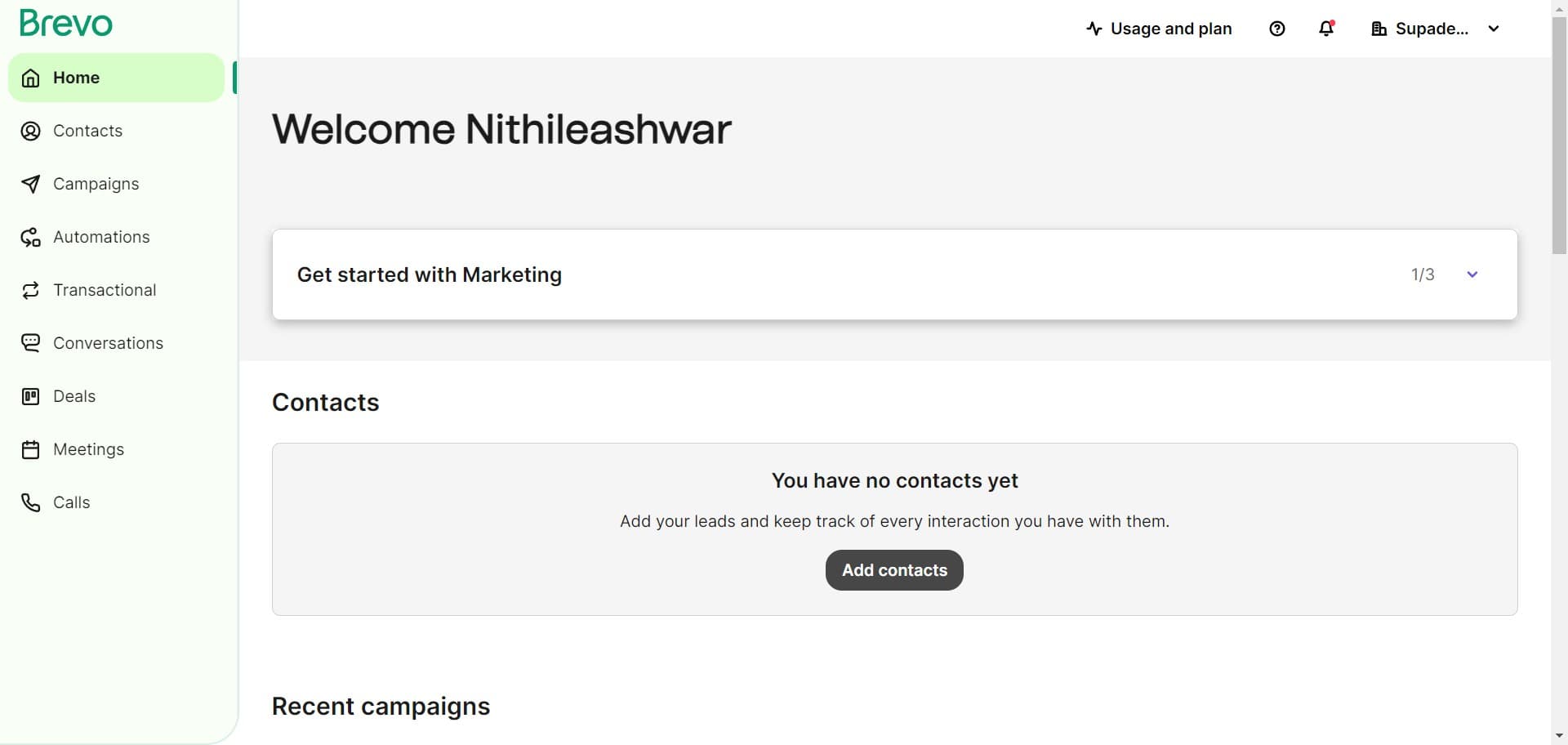
Click on Add contacts
Navigate to the contacts section of your Brevo account and locate the Add contacts button. This initiates the contact import workflow.
- 2
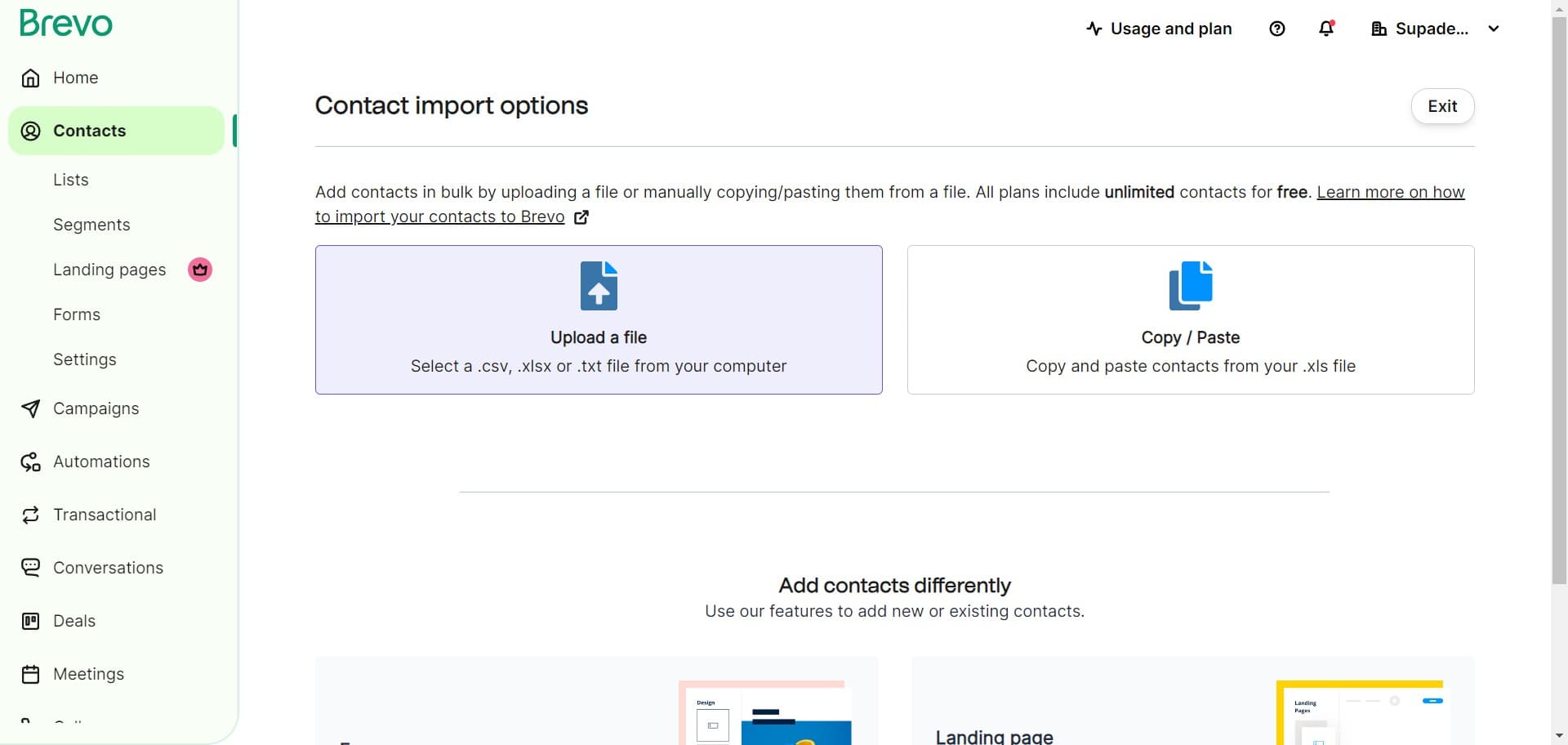
Select your import method
You'll be presented with options for how to import your contacts. Choose the method that best suits your needs, such as uploading a file or connecting an external source.
- 3
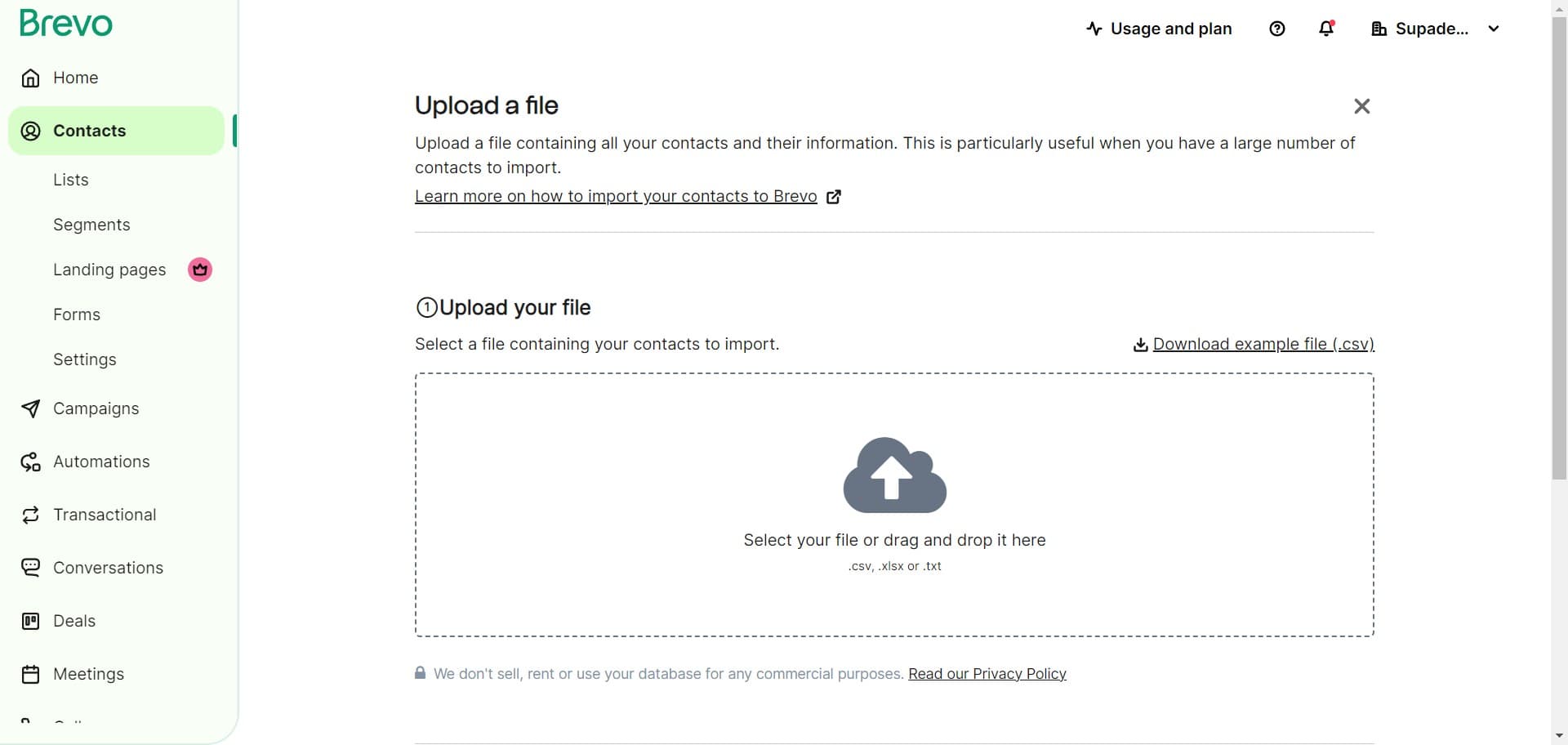
Proceed to file selection
Continue through the import setup process by following the on-screen prompts. You'll soon be asked to select the contact file you want to import.
- 4
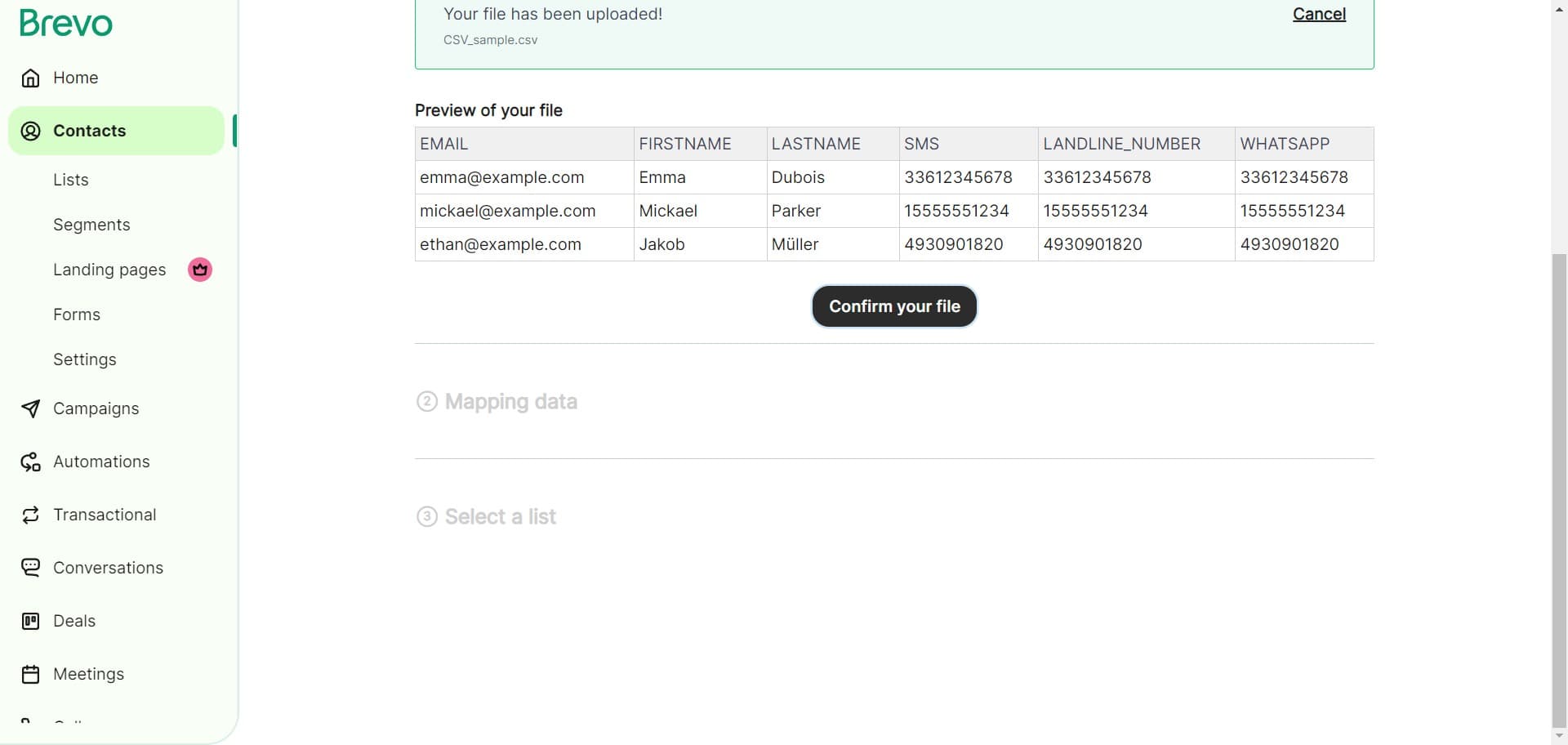
Confirm your file
Review the file you've selected and verify it contains the correct contact data. Click the confirmation button to proceed with the import.
- 5
Select the contact file
Browse your computer and choose the CSV or compatible file format containing your contacts. Ensure your file is properly formatted before selection.
- 6
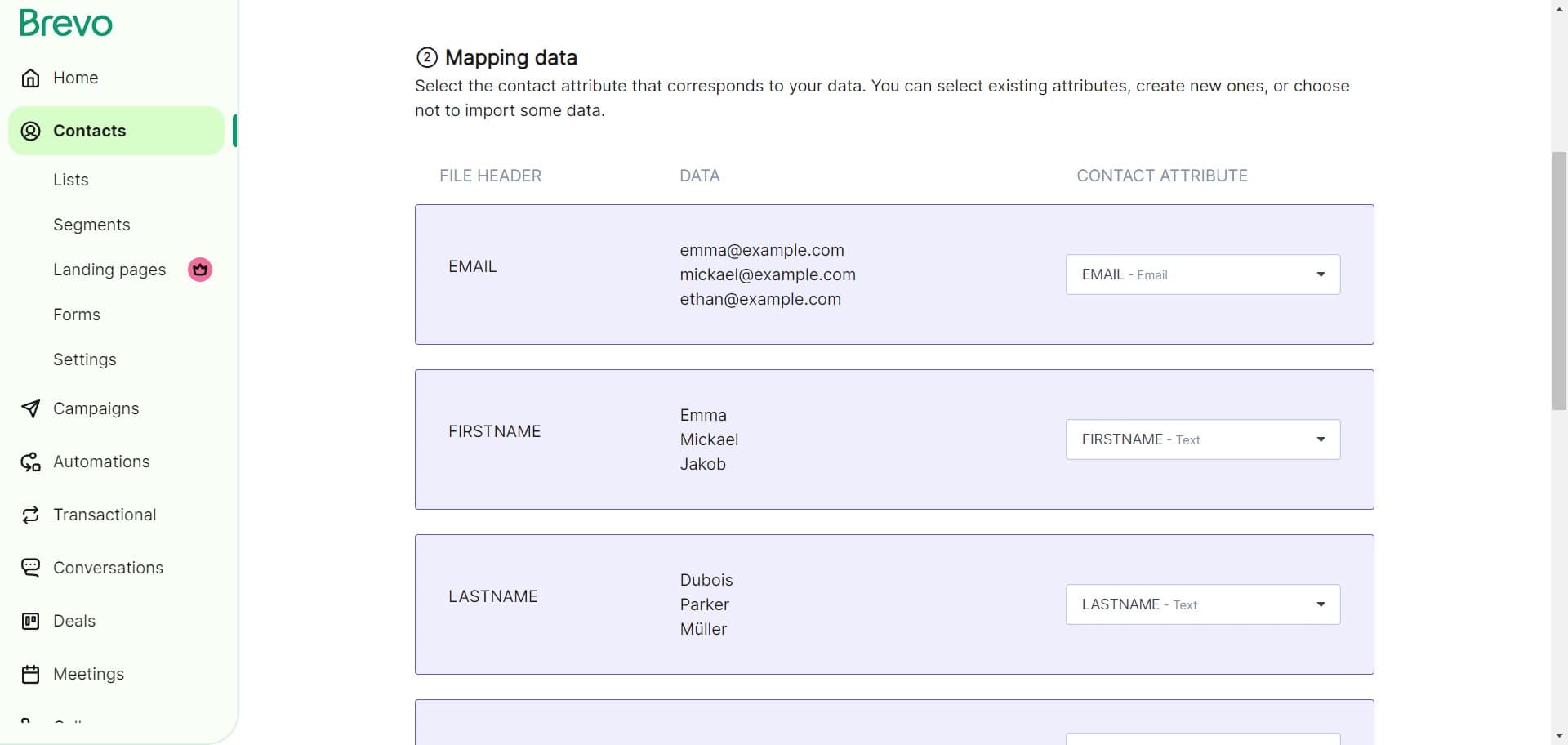
Confirm mapping
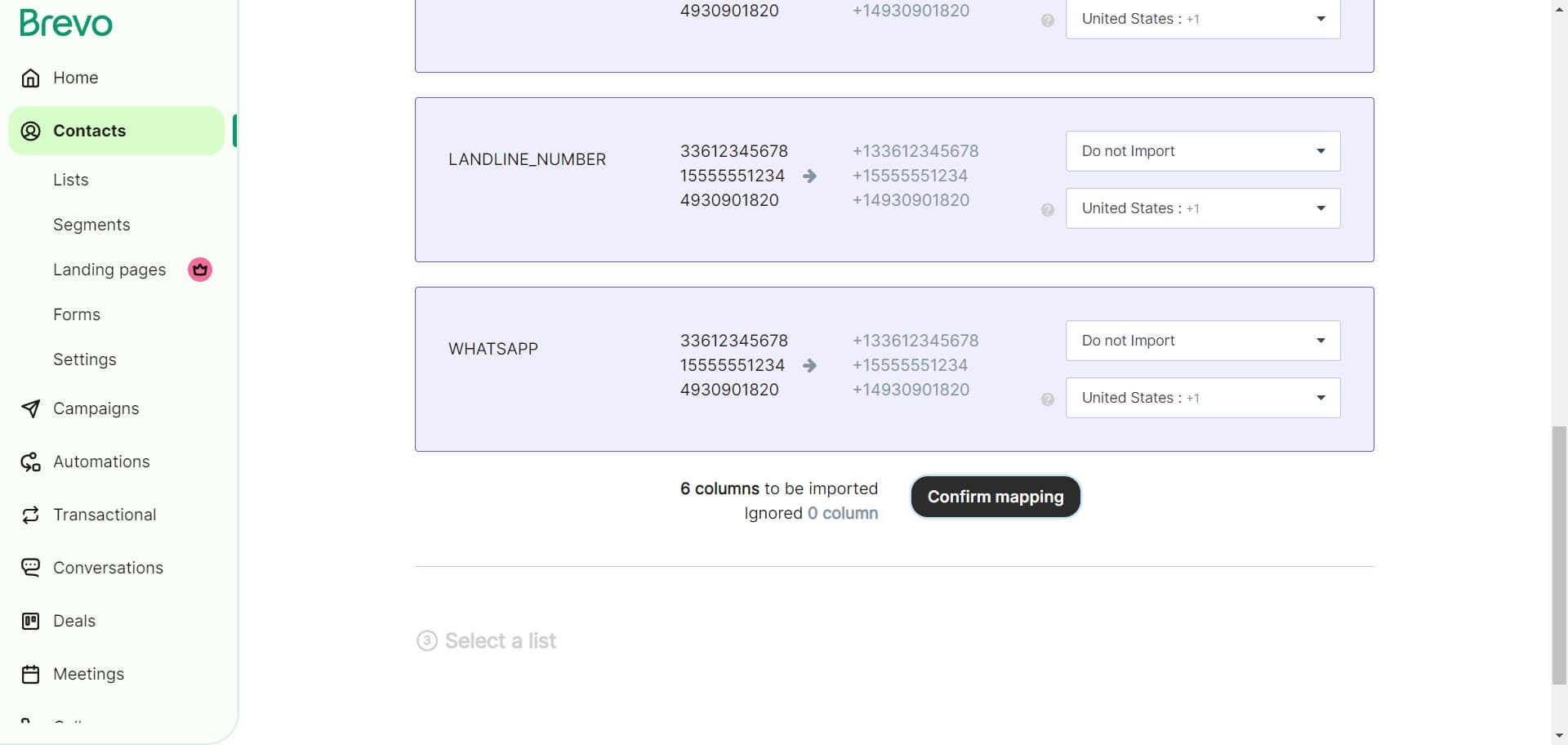
Map the columns in your file to the corresponding fields in Brevo, such as email, first name, and last name. This step ensures your data is correctly imported into the right fields.
- 7
Review import settings
Check any additional import options or preferences, such as how to handle duplicate contacts. Confirm these settings before proceeding.
- 8
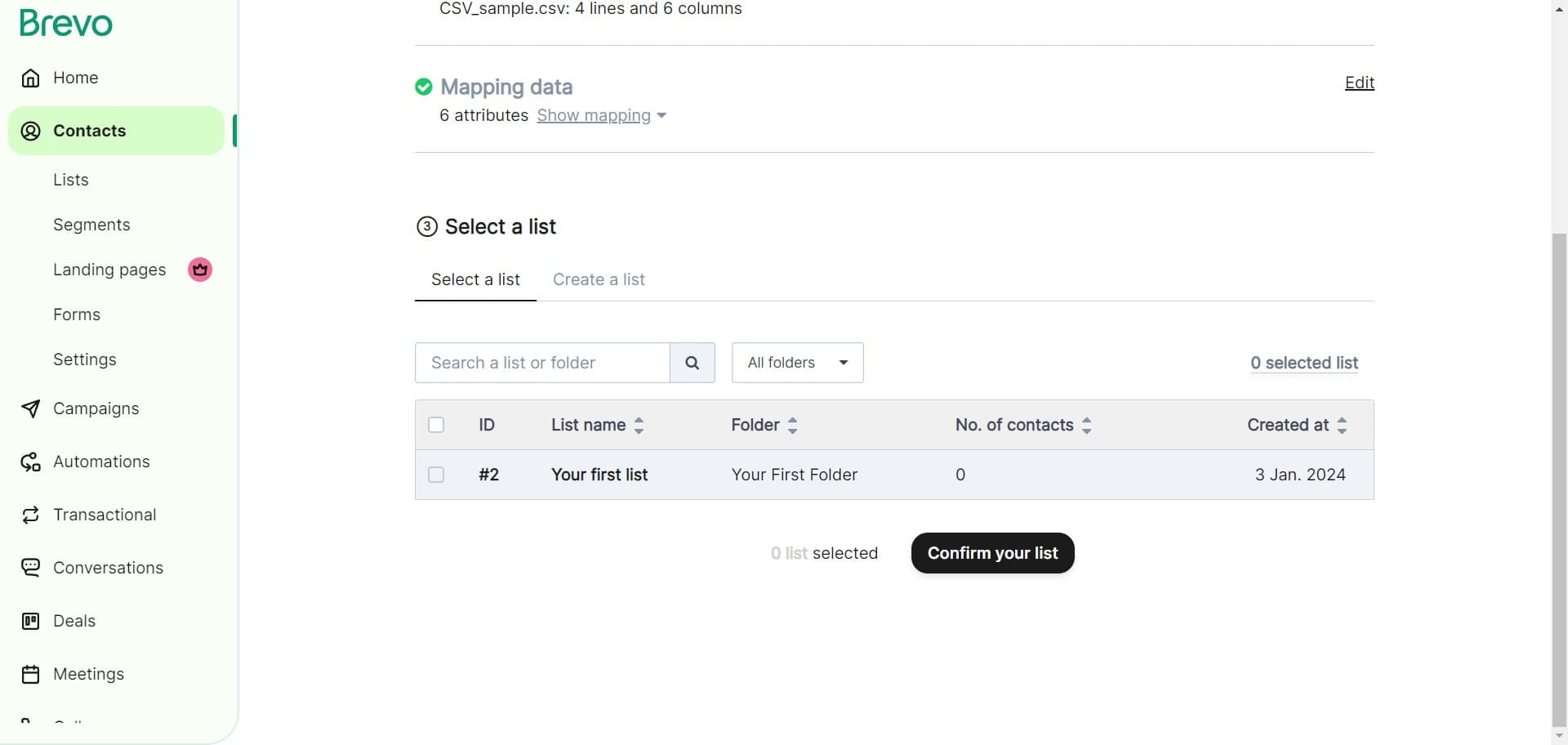
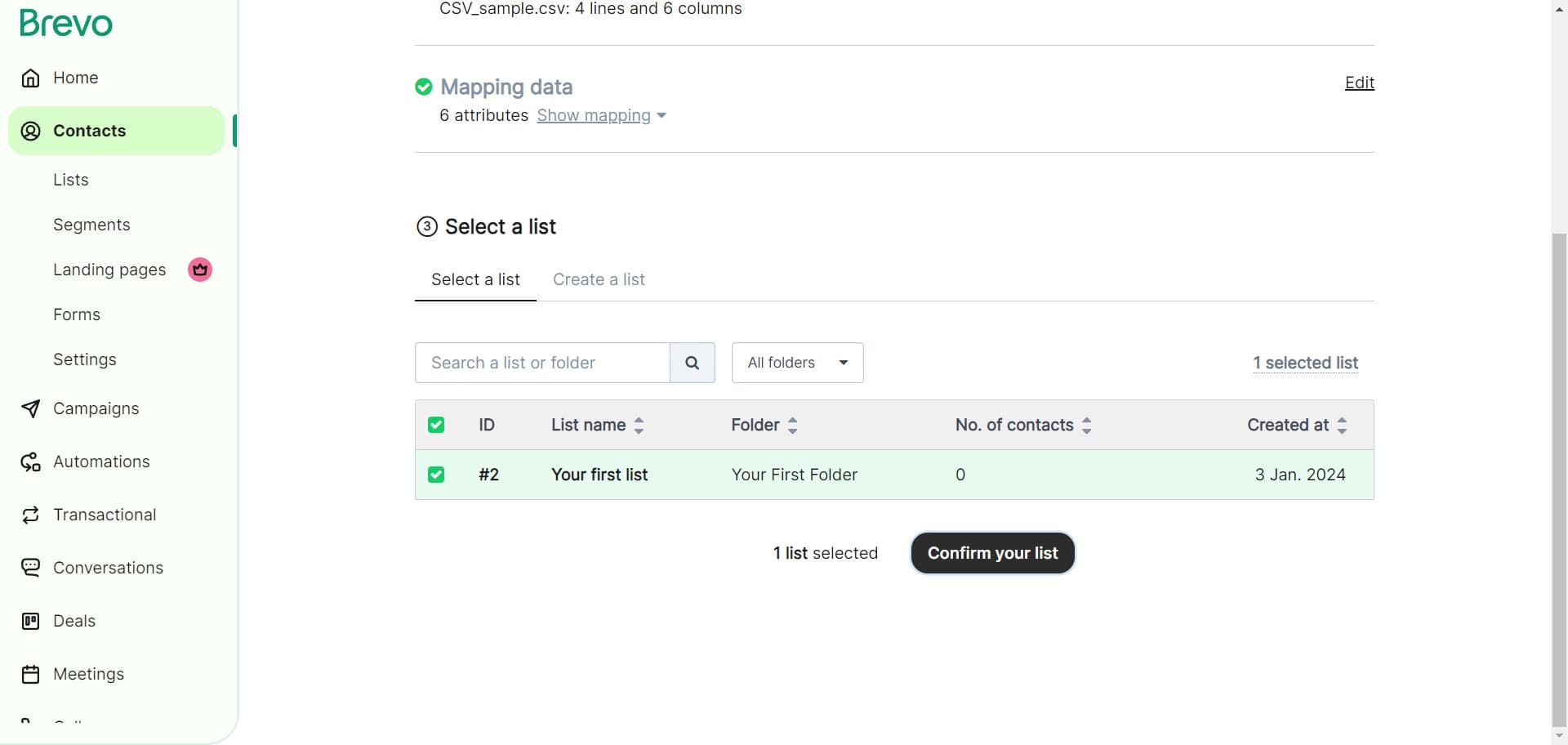
Confirm your list
Select or create the contact list where your imported contacts will be added. Verify that you've chosen the correct list for this import.
- 9
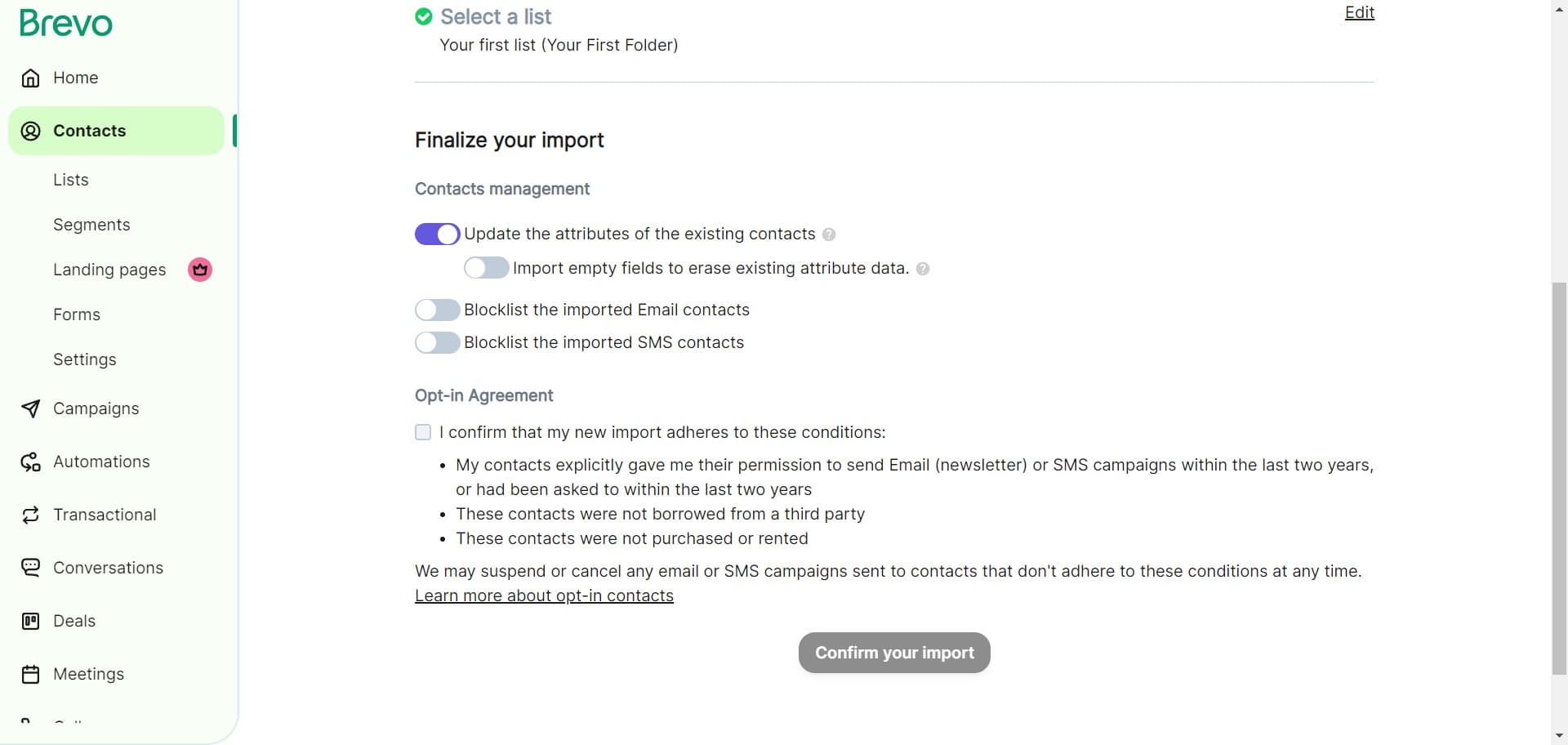
Set contact preferences
Configure any additional preferences for your imported contacts, such as subscription status or contact attributes. Review these settings to ensure they match your requirements.
- 10
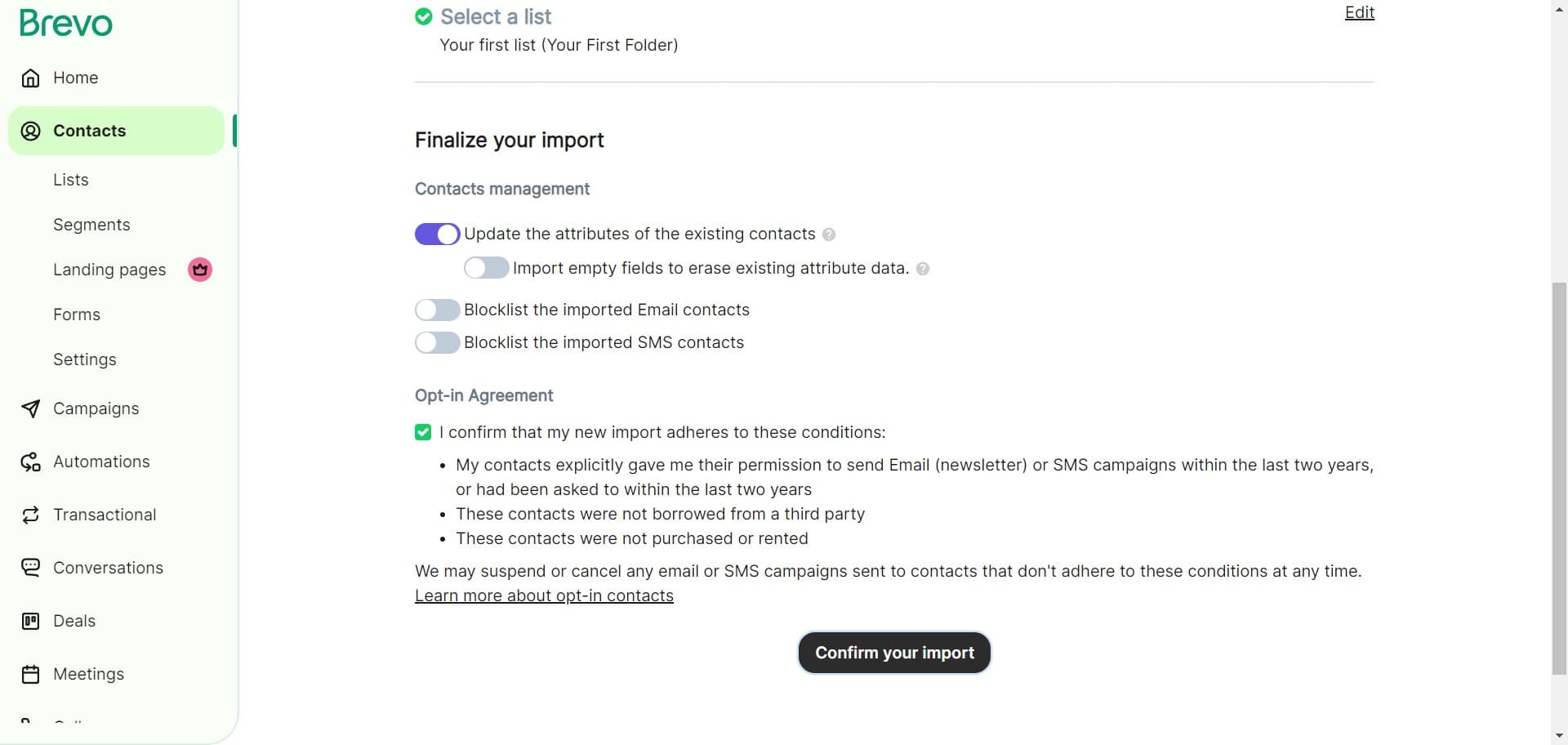
Confirm your import
Review the summary of your import, including the number of contacts and the target list. Click the final confirmation button to begin the import process.
- 11
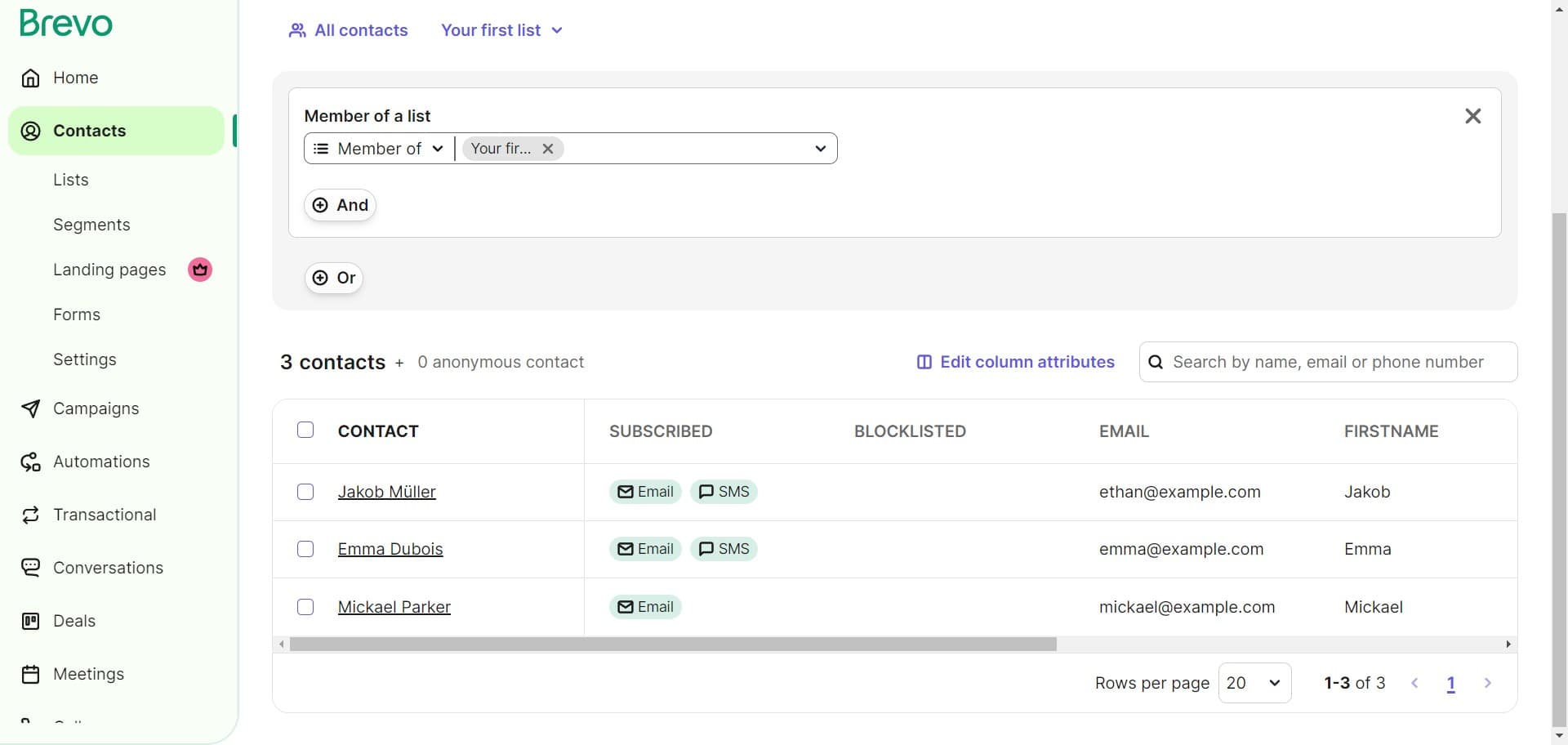
Set list membership status
Specify whether your imported contacts should be members of the selected list and confirm their subscription status. This determines how they'll be treated in your future campaigns.
Frequently asked questions
Common questions about how to import contacts on brevo.
Brevo accepts CSV (comma-separated values) and XLS/XLSX file formats. Your file should include column headers that match your contact data, such as email, first name, and last name. Ensure your file is properly formatted before uploading to avoid import errors.
Yes, during the mapping step, you can match your file columns to both standard Brevo fields and custom attributes you've created. This flexibility allows you to import additional data beyond just email and name fields. If a field in your file doesn't have a corresponding Brevo field, you can skip it or create a new custom field.
Brevo can detect and manage duplicates based on email addresses. You'll have options to skip duplicates, merge them with existing contacts, or overwrite previous data. Choose the approach that best fits your contact management strategy during the import settings step.
Imported contacts won't automatically receive emails unless you specifically configure them as subscribers. During the import process, you'll set their subscription status and list membership. Always ensure you have proper consent before sending marketing emails to imported contacts.
Import time depends on the size of your contact file and current server load. Small imports (under 1,000 contacts) typically complete within minutes, while larger imports may take longer. Brevo will notify you when the import is complete, and you can monitor progress in your account dashboard.