How to import deals from your CRM to Brevo

Importing deals from your CRM into Brevo streamlines your sales workflow by centralizing customer data and deal information in one platform. This process eliminates manual data entry and ensures your team has access to up-to-date deal information across both systems.
Quick summary
In this tutorial, you'll learn how to import deals from your CRM directly into Brevo using the import feature. You'll navigate through the import setup, upload your file, and confirm the import to sync your deal data seamlessly.
Why this matters
Importing deals from your CRM to Brevo ensures data consistency across your sales and marketing platforms, reducing the risk of duplicate or outdated information. This integration allows your team to maintain a single source of truth for deal tracking and customer relationships, improving collaboration and decision-making.
Step-by-step guide
- 1
Start deal creation process
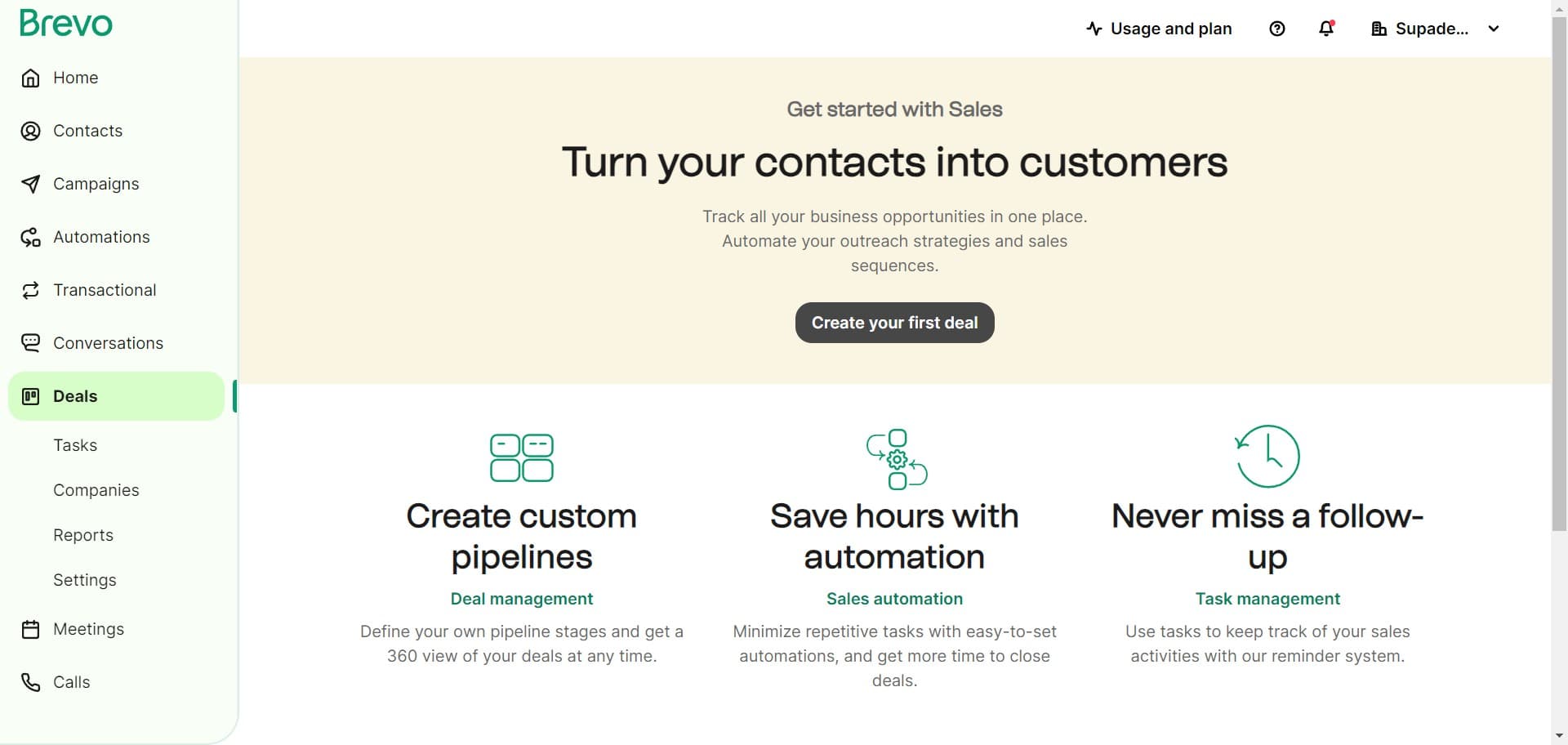
Navigate to the deals section and click on 'Create your first deal' to begin setting up your import workflow. This will open the interface where you can choose how to add deals to Brevo.
- 2
Select import deals option
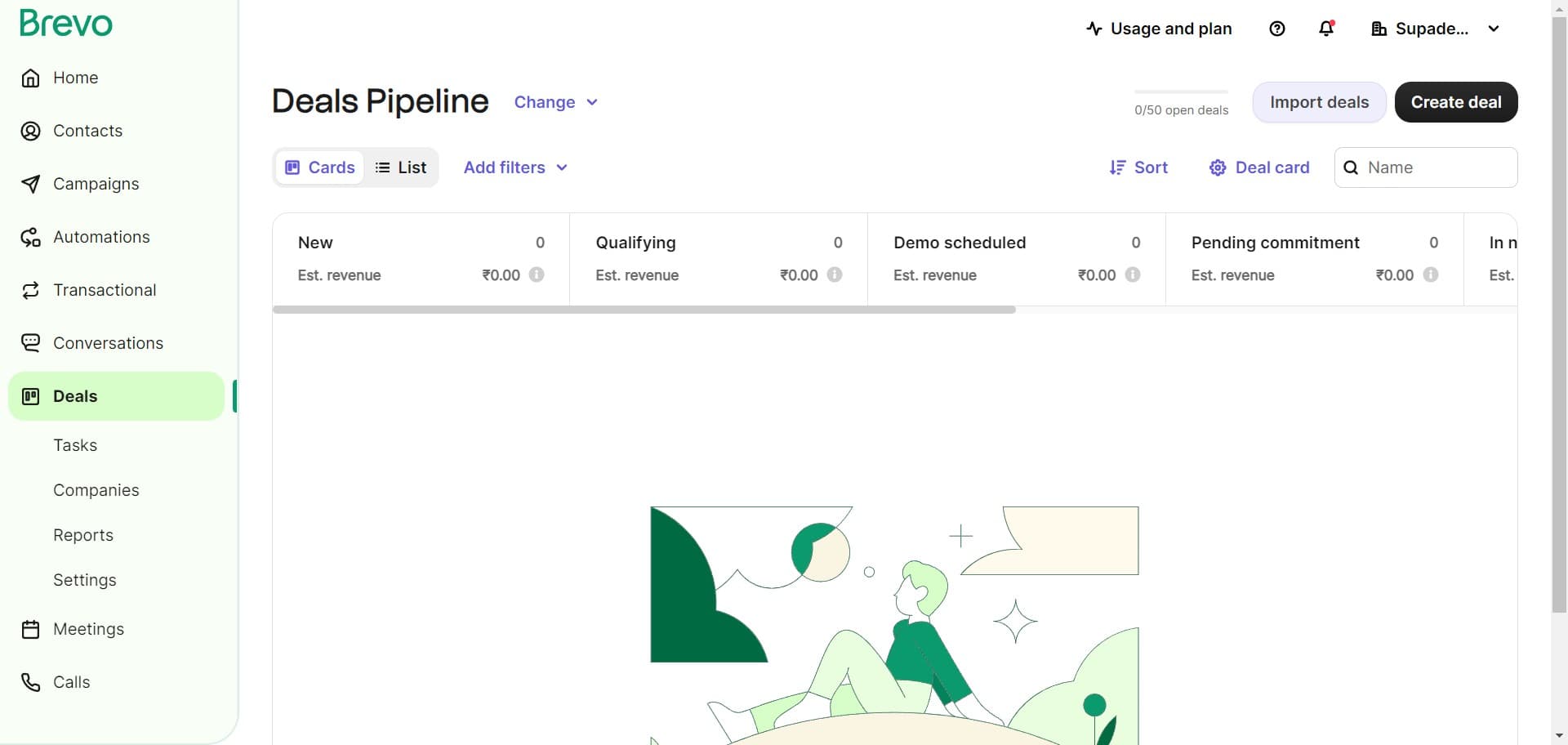
Click on 'Import deals' to access the bulk import feature. This option allows you to upload multiple deals from your CRM at once rather than creating them individually.
- 3
Upload your file
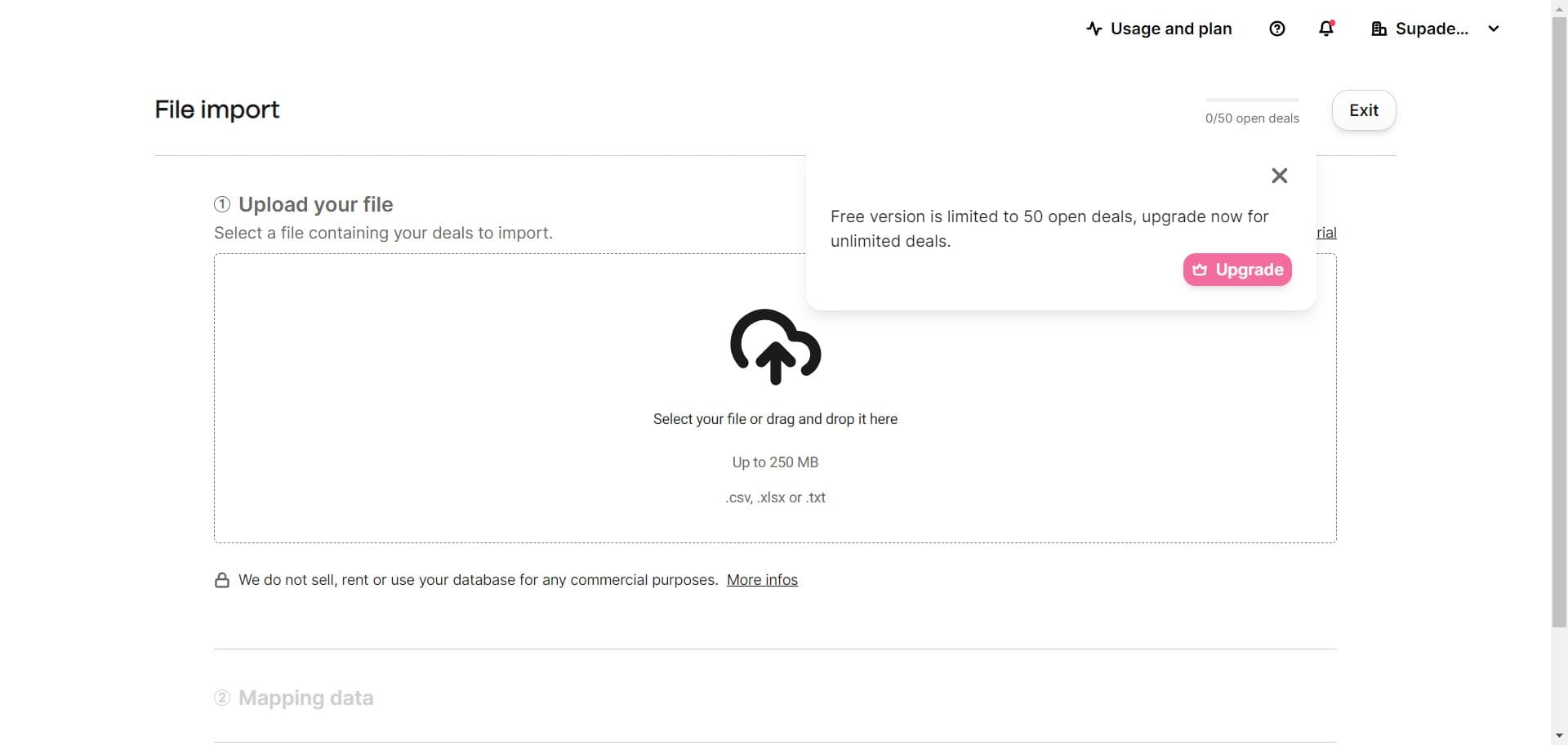
Click the upload area to select and upload your CRM file containing the deal data. Ensure your file is properly formatted with the necessary deal information columns.
- 4
Confirm your file upload
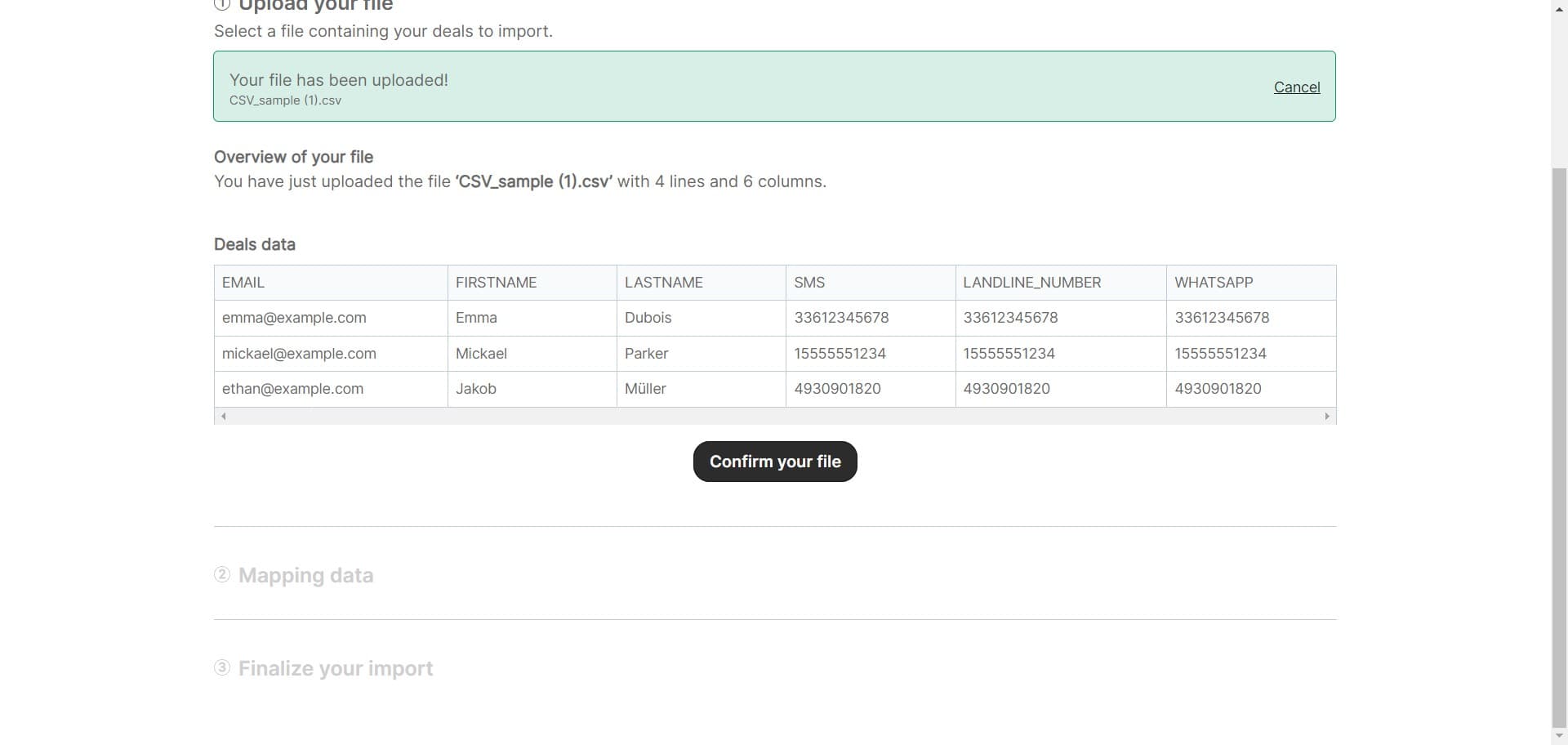
Review the uploaded file details and click 'Confirm your file' to proceed. Brevo will validate the file format and structure before moving to the next step.
- 5
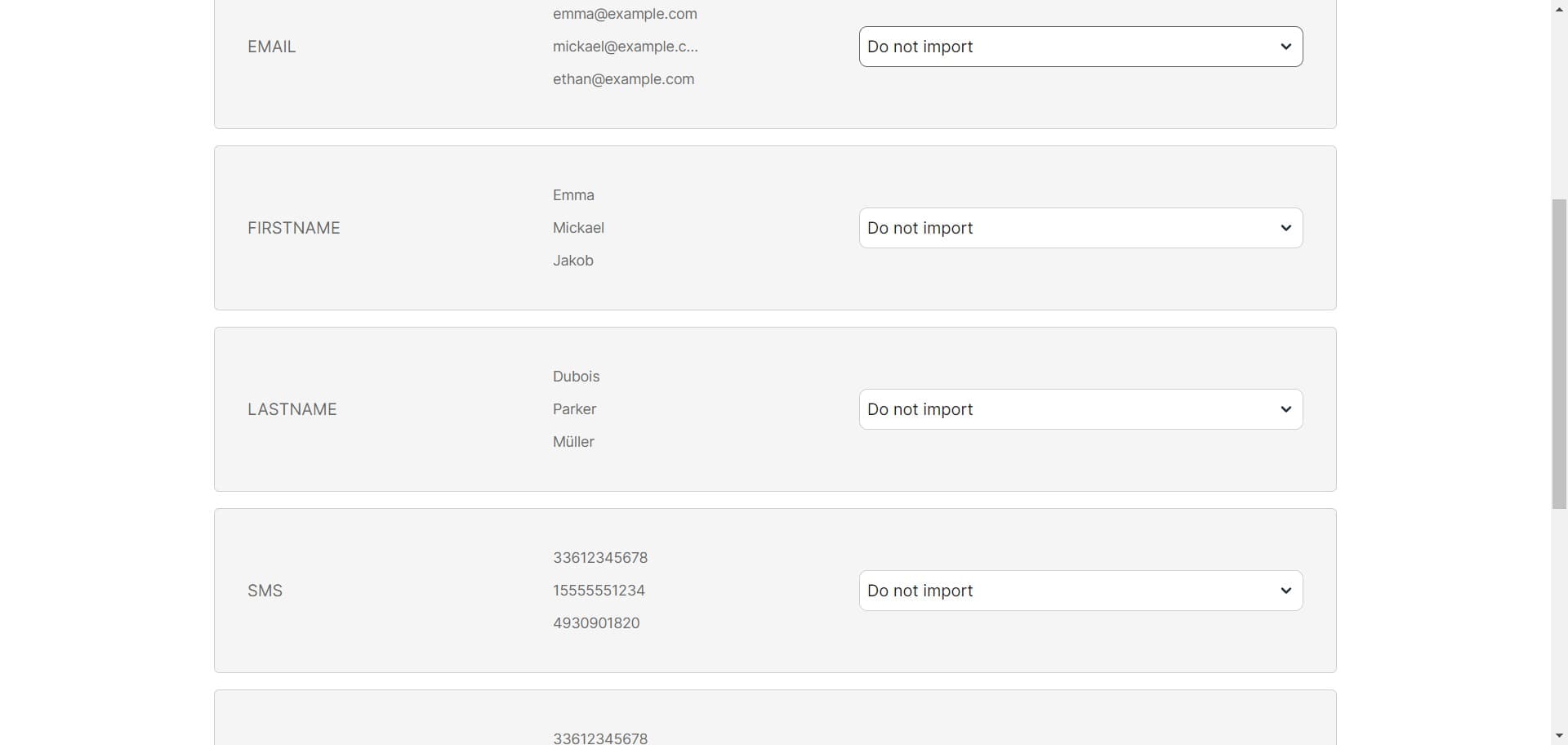
Choose import settings
Select 'Do not import' to bypass any additional import options, or choose your preferred import settings if applicable. This determines how Brevo handles specific deal attributes during the import process.
- 6
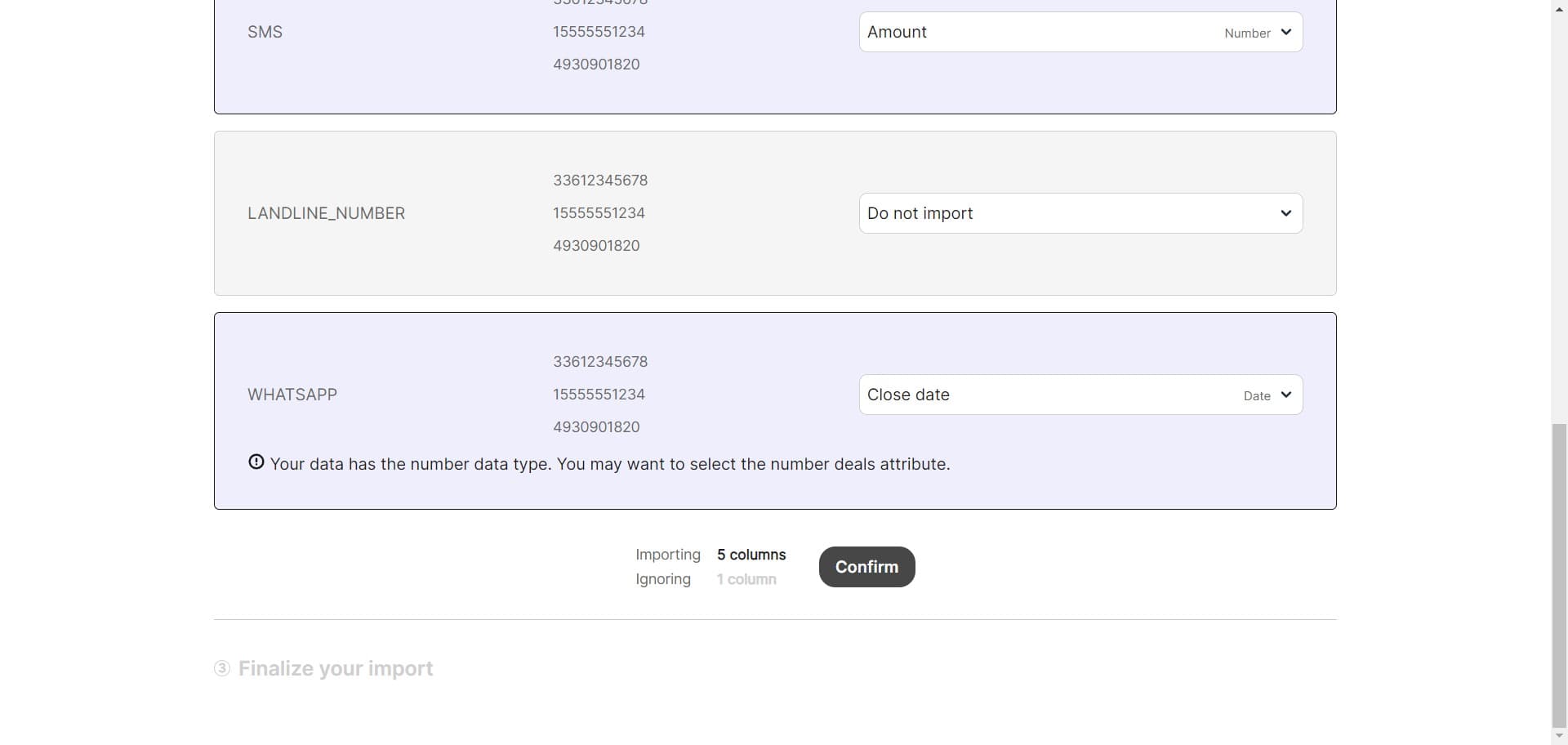
Confirm import settings
Click 'Confirm' to finalize your import settings and proceed with the import process. This locks in your configuration choices for the current import.
- 7
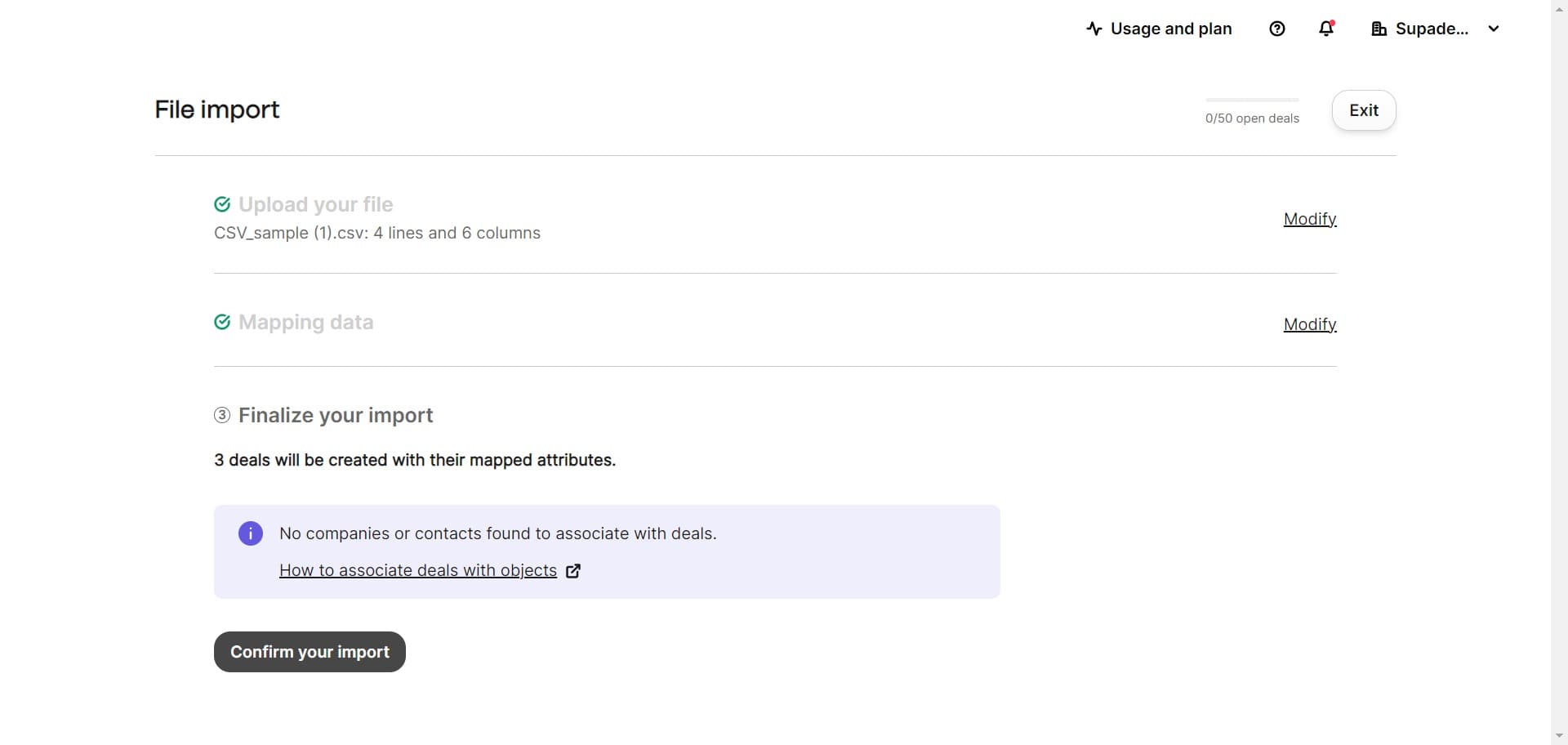
Complete the import
Click 'Confirm your import' to execute the import and transfer all deals from your CRM file into Brevo. Your deals will now appear in your Brevo deal pipeline.
Frequently asked questions
Common questions about how to import deals from your crm to brevo.
Brevo typically accepts CSV and Excel files for bulk imports. Ensure your file includes all required deal fields such as deal name, value, stage, and associated contact information. Check Brevo's documentation for the most current list of supported formats and required columns.
Yes, during the import process you can map fields from your CRM file to corresponding fields in Brevo. This ensures that deal information is placed in the correct Brevo fields and maintains data integrity. The mapping step typically occurs before final confirmation.
Brevo provides options to handle duplicates during import, such as skipping duplicates or updating existing deals. You can configure your duplicate handling preference in the import settings before confirming the import. Review these settings carefully to avoid unintended data changes.
Import time depends on the file size and number of deals being imported. Small imports may complete within seconds, while larger imports can take several minutes. Brevo will notify you once the import is complete.
Yes, you can import deals with linked contact and company information if your CRM file includes these relationships. Ensure your file contains the necessary identifiers to match deals with existing or new contacts and companies in Brevo. Proper formatting of these relationships in your source file is critical for successful linking.