How to add docs to sidebar in ClickUp

Adding docs to your ClickUp sidebar keeps your most important documentation instantly accessible without cluttering your main workspace. This workflow streamlines your project management by centralizing reference materials where your team needs them. Learn how to organize your docs for maximum efficiency.
Quick summary
In this tutorial, you'll discover how to add documentation to your ClickUp sidebar in just a few clicks. You'll navigate to your Docs section, select the document you want to feature, and move it to your sidebar for quick access. By the end, your most critical project notes will be prominently displayed for your entire team.
Why this matters
Keeping essential documentation in your sidebar reduces the time your team spends searching for critical information and improves project continuity. When reference materials are readily visible, team members make faster decisions and maintain better alignment on project standards. This small organizational change can significantly boost productivity across your workspace.
Step-by-step guide
- 1
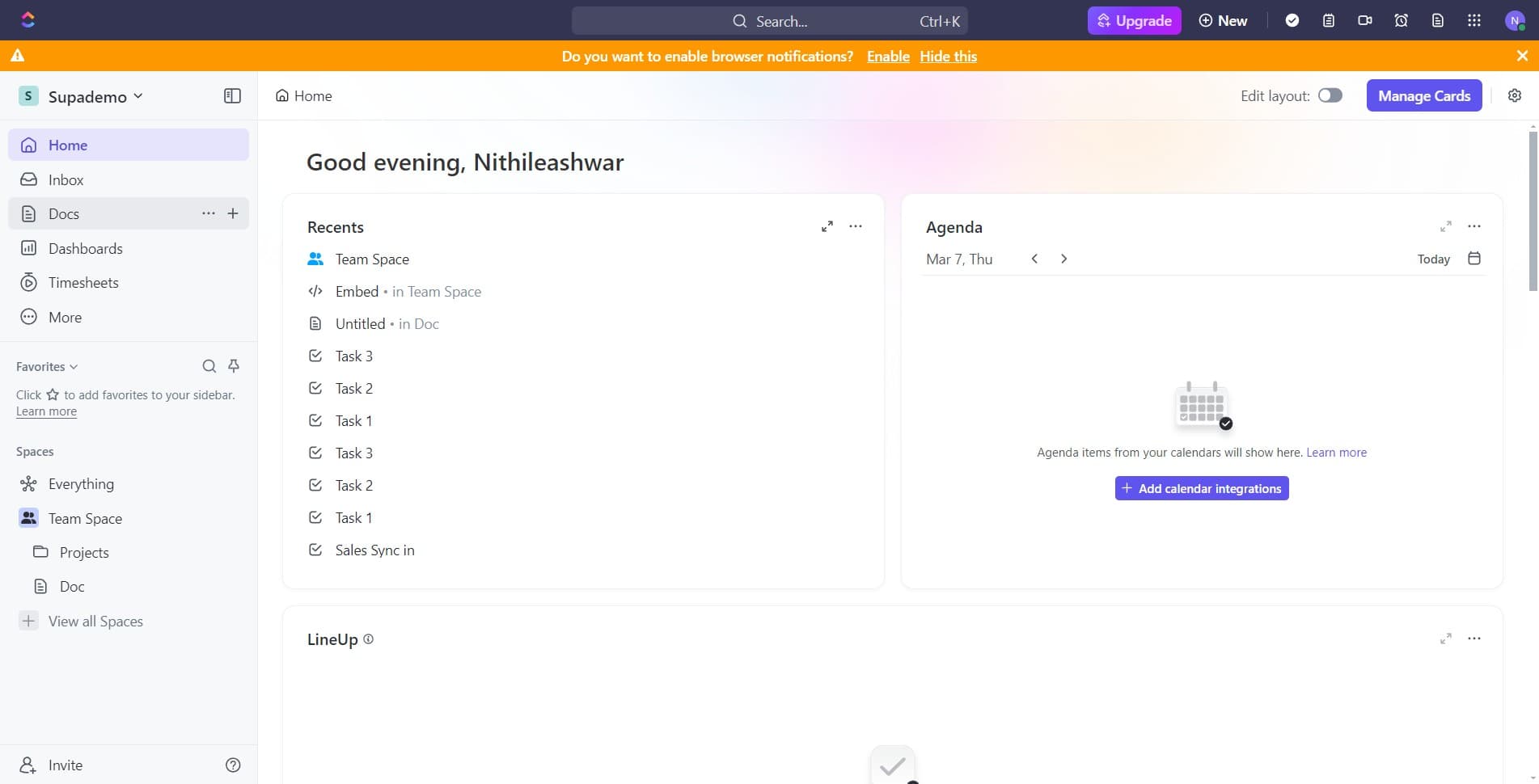
Open the Docs section
Start by clicking on 'Docs' in your ClickUp workspace navigation. This will bring you to the docs dashboard where all your documentation is stored and organized.
- 2
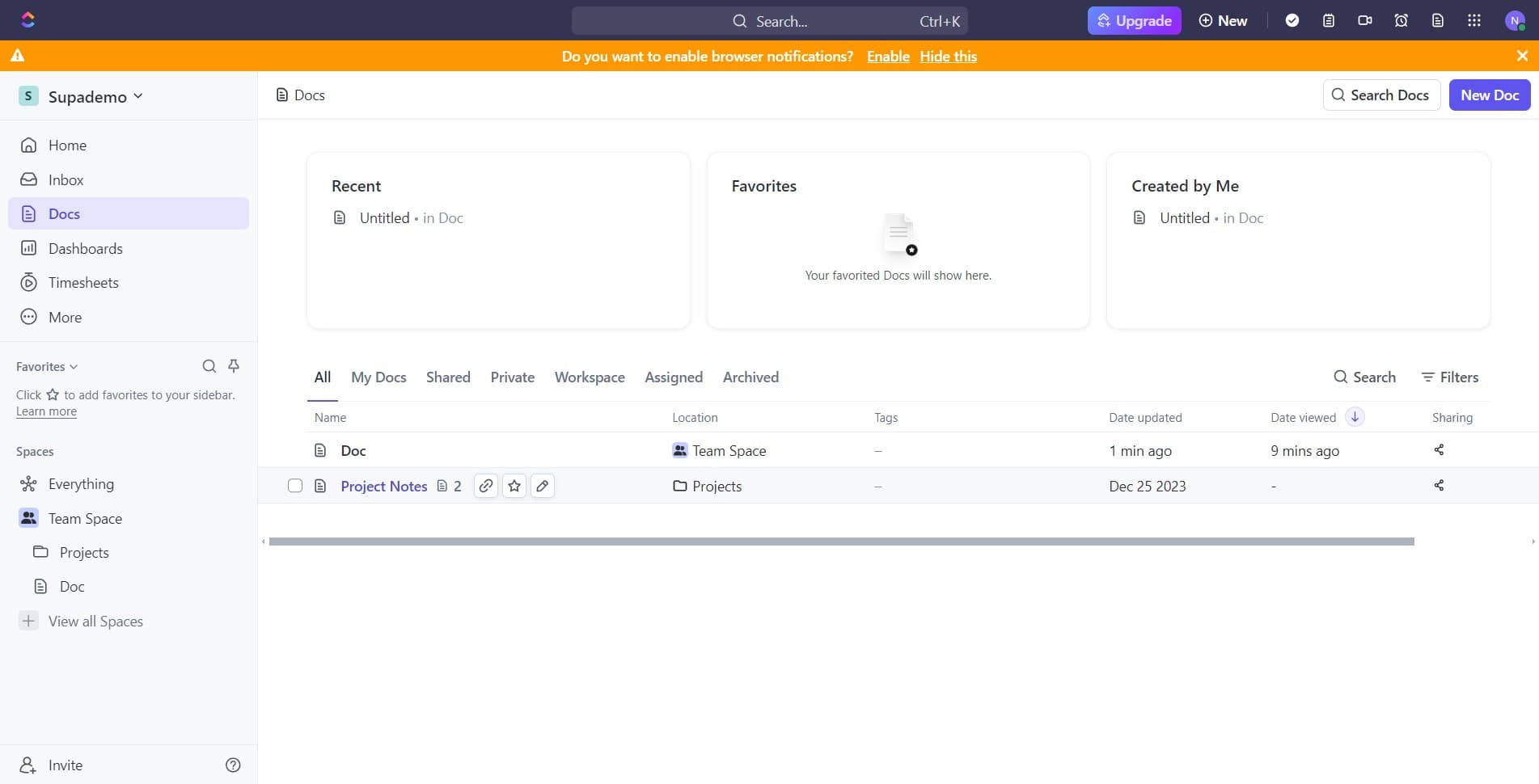
Select your document
Click on the document you want to add to your sidebar. This will open the document and display its content.
- 3
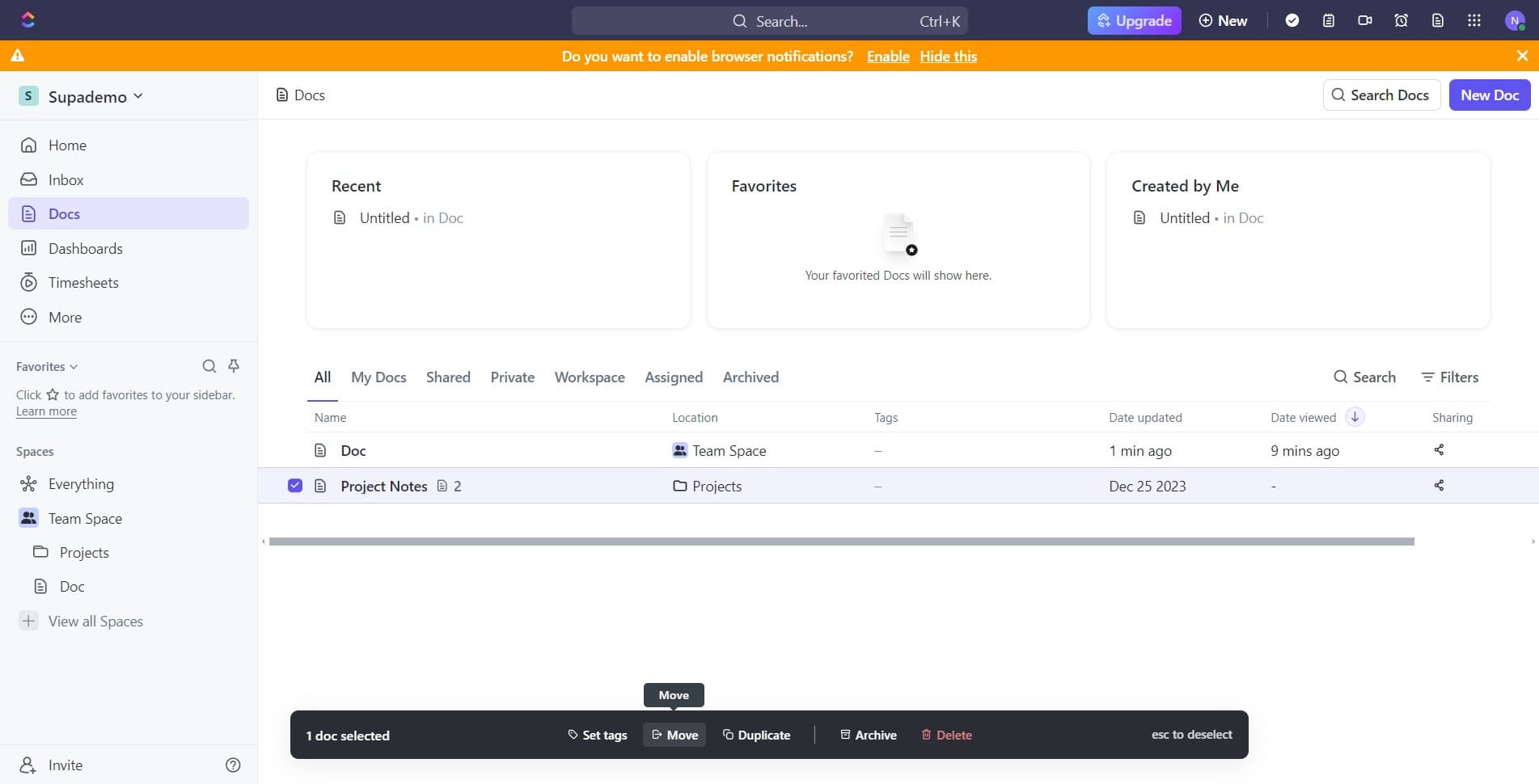
Access the move menu
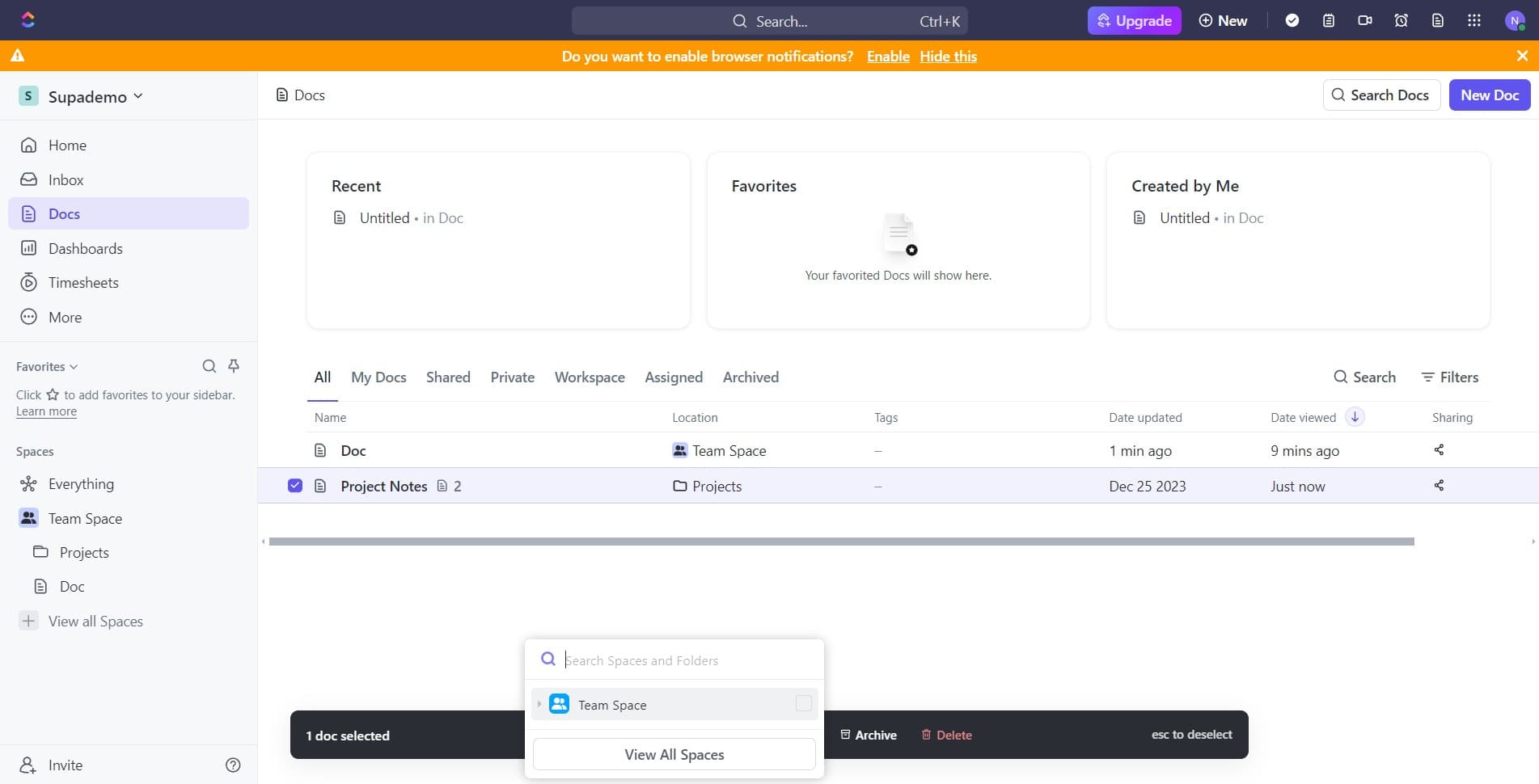
Click on the 'Move' option from the document's menu or toolbar. This allows you to relocate or organize the document.
- 4
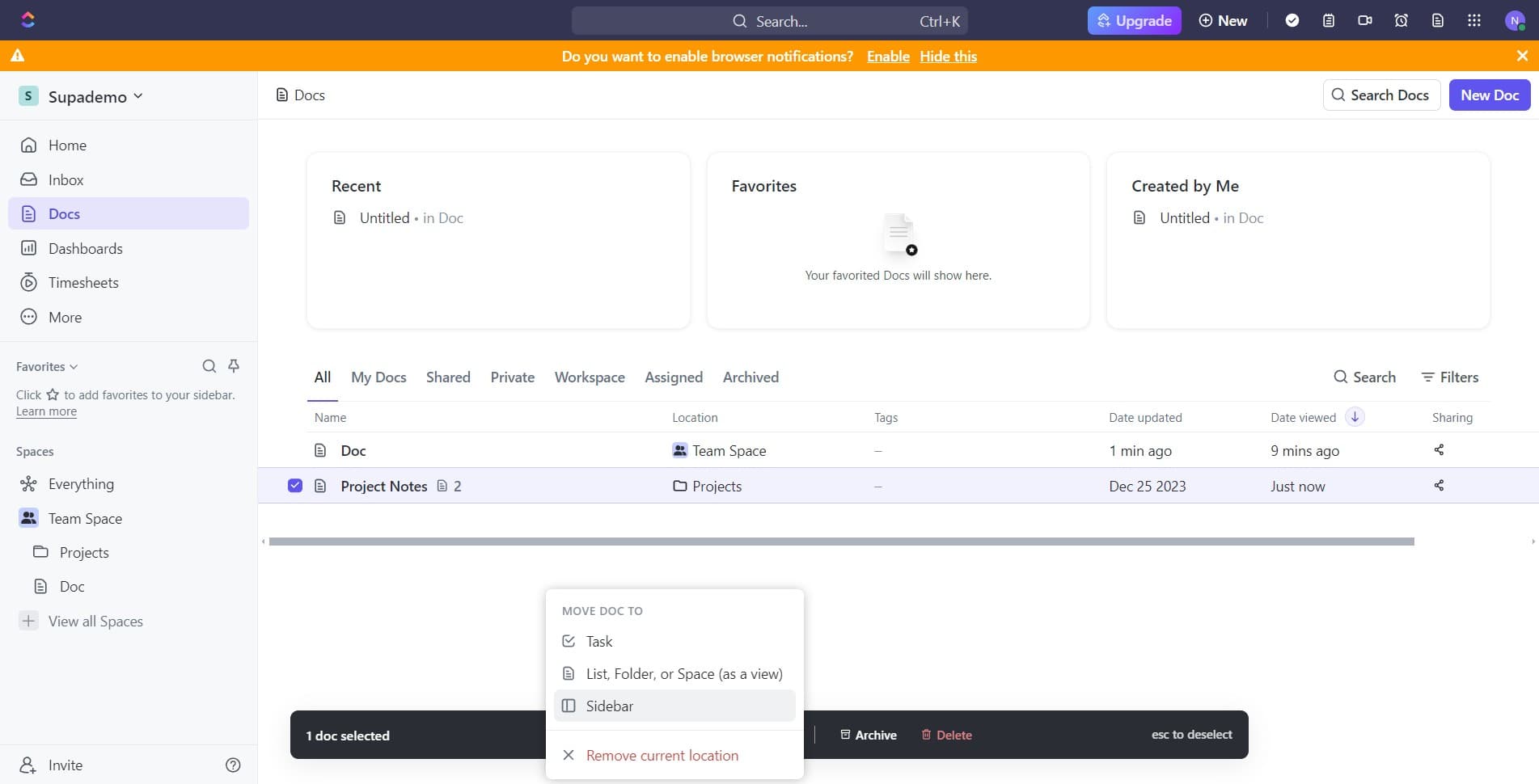
Choose Sidebar as destination
Click on 'Sidebar' from the available location options. This designates the sidebar as the new location for your document.
- 5
Confirm the placement
Click the confirmation button to finalize moving the document. The system will process your request.
- 6
Verify the update
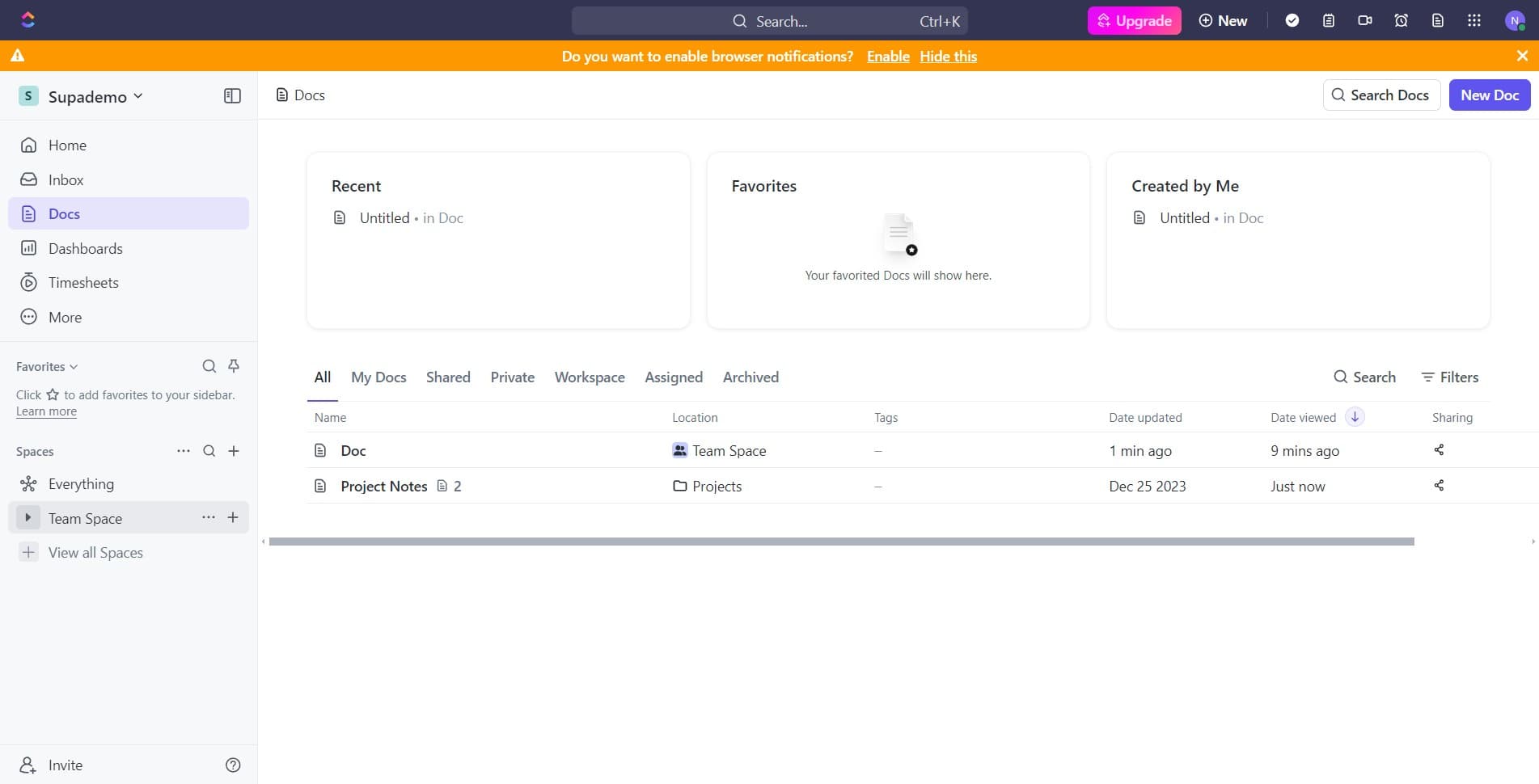
Click to refresh or navigate away and back to confirm the document now appears in your sidebar. You should see it listed among your sidebar items.
- 7
Organize within Project Notes
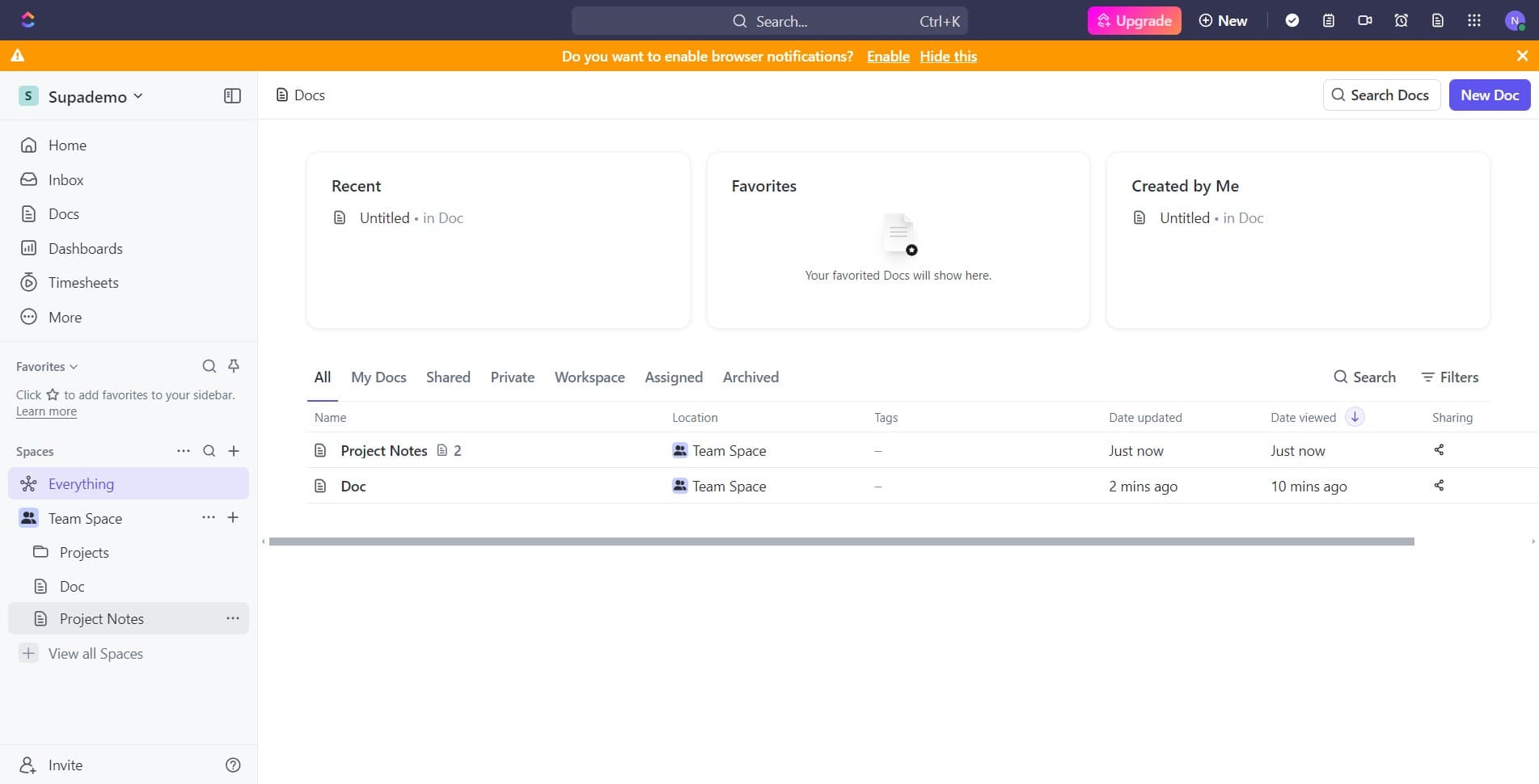
Click on 'Project Notes' or your relevant folder section in the sidebar to place the document in the appropriate category. This ensures your sidebar remains organized and easy to navigate.
Frequently asked questions
Common questions about how to add docs to sidebar in clickup.
Yes, you can add multiple documents to your sidebar by repeating this process for each document you want to feature. There's typically no limit to how many docs you can add, though we recommend keeping your sidebar organized by grouping related documents together.
No, moving a document to your sidebar creates a shortcut or reference to the original document rather than removing it from its original location. Your document remains accessible from its original folder while also appearing in your sidebar.
To remove a document from your sidebar, select the document in your sidebar and use the move or remove option to delete the shortcut. This action only removes it from the sidebar and doesn't delete the actual document from ClickUp.
Yes, most ClickUp workspaces allow you to drag and drop documents within your sidebar to reorder them. This lets you prioritize the most frequently accessed documents at the top for better visibility and efficiency.
Sidebar visibility depends on your ClickUp workspace permissions and sharing settings. Documents in your personal sidebar are typically only visible to you, while shared workspace sidebars are visible to all team members with access to that workspace.