How to add user in ClickUp

Adding users to your ClickUp workspace is essential for collaboration and team management. This guide walks you through the process of inviting new team members to your ClickUp account so they can access projects and contribute to your workflows.
Quick summary
In this tutorial, you'll learn how to navigate to the People section in ClickUp and send invitations to new users. By following these steps, you'll be able to expand your team and manage workspace access efficiently.
Why this matters
Adding users to ClickUp enables seamless team collaboration, allowing team members to view tasks, share updates, and work together on projects in real time. Proper user management ensures that everyone has the access they need while maintaining control over your workspace security and permissions.
Step-by-step guide
- 1
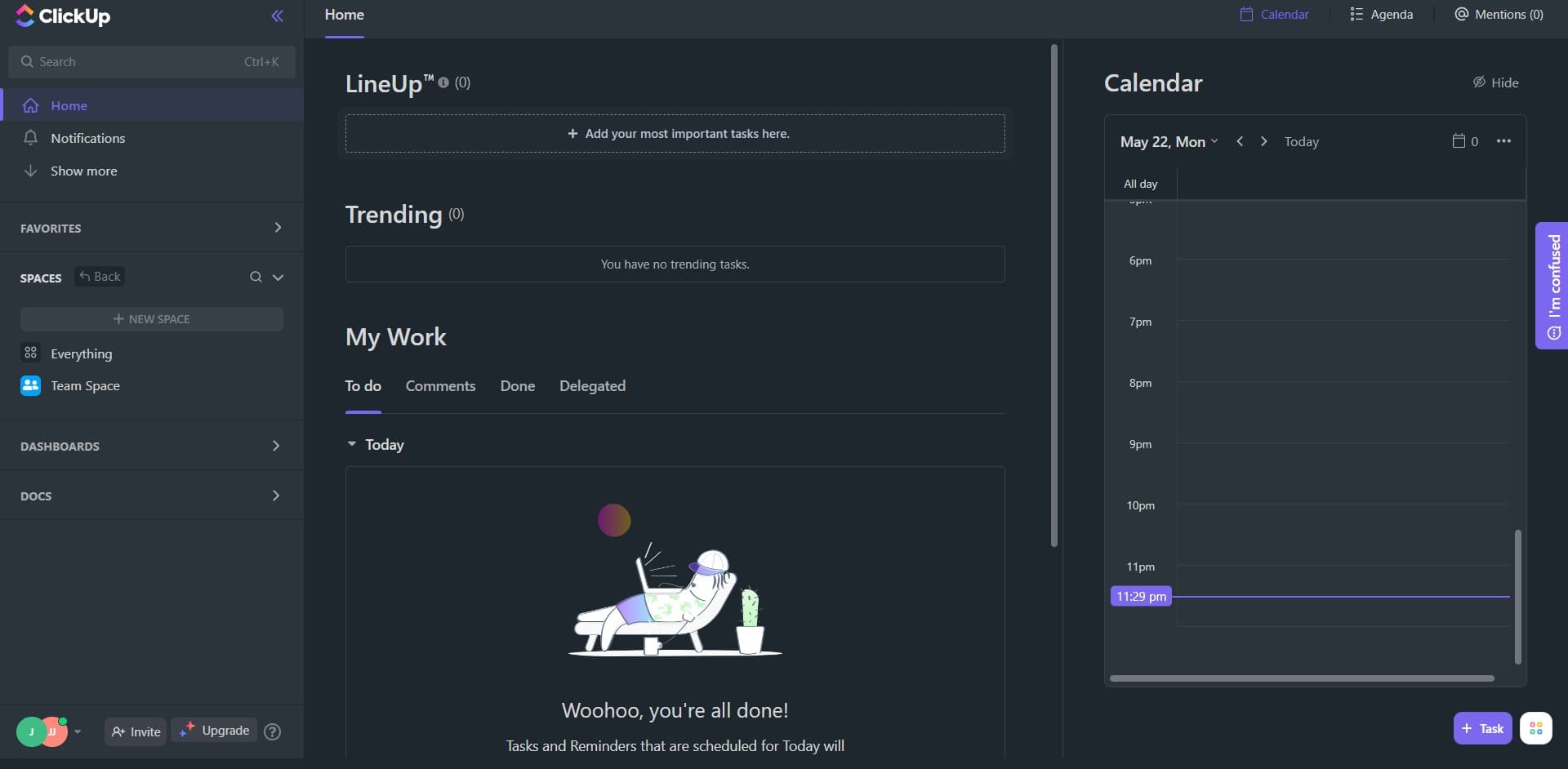
Navigate to the home menu
Start by clicking on the Home option in your ClickUp sidebar. This takes you to the main dashboard where you can access workspace settings and management features.
- 2
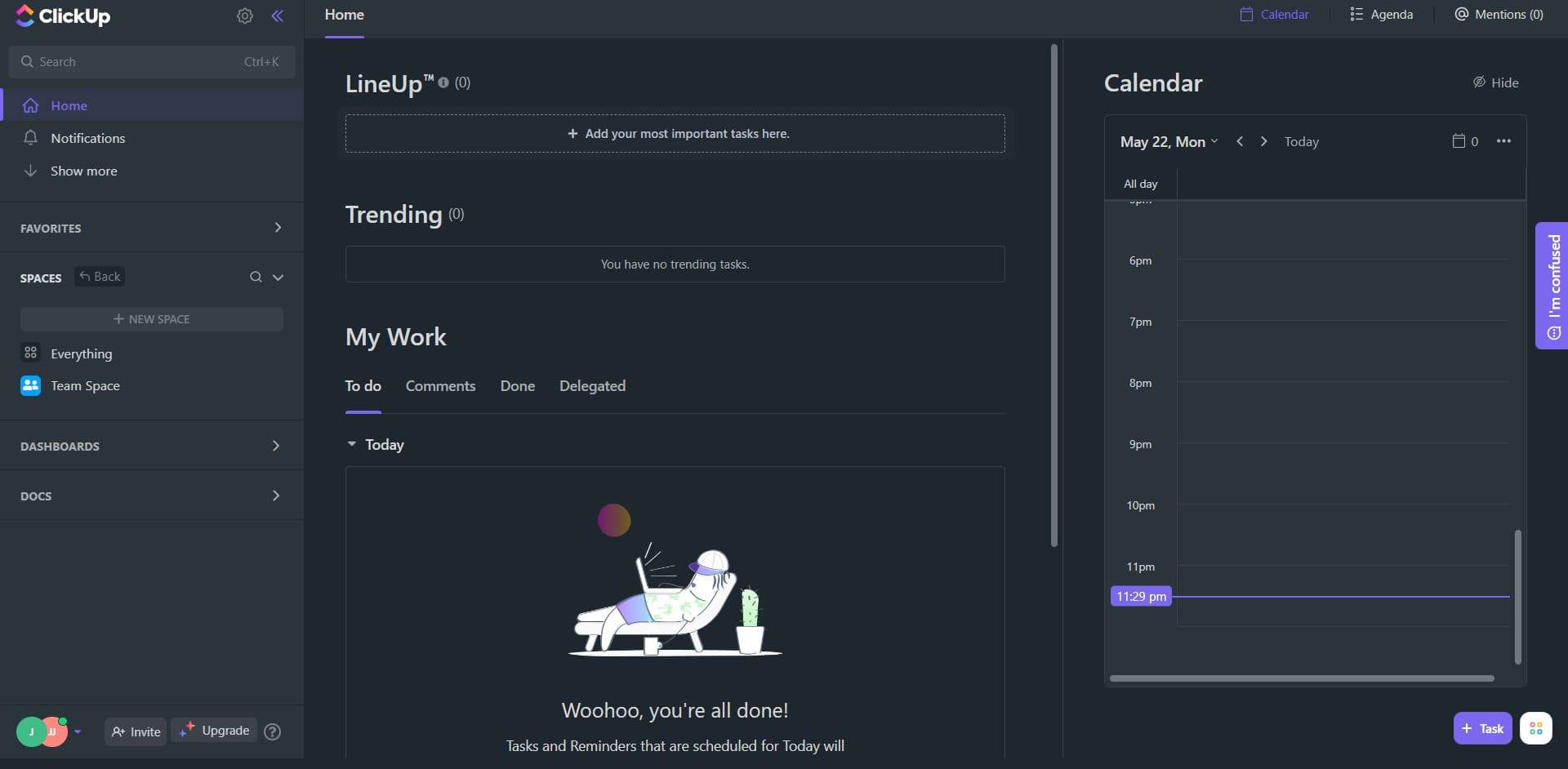
Access your workspace profile
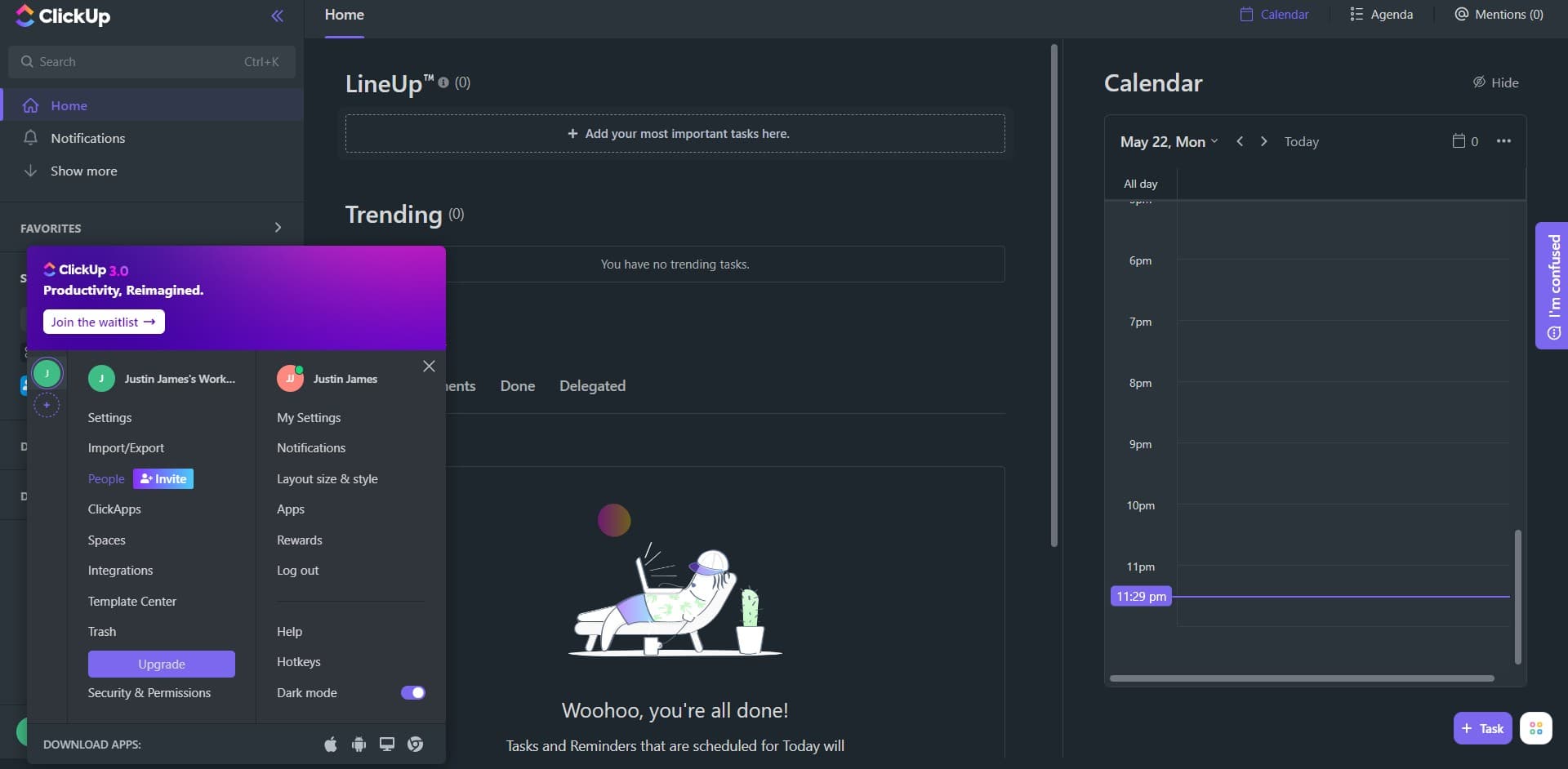
Click on your profile initials (shown as 'J JJ' in this example) located in the sidebar. This opens your profile menu where workspace management options are available.
- 3
Open the People section
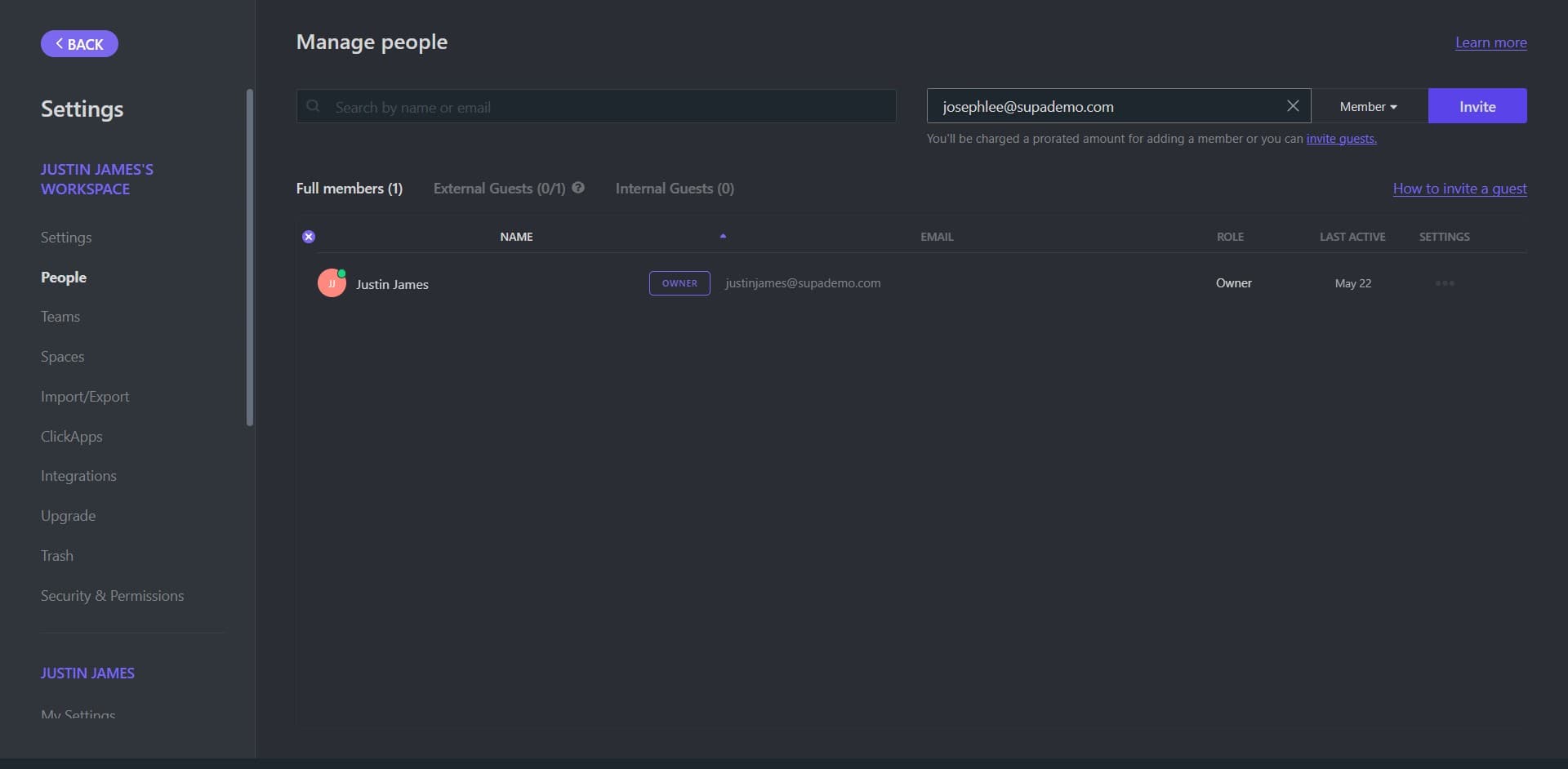
Select 'People' from the menu options. This displays all current members of your ClickUp workspace and provides access to user management tools.
- 4
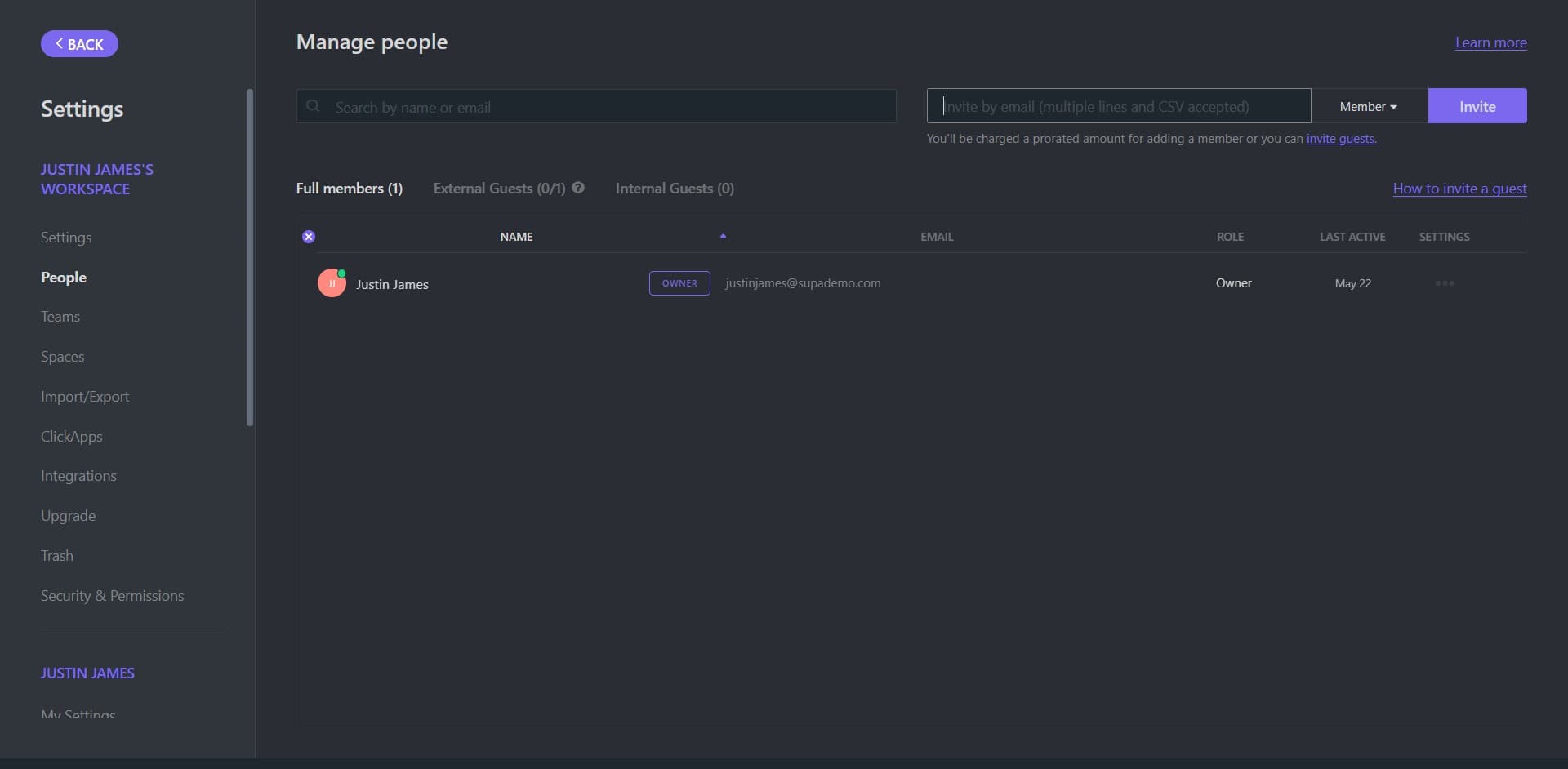
Initiate the user invitation
Click on the designated button to begin adding a new user. This action opens the invitation interface where you can specify who to add to your workspace.
- 5
Send the invitation
Click on 'Invite' to send the invitation to the new user. The status will show as 'PENDING' until the user accepts the invitation and joins your workspace.
Frequently asked questions
Common questions about how to add user in clickup.
Yes, ClickUp allows you to invite multiple users in a single action. When you reach the invitation interface, you can add multiple email addresses before sending the invitations, making it efficient to onboard entire teams.
When an invitation is pending, the user will appear in your People list with a 'PENDING' status. They won't have access to the workspace until they accept the invitation via the email you sent them.
Yes, ClickUp allows you to set different permission levels for users you invite. You can specify whether they have admin, guest, or member access depending on your workspace setup and their role requirements.
To remove a user, go to the People section and find the user you want to remove. Click on their profile and select the option to deactivate or remove them from the workspace. This action prevents them from accessing any workspace resources.
Use the email address that the person uses for their ClickUp account or the email they want to associate with your workspace. They'll receive an invitation link at that address and can click it to join your workspace.