How to Create a Form in ClickUp

ClickUp Forms allow you to collect structured data and automatically convert responses into tasks within your workspace. This guide walks you through the complete process of setting up and customizing a form to streamline your task creation workflow.
Quick summary
In this tutorial, you'll learn how to create a form in ClickUp, configure it to convert responses into tasks, customize its appearance with themes, and share it with your team. By the end, you'll have a fully functional form ready to gather information and generate tasks automatically.
Why this matters
Forms are essential for standardizing how information is collected across your team. They eliminate back-and-forth communication, reduce data entry errors, and ensure every task is created with consistent, required information. Using ClickUp Forms saves time and keeps your project management process efficient.
Step-by-step guide
- 1
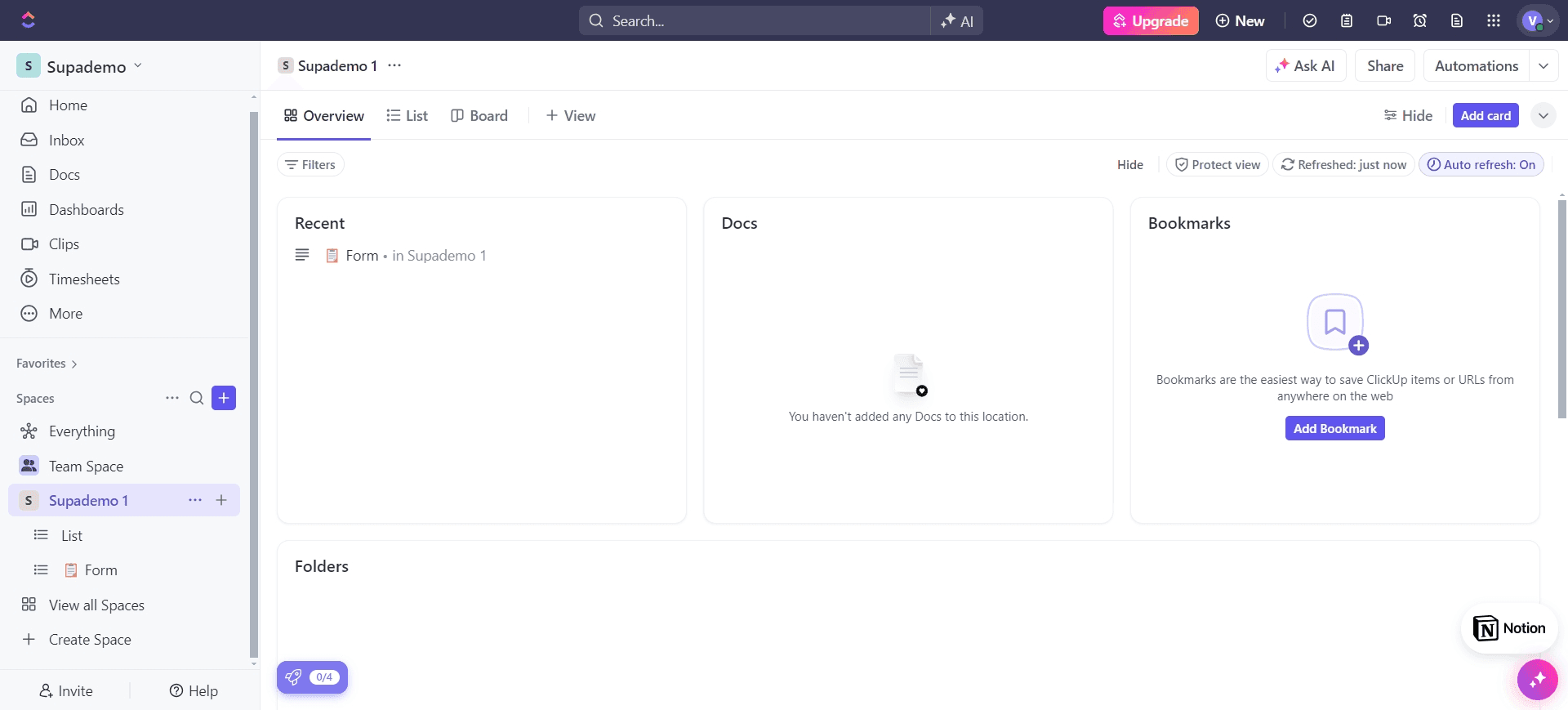
Access the form creation interface
Begin by navigating to the area where you'll create your new form in ClickUp. This is typically found in your workspace settings or the form builder section.
- 2
Upload or configure initial settings
Set up the foundational properties of your form by uploading any necessary assets or configuring basic parameters. This establishes the structure for the data your form will collect.
- 3
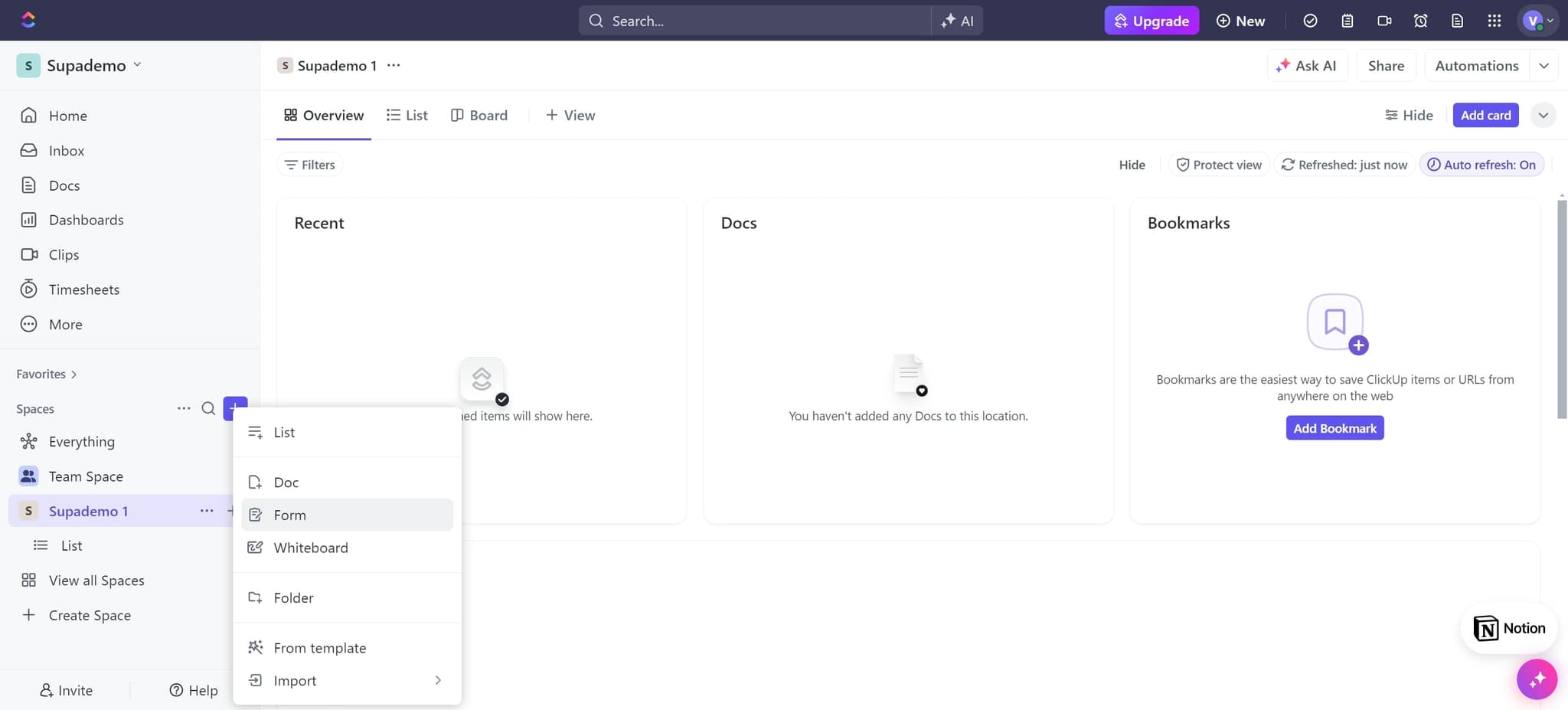
Add form fields and inputs
Upload or add the specific fields you want respondents to fill out. These fields will determine what information is captured when someone completes your form.
- 4
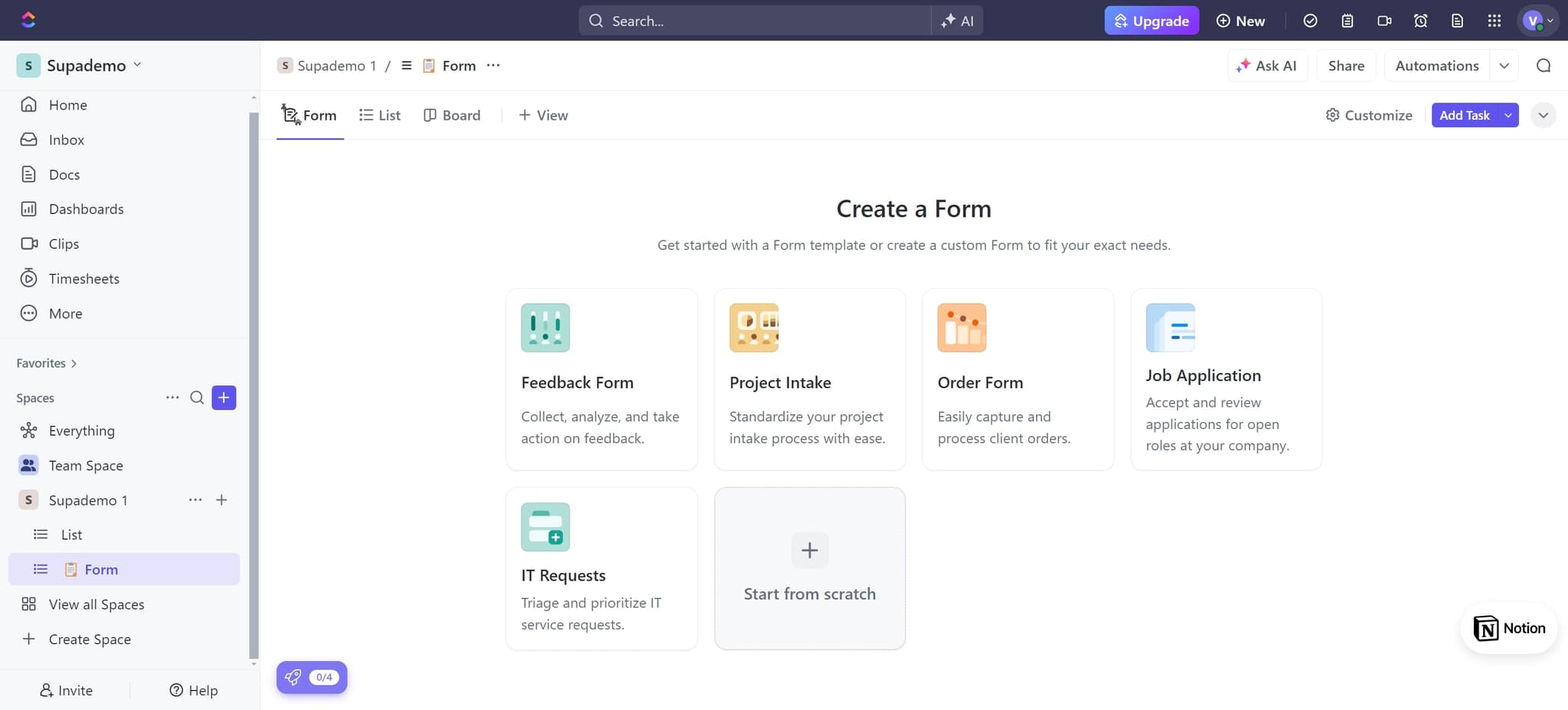
Configure response handling
Click through the options to set how ClickUp will process form responses. This step prepares your form to handle the incoming data correctly.
- 5
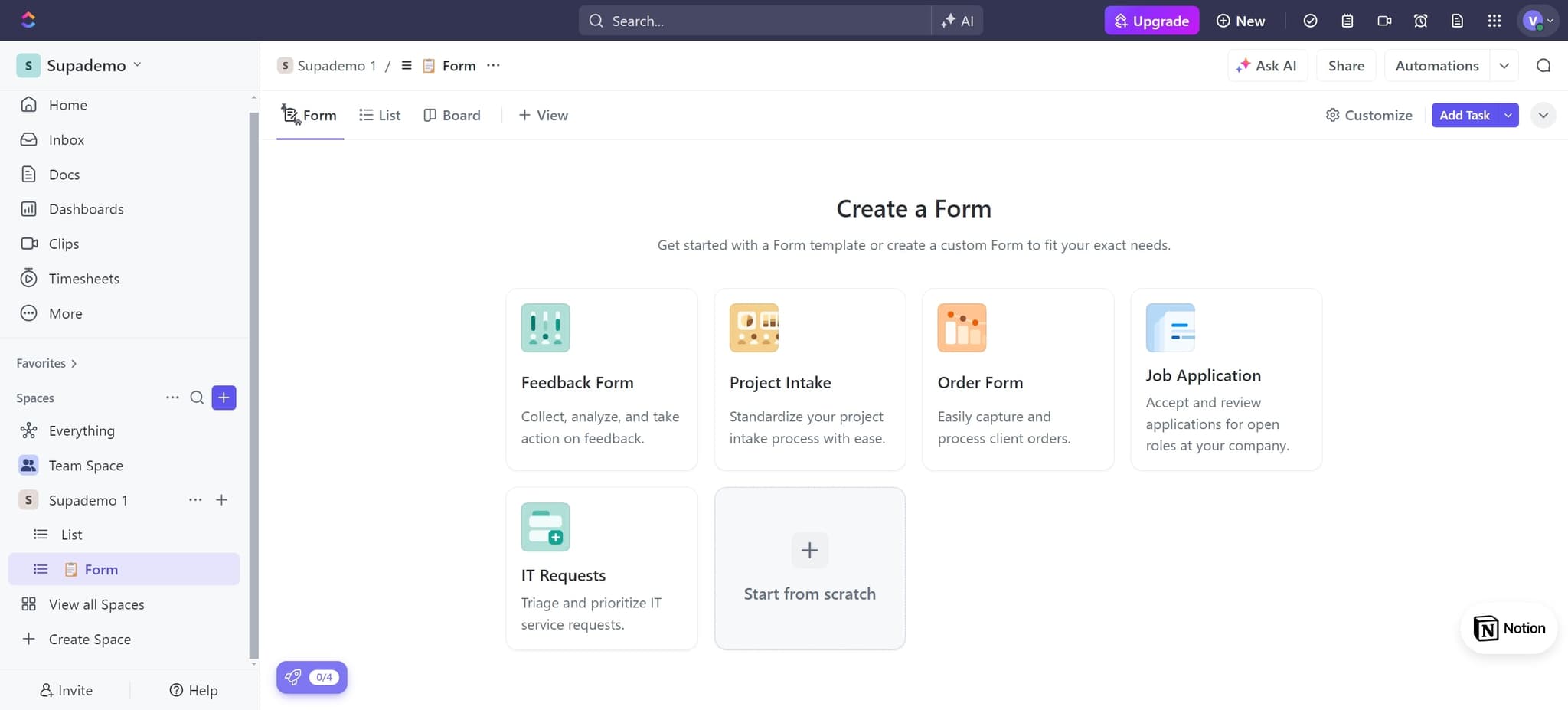
Set up task creation rules
Click through the configuration to establish how each form response will generate a task. This automation ensures responses are immediately converted into actionable items.
- 6
Create tasks from list responses
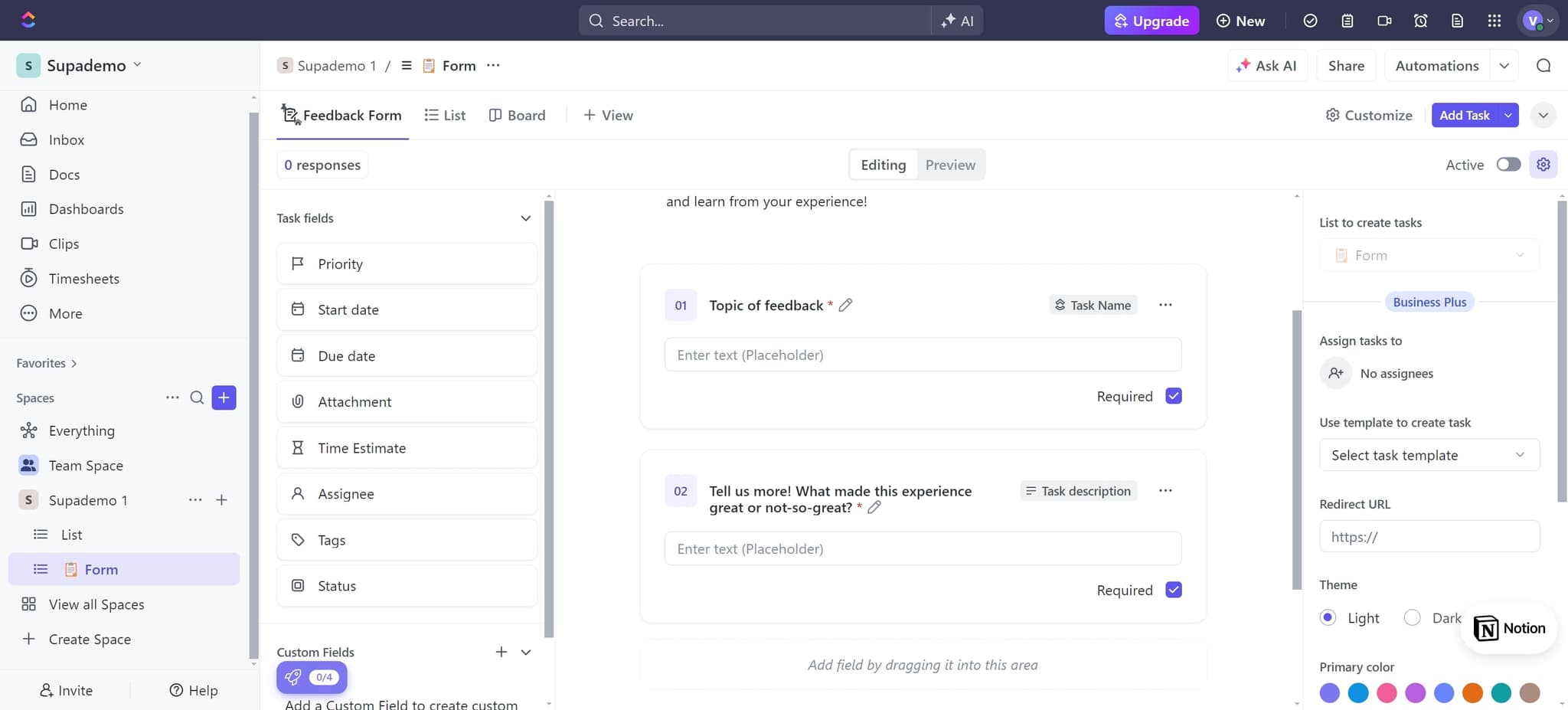
Click on 'List to create tasks' to map form fields to task properties. This ensures that form submissions automatically populate the correct fields in your ClickUp tasks.
- 7
Finalize form field mapping
Upload any additional configuration needed to complete the field mappings between your form and task creation. This step ensures data flows correctly from form to task.
- 8
Customize the form appearance
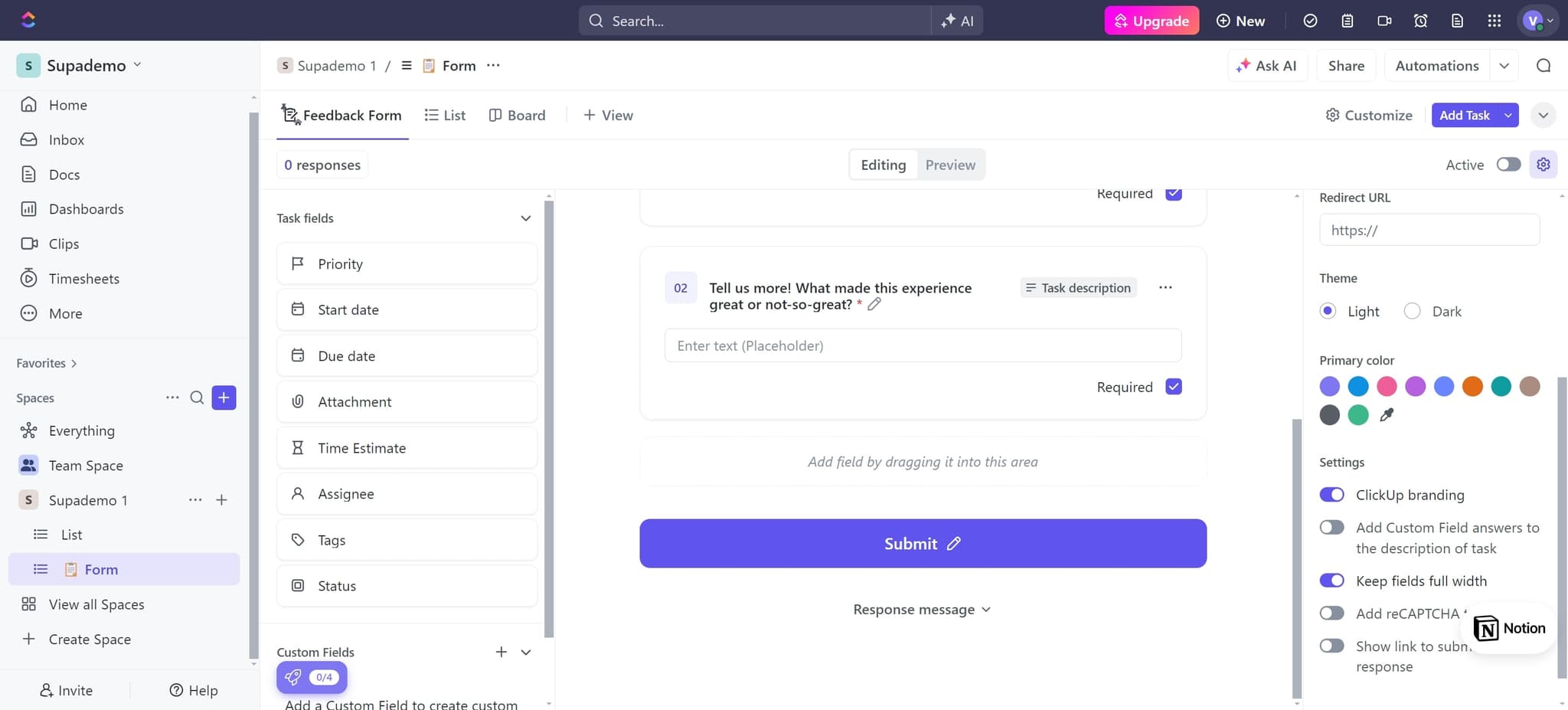
Click on 'Theme' to access styling options for your form. Here you can adjust colors, fonts, and layout to match your brand or workspace preferences.
- 9
Apply visual design changes
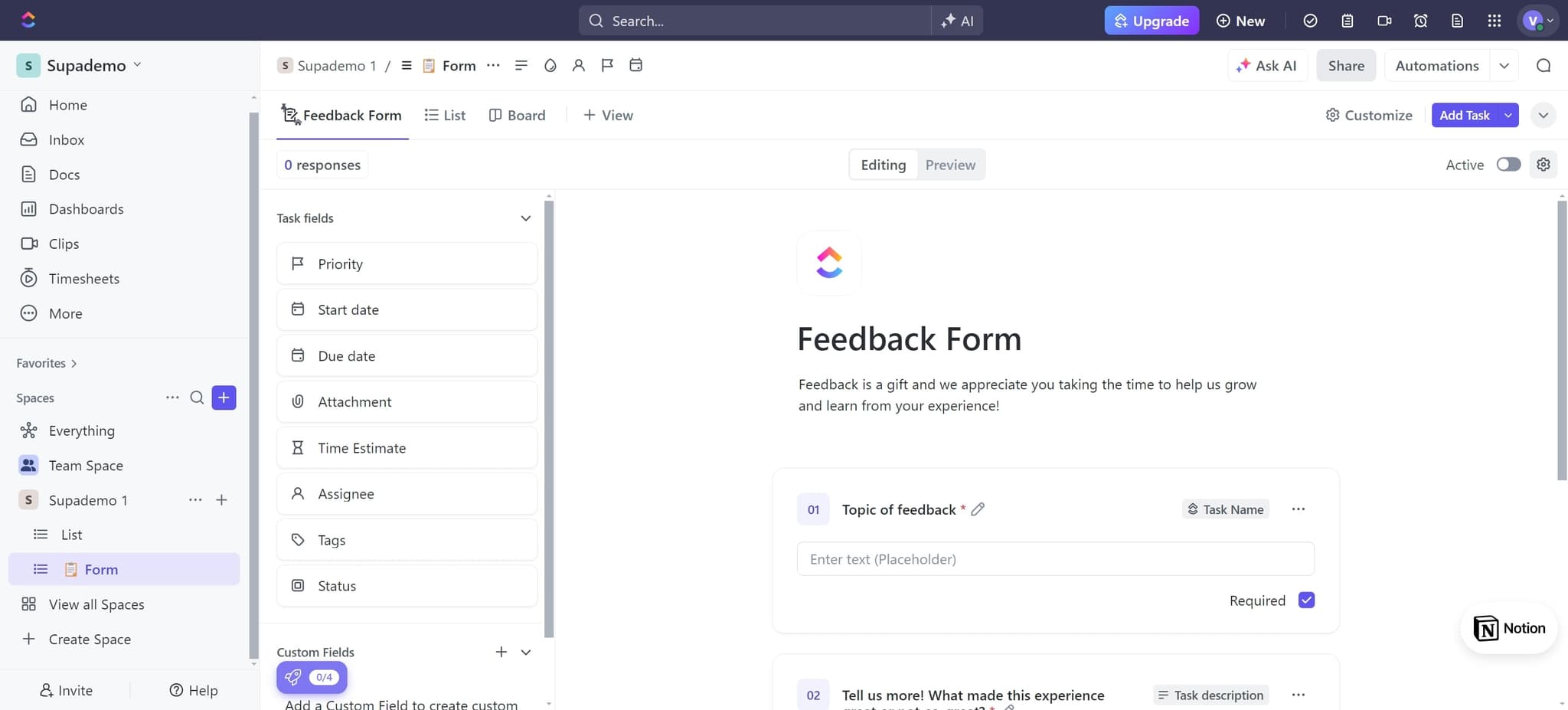
Upload or configure your theme selections to finalize the visual appearance of your form. Your form will now display with the customized styling you've chosen.
- 10
Generate and share the form link
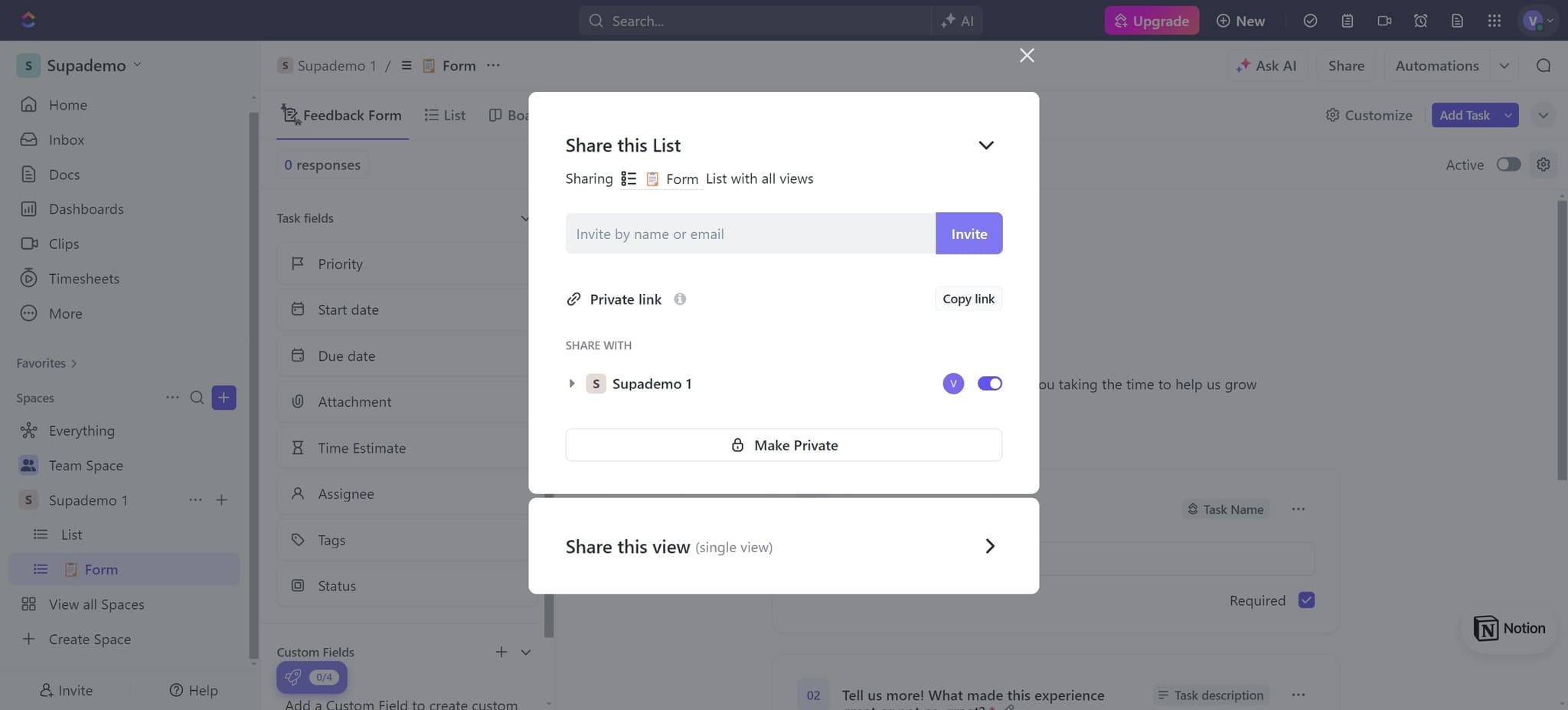
Click on 'Copy link' to generate a shareable URL for your form. You can now distribute this link to team members, clients, or any group you want to collect information from.
Frequently asked questions
Common questions about how to create a form in clickup.
Yes, ClickUp Forms allows you to add, remove, and reorder fields to match your specific needs. You can configure text fields, dropdowns, checkboxes, date pickers, and many other input types to collect the exact information you need for your tasks.
When you set up task creation rules in your form configuration, ClickUp automatically converts each form submission into a new task. The form fields you map to task properties will populate directly, so responses instantly become actionable items in your workspace.
Absolutely. The Theme option in ClickUp Forms lets you customize colors, fonts, and layout to align with your brand identity. You can create a professional, branded experience that matches your organization's style guidelines.
After creating your form, use the 'Copy link' option to generate a shareable URL. You can then send this link via email, chat, social media, or embed it on your website so respondents can access and complete the form.
Each form submission creates a new task in ClickUp by default. If you want to prevent duplicate submissions, you can configure form settings to limit submissions per person or require authentication. Check your form's advanced settings for submission control options.