How to create automations in ClickUp

ClickUp automations help you streamline repetitive tasks and keep your team synchronized without manual intervention. This guide walks you through setting up automations to trigger actions based on specific events like status or due date changes.
Quick summary
In this tutorial, you'll learn how to access ClickUp's automation features and create custom automations that respond to task changes. You'll discover how to set up triggers and actions that automatically update assignees and due dates based on predefined conditions.
Why this matters
Automations save your team time by eliminating manual updates and reducing human error in task management. By automating routine workflow changes, you can ensure consistency across projects and keep everyone focused on meaningful work rather than administrative tasks.
Step-by-step guide
- 1
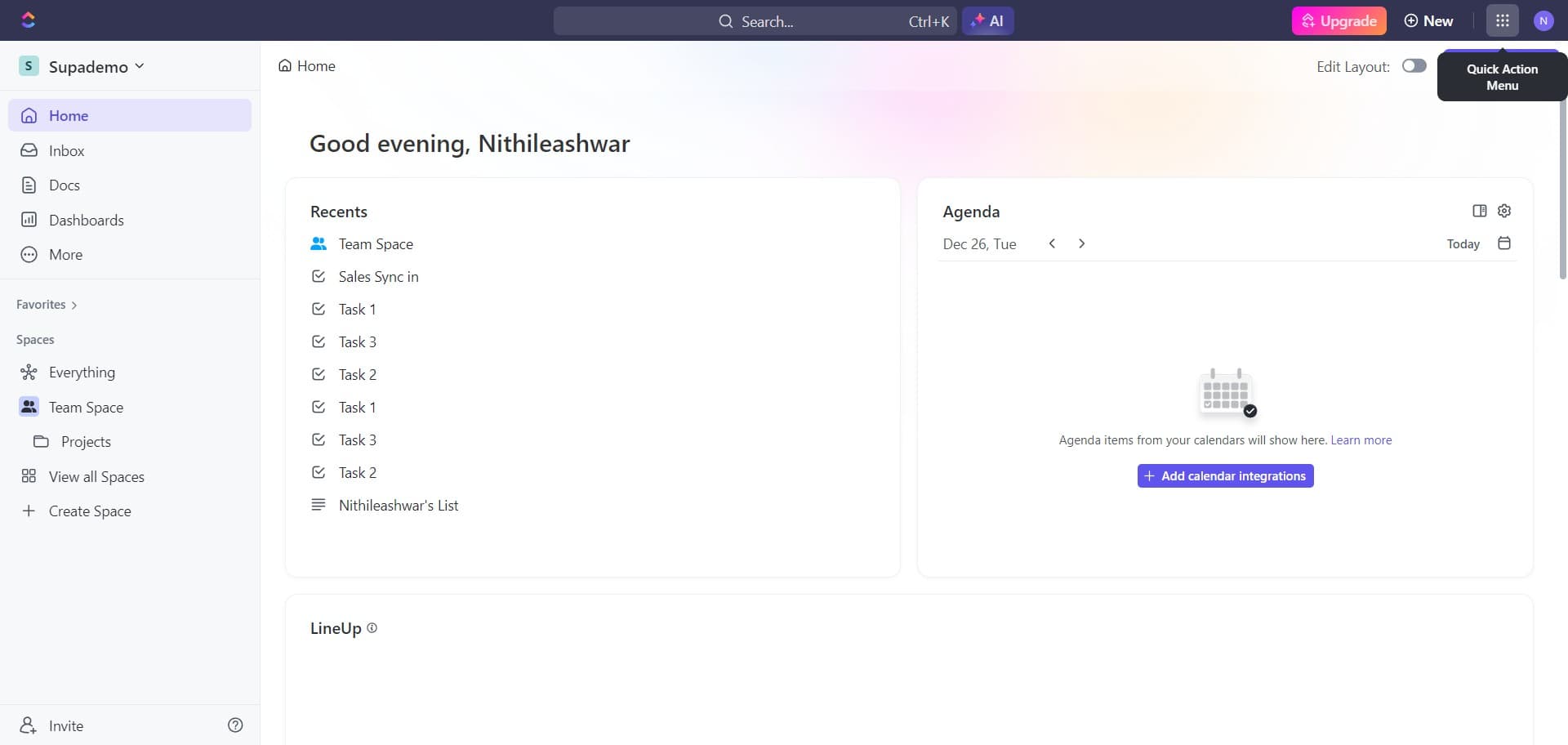
Open the ClickUp workspace
Start by accessing your ClickUp workspace where you want to create automations. Make sure you have the appropriate permissions to manage workspace settings.
- 2
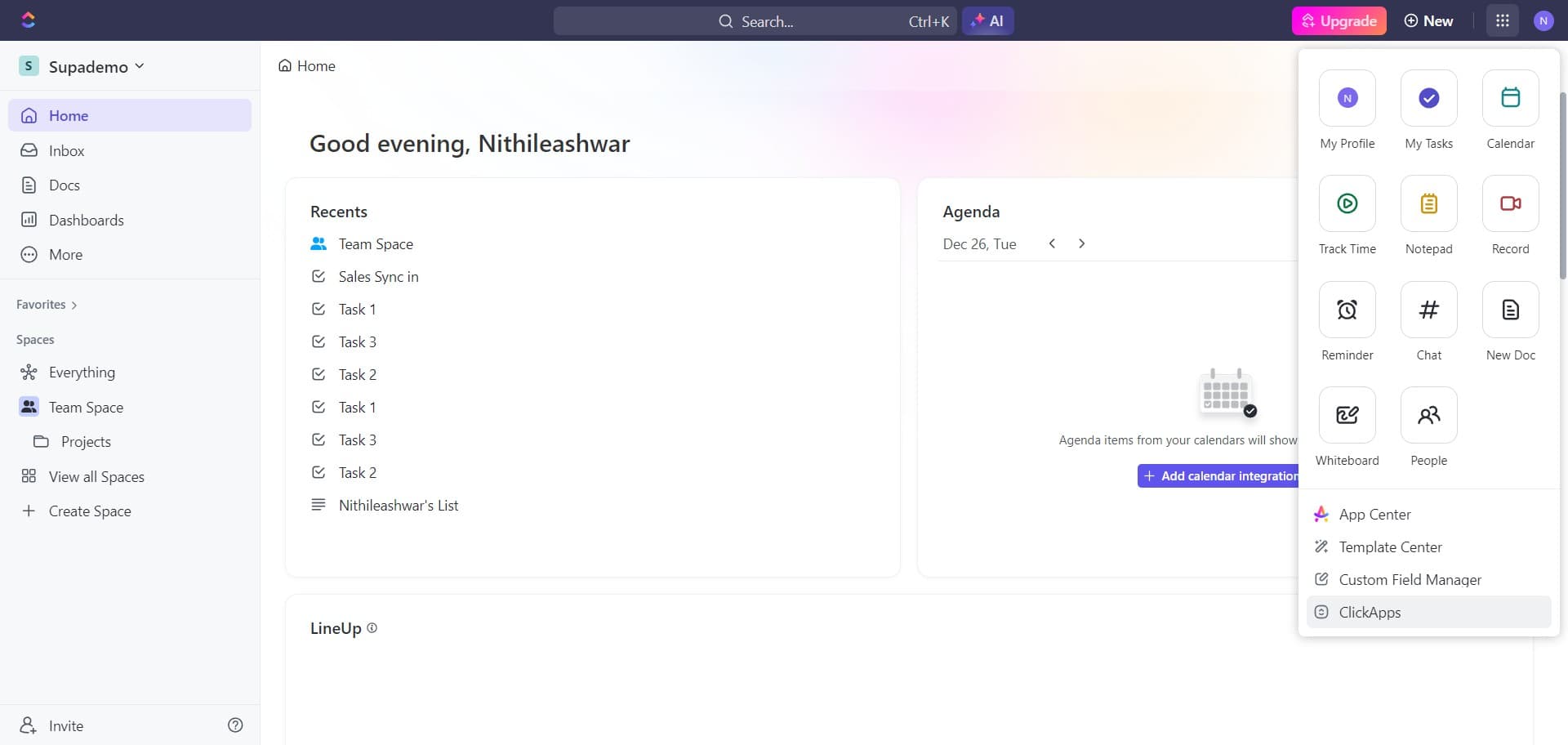
Click on ClickApps
Navigate to the ClickApps section, which contains all of ClickUp's integrations and feature extensions. This is where you'll enable and manage automation capabilities for your workspace.
- 3
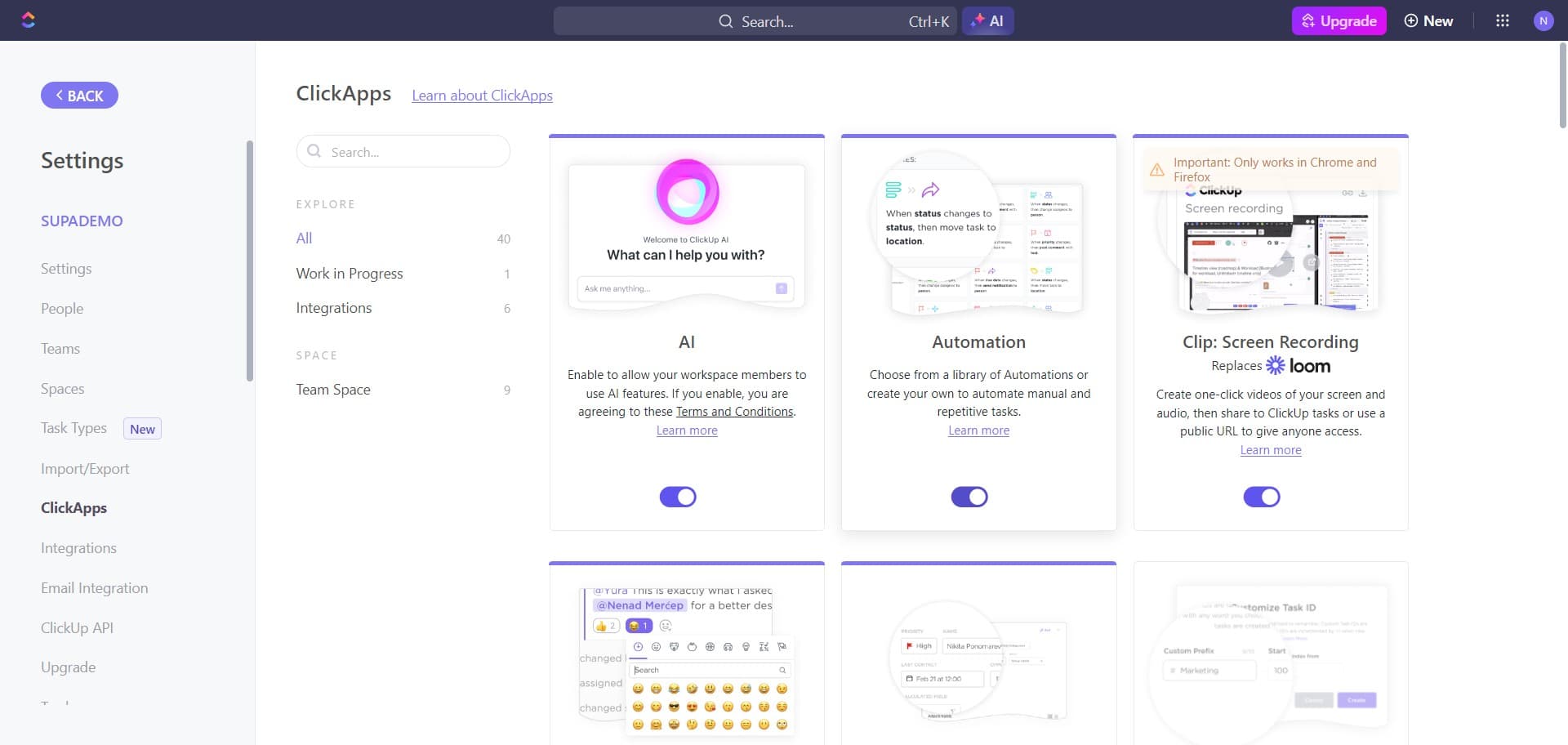
Access the automations menu
Select the automations option from the available ClickApps. This opens the automation builder interface where you can create new automation rules.
- 4
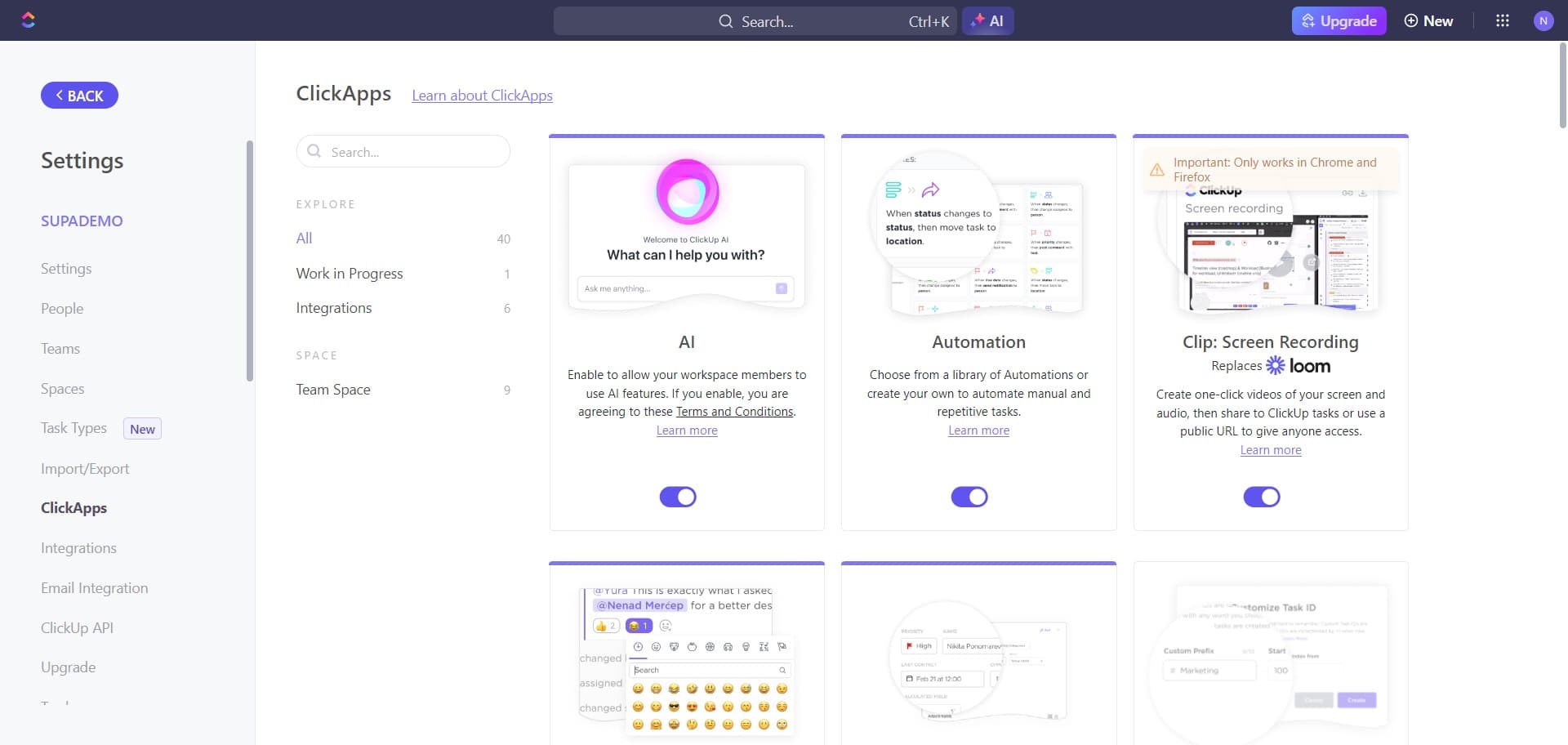
Return to the previous menu
Click the BACK button to navigate back if needed while exploring automation options. This allows you to review different sections before committing to your automation setup.
- 5
Navigate to automation settings
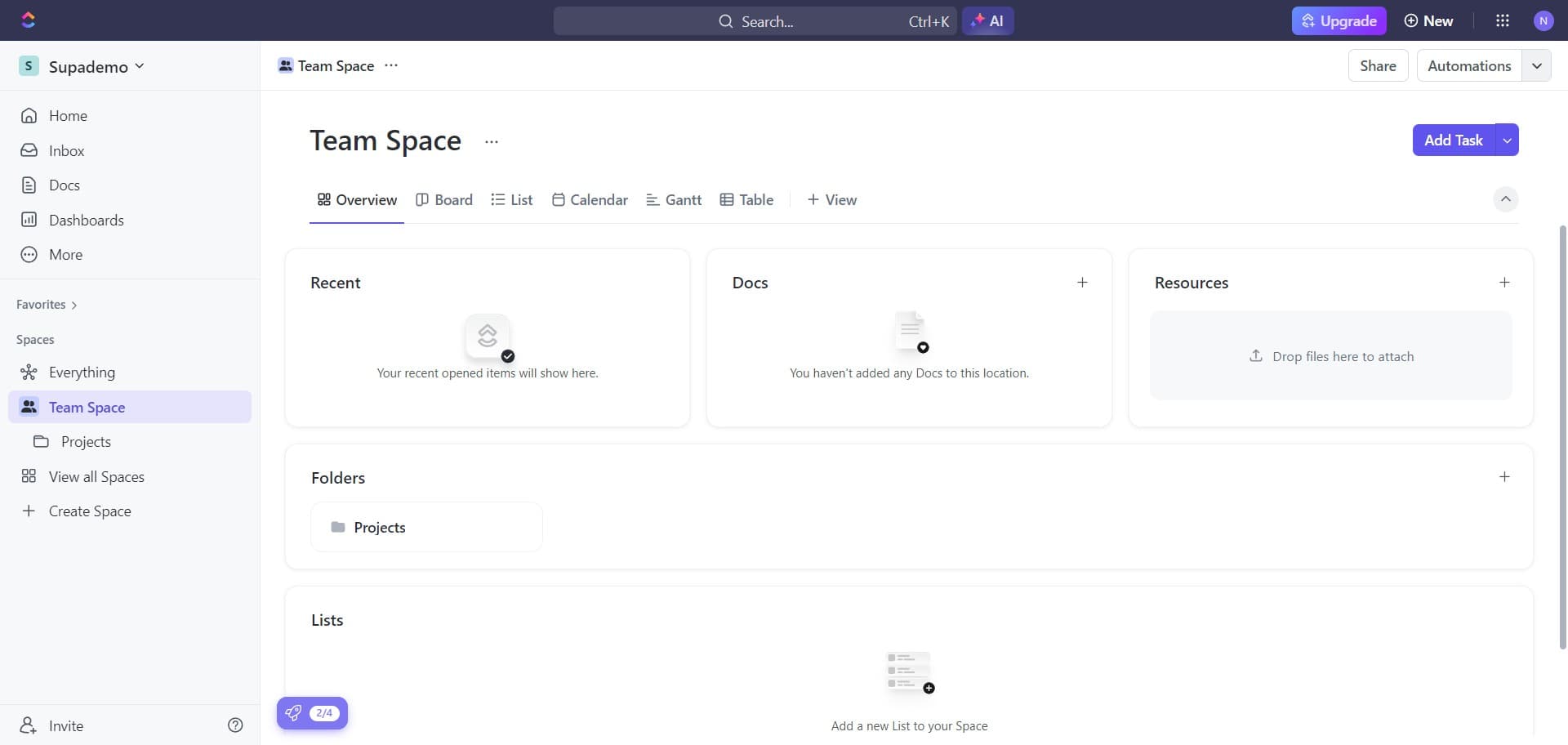
Click to access the main automation configuration area. This is where all your automation rules will be displayed and managed.
- 6
Select Add Automation button
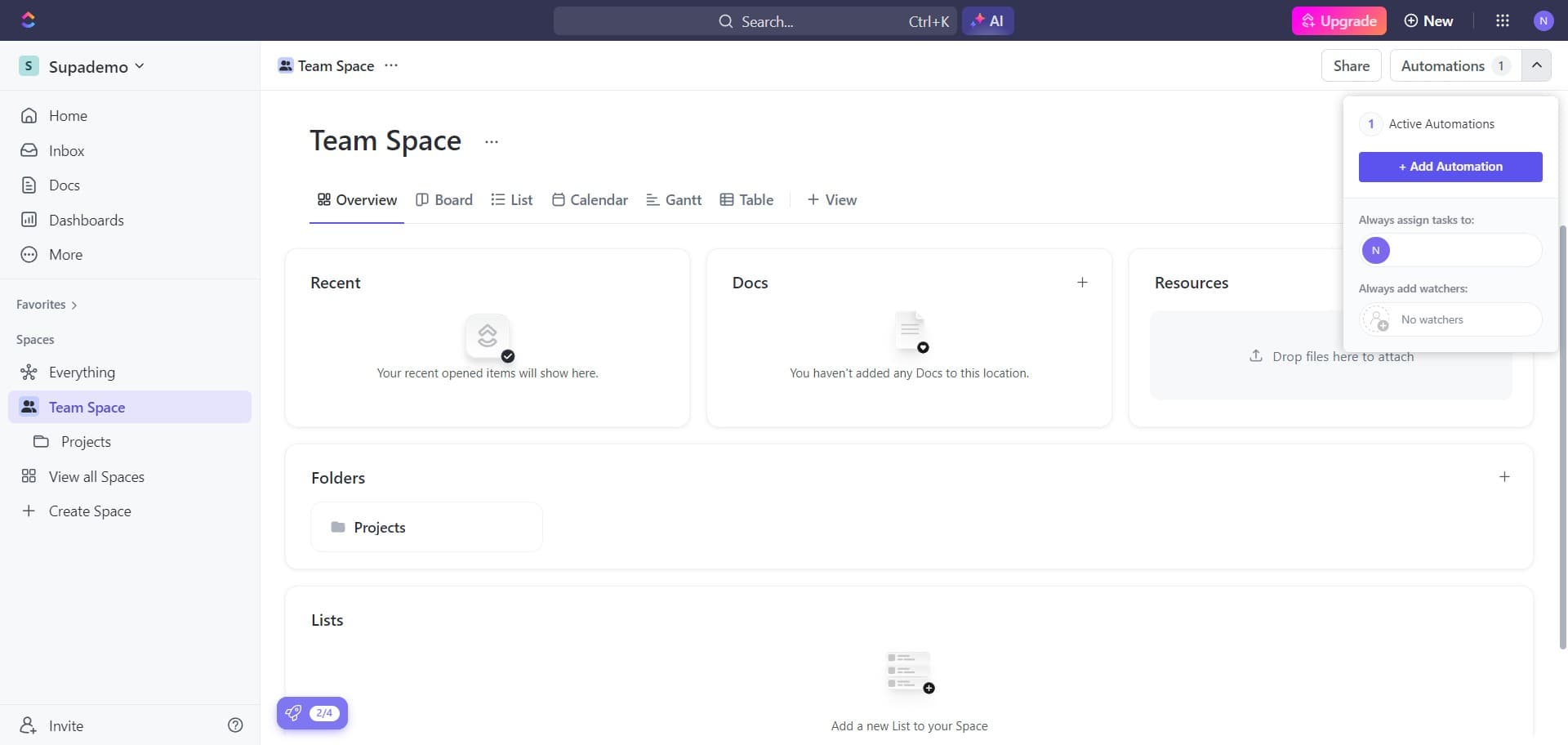
Click the Add Automation button to begin creating a new automation rule. This opens the automation builder where you'll define triggers and actions.
- 7
Confirm automation creation
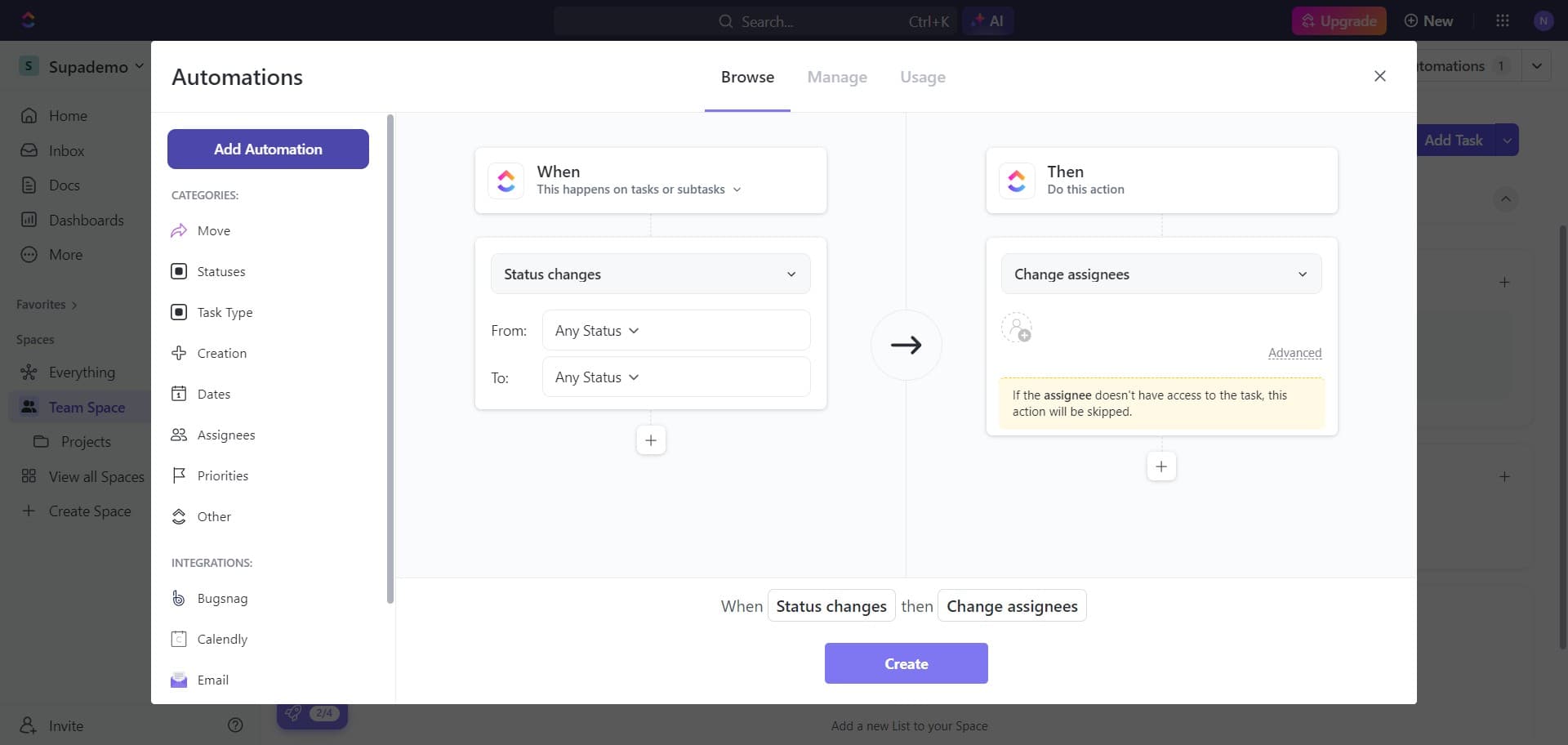
Click on Add Automation to confirm and proceed with the automation setup. You'll now be able to select specific triggers for your automation.
- 8
Choose status change trigger
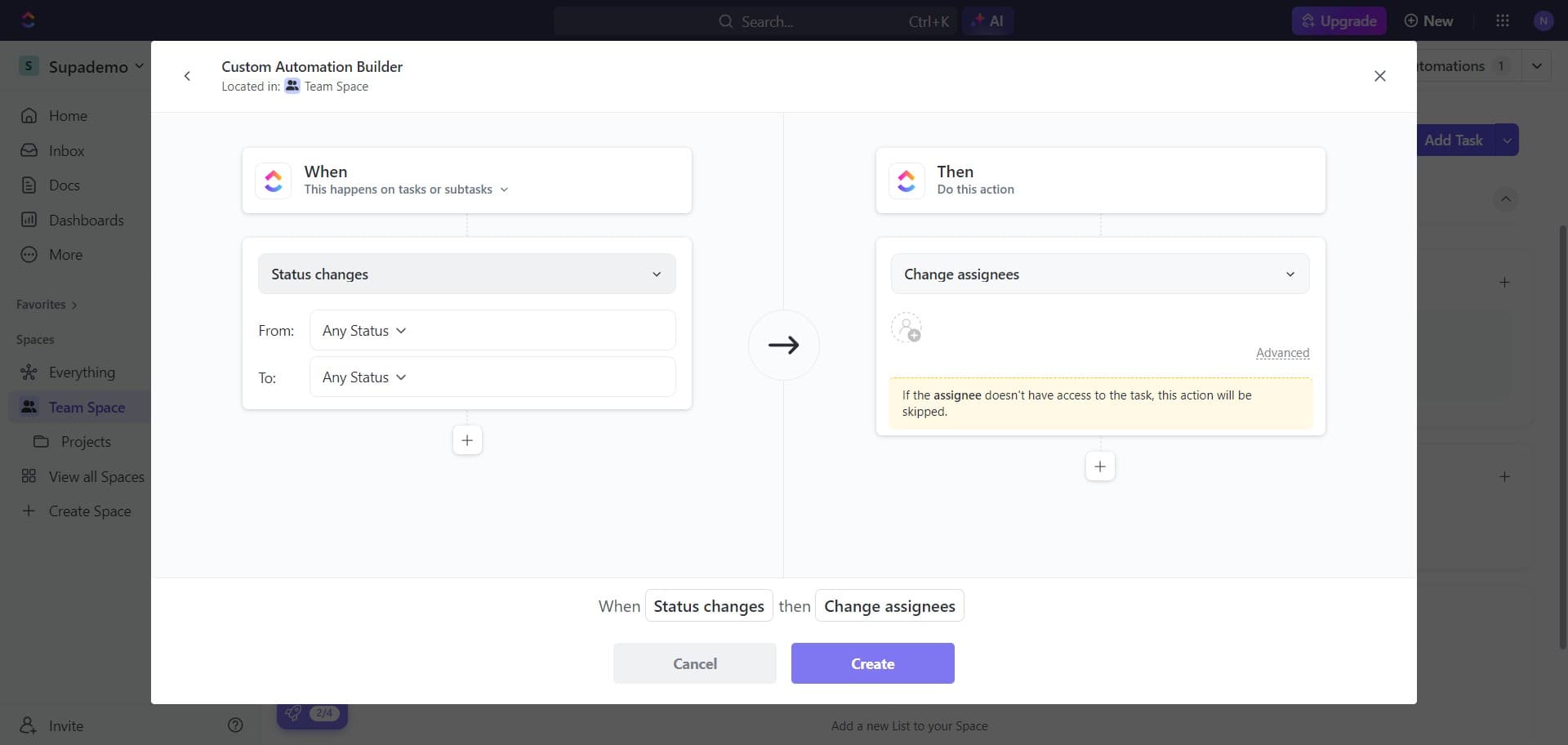
Select Status changes as your automation trigger. This allows your automation to activate whenever a task's status is modified.
- 9
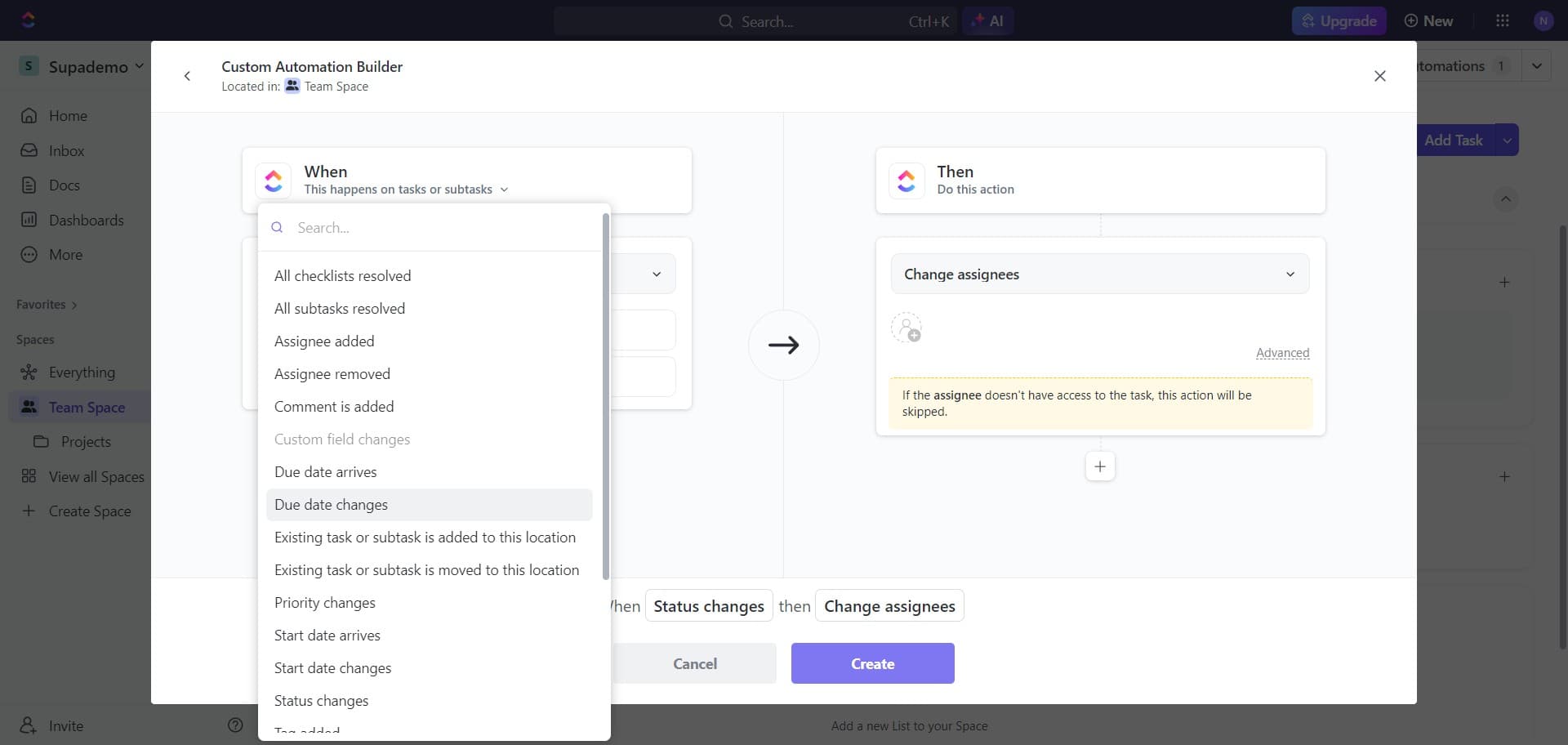
Choose due date change trigger
Select Due date changes as an alternative or additional trigger. This enables automations that respond when task due dates are updated.
- 10
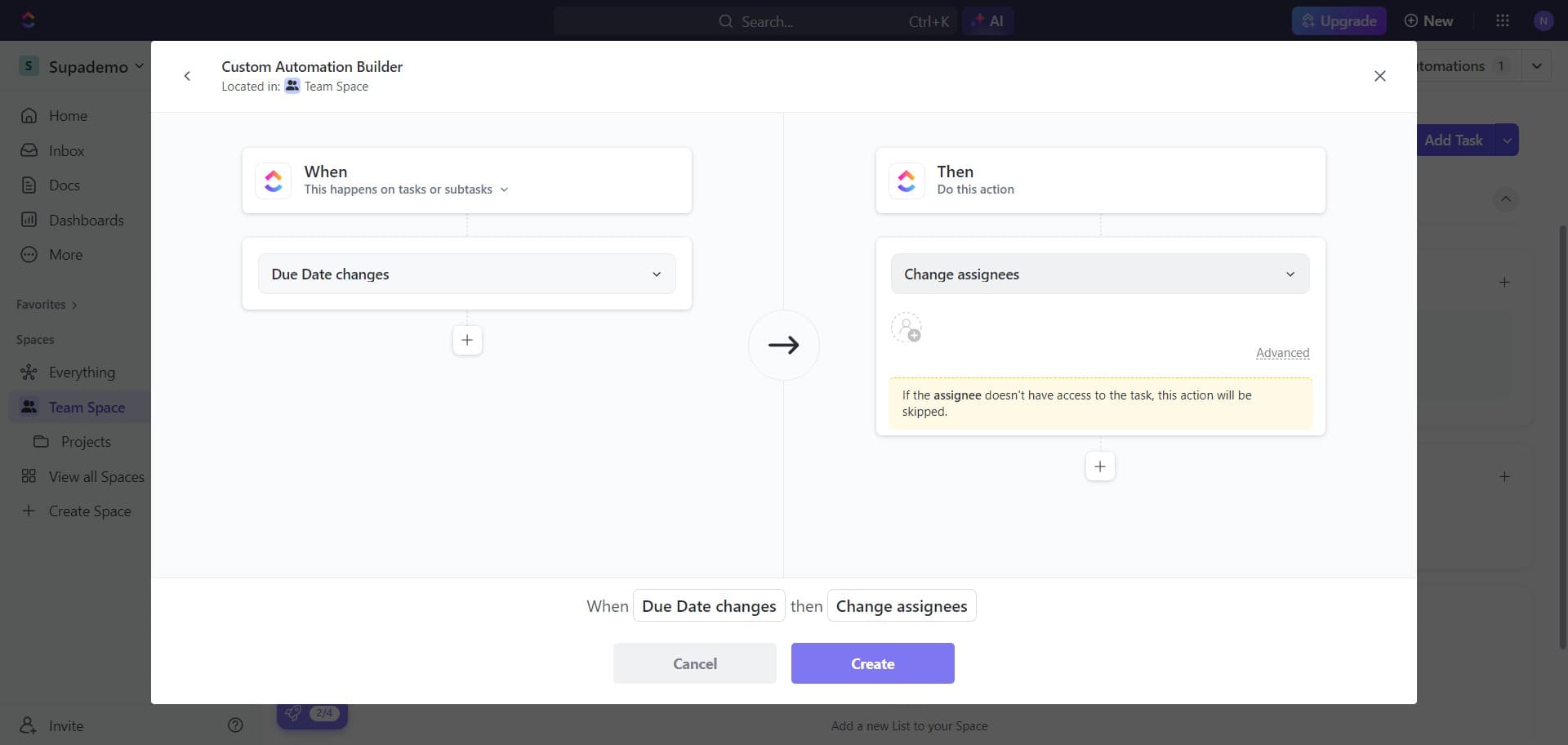
Select assignee change action
Click on Change assignees to set this as an action your automation will perform. This allows you to automatically reassign tasks based on your trigger conditions.
- 11
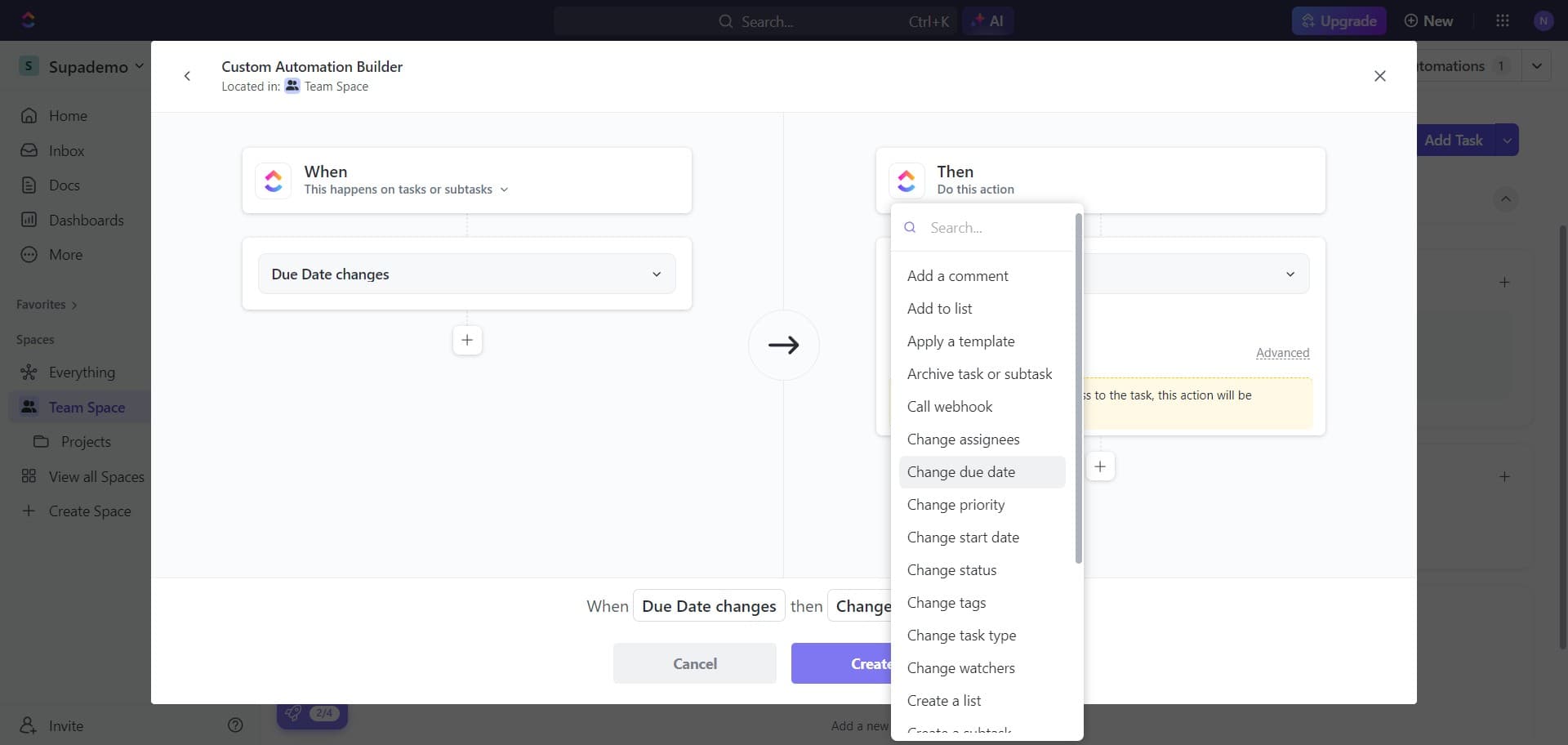
Select due date modification action
Click on Change due date to add this action to your automation. This enables automatic adjustments to task due dates when your trigger conditions are met.
- 12
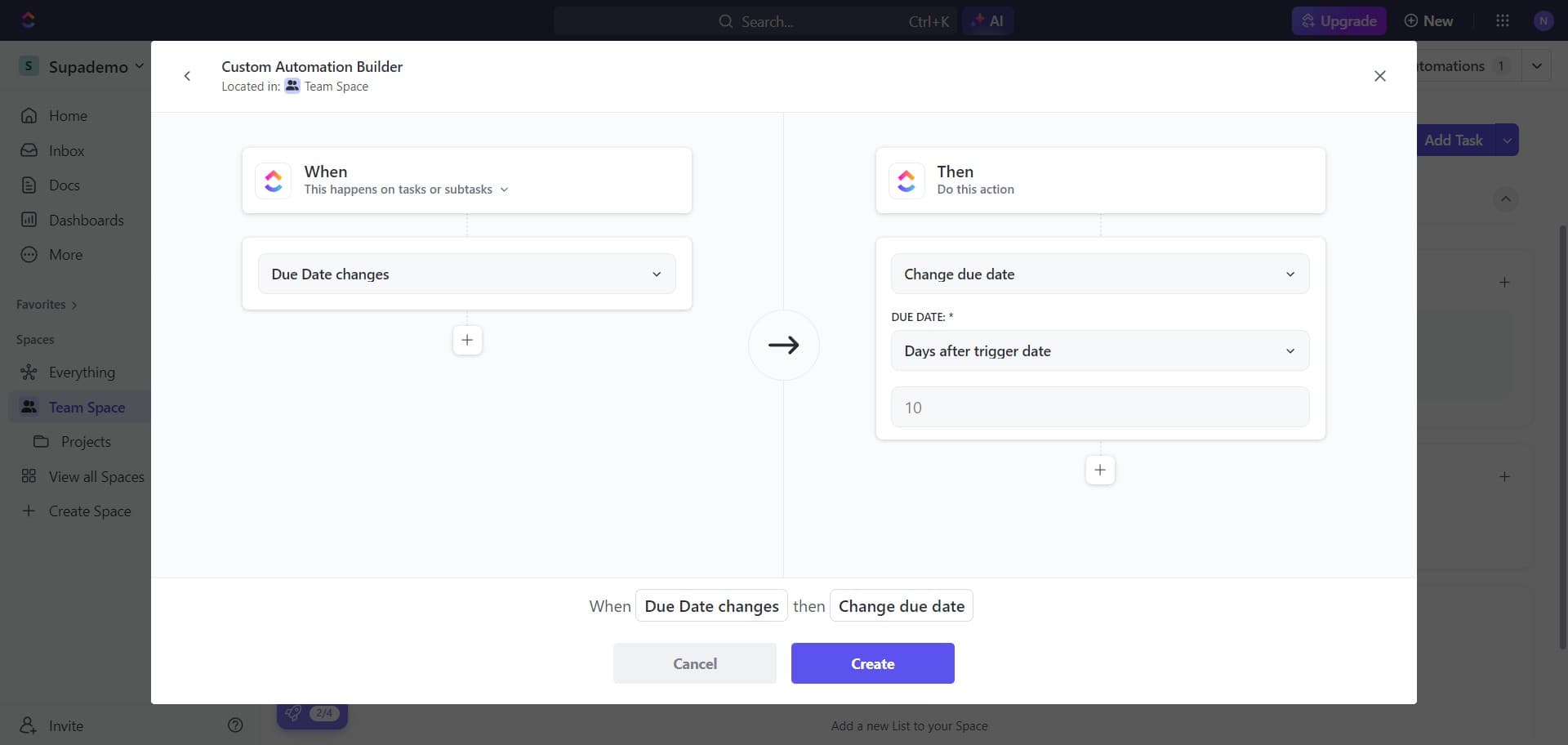
Finalize the automation
Click Create to save and activate your automation rule. Your automation is now live and will execute based on the triggers and actions you've configured.
Frequently asked questions
Common questions about how to create automations in clickup.
ClickUp supports multiple triggers including status changes, due date changes, custom field updates, and assignee modifications. You can also set triggers based on task creation, priority changes, and other workflow events. The available triggers depend on your ClickUp plan and workspace configuration.
Yes, automations in ClickUp can apply to multiple tasks when they match your specified trigger conditions. For example, you can set up an automation that changes the assignee for all tasks moving to a specific status, automatically affecting any task that meets those criteria.
The number of automations you can create depends on your ClickUp pricing plan. Free and standard plans have limitations, while higher-tier plans offer more automation slots. Check your plan details in workspace settings to see your current automation limit.
ClickUp allows you to review your automation configuration before creating it, but automated testing of trigger conditions isn't available directly. You can create the automation and monitor it closely on a test task to verify it works as expected before applying it broadly.
If an automation encounters an error, ClickUp typically logs the failure and may notify workspace administrators. Check your automation activity log and audit trail to see if issues occurred. You can then adjust the automation rules or conditions to prevent similar failures in the future.