How to enable and create a notepad in ClickUp

ClickUp's notepad feature provides a quick way to capture and organize thoughts, tasks, and ideas directly within your workspace. This guide walks you through enabling the notepad and creating your first note to streamline your productivity workflow.
Quick summary
In this tutorial, you'll learn how to access ClickUp's settings, enable the notepad feature, and create a new note. By following these steps, you'll have a functional notepad ready to use for capturing information on the fly.
Why this matters
A built-in notepad in ClickUp eliminates the need to switch between applications when you need to jot down quick notes or ideas. Having this feature enabled and accessible makes it easier to maintain focus and keep all your work-related information in one centralized location.
Step-by-step guide
- 1
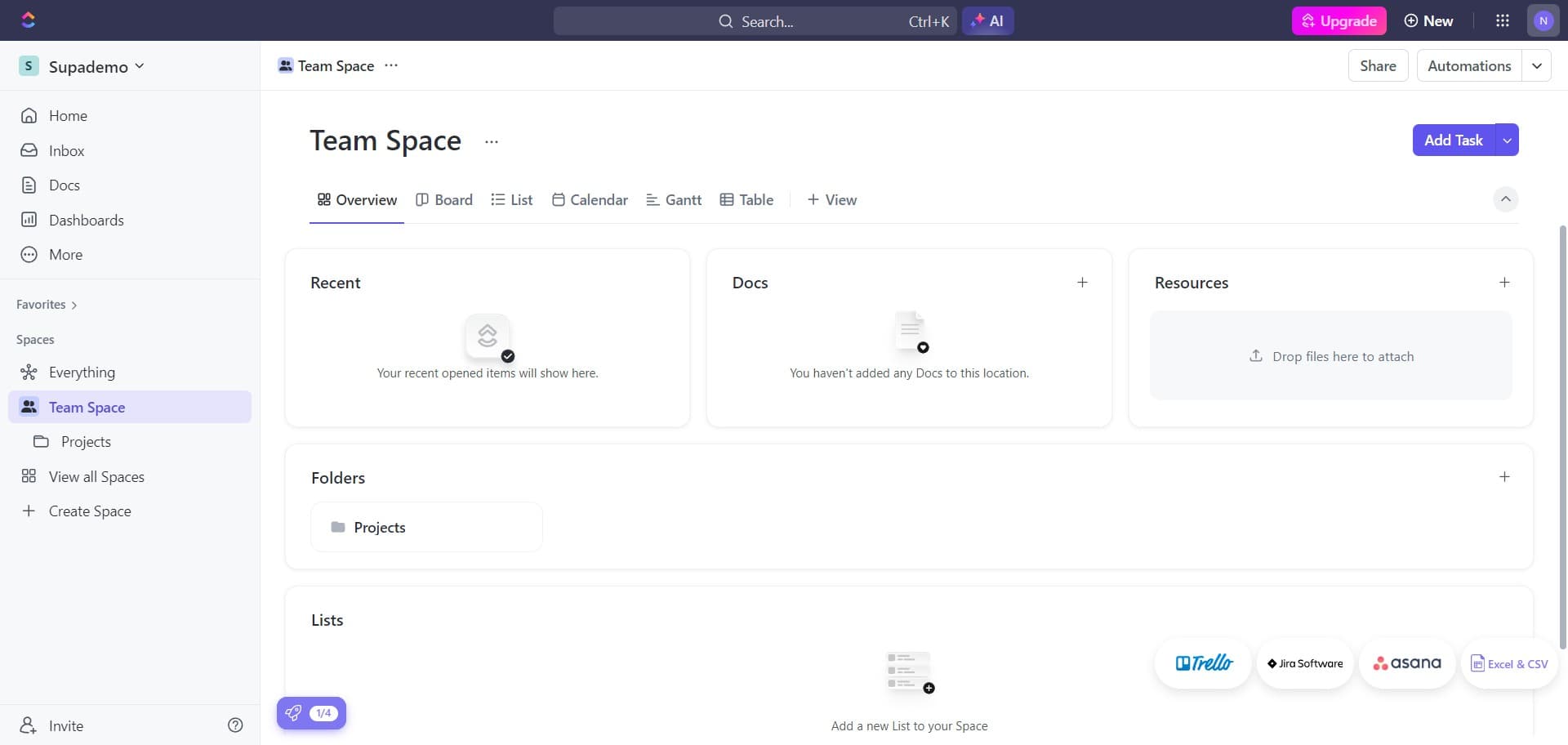
Open the command menu
Press 'N' to open ClickUp's command menu. This keyboard shortcut provides quick access to various features and actions within your workspace.
- 2
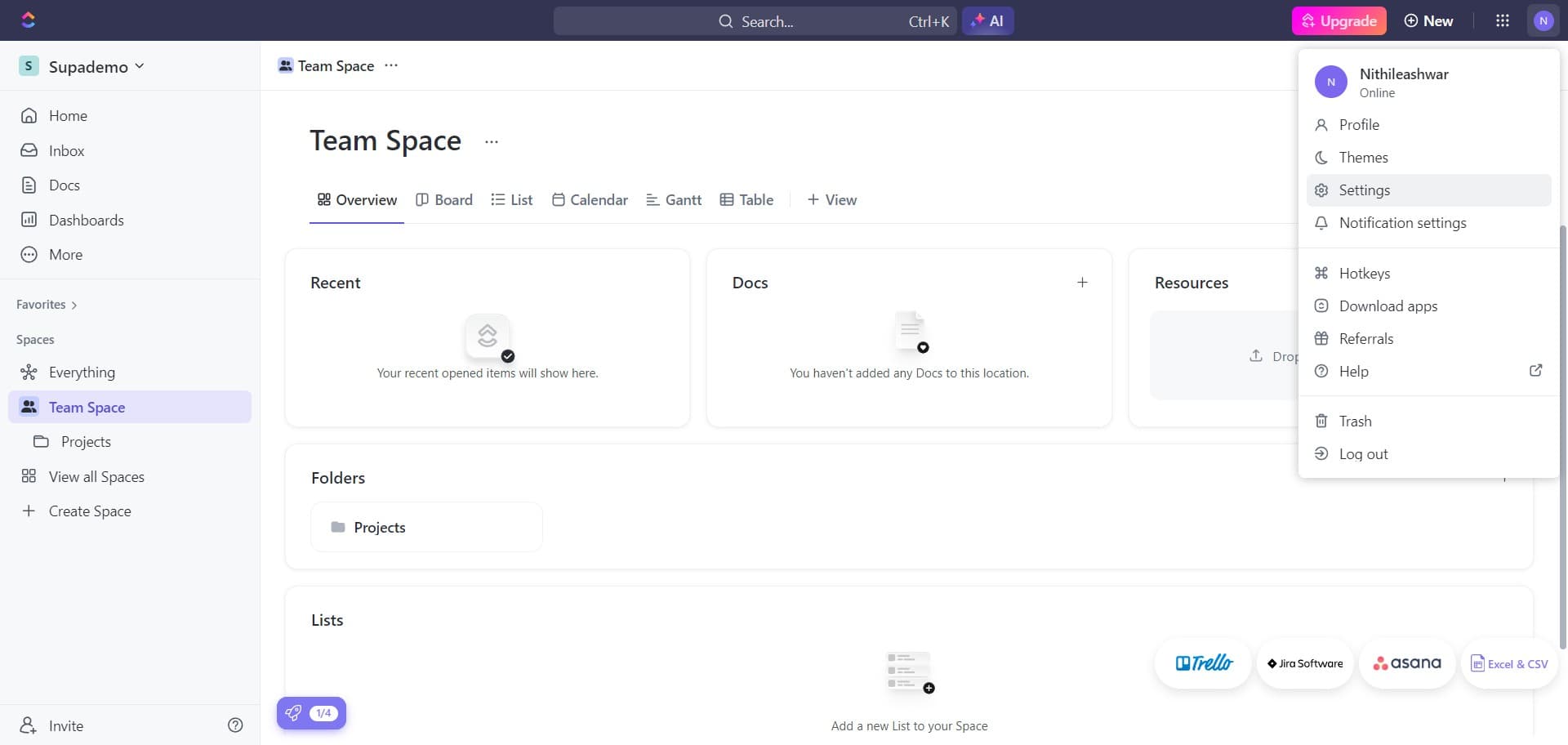
Navigate to Settings
Click on 'Settings' from the menu options. This will open your account and workspace configuration panel.
- 3
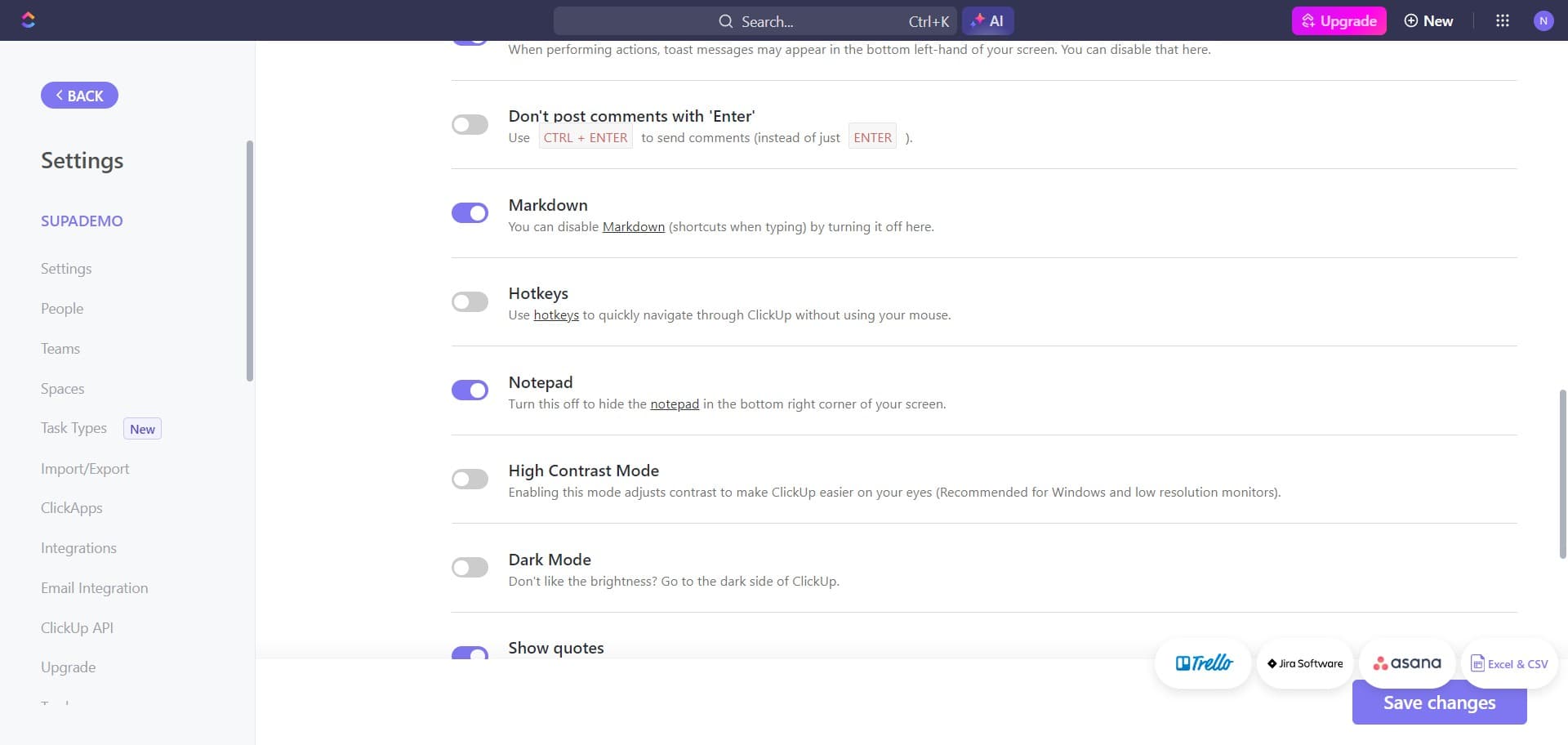
Access the features section
Click on the relevant option to access your feature settings. This section allows you to enable or disable various ClickUp features based on your preferences.
- 4
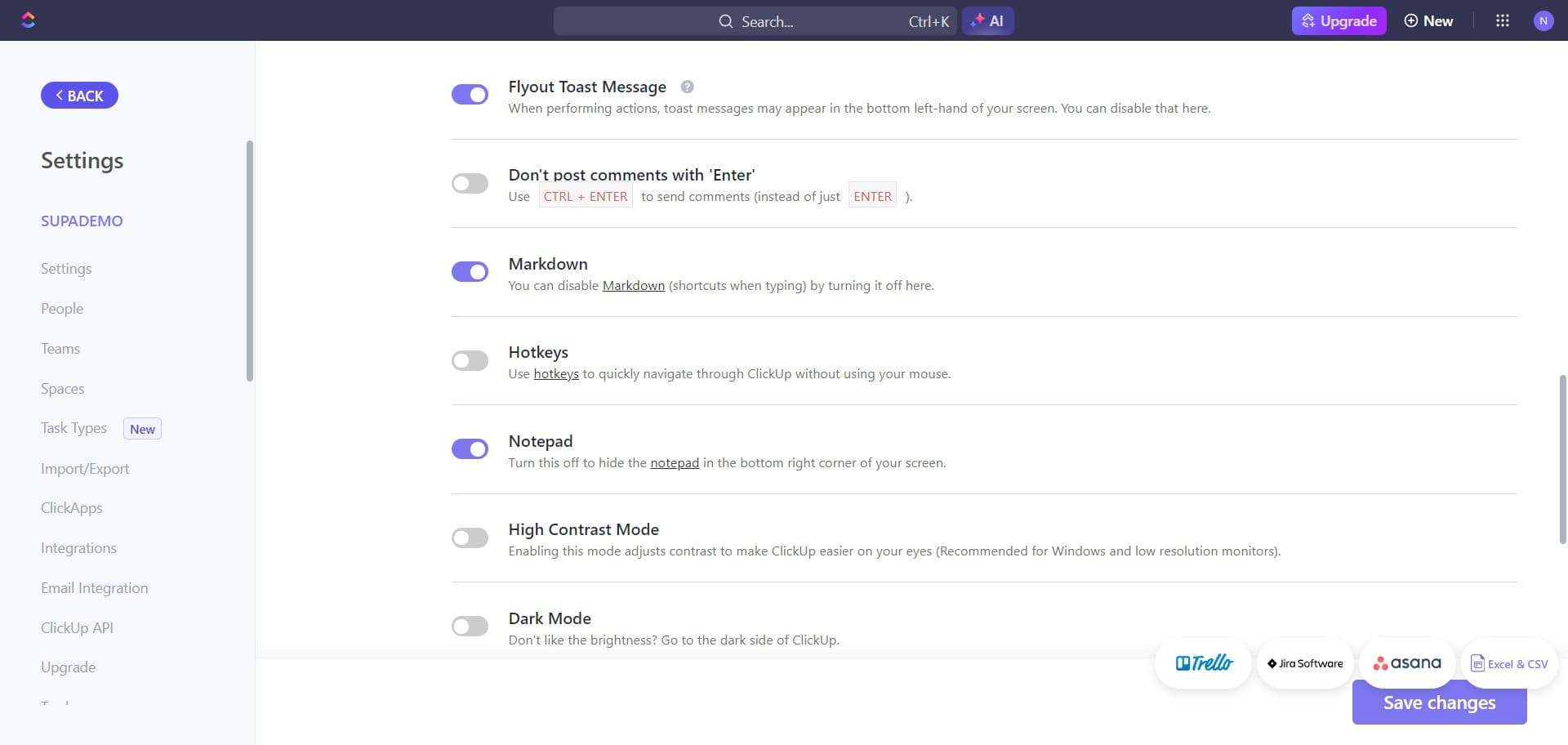
Return to the previous menu
Click on 'BACK' to navigate back if you need to adjust your route. This ensures you're in the correct section before proceeding.
- 5
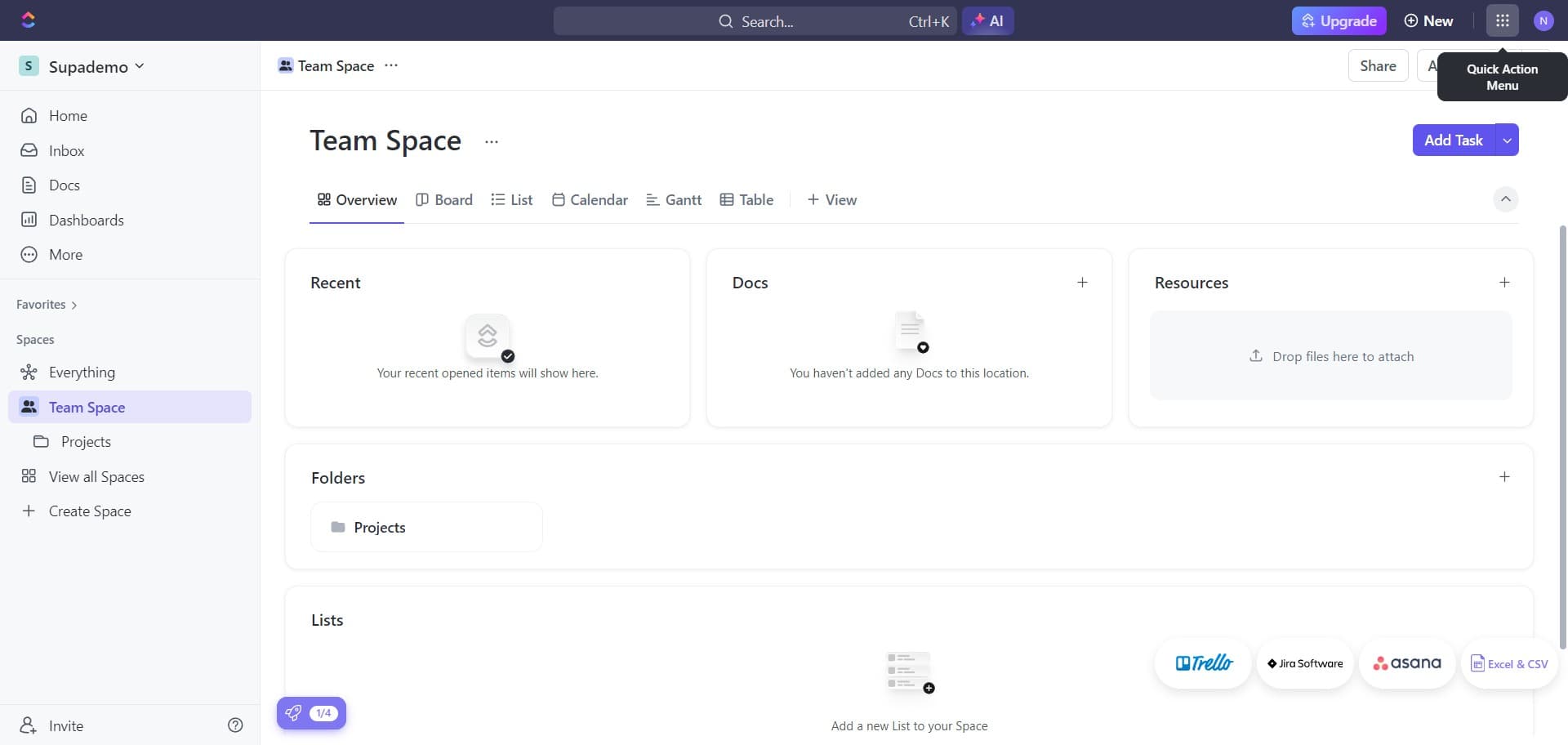
Enable the notepad feature
Click on the notepad option to enable it in your workspace. Once enabled, the notepad will be accessible from your ClickUp interface.
- 6
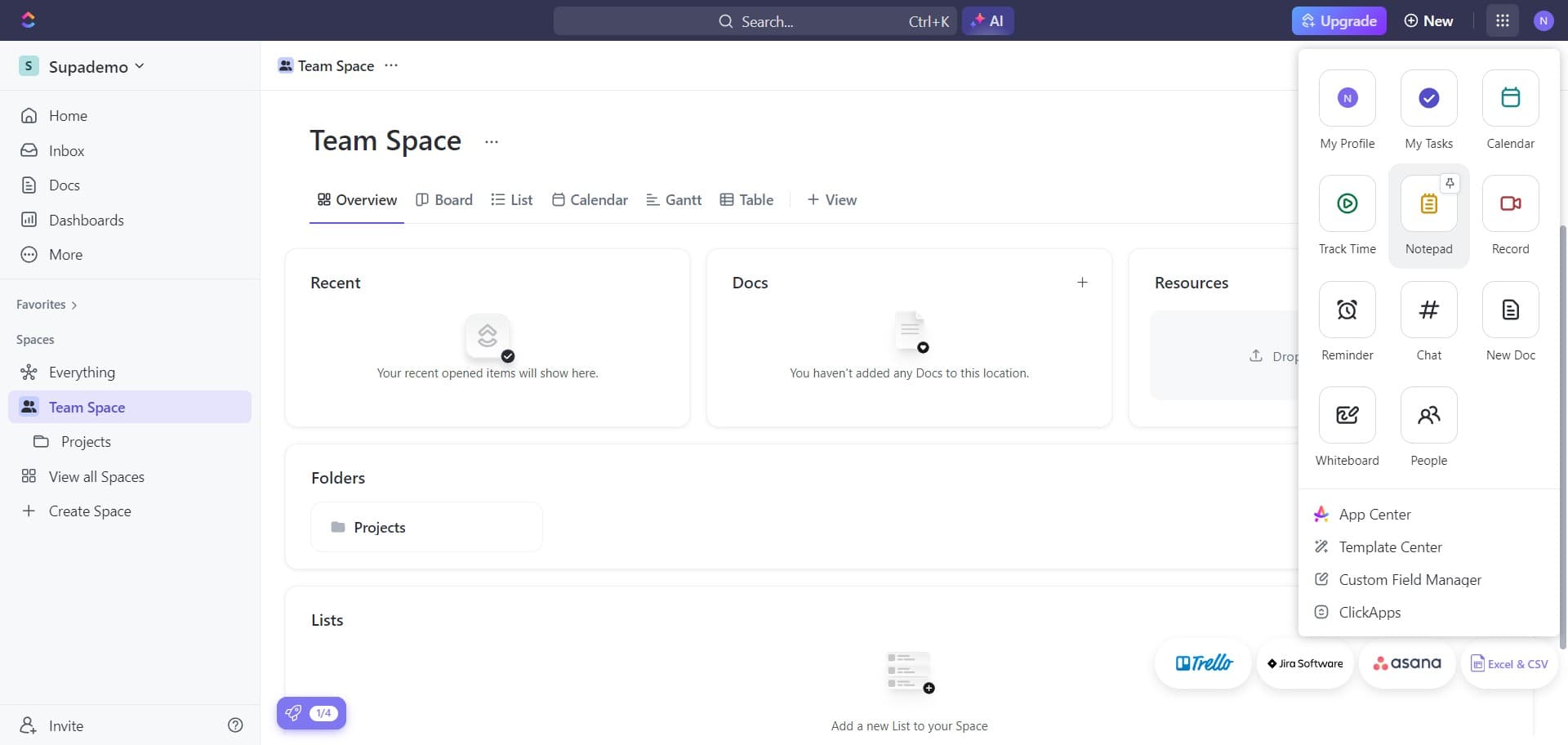
Confirm the notepad setting
Click to confirm that the notepad feature is now active. This will apply the change to your workspace.
- 7
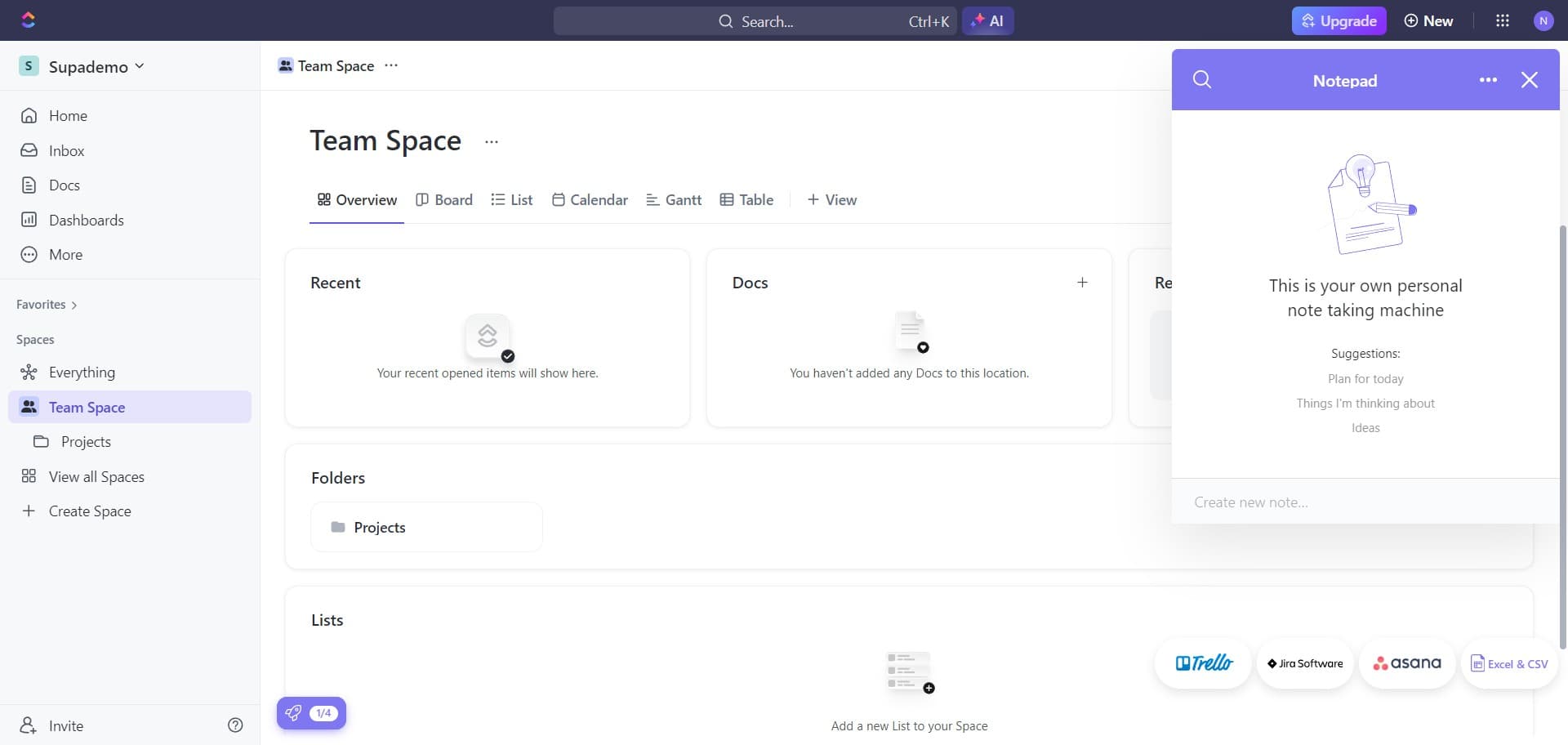
Exit the settings panel
Click to close the settings panel and return to your main workspace. Your notepad feature is now ready to use.
- 8
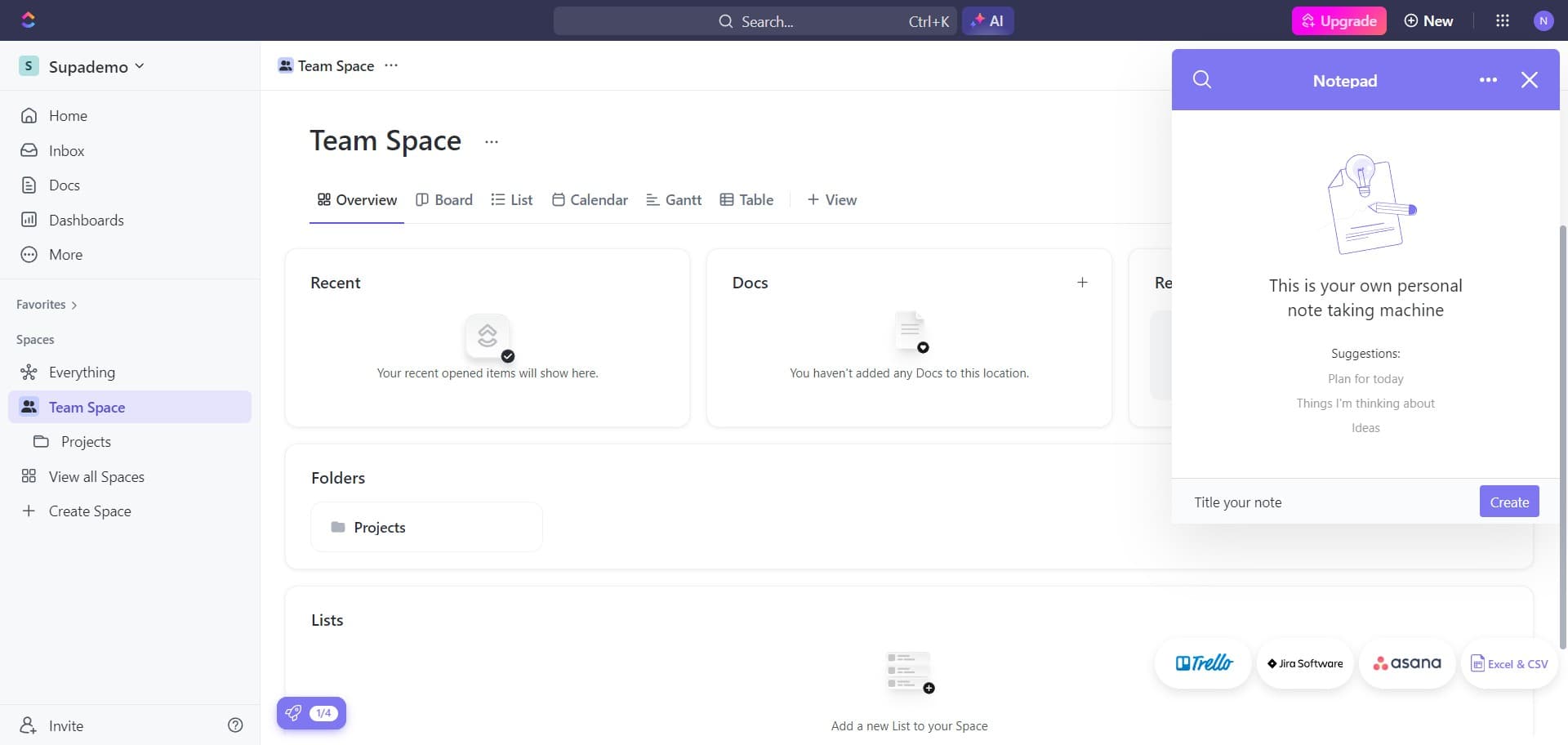
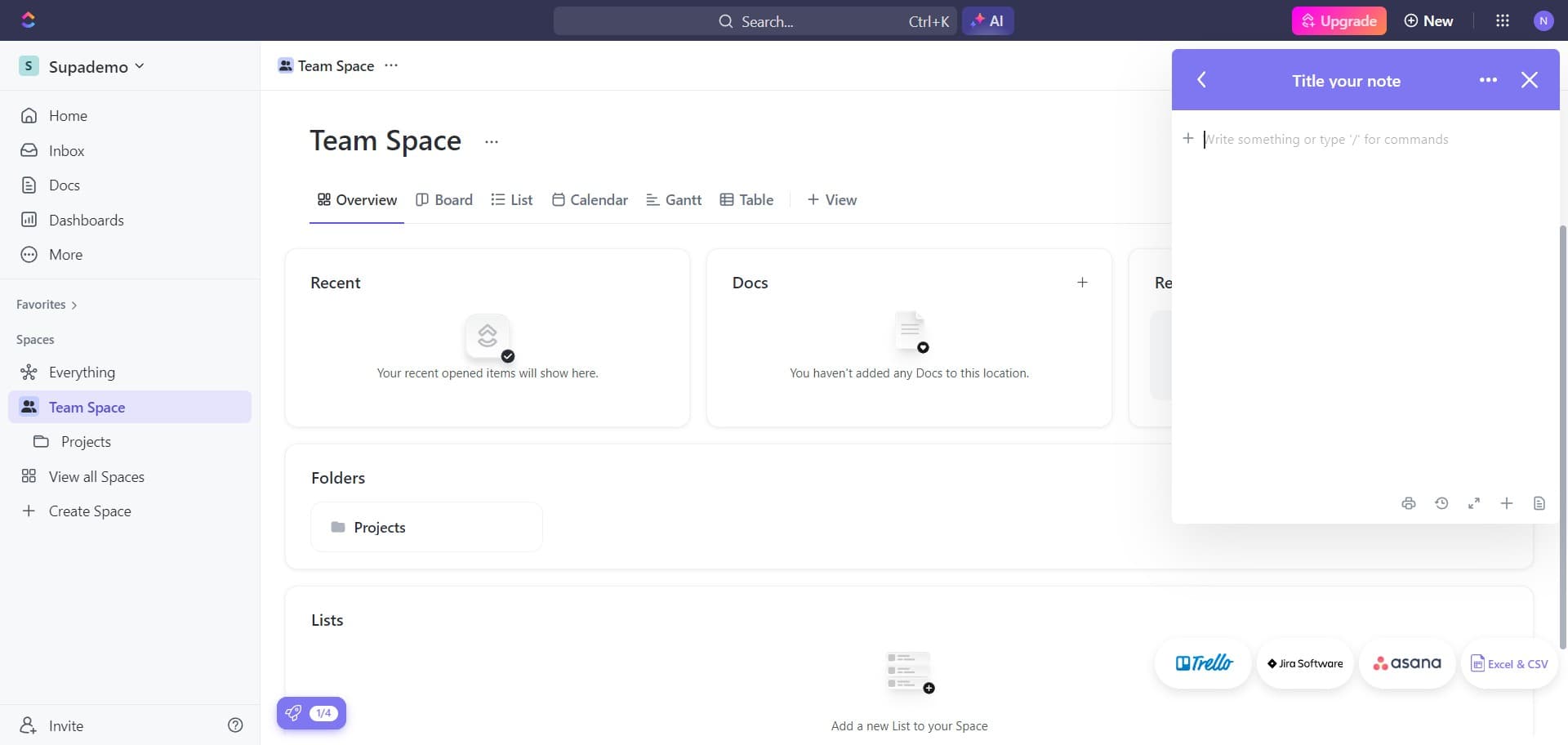
Create a new note
Click on 'Create' to start a new notepad entry. This button initiates the note creation process.
- 9
Finalize the notepad creation
Click to complete the creation of your new notepad. Your note is now saved and accessible within ClickUp.
Frequently asked questions
Common questions about how to enable and create a notepad in clickup.
Once enabled, your notepad can be accessed from your main ClickUp workspace interface. You can typically find it in the sidebar or through the command menu using the keyboard shortcut. The exact location may vary depending on your ClickUp plan and workspace setup.
Yes, you can create multiple notepads and organize them based on your needs. ClickUp allows you to manage multiple notes within your workspace, making it easy to keep different types of information separated.
The notepad feature availability depends on your ClickUp subscription plan. Most plans include basic notepad functionality, but some advanced features may be limited to higher-tier subscriptions. Check your plan details to confirm what's available to you.
ClickUp's sharing capabilities vary depending on your workspace permissions and plan. You may be able to share notes with specific team members or make them visible to your entire workspace. Review your sharing settings to determine what options are available.
If the notepad feature isn't visible, ensure you've navigated to the correct settings section and that your ClickUp account is up to date. If it remains unavailable, check that your subscription plan includes this feature, and contact ClickUp support if you need further assistance.