How to Change Your Signature in DocuSign

Your signature in DocuSign is a key component of your digital identity and authentication. This guide walks you through the process of changing your signature to ensure your documents reflect your current preferred signature style.
Quick summary
In this tutorial, you'll learn how to navigate to your signature settings in DocuSign and replace your existing signature with a new one. By following these step-by-step instructions, you'll be able to update your signature in just a few clicks.
Why this matters
Keeping your signature current is important for maintaining consistency across your digitally signed documents and ensuring your identity is accurately represented. Whether you've changed your signature style or need to correct a previous one, updating it promptly helps prevent confusion and maintains professional communication standards.
Step-by-step guide
- 1
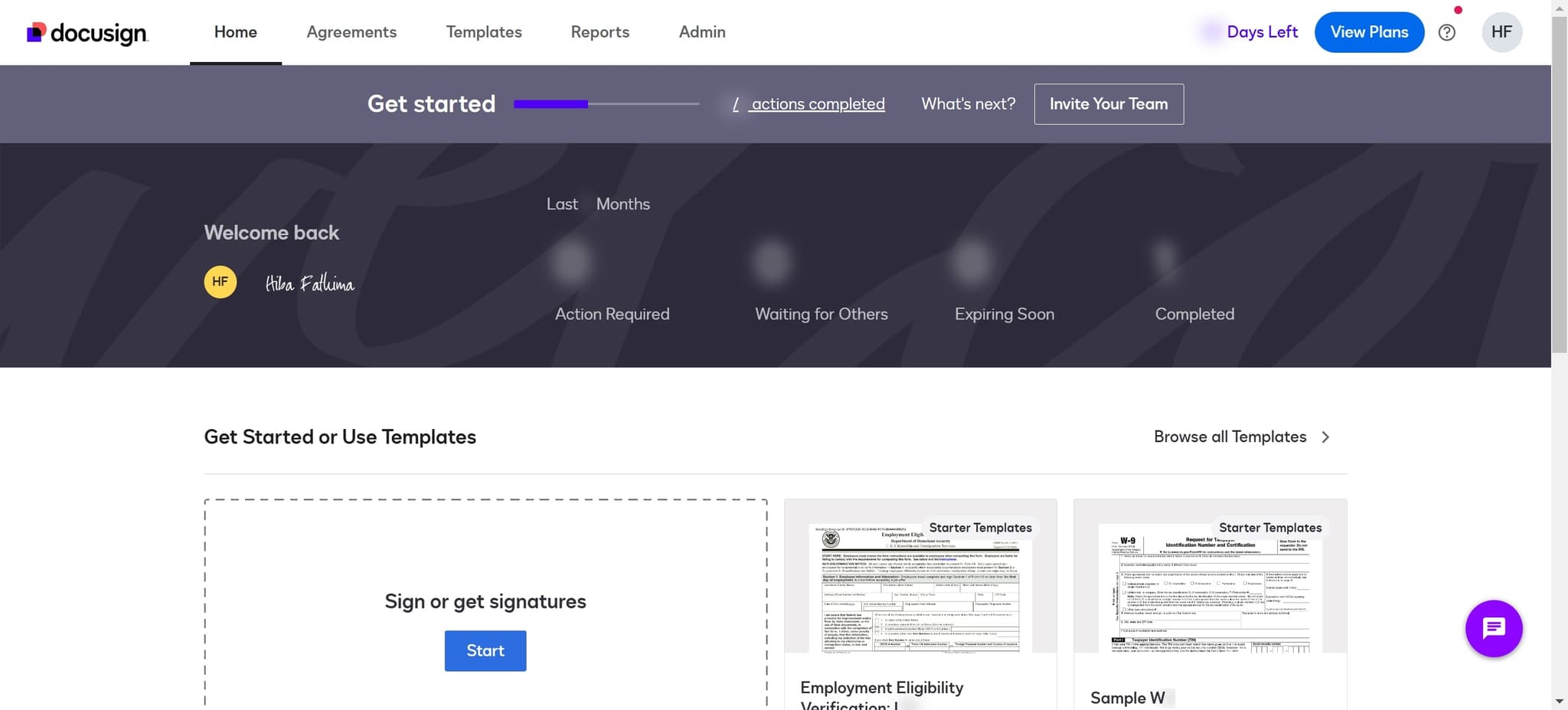
Click on Get Started or Use Templates
Begin by locating and clicking the 'Get Started or Use Templates' button on your DocuSign dashboard. This action will initialize your workflow and prepare you to access your account settings.
- 2
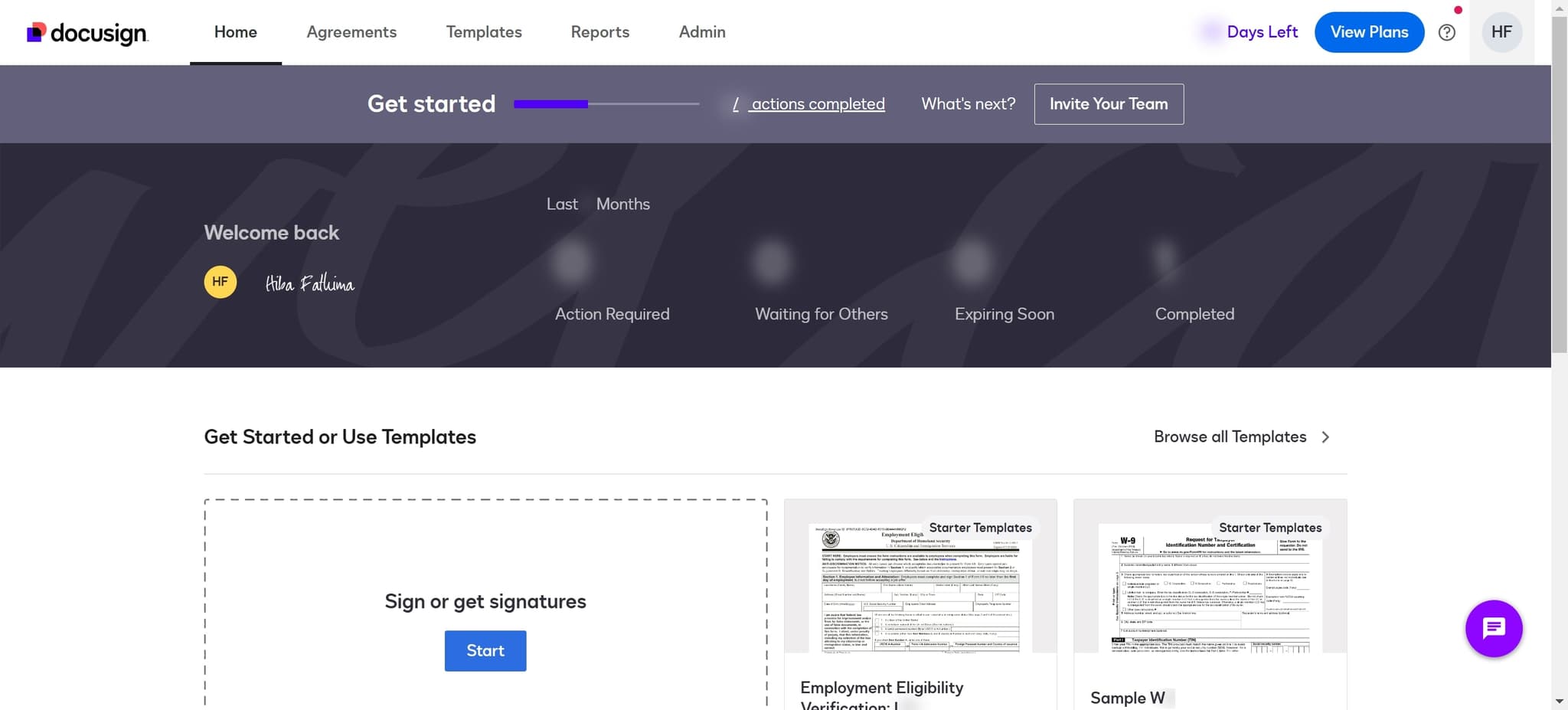
Select HF from the menu
Look for the 'HF' option in the menu that appears. Click on it to navigate to the next section of your account settings.
- 3
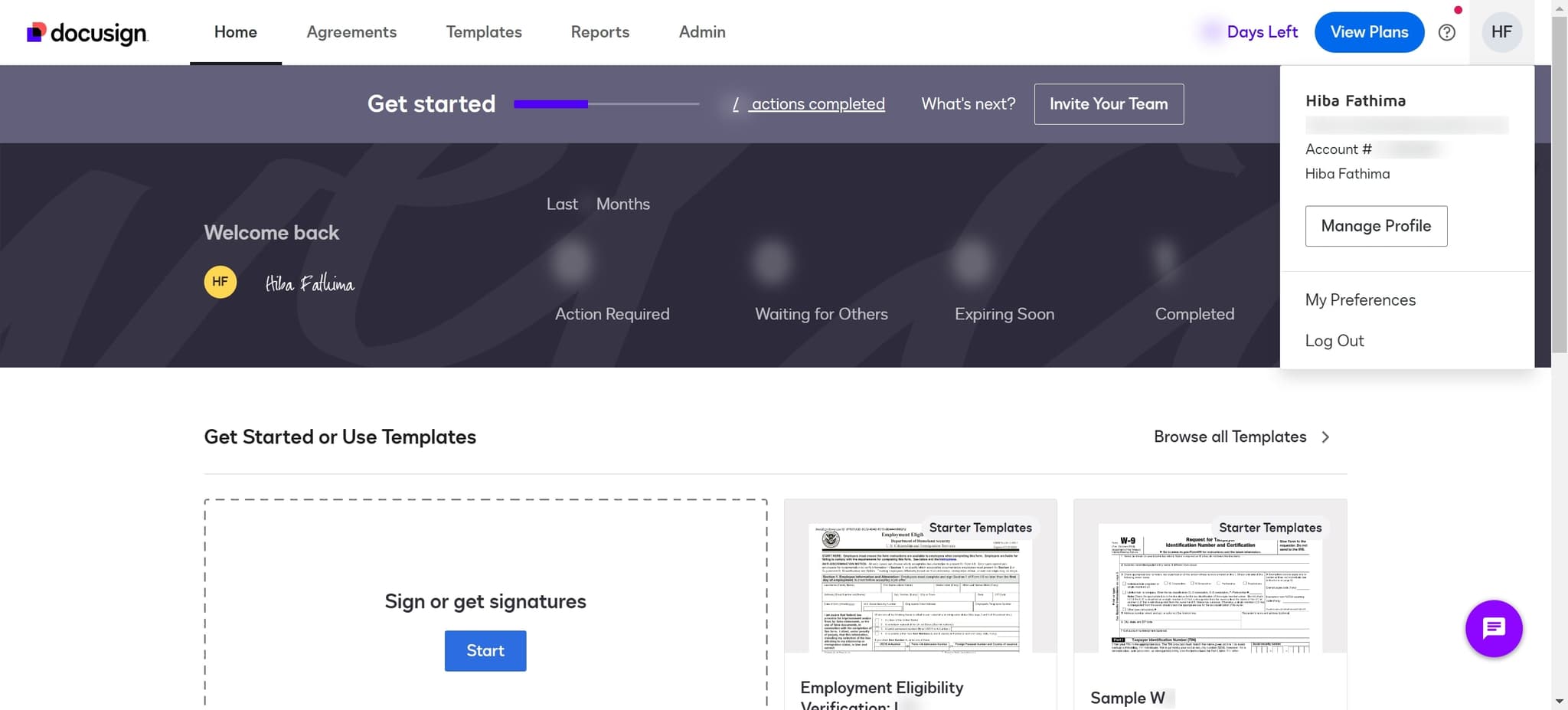
Click on Hiba Fathima
Select 'Hiba Fathima' from the list displayed. This will take you to the user profile or account management area where signature settings are located.
- 4
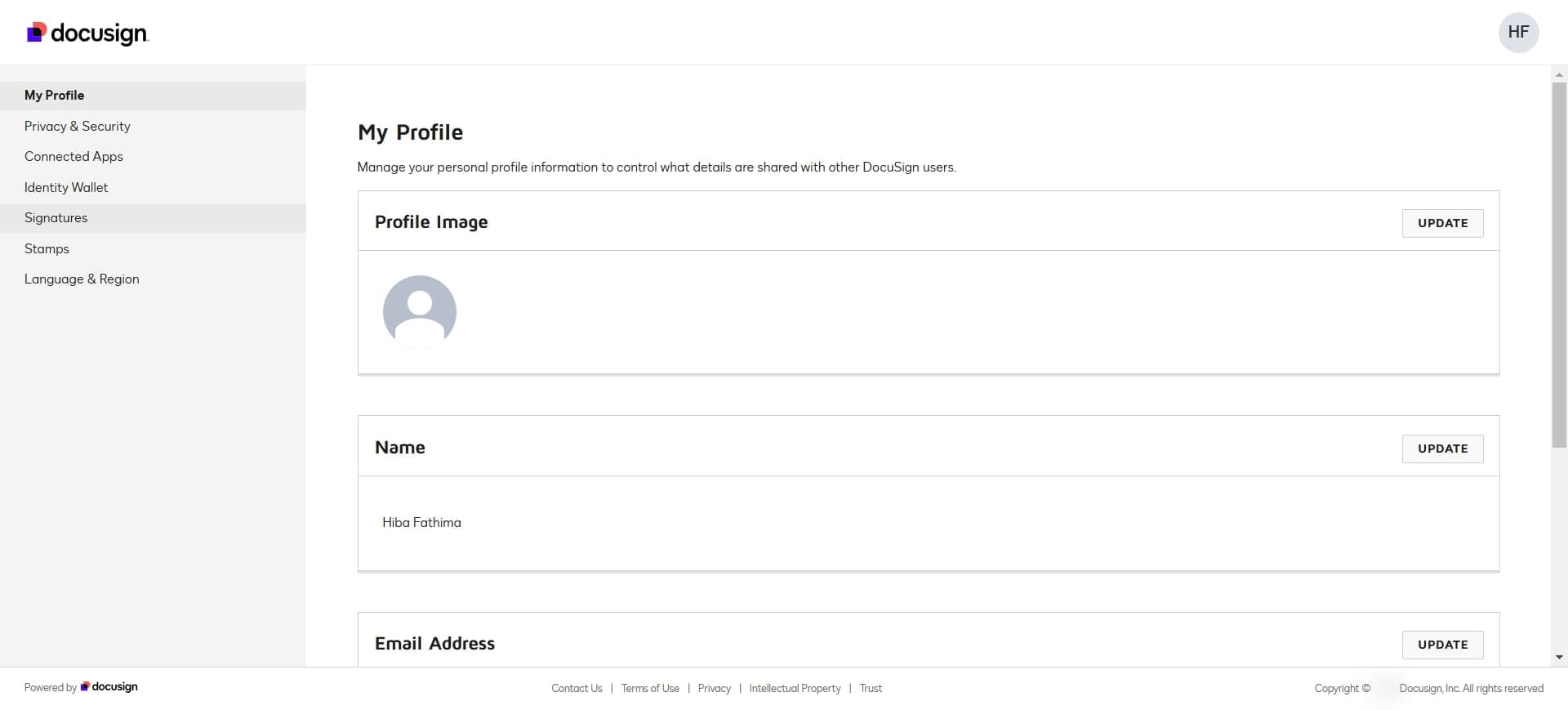
Navigate to Signatures section
Click on the 'Signatures' option to access your signature management area. This section displays all your current signatures and allows you to make modifications.
- 5
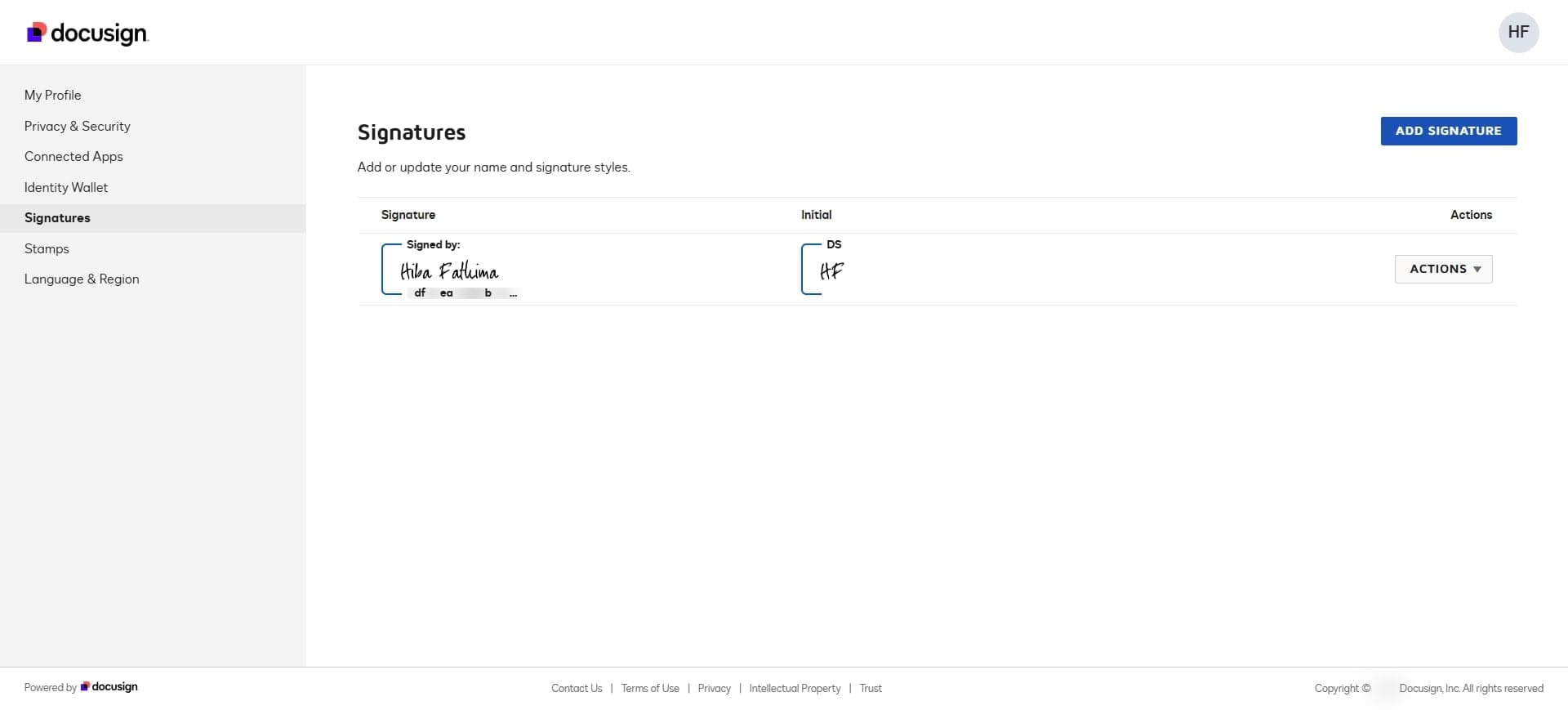
Click ADD SIGNATURE button
Find and click the 'ADD SIGNATURE' button to begin creating or uploading a new signature. This action opens the signature creation interface.
- 6
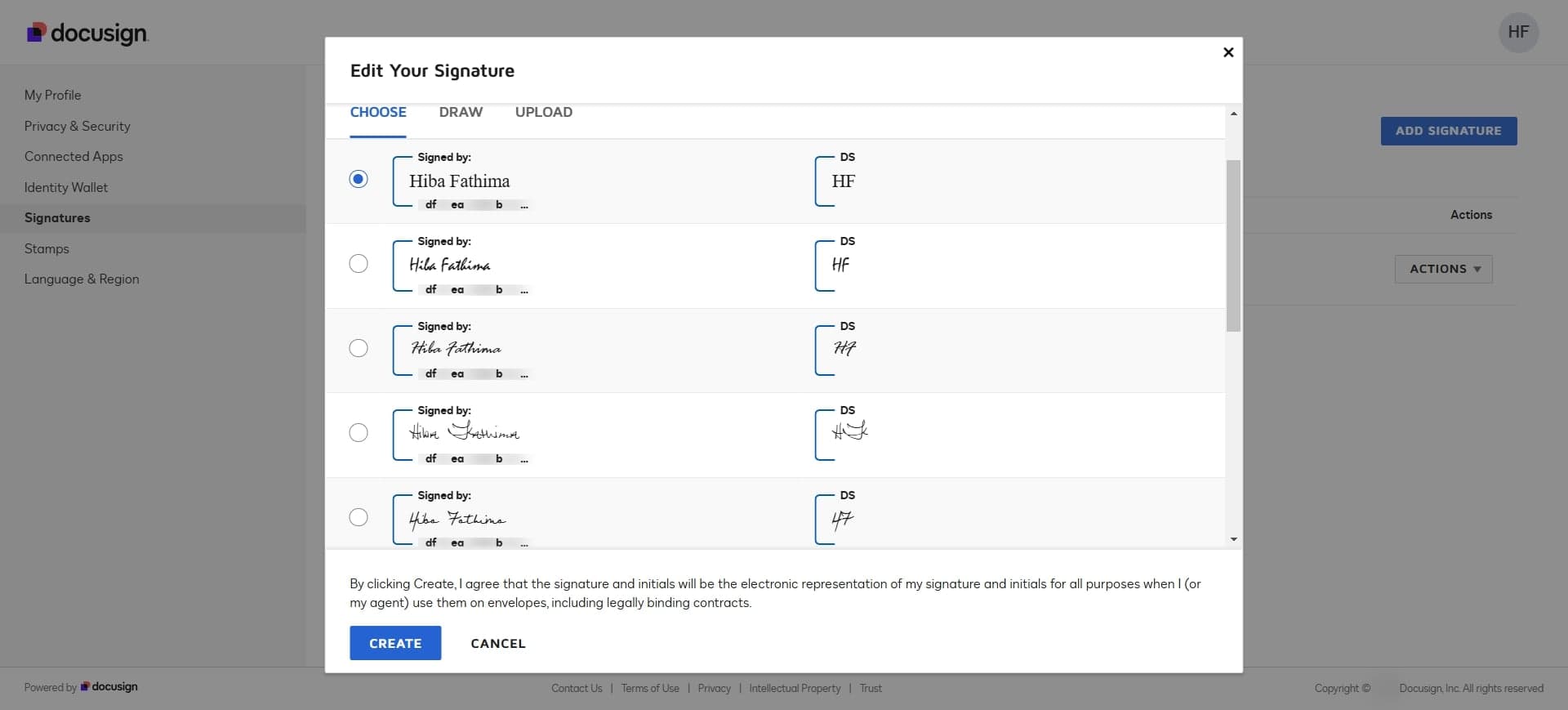
Click on the signature element
Click on the signature element or drawing area to activate it for input. This prepares the tool to capture or display your new signature.
- 7
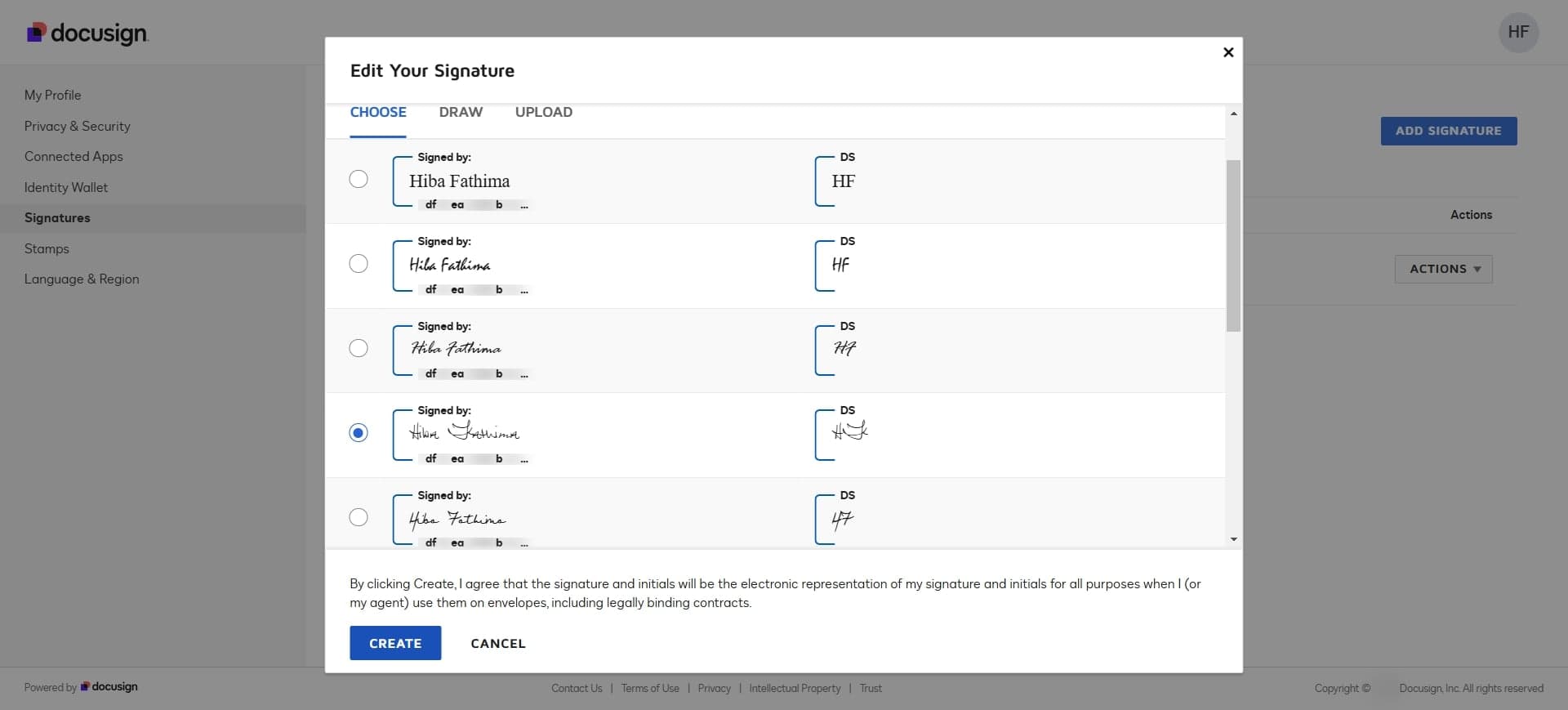
Click CREATE to finalize
Click the 'CREATE' button to save your new signature. DocuSign will process and store your signature in the system.
- 8
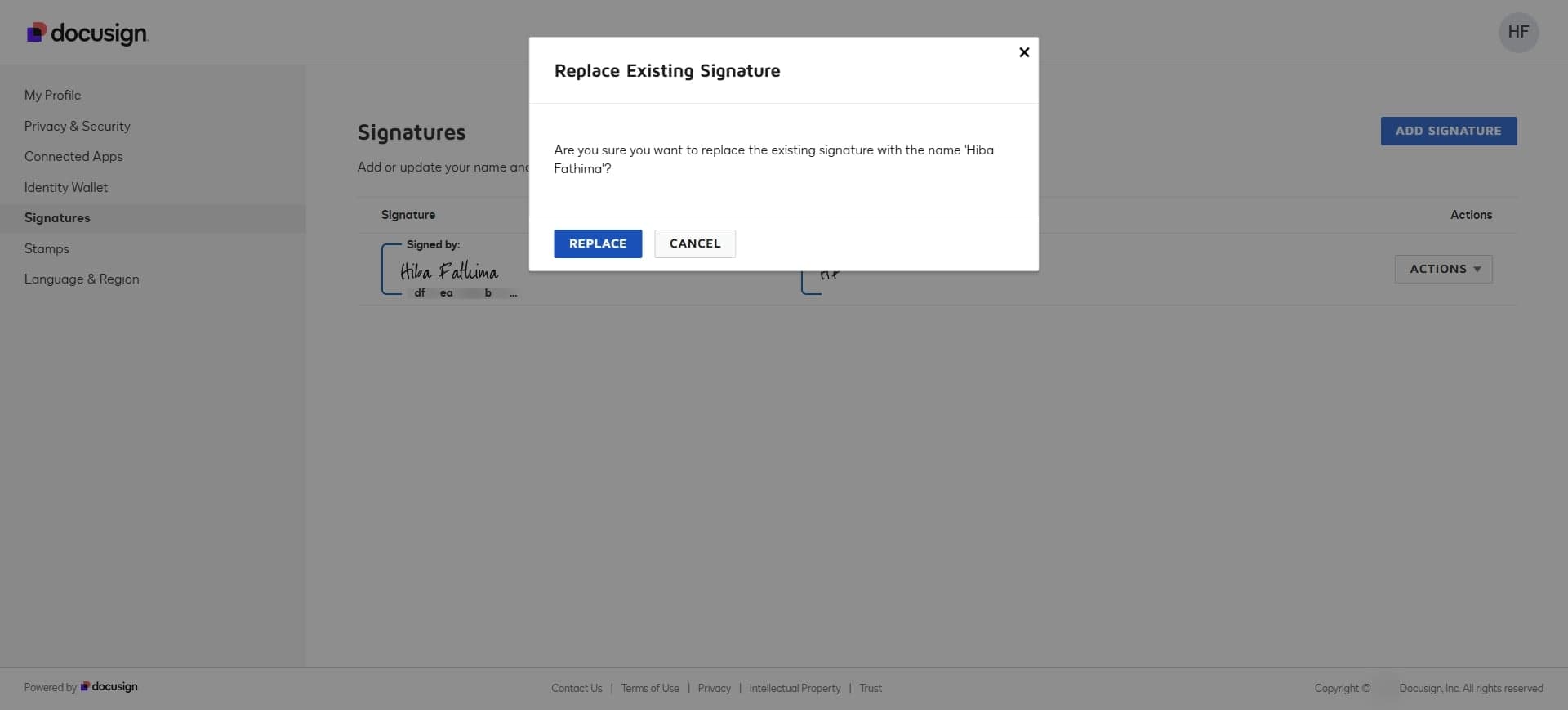
Click REPLACE to update
Finally, click the 'REPLACE' button to replace your old signature with the newly created one. Your signature change is now complete and will apply to future documents.
Frequently asked questions
Common questions about how to change your signature in docusign.
Yes, DocuSign allows you to create and store multiple signatures. You can add different signature styles for various purposes and select which one to use when signing documents. This flexibility is useful if you need different signatures for different document types or professional contexts.
DocuSign supports various formats for signatures including drawn signatures, typed text, uploaded images, and scanned signatures. The platform accepts common image formats like PNG and JPG for uploaded signatures, giving you flexibility in how you create your signature.
You can change your signature as often as needed. There are no restrictions on how frequently you update your signature settings. Simply follow the same process to replace your current signature with a new one whenever you wish.
No, changing your signature only affects documents you sign going forward. Any documents you've already signed will retain the signature that was applied at the time of signing. Your signature change is only applied prospectively.
If you make a mistake during the signature creation process, you can simply start over by clicking the signature element again and redrawing or re-uploading your signature. You don't need to save or submit the incorrect version if you catch the error before clicking CREATE.