How to Create a Template in DocuSign

DocuSign templates streamline your document workflow by allowing you to reuse pre-configured documents with standardized fields and roles. Creating a template saves time on repetitive signing processes and ensures consistency across your organization. This guide walks you through the complete template creation process in DocuSign.
Quick summary
In this tutorial, you'll learn how to create a DocuSign template from start to finish. You'll navigate to the Templates section, upload your document, configure roles and fields, and save your template for future use.
Why this matters
Templates are essential for organizations that send similar documents regularly, such as contracts, NDAs, or agreements. By setting up templates with predefined roles and fields, you eliminate manual configuration each time you send a document, reducing errors and accelerating your signing workflow. Templates also ensure that all parties understand their responsibilities through clearly assigned roles.
Step-by-step guide
- 1
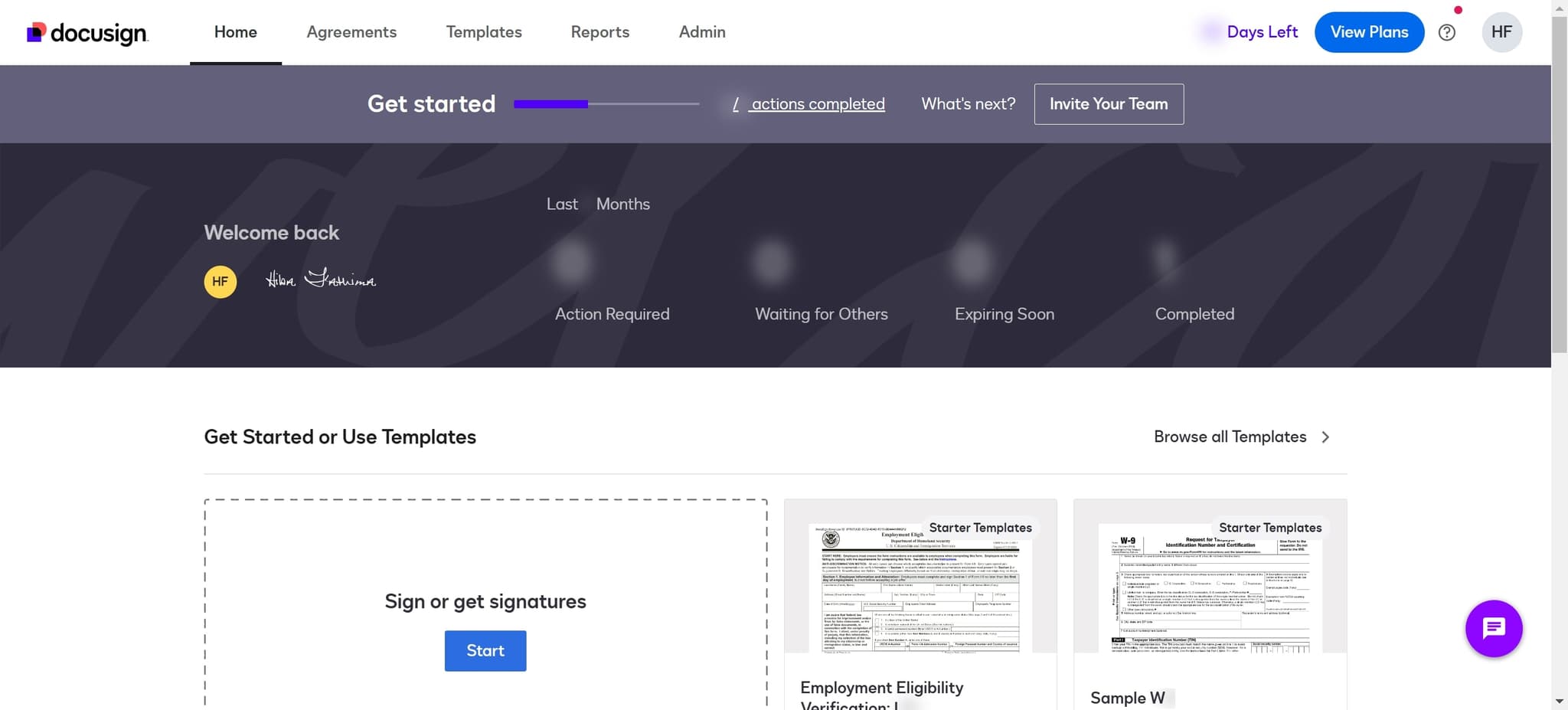
Access the Getting Started or Templates section
Navigate to the main dashboard and look for the 'Get Started or Use Templates' option. This is your entry point to DocuSign's template management system.
- 2
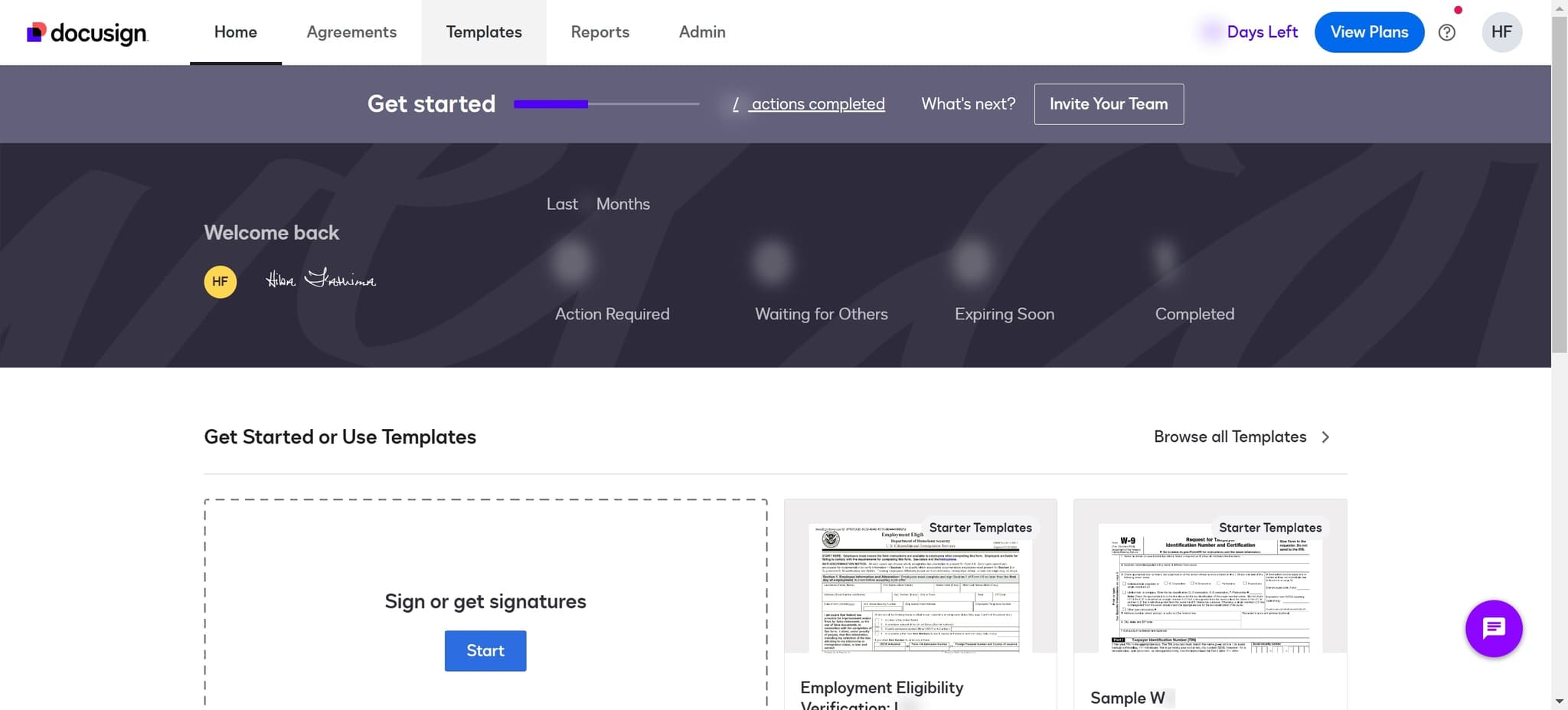
Navigate to the Templates area
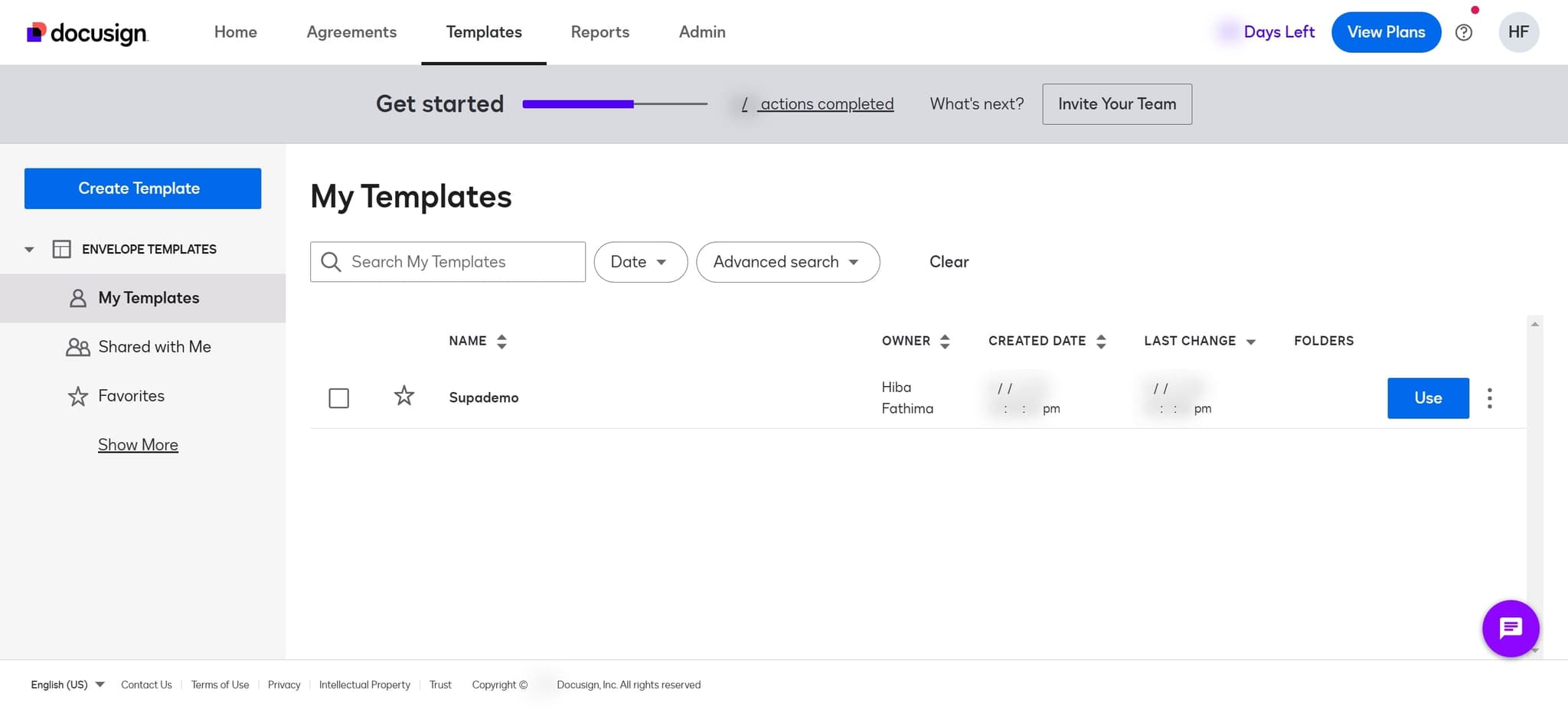
Click on 'Templates' to view your existing templates and access template management features. This section displays all templates available to your account.
- 3
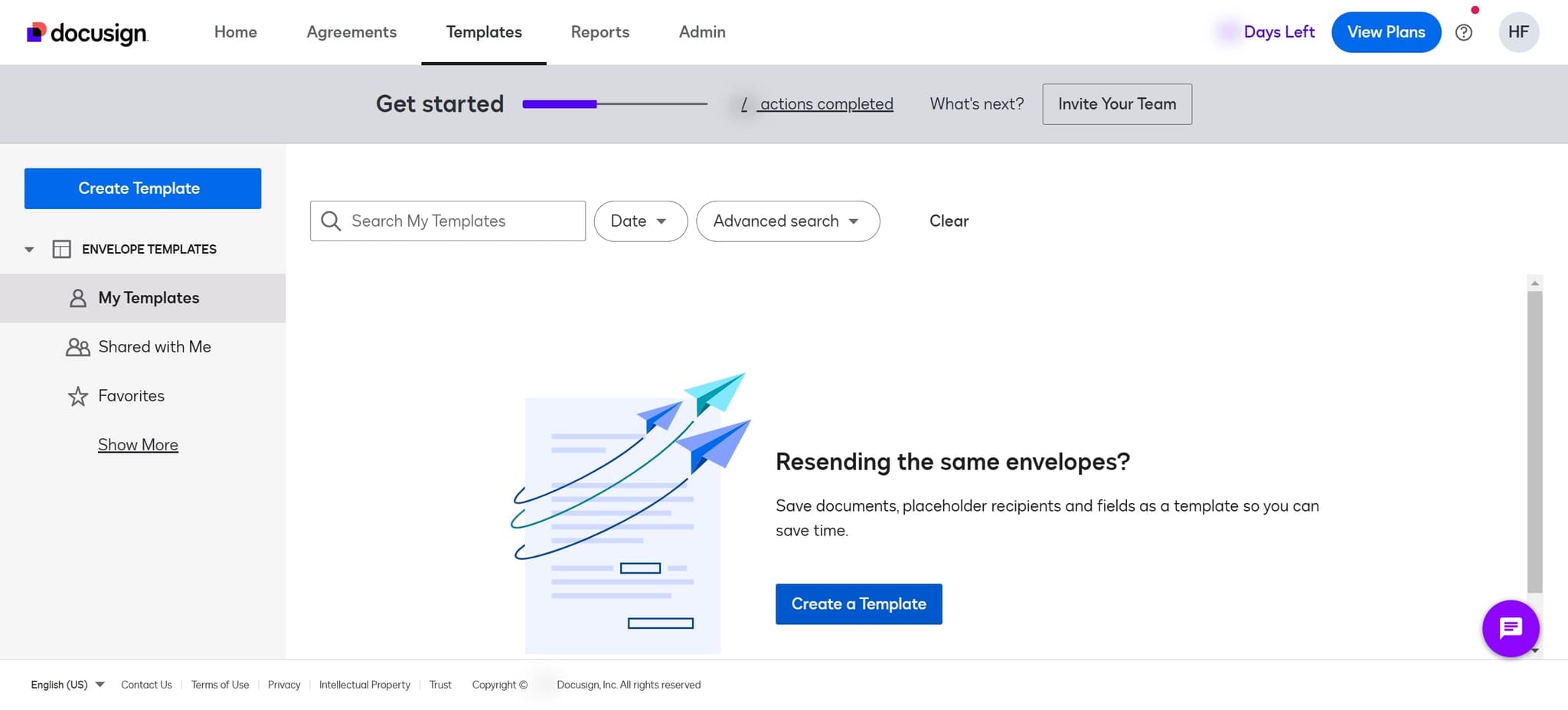
Initiate template creation
Click on 'Create a Template' to begin the setup process. You'll be prompted to either upload a new document or select an existing one to use as your template foundation.
- 4
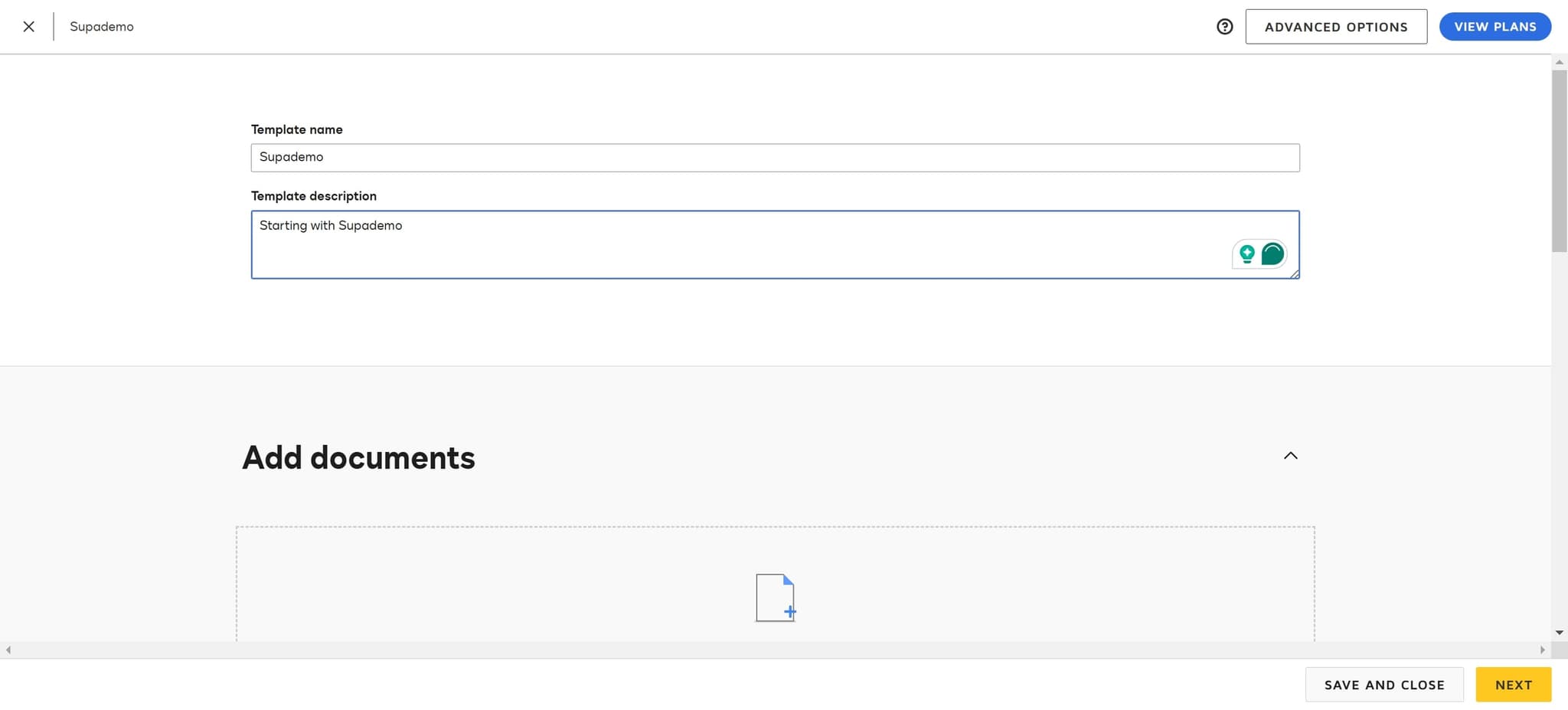
Enter the template name
Click on the 'Template name' field and provide a descriptive name for your template. Use clear naming conventions to help you and your team easily identify the template's purpose later.
- 5
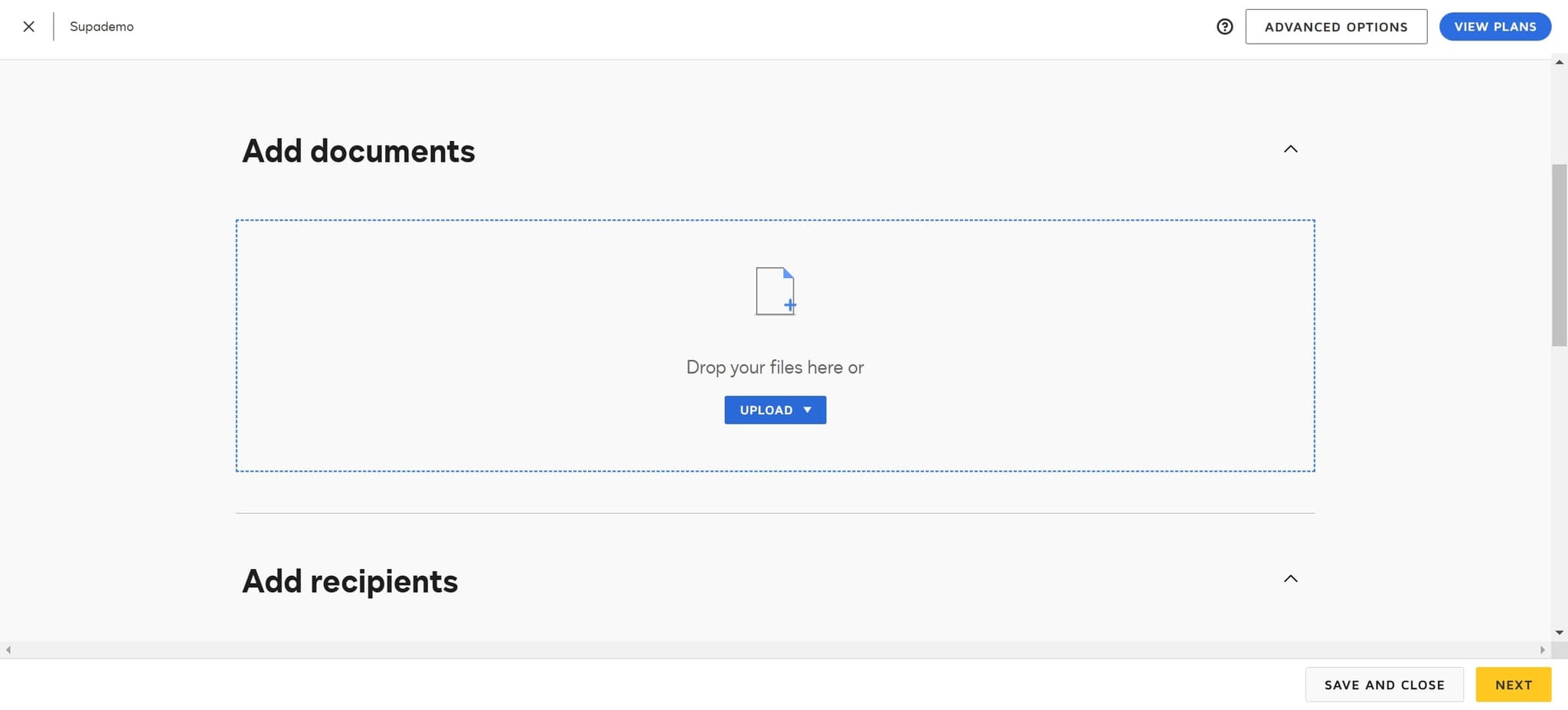
Upload your document
Click on 'Upload' to select the document file you want to use as your template. You can choose files from your computer or other available sources.
- 6
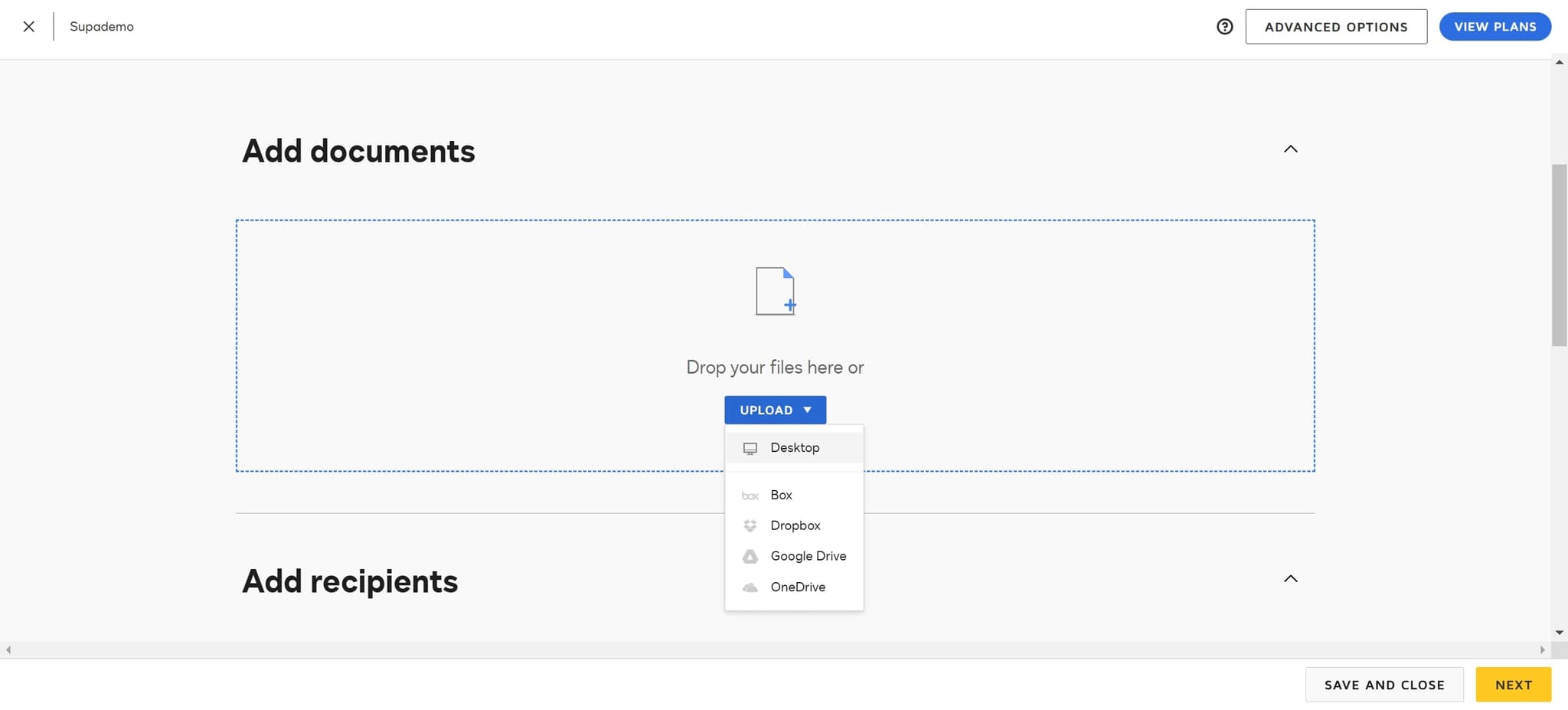
Select the file location
Click on 'Desktop' or another location where your document is stored. This allows DocuSign to locate and access your file for upload.
- 7
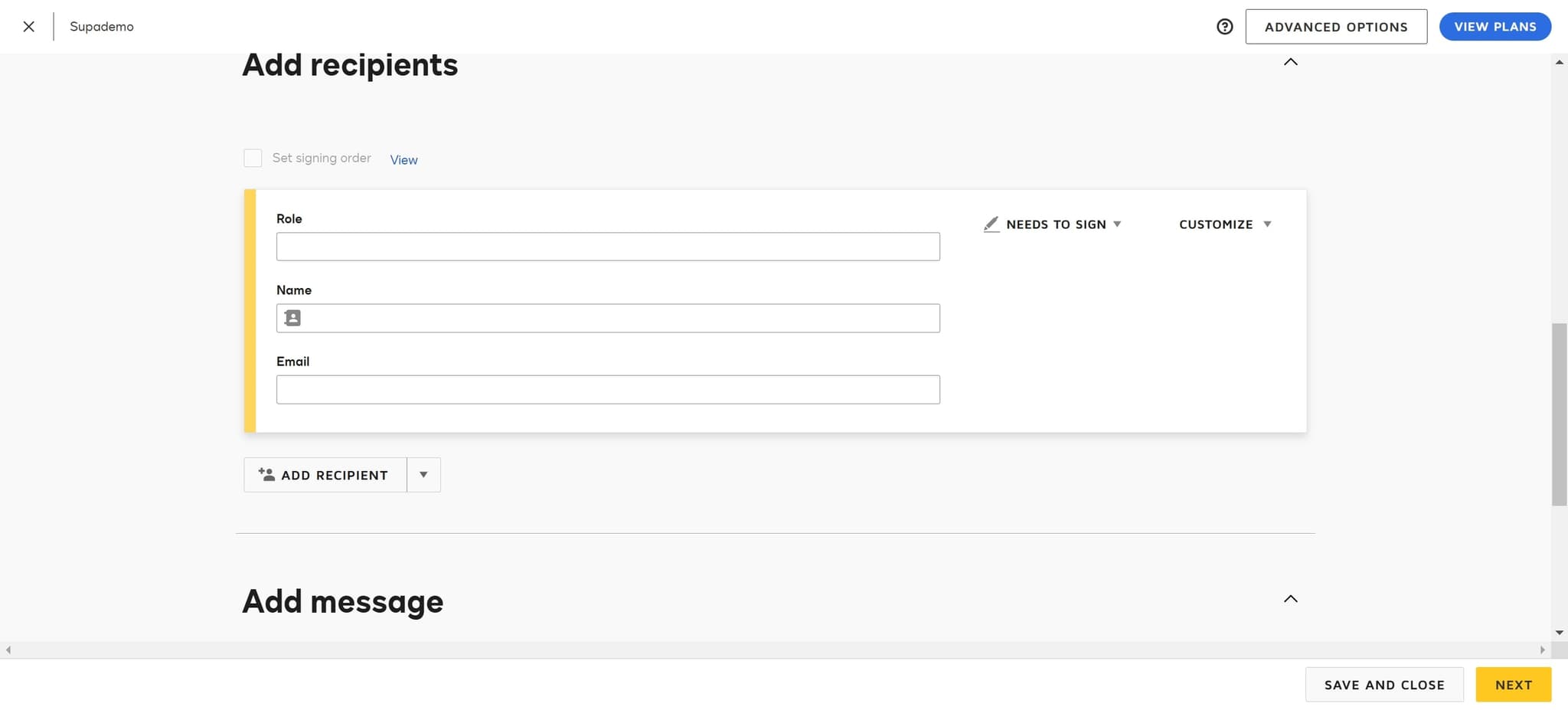
Define signer roles
Click on 'Role' to configure the different parties involved in the signing process. Assign meaningful role names such as 'Employee,' 'Manager,' or 'HR Representative' based on your workflow requirements.
- 8
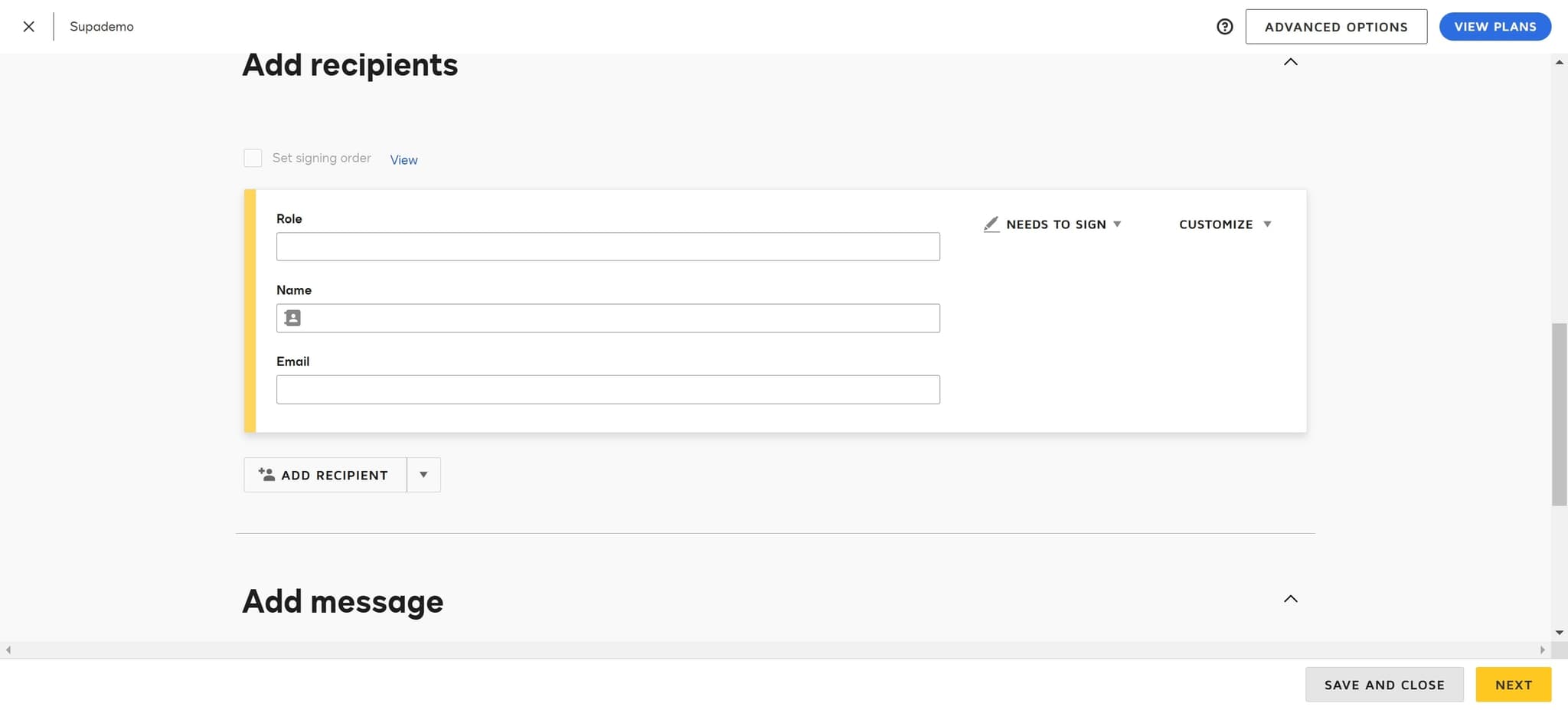
Complete and save the template
Click on 'Save and Close' to finalize your template configuration. Your template is now ready to use for future document sends.
- 9
Review sortable columns
Note that column headers with buttons in the template list are sortable, allowing you to organize and filter your templates by name, creation date, or other attributes for easier management.
Frequently asked questions
Common questions about how to create a template in docusign.
DocuSign accepts a variety of file formats including PDF, Word documents, and image files. The platform automatically converts files to PDF for processing. Check DocuSign's documentation for the complete list of supported formats and file size limitations.
Yes, you can edit templates after creation. Access your saved template from the Templates section, and you can modify roles, fields, and other settings as needed. Changes to templates only affect future uses, not previously sent documents.
DocuSign allows you to assign multiple roles within a single template. The number of roles depends on your account plan, but most plans support multiple signers and recipients. Refer to your plan details for specific role limits.
Yes, templates can typically be shared within your organization depending on your DocuSign account settings and permissions. Contact your DocuSign administrator to configure template sharing and access controls for your team.
Use clear, descriptive naming conventions and take advantage of DocuSign's sortable columns to organize templates by category or date. Consider creating templates for different departments or document types to keep your library manageable and easy to navigate.