How to Compare Two Columns in Excel

Comparing two columns in Excel is a fundamental skill for data analysis, quality assurance, and identifying discrepancies between datasets. Whether you're checking for duplicates, finding missing values, or validating data accuracy, Excel offers several built-in methods to accomplish this task efficiently.
Quick summary
In this tutorial, you'll learn how to compare two columns in Excel using formulas, conditional formatting, and built-in comparison tools. By the end, you'll be able to identify matches, differences, and anomalies between datasets quickly and accurately.
Why this matters
Comparing columns is essential for maintaining data integrity, spotting errors, and making informed business decisions. In real-world scenarios—from inventory audits to customer record validation—the ability to efficiently compare large datasets can save hours of manual work and prevent costly mistakes.
Step-by-step guide
- 1
Open Excel and load your data
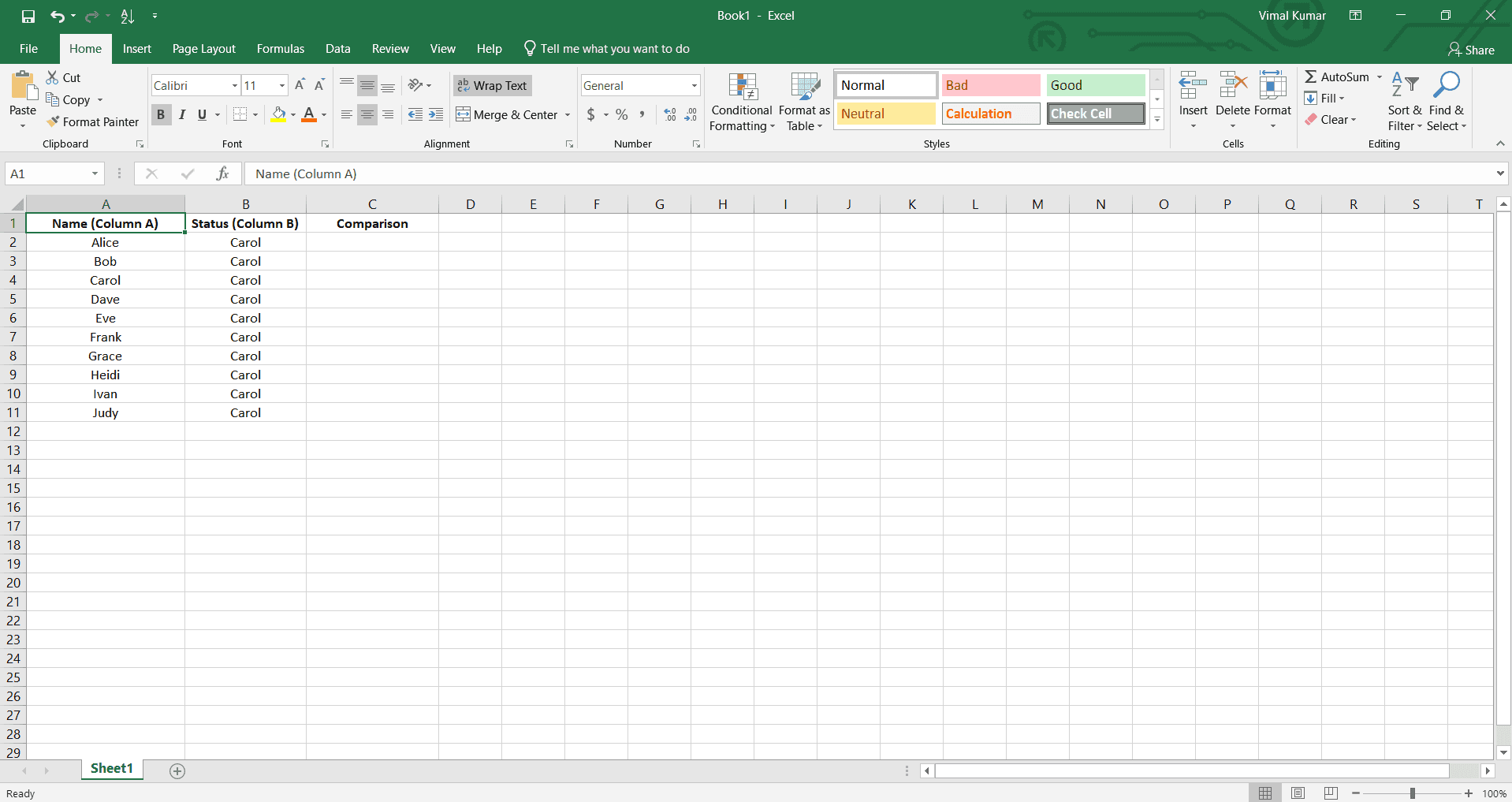
Launch Microsoft Excel and open the spreadsheet containing the two columns you want to compare. Ensure both columns are visible on the same worksheet and have clear headers for easy reference.
- 2
Select the first column for comparison
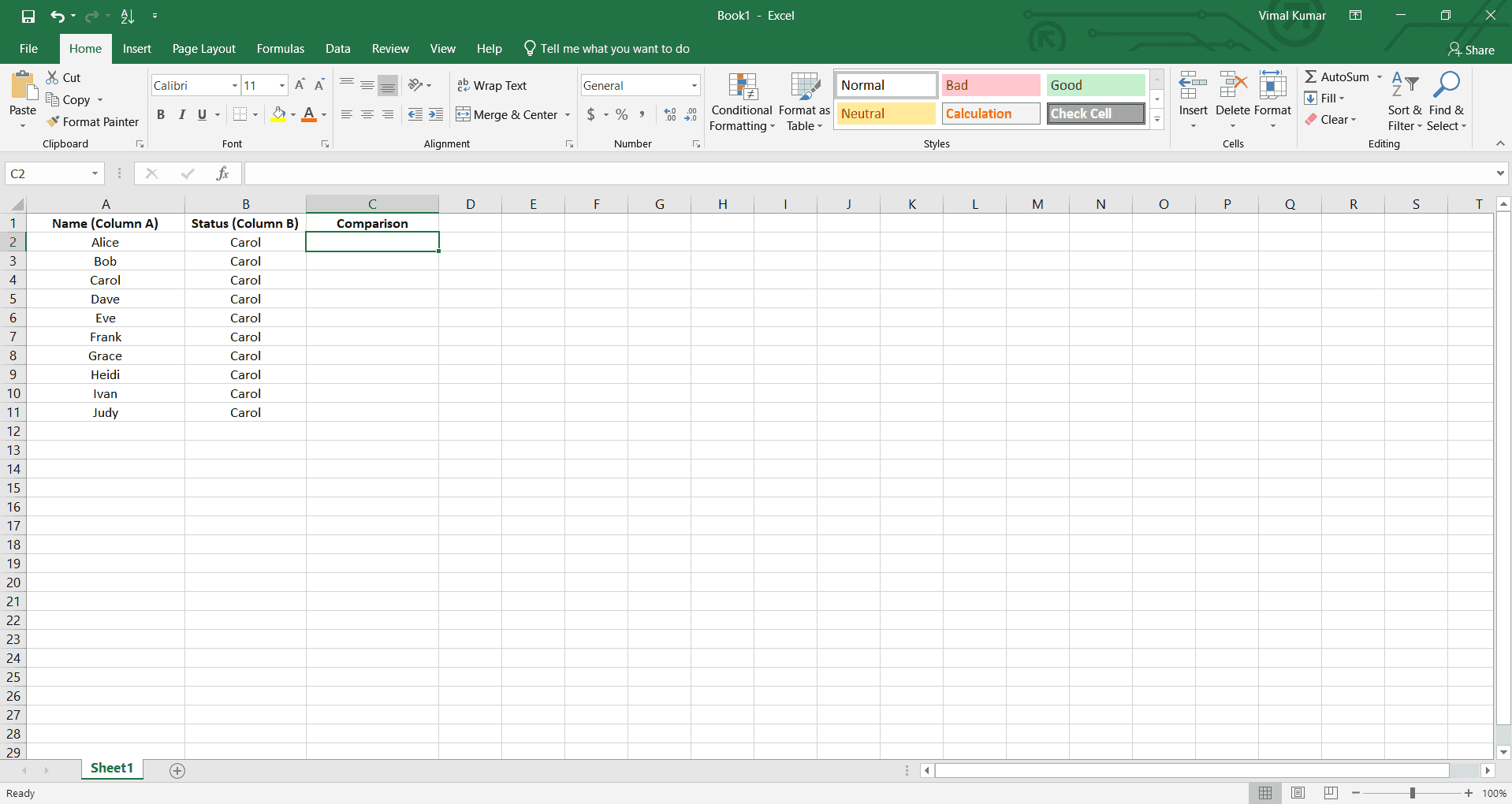
Click on the column header or first cell of the first column you want to compare. This establishes the starting point for your comparison operation.
- 3
Select the second column for comparison
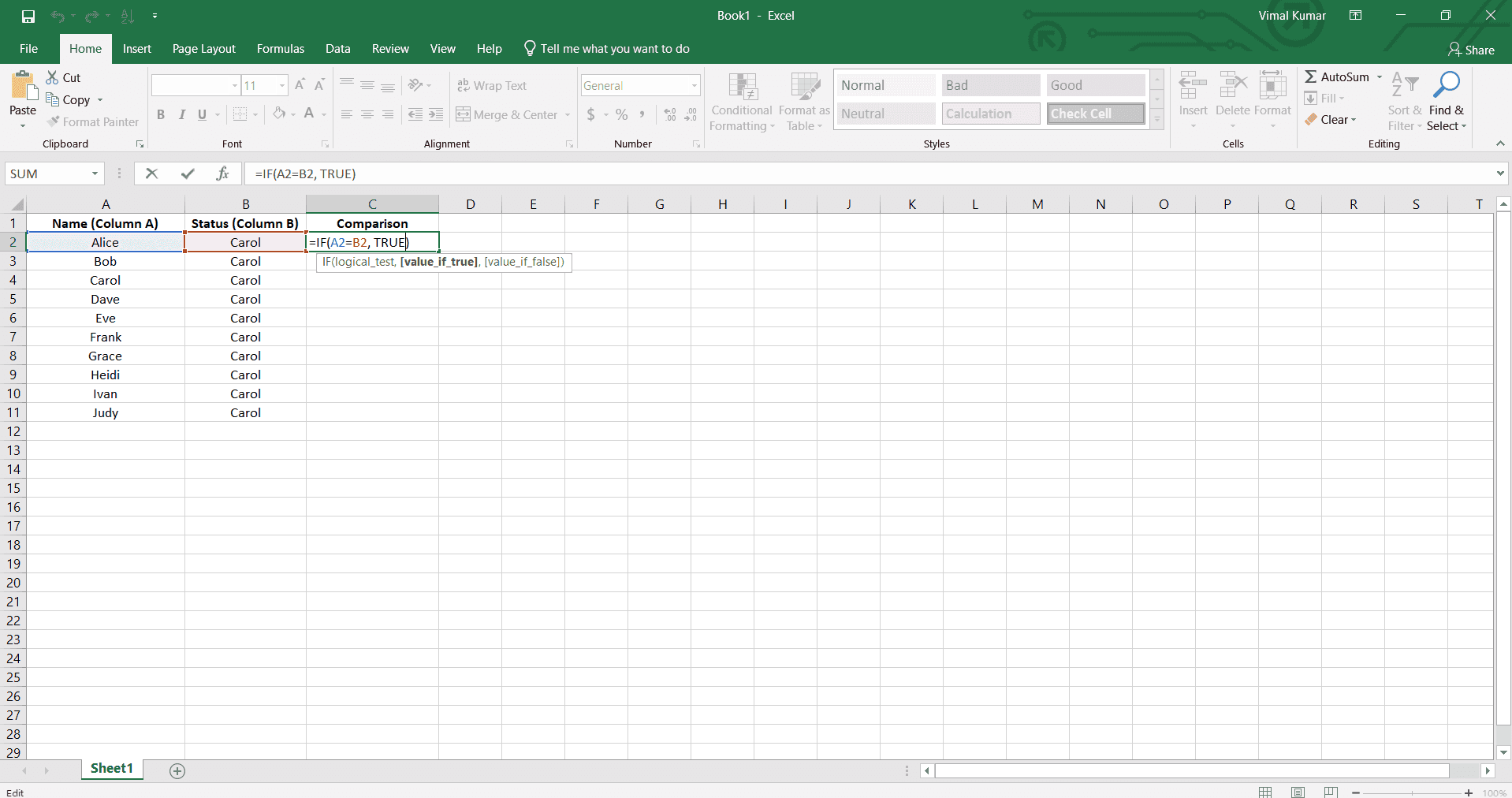
Hold Ctrl and click on the column header or cells of the second column to add it to your selection. Both columns should now be highlighted, indicating they are ready for comparison.
- 4
Choose your comparison method
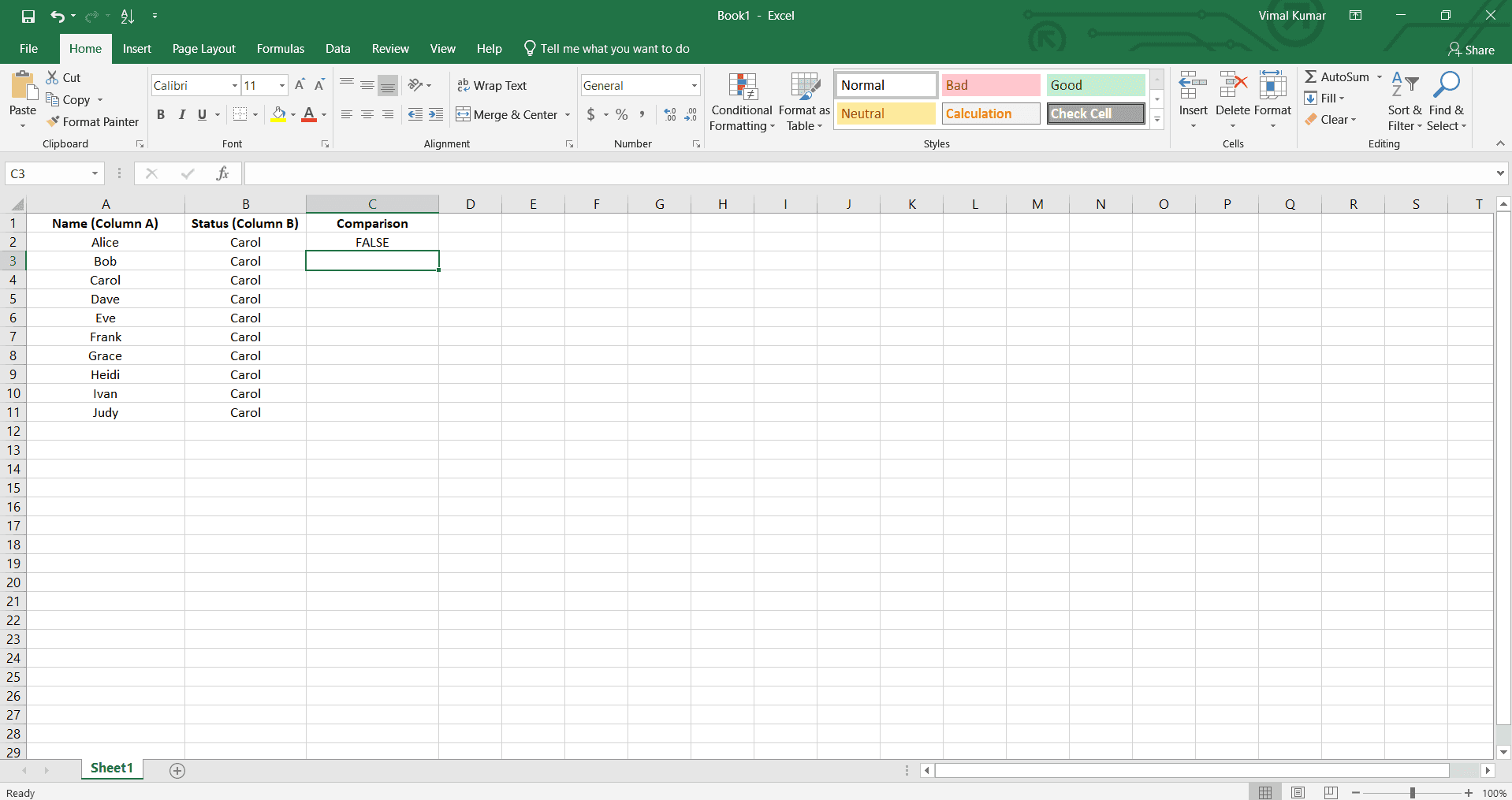
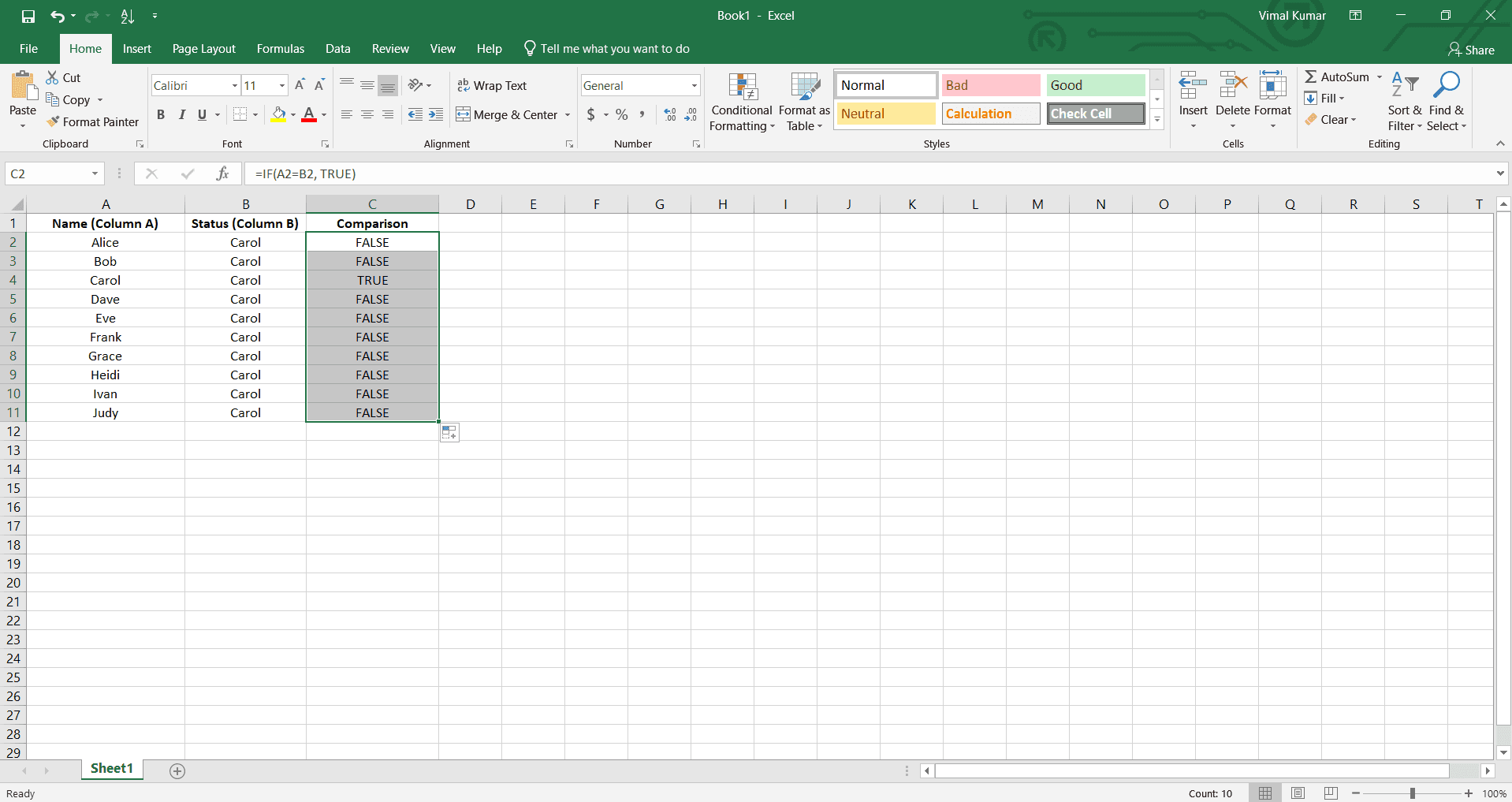
Decide whether to use a formula-based approach (such as IF or COUNTIF functions), conditional formatting to highlight differences, or the Go To Special feature for finding unique values. Select the method that best suits your data and analysis needs.
- 5
Review and analyze the results
Examine the output from your chosen comparison method—whether it's formula results, highlighted cells, or a list of unique values. Document any discrepancies found and take appropriate action based on your analysis.
Frequently asked questions
Common questions about how to compare two columns in excel.
Use the COUNTIF function to check if values in one column exist in another. For example, enter =COUNTIF($B$2:$B$100,A2) in a helper column to return 1 if a match exists or 0 if it doesn't. This method works well for datasets of any size and clearly shows which values have matches.
Yes, use Excel's Conditional Formatting feature to visually highlight differences. Select both columns, go to Conditional Formatting, and choose a rule like 'Highlight Cell Rules' or create a custom formula to mark cells that don't match. This approach is fast and makes discrepancies immediately visible.
Use the MATCH function combined with IFERROR to identify unique values. For example, =IFERROR(MATCH(A2,$B$2:$B$100,0),'Not Found') will display 'Not Found' for values in column A that don't exist in column B. Alternatively, use the Go To Special feature to select blanks after applying this formula.
Duplicates won't prevent comparison, but they may complicate your analysis. Use formulas like COUNTIF to count occurrences or apply conditional formatting to highlight all instances. If you need to compare unique values only, consider removing duplicates first using Excel's Data Tools.
Yes, but you may need to standardize the data first. Use functions like TEXT, VALUE, or LOWER to convert data to matching formats before comparison. For example, if one column has dates and the other has text, convert both to the same format using these functions to ensure accurate comparisons.