How to Freeze First Row On MS-Excel

Freezing the first row in Microsoft Excel keeps your column headers visible as you scroll through large datasets. This essential technique improves readability and navigation, especially when working with spreadsheets containing hundreds or thousands of rows.
Quick summary
In this tutorial, you'll learn how to freeze the first row in Microsoft Excel to maintain visibility of your headers while scrolling. By the end, you'll be able to apply this feature quickly and work more efficiently with organized data.
Why this matters
Freezing rows is critical when analyzing large datasets because it prevents you from losing context about what each column represents. This workflow saves time and reduces errors by keeping headers in view at all times, regardless of how far down you scroll.
Step-by-step guide
- 1
Open your Excel spreadsheet
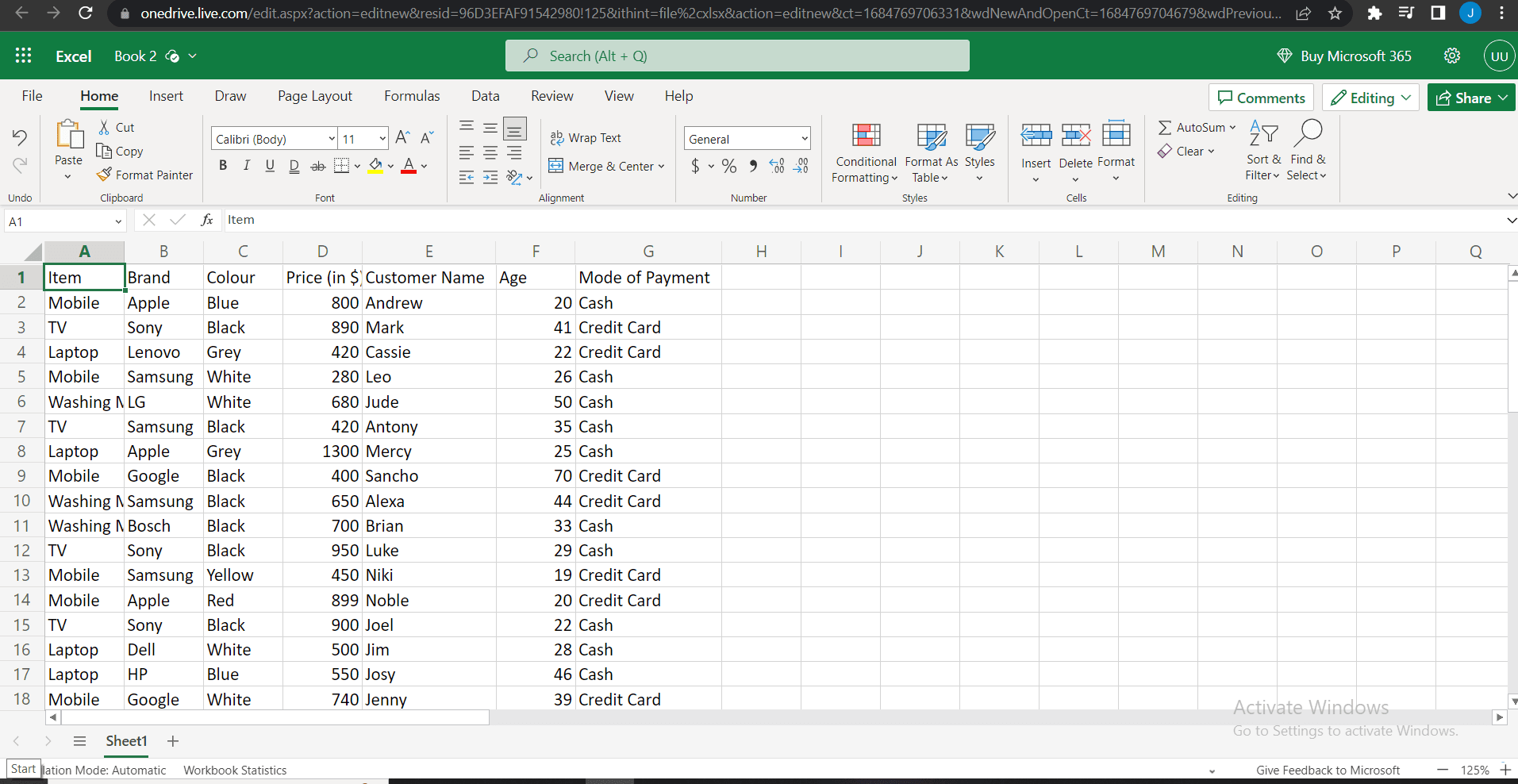
Launch Microsoft Excel and open the spreadsheet containing the data you want to work with. Ensure your file is loaded and ready for editing.
- 2
Identify your header row
Locate the first row containing your column headers or titles. This is the row you want to keep visible while scrolling through the rest of your data.
- 3
Select the row below headers
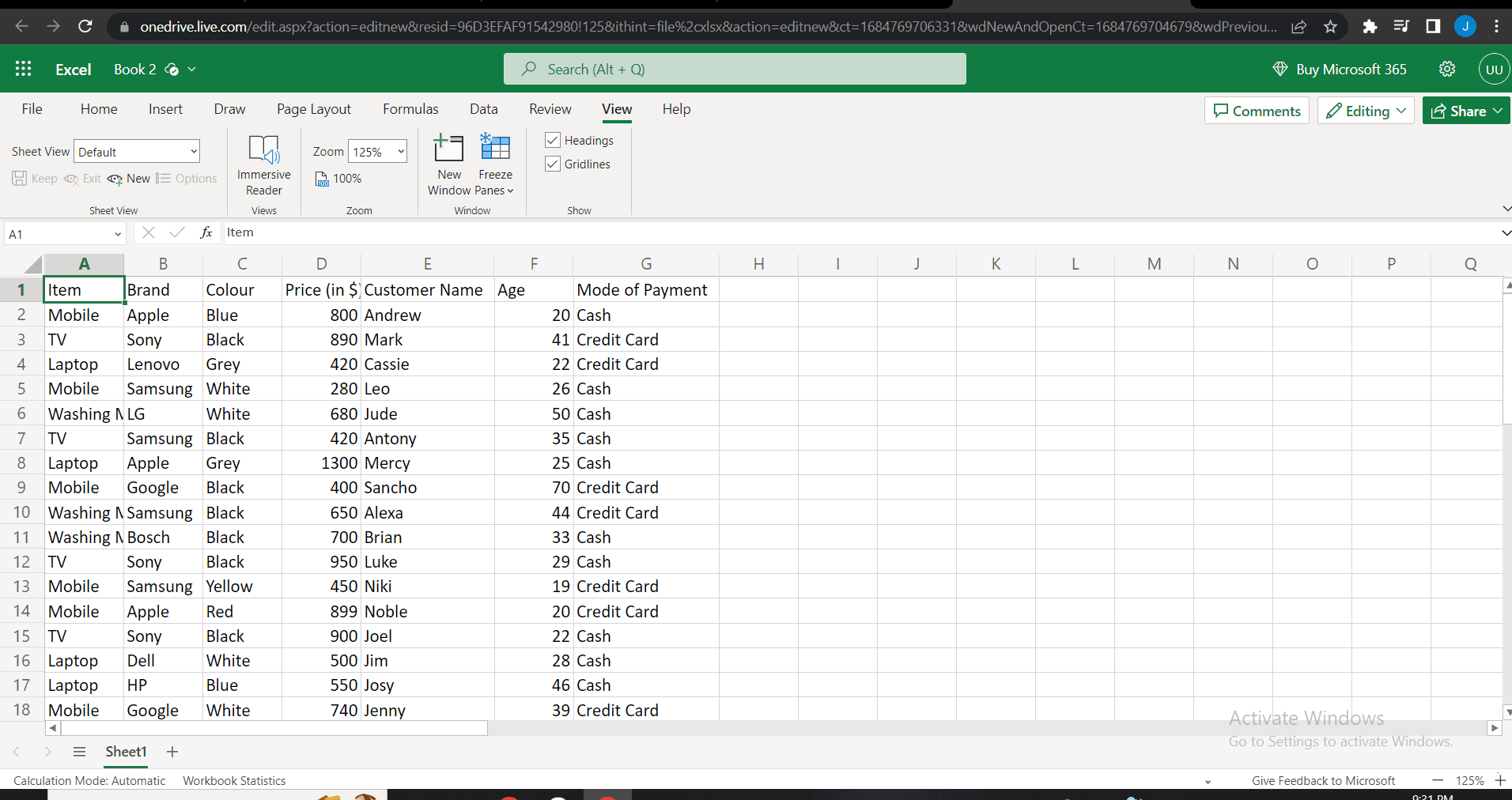
Click on the cell in the first column of the second row (the row immediately below your headers). This selection tells Excel where to freeze the panes.
- 4
Access the View menu
Click on the View tab in the Excel ribbon at the top of the screen. This menu contains all formatting and display options for your spreadsheet.
- 5
Apply Freeze Panes
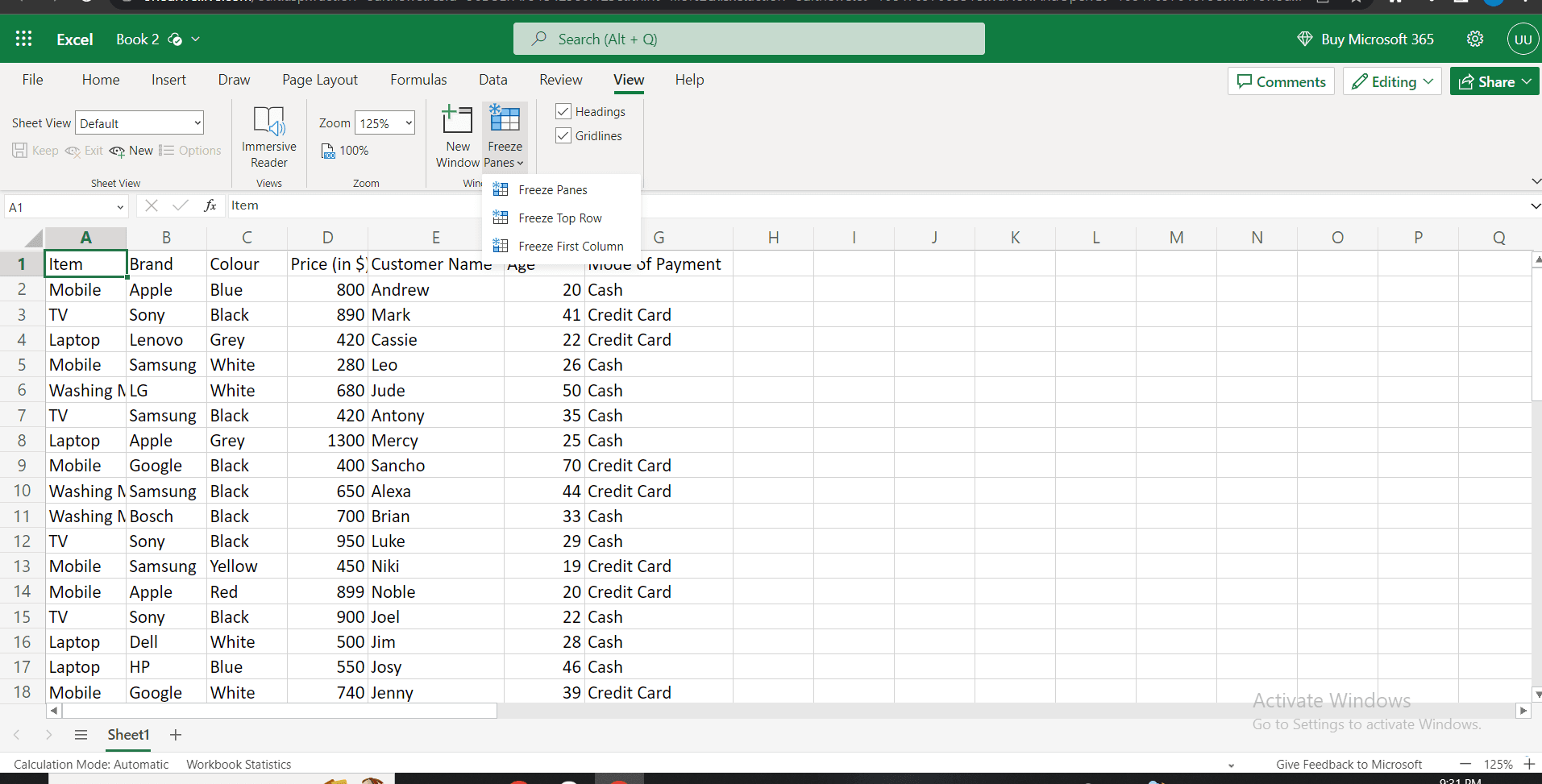
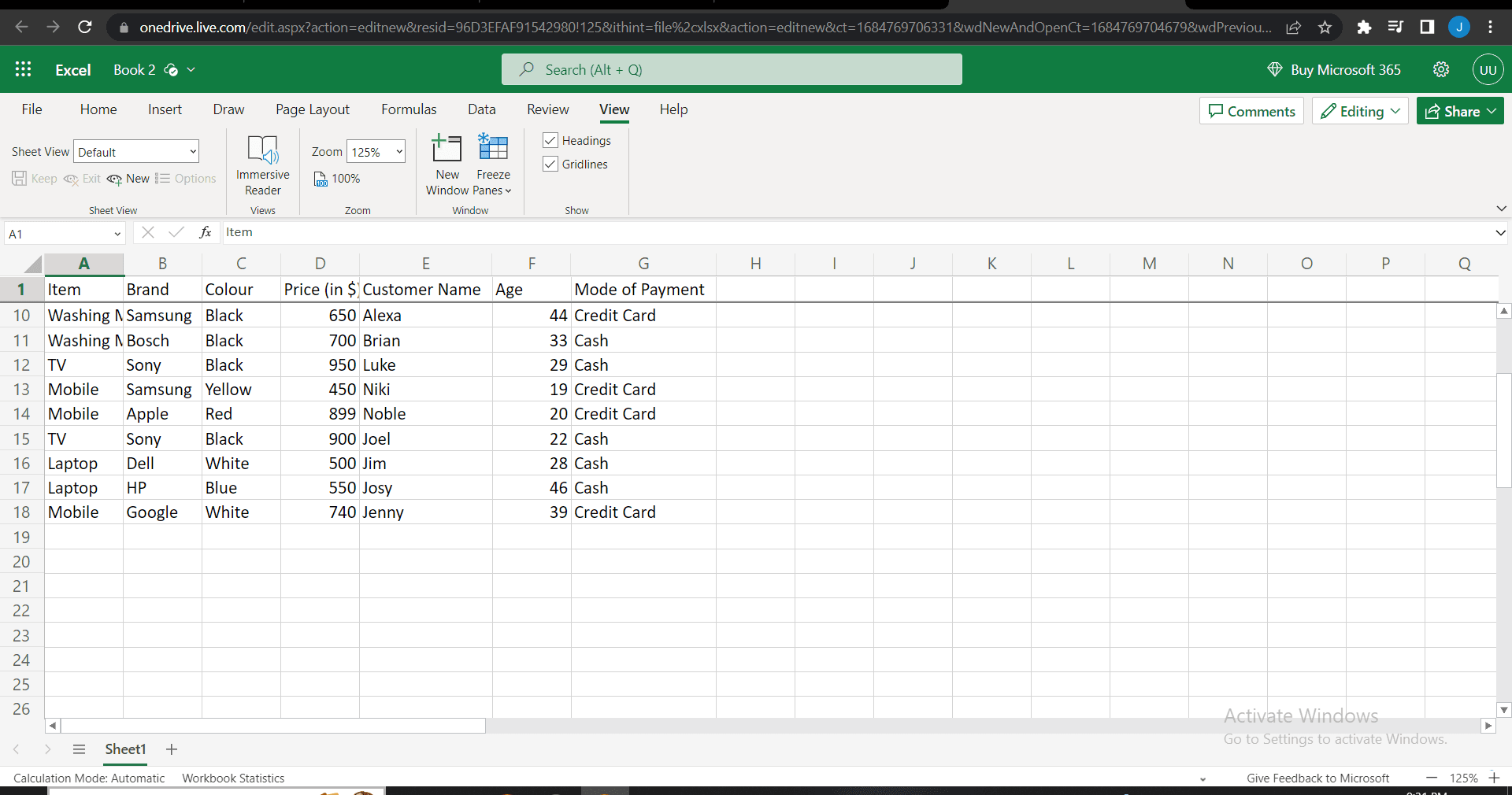
Click on the Freeze Panes button and select Freeze Panes from the dropdown menu. Your first row is now frozen and will remain visible as you scroll down through your data.
Frequently asked questions
Common questions about how to freeze first row on ms-excel.
Yes, you can freeze multiple rows by selecting the cell in the first column of the row below the rows you want to freeze, then applying Freeze Panes. For example, to freeze the first three rows, select cell A4 before freezing. This technique works for any number of rows or columns you need to keep visible.
To unfreeze rows, go to the View tab and click the Freeze Panes button again. Select Unfreeze Panes from the dropdown menu. Your spreadsheet will return to normal scrolling with no frozen rows or columns.
No, freezing rows is purely a visual feature that doesn't modify your data, formulas, or calculations. It only controls what remains visible on your screen when scrolling. Your spreadsheet functions exactly the same way with or without frozen panes.
Yes, you can freeze both rows and columns simultaneously. Select the cell at the intersection point where you want the freeze to occur, then apply Freeze Panes. For example, to freeze the first row and first column, select cell B2 before freezing.
Freezing panes is available in all modern versions of Excel including Excel Online, Excel for Mac, and desktop versions. The steps may vary slightly between versions, but the feature is consistently available and works the same way functionally.