How to Highlight Duplicates in Excel

Duplicate data can clutter your spreadsheets and make analysis difficult. Excel's conditional formatting feature allows you to quickly identify and visually highlight duplicate values across your data. This tutorial walks you through the process of setting up duplicate highlighting in just a few clicks.
Quick summary
In this tutorial, you'll learn how to use Excel's conditional formatting rules to automatically highlight duplicate values in your spreadsheet. By the end, you'll be able to apply this formatting to any range of data to make duplicates instantly visible.
Why this matters
Highlighting duplicates is essential for data quality checks, especially when working with large datasets or consolidating information from multiple sources. This visual approach saves time compared to manually scanning for repeating values and helps prevent errors in analysis or reporting.
Step-by-step guide
- 1
Open Excel and select data
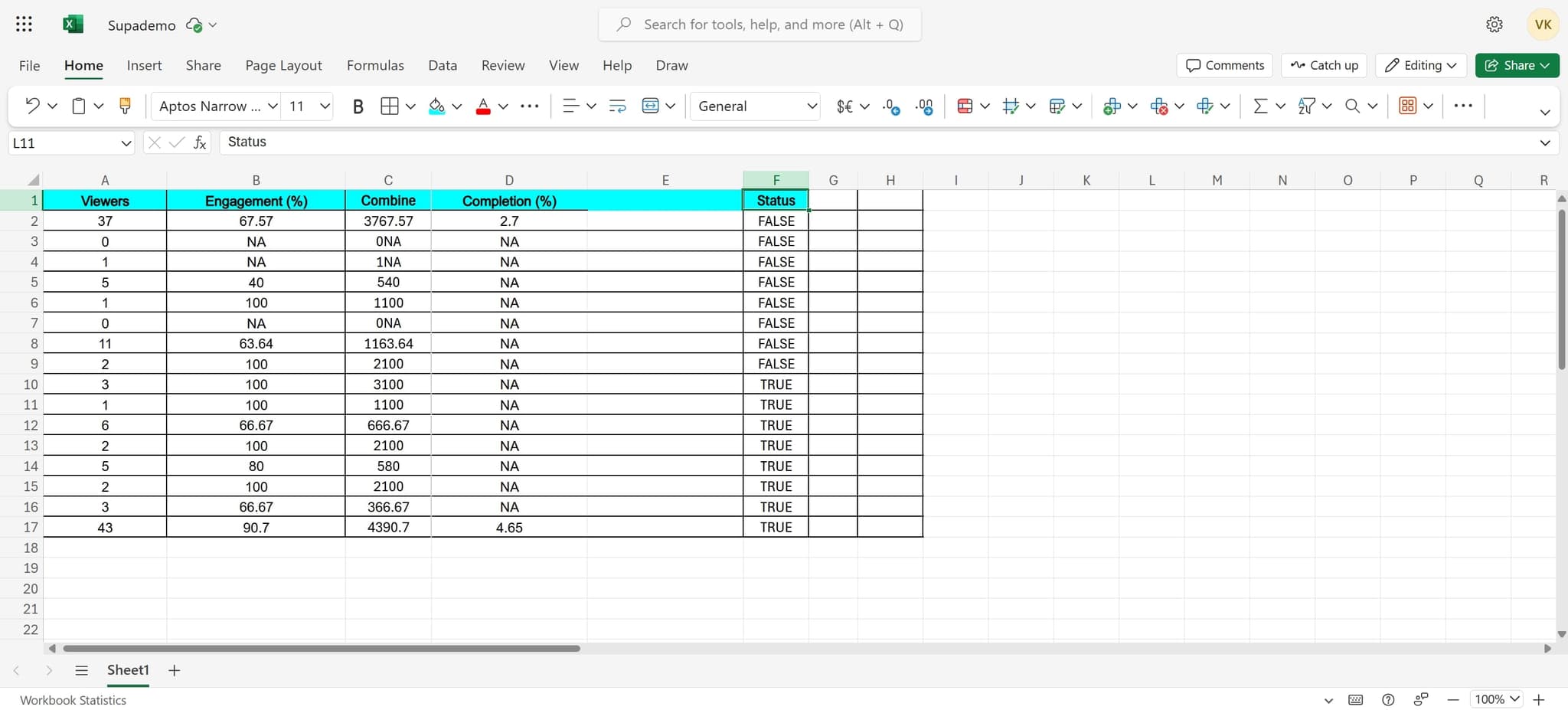
Start by launching Excel and opening the spreadsheet containing the data you want to check for duplicates. Select the entire range of cells you'd like to apply the duplicate highlighting to.
- 2
Access the conditional formatting menu
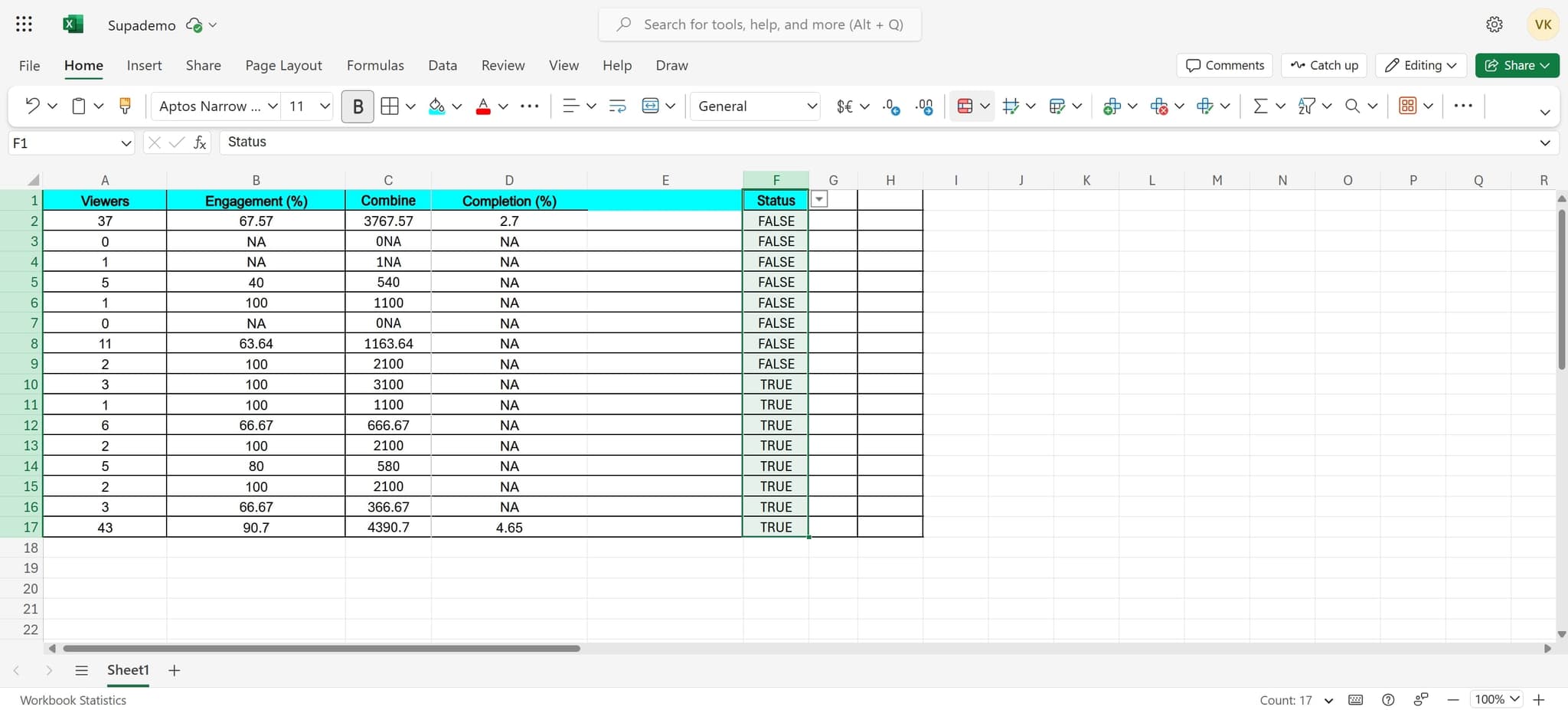
Navigate to the Home tab in the ribbon and locate the Conditional Formatting button in the Styles group. Click on it to open the conditional formatting options.
- 3
Click on New Rule
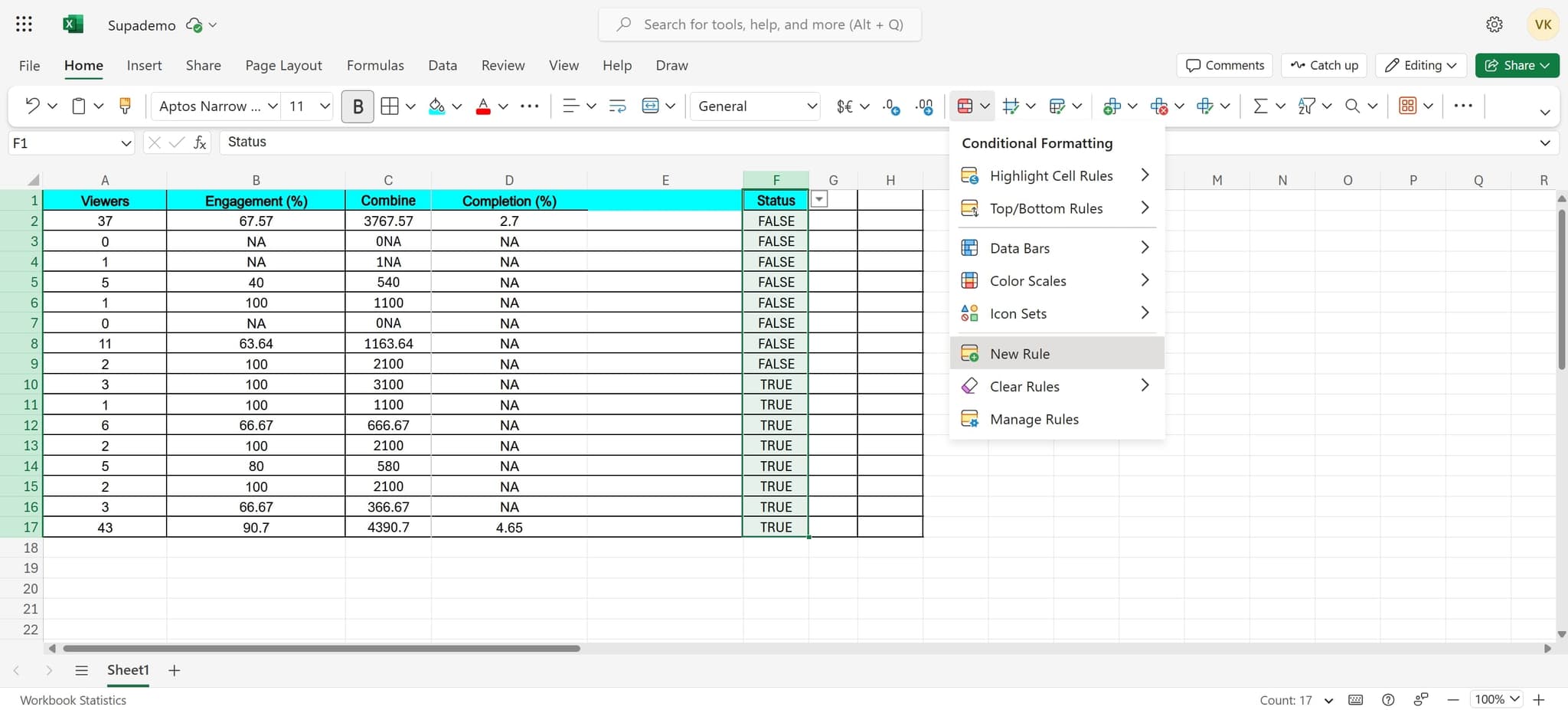
From the conditional formatting dropdown menu, select 'New Rule' to create a custom formatting rule. This opens the New Formatting Rule dialog where you can specify your criteria.
- 4
Select the rule type
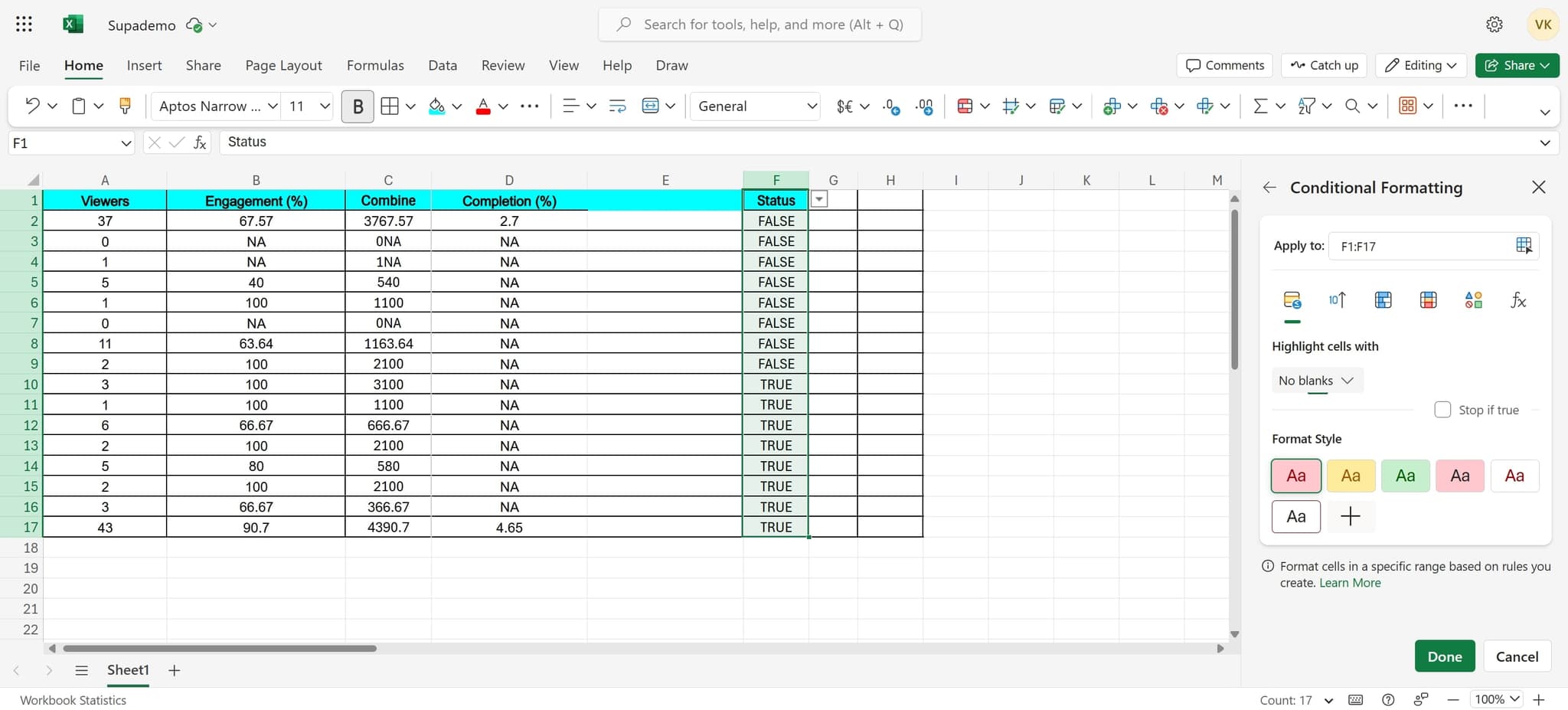
In the New Formatting Rule dialog, choose the option to format cells based on their values. This allows you to set up rules for identifying specific data patterns.
- 5
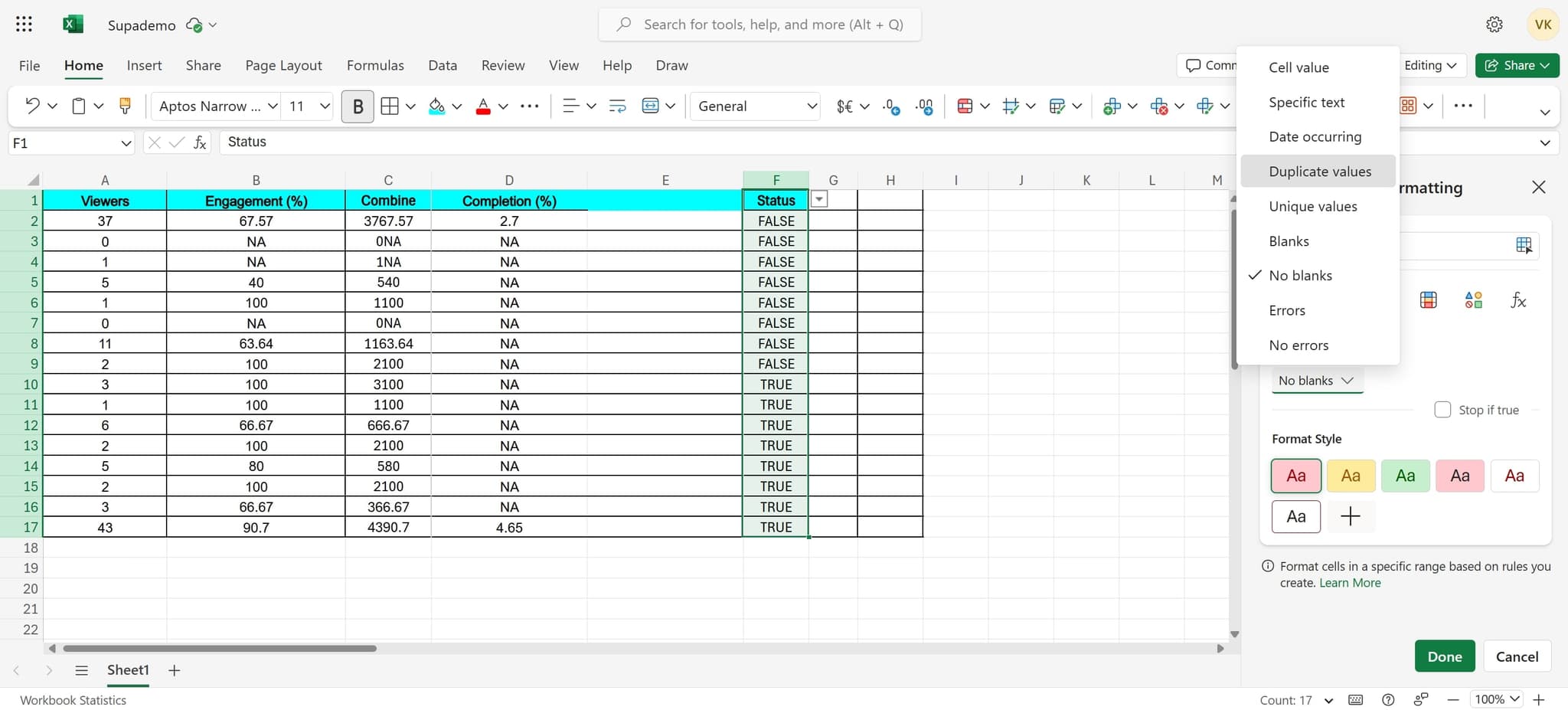
Choose Duplicate values option
Select 'Duplicate values' from the available rule types. Excel will automatically detect and mark any cells that contain values appearing more than once in your selected range.
- 6
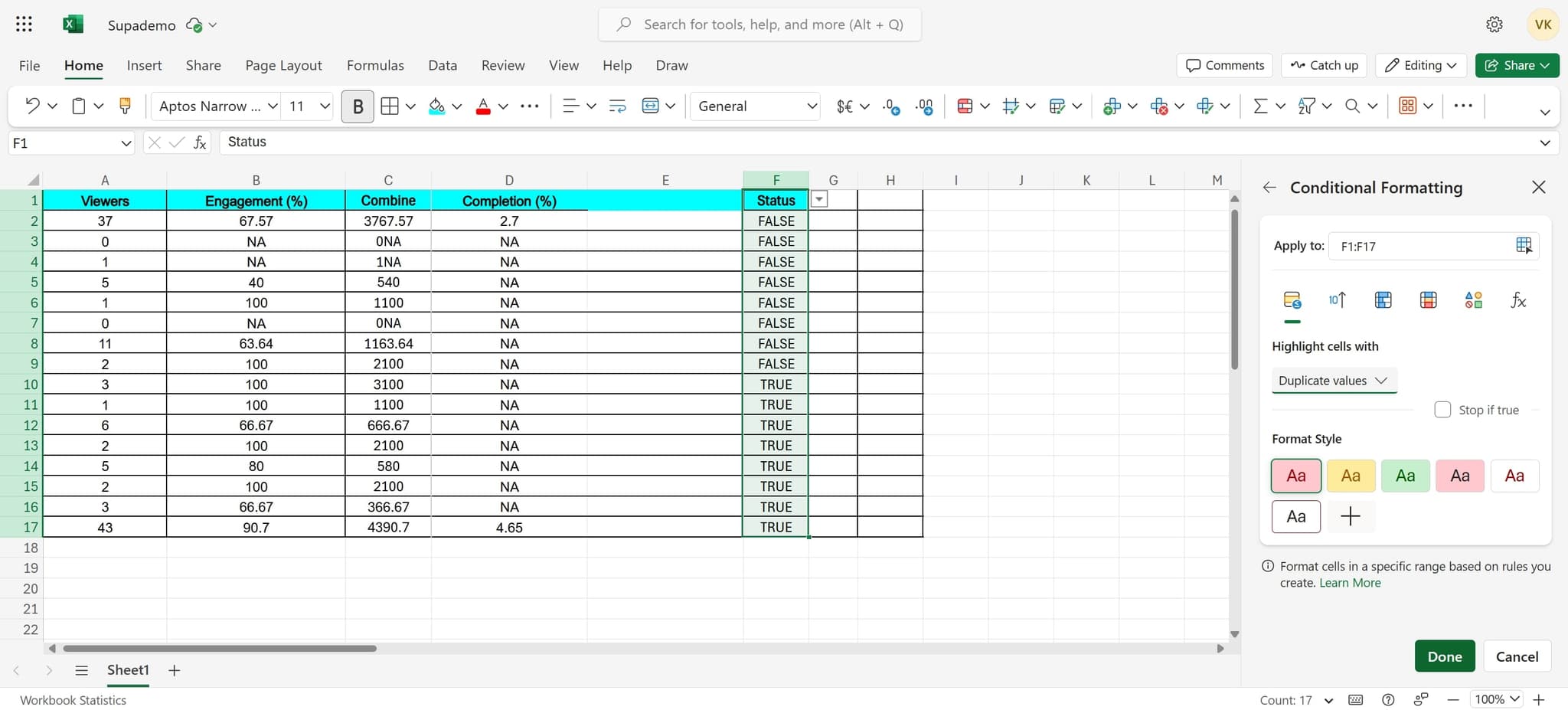
Apply the formatting and finish
Review the formatting style that will be applied to duplicates, then click 'Done' to apply the rule. Your duplicate values will now be highlighted according to the formatting you selected.
- 7
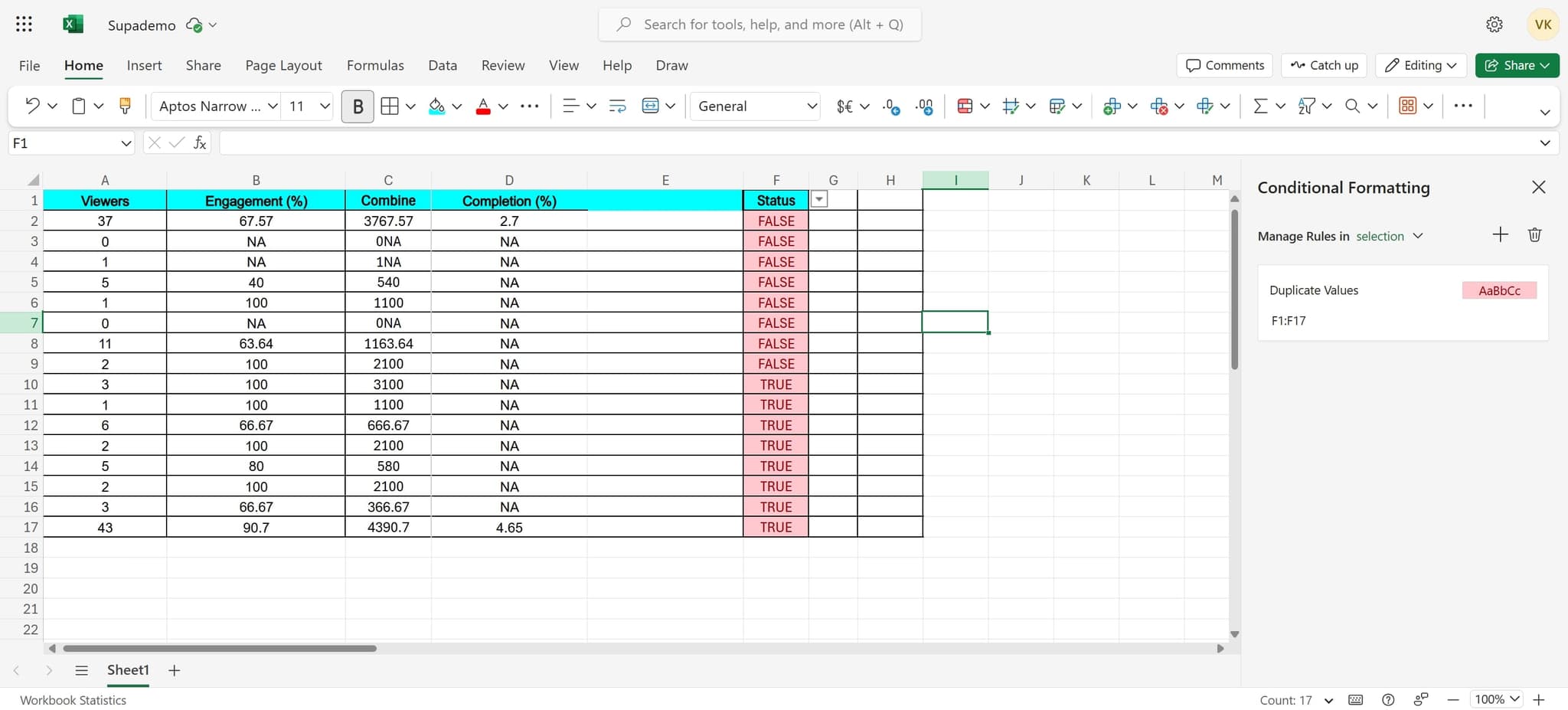
Verify the results
Review your spreadsheet to confirm that all duplicate values are properly highlighted. You can now easily identify which entries appear multiple times in your data range.
Frequently asked questions
Common questions about how to highlight duplicates in excel.
Yes. Select the first range, hold Ctrl, and click to add additional ranges to your selection. Then apply the conditional formatting rule as normal. Excel will treat all selected ranges together when identifying duplicates.
Go to Home > Conditional Formatting > Manage Rules. Find your duplicate values rule and click 'Edit Rule'. Modify the formatting options to change the color, font, or other visual properties, then click OK.
No. Conditional formatting only applies visual formatting to cells; it doesn't change the underlying data values. Your data remains exactly as it was before applying the highlighting.
You'll need to use a different approach, such as creating a custom formula-based rule instead of the built-in 'Duplicate values' option. This gives you more control over how many times a value must appear before it's highlighted.
Yes. Select the range with the formatting, go to Home > Conditional Formatting > Manage Rules, select your rule, click 'Delete Rule', and then click OK. The highlighting will be removed while your data stays intact.