How to Wrap Text in Excel

Text wrapping in Excel allows you to display long content within a cell without expanding column width or losing data visibility. This feature is essential for creating organized, readable spreadsheets where multiple lines of text fit neatly within individual cells. Learning to wrap text will improve your spreadsheet formatting and make your data easier to navigate.
Quick summary
In this tutorial, you'll learn how to wrap text in Excel by selecting cells and applying the wrap text formatting option. You'll discover how to automatically adjust row heights and manage multi-line content within your spreadsheet. By the end, you'll be able to format cells professionally and ensure all your data is clearly visible.
Why this matters
Text wrapping is critical for data presentation because it prevents information loss while maintaining clean column widths. Without wrapping, long entries either get cut off or force columns to expand excessively, disrupting your spreadsheet layout. Proper text wrapping ensures your spreadsheets remain professional, readable, and easy to share with colleagues or stakeholders.
Step-by-step guide
- 1
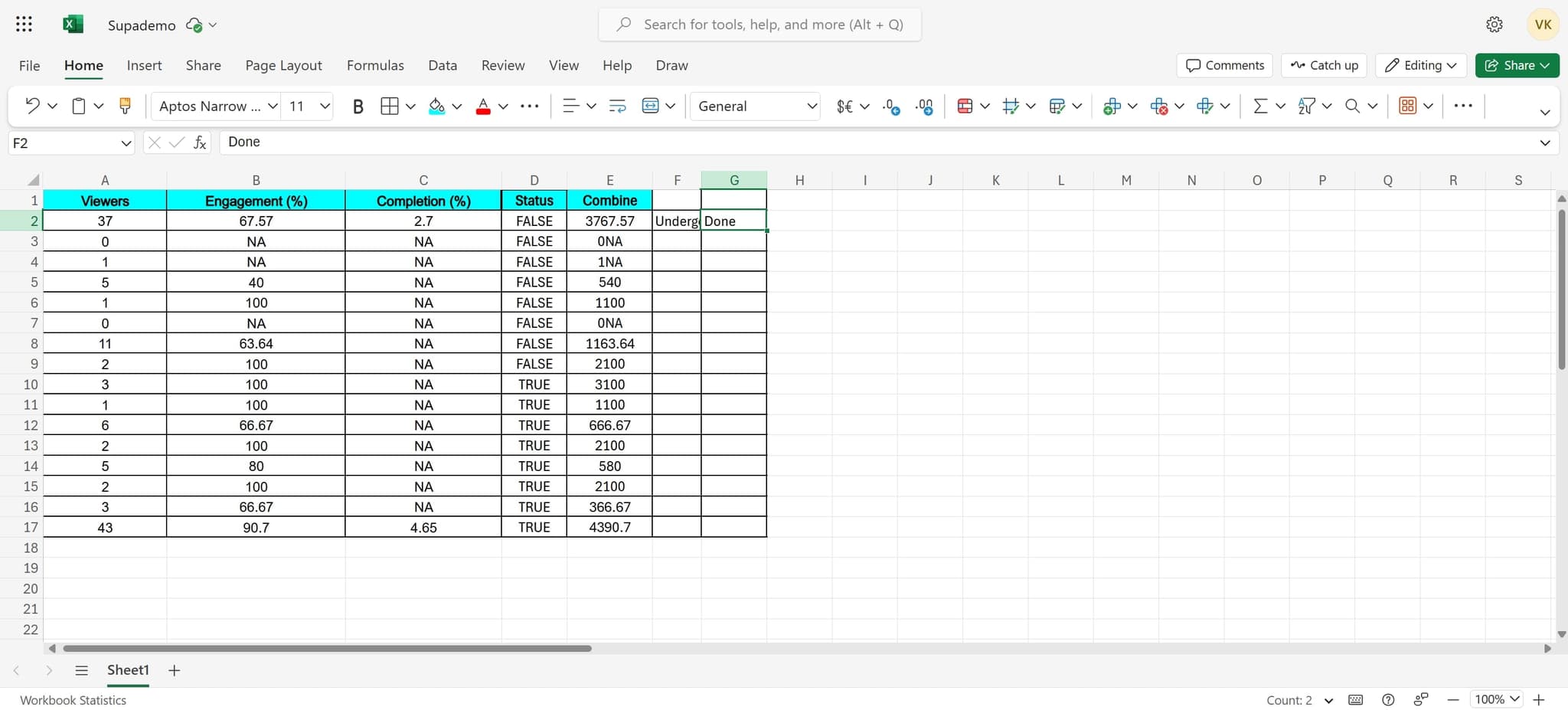
Click on the cell or range
Select the cell or group of cells containing the text you want to wrap. You can click a single cell or drag across multiple cells to select a range. The selected cells will appear highlighted in blue.
- 2
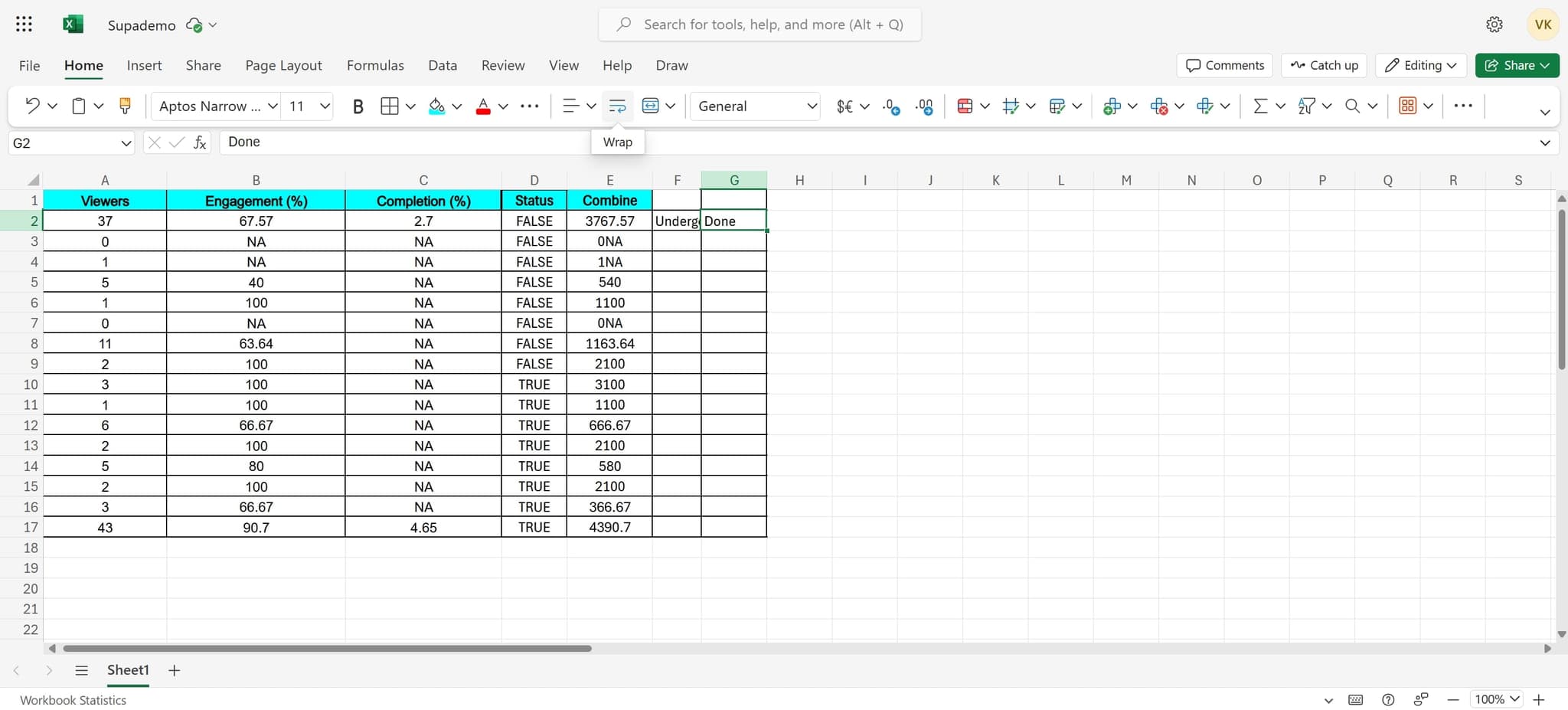
Access the wrap text option
Navigate to the Home tab in the ribbon menu and locate the alignment formatting options. Click on the Wrap Text button to enable text wrapping for your selected cells. The text will immediately reflow to fit within the cell width.
- 3
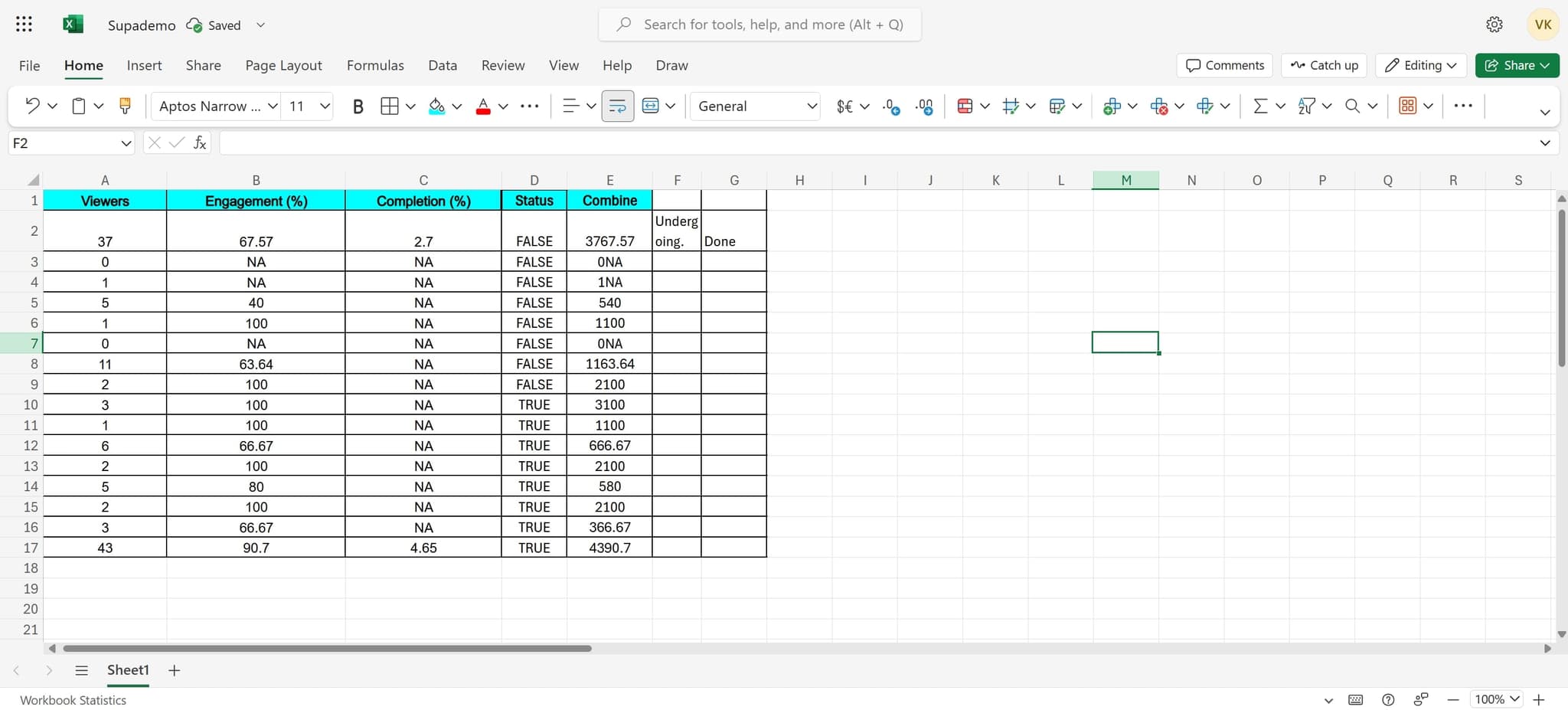
Adjust row height if needed
After wrapping text, Excel may automatically expand the row height to accommodate multiple lines. If the row height doesn't adjust automatically, double-click the border between row numbers to auto-fit the height. Your wrapped text will now display completely within the cell boundaries.
Frequently asked questions
Common questions about how to wrap text in excel.
Text wrapping keeps your font size unchanged and splits content across multiple lines within the cell. Shrinking text reduces the font size to fit content on a single line. Wrapping is better for readability when you have longer content, while shrinking works best for shorter entries where you want to maintain consistent column width.
Yes, wrapped text will print exactly as it appears in your spreadsheet, with content split across multiple lines within each cell. Excel will automatically expand row heights during printing to ensure all wrapped text is visible. This makes text wrapping particularly useful when you plan to print or export your spreadsheet.
Yes, you can apply text wrapping to merged cells in Excel. Select the merged cell and click the Wrap Text option just as you would with regular cells. The text will distribute across the merged cell area, and the row height will adjust accordingly.
Select the cell or range with wrapped text and click the Wrap Text button again to toggle it off. The text will return to its original single-line format. If the row height was expanded, you may need to manually adjust it or double-click the row border to auto-fit.
Text wrapping has minimal impact on file performance and won't noticeably slow down your Excel workbook. It's purely a formatting feature that affects display and printing. You can safely use text wrapping across many cells without concerns about spreadsheet speed or responsiveness.