How to Add a Customer in Freshdesk

Adding customers to Freshdesk is a fundamental task for managing your support operations and organizing client information. This guide walks you through the process of creating a new customer record in Freshdesk, ensuring you capture all essential details for effective customer management.
Quick summary
In this tutorial, you'll learn how to add a new customer to Freshdesk by navigating to the Contacts section, entering customer details, and saving the record. You'll understand how to properly populate required fields and set up your customer profile for optimal support delivery.
Why this matters
Adding customers to Freshdesk creates a centralized repository of client information that your support team can reference during interactions. Proper customer records enable faster ticket resolution, personalized support, and better communication tracking across your organization.
Step-by-step guide
- 1
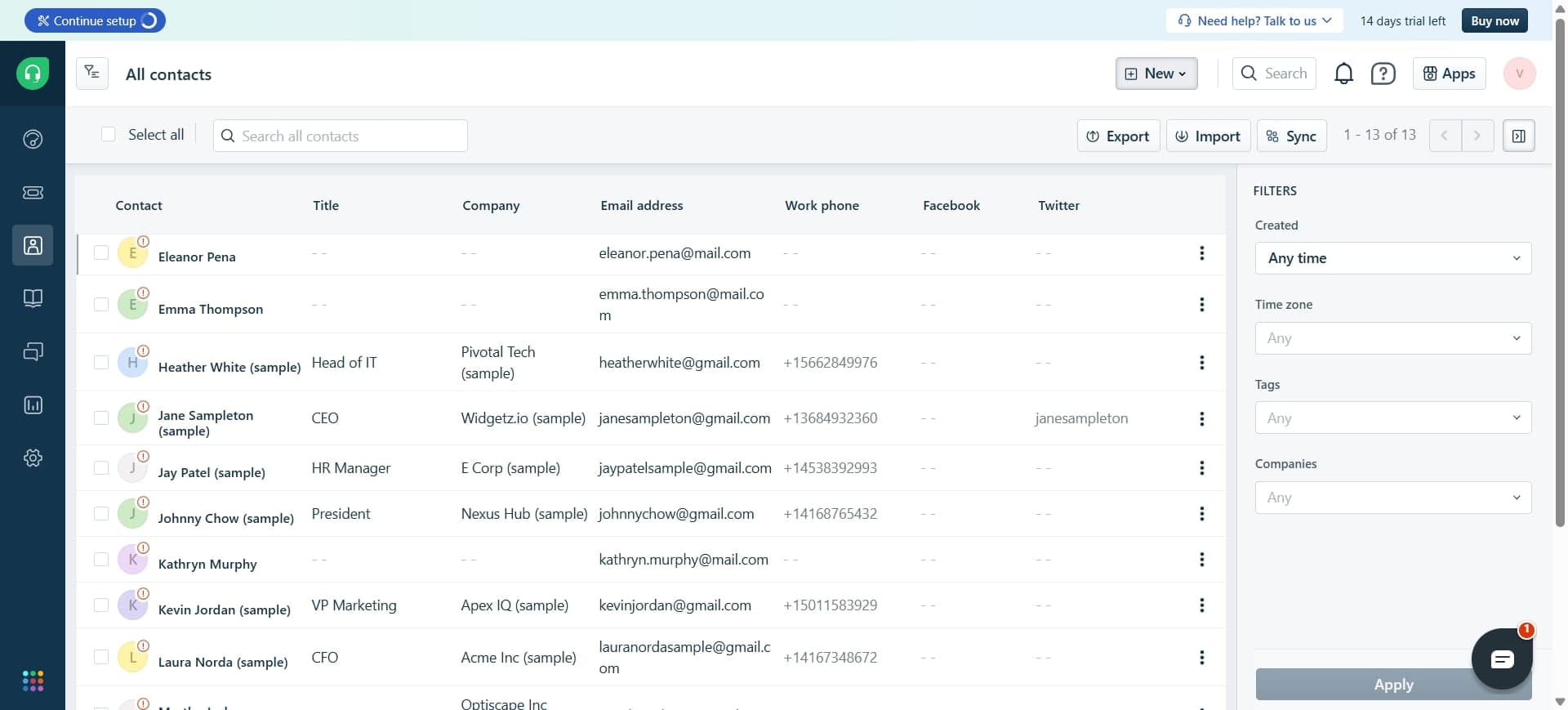
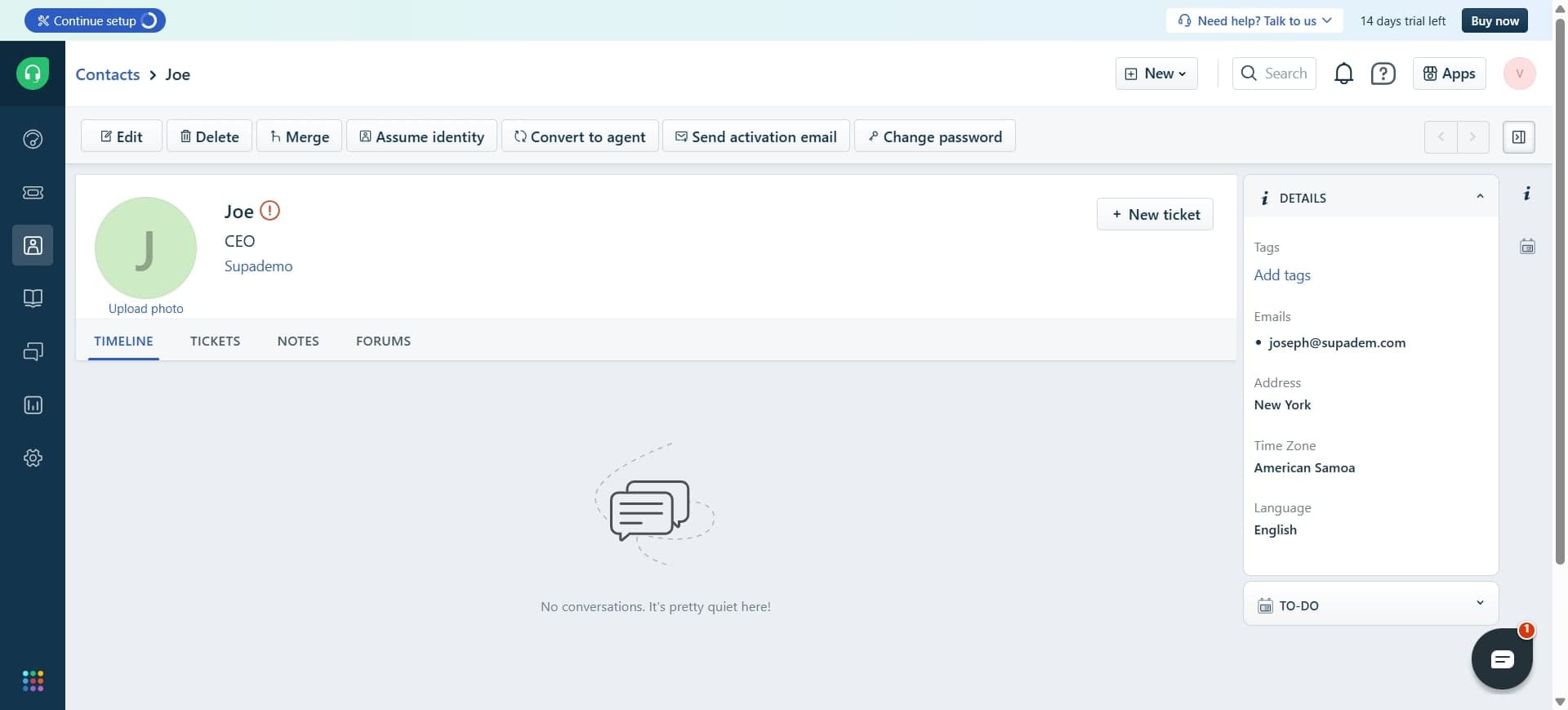
Navigate to the Contacts section
Log in to your Freshdesk account and locate the Contacts section from the main navigation menu. This is where all customer records are stored and managed in Freshdesk.
- 2
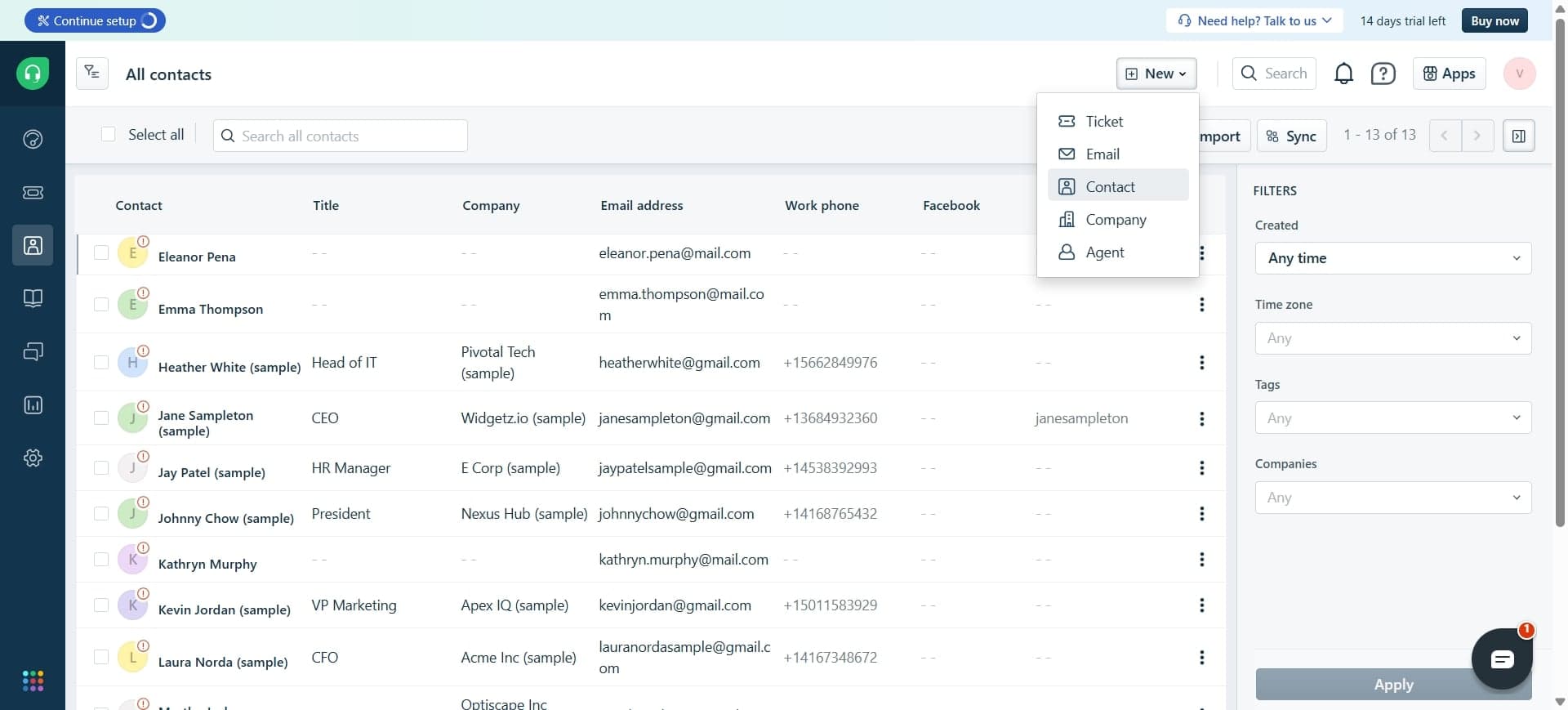
Click the Add Customer button
Look for and click the Add Customer button, typically located at the top of the Contacts page. This will open the customer creation form where you'll enter new customer information.
- 3
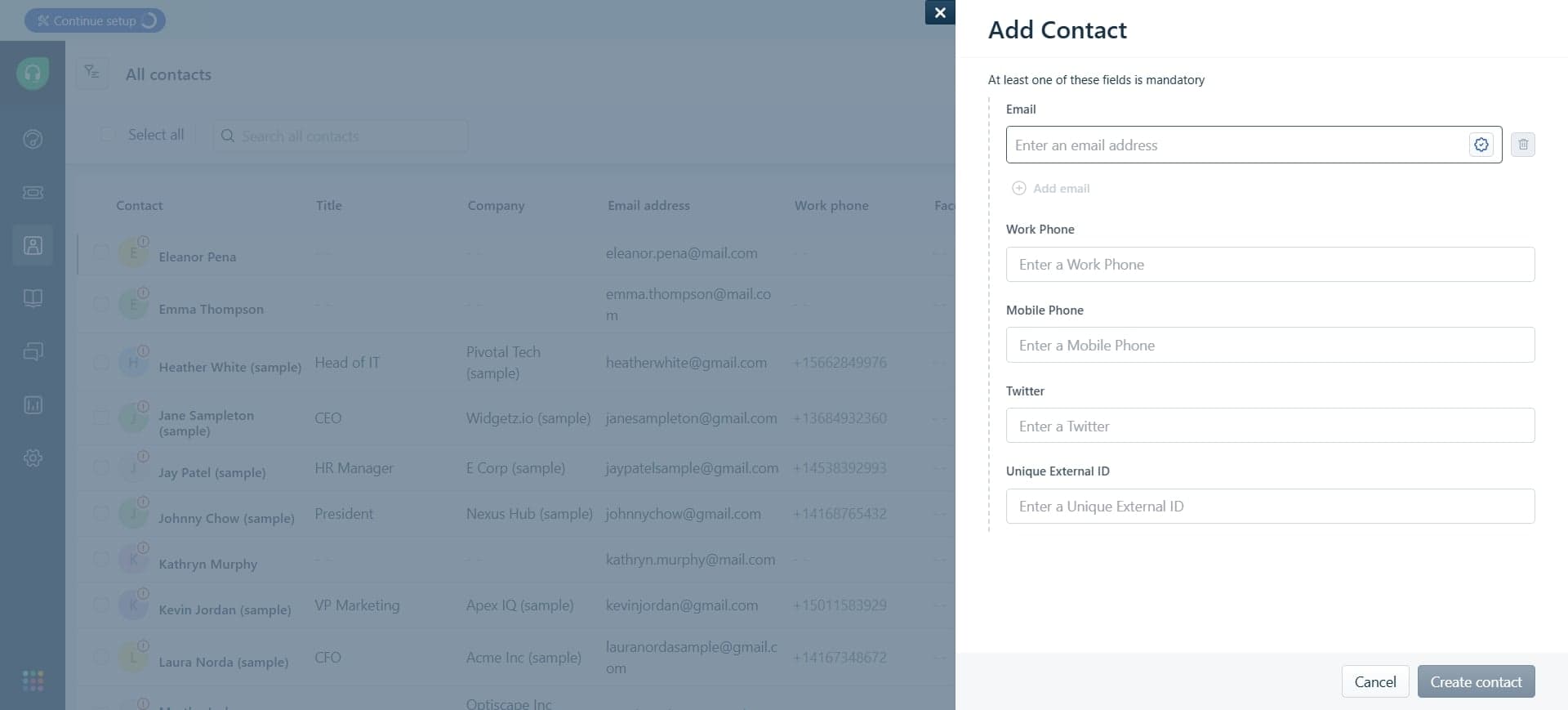
Enter customer name and email
Fill in the customer's full name and primary email address in the designated fields. These are required fields that serve as the primary identifiers for the customer record.
- 4
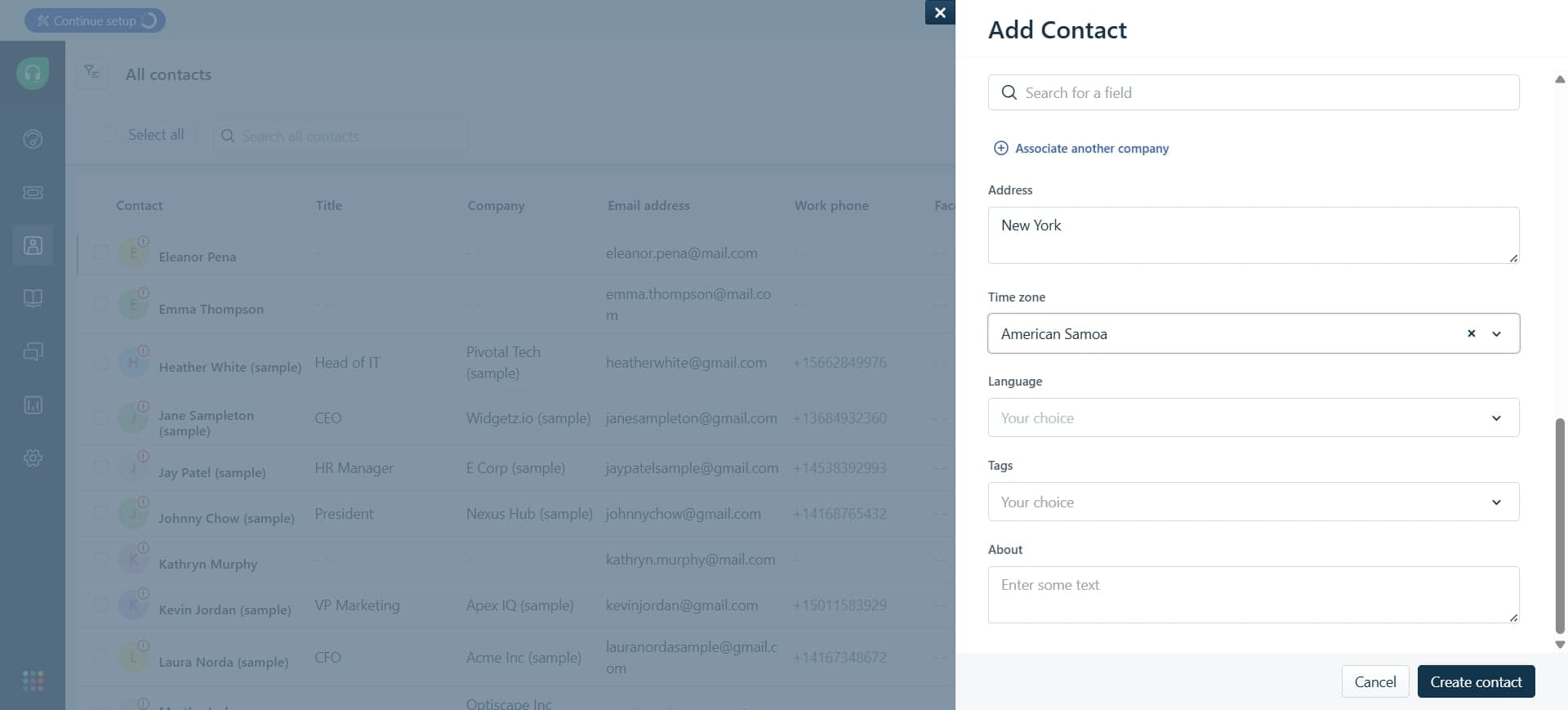
Add additional contact details
Enter any additional information such as phone number, company name, and address if available. While these fields are optional, providing complete information helps your support team better assist the customer.
- 5
Save the customer record
Click the Save button to create the customer record in Freshdesk. The new customer will now be available in your Contacts list and can receive support tickets.
Frequently asked questions
Common questions about how to add a customer in freshdesk.
At minimum, you need to provide the customer's name and email address. These are the required fields for creating a customer record. However, adding phone number, company, and address information creates a more complete profile for better support.
Yes, you can edit any customer record at any time. Simply navigate to the customer's profile in the Contacts section and click Edit to update their information. Changes are saved immediately in Freshdesk.
No, Freshdesk does not impose a limit on the number of customers you can add to your account. You can build a customer database of any size depending on your subscription plan.
Freshdesk will typically identify potential duplicates based on email address or name and alert you. It's best to check your existing contacts before adding a new customer to avoid creating duplicate records.
Customers can be added manually through the process described in this tutorial, or they can be automatically created when they submit their first support ticket to your helpdesk. This flexible approach gives you control over your customer database.