How to Add Agents in Freshdesk

Adding agents to your Freshdesk account is essential for scaling your customer support team. This guide walks you through the process of inviting new support agents and configuring their access permissions.
Quick summary
In this tutorial, you'll learn how to add new agents to Freshdesk, assign them to teams, and set their roles and permissions. By the end, you'll be able to onboard team members quickly and ensure they have the right access level for their responsibilities.
Why this matters
Properly adding agents ensures your support team is organized, equipped with appropriate permissions, and ready to handle customer inquiries efficiently. This process is crucial for maintaining security, preventing unauthorized access, and streamlining your customer support operations from the start.
Step-by-step guide
- 1
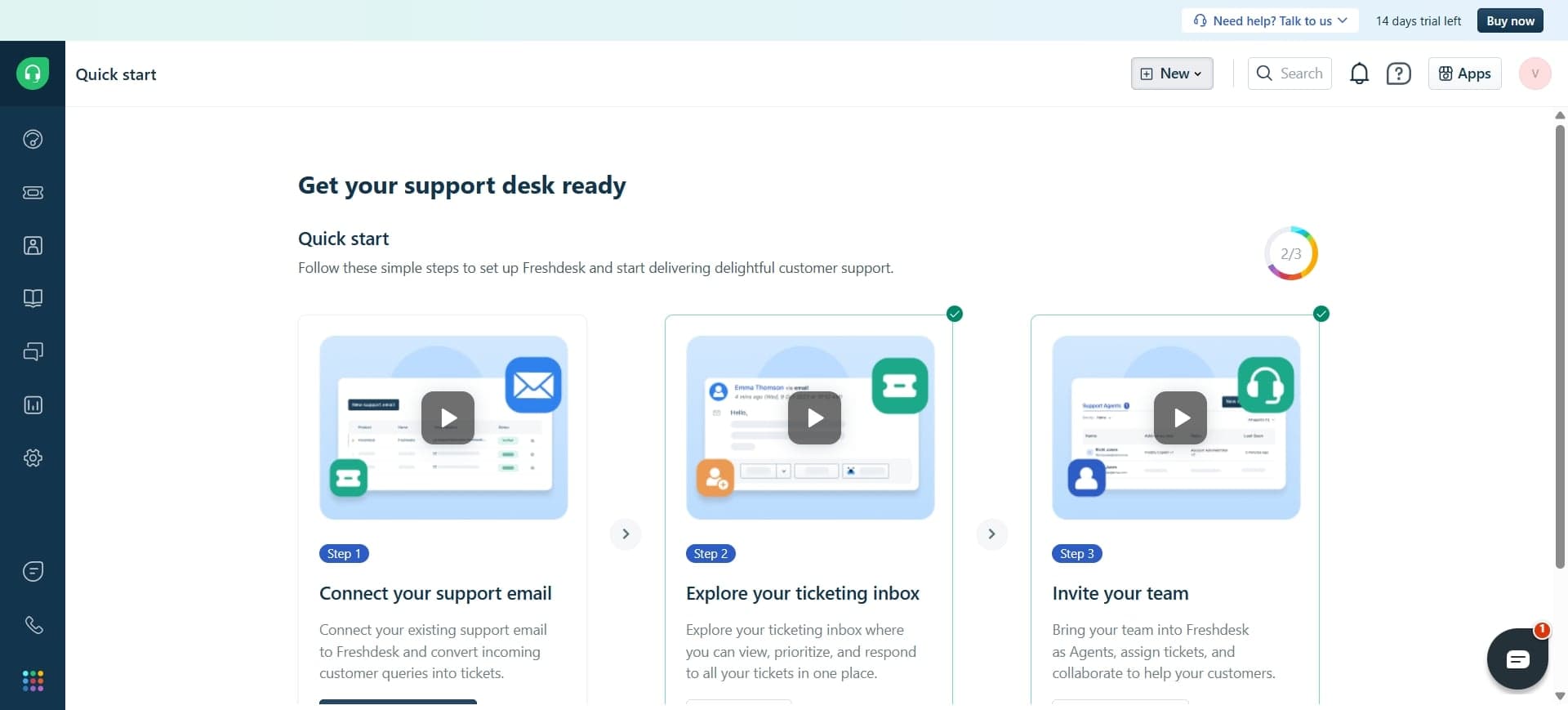
Access the admin settings panel
Log into your Freshdesk account and navigate to the Settings menu, typically found in the top-right corner or sidebar. Look for the Admin section to access team management features.
- 2
Locate the agents or team management section
Within the Settings area, find the Agents or Team Management option. This section displays all current agents and provides the interface to add new team members.
- 3
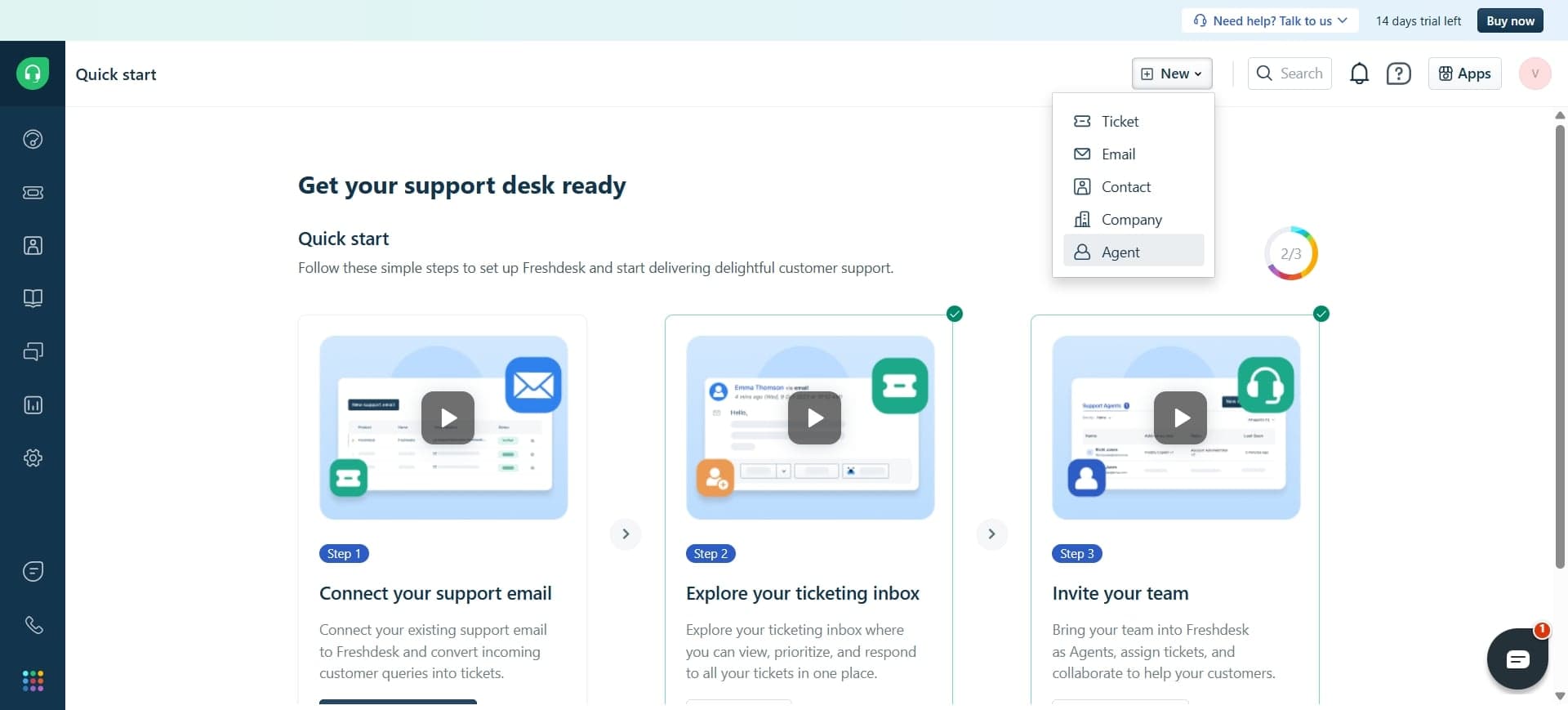
Click the add agent button
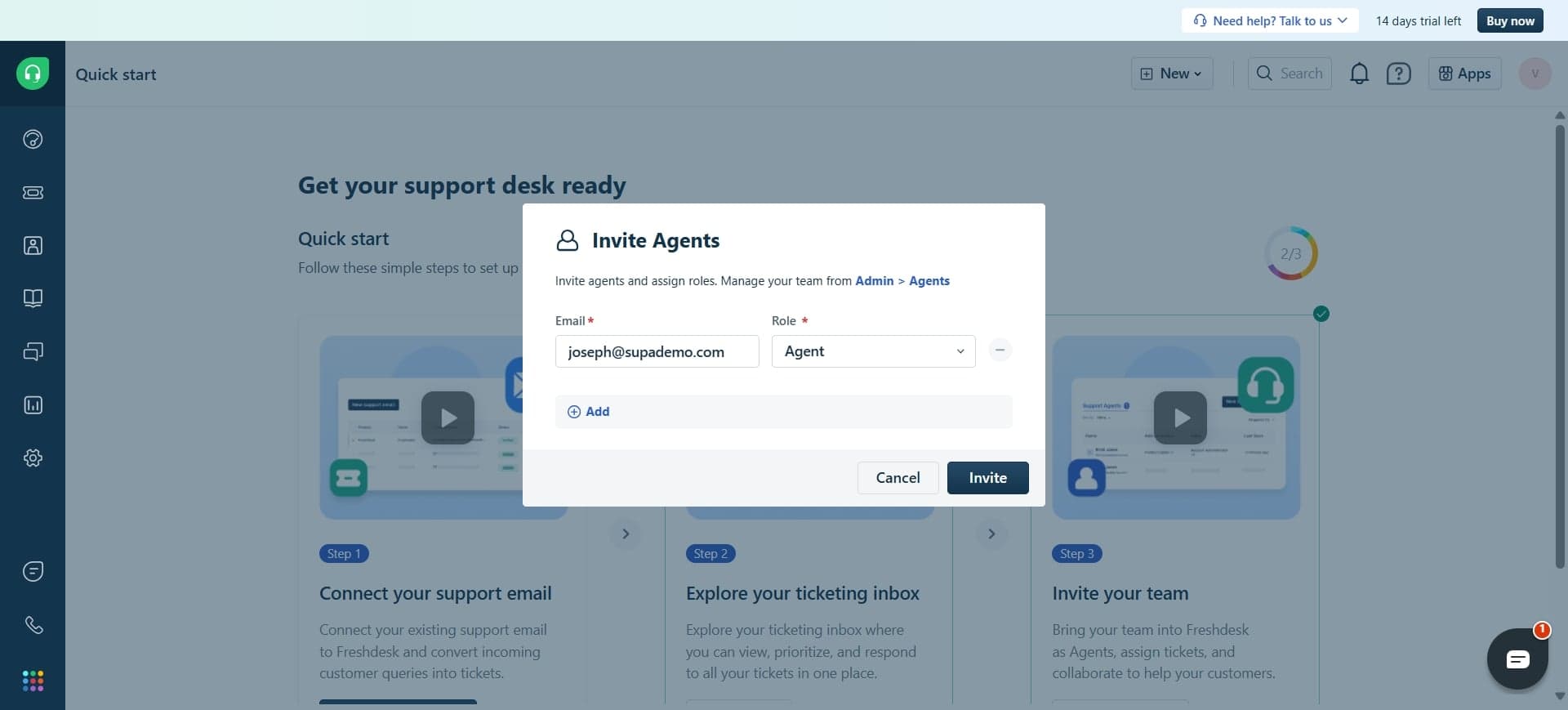
Look for an 'Add Agent' or 'Invite Agent' button within the agents section. Click this button to open the invitation form where you'll enter the new agent's details.
- 4
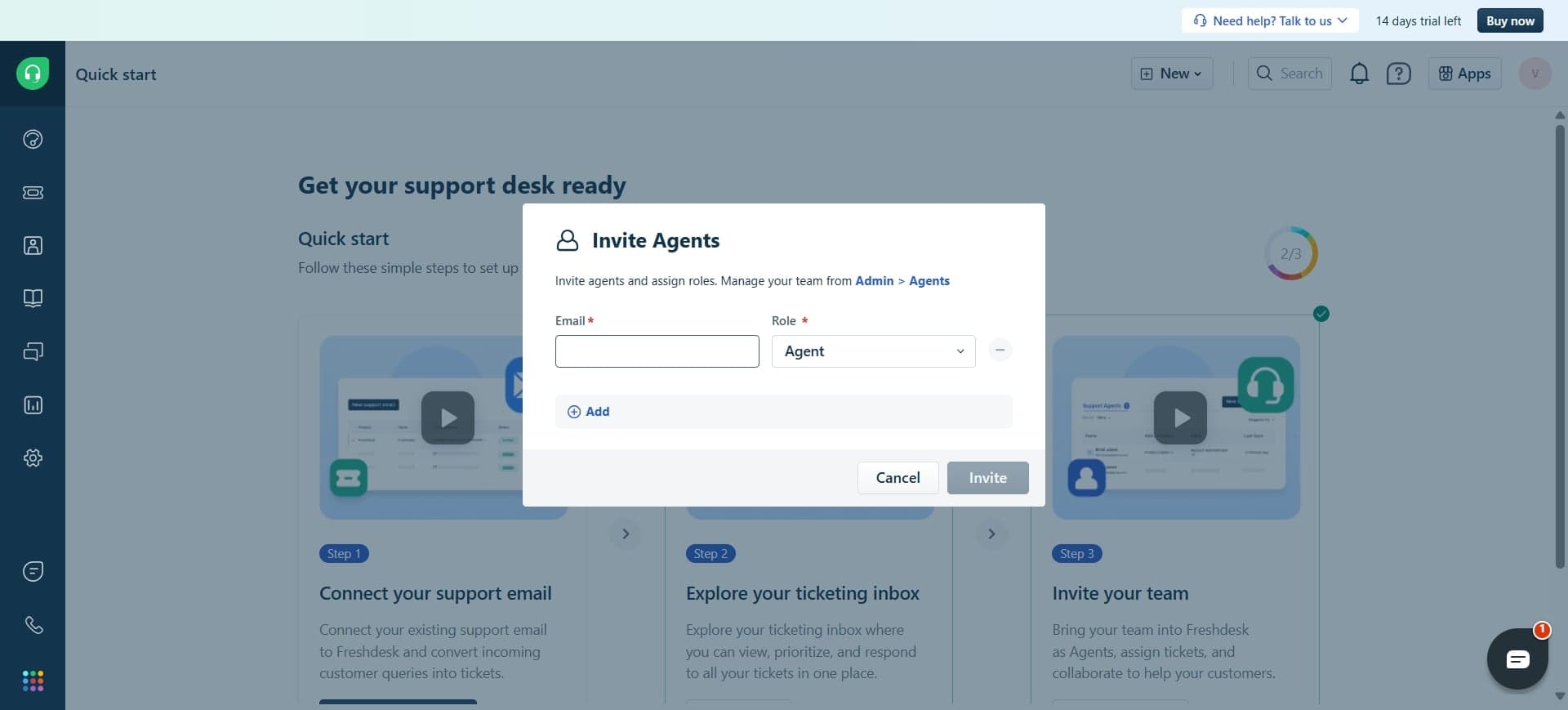
Enter agent details and email
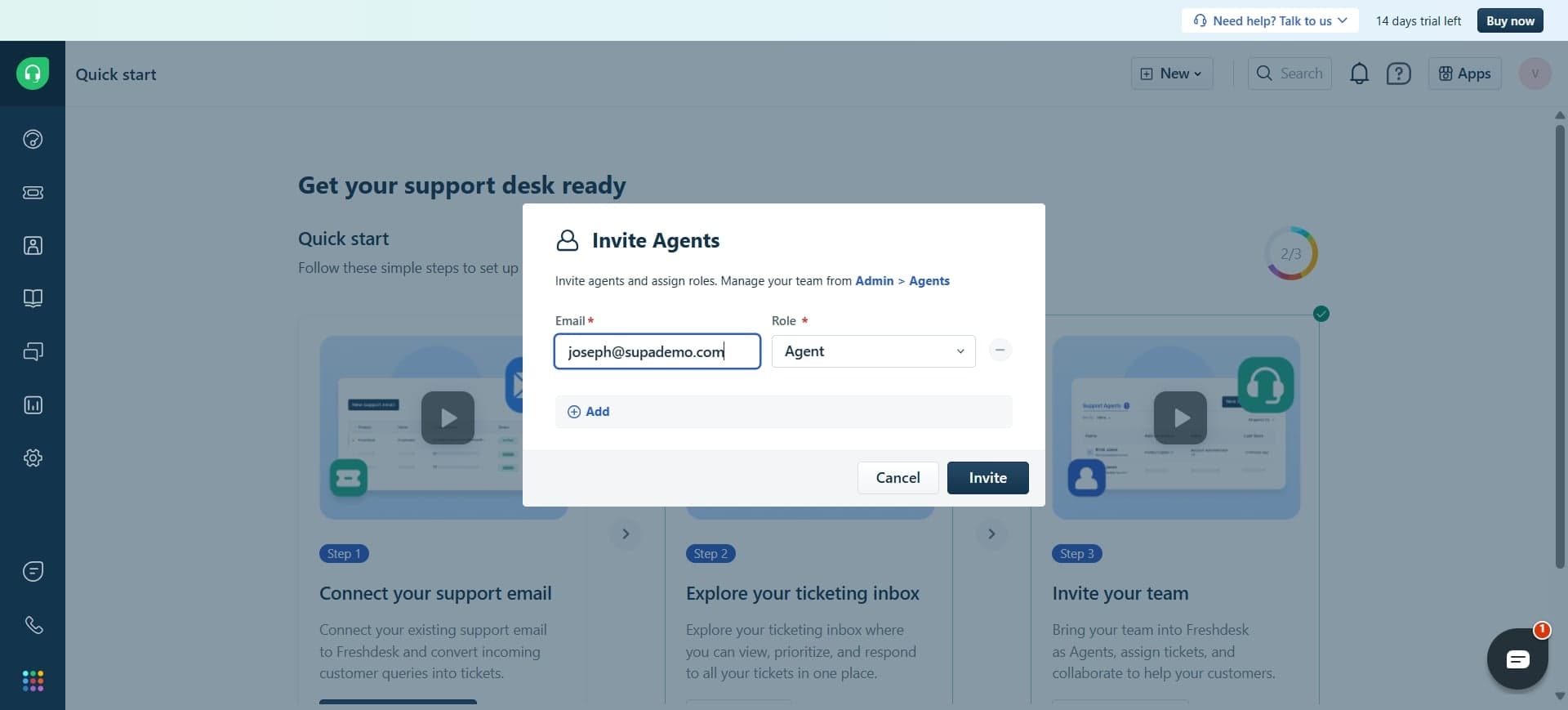
Fill in the agent's full name, email address, and any other required information in the form. Ensure the email address is correct, as this is where the invitation will be sent.
- 5
Assign role and confirm invitation
Select the appropriate role for the agent from the available options such as Agent, Team Lead, or Administrator. Review all settings and click the 'Send Invitation' or 'Add Agent' button to complete the process.
Frequently asked questions
Common questions about how to add agents in freshdesk.
Freshdesk offers several role types including Agent, Team Lead, and Administrator. Agents handle standard support tickets, Team Leads can oversee agents and tickets, while Administrators manage account settings, billing, and team configuration. Choose the role that matches your team member's responsibilities.
After you send the invitation, the new agent will receive an email with a link to activate their account. They typically gain access within minutes of completing the activation process, though email delivery can occasionally take a few minutes.
Yes, you can modify an agent's role at any time by accessing the agent's profile in the admin settings. Simply select the agent, update their role, and save the changes. There's no need to remove and re-add them.
If an agent doesn't accept within a certain period, you can resend the invitation from the agents management page. The agent will receive a new activation email. You can also deactivate agents who no longer need access.
Most Freshdesk plans allow bulk agent invitations through a CSV file upload feature in the admin section. Check your plan's documentation or contact Freshdesk support to confirm if bulk import is available for your account level.