How to Add Canned Responses in Freshdesk

Canned responses in Freshdesk are pre-written message templates that help support teams respond to common customer inquiries quickly and consistently. This guide walks you through the process of creating and managing canned responses to streamline your customer service workflow.
Quick summary
In this tutorial, you'll learn how to create canned responses in Freshdesk, customize them for your team's needs, and apply them to support tickets. By the end, you'll be able to save time on repetitive responses and maintain consistent communication with your customers.
Why this matters
Canned responses reduce response time, minimize errors, and ensure your team provides consistent, high-quality answers to frequently asked questions. This efficiency directly improves customer satisfaction and allows your support agents to focus on more complex issues that require personalized attention.
Step-by-step guide
- 1
Access the Freshdesk admin settings
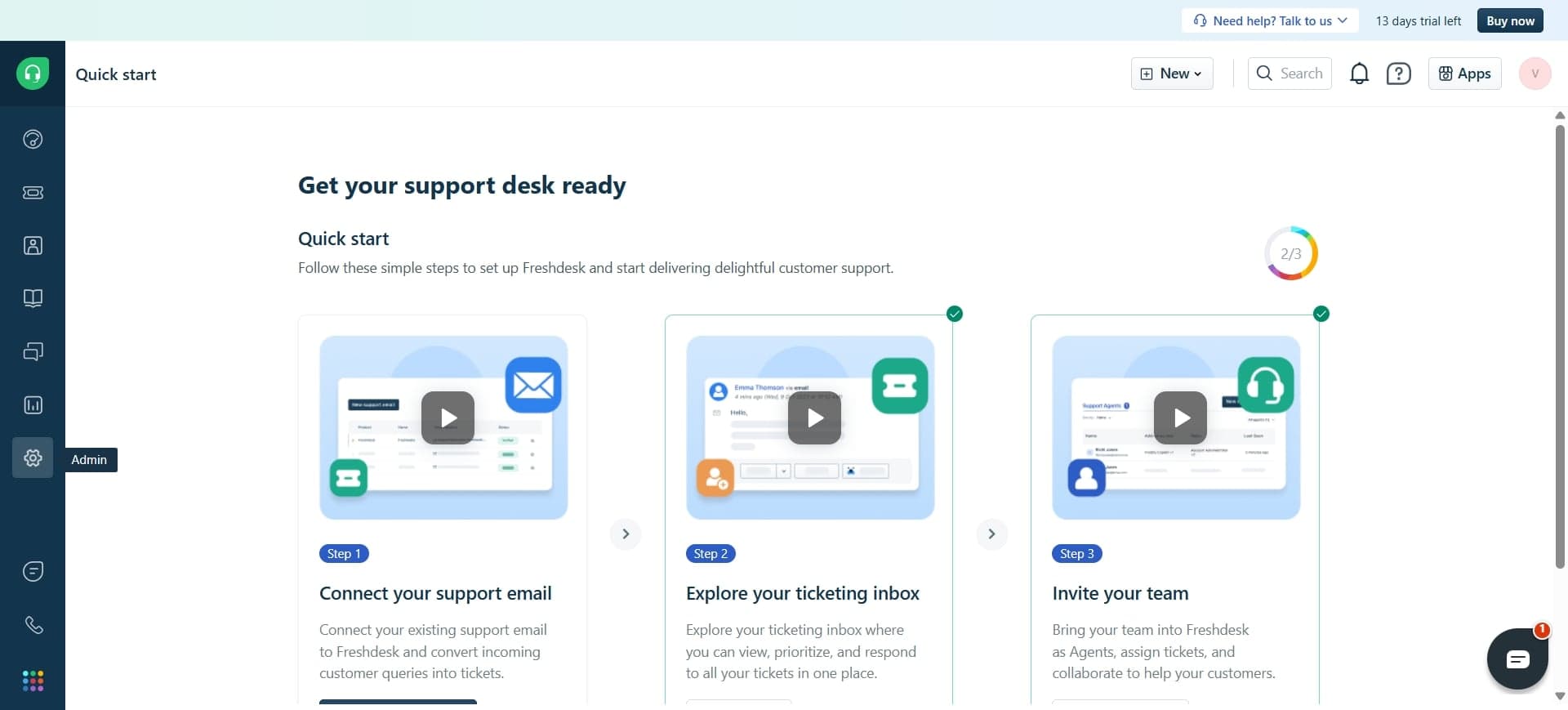
Log into your Freshdesk account and navigate to the admin panel by clicking the settings icon in the lower left corner. Select 'Settings' from the dropdown menu to access administrative options.
- 2
Navigate to canned responses section
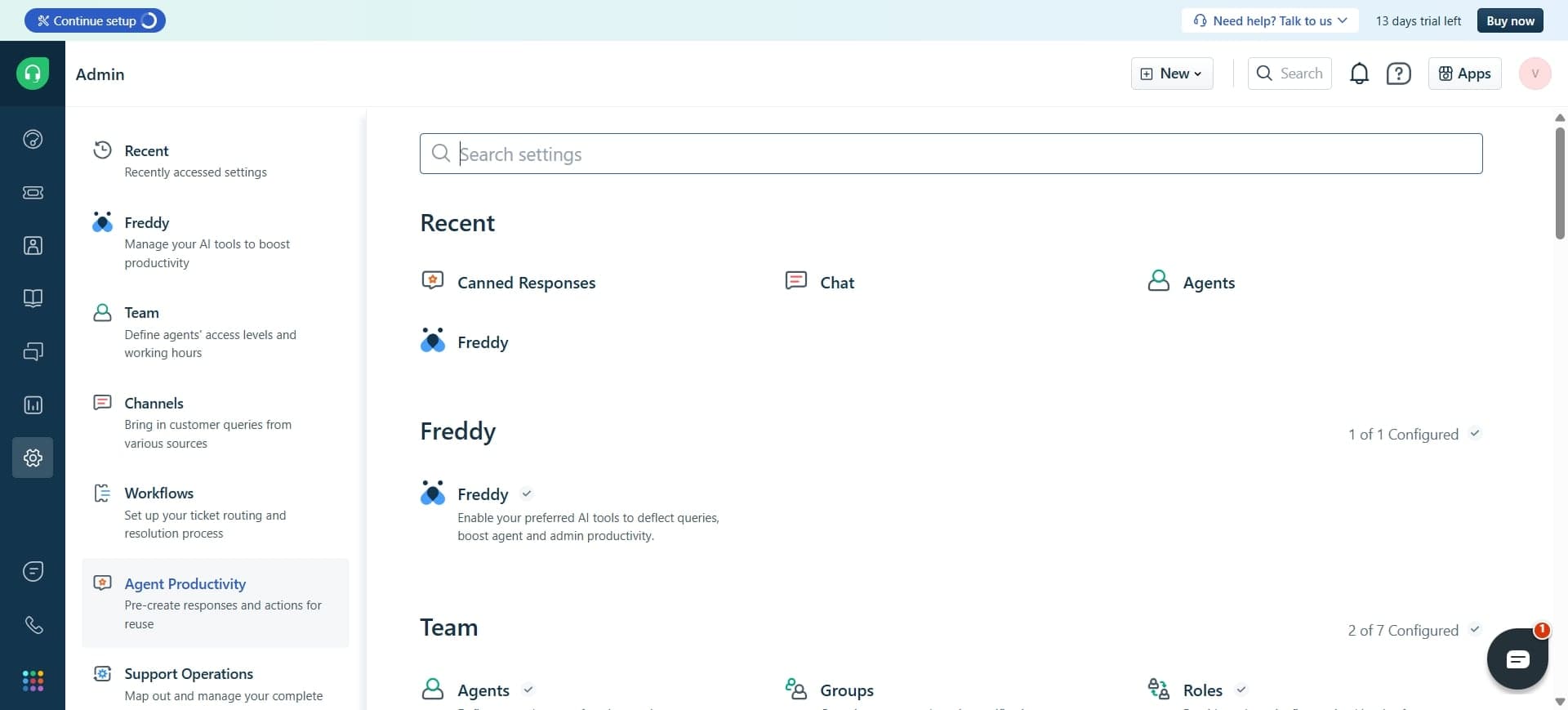
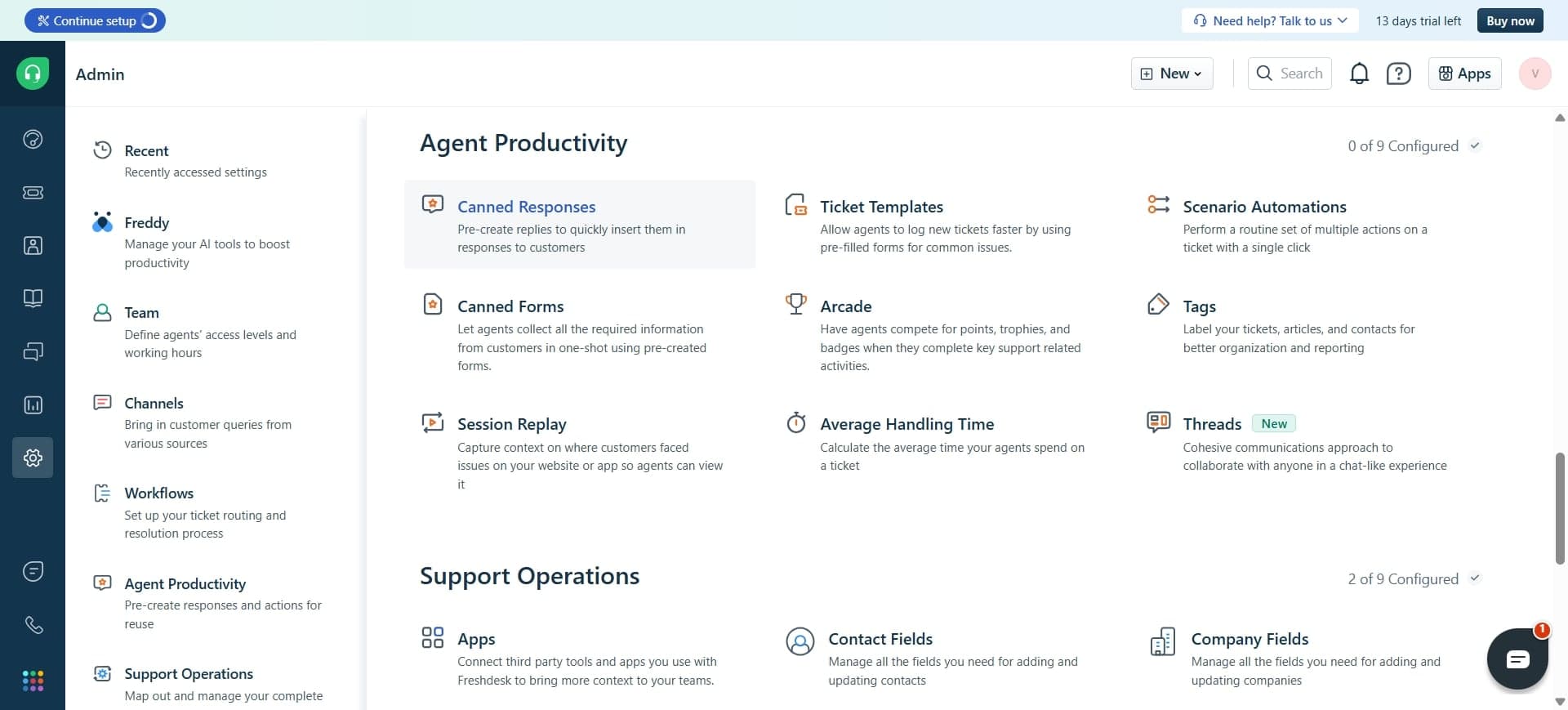
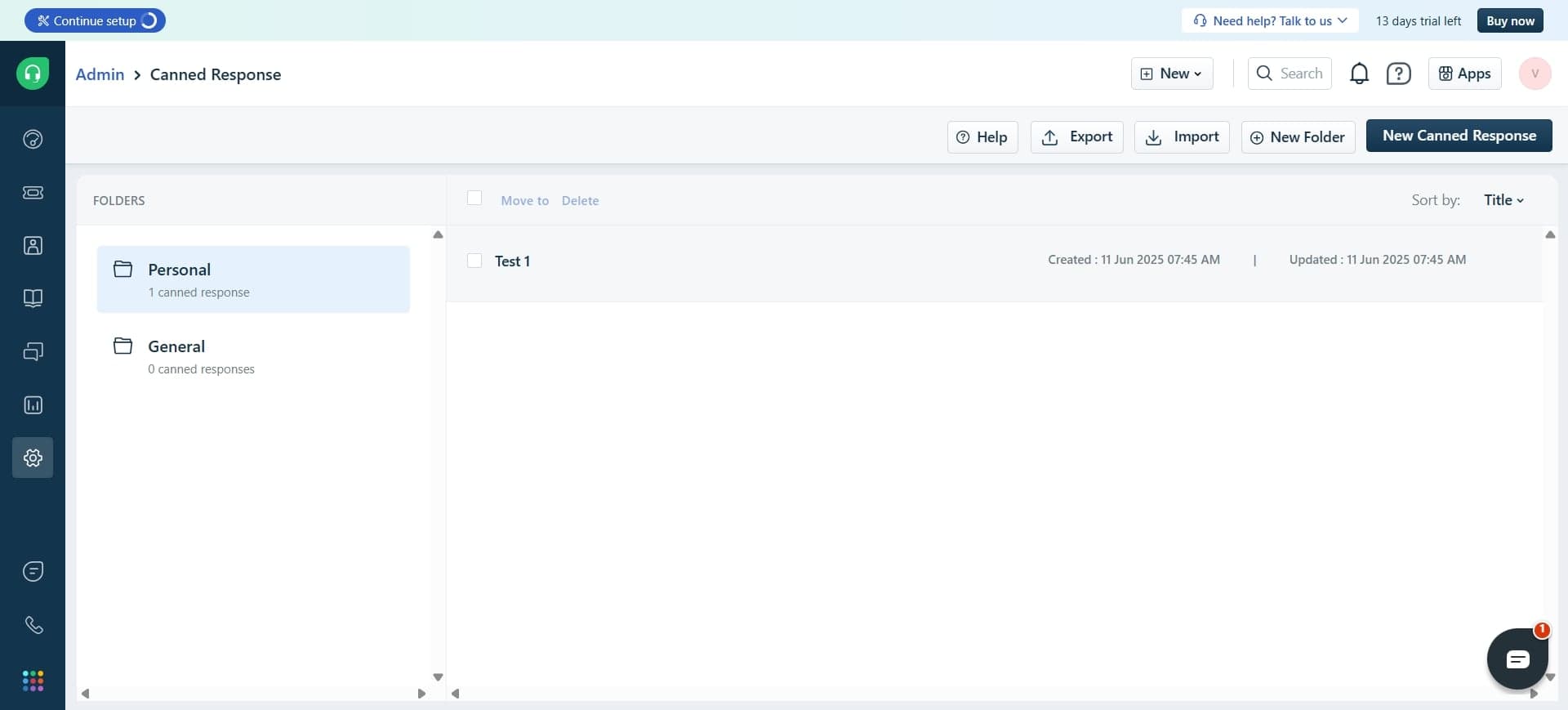
In the Settings menu, locate and click on 'Canned Responses' under the Automation or Helpdesk category. This section displays all existing canned responses and allows you to create new ones.
- 3
Click create new canned response
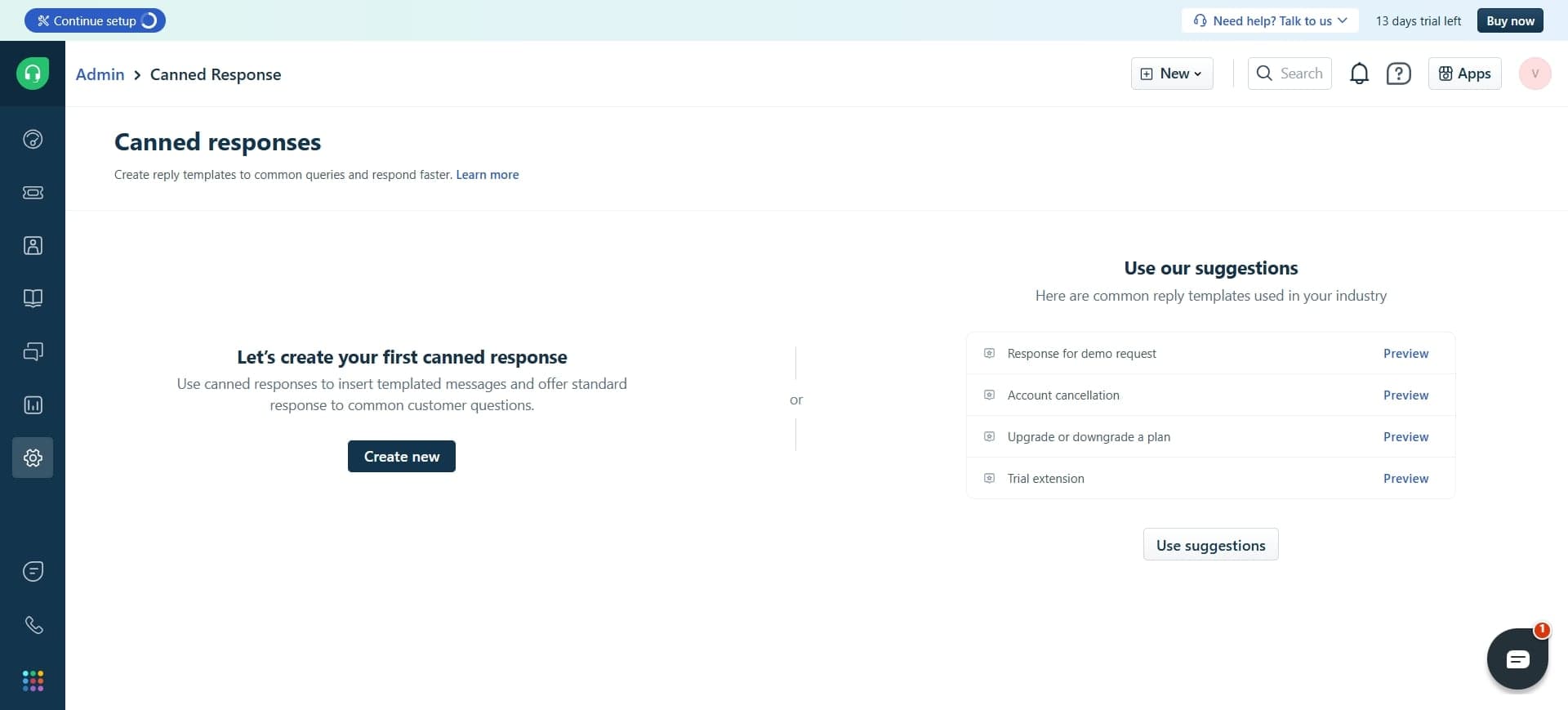
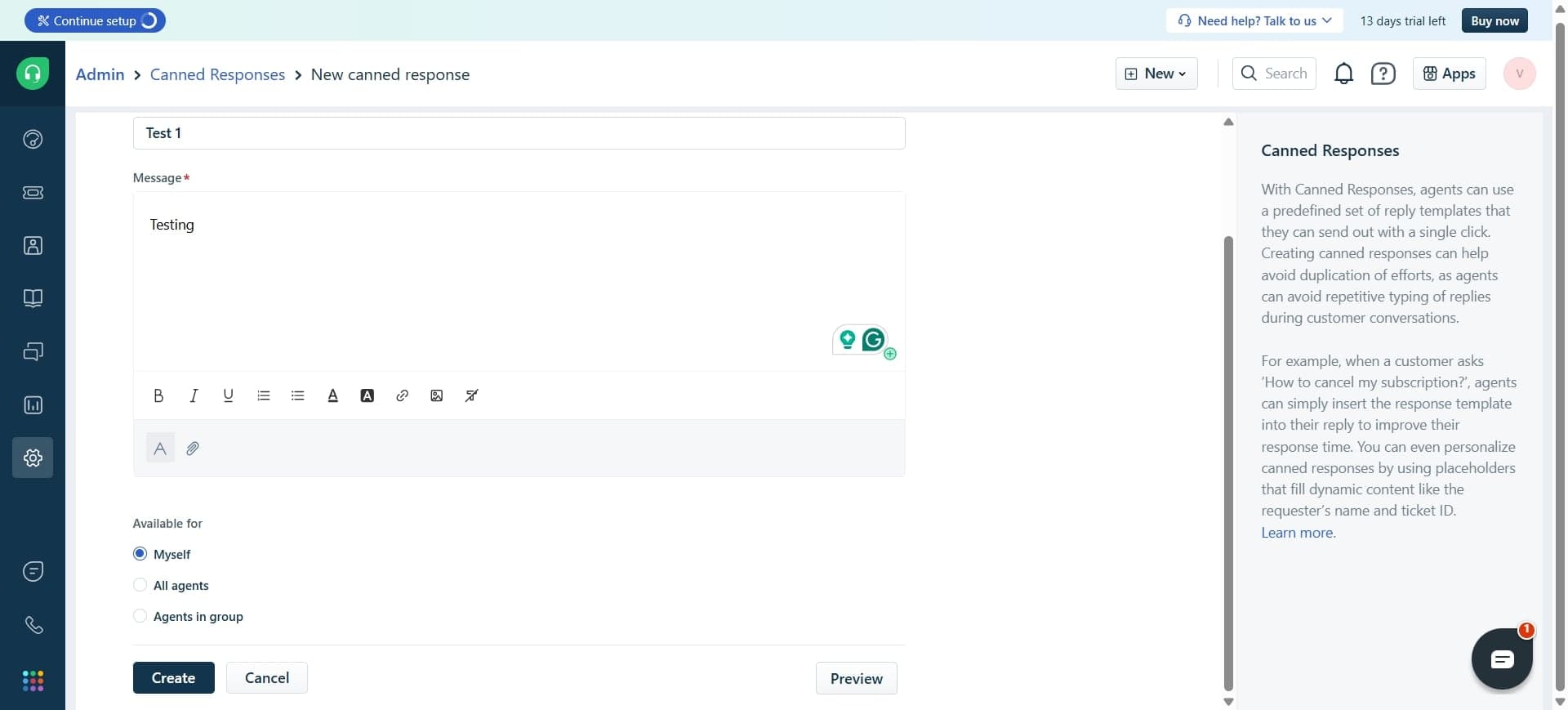
Click the 'New Canned Response' button to start creating a new template. A form will appear where you can enter the response details.
- 4
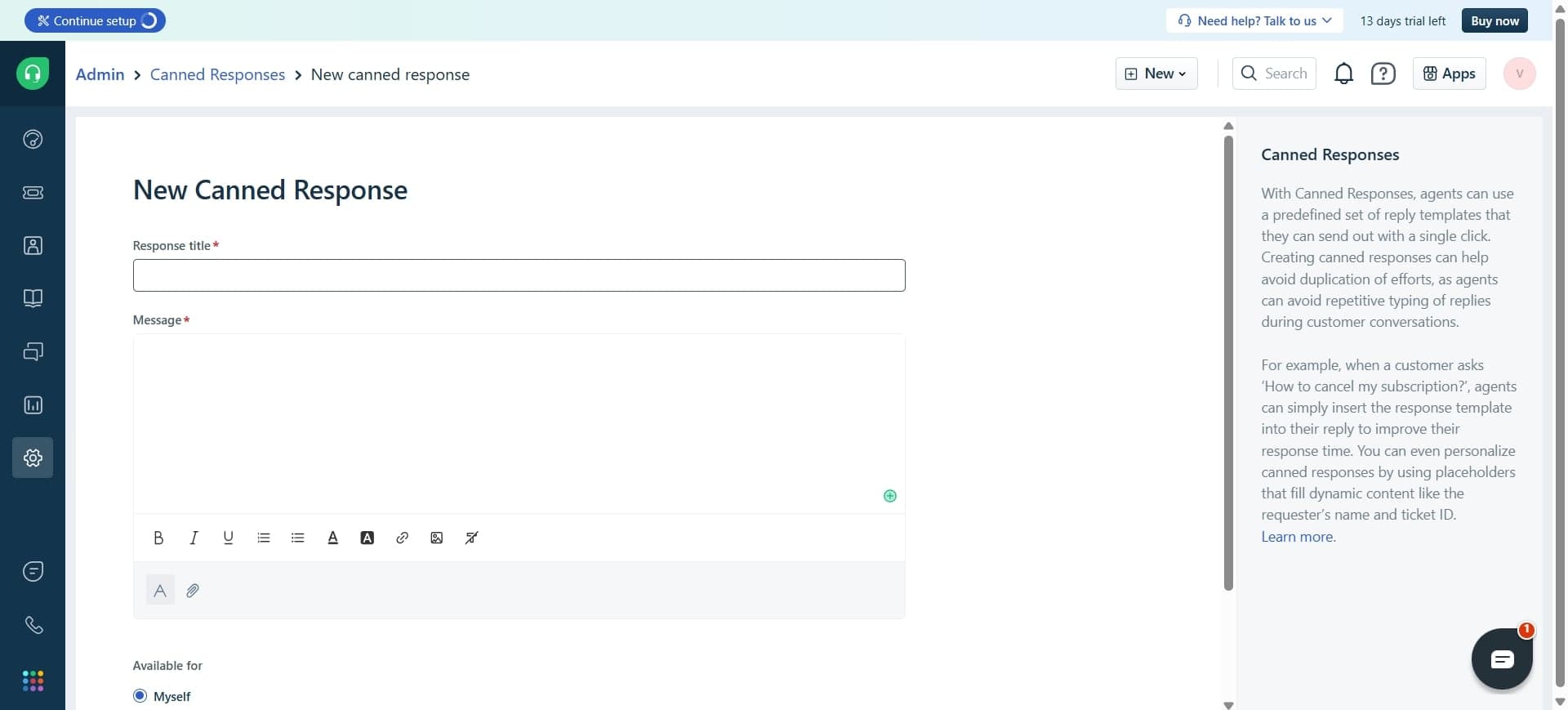
Enter the response title
In the 'Title' field, enter a descriptive name for your canned response that clearly indicates its purpose, such as 'Password Reset Instructions' or 'Account Verification Process'. This title helps agents quickly identify the right response to use.
- 5
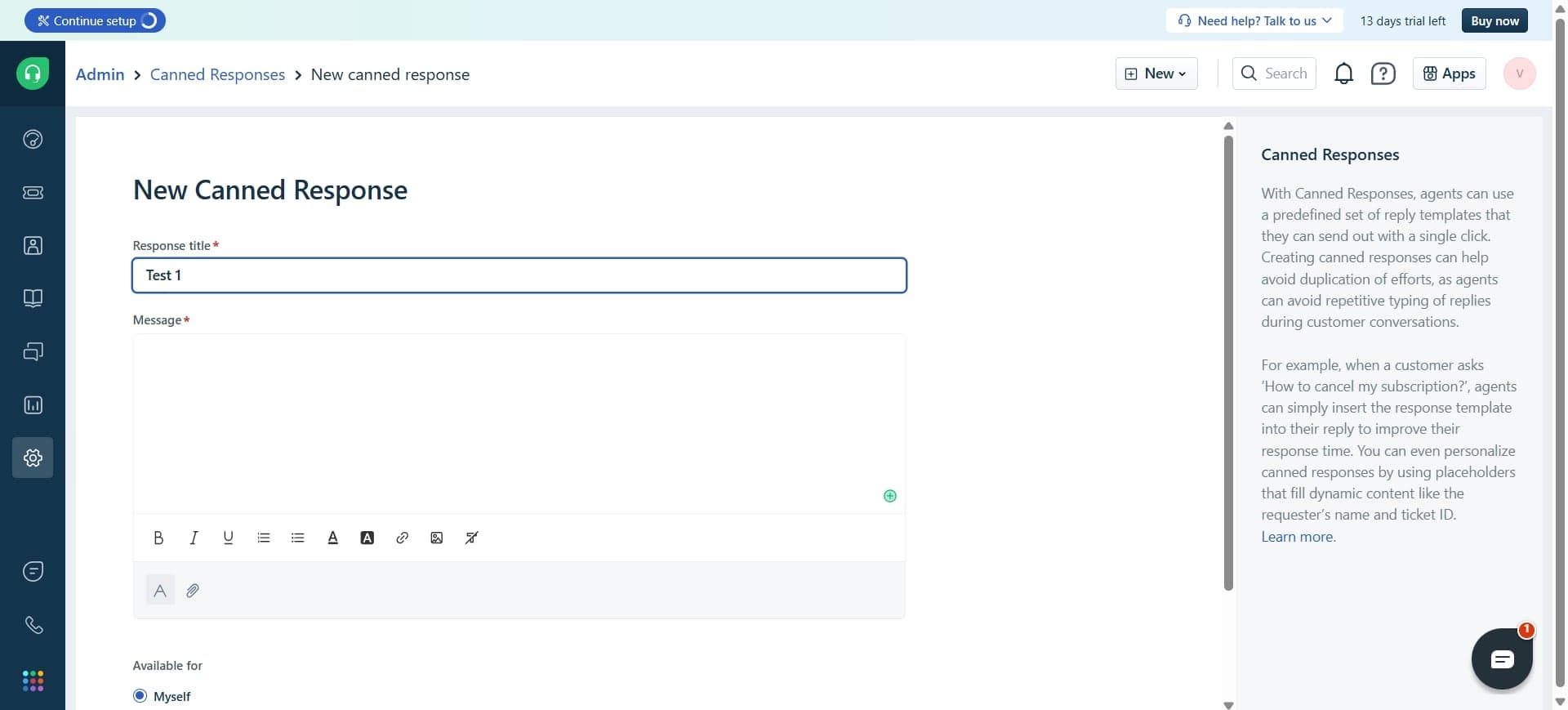
Write the response content
Click in the message body area and type or paste your pre-written response text. Use clear, professional language and ensure the content addresses the common issue or question this template is designed for.
- 6
Add personalization variables
Insert dynamic placeholders like {{customer.name}}, {{ticket.id}}, or {{agent.name}} to personalize responses automatically. Click the variable insertion button or type double curly braces to access available variables.
- 7
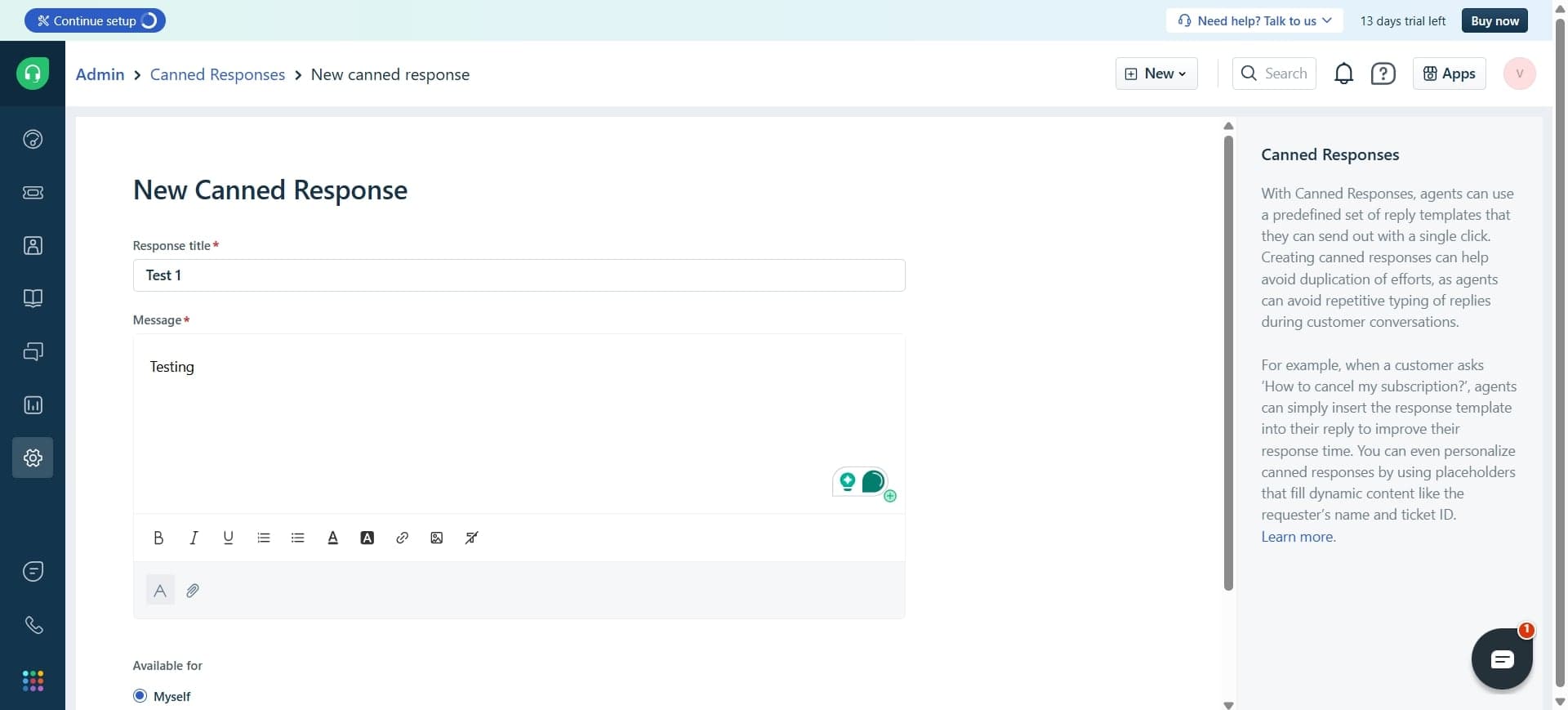
Assign the response to groups
Select which support groups or teams should have access to this canned response. You can make it available to specific groups or to all agents in your account.
- 8
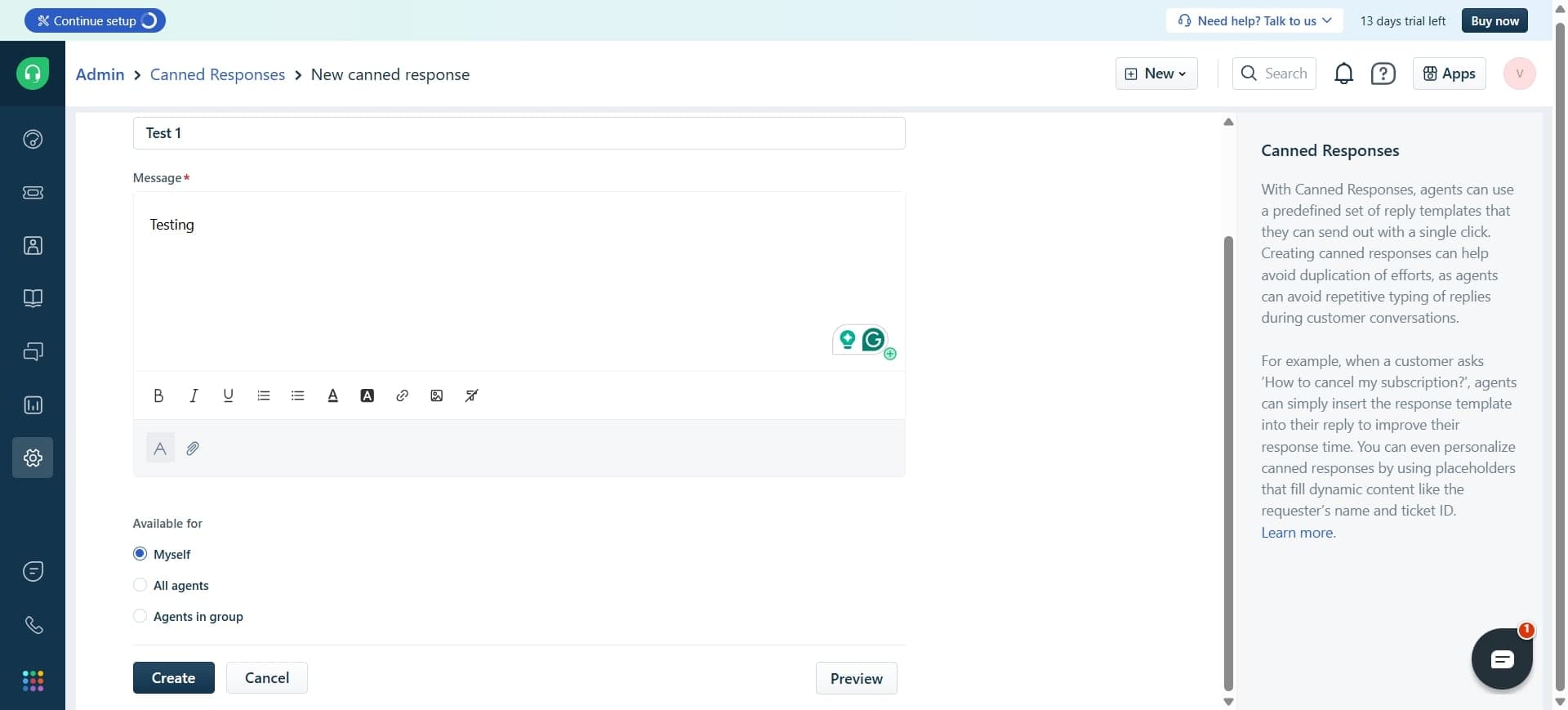
Set visibility and category
Choose visibility settings to control who can use this response and optionally assign it to a category for better organization. Categories help agents find relevant responses more quickly.
- 9
Preview the response
Click the 'Preview' button to see how your canned response will appear with sample data substituted for variables. This ensures formatting and personalization look correct before saving.
- 10
Save the canned response
Click the 'Save' button to create your canned response. It will now be available for all assigned agents to use when responding to customer tickets.
Frequently asked questions
Common questions about how to add canned responses in freshdesk.
Yes, you can edit canned responses at any time. Go to Settings > Canned Responses, select the response you want to modify, make your changes, and click Save. Any updates will apply to future uses of that template.
When composing a reply in a ticket, look for the canned response icon or menu in the compose area. Click it to search for and select your desired canned response, which will be inserted into your message for editing before sending.
Yes, when creating a canned response, you can assign it to specific groups. This allows you to create team-specific templates for departments like billing, technical support, or sales that only those teams can access.
Freshdesk supports variables like {{customer.name}}, {{customer.email}}, {{ticket.id}}, {{agent.name}}, and many others. Refer to Freshdesk's documentation for a complete list of available variables you can use in your templates.
Yes, you can delete canned responses from the Canned Responses section in Settings. Simply select the response and click the delete option. Keep in mind this action is permanent, so ensure the template is no longer needed.