How to Automate Freshdesk Tickets

Freshdesk automation streamlines your support operations by reducing manual ticket handling and ensuring consistent responses. Learn how to set up automation rules that trigger actions based on ticket properties, customer behavior, and predefined conditions.
Quick summary
In this tutorial, you'll discover how to create and configure automation rules in Freshdesk that automatically assign tickets, send notifications, and update ticket statuses. You'll also learn best practices for setting up conditions and actions that align with your support team's workflow.
Why this matters
Ticket automation saves your support team hours each week by eliminating repetitive tasks and ensuring no tickets fall through the cracks. Properly configured automations improve first-response times, reduce human error, and allow your agents to focus on complex customer issues that require personal attention.
Step-by-step guide
- 1
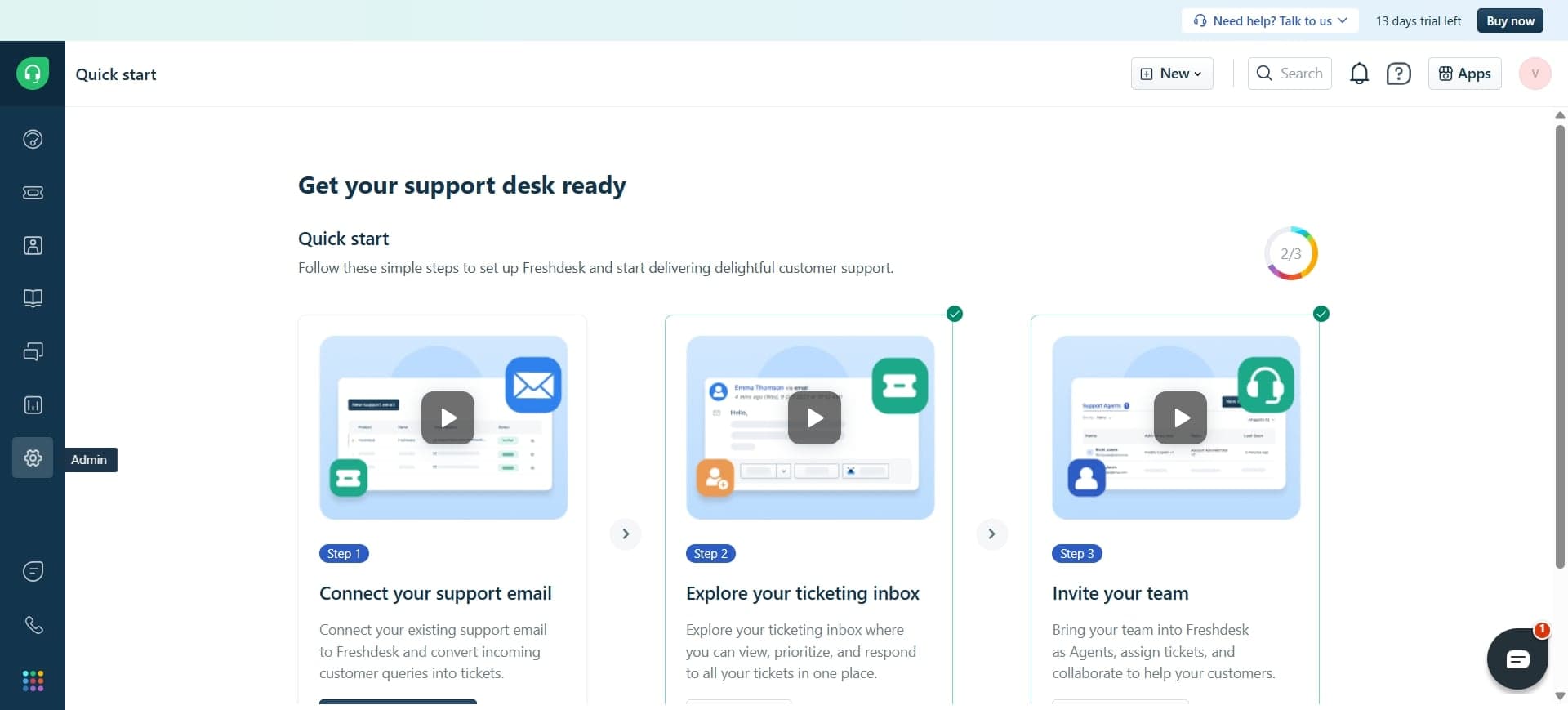
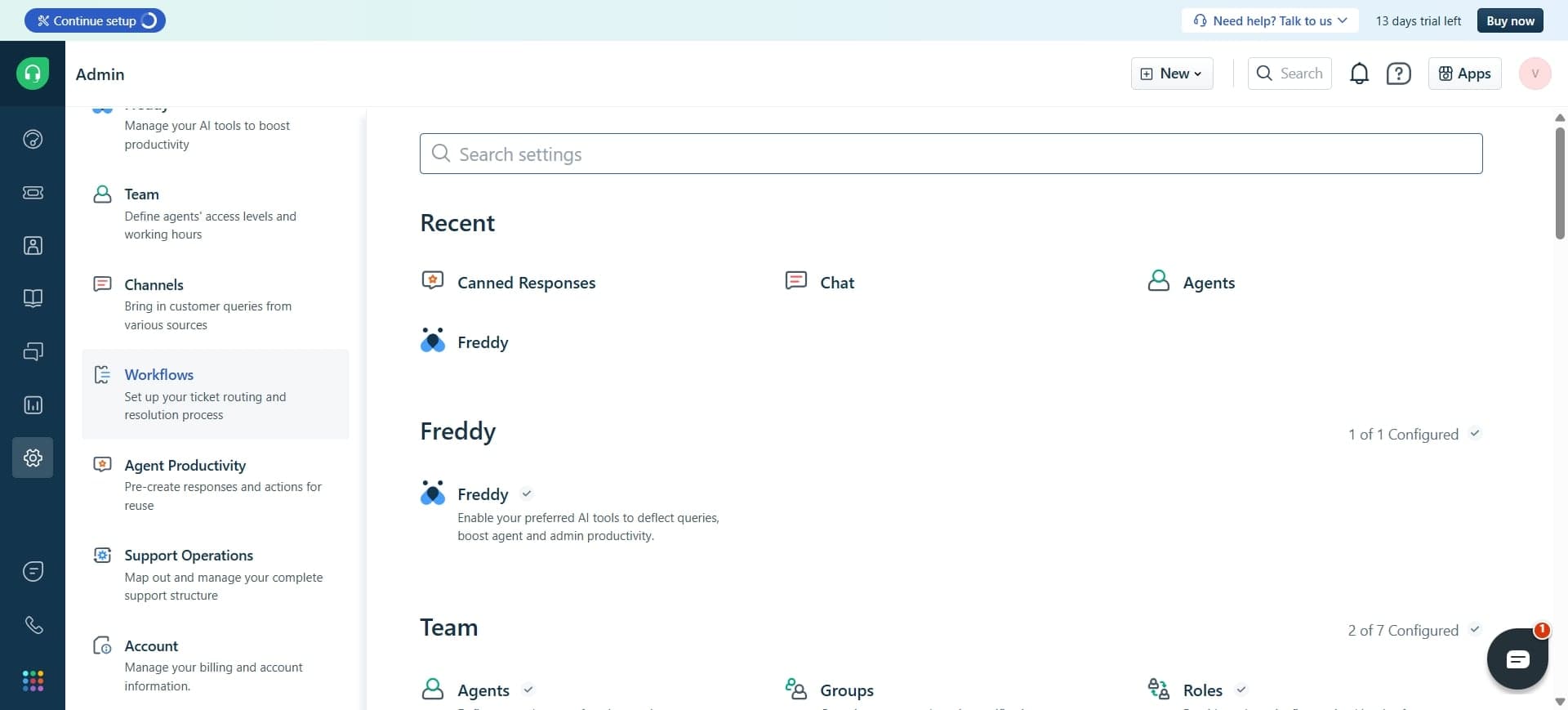
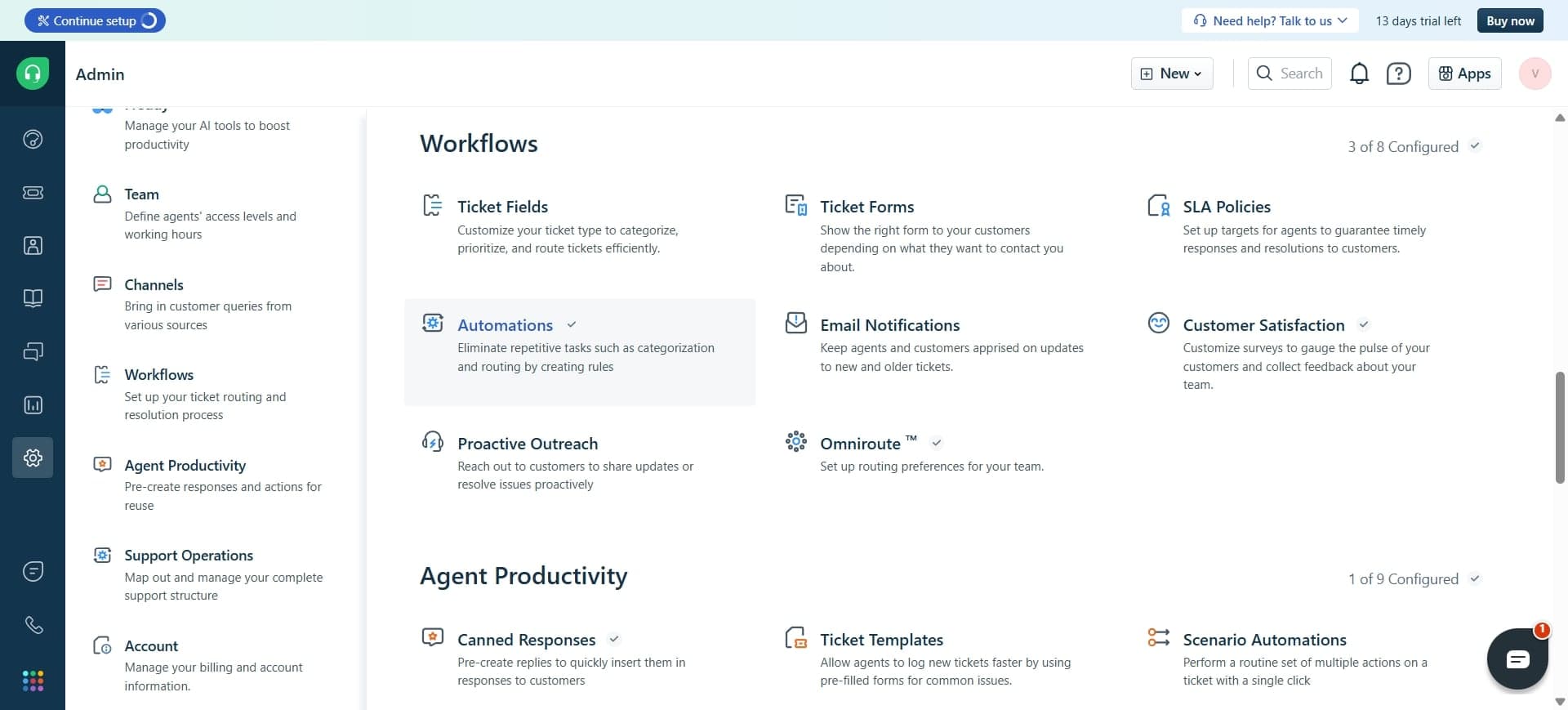
Navigate to Freshdesk automation settings
Log into your Freshdesk account and access the admin panel. Look for the Automation or Workflows section, typically found under Settings or Administration, where you can manage all automation rules.
- 2
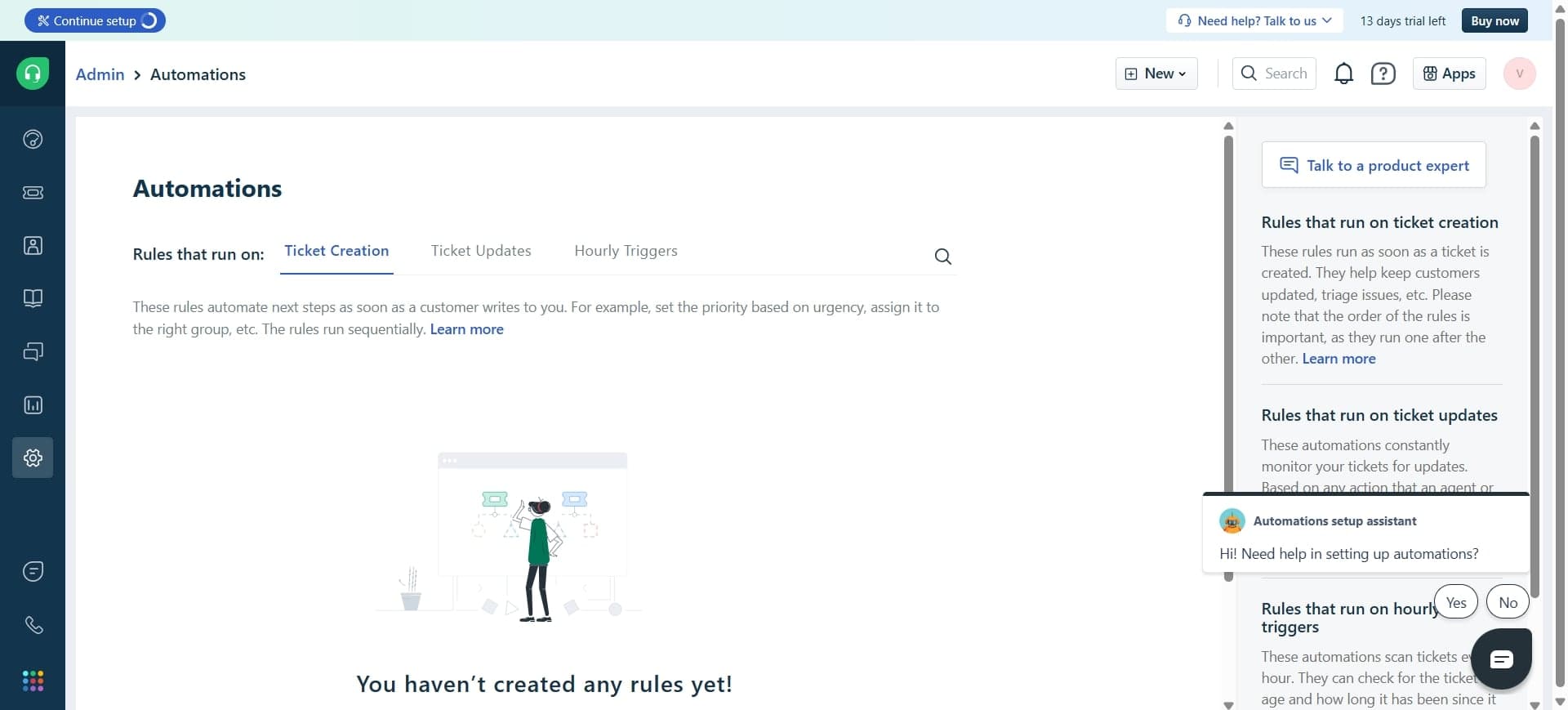
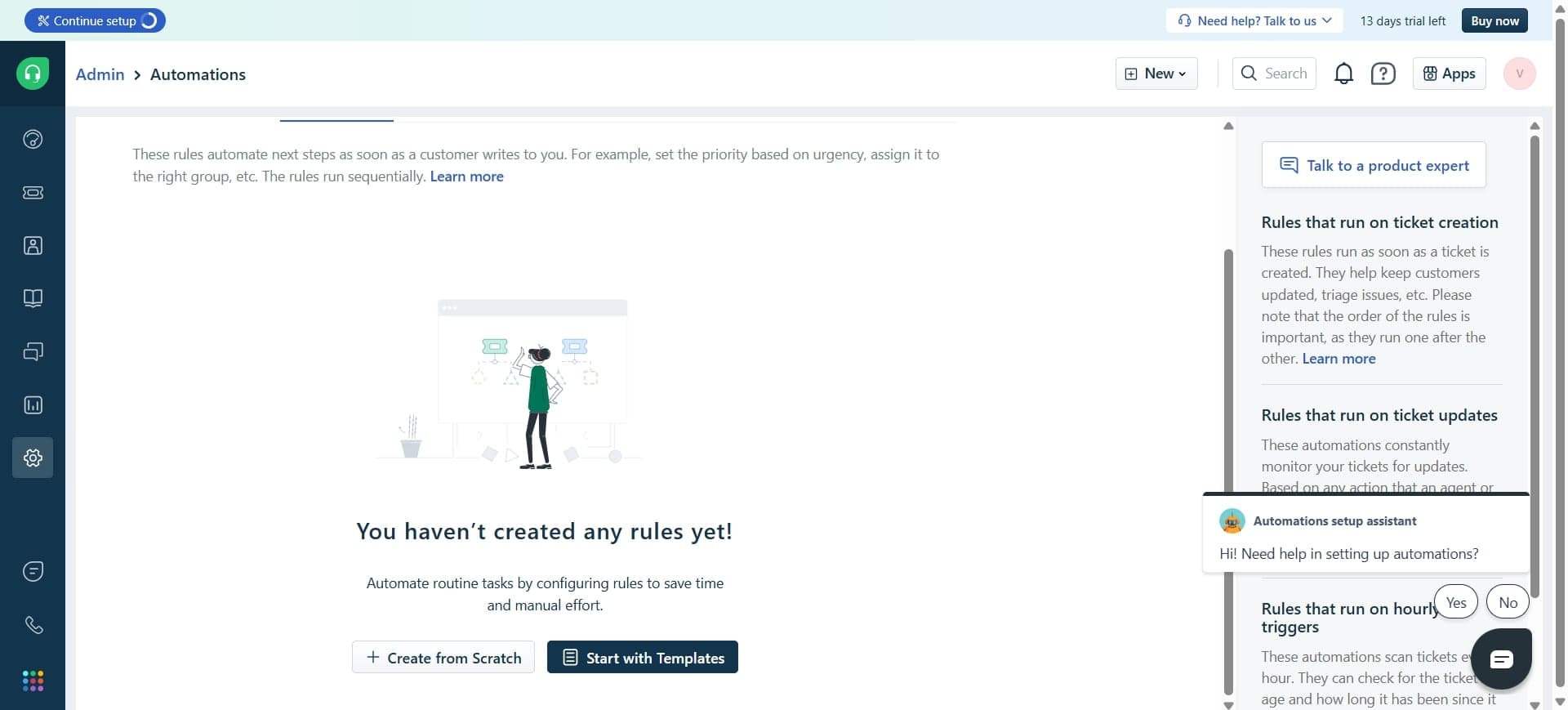
Click Create New Rule
Select the option to create a new automation rule. You'll be prompted to choose the type of automation, such as ticket creation, ticket update, or time-based triggers.
- 3
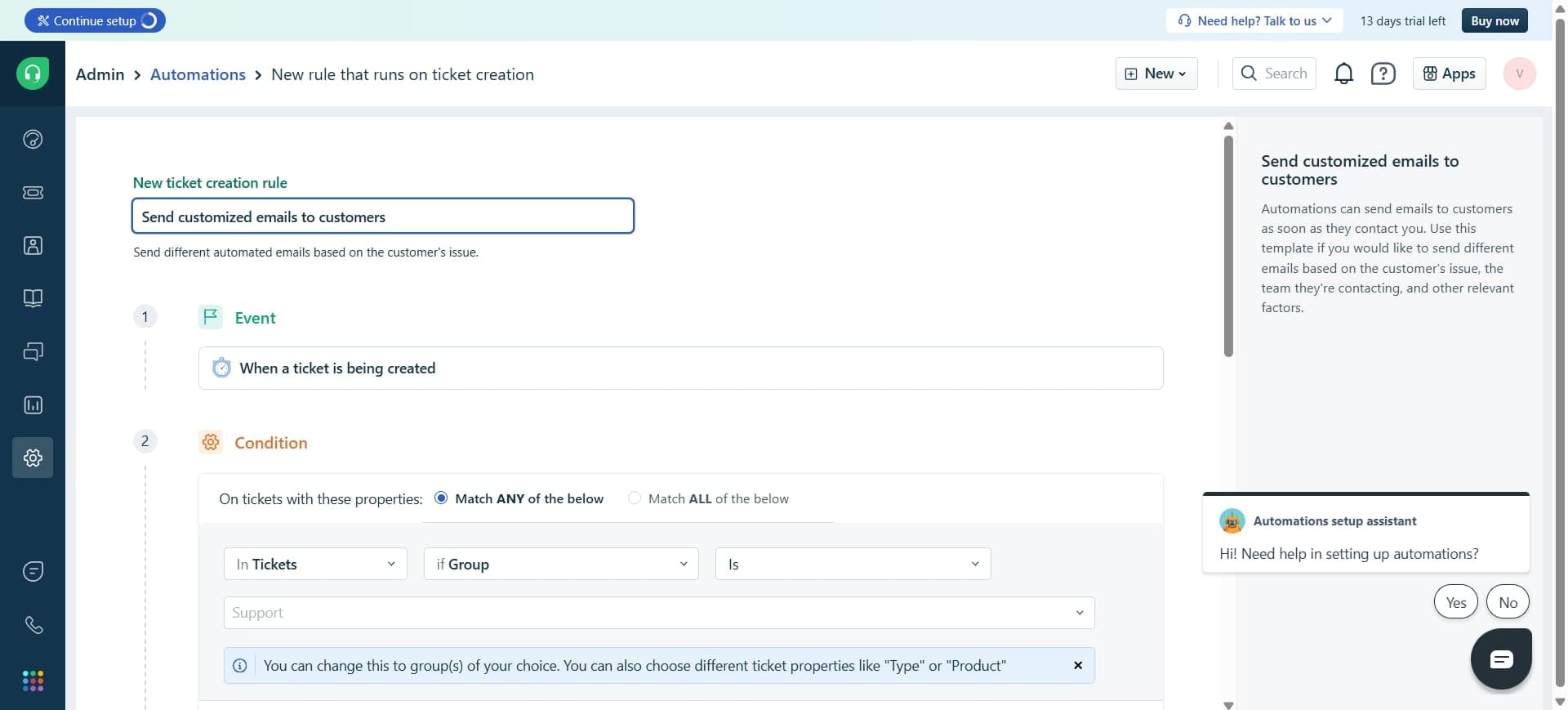
Define the automation trigger event
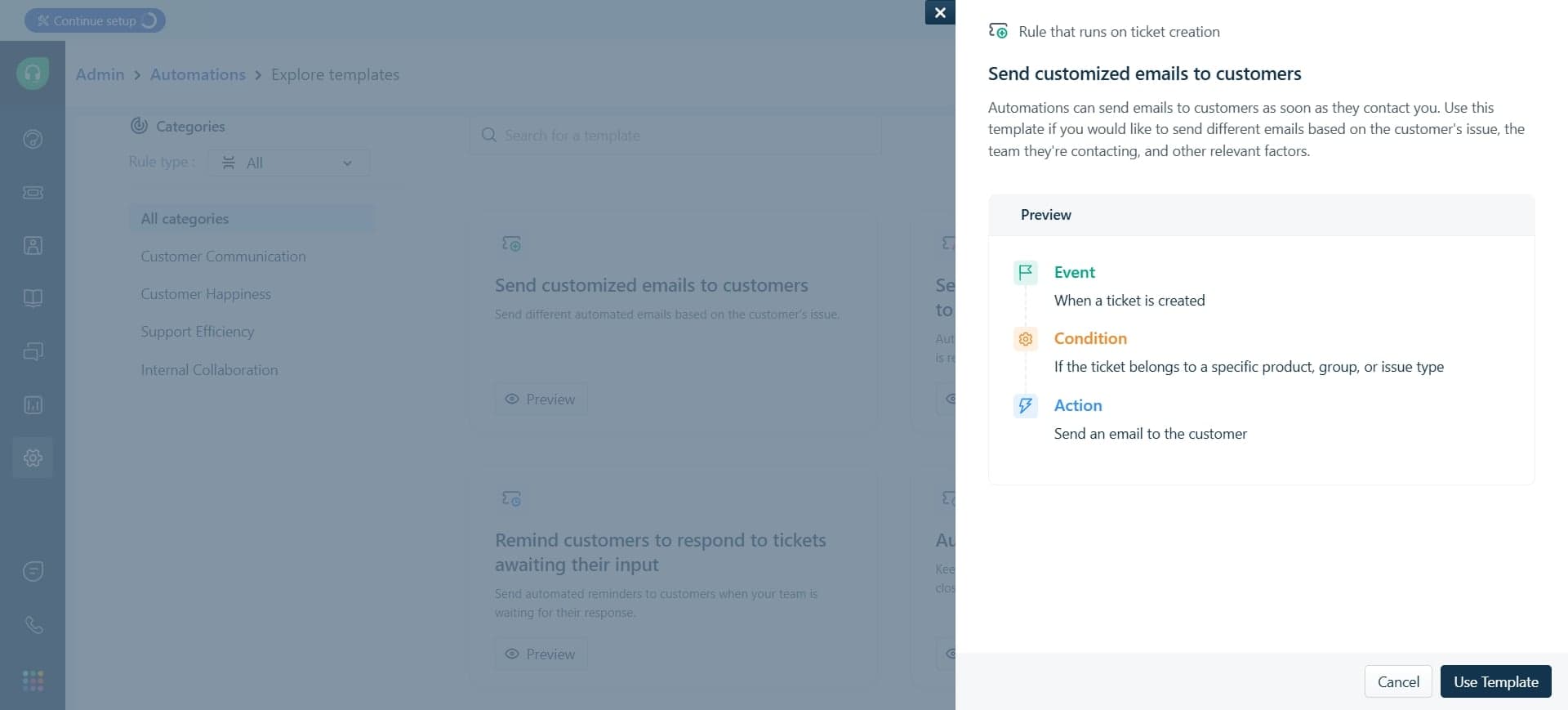
Select the event that will activate your rule, such as a new ticket being created, a ticket being updated, or a specific time interval passing. This determines when Freshdesk will evaluate your conditions.
- 4
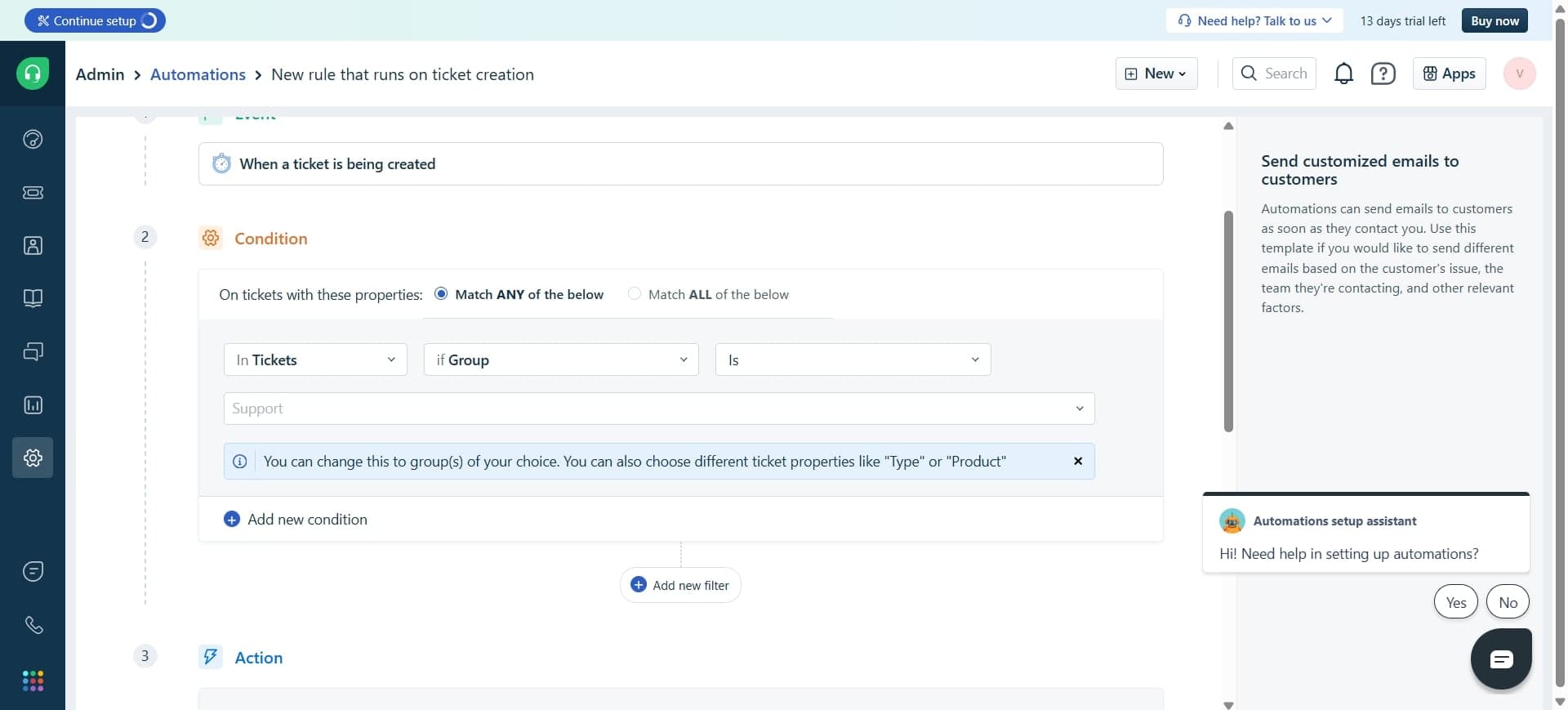
Set conditions for the rule
Specify the conditions that must be met for the automation to execute, such as ticket priority, department, customer type, or custom fields. You can combine multiple conditions using AND or OR logic.
- 5
Choose actions to execute
Select what actions should happen when conditions are met, such as assigning the ticket to a specific agent, adding tags, changing priority, or sending notifications. You can add multiple actions to a single rule.
- 6
Configure ticket assignment options
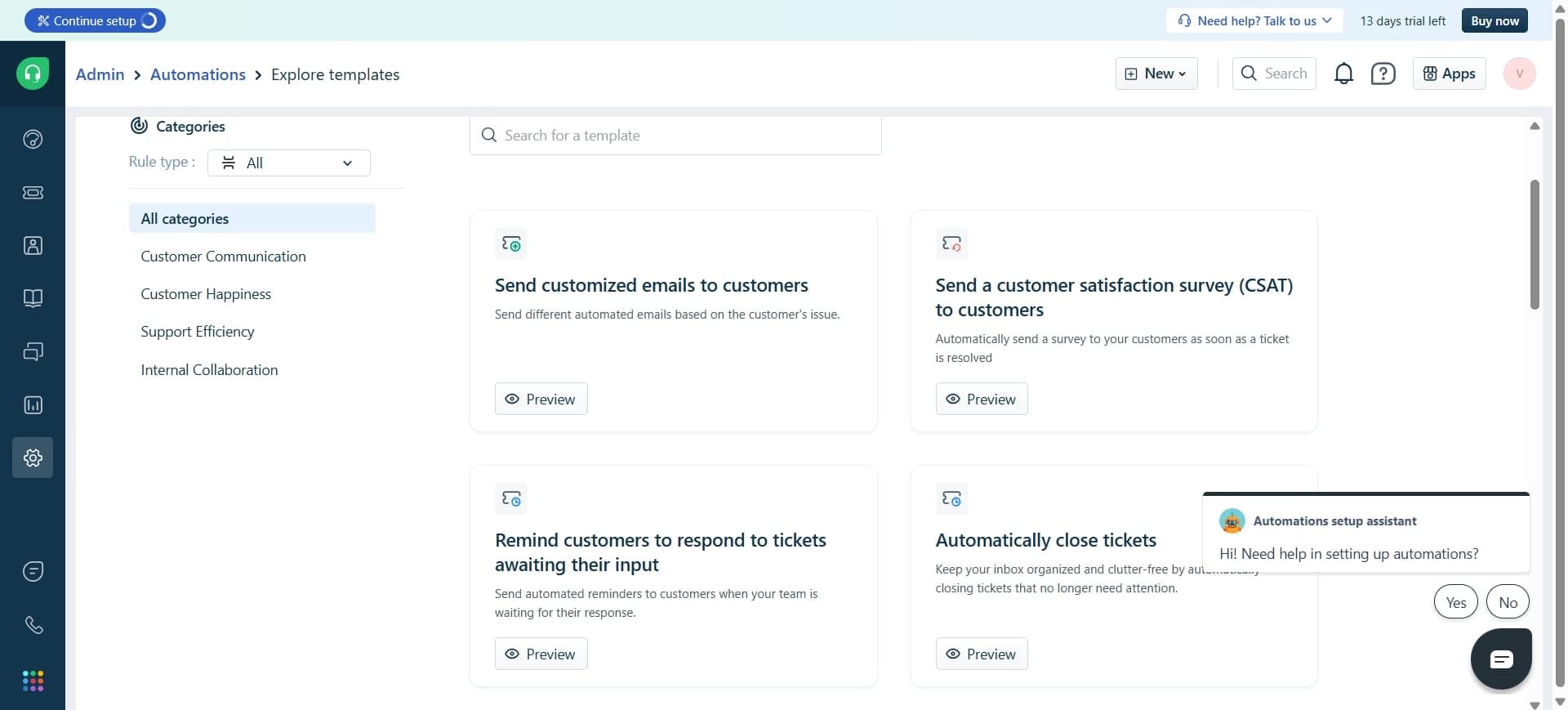
If assigning tickets, choose whether to assign to a specific agent, a group, or using round-robin distribution. This ensures tickets are routed to the right team member based on availability or expertise.
- 7
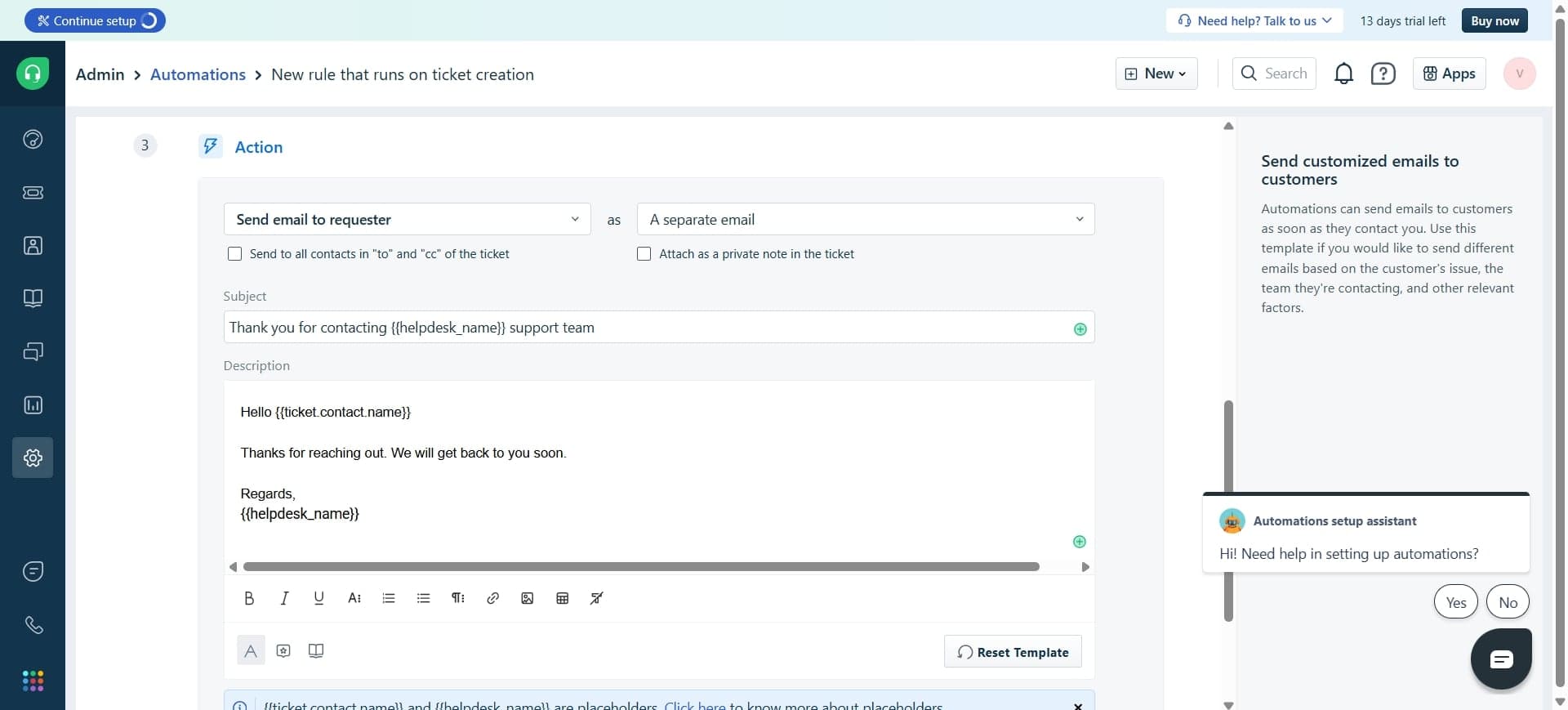
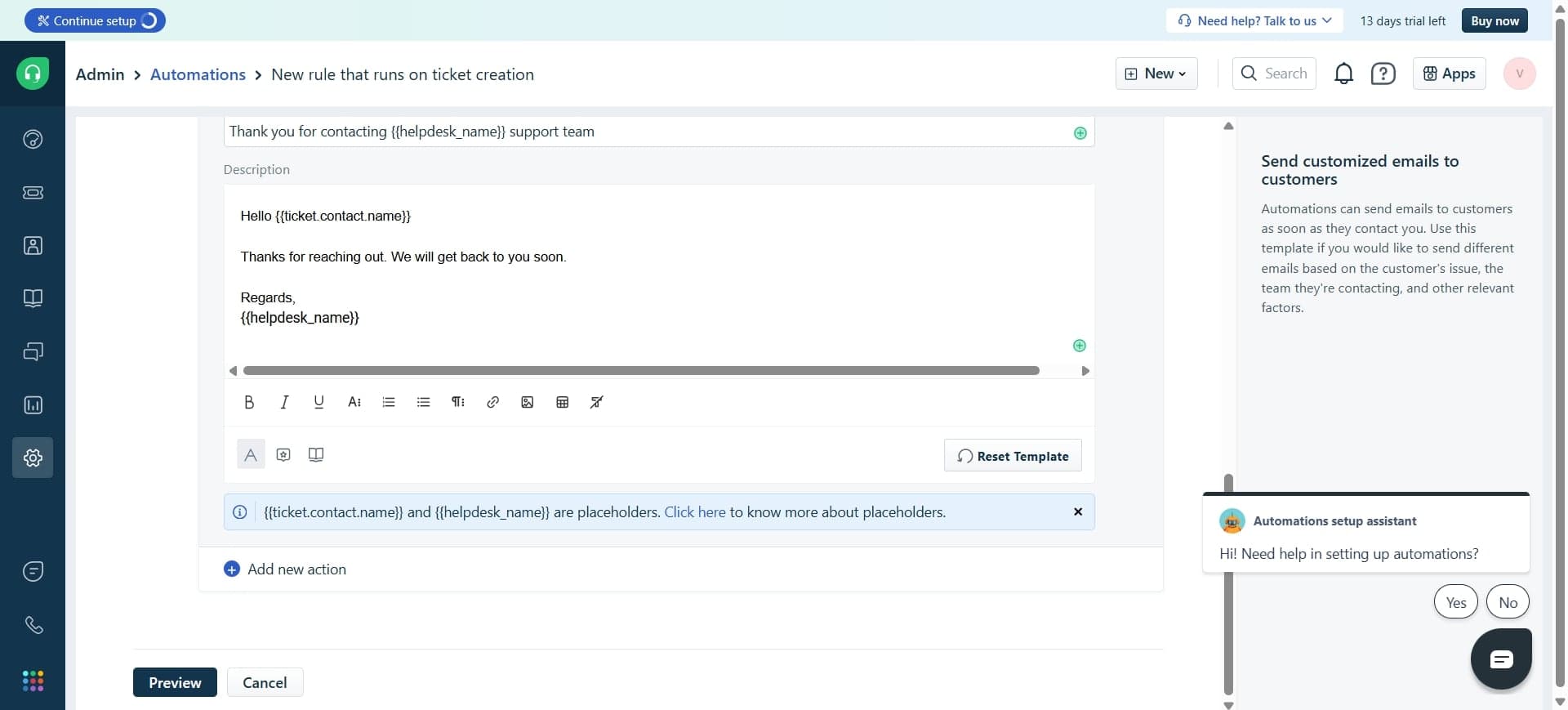
Set up automatic notifications
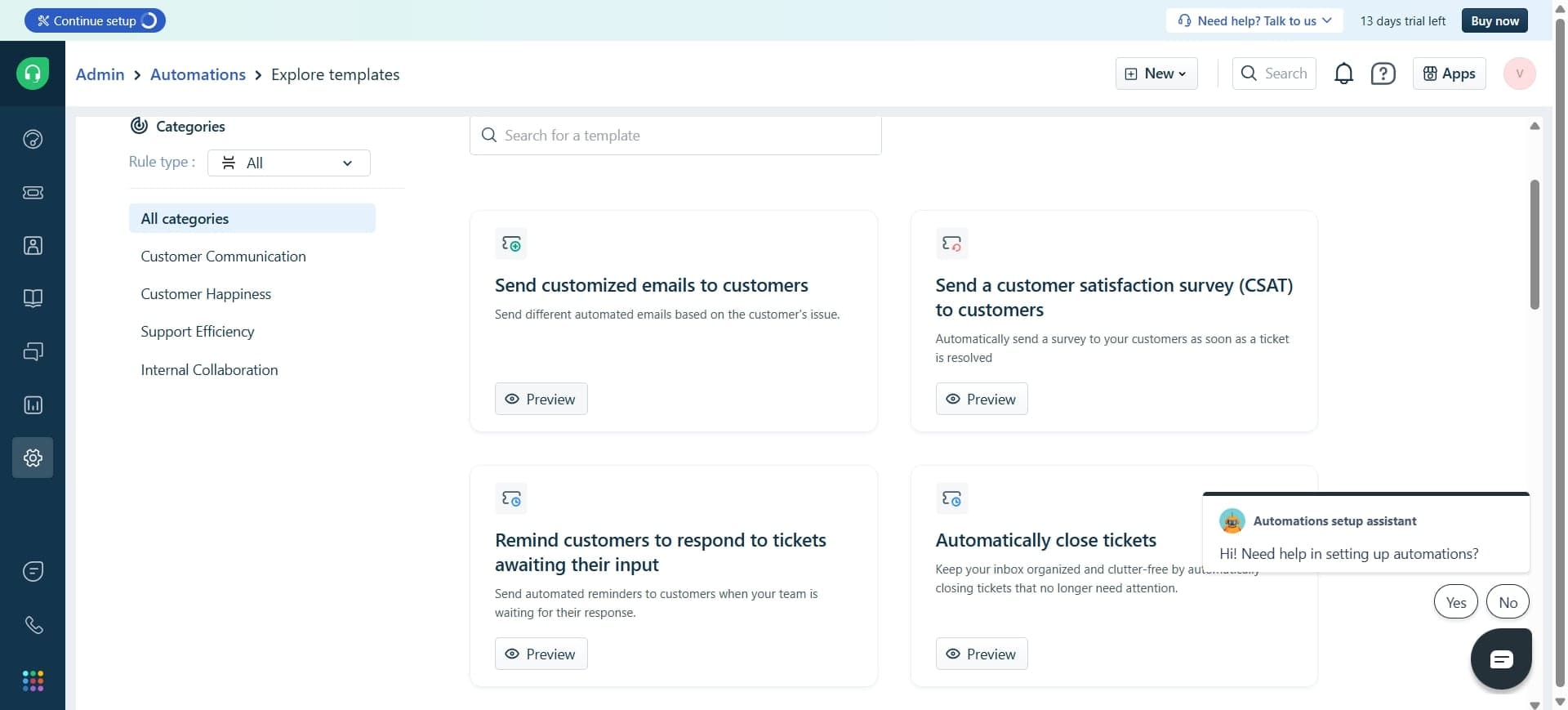
Define notification actions that alert agents or customers when certain conditions are met. You can customize the message content and select recipients such as assigned agents, group managers, or the ticket requester.
- 8
Add status update actions
Configure automatic status changes, such as marking tickets as open, pending, or resolved based on specific triggers. This helps maintain accurate ticket status without manual intervention.
- 9
Set priority escalation rules
Create conditions that automatically increase ticket priority based on factors like wait time, customer satisfaction scores, or ticket age. This ensures urgent issues receive prompt attention from your team.
- 10
Configure time-based automation triggers
Set up rules that execute after a specific time period, such as escalating tickets left unresolved for 24 hours or sending follow-up reminders. This creates accountability and prevents tickets from being forgotten.
- 11
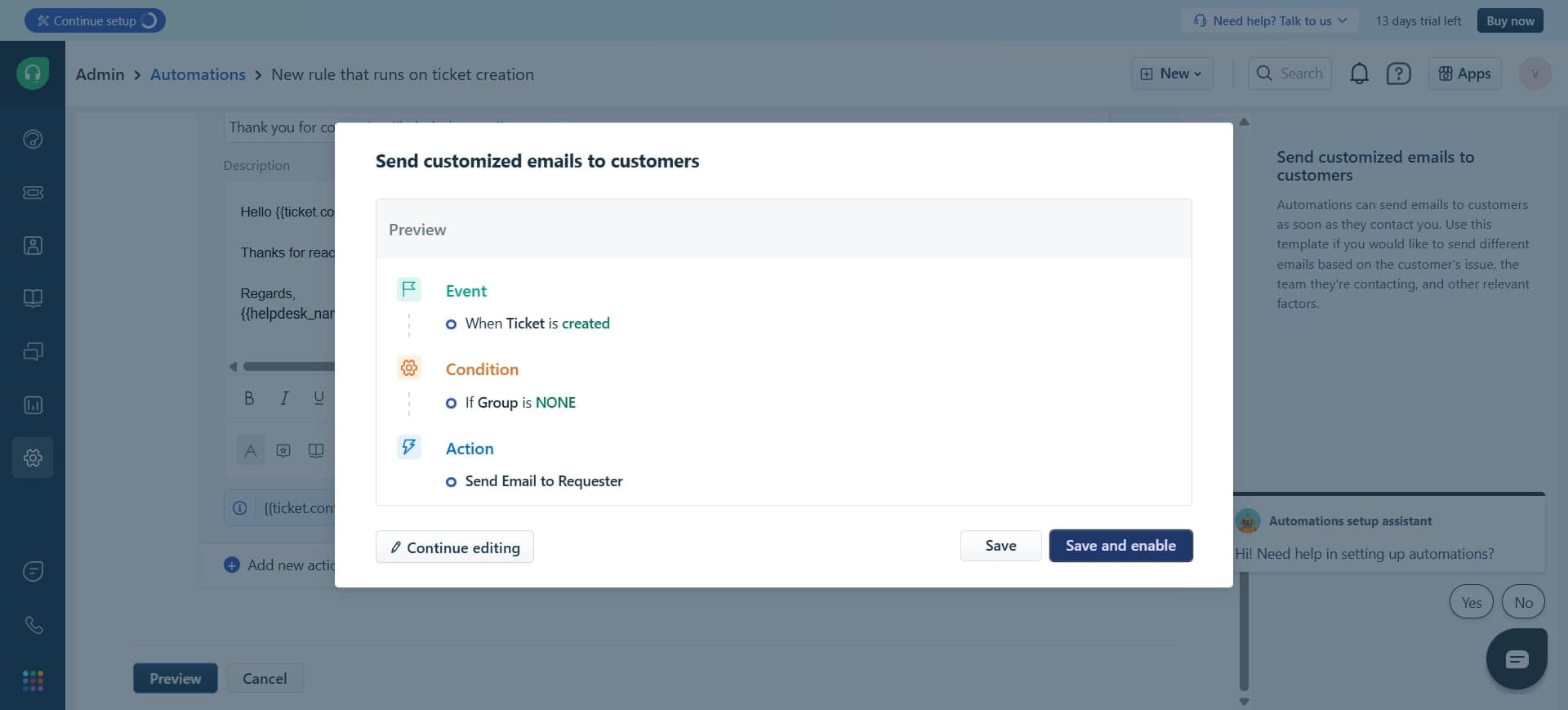
Test your automation rule
Review the rule logic before enabling it in production. Some automation tools allow you to test with sample tickets to ensure the conditions and actions work as intended.
- 12
Enable and activate the rule
Toggle the rule to active status once you've verified it works correctly. The automation will now apply to all incoming tickets that match your specified conditions.
- 13
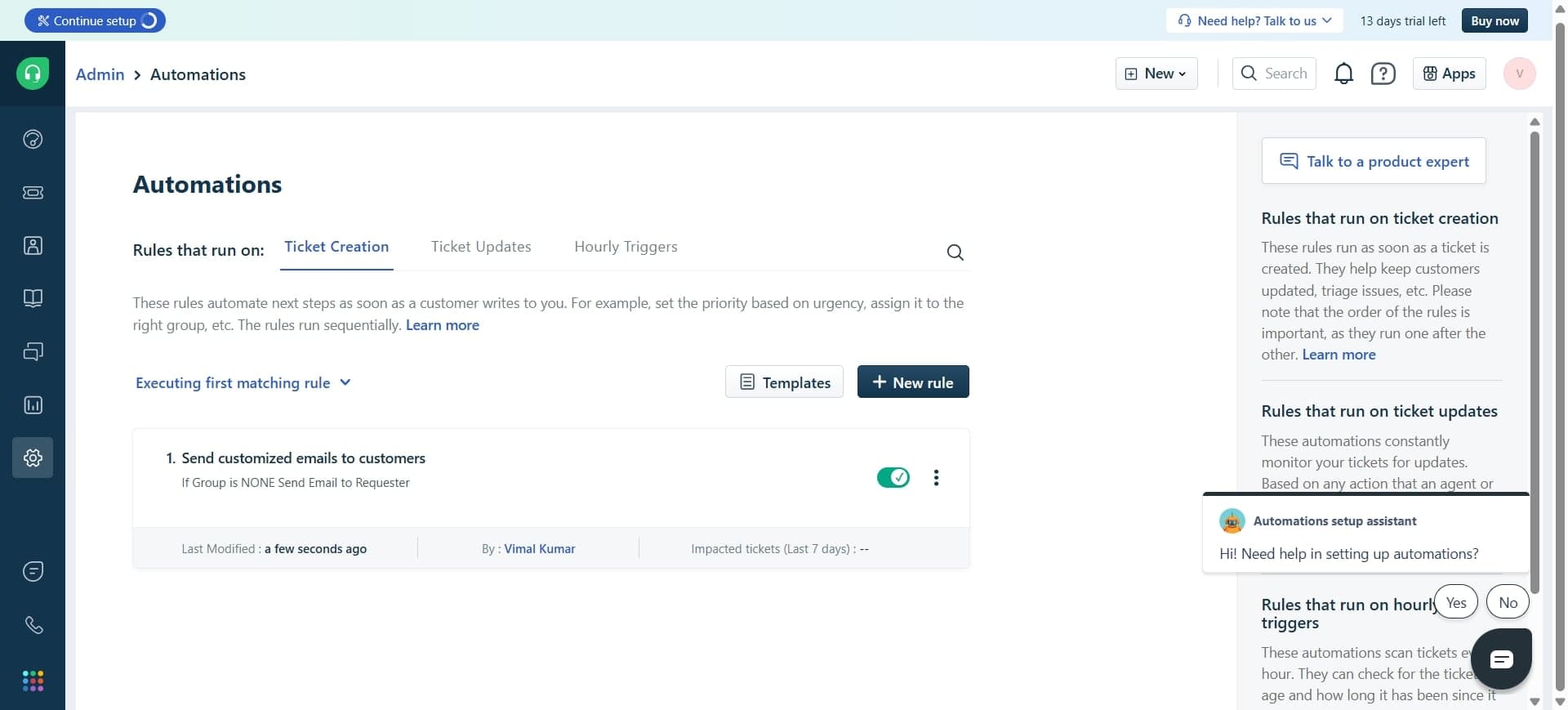
Monitor automation performance
Check your automation logs and reports to see how many tickets were affected by each rule. Use this data to refine conditions and actions for better efficiency.
- 14
Review and adjust rules regularly
Periodically audit your automation rules to ensure they still align with your support processes. Disable or modify rules that are no longer effective or that conflict with other automations.
Frequently asked questions
Common questions about how to automate freshdesk tickets.
Yes, Freshdesk allows you to assign tickets based on custom fields, groups, or skill tags. You can set conditions that route tickets to agents with specific expertise or availability status, and use round-robin distribution to balance workload evenly across your team.
Freshdesk applies all matching rules to a ticket in the order they're listed in your automation settings. If rules conflict, the last executed rule takes precedence. You should carefully order your rules and test them to avoid unintended overlaps or contradictions.
Yes, you can configure automations to send templated responses to customers based on specific triggers. Create custom message templates in Freshdesk and apply them to automation actions like ticket creation or when a ticket reaches a certain status.
Add conditions to your automation rules that exclude internal notes, test accounts, or specific customer types. You can use filters based on customer groups, ticket source, or custom fields to ensure automations only apply to relevant tickets.
Freshdesk supports time-based automations, but availability depends on your plan. You can set conditions that trigger actions based on time intervals, and some advanced plans allow you to limit automations to specific business hours to avoid off-hours notifications.