How to Create Freshdesk Chatbot

Freshdesk's chatbot feature enables you to automate customer support by handling common inquiries 24/7. This guide walks you through creating and configuring a chatbot that can qualify leads, answer FAQs, and route conversations to the right agents.
Quick summary
In this tutorial, you'll learn how to set up a Freshdesk chatbot from scratch, configure conversation flows, define trigger conditions, and deploy it across your support channels. By the end, you'll have a fully functional chatbot handling your most frequent customer questions.
Why this matters
Chatbots reduce response time, decrease support team workload, and improve customer satisfaction by providing instant answers. Automating routine inquiries allows your team to focus on complex issues that require human expertise, ultimately improving efficiency and customer experience.
Step-by-step guide
- 1
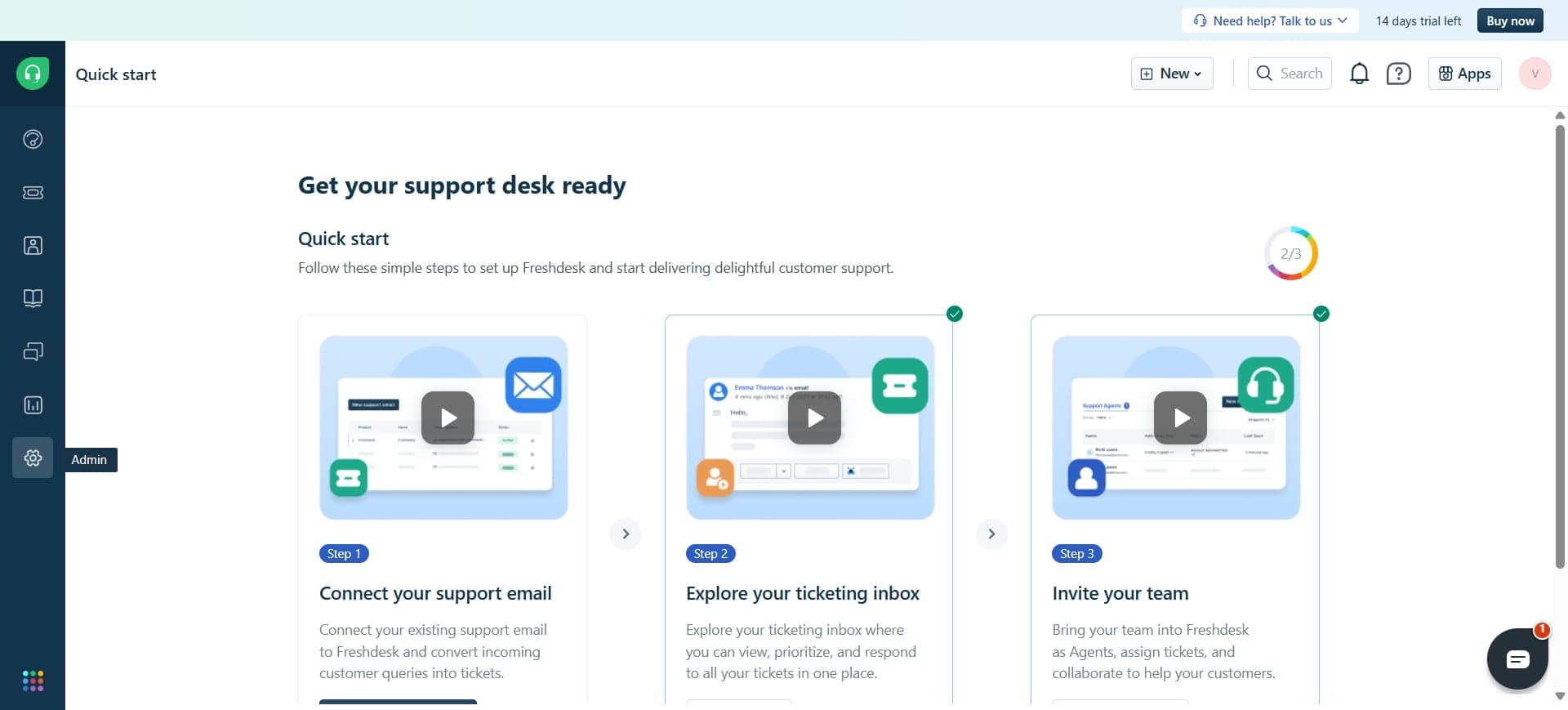
Log in to Freshdesk account
Navigate to your Freshdesk dashboard and authenticate with your credentials. You'll need admin or supervisor access to create and manage chatbots.
- 2
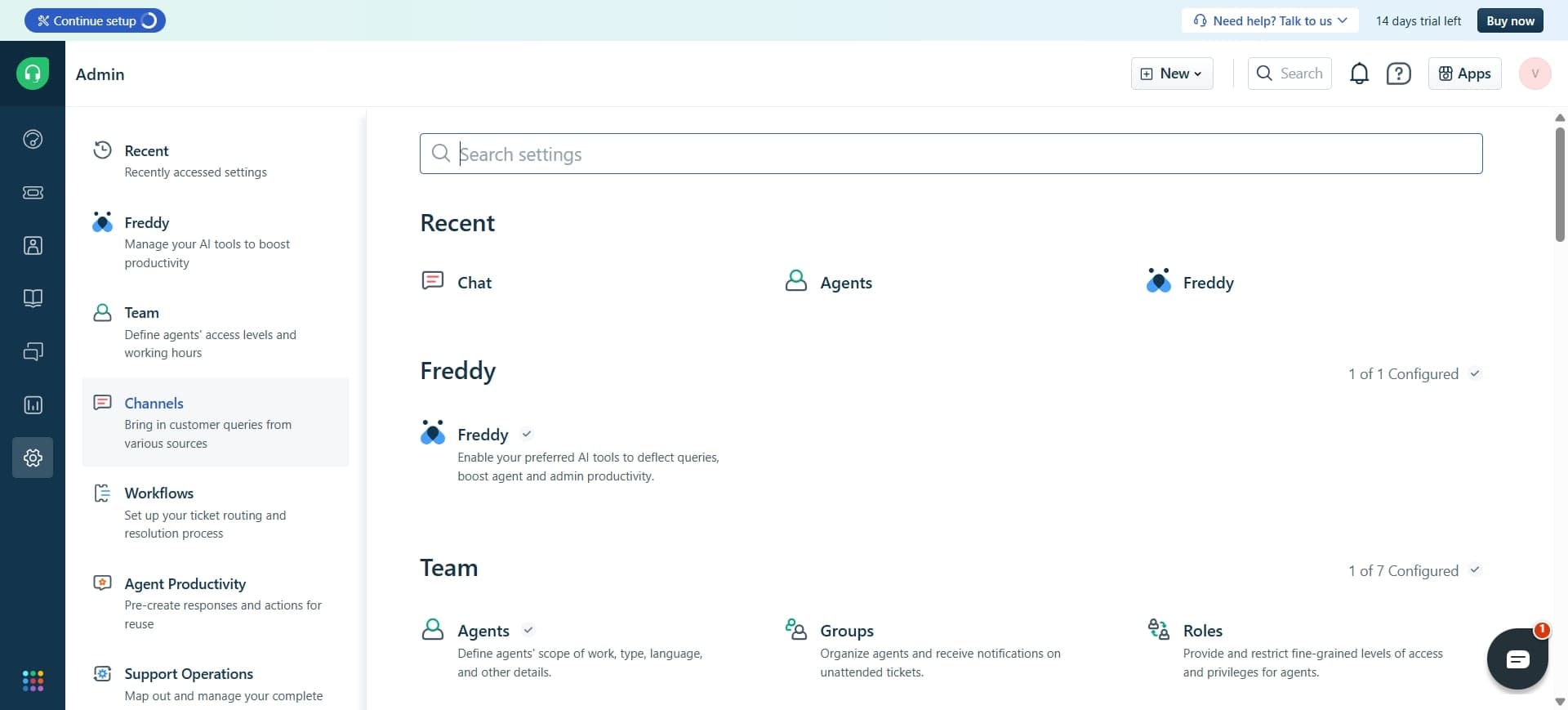
Access the Bots section
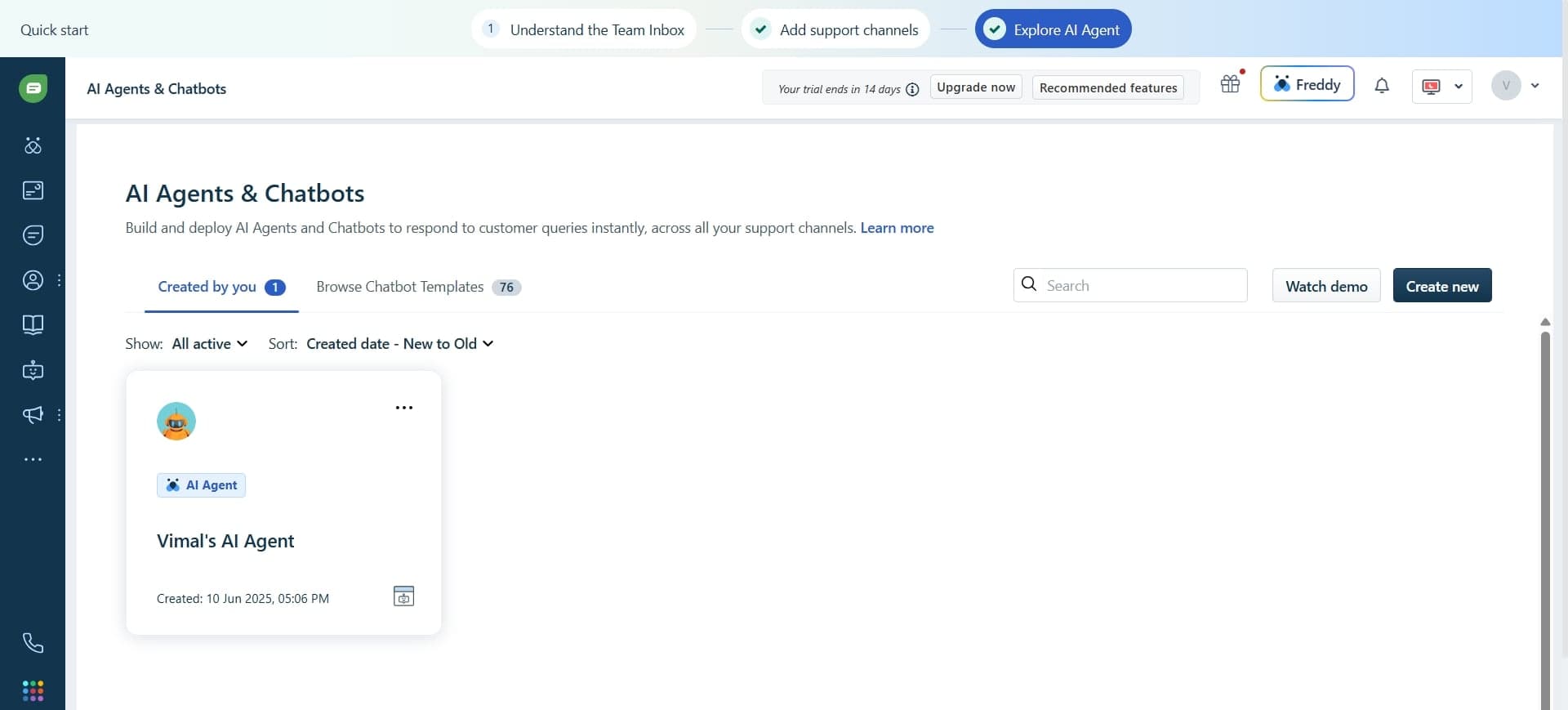
From the main menu, locate and click on the Bots or Automation section. This is where you'll manage all chatbot configurations for your account.
- 3
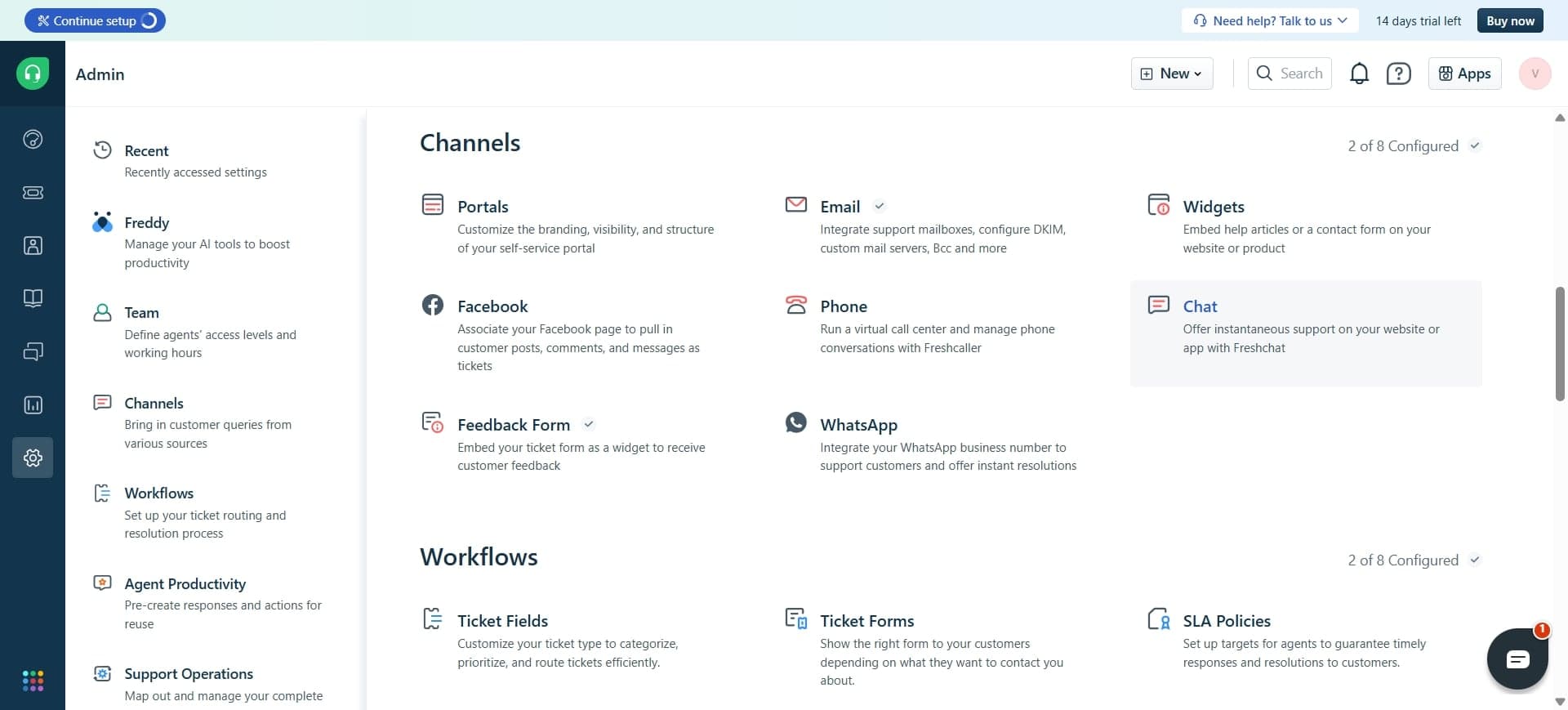
Click Create Bot button
Select the option to create a new bot. You'll be prompted to choose the type of bot and configure initial settings.
- 4
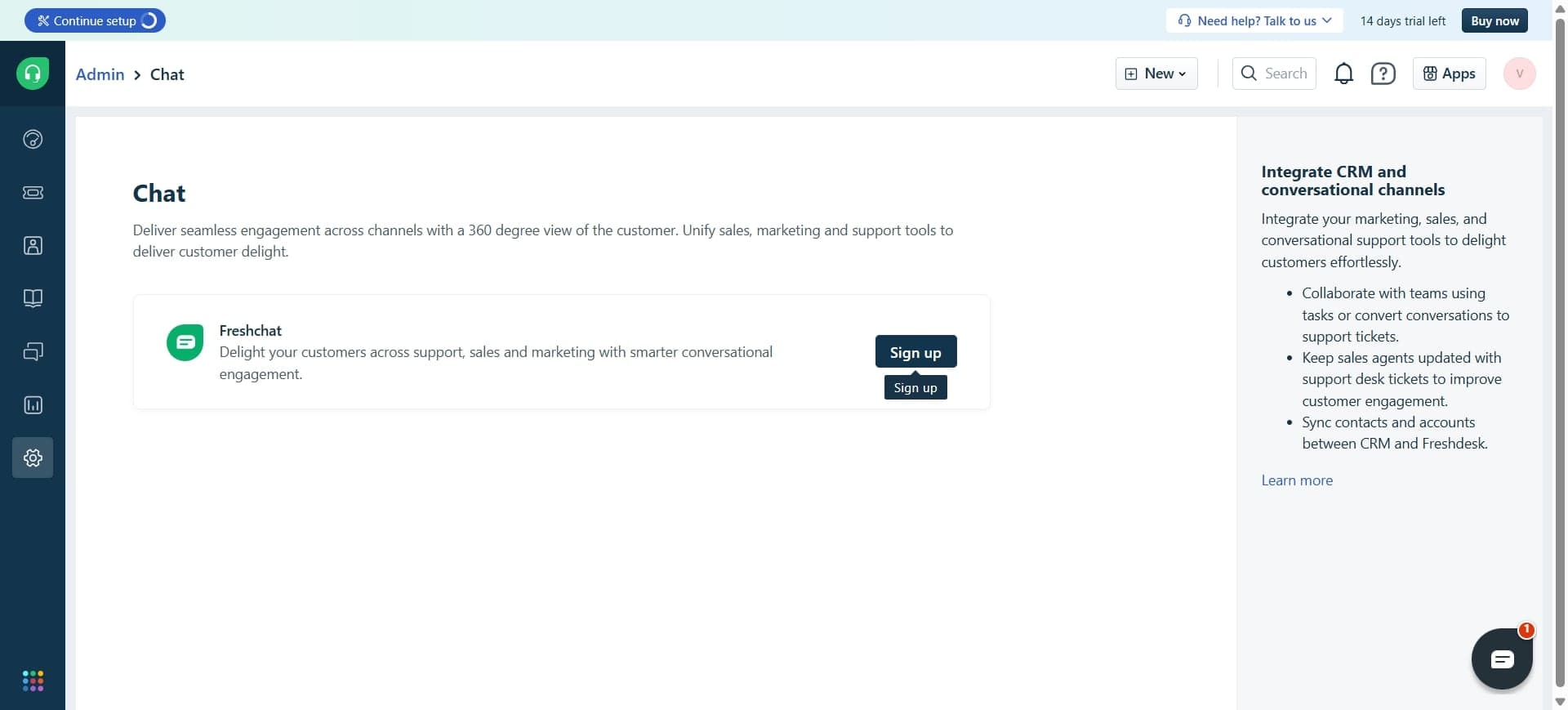
Name your chatbot
Enter a descriptive name for your chatbot that reflects its purpose, such as 'Support FAQ Bot' or 'Lead Qualifier'. This name will help you identify the bot in your dashboard.
- 5
Select deployment channel
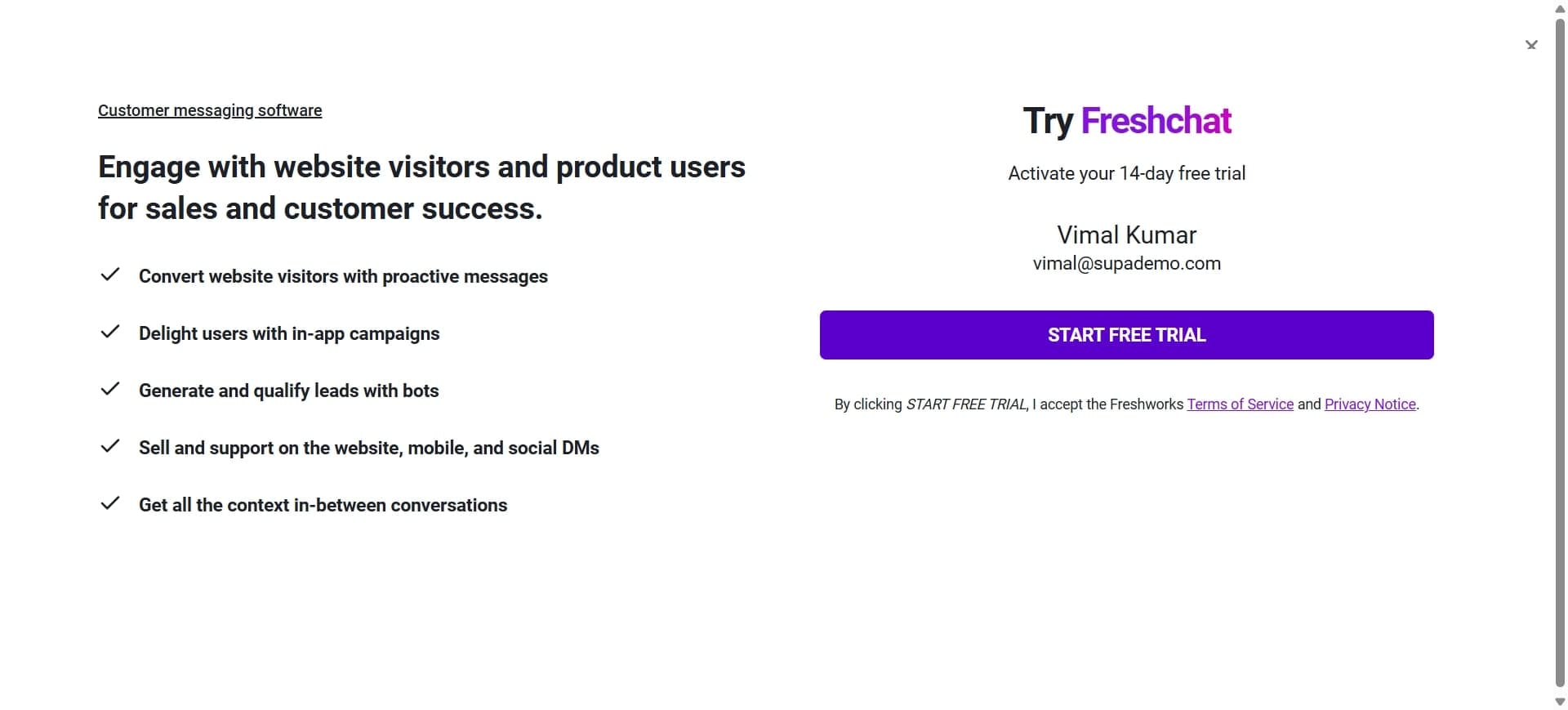
Choose where the chatbot will appear: website widget, messaging app, or email. Freshdesk allows deployment across multiple channels simultaneously.
- 6
Define bot conversation flow
Create the dialogue structure by adding greetings, questions, and response options. Use the visual builder to map out how the conversation progresses based on customer inputs.
- 7
Set up trigger conditions
Define when the bot activates, such as on page load, after user inactivity, or when specific keywords are detected. These triggers ensure the bot appears at the right moment.
- 8
Configure response actions
Specify what happens after each customer response, such as providing information, collecting data, or escalating to an agent. Actions determine the bot's behavior throughout the conversation.
- 9
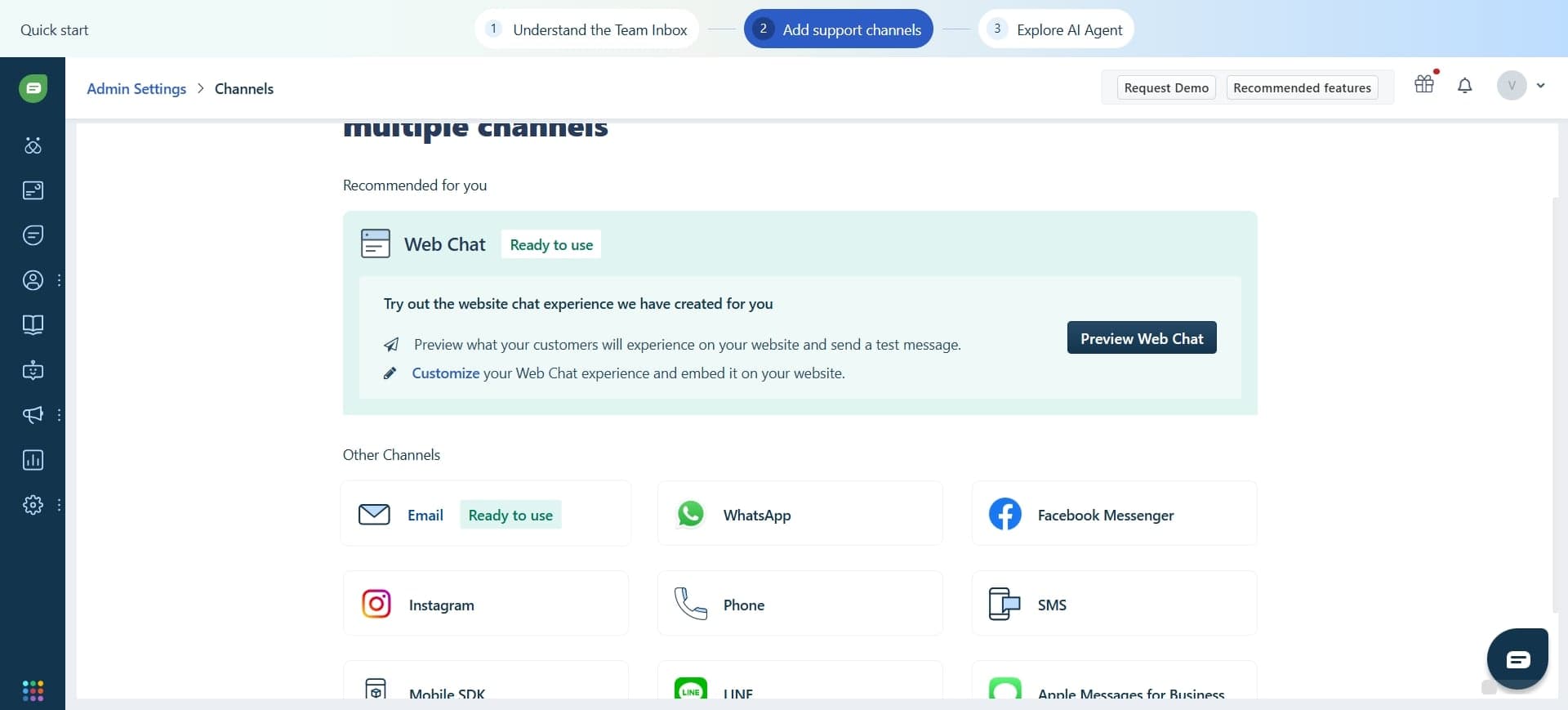
Add knowledge base articles
Link your Freshdesk knowledge base articles to bot responses so it can provide comprehensive answers. This ensures consistent information across support channels.
- 10
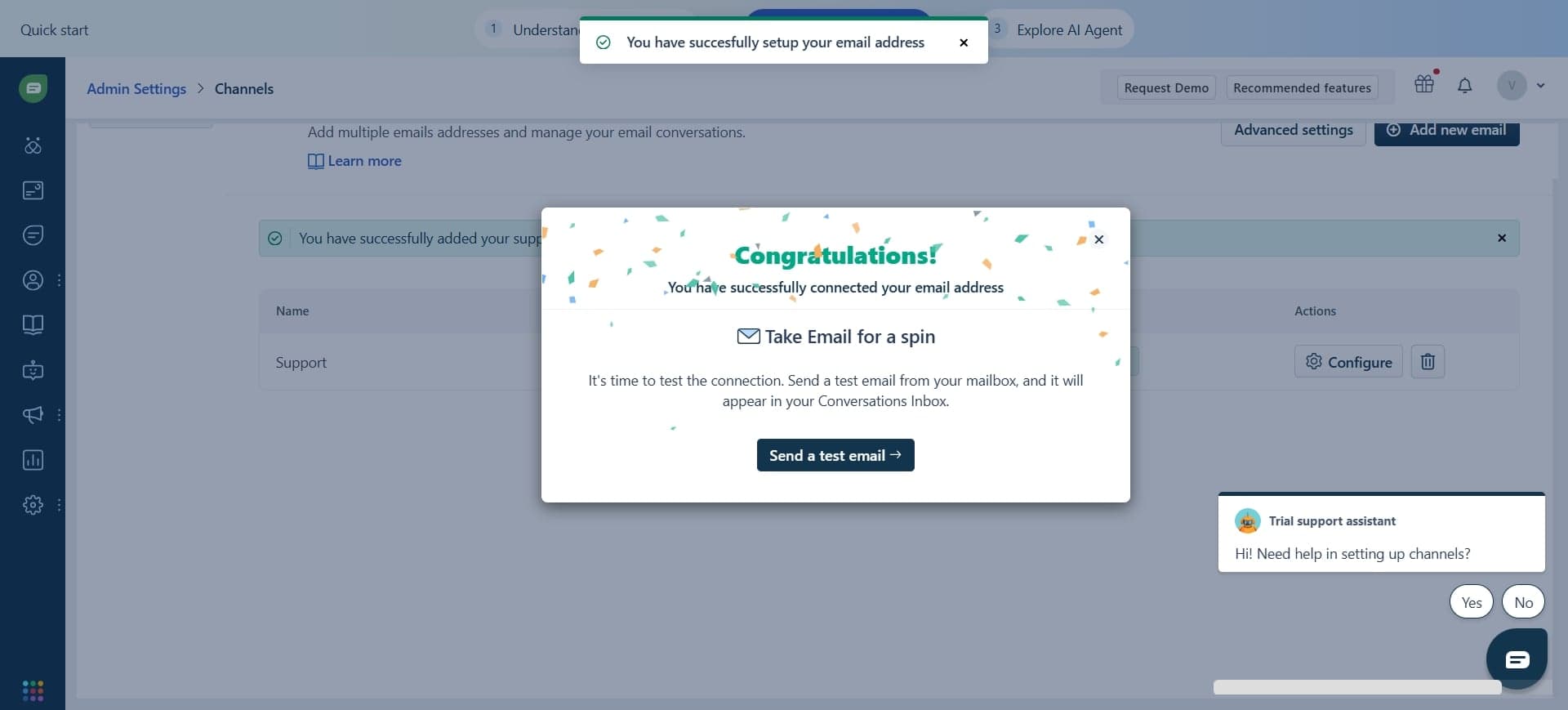
Set up agent handoff rules
Define conditions for when the bot should transfer conversations to human agents, such as when a customer requests a person or the bot can't resolve the issue.
- 11
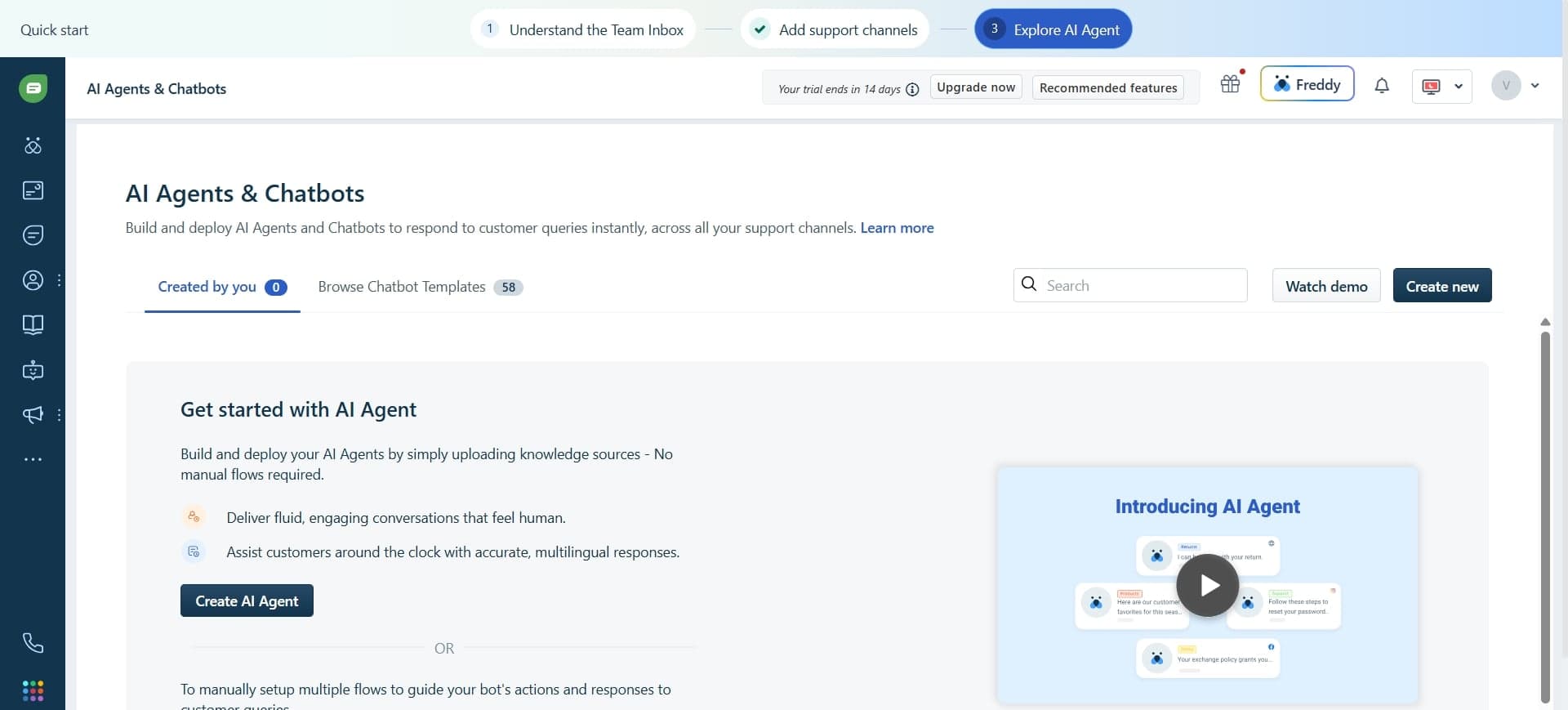
Test the chatbot
Use the built-in testing interface to preview conversations and verify that responses and flows work as intended. Test various conversation paths to ensure quality.
- 12
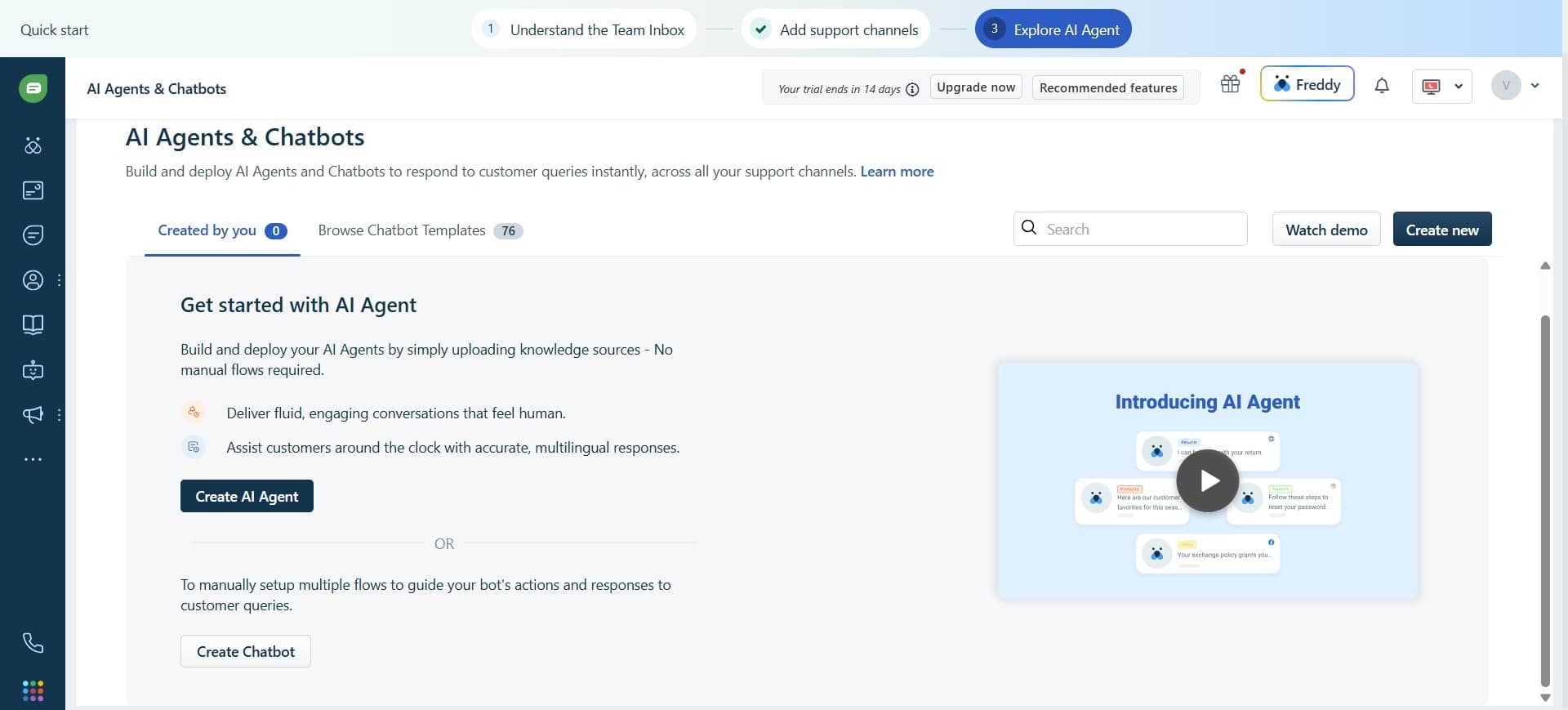
Configure advanced settings
Adjust parameters like bot name, response timeout, and conversation history. Fine-tune these settings to match your support workflows and customer expectations.
- 13
Deploy and monitor performance
Publish the chatbot to your selected channels and monitor its performance through analytics. Track metrics like response accuracy, handoff rates, and customer satisfaction to optimize over time.
Frequently asked questions
Common questions about how to create freshdesk chatbot.
Yes, Freshdesk's visual bot builder is designed for non-technical users. You can create complex chatbots using drag-and-drop interfaces and pre-built components without writing any code. The platform handles the backend logic automatically.
Chatbots can answer frequently asked questions, provide account information, collect customer details for tickets, qualify leads, and direct customers to relevant resources. You can train the bot with your knowledge base articles for comprehensive responses.
In the bot configuration, you can link your Freshdesk knowledge base articles directly to bot responses. When customers ask questions, the bot searches your knowledge base and provides matching articles as answers. This ensures customers get accurate, current information.
Yes, Freshdesk supports multilingual chatbots. You can configure separate conversation flows for different languages or enable automatic language detection to serve customers in their preferred language.
Freshdesk provides analytics dashboards showing metrics like total conversations, resolution rate, customer satisfaction scores, and agent handoff rates. Use these insights to identify gaps, refine responses, and continuously improve your chatbot's performance.