How to Add Collaborators on GitHub

Collaborating on GitHub projects requires granting other developers access to your repository. This tutorial walks you through the process of adding collaborators to your GitHub repository, enabling your team to contribute code, review changes, and work together efficiently.
Quick summary
In this tutorial, you'll learn how to add collaborators to a GitHub repository by navigating to the repository settings, accessing the collaborators panel, and inviting team members to join your project. By the end, you'll be able to manage repository access and enable seamless team collaboration.
Why this matters
Adding collaborators is essential for team-based development, allowing multiple developers to work on the same codebase with proper access controls. Without proper collaboration setup, your team cannot effectively contribute to the project or maintain code quality through collaborative review and feedback.
Step-by-step guide
- 1
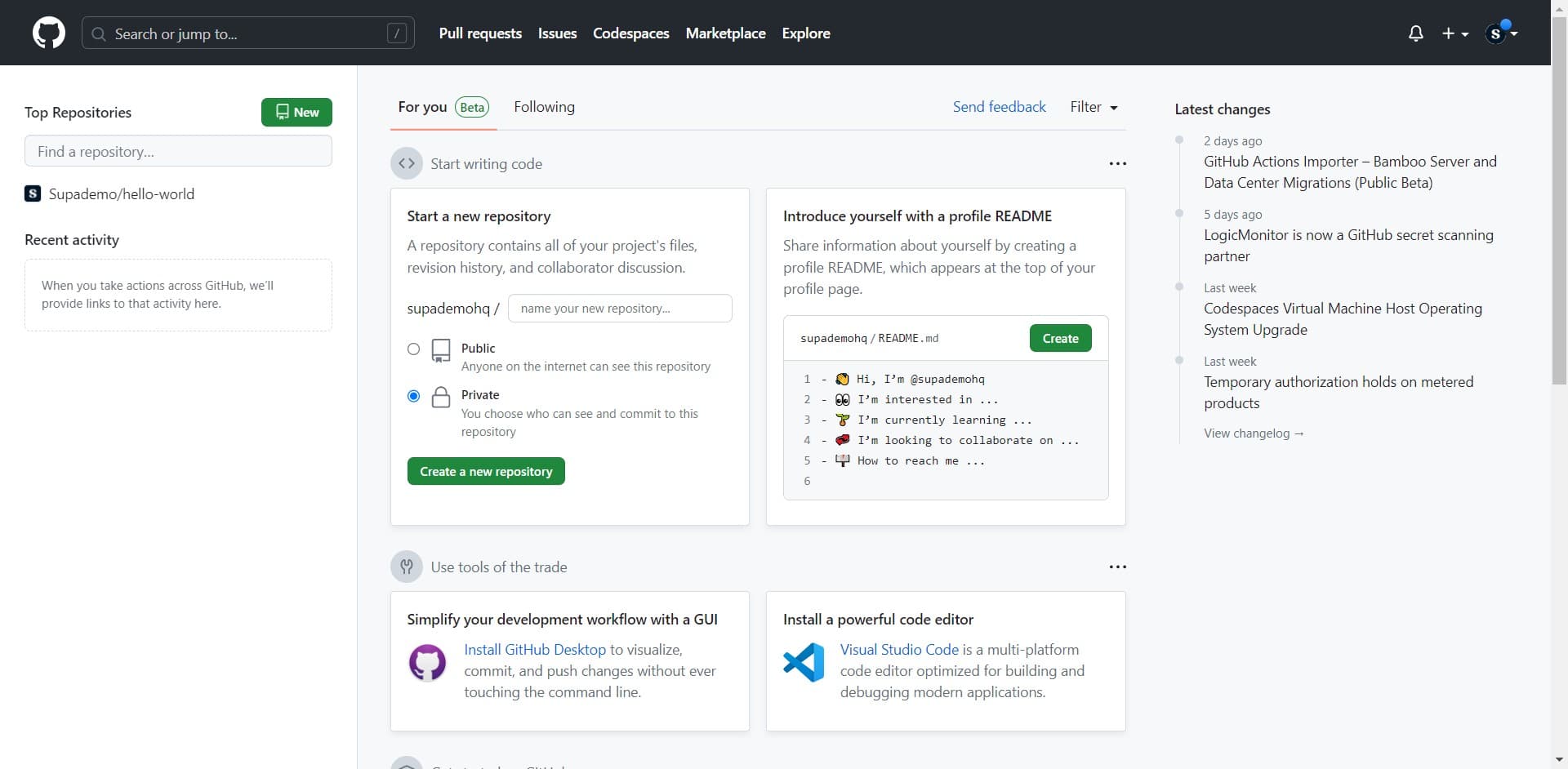
Navigate to your GitHub Dashboard
Start by clicking on the Dashboard link to access your main GitHub hub. This is where you'll find quick access to your repositories and recent activity.
- 2
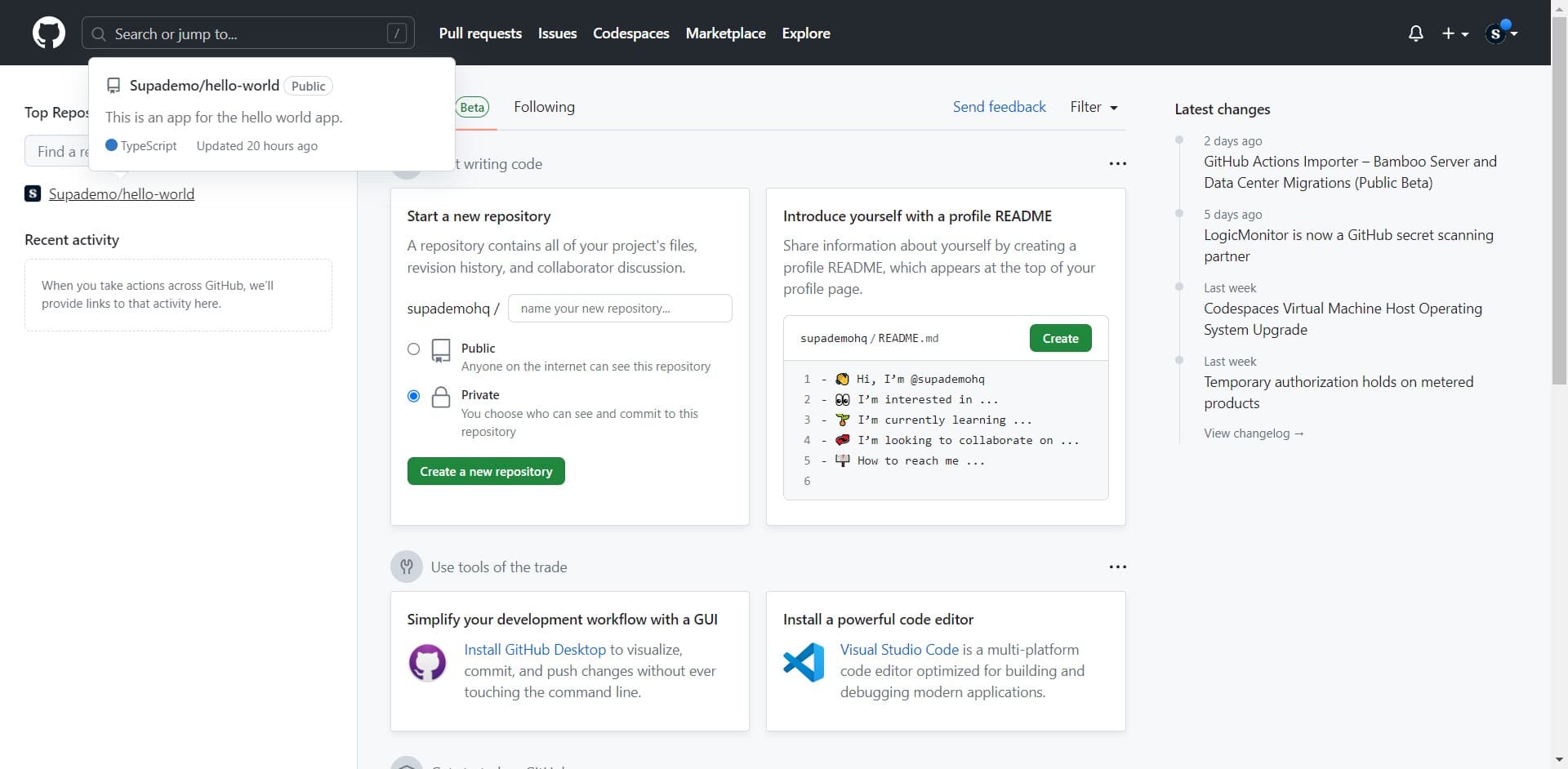
Select your repository
Click on the repository you want to add collaborators to, such as 'Supademo/hello-world'. This opens the repository's main page where you can manage settings and access controls.
- 3
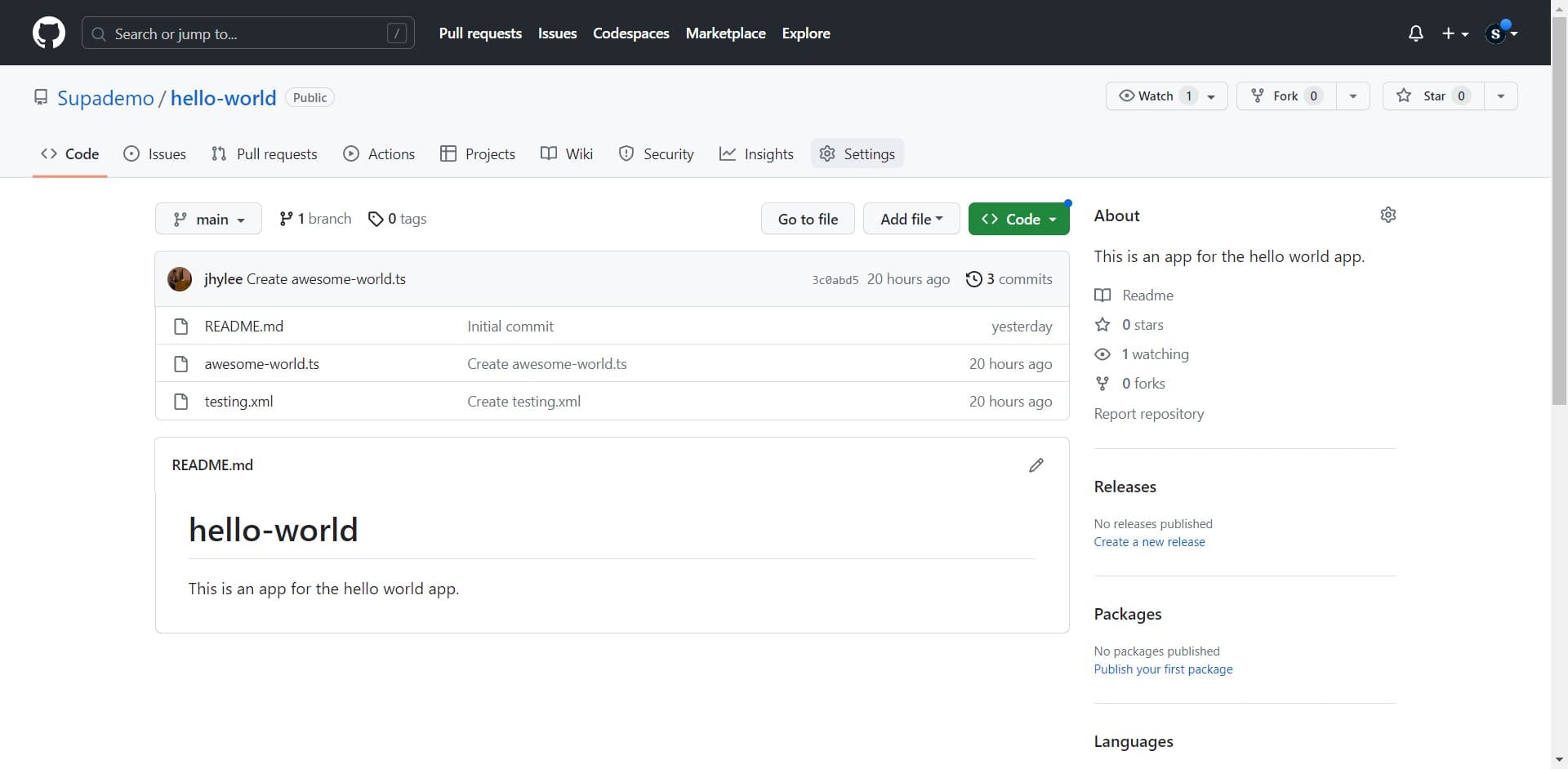
Open repository Settings
Click on the Settings tab located in the repository's navigation menu. This section contains all configuration options for your repository, including access and collaboration settings.
- 4
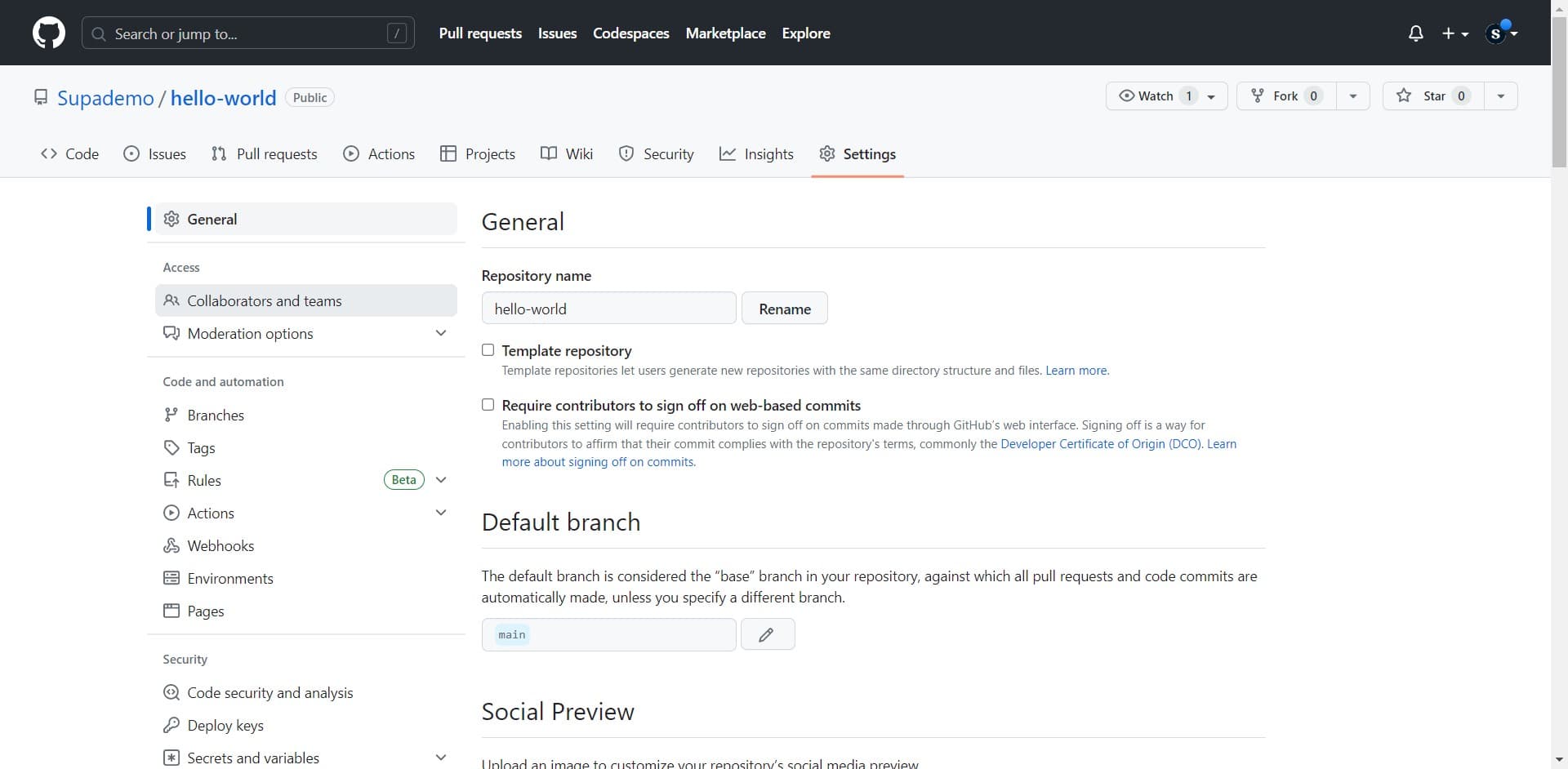
Access Collaborators and teams
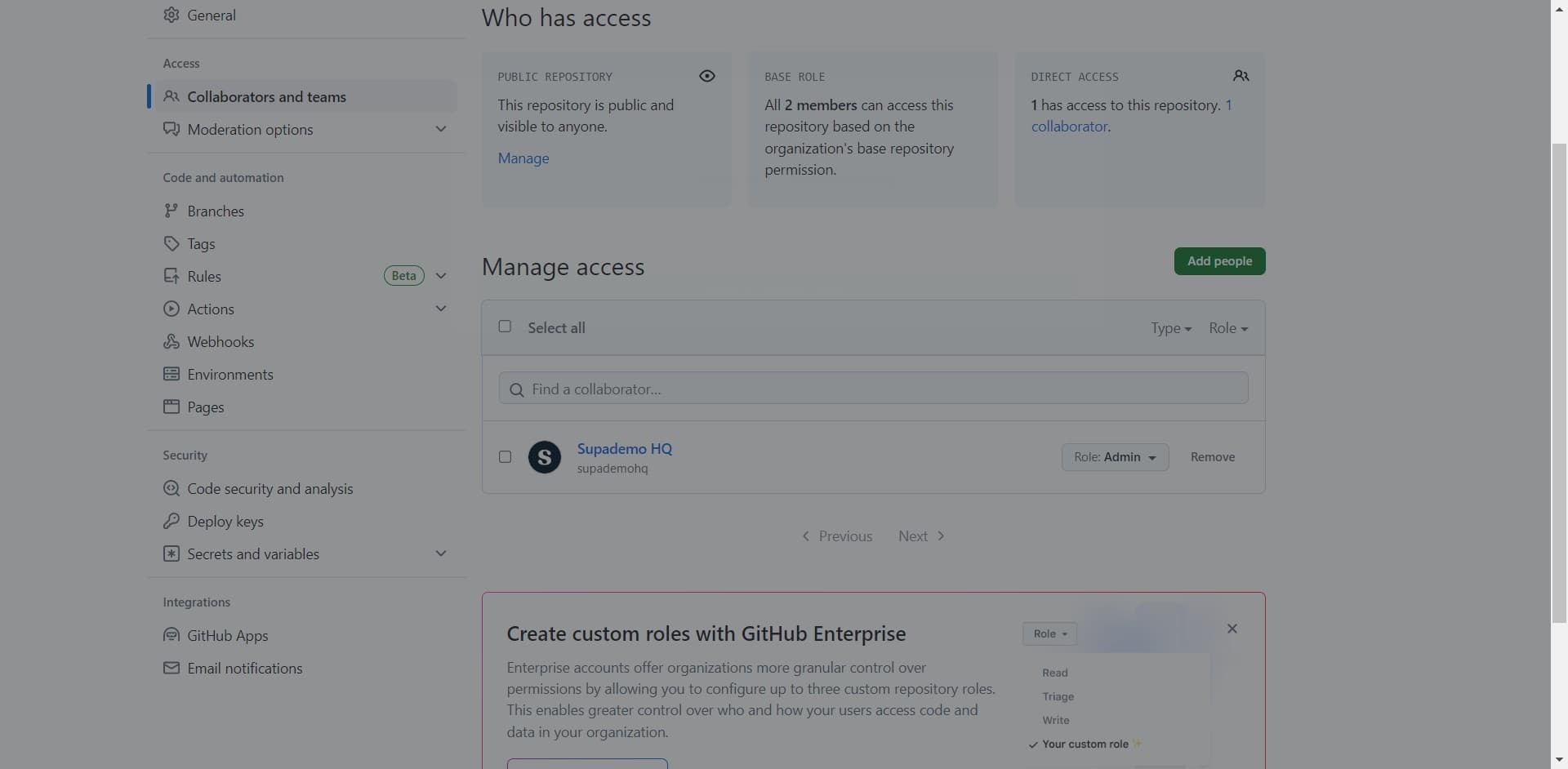
In the Settings sidebar, click on 'Collaborators and teams' to view and manage who has access to your repository. This page displays current collaborators and provides tools to add new ones.
- 5
Click Add people
Click the 'Add people' button to begin inviting collaborators to your repository. A search interface will appear where you can find and select users to add.
- 6
Search and select the collaborator
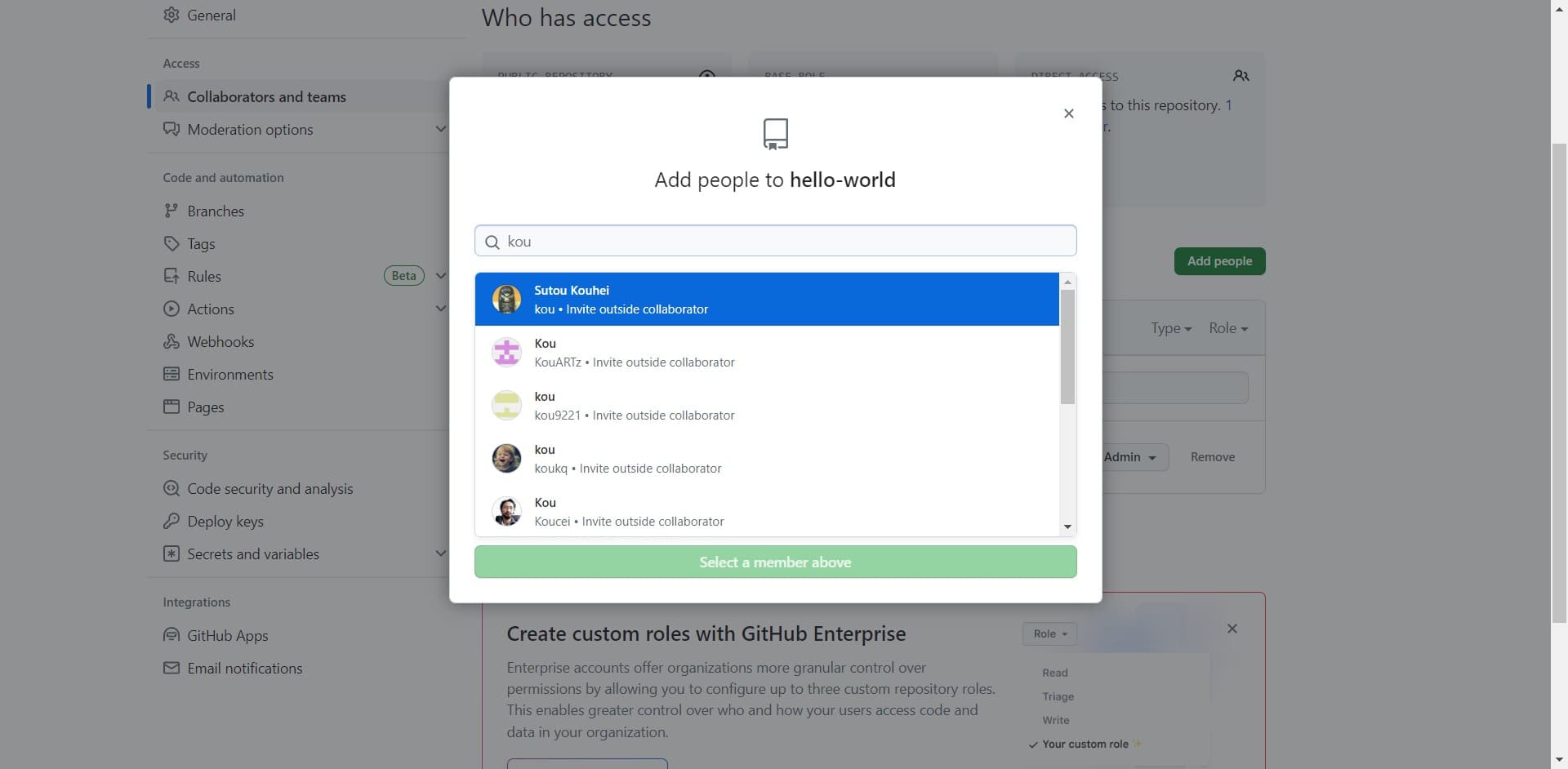
Click on the collaborator's name from the search results, such as 'Sutou Kouhei'. GitHub will display matching user profiles so you can select the correct person.
- 7
Confirm adding the collaborator
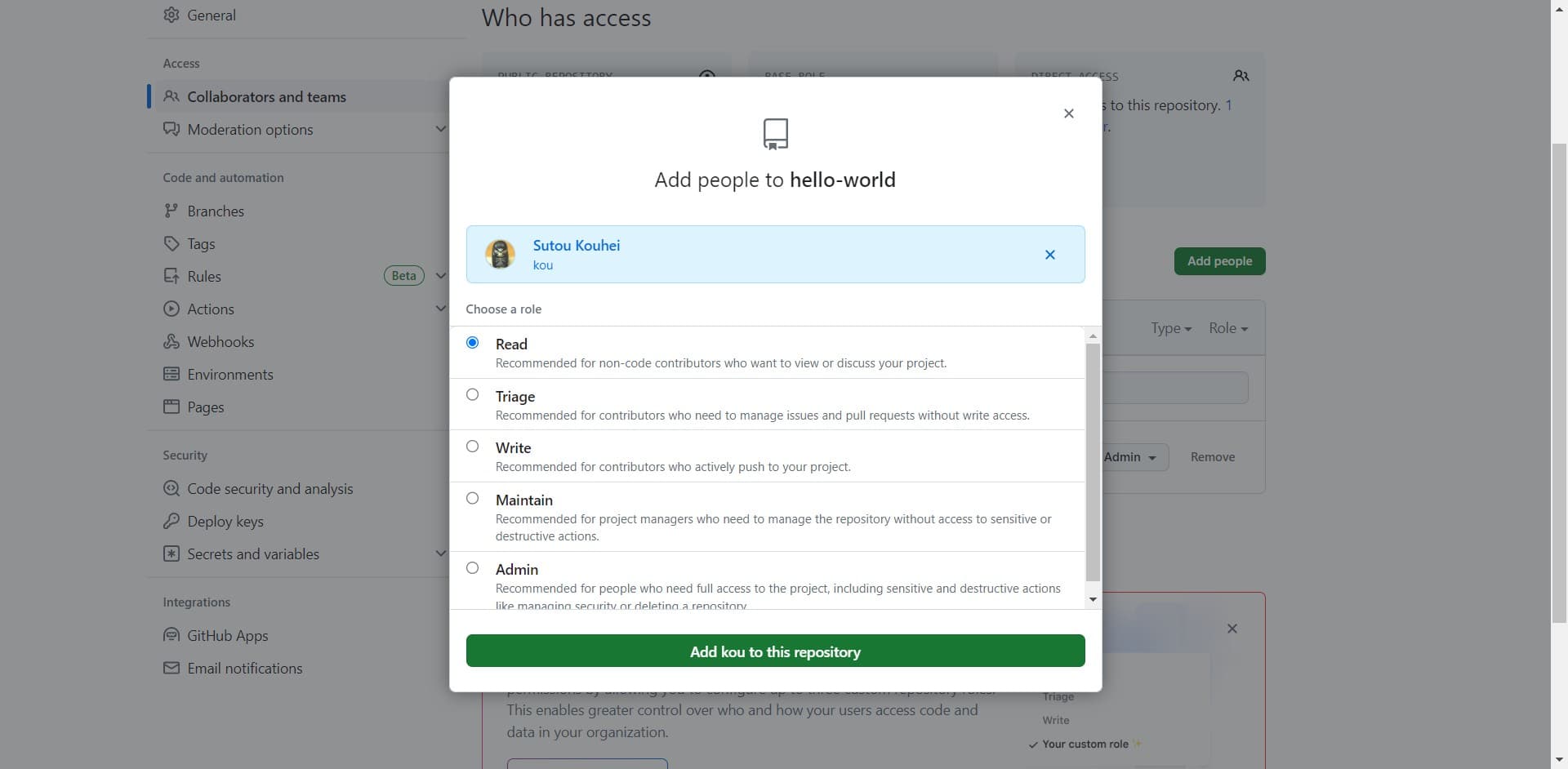
Click on the confirmation option to add the selected user to your repository, such as 'Add kou to this repository'. This grants them access with the appropriate permission level.
- 8
Complete the invitation
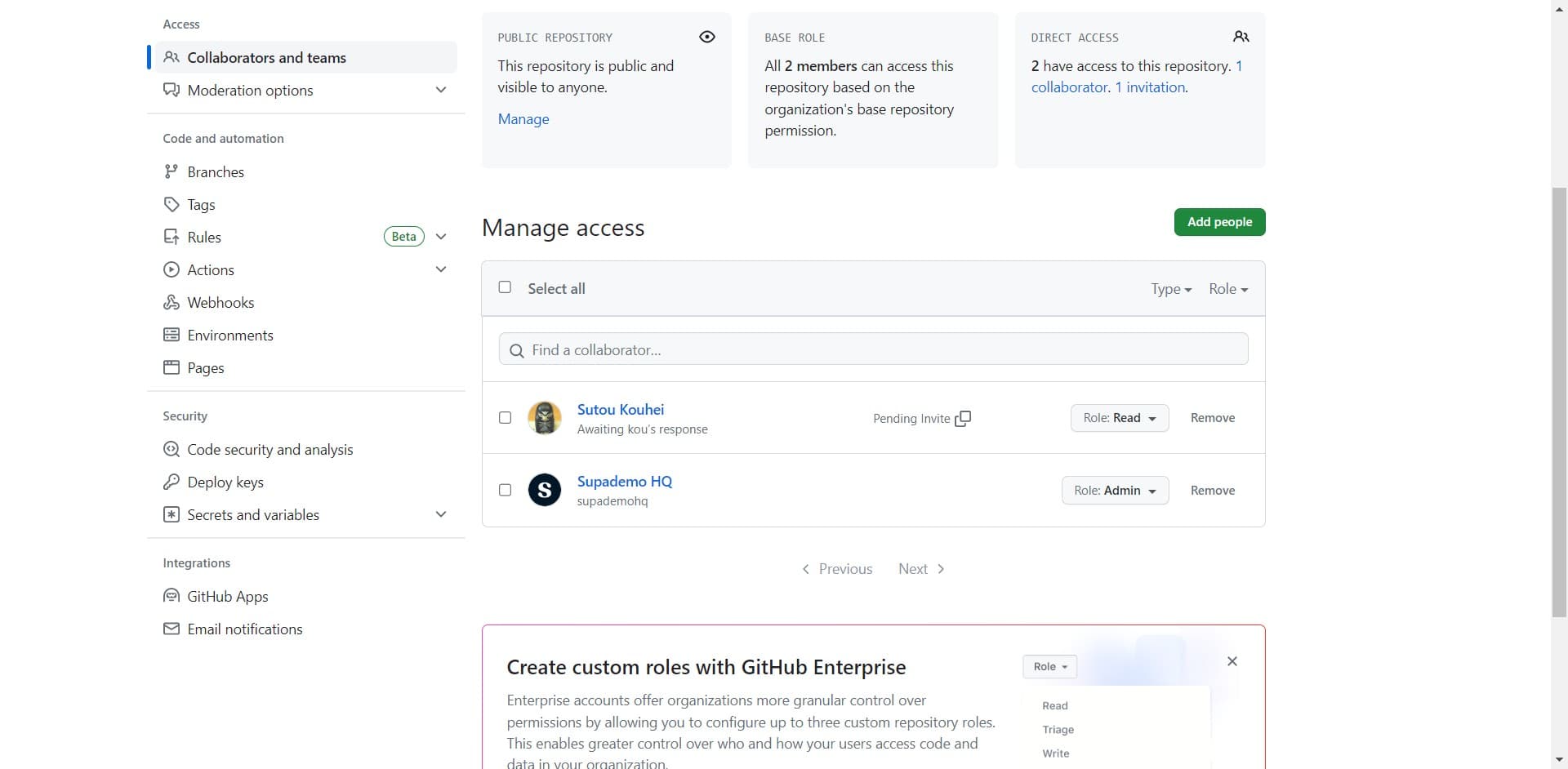
Click on the collaborator's profile or confirmation message to finalize the addition. The user will receive an invitation to collaborate and can begin accessing the repository once they accept.
Frequently asked questions
Common questions about how to add collaborators on github.
GitHub offers several permission levels including pull, triage, push, maintain, and admin. Each level grants different access rights: pull allows reading and cloning, push allows code contributions, maintain enables branch management, and admin provides full repository control. Choose the appropriate level based on each collaborator's role in your project.
Yes, you can remove collaborators at any time from the Collaborators and teams page in your repository settings. Simply find the collaborator you want to remove and click the remove option. This immediately revokes their access to the repository.
Yes, GitHub sends an email invitation to the collaborator when you add them to your repository. They must accept the invitation to gain access. If they're already a GitHub member, the notification appears in their GitHub notifications as well.
Yes, GitHub allows you to add teams from organizations as collaborators. You can manage organization teams and their access levels through the same Collaborators and teams interface. This is useful for managing permissions across multiple team members at once.
Collaborators are individual users or teams you invite to a specific repository, while organization members belong to the entire organization and may have access to multiple repositories. Collaborators are ideal for external contributors or ad-hoc project team members, whereas organization membership is better for regular team members.