How to Rename a File in GitHub

Renaming files in GitHub is a common task when organizing your repository or updating file naming conventions. This guide walks you through the process of renaming a file directly from the GitHub web interface without needing to use the command line.
Quick summary
In this tutorial, you'll learn how to rename a file in GitHub by navigating to your repository, selecting a file, and committing the changes. You'll discover how to use GitHub's built-in rename functionality to keep your project organized and maintainable.
Why this matters
Maintaining consistent file naming conventions is essential for code clarity and team collaboration. Renaming files directly in GitHub allows you to update your repository structure without cloning locally, making it faster for small changes and keeping your project organized for all contributors.
Step-by-step guide
- 1
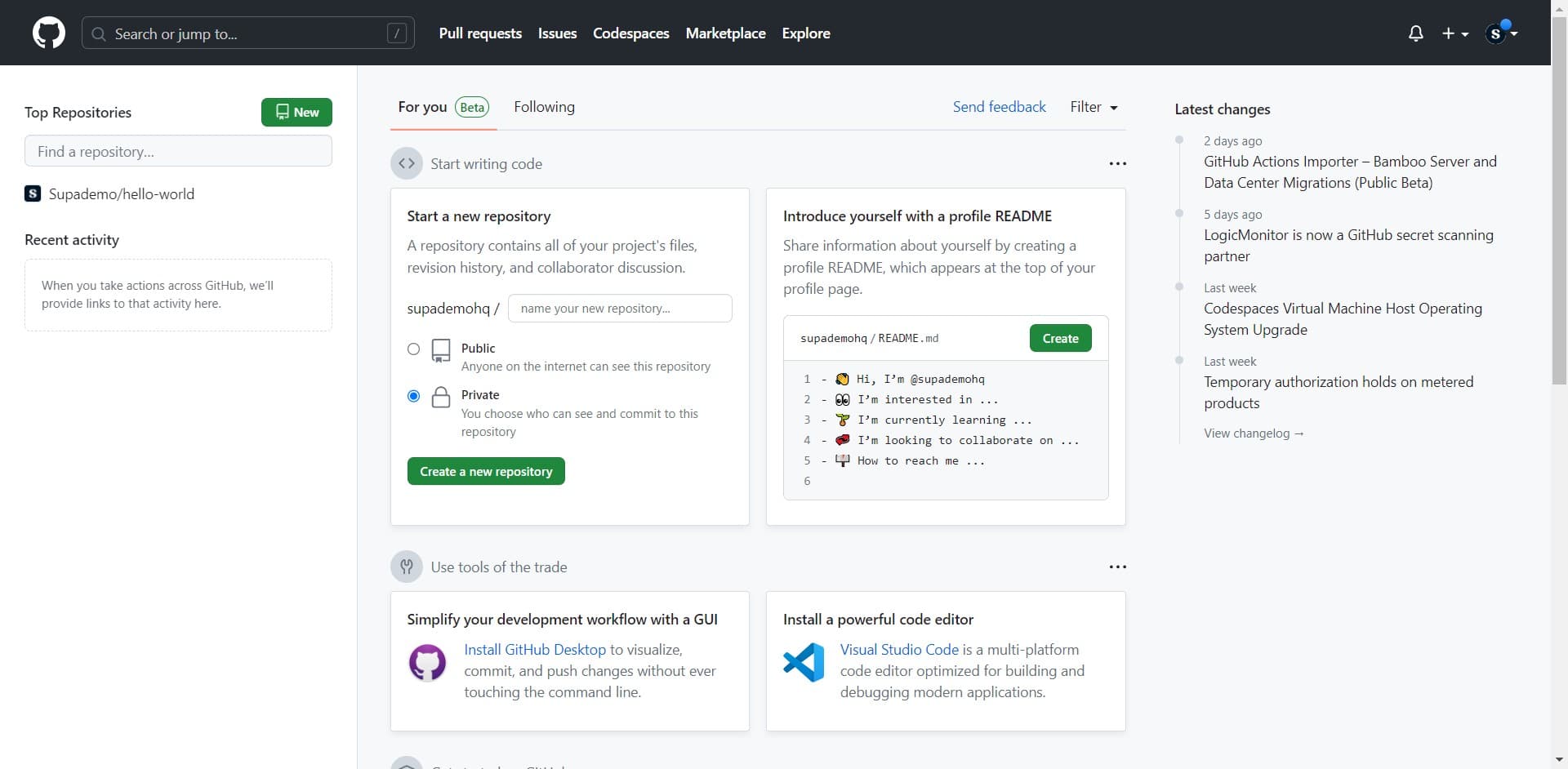
Access the search or jump feature
Click on the 'Search or jump...' option to quickly navigate through your GitHub interface. This feature allows you to rapidly find repositories, files, and other resources without manual browsing.
- 2
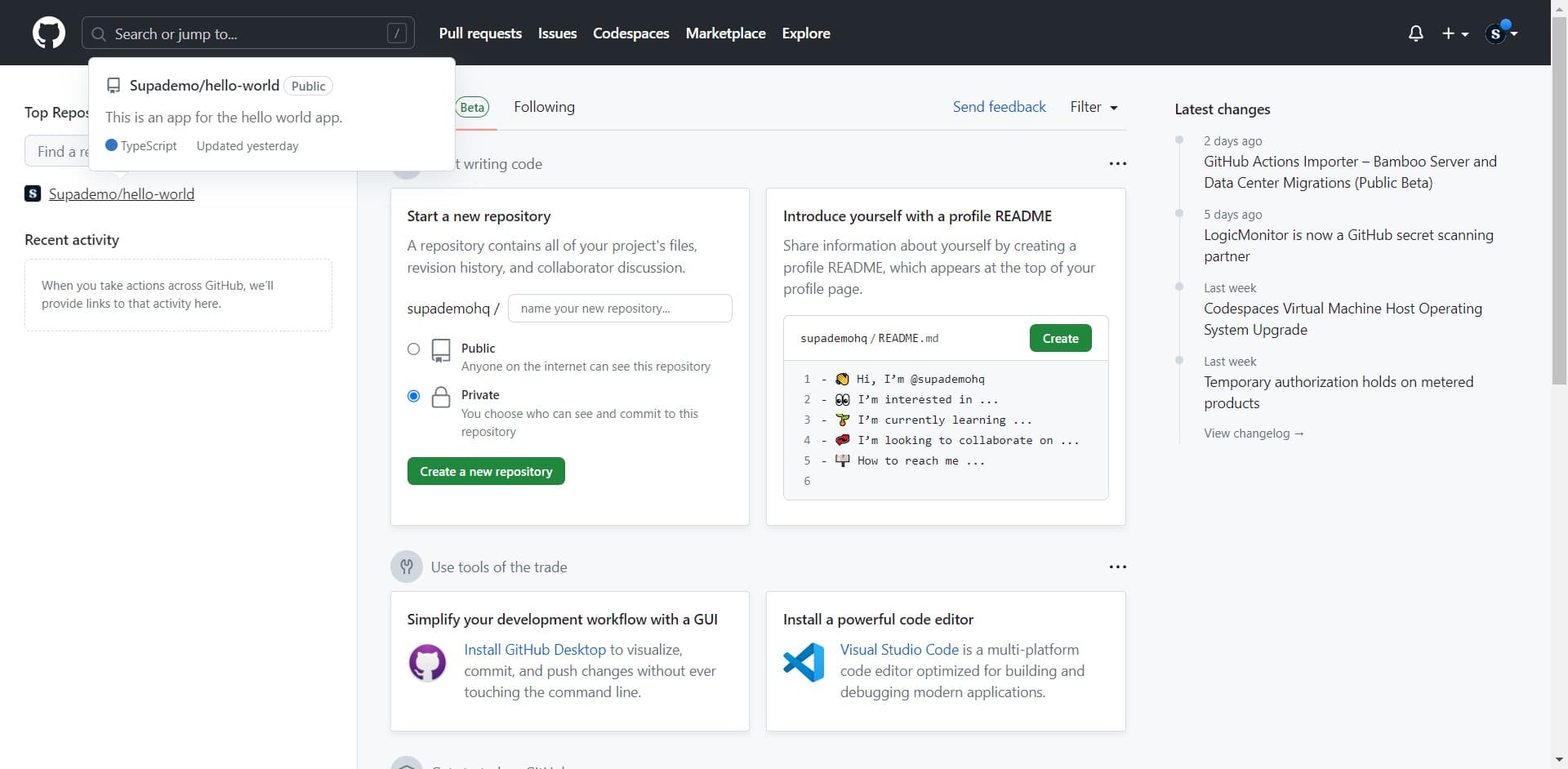
Select your repository
Click on 'Supademo/hello-world' to open your target repository. This repository becomes your workspace where you can manage and edit files.
- 3
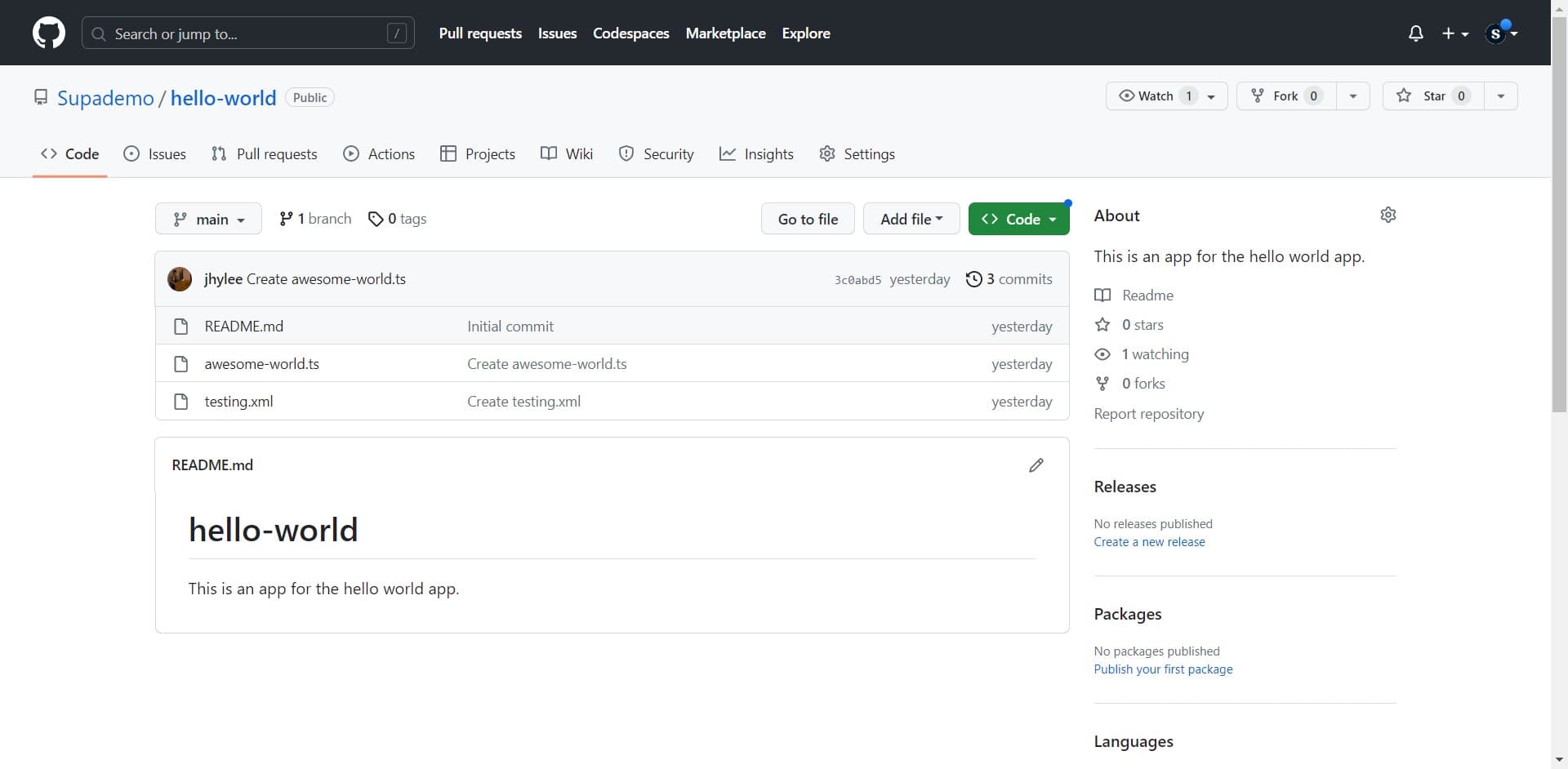
Open the file to rename
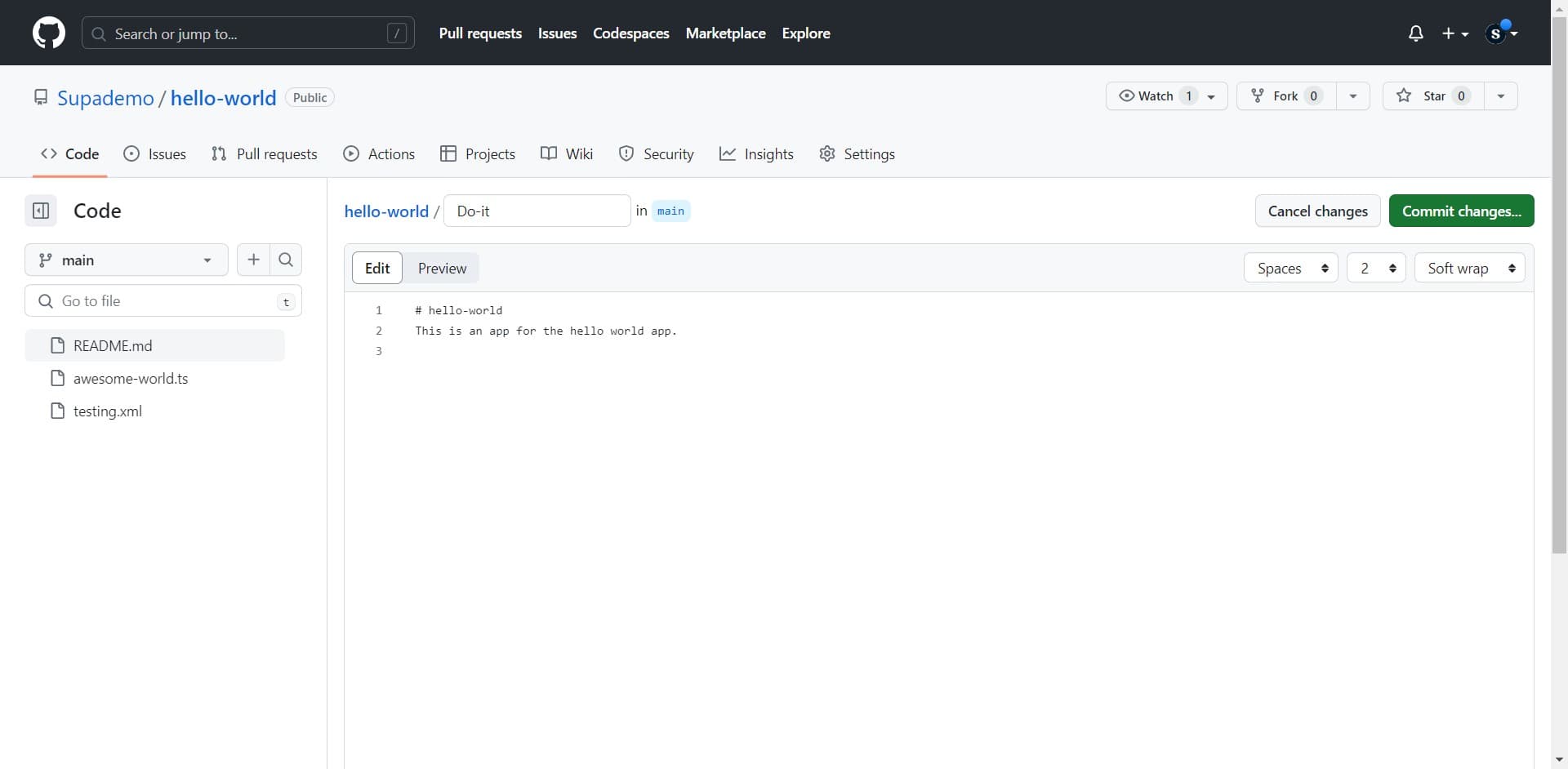
Click on 'README.md' to view the file you want to rename. This opens the file in the GitHub interface where you can access editing and renaming options.
- 4
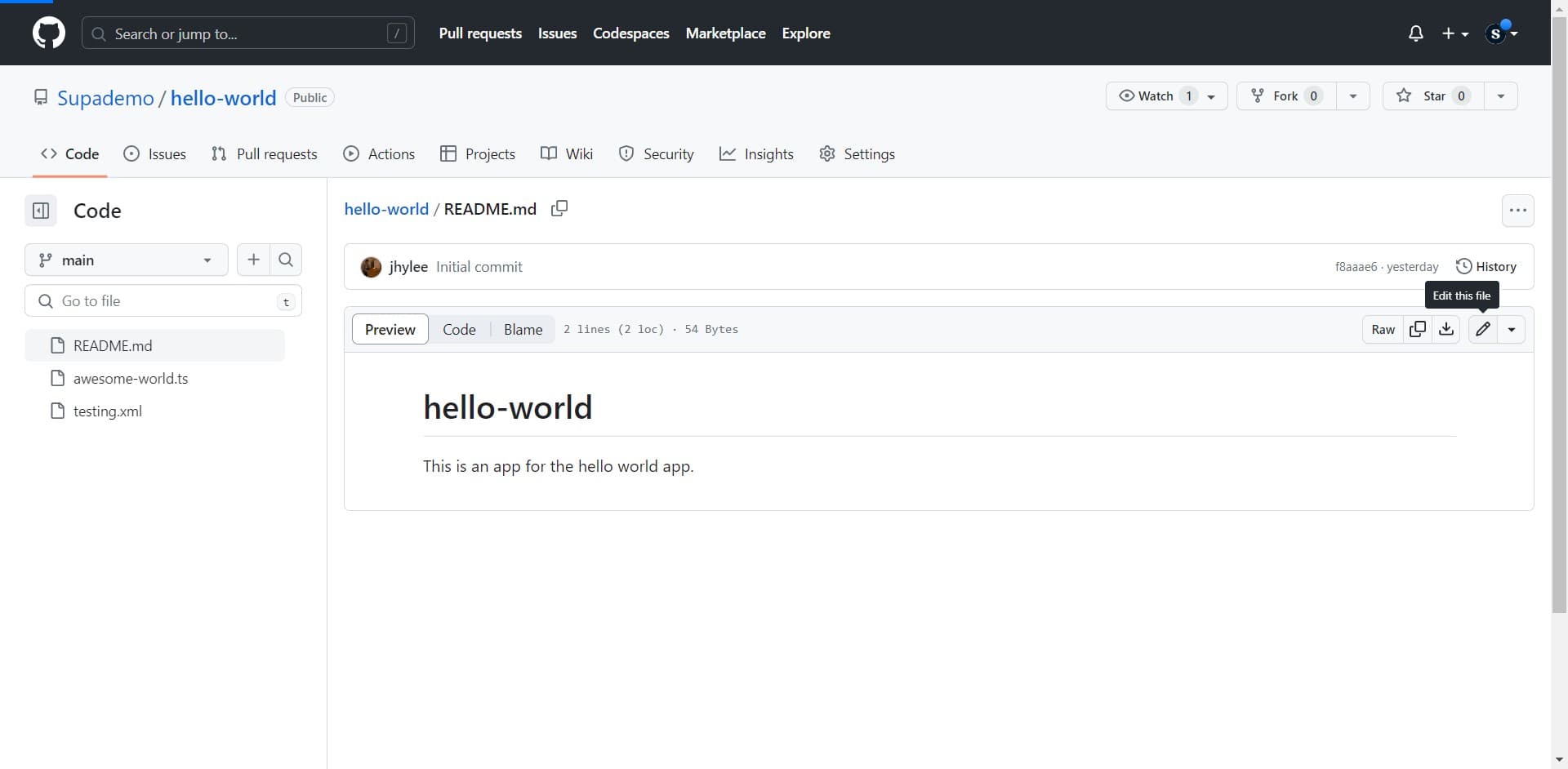
Access the rename option
Click the designated button to activate the rename functionality. This typically appears as a pencil icon or menu option in the file view, allowing you to modify the file name.
- 5
Prepare to commit changes
Click on 'Commit changes...' to initiate the process of saving your rename operation. This opens the commit dialog where you'll finalize and document your change.
- 6
Configure commit details
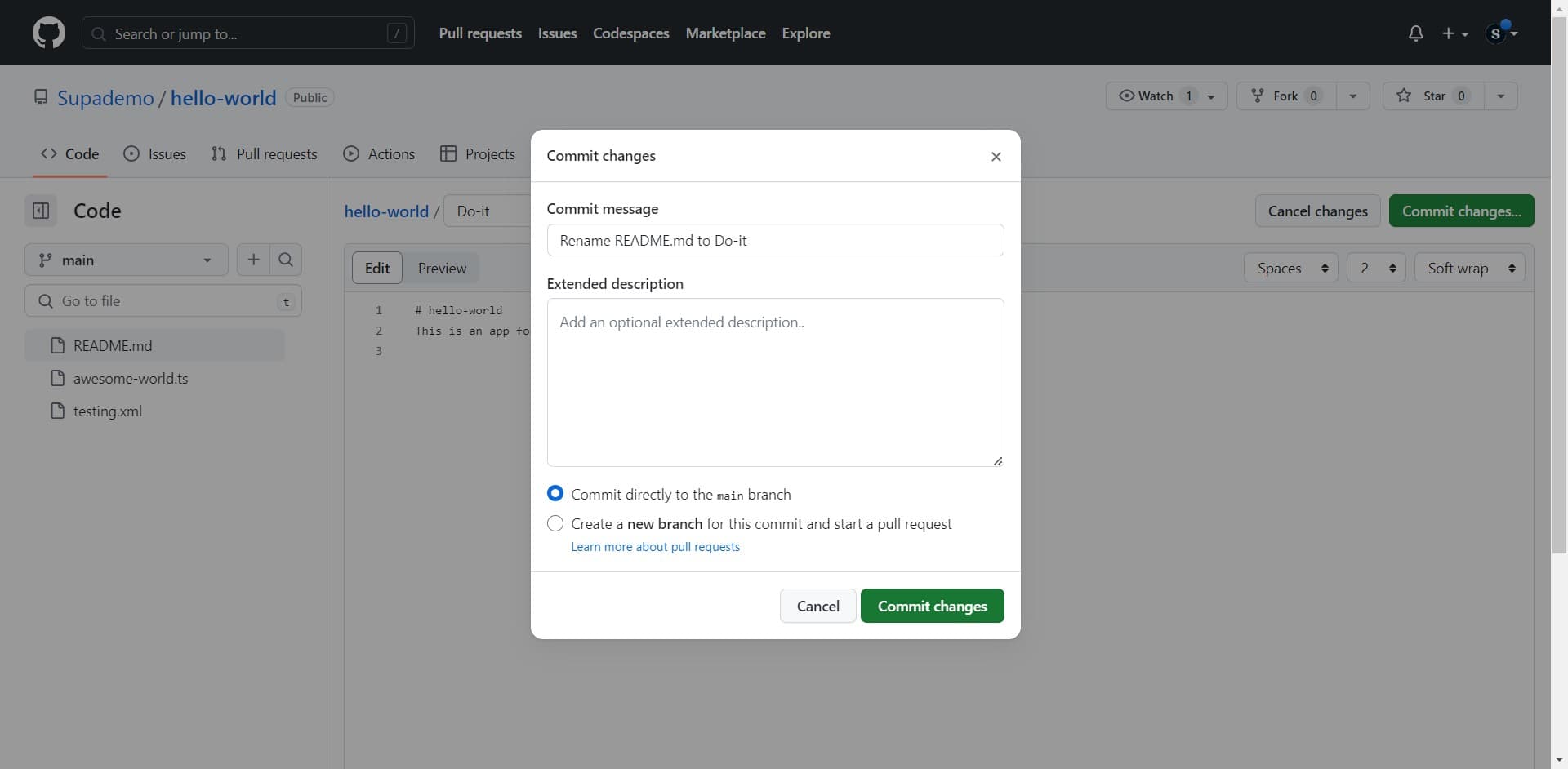
Upload or configure the commit message and any additional details for your rename operation. Ensure your commit message clearly describes the file rename for repository history.
- 7
Finalize the rename
Click on 'Commit changes' to complete the file rename operation. Your file will now appear with its new name in the repository, and the change will be recorded in your commit history.
Frequently asked questions
Common questions about how to rename a file in github.
GitHub's web interface allows you to rename files one at a time through the browser. To rename multiple files efficiently, you may want to use Git commands locally or use GitHub's command-line tools. This approach gives you more control and saves time when managing large batches of file renames.
Renaming a file in GitHub doesn't automatically update references to that file elsewhere in your codebase. You'll need to manually update any import statements, links, or references in other files that point to the renamed file. This is why it's important to search your repository for file references before renaming.
Yes, you can undo a file rename by reverting the commit that contains the rename operation. Use the commit history to find the rename commit, then click the revert button to restore the file's original name. Alternatively, you can manually rename the file back to its original name and commit that change.
Use a clear, descriptive commit message like 'Rename README.md to GUIDE.md' or 'Update file naming convention for clarity'. This helps other collaborators understand why the rename occurred and makes it easier to track changes in the commit history.
Yes, renaming a file in GitHub requires write or push access to the repository. If you don't have these permissions, you'll need to fork the repository, make the change, and submit a pull request for the maintainers to review and merge.