How to create and manage labels in Gmail

Labels in Gmail help you organize, categorize, and quickly find your emails without relying solely on folders. This guide walks you through creating and managing labels so you can build a personalized email organization system that fits your workflow.
Quick summary
In this tutorial, you'll learn how to create new labels in Gmail and access the label management interface to organize your emails effectively. By the end, you'll understand how to set up a custom labeling system that keeps your inbox structured and searchable.
Why this matters
Effective email organization saves time and reduces the stress of searching through cluttered inboxes. Labels allow you to tag emails with multiple categories, making it easier to prioritize tasks, track projects, and maintain professional communication standards.
Step-by-step guide
- 1
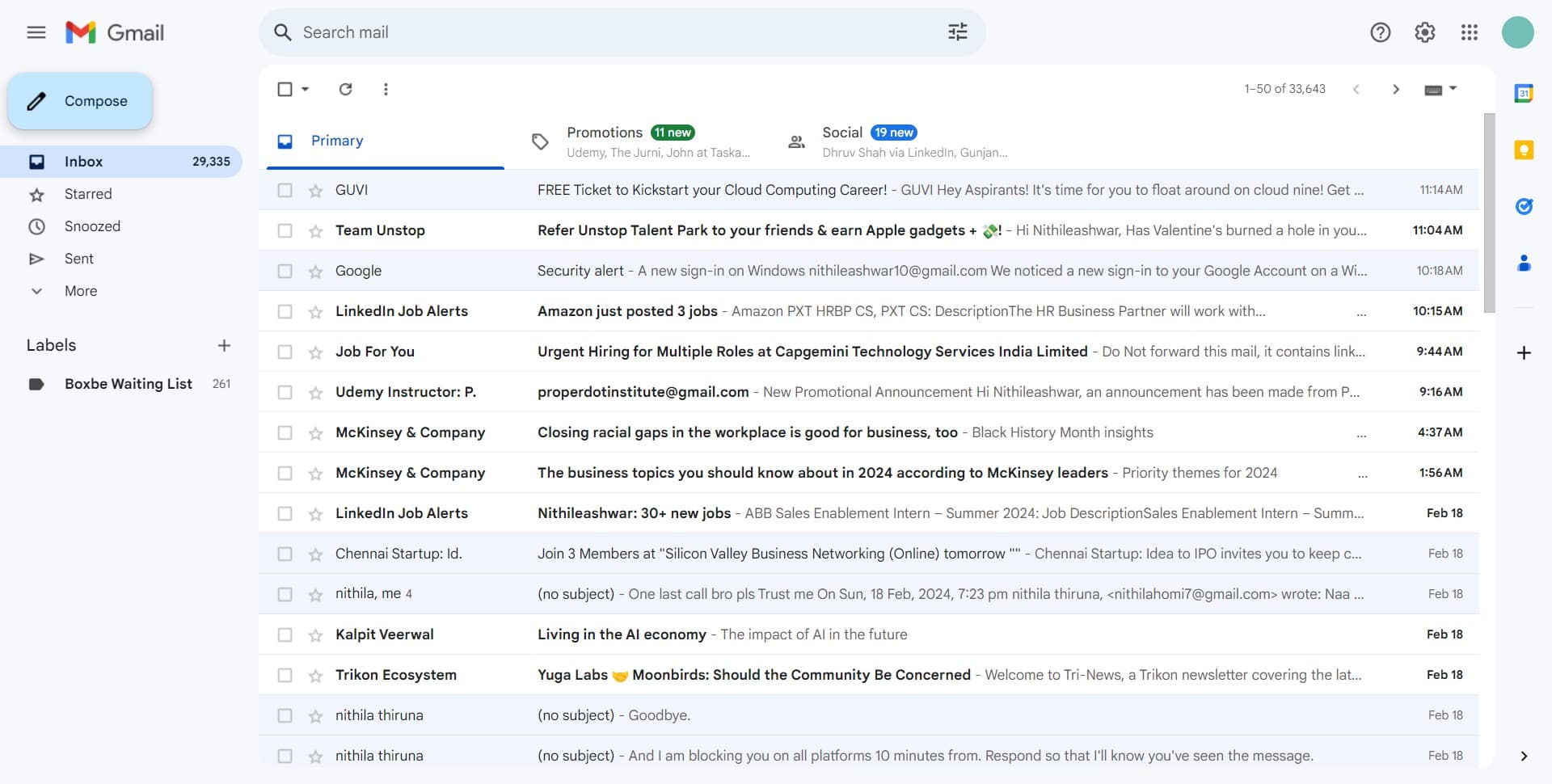
Click on Compose
Open Gmail and locate the Compose button, typically found in the left sidebar. Clicking this button starts the email creation process.
- 2
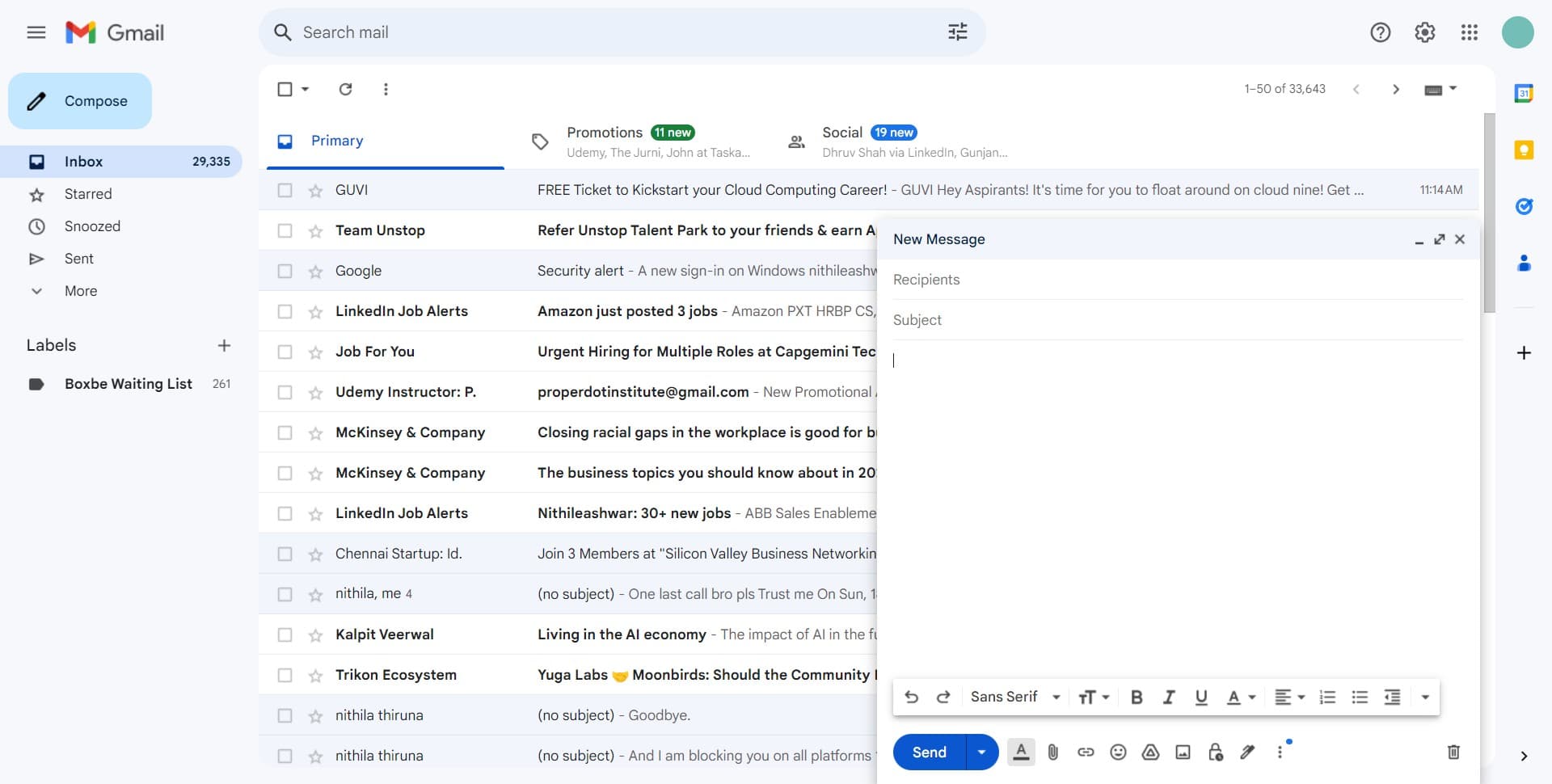
Access the additional options menu
Look for the menu icon or additional options button within the compose window. This expands a dropdown menu with more features and settings.
- 3
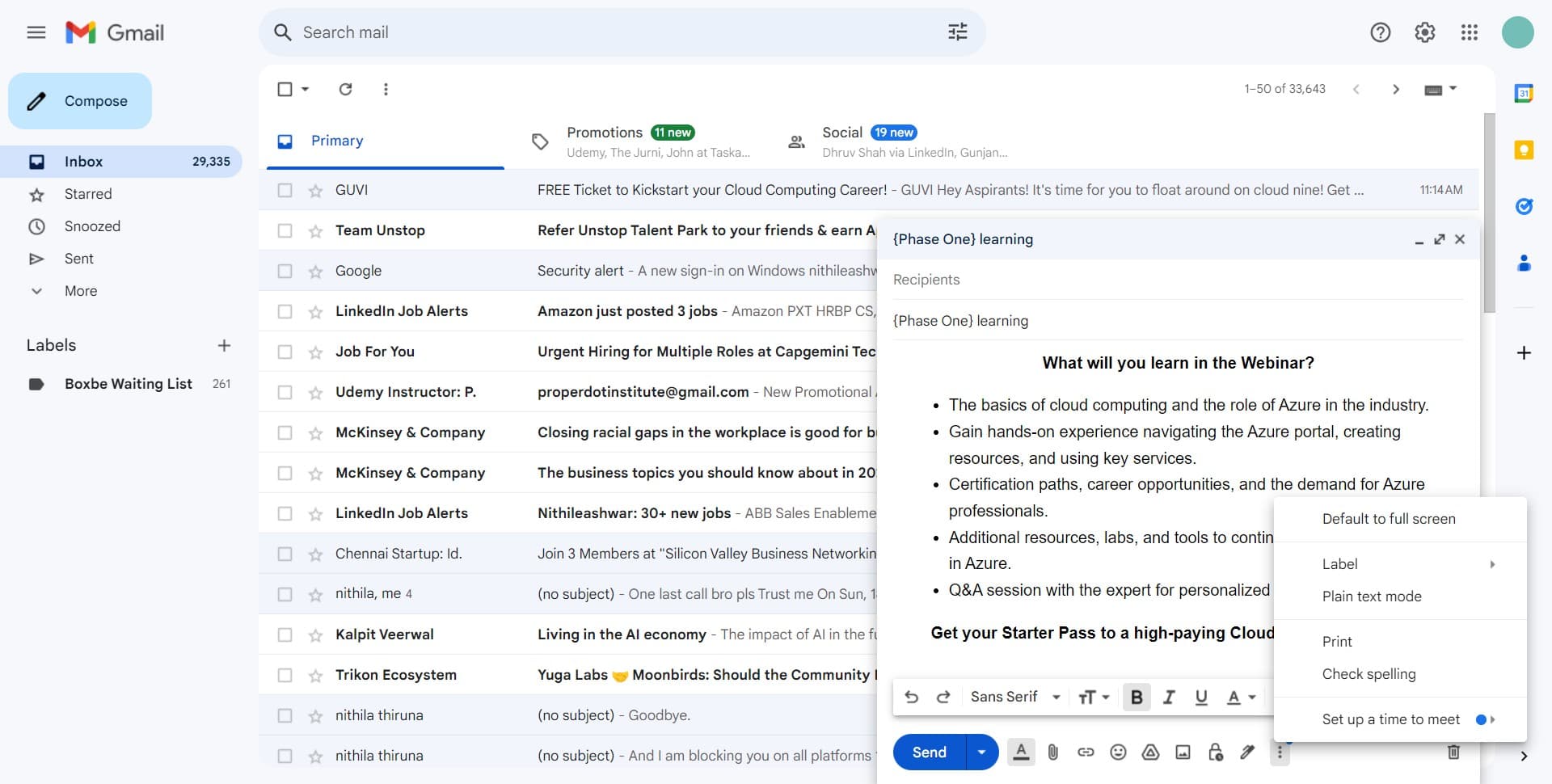
Navigate to templates or label settings
Select the relevant option from the expanded menu to proceed. This prepares you to access labeling functionality.
- 4
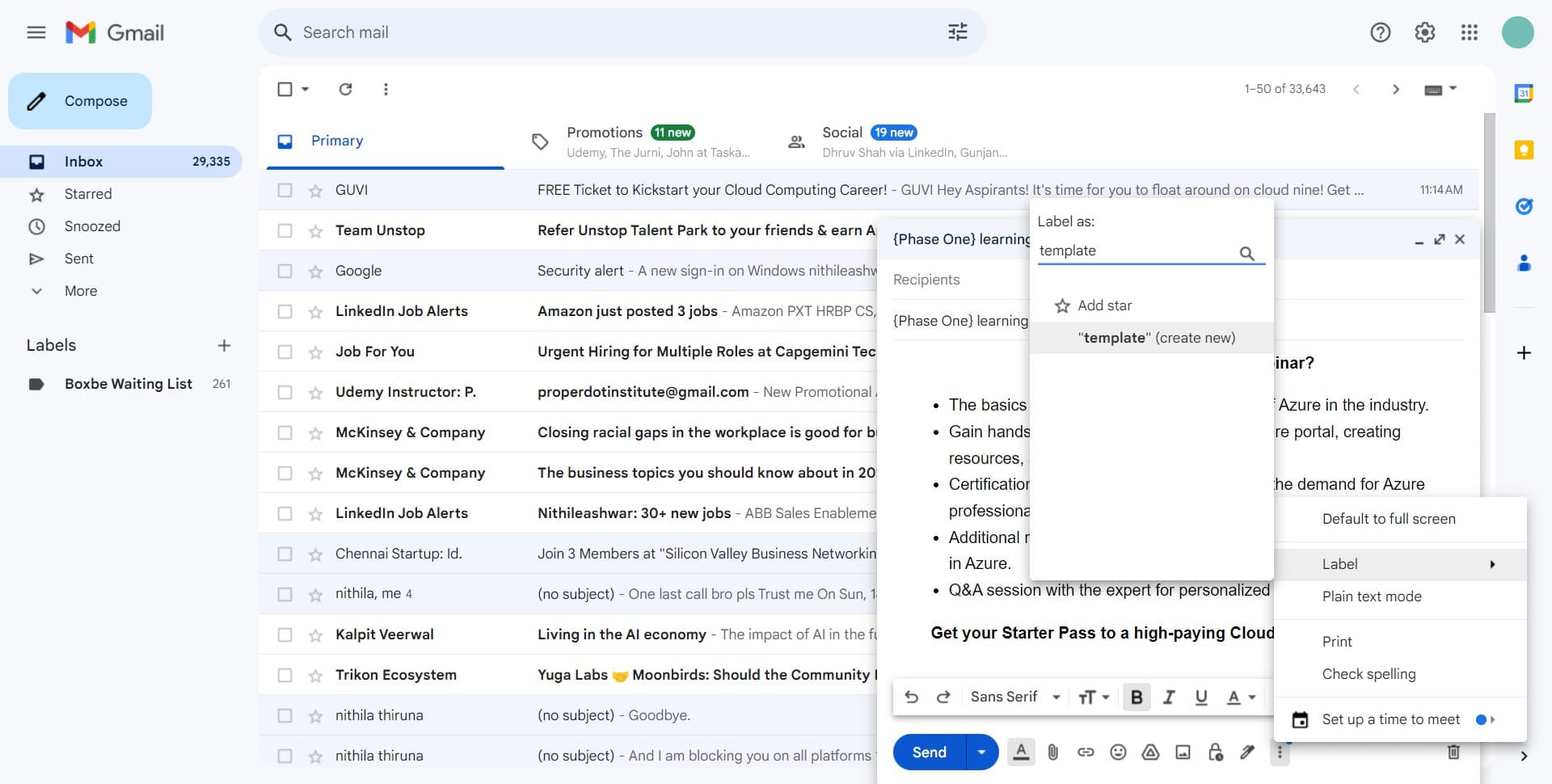
Click on template
Select the template option from the available choices. Templates allow you to save email formats and configurations for reuse.
- 5
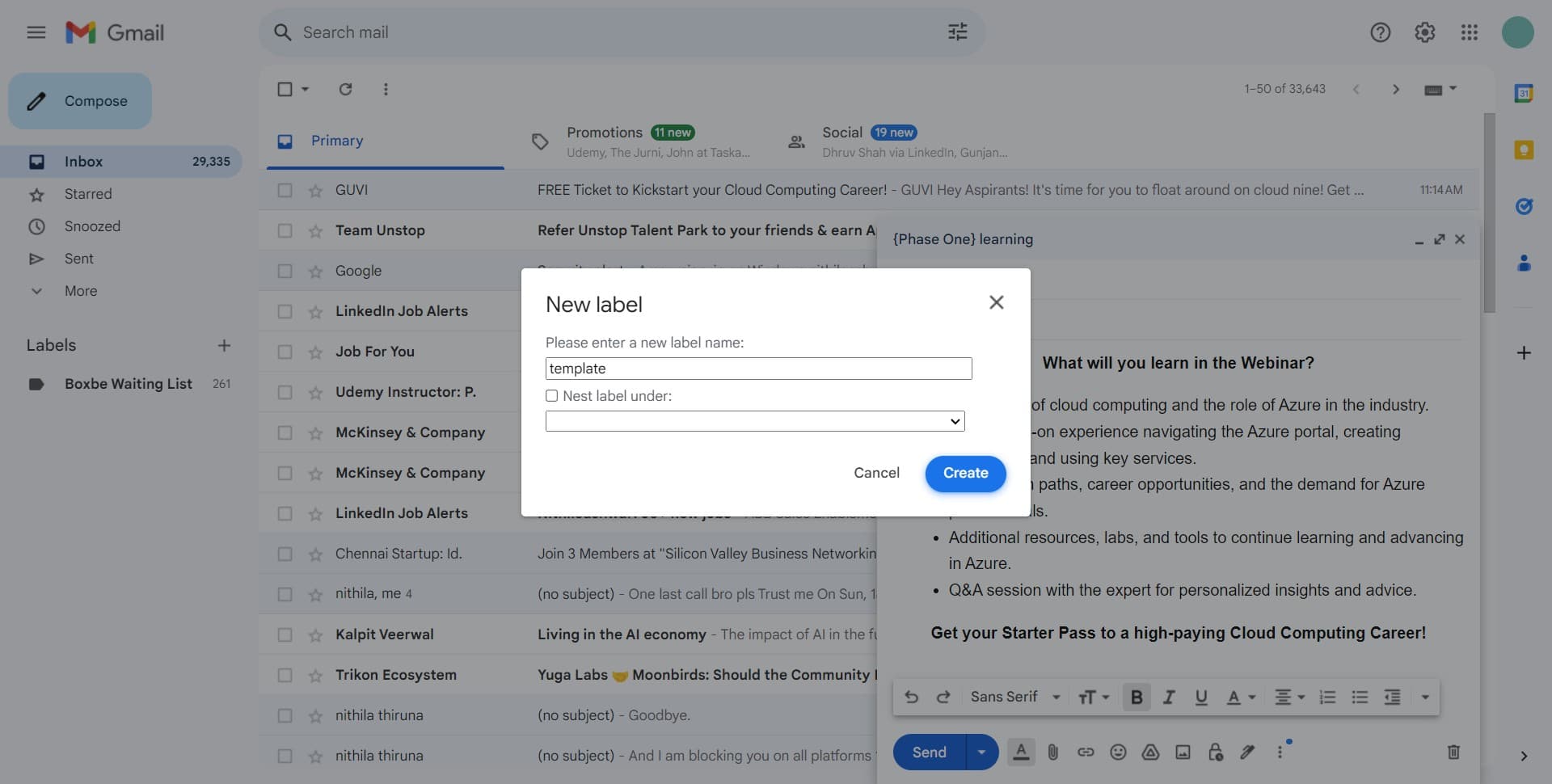
Click on Create
Press the Create button to begin setting up a new template or label configuration. This initiates the creation workflow.
- 6
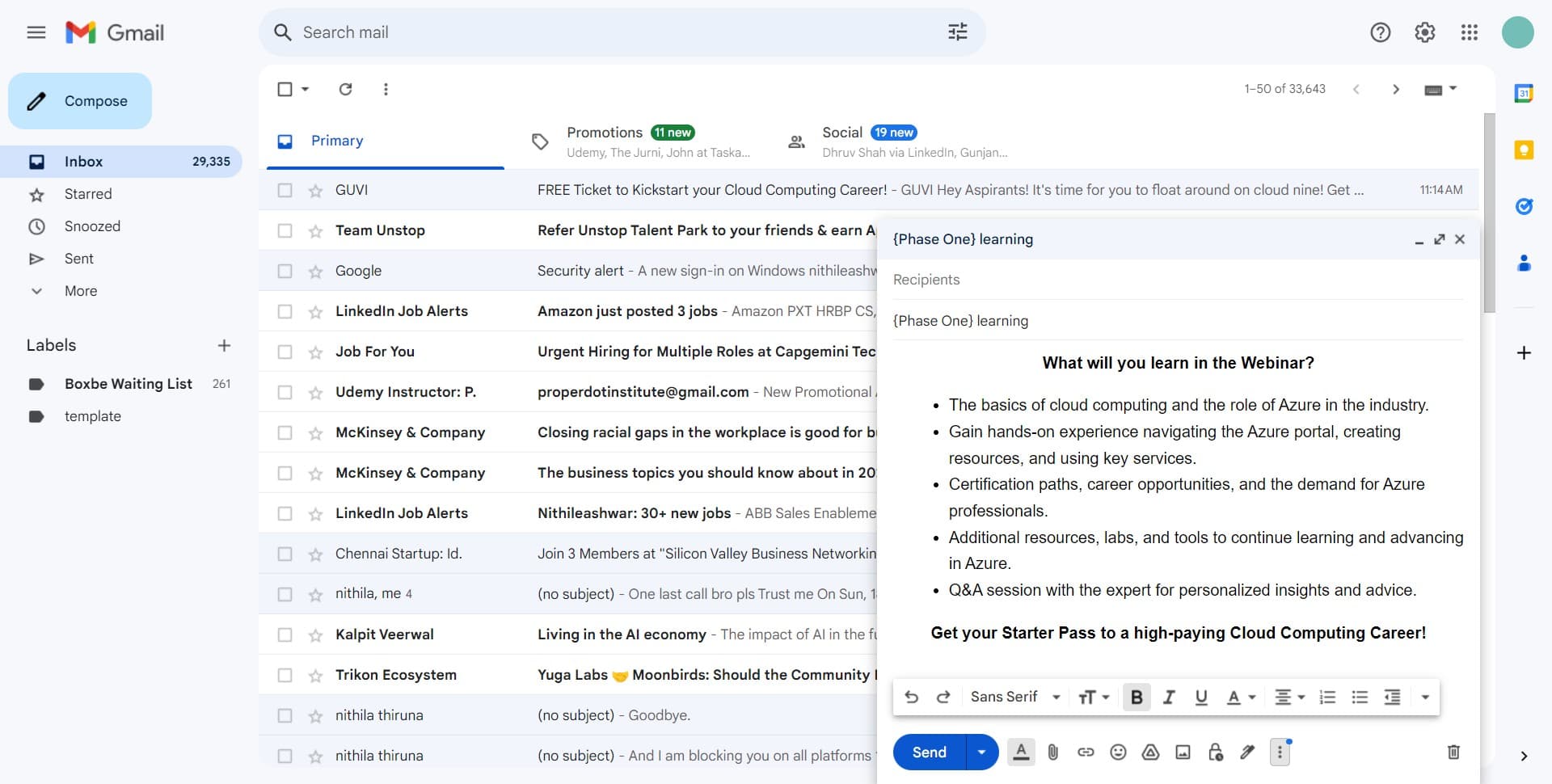
Confirm the action in the dialog
A confirmation window or additional menu will appear. Click the highlighted area to proceed to the next step of the process.
- 7
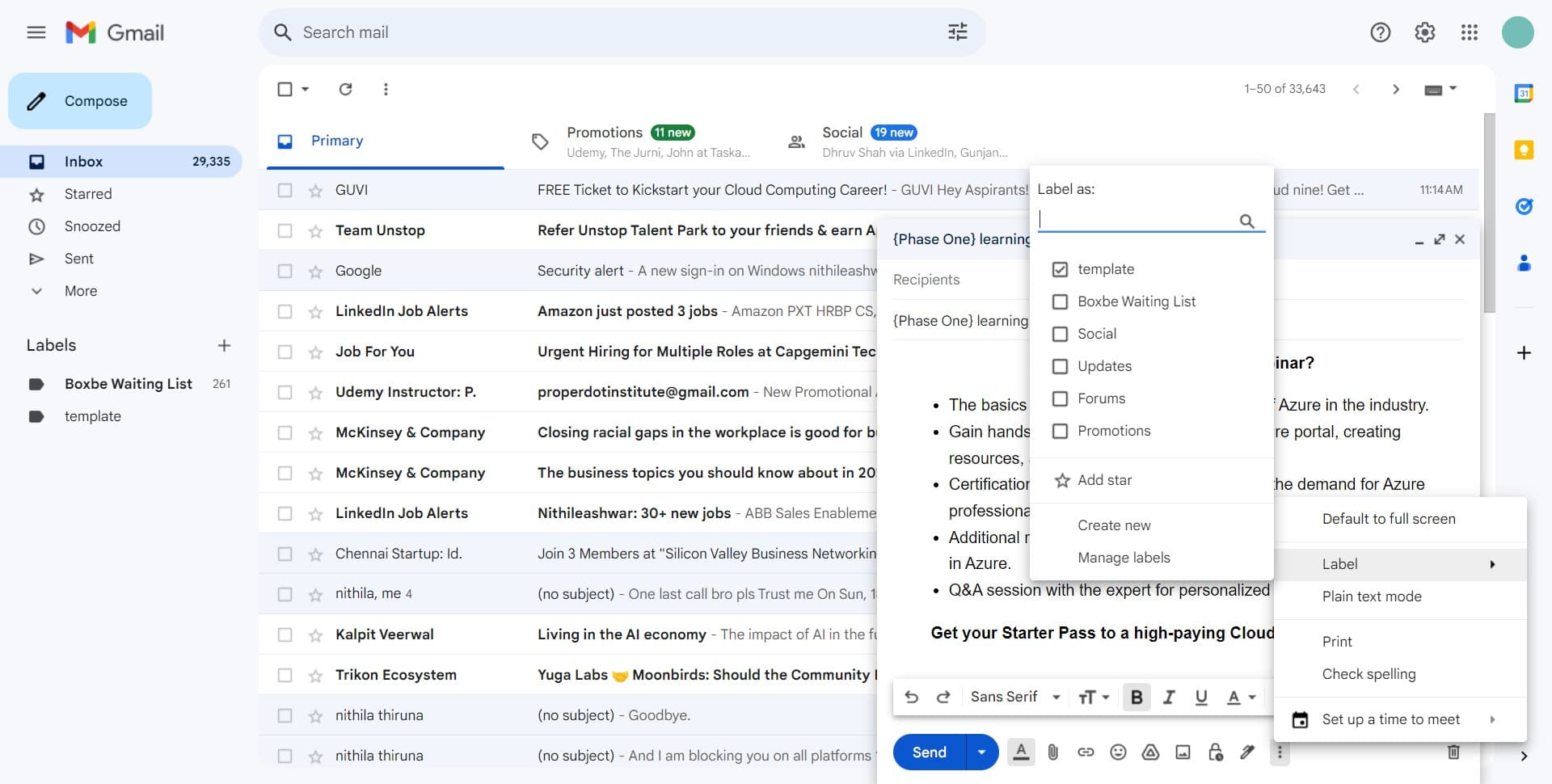
Select Label from the menu
Locate and click on the Label option in the menu. This gives you access to all label-related features and settings.
- 8
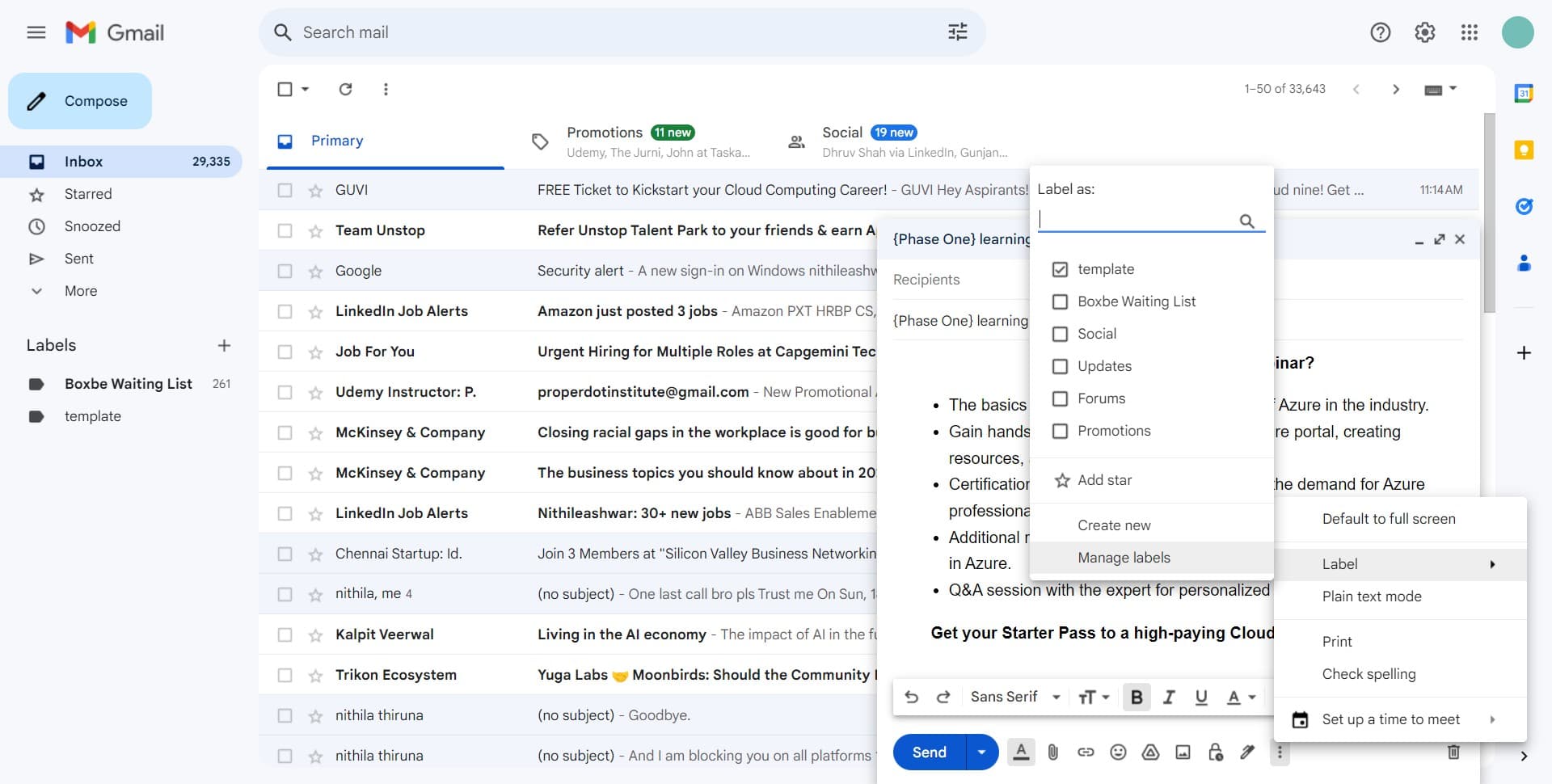
Click on Manage labels
Select Manage labels from the Label menu to access the label management panel. Here you can create, edit, delete, and organize all your custom labels.
Frequently asked questions
Common questions about how to create and manage labels in gmail.
Labels are more flexible than folders because a single email can have multiple labels, while folders typically contain an email in only one location. Labels act as tags that help you categorize and find emails based on multiple criteria simultaneously. This makes labels ideal for complex email organization needs.
Yes, you can create as many custom labels as needed for different projects, clients, or any other organizational purpose. Each label can be customized with a name and optional color coding to make them visually distinct. You can also create nested labels to build a hierarchical organization system.
Select the email or emails you want to label, then click the label icon or use the Labels option from the menu. You can check the boxes next to your desired labels to apply them to the selected emails. You can apply multiple labels to a single email for better organization.
Yes, in the Manage labels section, you can edit label names, colors, and other settings. You can also delete labels, though Gmail will ask you what to do with emails that have that label. It's a good practice to plan your label structure before creating many labels.
Absolutely. Labels make emails searchable and filterable, allowing you to quickly narrow down results by category. Combined with Gmail's search function, labels significantly reduce the time spent looking for specific messages. You can also create filters that automatically apply labels to incoming emails based on sender, subject, or keywords.