How to block sender on Gmail

Unwanted emails cluttering your inbox can be frustrating and disruptive to your productivity. Gmail's block feature allows you to permanently prevent a sender from contacting you, ensuring their messages never reach your inbox again. This tutorial walks you through the simple process of blocking any sender in Gmail.
Quick summary
In this tutorial, you'll learn how to block a sender in Gmail by locating their email, accessing the block option, and confirming the action. By the end, you'll know how to stop unwanted messages from specific senders in just a few clicks.
Why this matters
Blocking senders is essential for managing spam, protecting your privacy, and maintaining a clutter-free inbox. Whether dealing with unsolicited marketing emails or unwanted correspondence, blocking ensures you regain control over your email experience and can focus on messages that matter.
Step-by-step guide
- 1
Open your Gmail inbox
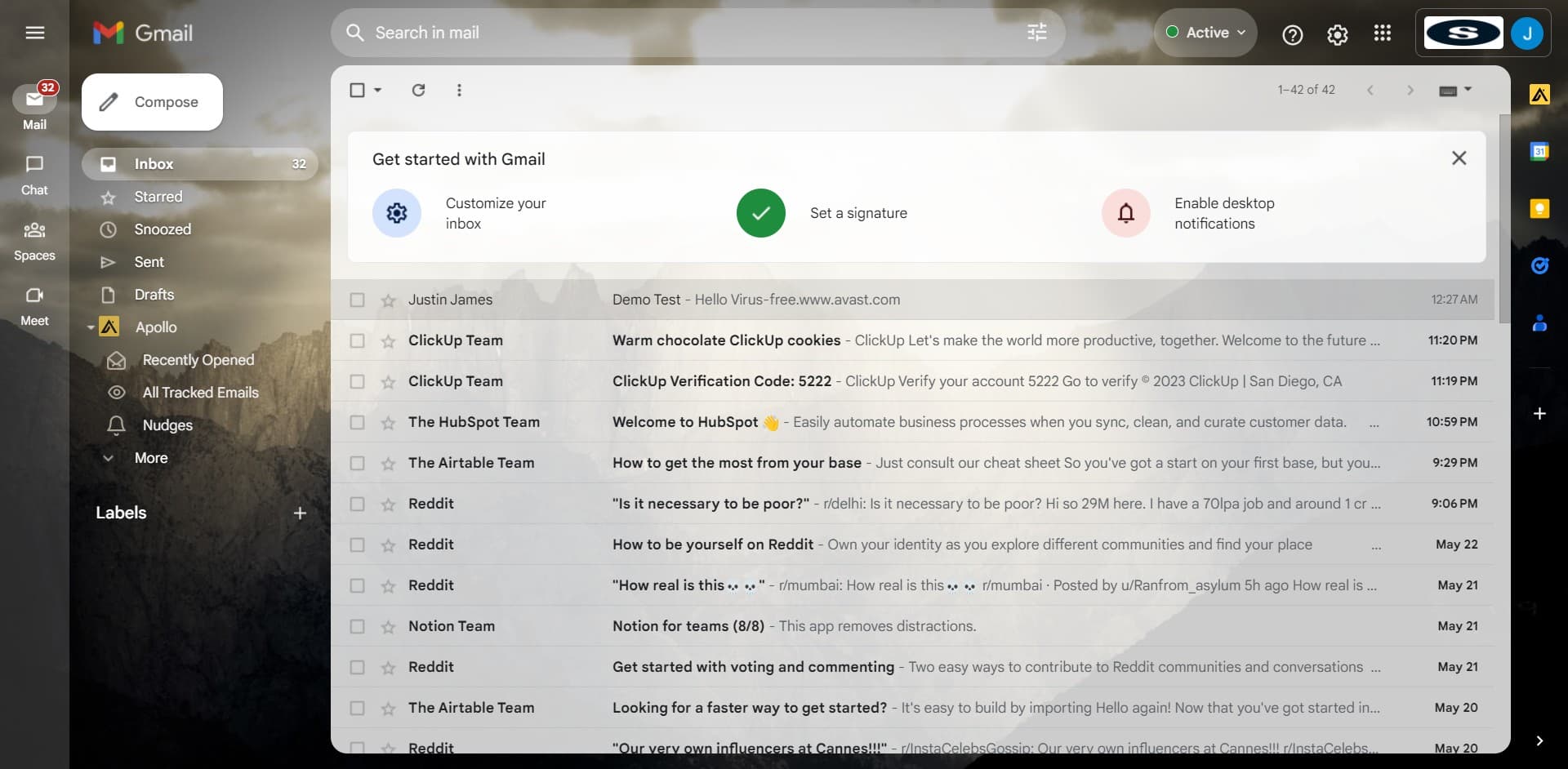
Start by accessing your Gmail inbox where you'll see a list of emails. Look for the total message count displayed at the top, which shows "1-42 of 42" or similar notation indicating your current email view.
- 2
Select the sender's email
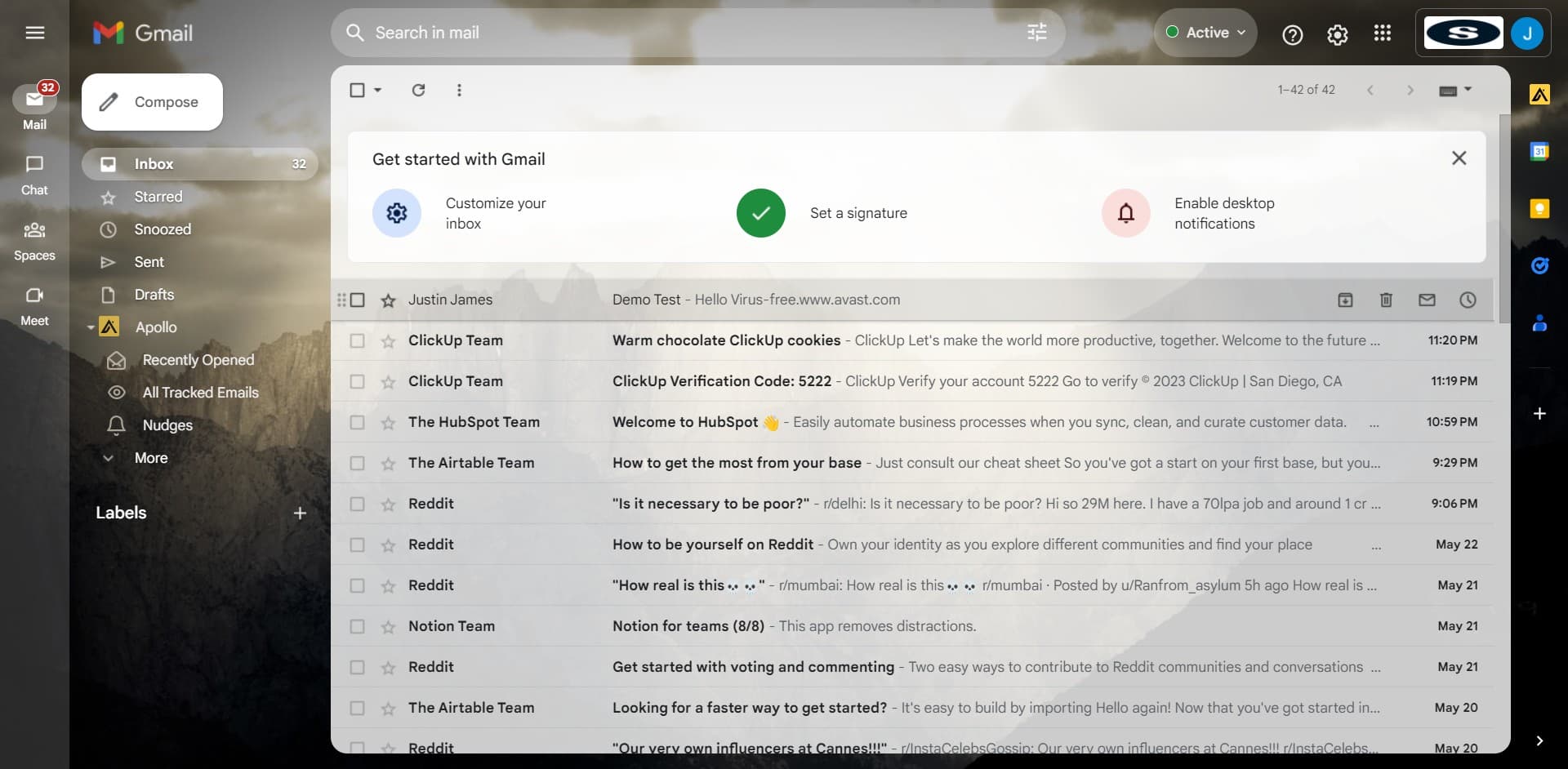
Click on the email from the sender you want to block, such as "Justin James". This opens the full email message where you can access additional options for managing that sender.
- 3
Access the options menu
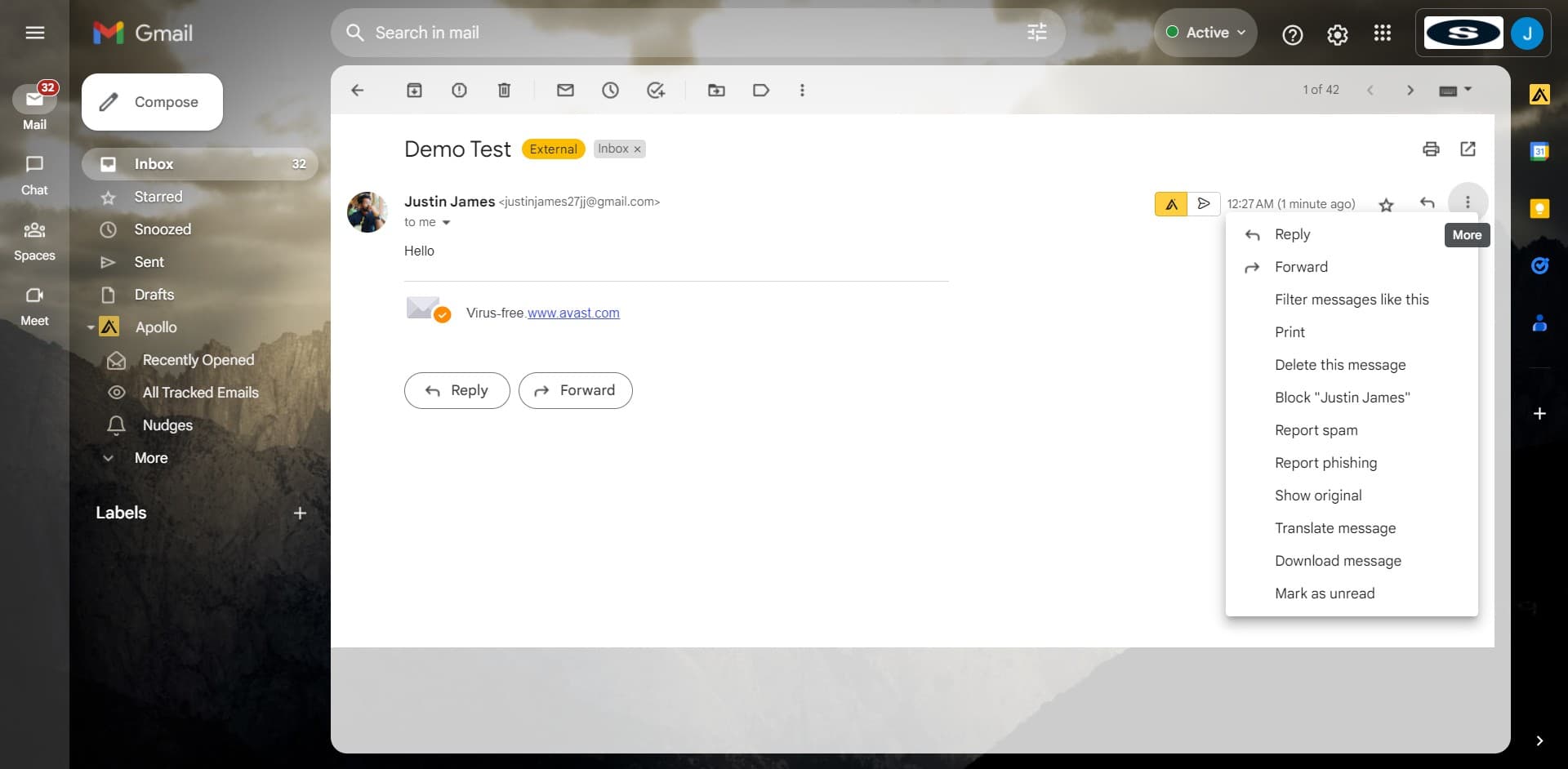
Look for the three-dot menu icon (more options) in the email toolbar. Click it to reveal a dropdown menu with various actions you can take on the email.
- 4
Choose the block option
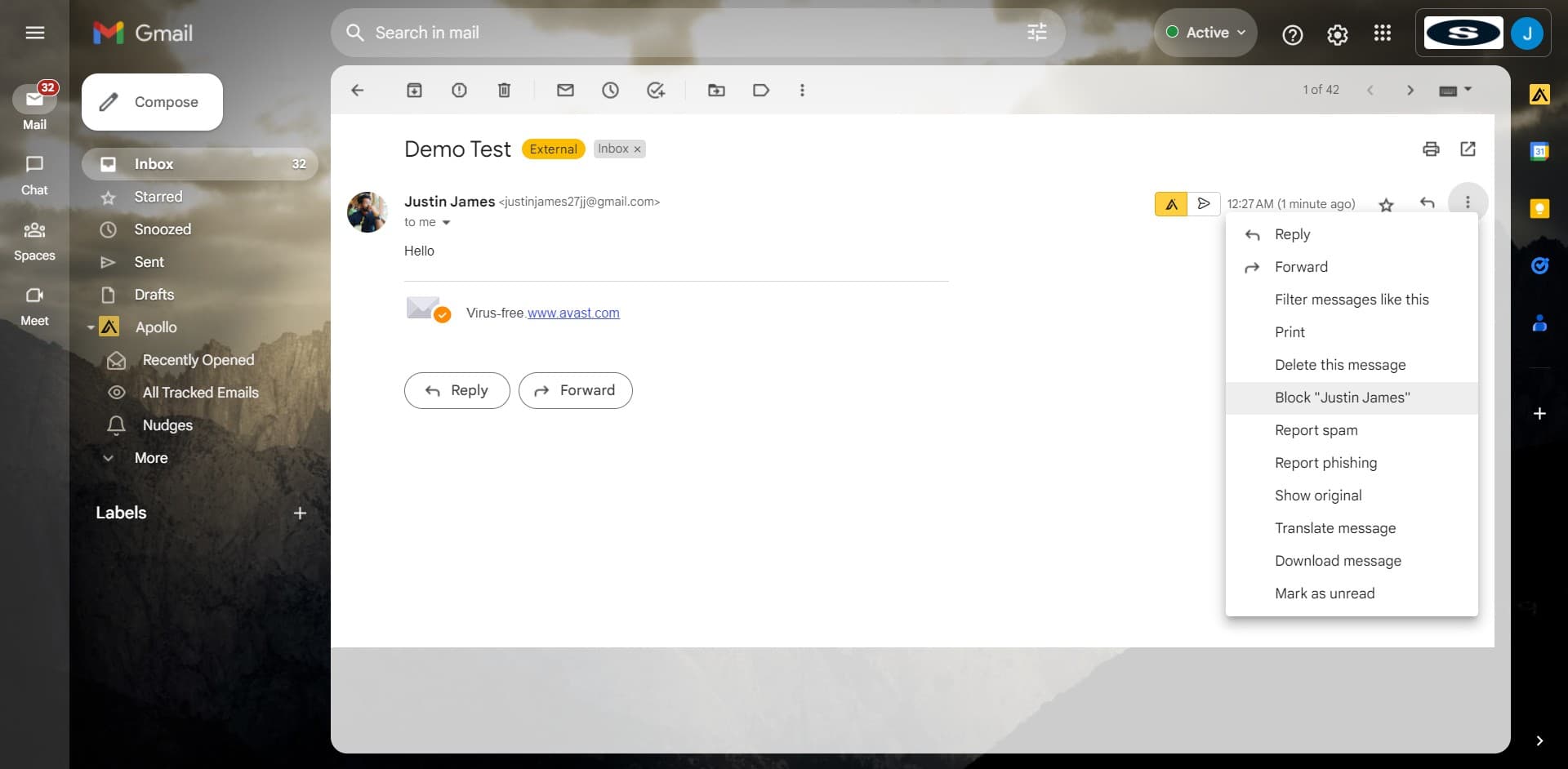
From the dropdown menu, select "Block [Sender Name]", which in this case is "Block Justin James". This option prepares Gmail to block all future emails from that sender.
- 5
Confirm the block action
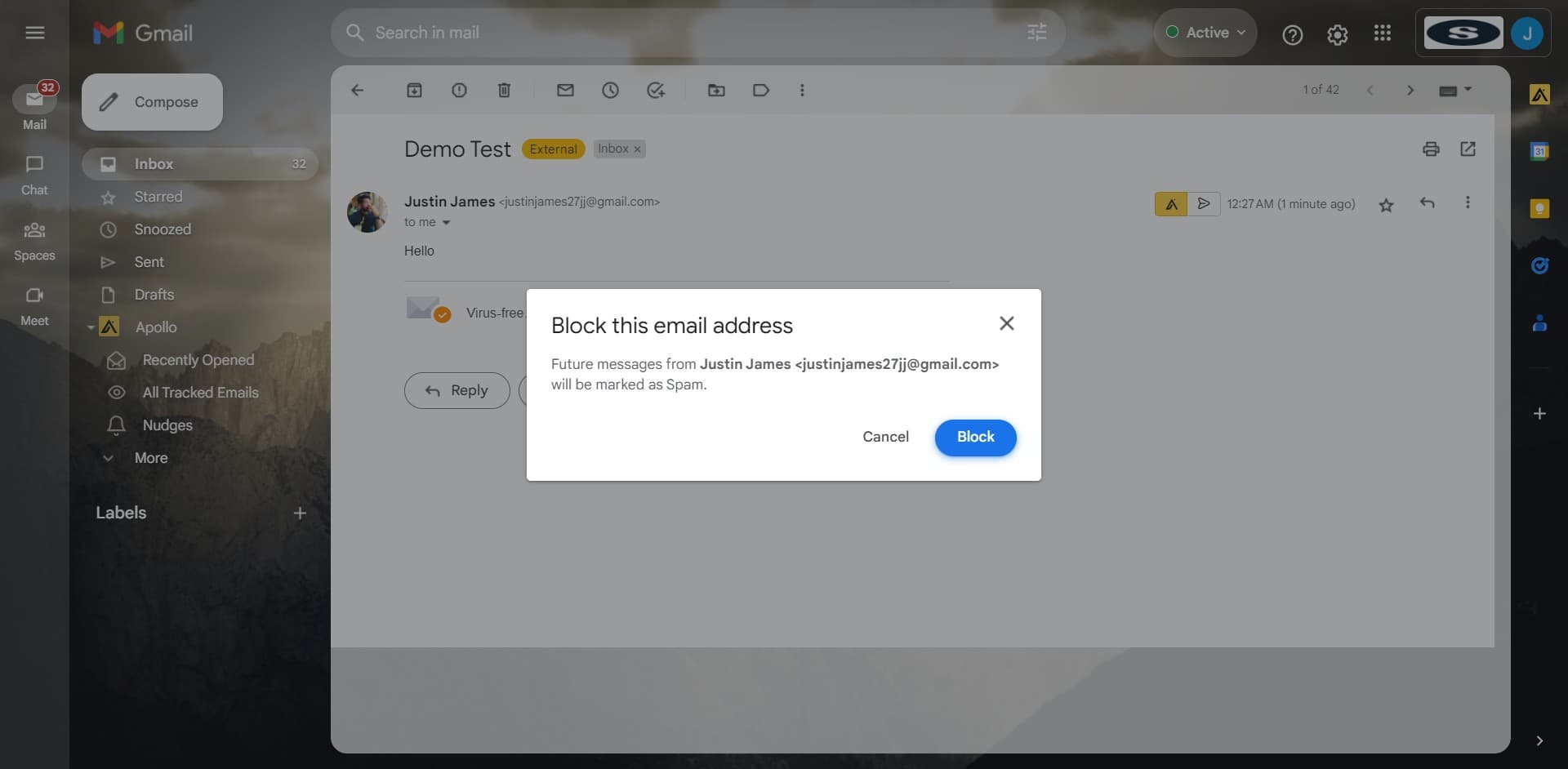
A confirmation dialog will appear asking you to verify that you want to block this sender. Click "Block" to complete the process and permanently prevent emails from this sender from reaching your inbox.
Frequently asked questions
Common questions about how to block sender on gmail.
Once you block a sender, all their emails are automatically sent to your Spam folder. You won't receive notifications about these emails, and they won't clutter your inbox. You can still access them in the Spam folder if needed.
Yes, you can unblock a sender at any time. Simply go to Settings, then Filters and Blocked Addresses, find the blocked sender in the list, and click the unblock option next to their email address.
No, Gmail doesn't notify senders when you block them. From their perspective, emails may appear to be sent successfully, but they won't receive read receipts or responses from you.
You can block senders one at a time using the method described in this tutorial. For bulk blocking, you may want to set up filters or rules in Gmail Settings to automatically manage emails from multiple senders.
No, blocking a sender only affects future emails. Their previous messages will remain in your inbox unless you manually delete them. You can delete their past emails separately if you wish.