How to extend Gmail undo send window

Gmail's undo send feature is incredibly useful for catching mistakes before messages reach recipients, but the default window is quite short. Learning how to extend this window gives you more time to reconsider your messages before they're permanently sent.
Quick summary
In this tutorial, you'll discover how to access Gmail's settings and customize your undo send window to allow up to 30 seconds before a message is delivered. This simple adjustment can save you from sending emails with typos, wrong recipients, or incomplete thoughts.
Why this matters
In fast-paced work environments, we often hit send before fully reviewing our messages. Extending the undo send window provides a critical safety net that gives you precious extra seconds to catch errors, reconsider tone, or add missing information before your email is permanently delivered to recipients.
Step-by-step guide
- 1
Access Gmail settings
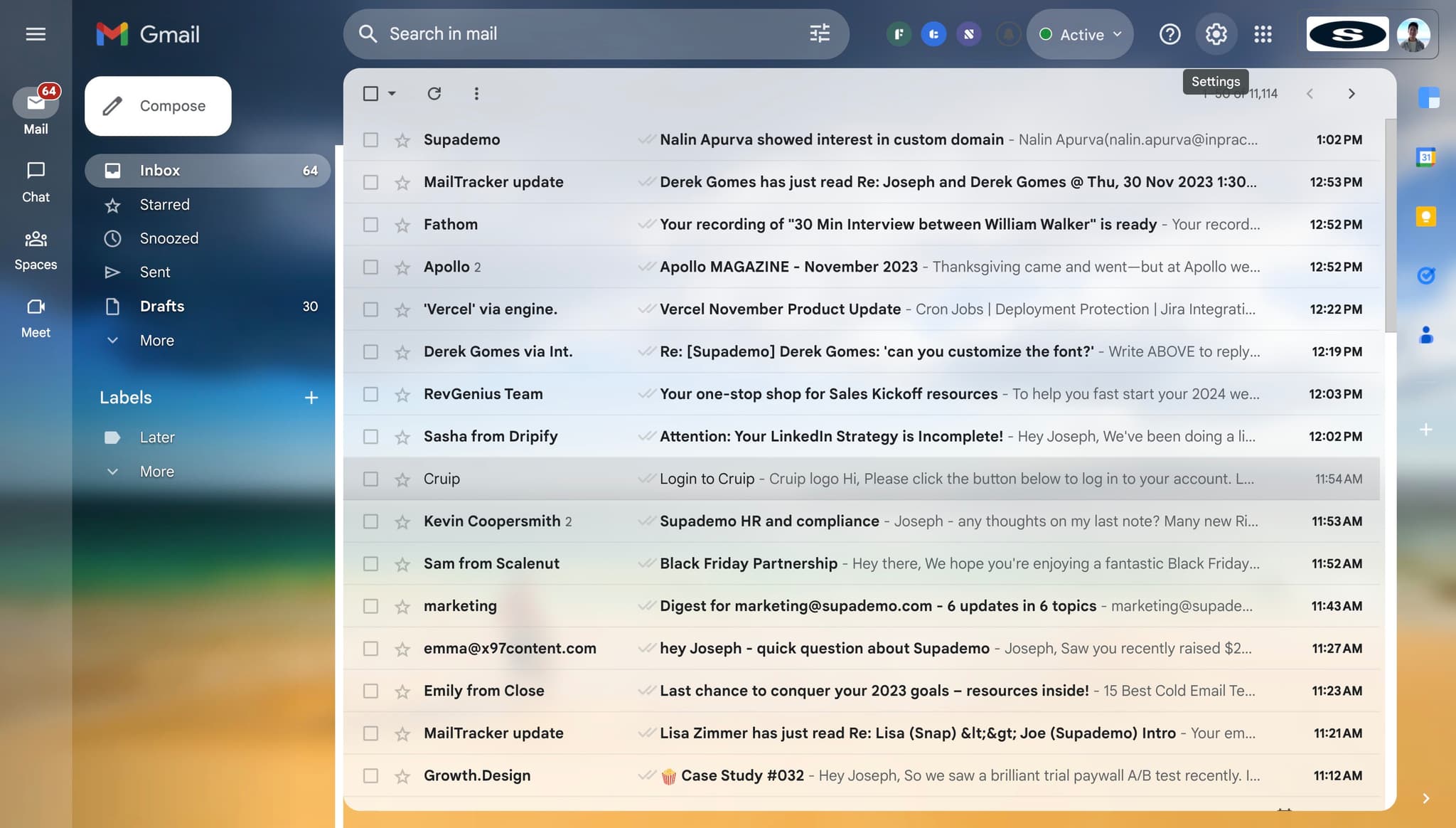
Open Gmail and locate the settings option, typically found in the top-right corner of the interface. Click here to begin the process of customizing your undo send preferences.
- 2
Click on 'See all settings'
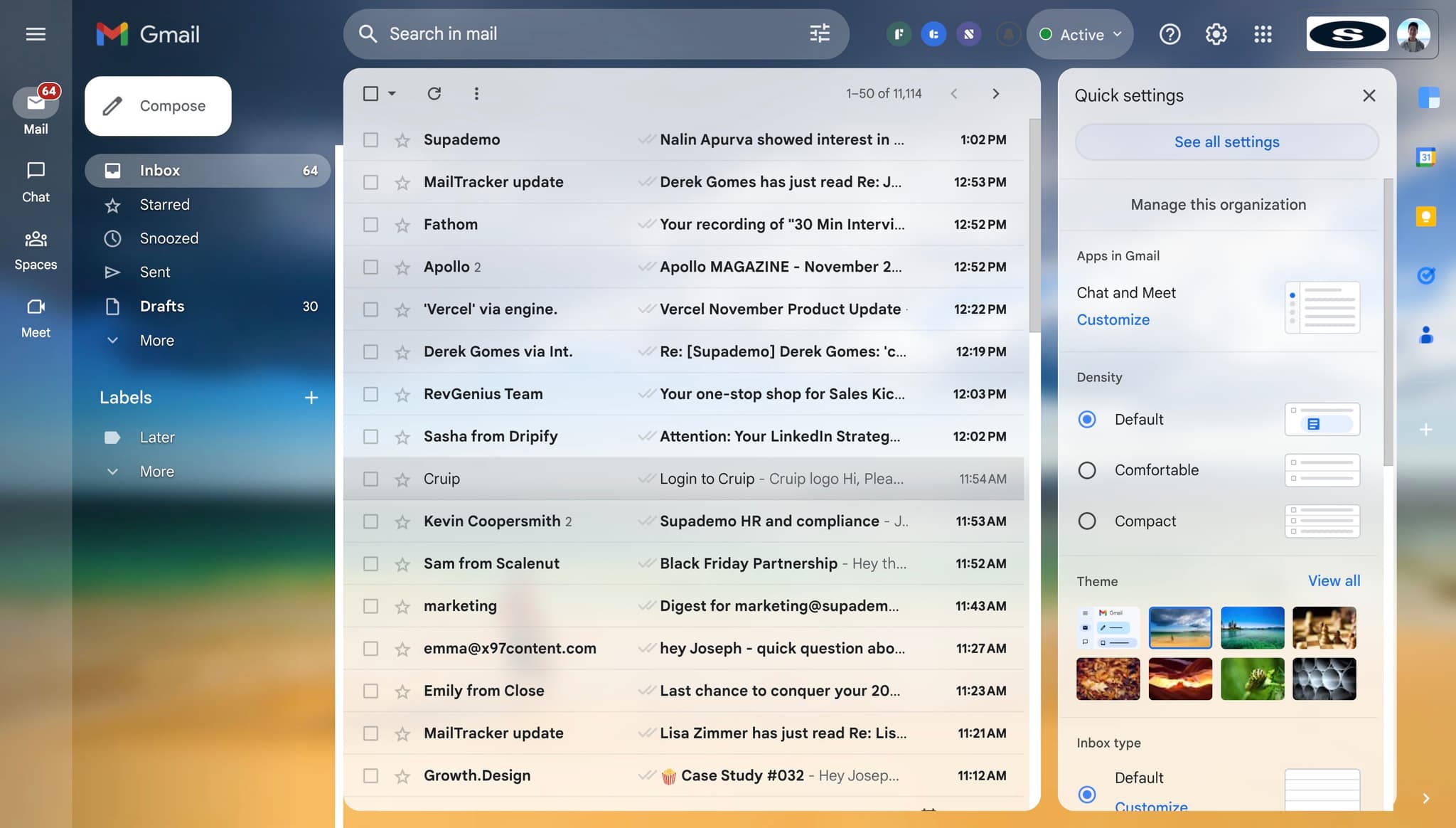
From the dropdown menu, select 'See all settings' to access the full range of Gmail configuration options. This will open the comprehensive settings page where you can adjust various features.
- 3
Select your undo send window duration
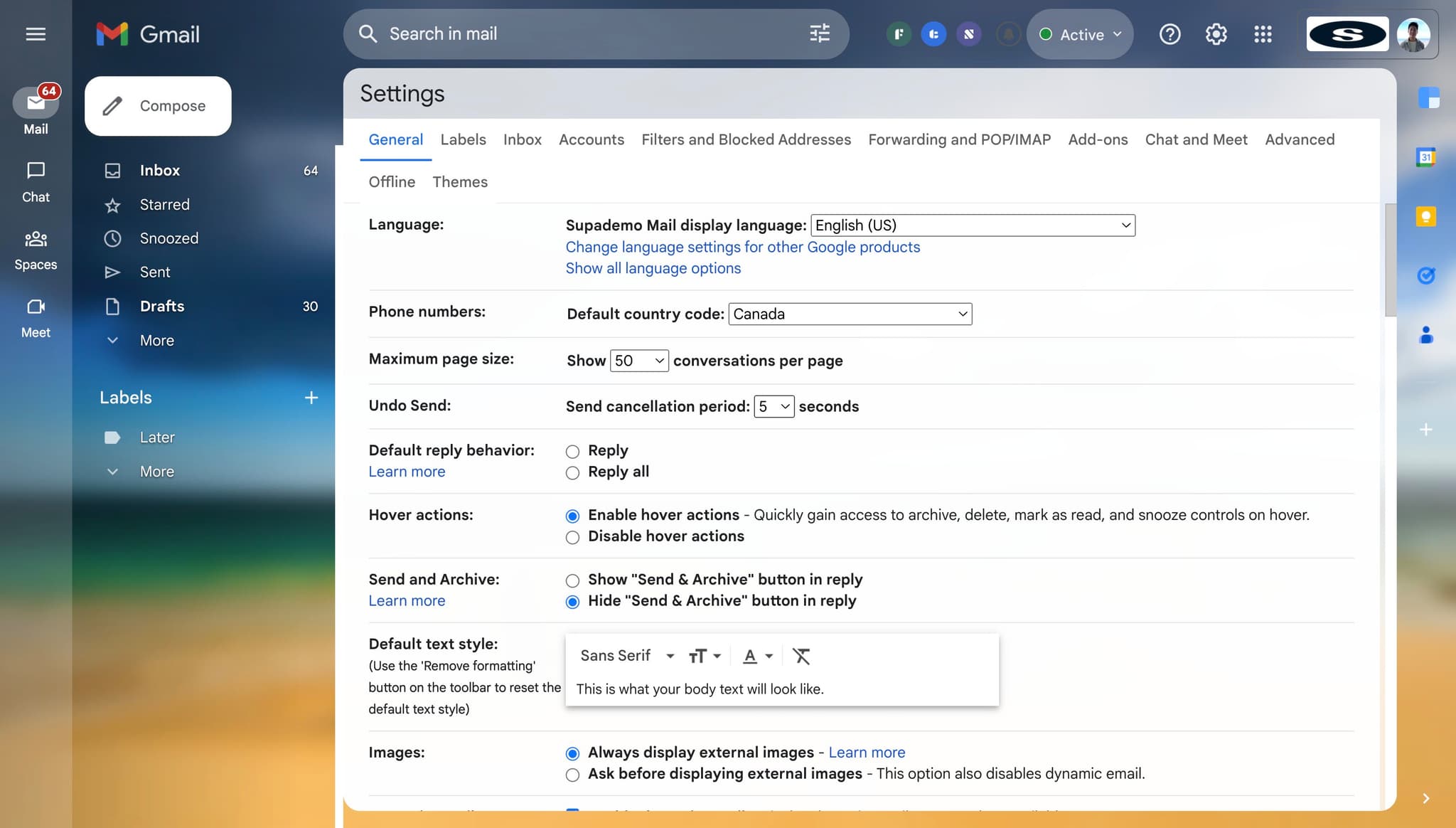
Look for the 'Undo Send' option in the settings and click on the dropdown menu showing the available time options: 5, 10, 20, or 30 seconds. Choose your preferred duration based on how much time you typically need to review your messages.
- 4
Save your changes
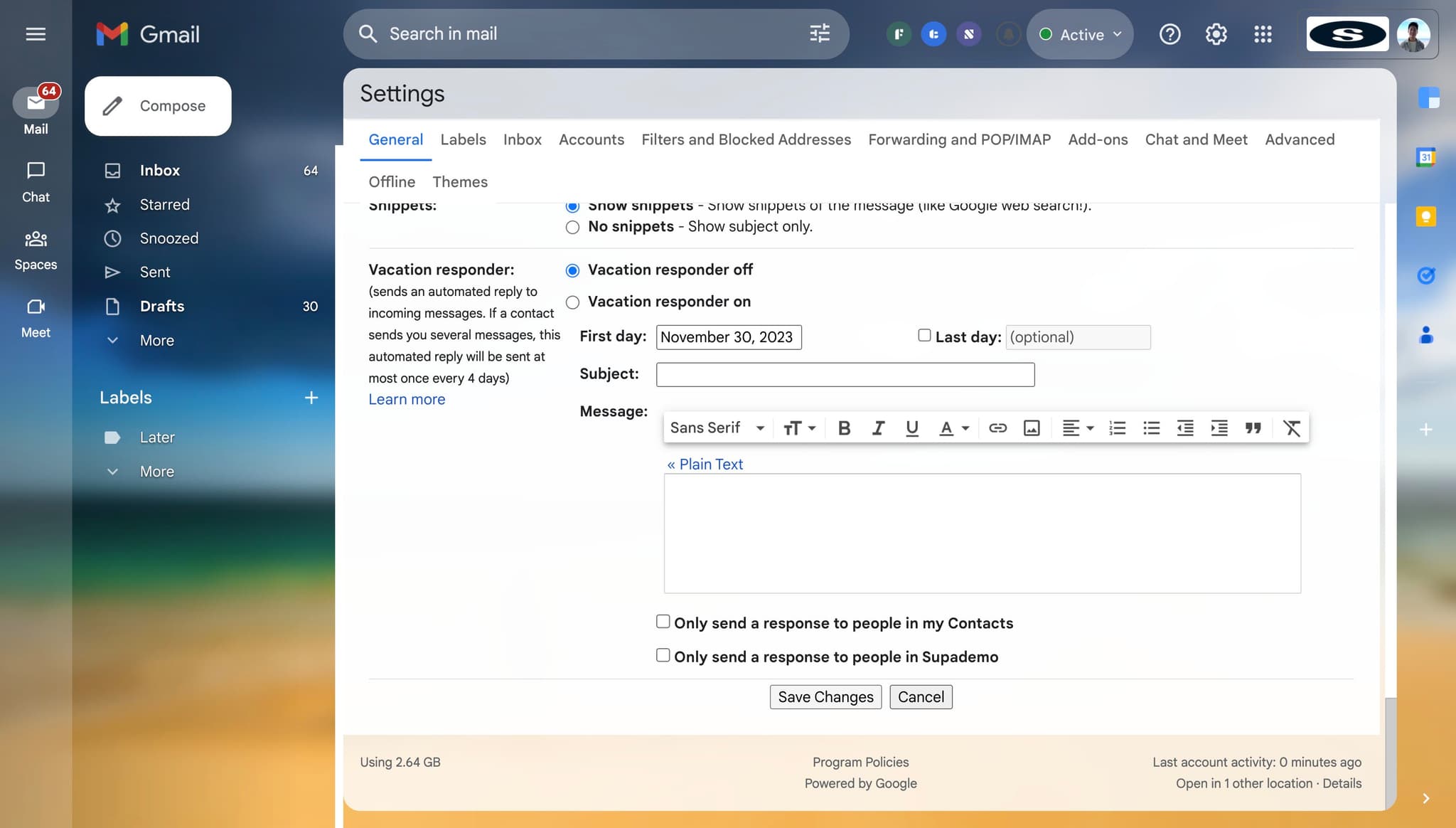
Click the 'Save Changes' button to apply your new undo send window setting. Your preference will now be active the next time you compose and send an email in Gmail.
Frequently asked questions
Common questions about how to extend gmail undo send window.
The maximum undo send window available in Gmail is 30 seconds. This gives you half a minute to review your message after clicking send before it's permanently delivered to the recipient.
Yes, you can change your undo send window duration at any time by returning to Gmail settings and selecting a different option. Your new preference will take effect immediately for subsequent emails.
If you don't click the 'Undo Send' button within your selected time window, the email will be sent normally to the recipient. Once the timer expires, the message cannot be recalled.
The undo send feature is available for most Gmail accounts, including personal Gmail and Google Workspace accounts. However, the feature may not be available in all regions or with certain restricted account types.
No, when you use undo send to recall a message, the recipient will not see any notification or indication that you attempted to send an email. The message simply won't appear in their inbox.