How to add in Google Sheets

Adding numbers together is one of the most common tasks in Google Sheets, and the SUM function makes it fast and effortless. Whether you're calculating totals, budgets, or any numerical data, mastering the SUM function will significantly improve your spreadsheet efficiency.
Quick summary
In this tutorial, you'll learn how to use Google Sheets' SUM function to add multiple cells together. You'll discover how to select your data range and apply the formula to automatically calculate totals.
Why this matters
The SUM function is essential for anyone working with numerical data in spreadsheets. Rather than manually adding cells one by one, SUM automates the calculation, reduces errors, and makes your spreadsheets dynamic—changes to individual cells automatically update your total.
Step-by-step guide
- 1
Access the cell for your formula
Click on the cell where you want your sum to appear. This is typically a cell below or to the right of your data range, depending on your spreadsheet layout.

- 2
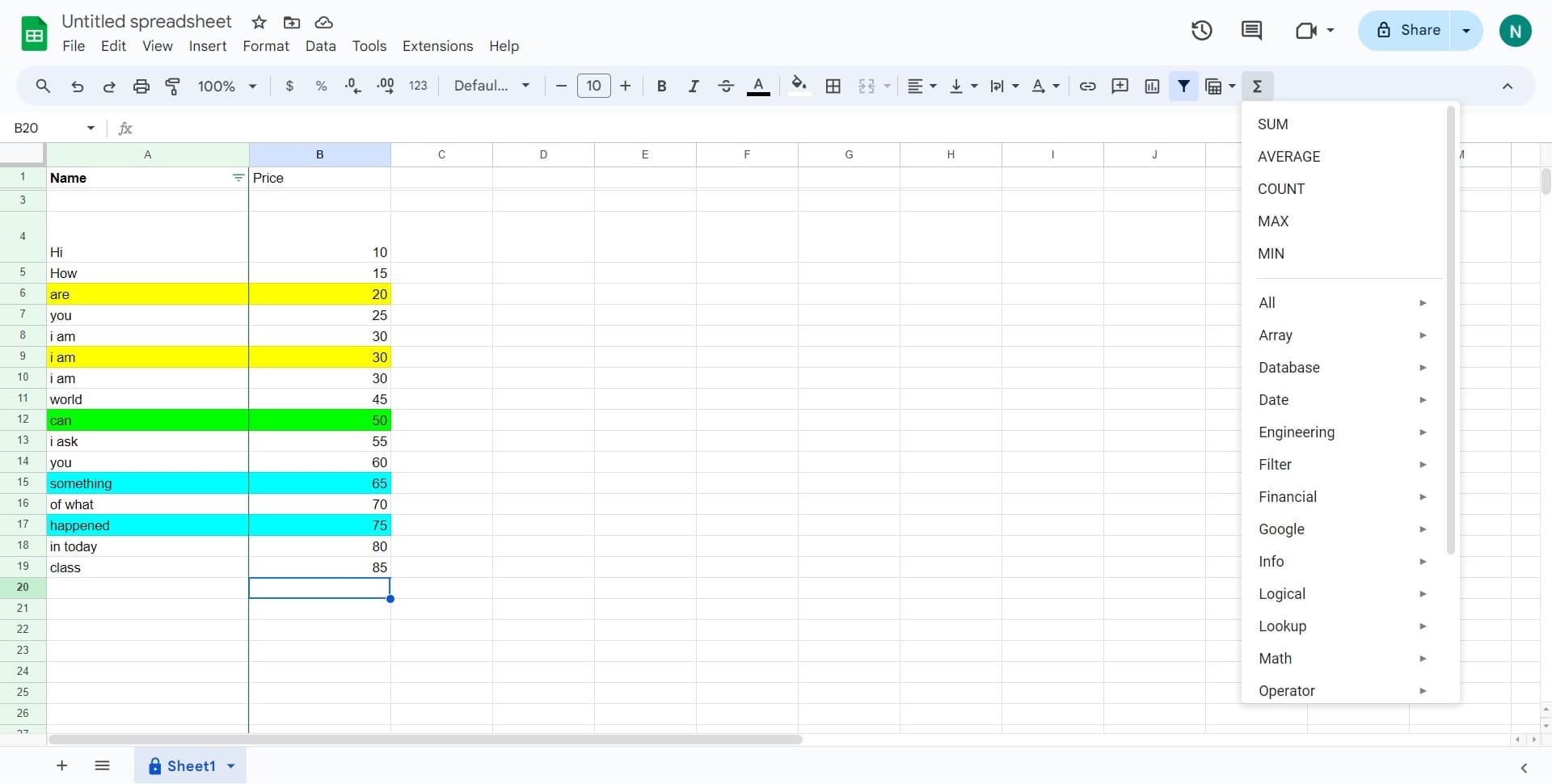
Open the function menu
Click the function insertion option to access Google Sheets' available functions. This will open a menu or dialog where you can search for or select the SUM function.
- 3
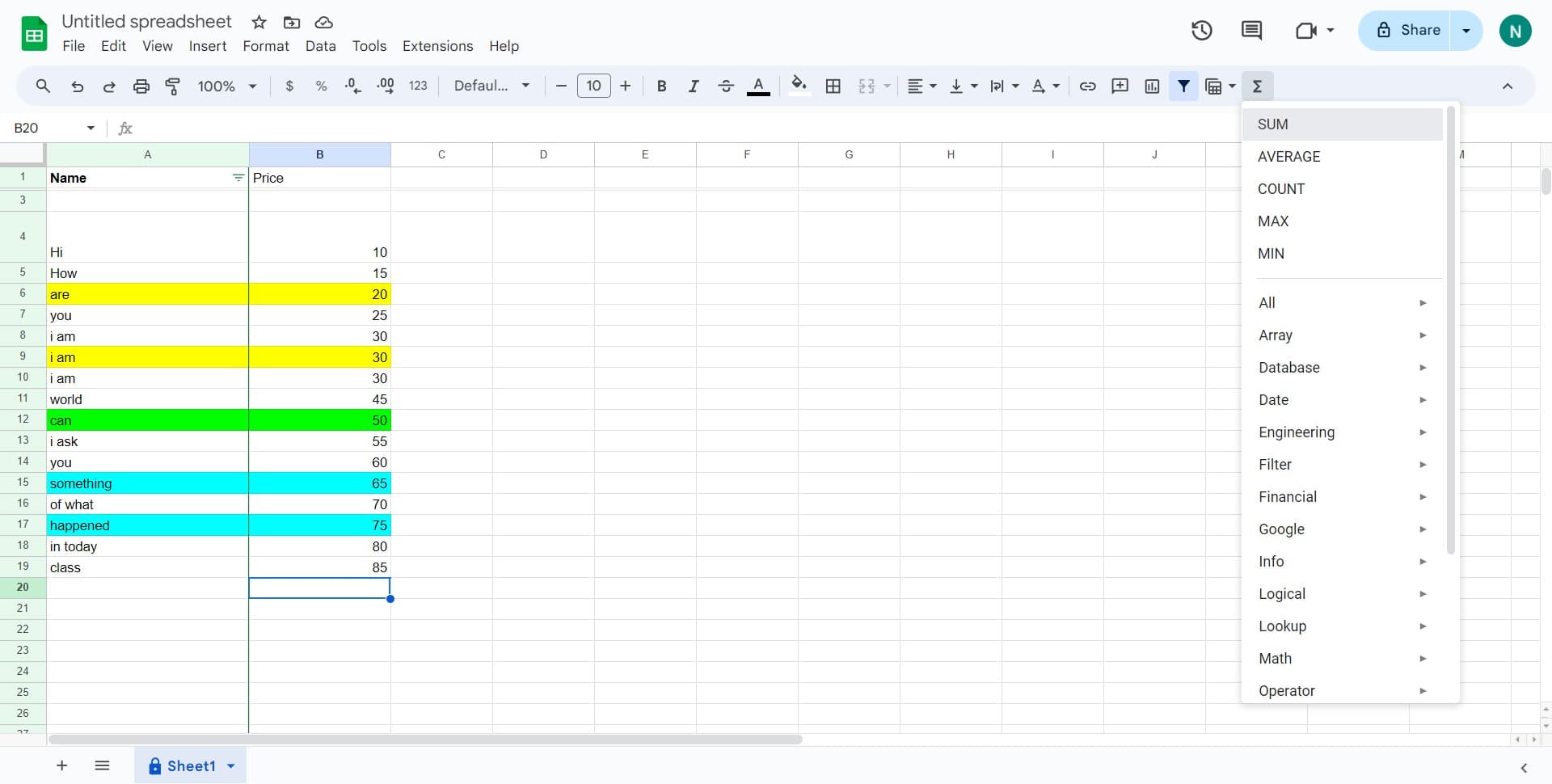
Select the SUM function
Click on 'SUM' from the list of available functions. This will insert the SUM formula into your selected cell and prepare it for your data range input.
- 4
Select your first data range
Click on the first cell of the numbers you want to add. Google Sheets will highlight the cell and begin building your range selection.

- 5
Select your last data range
Click on the last cell of the numbers you want to add. Google Sheets will automatically select all cells between your first and last clicks, creating a complete range for the SUM function.

- 6
Confirm the formula
Click the confirmation button or press Enter to complete the formula. Your sum will now calculate and display the total of all selected cells.

Frequently asked questions
Common questions about how to add in google sheets.
Yes, you can add multiple non-adjacent ranges to a SUM formula. Simply use commas to separate each range, for example: =SUM(A1:A5, C1:C5). This is useful when your data is spread across different parts of your spreadsheet.
Google Sheets automatically ignores text and empty cells when calculating a SUM. Only numerical values are added together, so it's safe to include cells that might contain non-numeric data within your range.
Absolutely. Click on the cell containing your SUM formula and you'll see the formula in the formula bar at the top. You can click and drag the range indicators on your spreadsheet to adjust which cells are included in the sum.
Select a larger range than your current data, or use the entire column (e.g., =SUM(A:A)). This way, when you add new numbers to that column, they'll automatically be included in your sum without modifying the formula.
SUM adds all numbers in a range, while SUMIF adds only numbers that meet a specific condition you define. Use SUMIF when you need to sum values based on criteria, such as adding only values greater than 100 or matching a specific category.