How to freeze and unfreeze rows and columns in Google Sheets

Freezing rows and columns in Google Sheets allows you to keep important headers or labels visible while scrolling through large datasets. This feature is essential for working with complex spreadsheets where you need constant reference to row and column identifiers. Learn how to freeze and unfreeze rows and columns to improve your spreadsheet navigation.
Quick summary
In this tutorial, you'll learn how to freeze specific rows and columns in Google Sheets, and how to remove those freezes when they're no longer needed. You'll navigate through the View menu and select the appropriate freeze options to lock headers in place while scrolling through your data.
Why this matters
Freezing rows and columns significantly improves productivity when working with large spreadsheets by keeping headers visible at all times. This prevents the common frustration of losing context about what data you're viewing when scrolling down or across many columns. Proper use of freeze settings makes data analysis faster and reduces errors caused by misaligned data reference.
Step-by-step guide
- 1
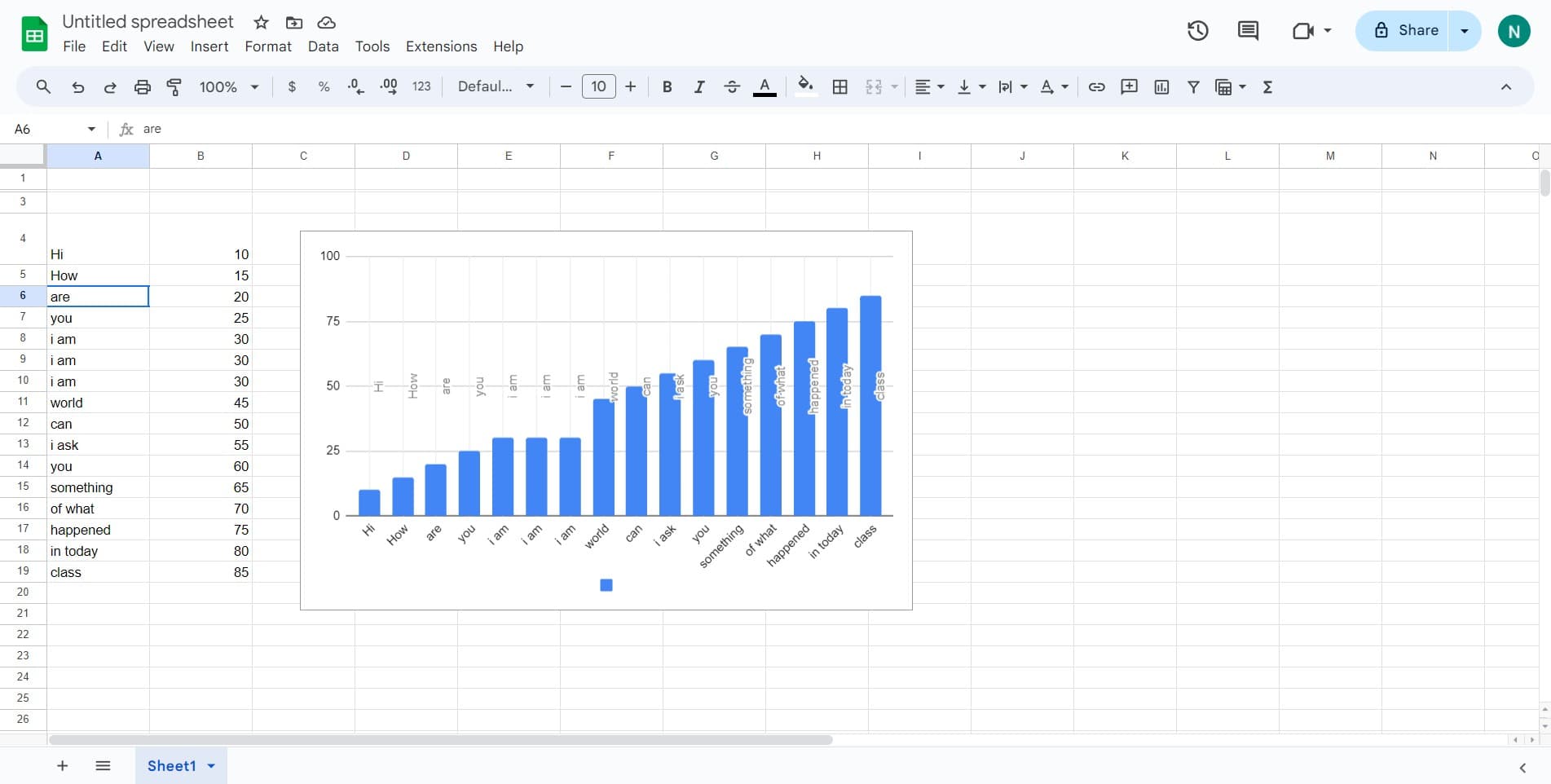
Open the Chart Summary
Click on 'Chart summary' to access the spreadsheet you want to work with. This opens the document where you'll apply your freeze settings.
- 2
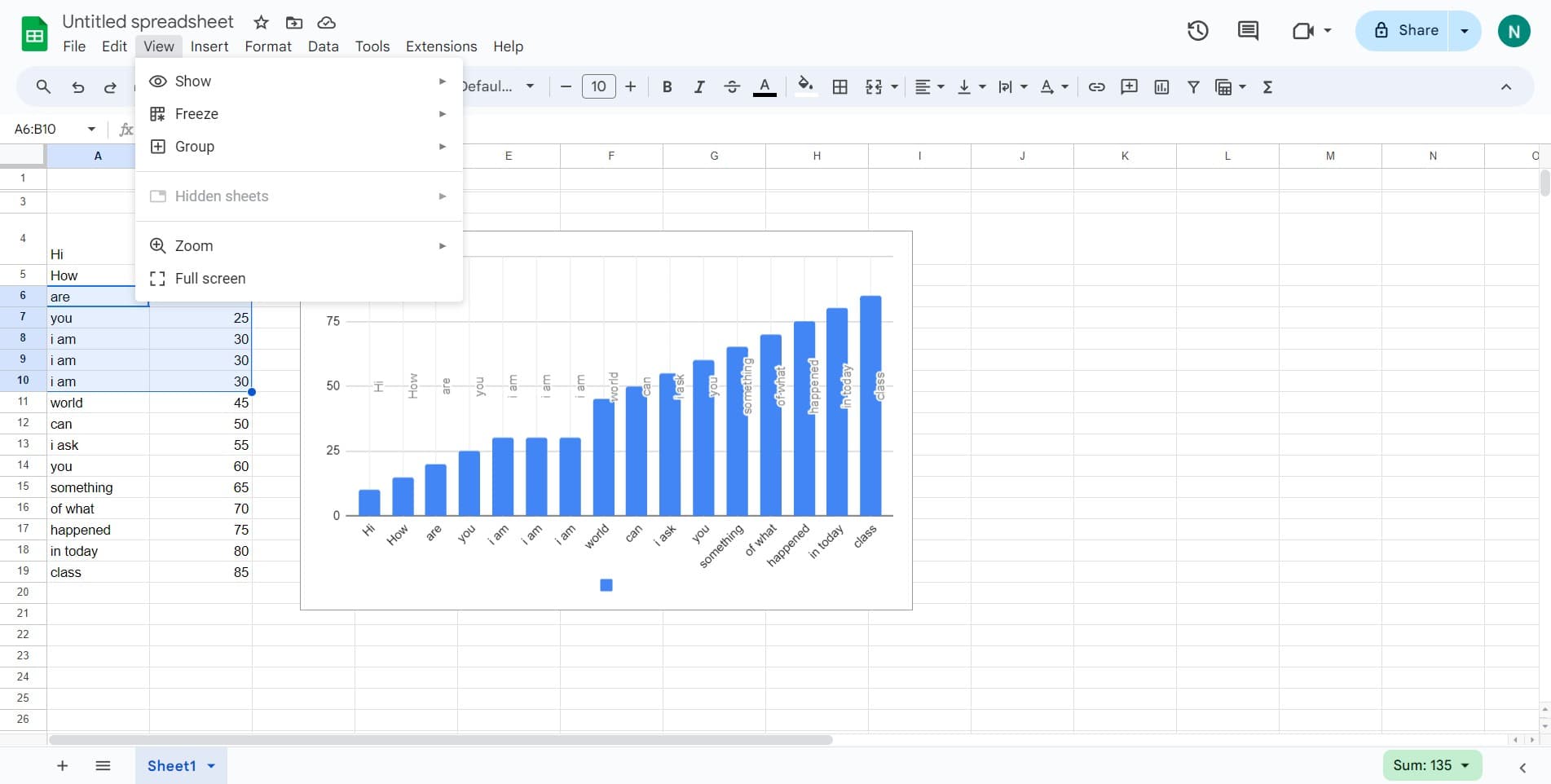
Open the View Menu
Click on the 'View' menu at the top of the Google Sheets interface. This menu contains all the freeze and layout options for your spreadsheet.
- 3
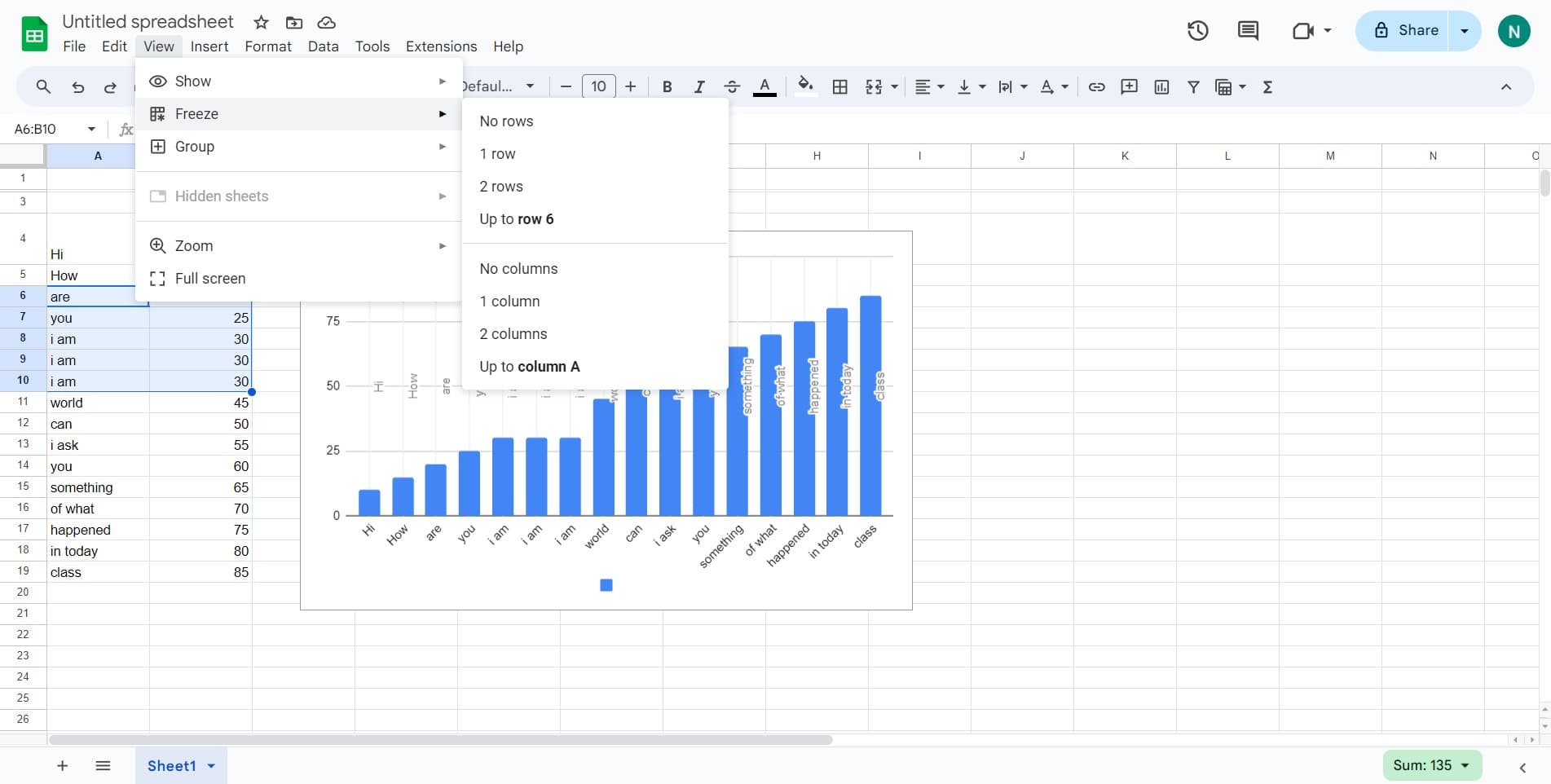
Access the Freeze Options
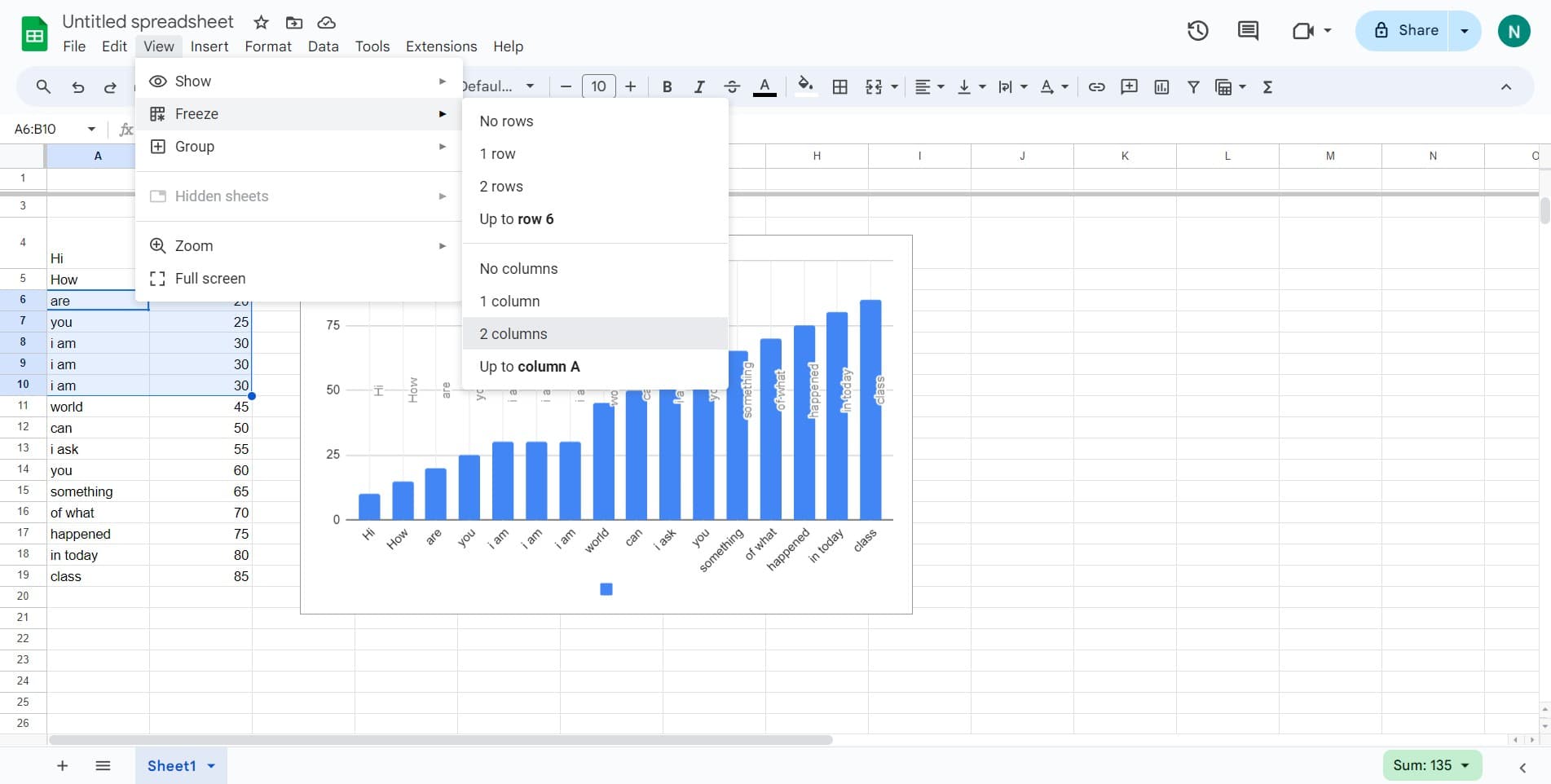
Click on 'Freeze' to reveal the submenu with freeze options. You'll see choices for freezing rows, columns, or both.
- 4
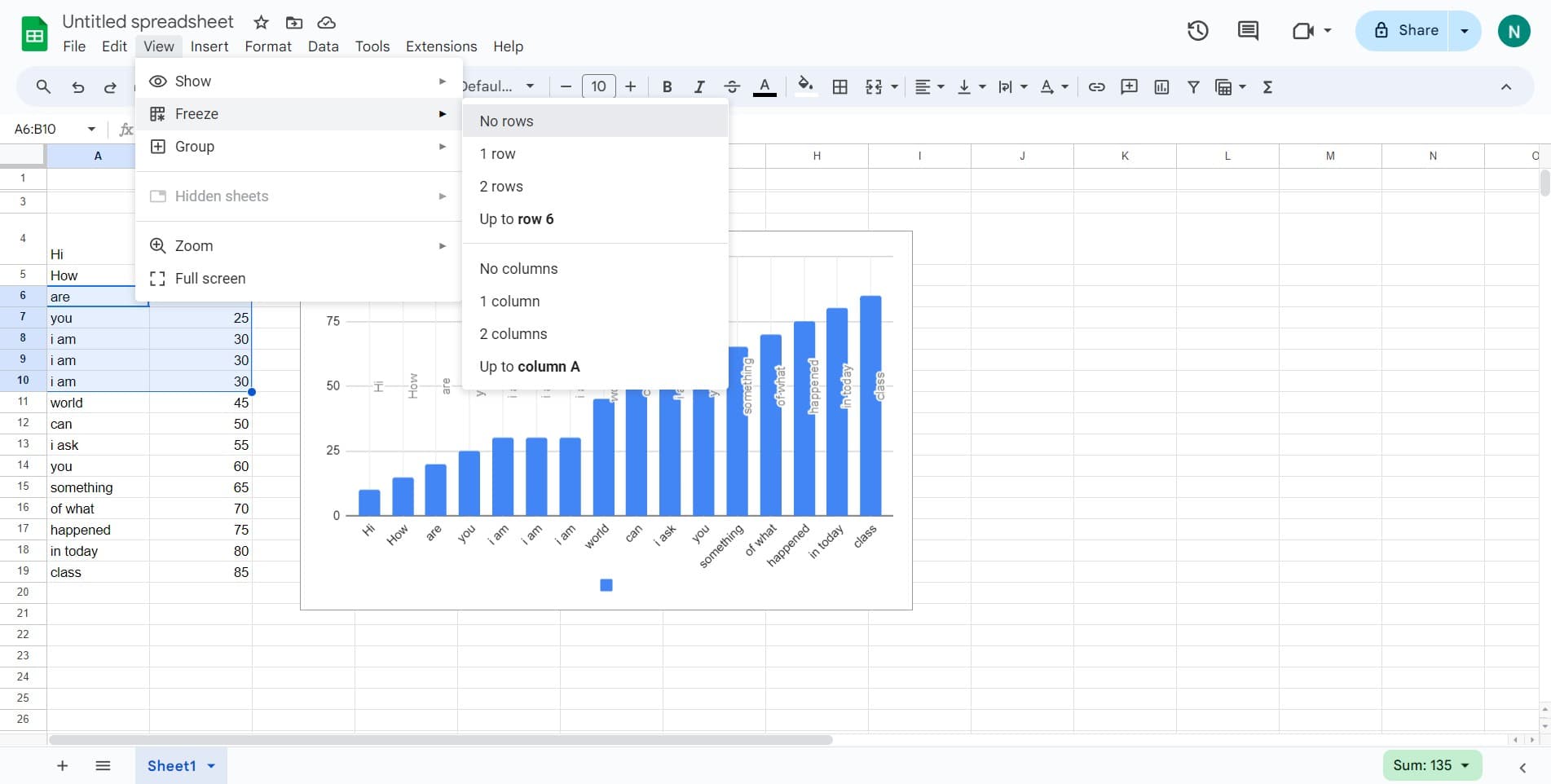
Unfreeze All Rows
Click on 'No rows' to remove any row freezes currently applied to your spreadsheet. This option clears all frozen rows.
- 5
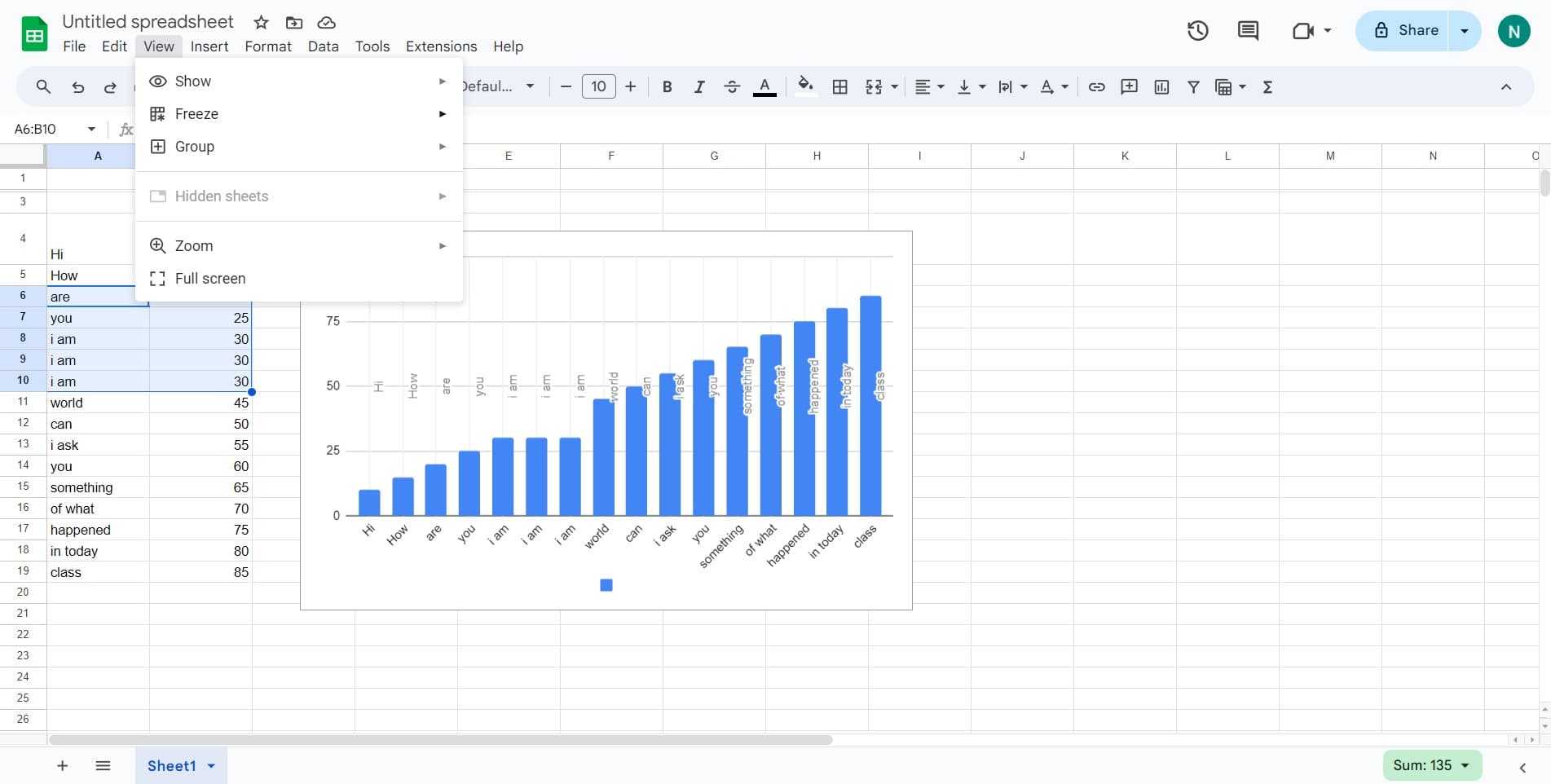
Open the View Menu Again
Click on 'View' to reopen the menu and access the freeze options again. You can now apply new freeze settings.
- 6
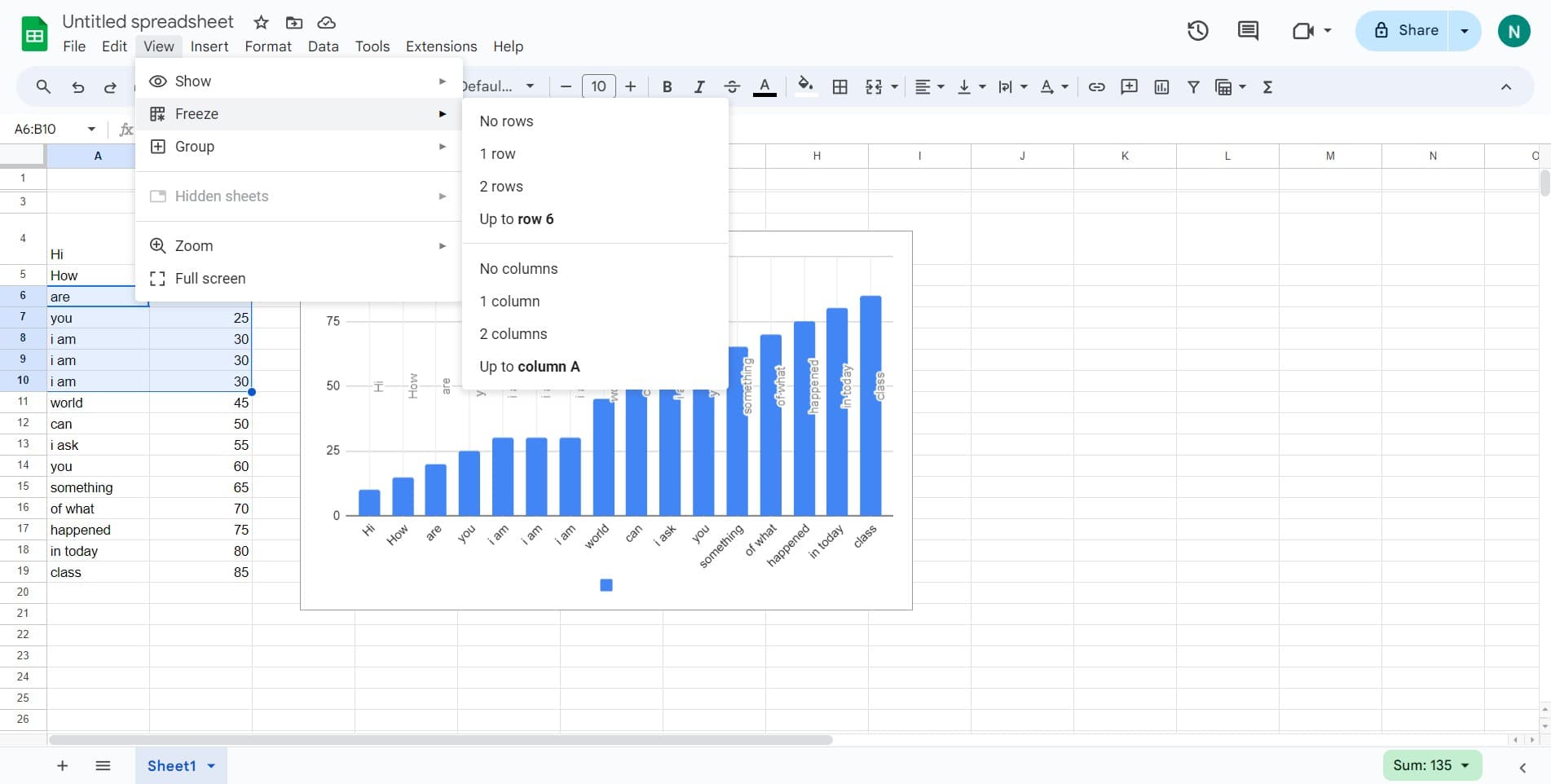
Access Freeze Options Again
Click on 'Freeze' to open the submenu and select your desired freeze configuration. The menu displays options for rows and columns.
- 7
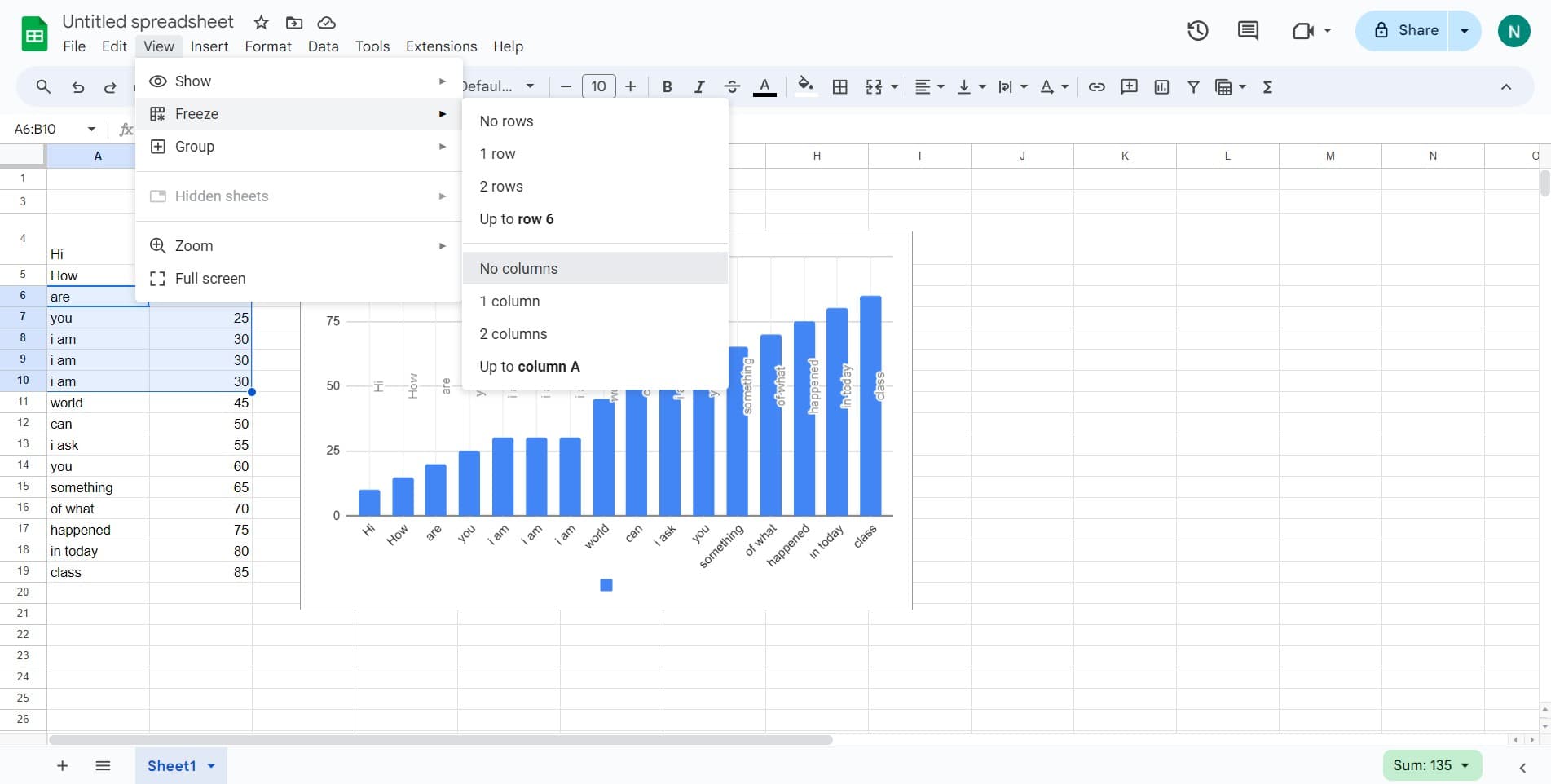
Unfreeze All Columns
Click on 'No columns' to remove any column freezes currently in place. This clears all frozen columns from your spreadsheet.
- 8
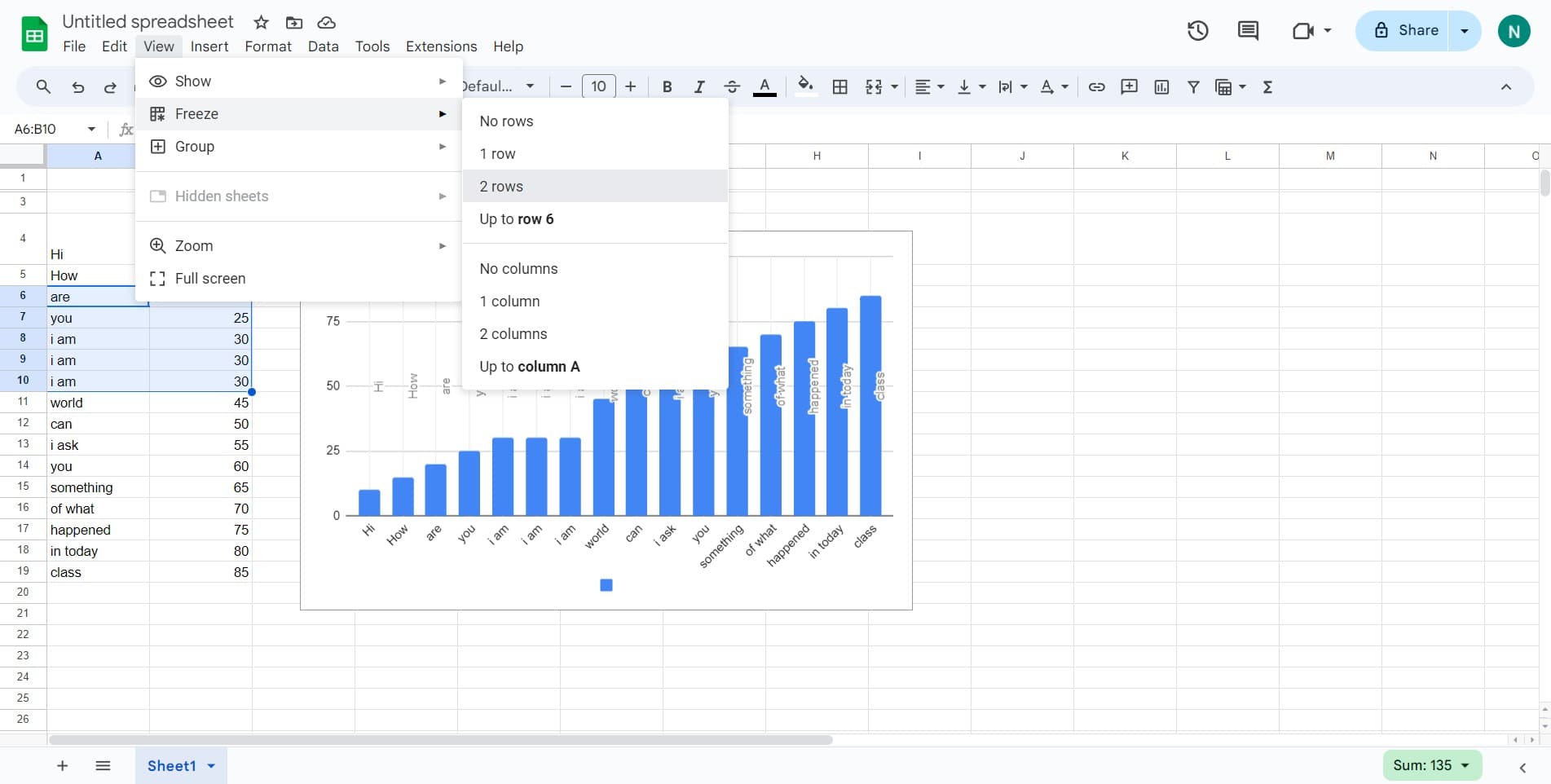
Freeze Two Rows
Click on '2 rows' to freeze the first two rows of your spreadsheet. These rows will remain visible when you scroll down through your data.
- 9
Confirm the Freeze
Click on 'm' or the confirmation option to apply the freeze settings. Your selected rows are now frozen and will stay visible while scrolling.
Frequently asked questions
Common questions about how to freeze and unfreeze rows and columns in google sheets.
Yes, Google Sheets allows you to freeze rows and columns simultaneously. Access the View menu, select Freeze, and you can choose to freeze specific rows, specific columns, or both independently of each other.
Frozen rows and columns are visually separated from the rest of the spreadsheet by a darker line or border. This visual indicator shows exactly where your frozen section ends and the scrollable content begins.
No, Google Sheets only allows you to freeze consecutive rows from the top and consecutive columns from the left. You cannot freeze alternating or non-adjacent rows and columns.
Freezing keeps rows or columns visible while you scroll through the rest of the spreadsheet, whereas hiding completely removes them from view. Frozen rows and columns remain accessible and visible at all times during navigation.
Frozen rows and columns are treated like regular rows and columns when printing. They will appear in your printed output just as they do on screen, so plan your freeze settings accordingly if you intend to print your spreadsheet.