How to add a text box in Google Sheets

Adding text boxes to Google Sheets allows you to annotate data, create labels, and enhance your spreadsheet's visual organization. This feature is particularly useful when you need to add context or explanations that don't fit neatly into standard cells.
Quick summary
In this tutorial, you'll learn how to insert and customize a text box in Google Sheets using the drawing tools. By following these steps, you'll be able to add flexible text elements anywhere on your spreadsheet for better clarity and presentation.
Why this matters
Text boxes in Google Sheets provide flexibility that standard cells cannot offer, allowing you to position text freely and create more polished, professional-looking spreadsheets. They're invaluable for adding titles, notes, or visual callouts that improve readability and communication of your data.
Step-by-step guide
- 1
Open the Insert menu
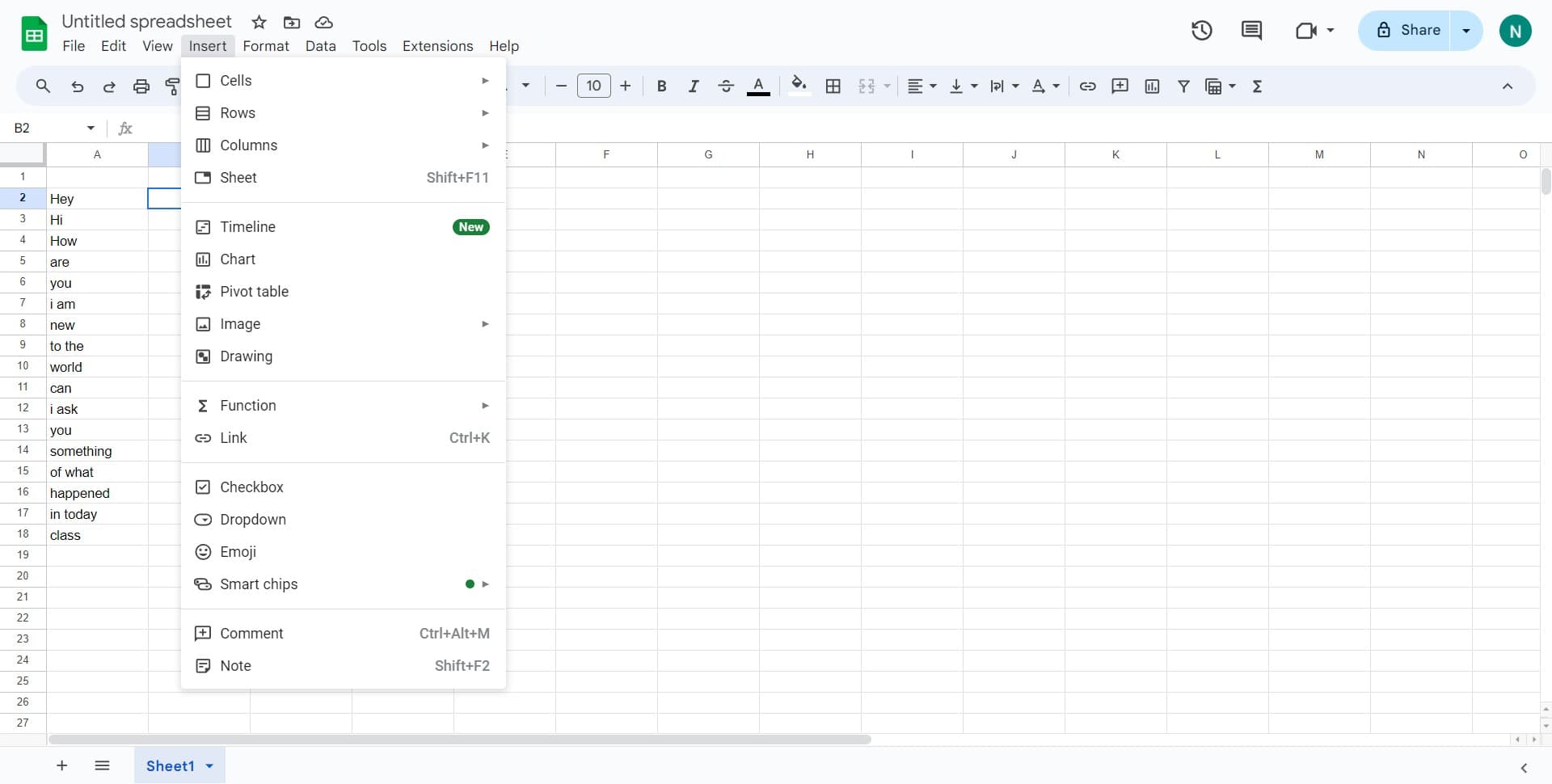
Click on the 'Insert' option in the top menu bar. This will open a dropdown menu with various elements you can add to your spreadsheet.
- 2
Select Drawing from options
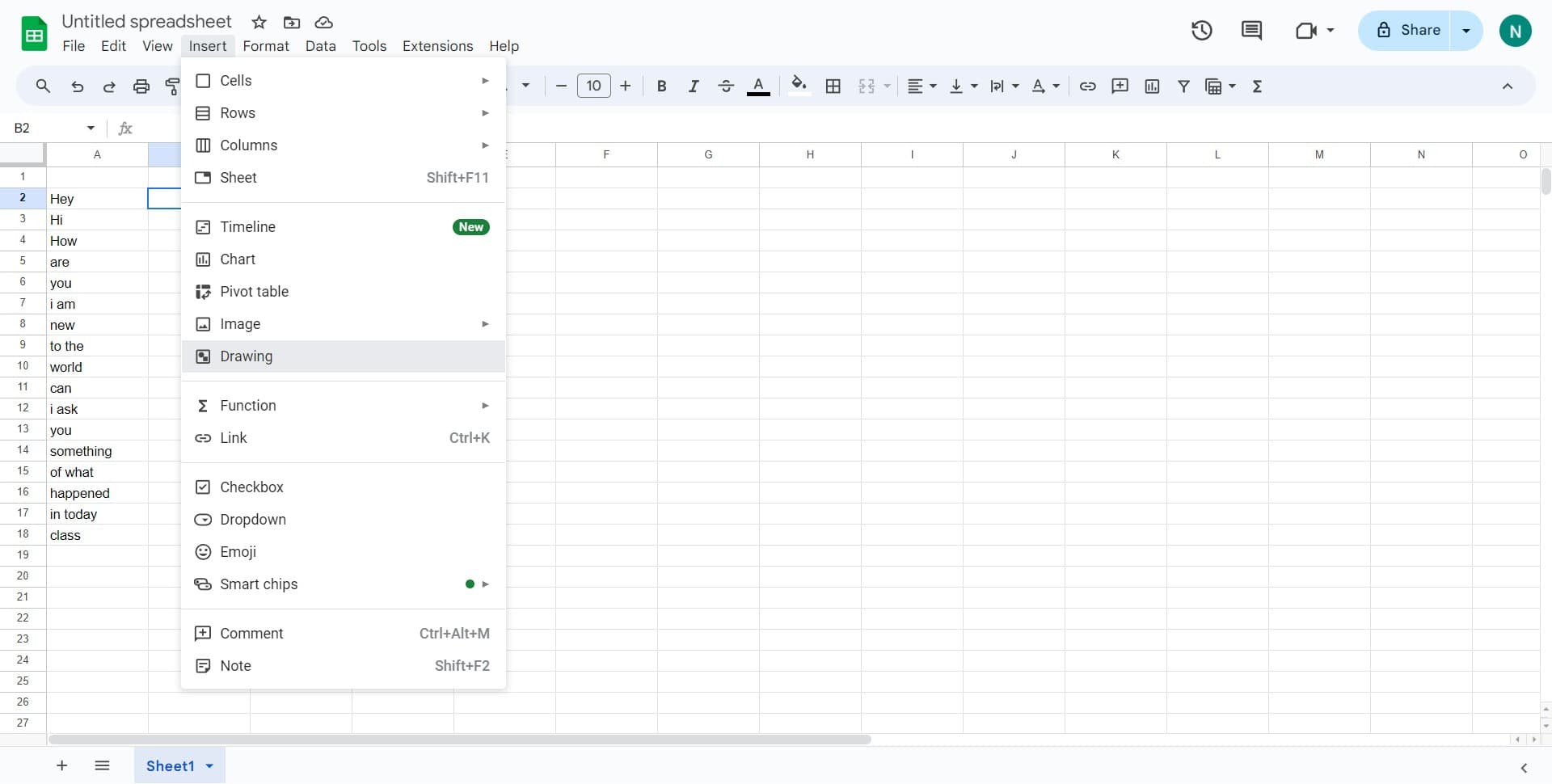
Click on 'Drawing' from the Insert dropdown menu. A new drawing canvas will open in a dialog box where you can create your text box.
- 3
Access the text tool
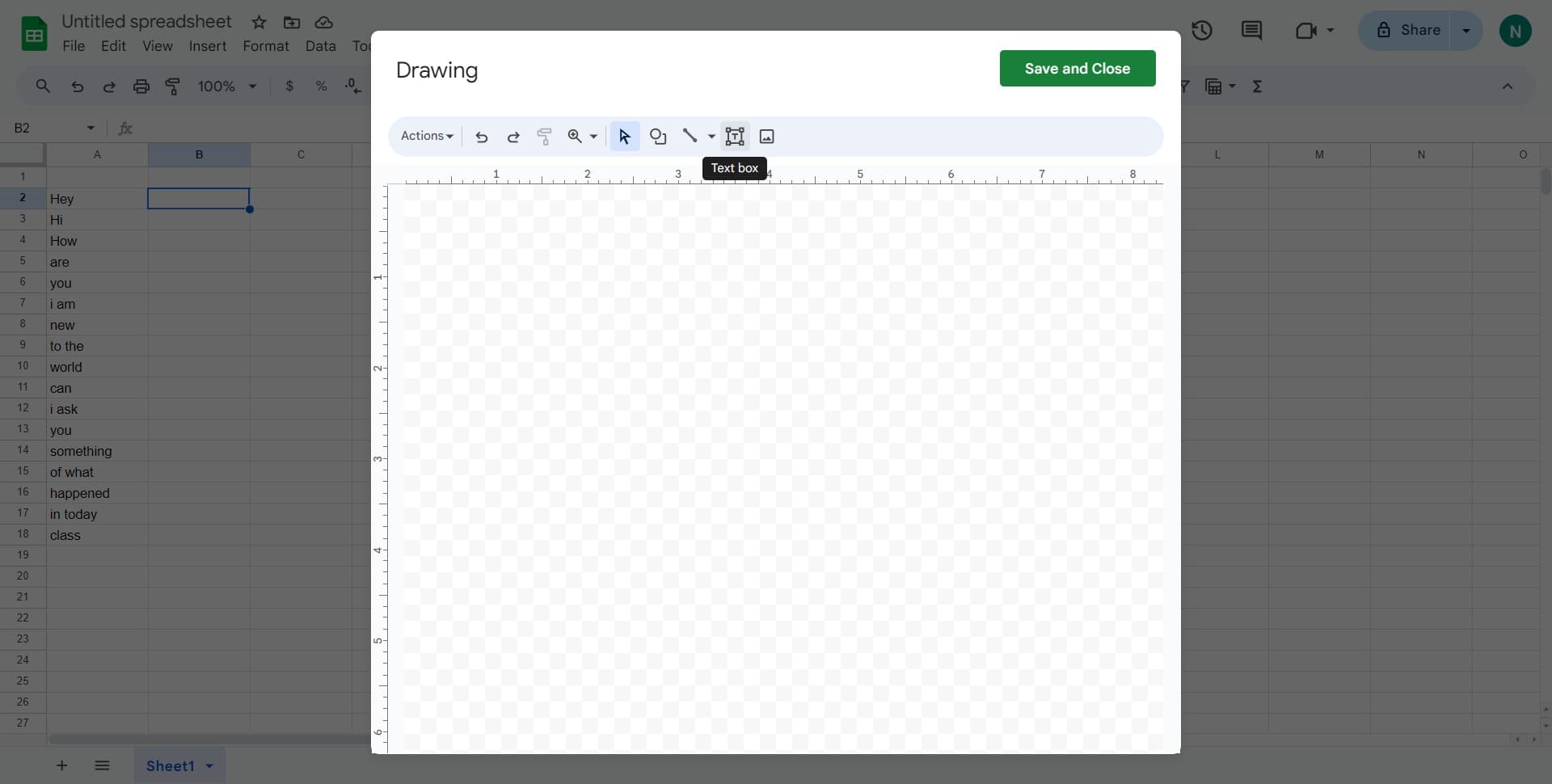
Click on the text tool icon in the drawing toolbar. This will activate the text insertion mode so you can add text to your drawing.
- 4
Create the text box
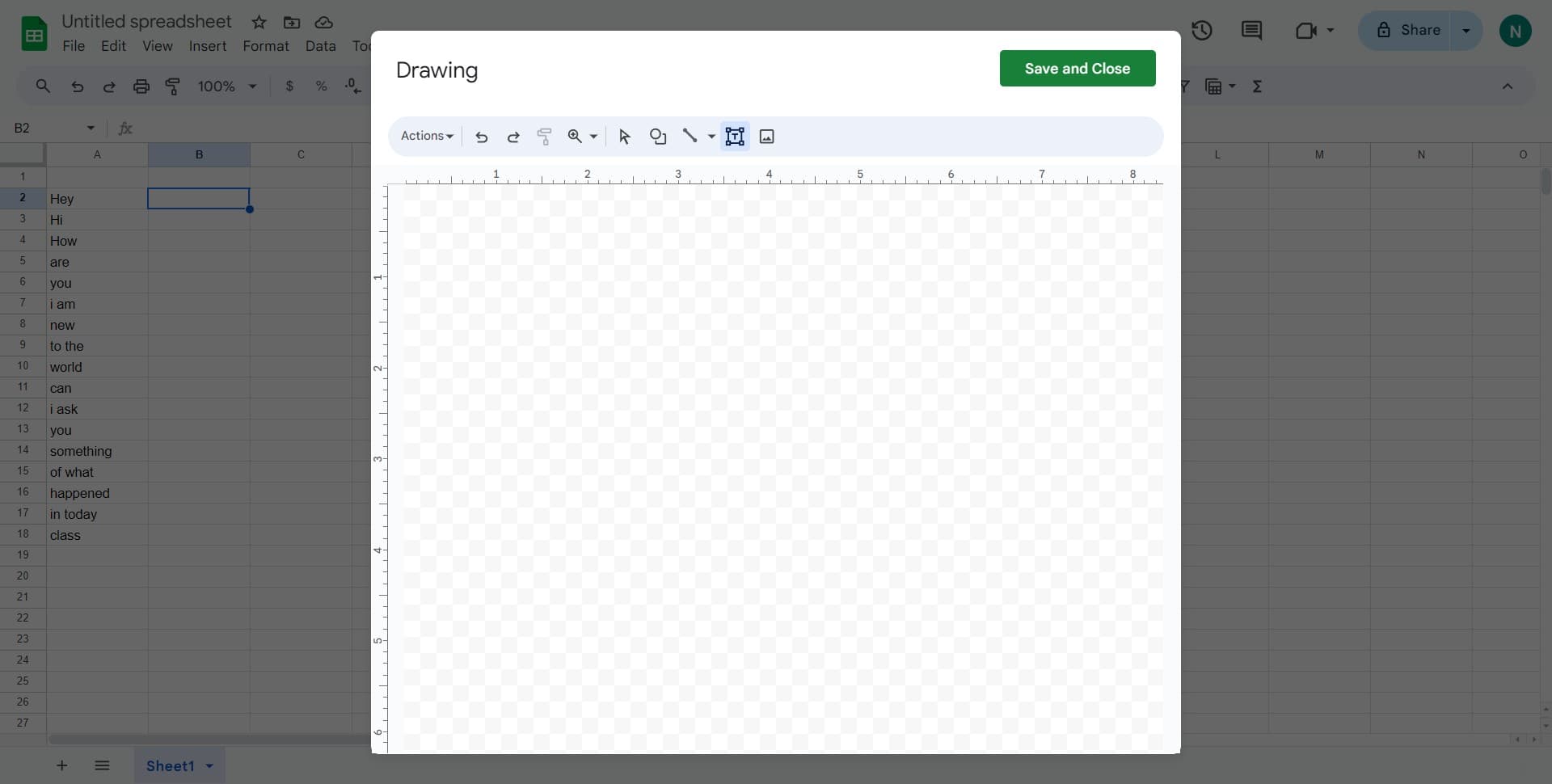
Click and drag on the canvas to create a text box of your desired size. The cursor will appear inside the box, ready for you to type your content.
- 5
Finalize and save drawing
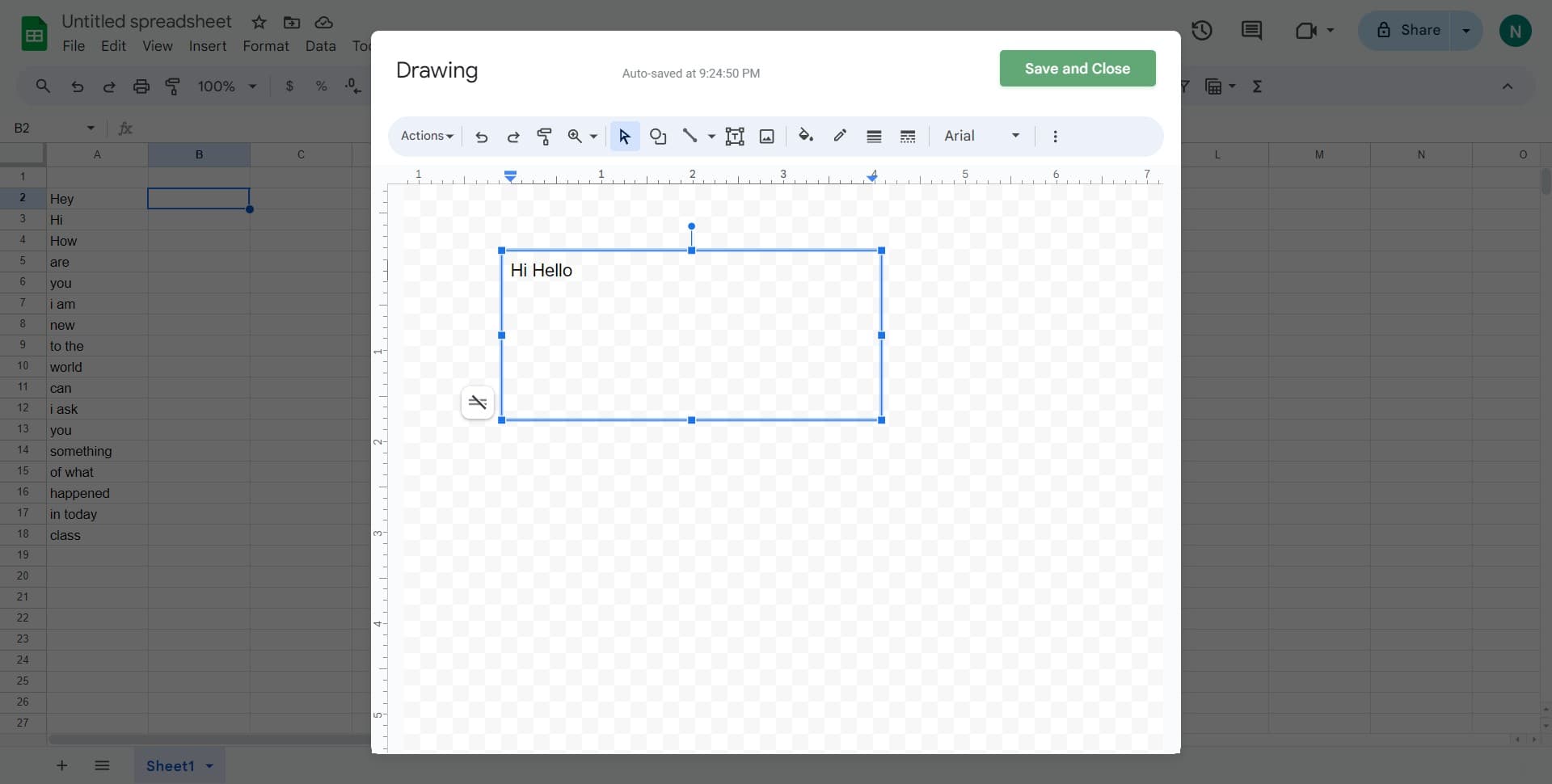
Click on 'Save and Close' to apply your text box to the spreadsheet. The drawing will be inserted as an object that you can move and resize as needed.
- 6
Position the text box
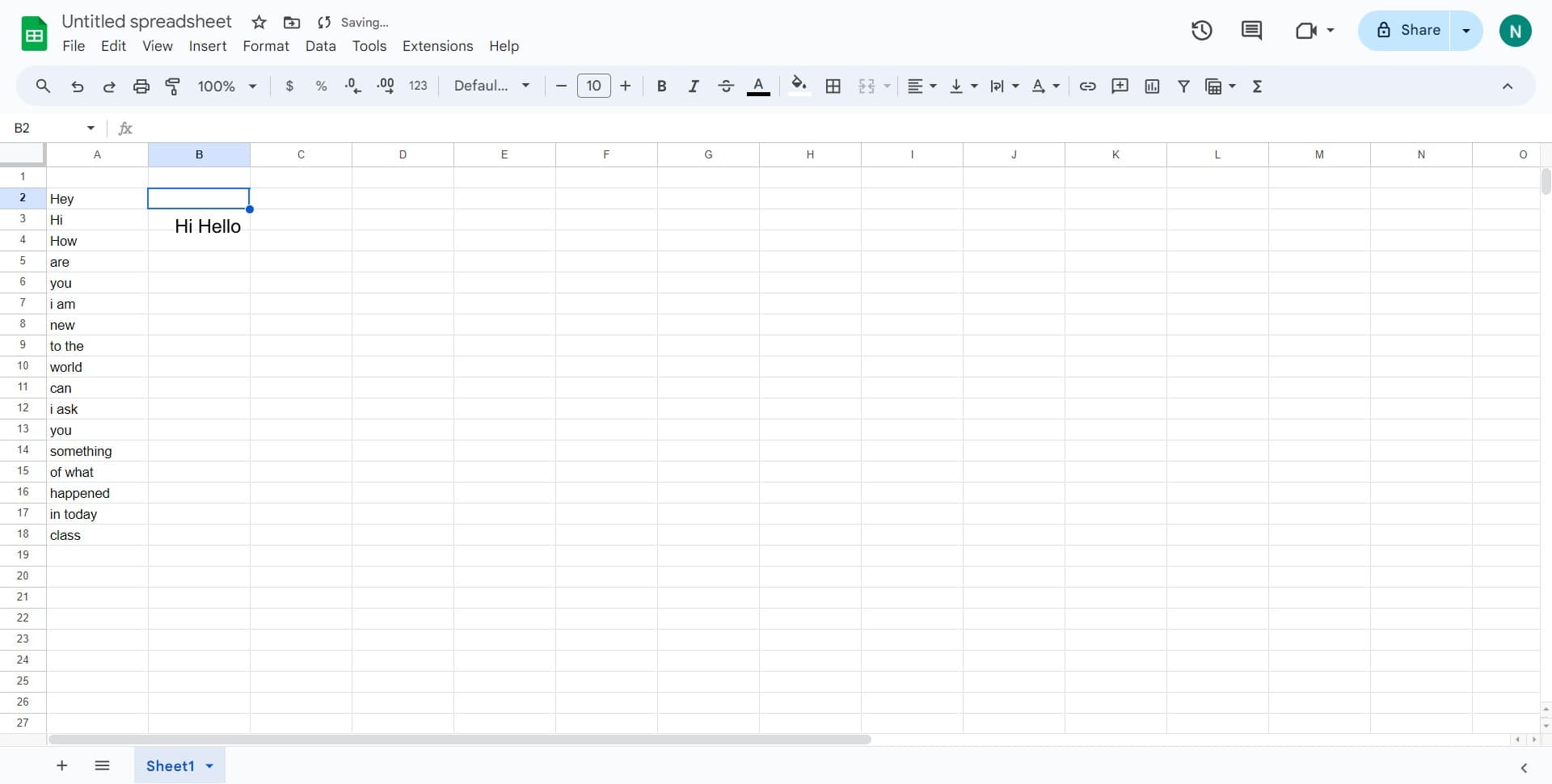
Click and drag the text box to place it exactly where you want it on your spreadsheet. You can position it over cells or in blank areas.
- 7
Adjust if needed
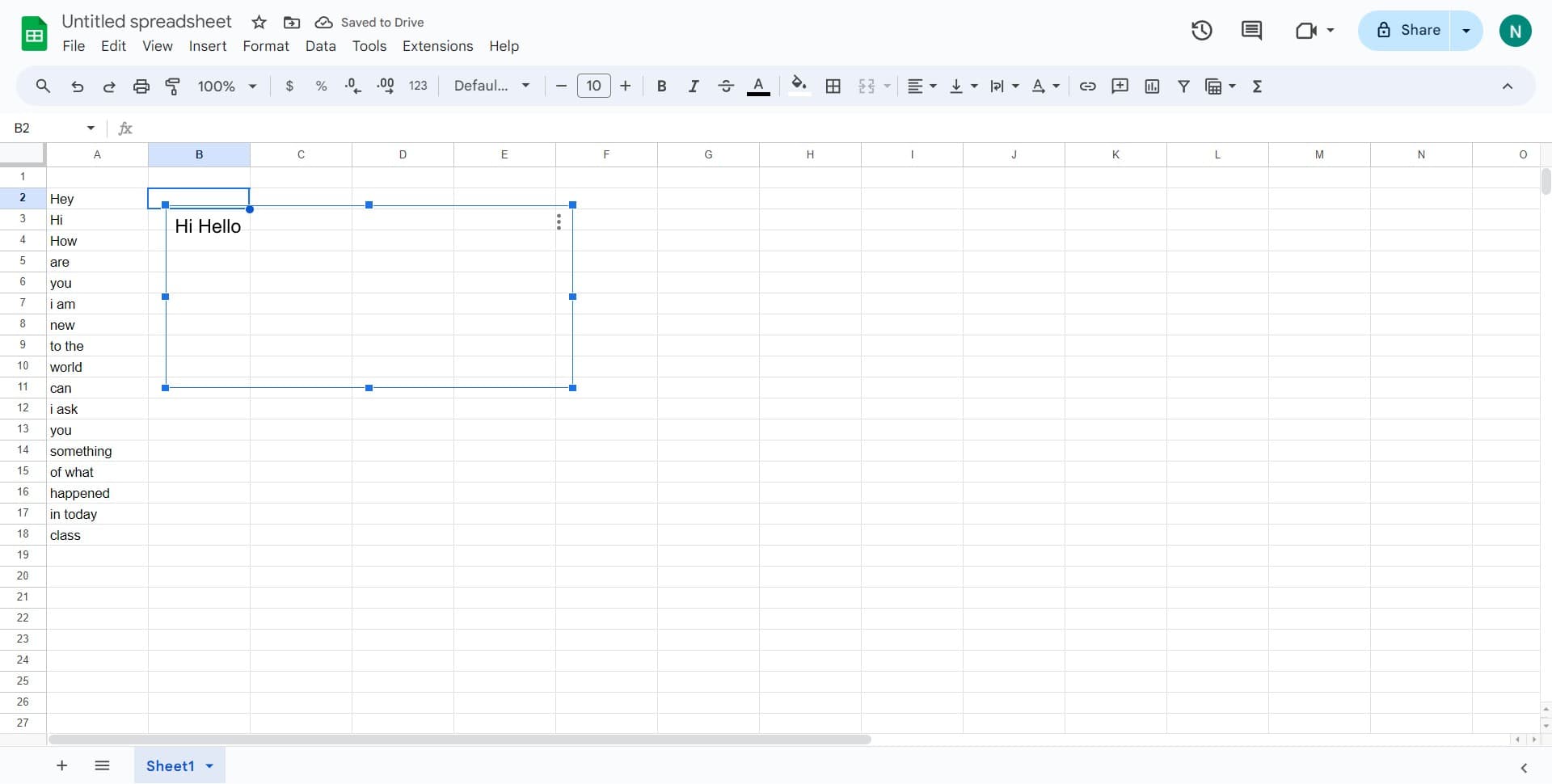
Click on the text box again to make any final adjustments to its position, size, or formatting. Once you're satisfied, click elsewhere to deselect it.
Frequently asked questions
Common questions about how to add a text box in google sheets.
Yes, you can format text within a text box by selecting the text and using formatting options in the drawing toolbar, including font, size, color, and bold or italic styles. These formatting options are available while you're in the drawing editor before saving.
Absolutely. Once the text box is added to your spreadsheet, you can click on it to select it, then drag it to a new location or press Delete to remove it. You can also double-click it to edit the text content at any time.
Text boxes are visible objects on your spreadsheet that anyone viewing the sheet can see immediately, while comments are hidden until someone hovers over the comment indicator. Text boxes are better for permanent annotations and visual enhancements, whereas comments are useful for private notes or feedback.
Yes, you can resize a text box by clicking on it to select it and then dragging any of the corner or edge handles. This allows you to make the text box larger or smaller to fit your needs.
Yes, text boxes work seamlessly in shared Google Sheets. Multiple collaborators can see and edit text boxes in real-time, and changes will be reflected for all viewers. You can also use the version history feature to track changes made to text boxes.