How to Connect Typeform to Google Sheets

Connecting Typeform to Google Sheets automates data collection by sending form responses directly to a spreadsheet. This integration eliminates manual data entry and ensures your responses are organized and accessible in real time.
Quick summary
In this tutorial, you'll learn how to connect Typeform to Google Sheets using Zapier or native integrations. By the end, your form responses will automatically populate a Google Sheet, creating a centralized repository for your data.
Why this matters
Automating form-to-spreadsheet workflows saves time and reduces errors associated with manual data transfer. Teams can analyze responses immediately, collaborate on insights, and maintain a single source of truth for all collected information.
Step-by-step guide
- 1
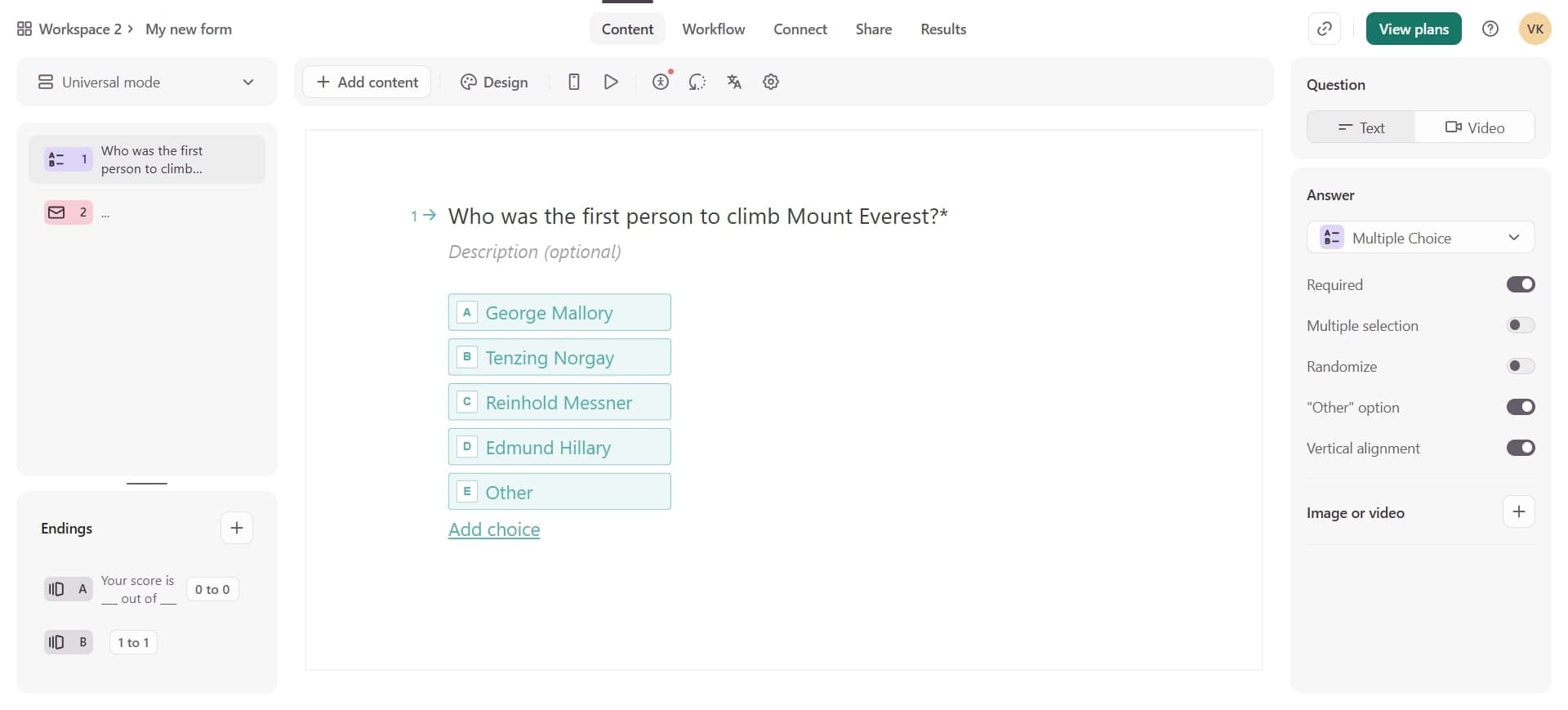
Open Typeform and select your form
Log into your Typeform account and choose the form you want to connect to Google Sheets. You'll see the form's dashboard with all available options and settings.
- 2
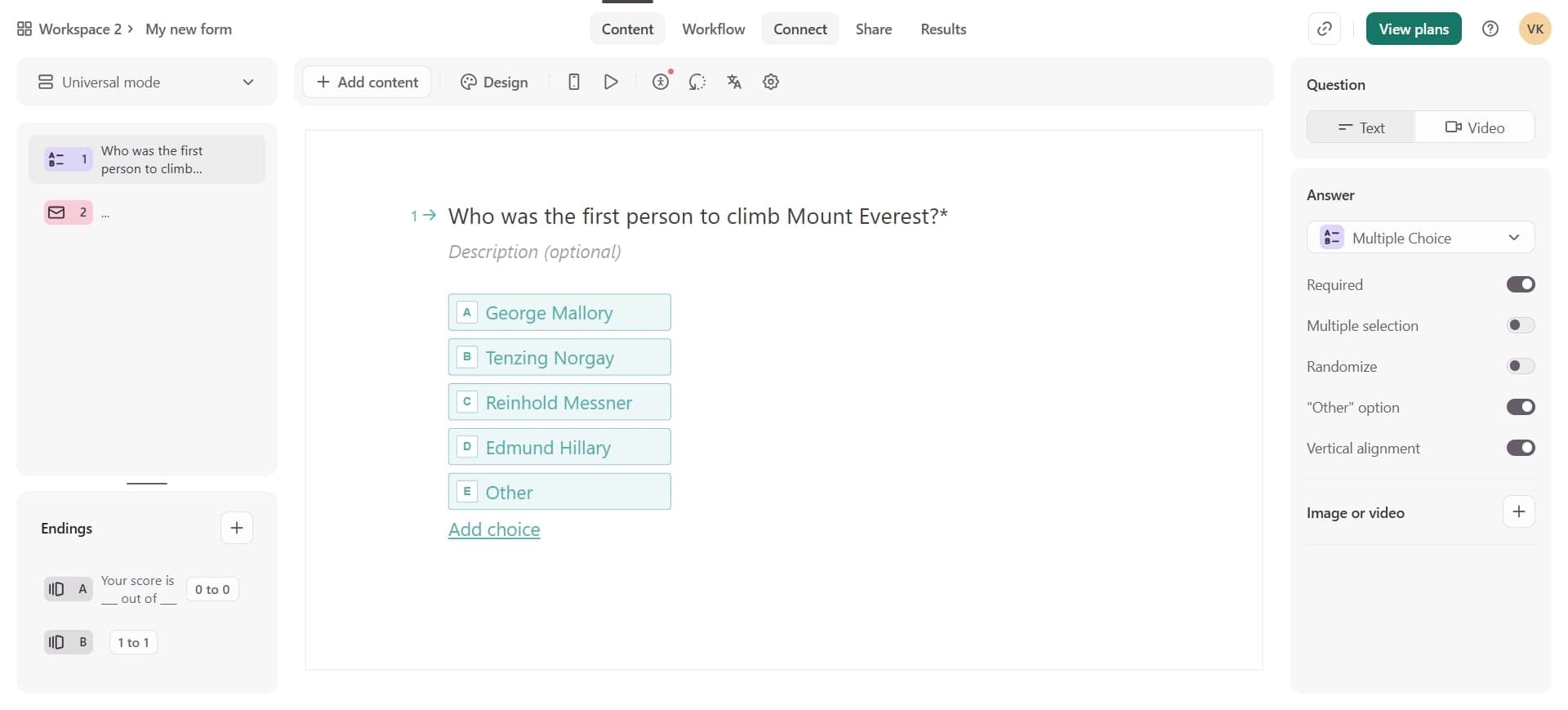
Navigate to the integrations section
Click on the 'Integrate' or 'Connect apps' option in your form's menu. This section displays all available third-party integrations and connectors.
- 3
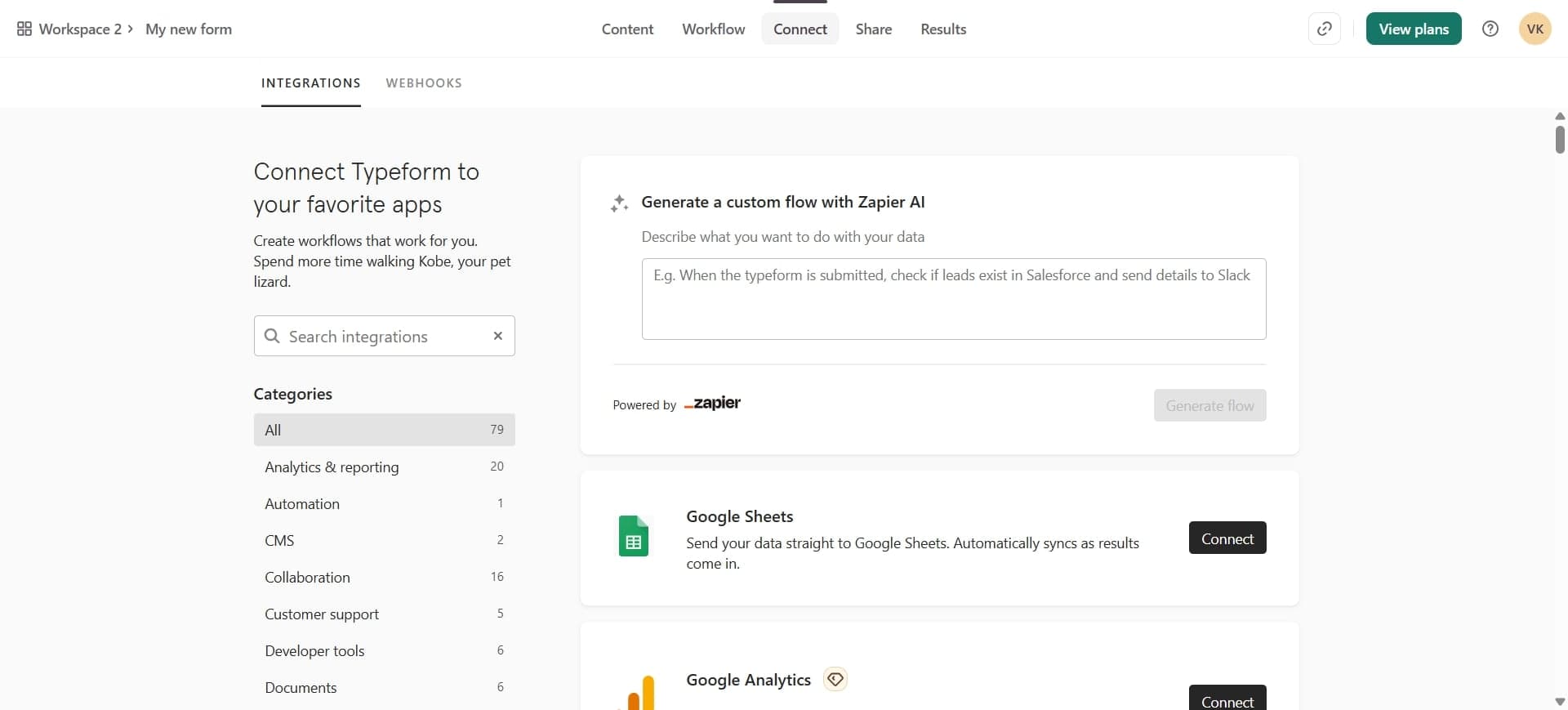
Search for Google Sheets integration
Look for Google Sheets in the integration marketplace or use the search bar to find it quickly. Click on the Google Sheets option to view integration details.
- 4
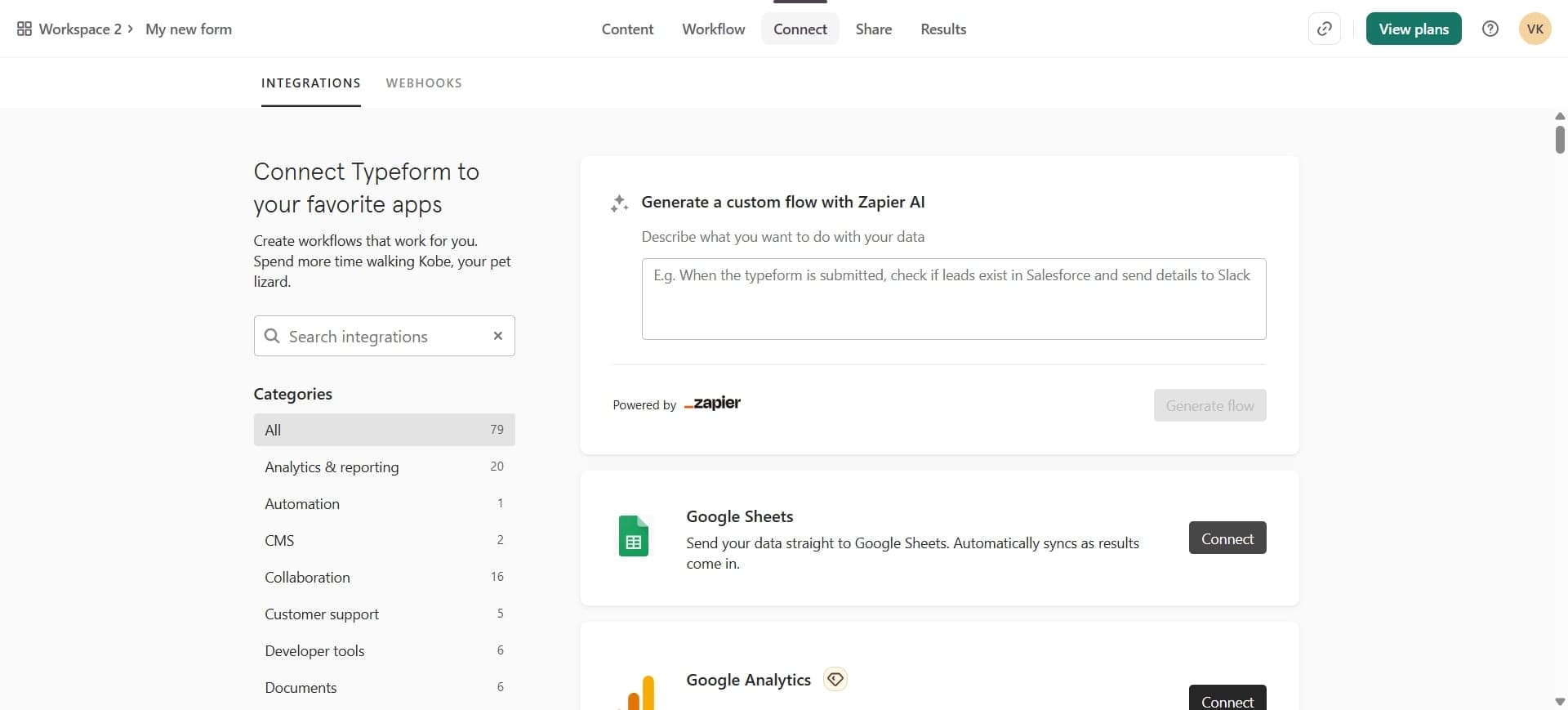
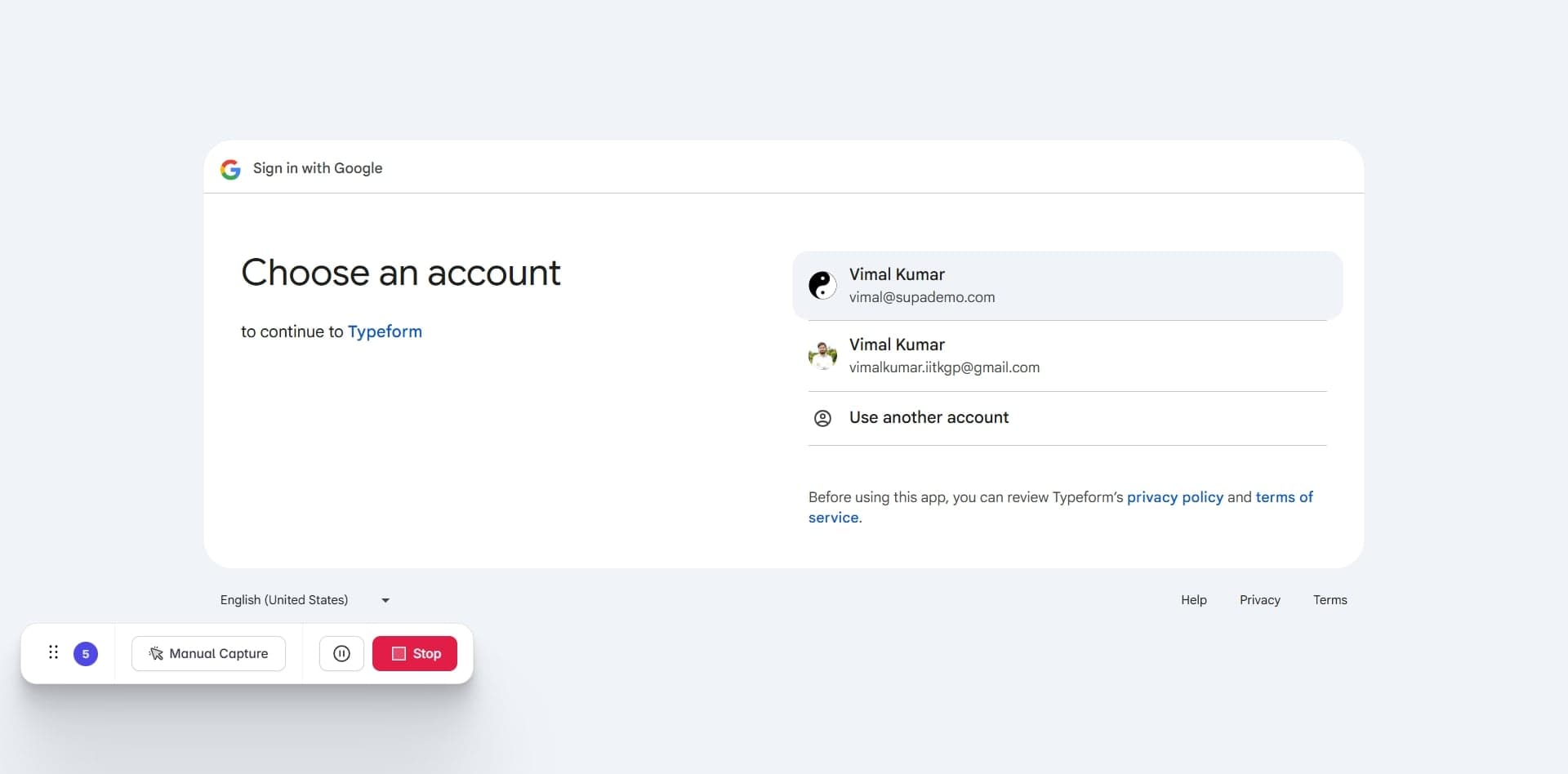
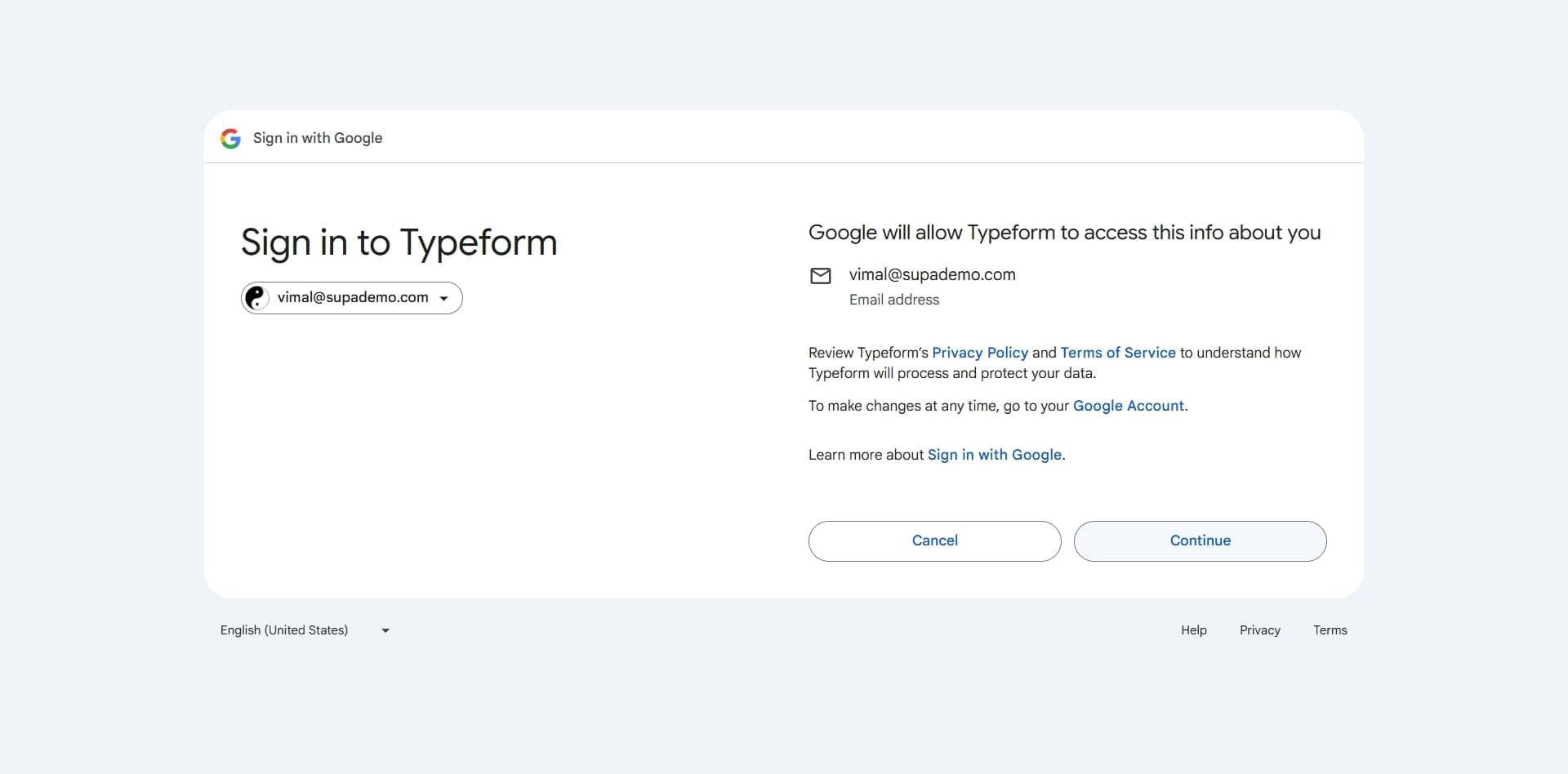
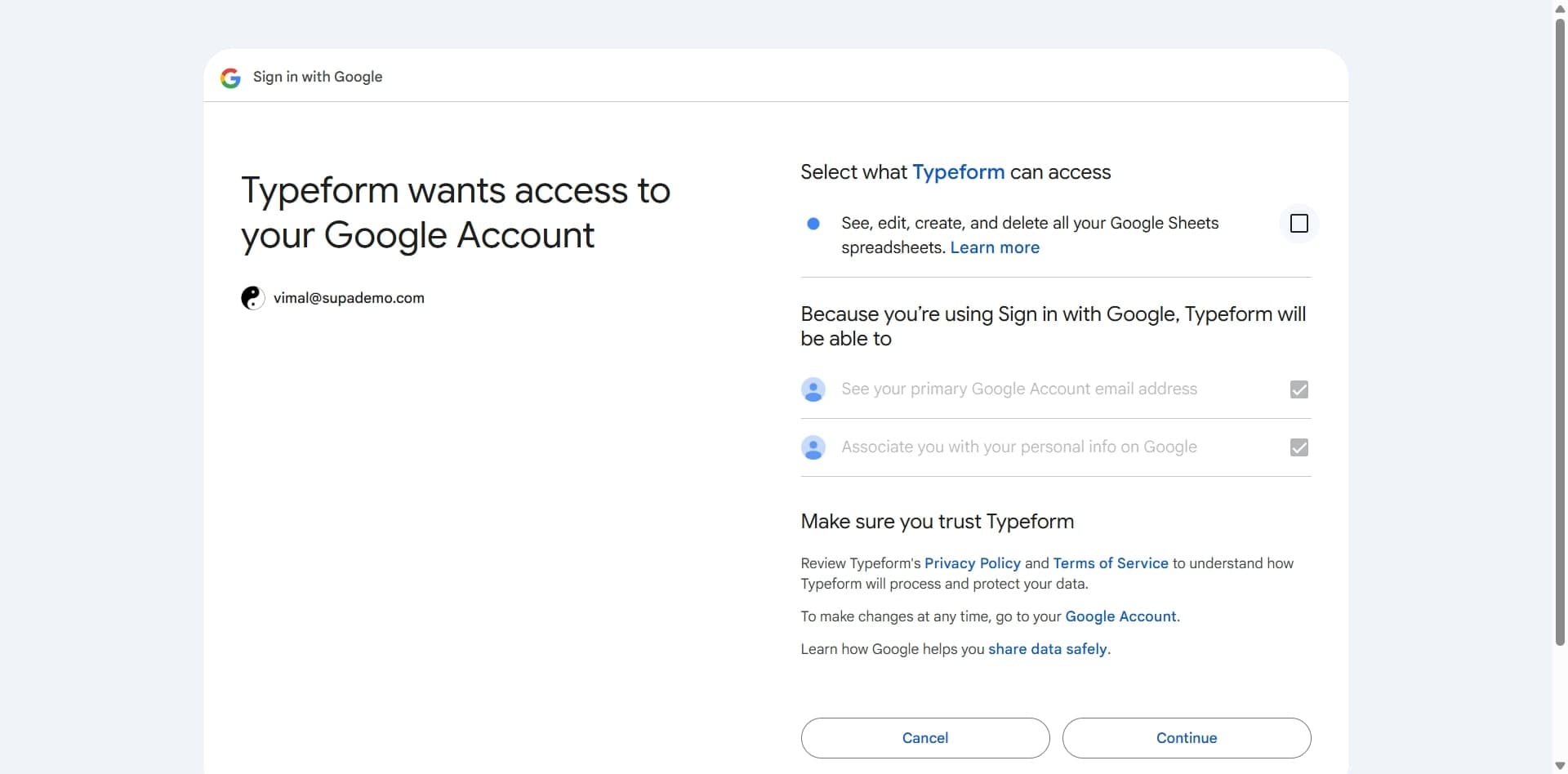
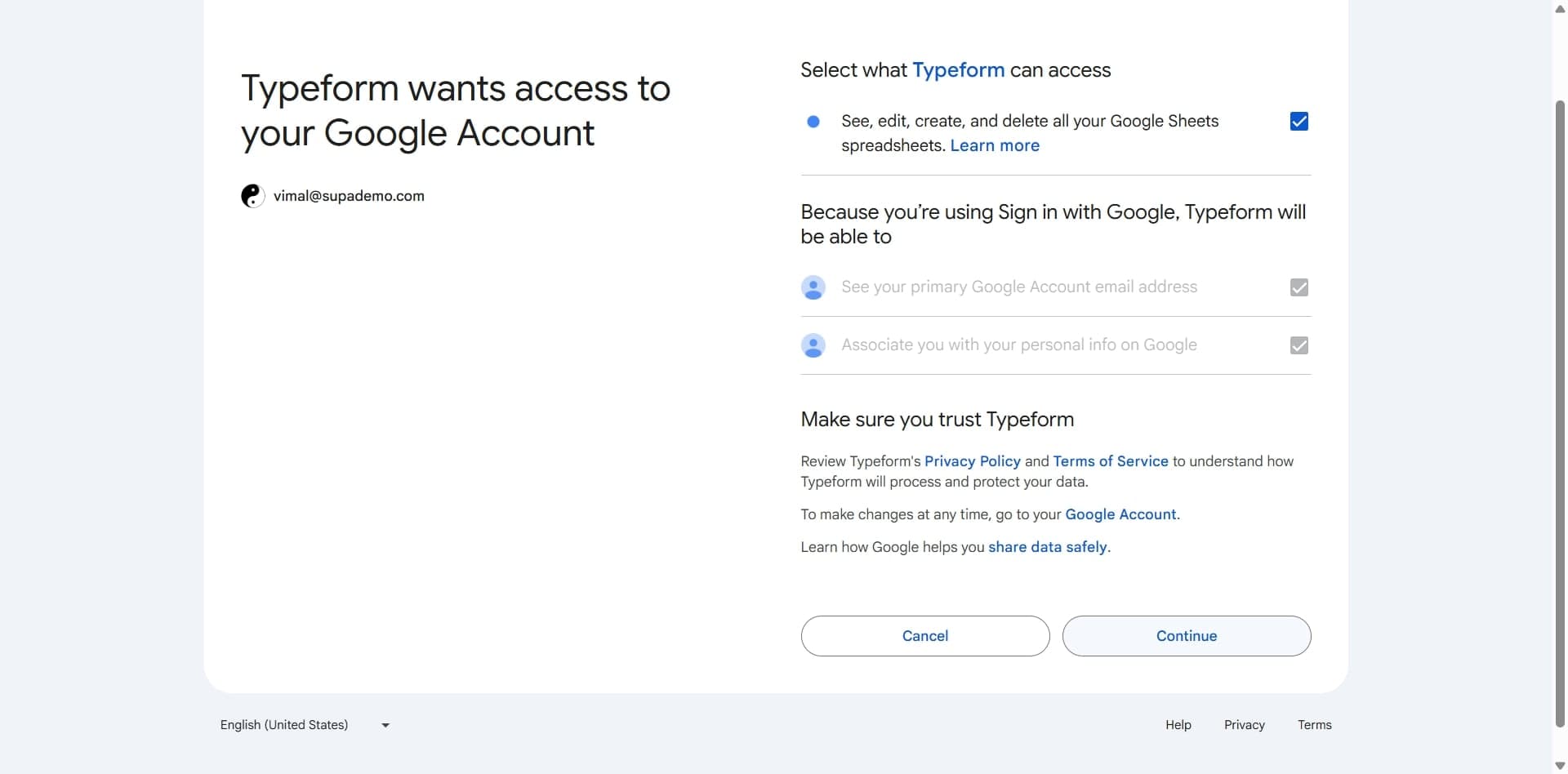
Authorize Typeform to access Google Sheets
Click the 'Connect' or 'Authorize' button and sign in with your Google account. Grant Typeform the necessary permissions to create and modify spreadsheets on your behalf.
- 5
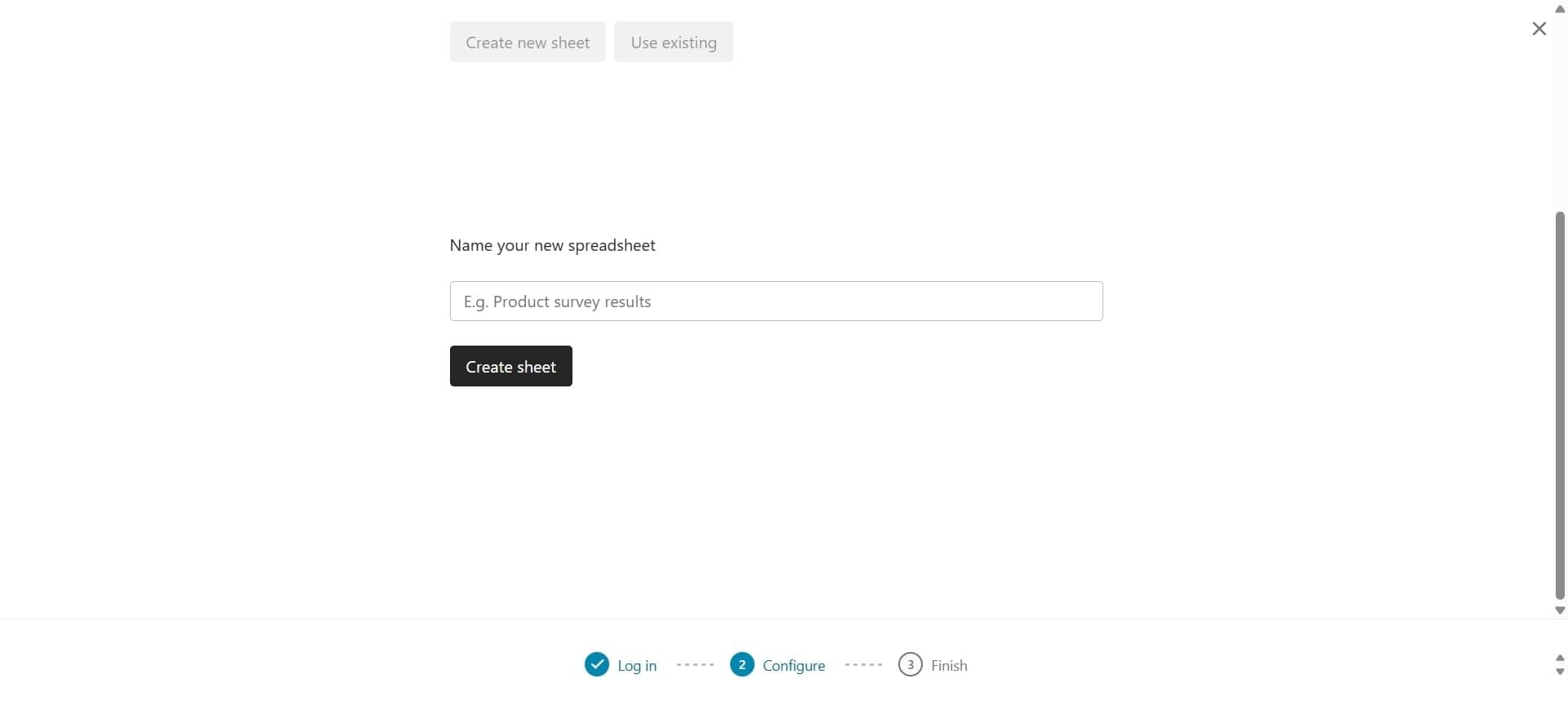
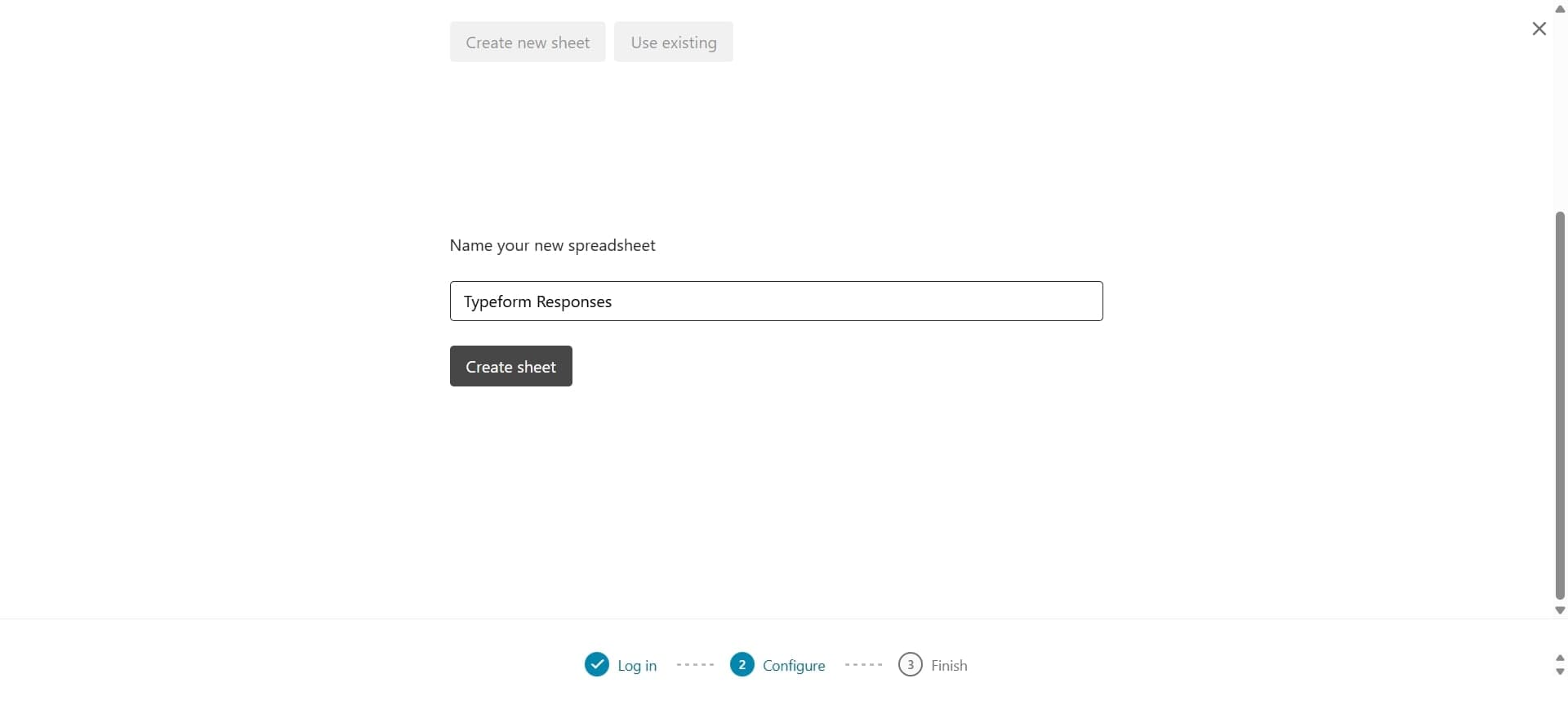
Select or create a Google Sheet
Choose an existing Google Sheet from your Drive or create a new one for this integration. The system will use this sheet to store all incoming form responses.

- 6
Map form fields to spreadsheet columns
Match each Typeform field (name, email, message, etc.) to the corresponding column in your Google Sheet. Ensure the mapping is correct so responses land in the intended columns.
- 7
Configure response settings
Choose whether to include timestamps, question IDs, or other metadata in your spreadsheet. These settings help you organize and filter responses effectively.
- 8
Test the integration with a sample response
Submit a test response through your Typeform to verify the connection is working. Check your Google Sheet to confirm the data appears in the correct columns.
- 9
Enable automatic response capture
Activate the integration so all future form submissions are automatically added to your Google Sheet. Turn on any additional features like real-time updates or duplicate prevention.
- 10
Set up optional filters or conditions
If using Zapier or similar tools, add filters to capture only specific responses based on answer criteria. This helps keep your sheet organized by sending only relevant submissions.

- 11
Review and finalize the connection
Double-check all settings, field mappings, and permissions are correct before finalizing. Save your integration configuration so it remains active for all future responses.
- 12
Monitor responses in your Google Sheet
Open your connected Google Sheet to view incoming form responses in real time. Use sheets features like sorting, filtering, and charts to analyze your data.
- 13
Troubleshoot connection issues if needed
If responses aren't appearing, verify that authorization is current and field mappings are correct. Refer to Typeform's help documentation or reconnect the integration if problems persist.

Frequently asked questions
Common questions about how to connect typeform to google sheets.
Typeform offers a native integration with Google Sheets that doesn't require Zapier for basic functionality. However, Zapier can provide additional customization options like conditional logic and multi-step workflows if you need more control over how data is processed.
No, the integration typically captures only new responses submitted after the connection is activated. If you need to include historical data, you'll need to manually export previous responses from Typeform and import them into your Google Sheet.
Native Typeform integration syncs responses in real time or near-real time, usually within seconds of form submission. If using Zapier, sync speed depends on your Zapier plan, though most plans update within minutes.
Yes, you can edit column headers and formatting in your Google Sheet after the integration is active. However, changing the original field mappings may require reconnecting the integration to ensure new responses still flow to the correct columns.
If you revoke Typeform's access or change sheet ownership, the integration will stop working and responses won't sync. You'll need to reconnect the integration and re-authorize Typeform to access the updated sheet.